Customize the standby screen of your SmartPanel or HyPanel with up to 9 personal photos, replacing the default screen saver.
Add New Photos
You can easily upload your favorite images.
Go to Wallpaper >
 > Add wallpaper.
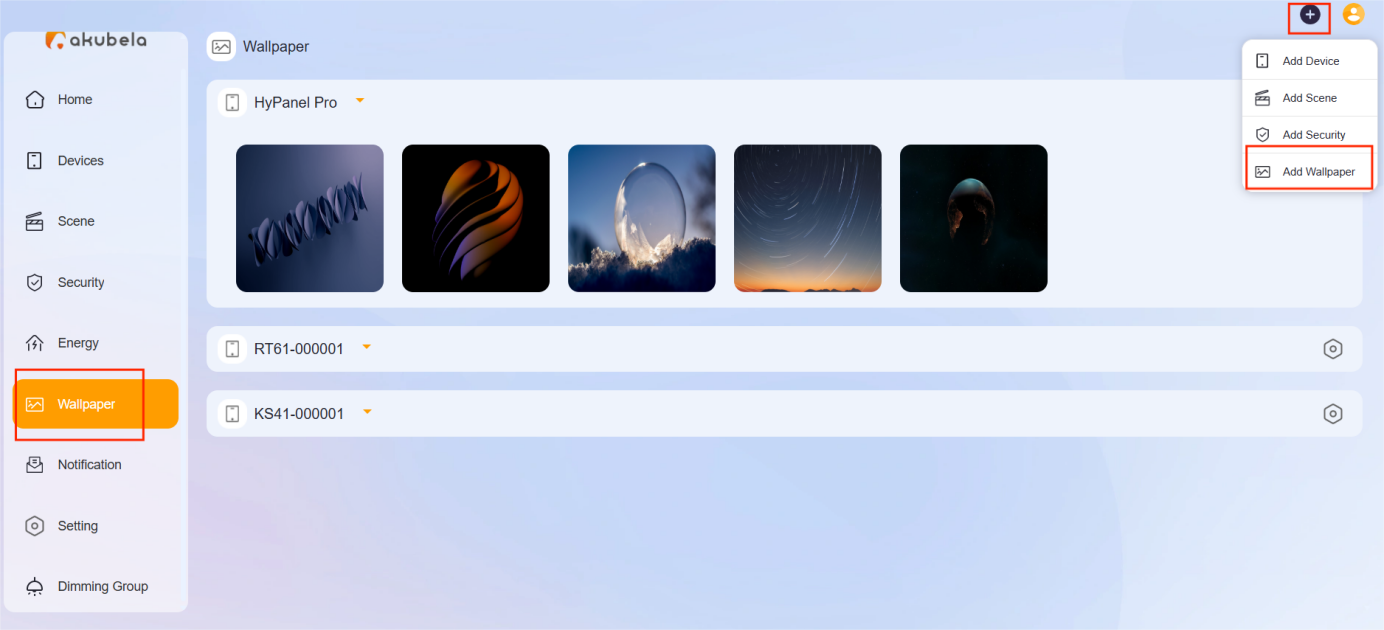
Choose an image from your computer.
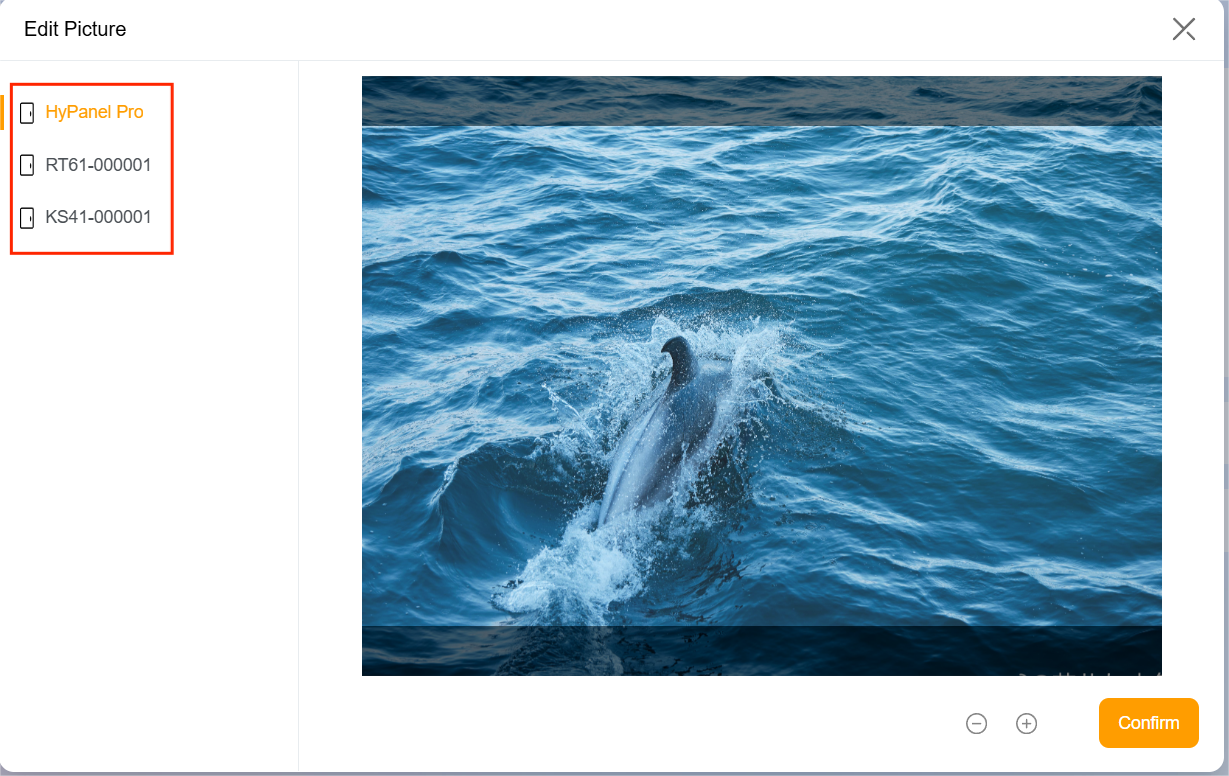
Select the panel to display the image, then click Confirm.
TIP:
If your HyPanel Pro is installed vertically, the cropping frame will automatically switch to vertical.
To display your uploaded photos, enable the screen saver on the panel and set the display style to Photo Wall.
Share Uploaded Photos with Other Panels
Photos uploaded to the Home Center can be shared with other panels of the same screen size.
NOTE:
This feature requires cloud connectivity.
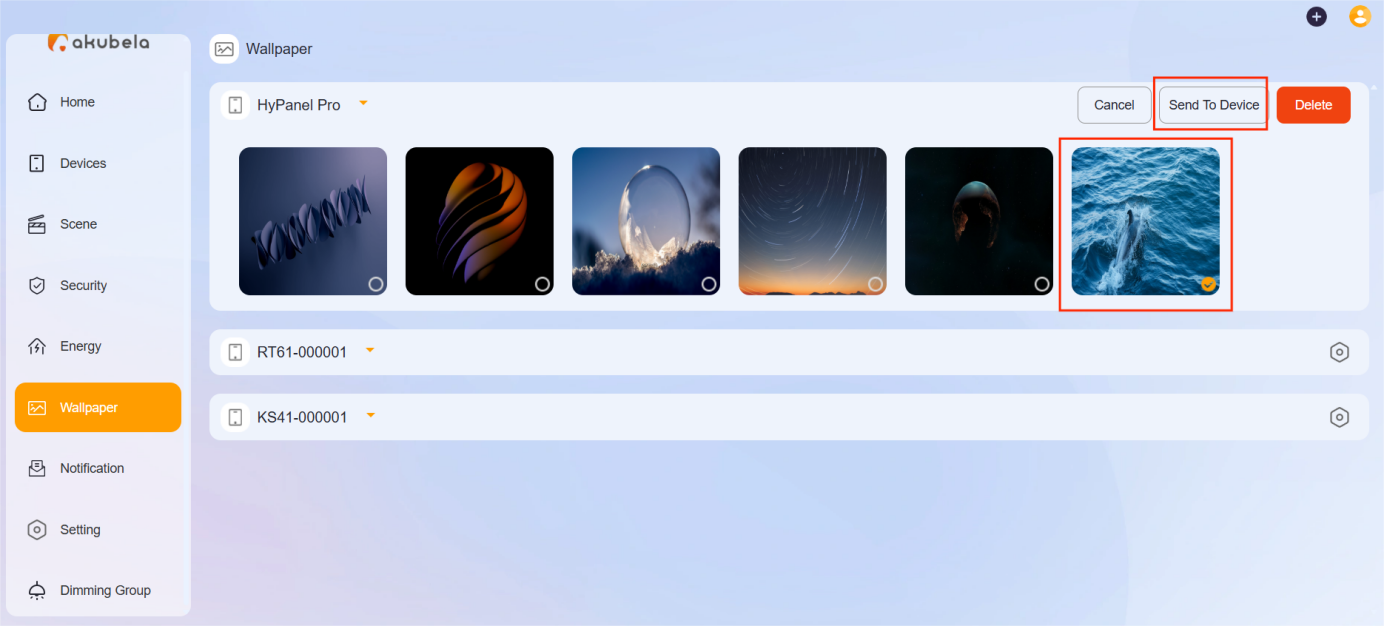
To share photos with other panels:
Go to Wallpaper >
 .
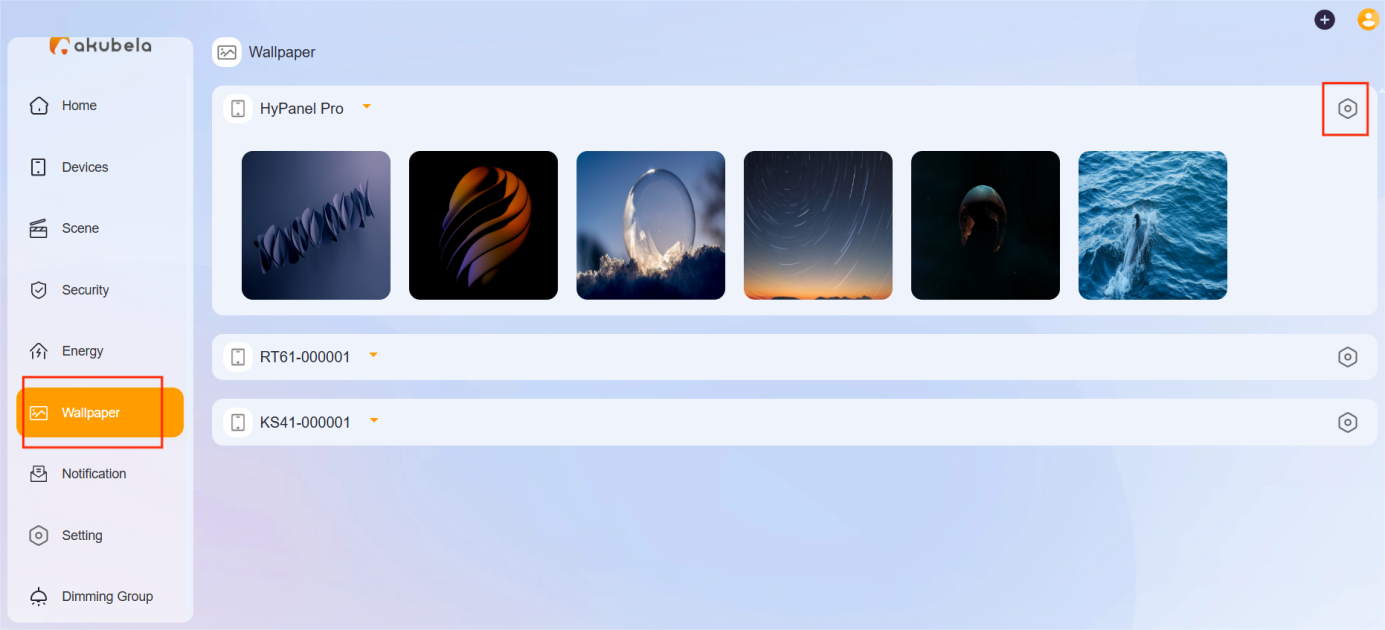
Select the desired photo and then click Sent to Device.
NOTE:
Make sure the screen saver is enabled and set to Photo Wall on the target panel.
Delete Photos
Deleting a photo from one does not remove it from the other.
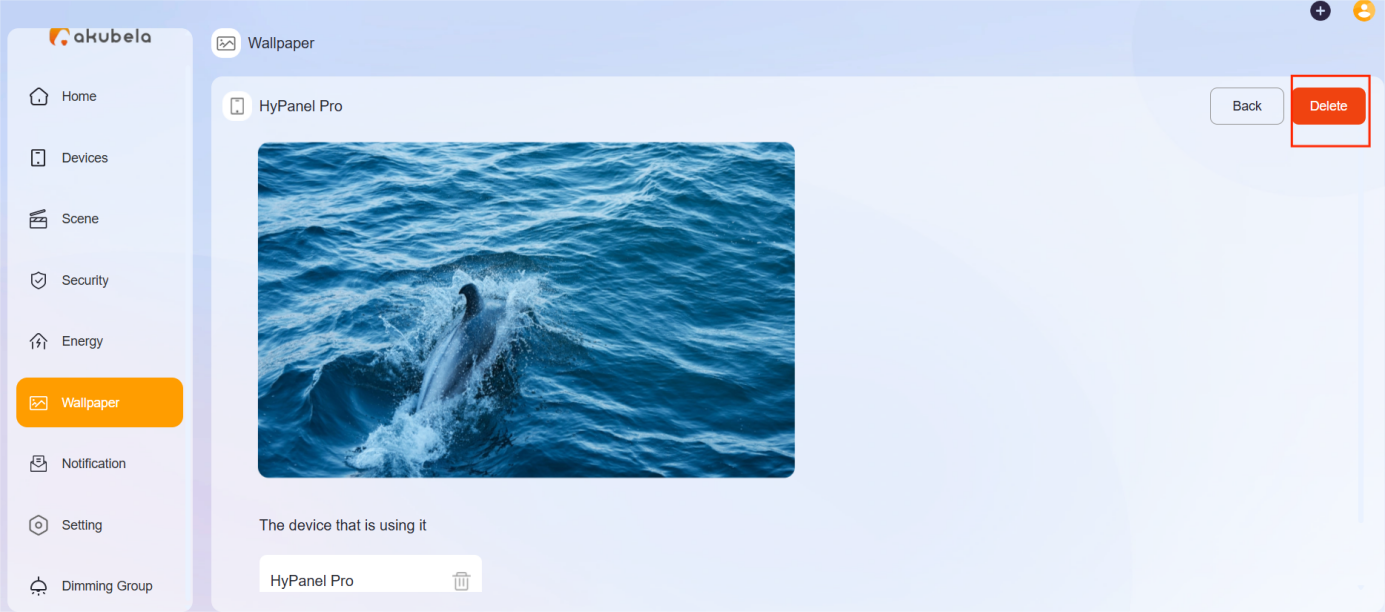
Click Wallpaper.
Select the image to be deleted.
Click Delete.