akubela has three types of user accounts, each with different permission levels:
Administrator (Only one per family)
Can log in to the user web portal
Has full access to all features and functions
Manages family data
Manages family member accounts
Manager
Accesses all available features and functions
Manages general member accounts
General member
Can use available features like controlling devices and scenes
Cannot add new devices or scenes, or change existing settings
Administrator Account
Only the family administrator can manage member accounts, including updating information, changing permissions, transferring the administrator role, and more.
Change Account Settings
Click
 in the upper right corner, then select My Account.
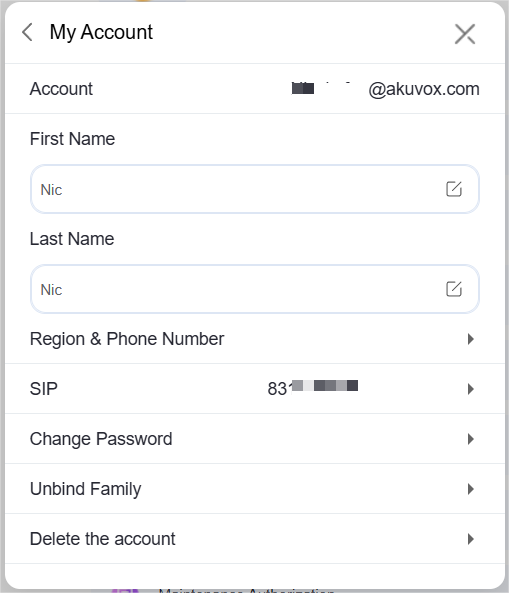
Modify your name.
Add or change your region and phone number.
Change your login password (Not available when the family is running without the cloud connection).
Unbind your account with the family, and give up all family-associated permissions (Not available when the family is running without the cloud connection).
Delete your account (Not available when the family is running without the cloud connection).
NOTE:
After you delete your account, you will not be able to sign in to BelaHome, and will lose all associated permissions. Before proceeding, you have to transfer the administrator rights to another family member.
Transfer Administrator Role
The administrator role is able to be transferred to another family member only when the family is running with the cloud connection.
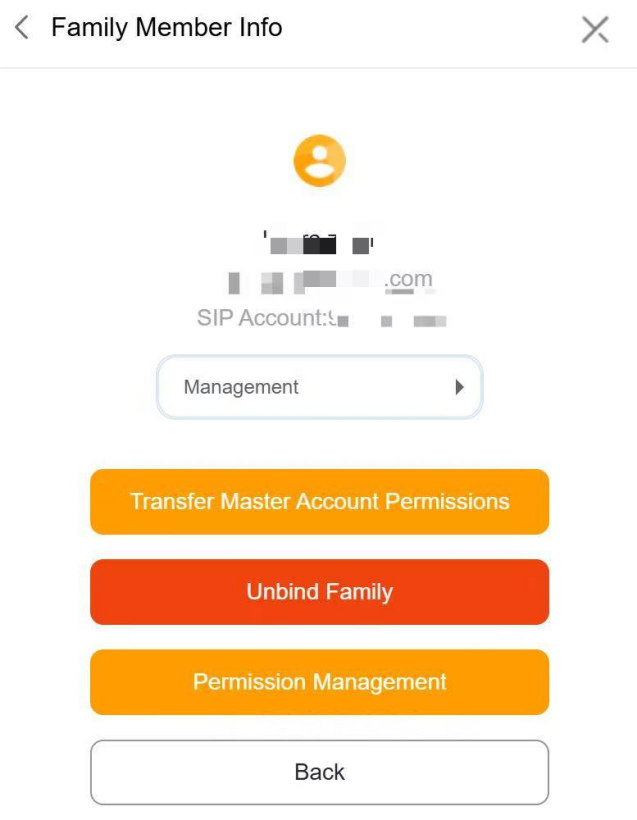
To transfer the administrator role to another member, go to  > Family Members > [your desired member] > Transfer Master Account Permissions and follow onscreen instructions.
Manage Family Member Accounts
Administrator account is able to create and manage management and general user accounts.
View Member Details
Click  in the upper right corner, and select Family Members. All the member accounts are listed here.
Add Member Accounts
The specific steps differ according to system’s Cloud connection modes.
Go to
 > Family Members >
 .
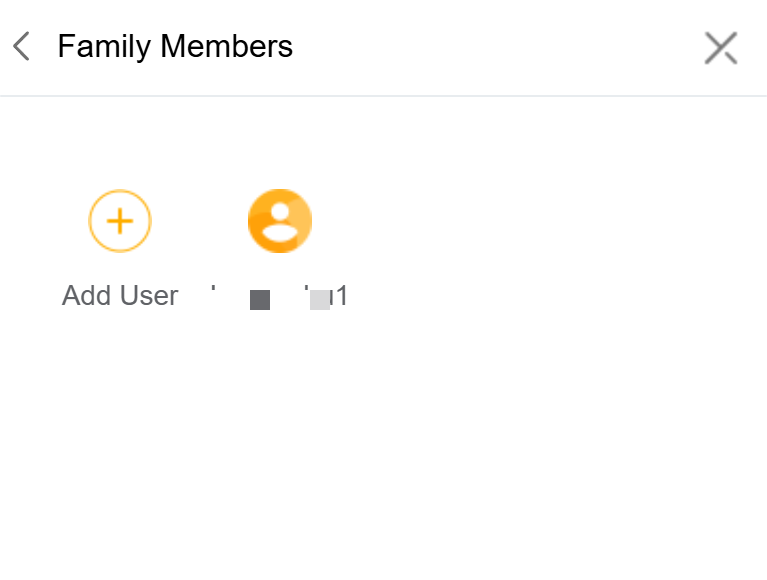
Enter the required information.
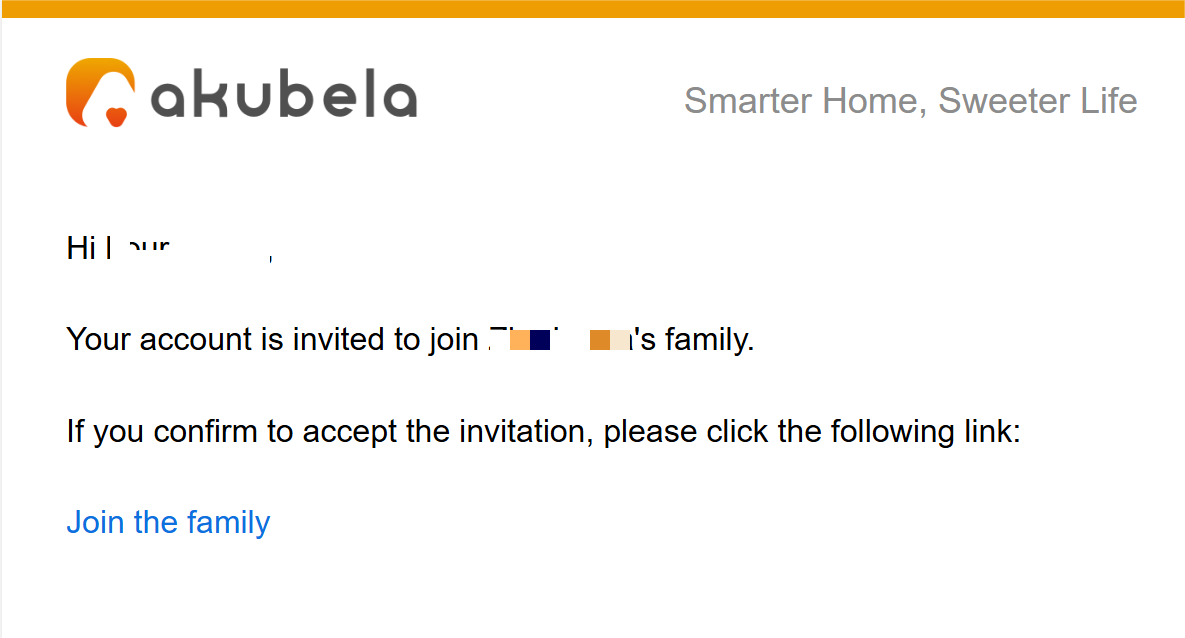
Members will receive a confirmation email when the home is connected to the cloud.
Manage Member Accounts
Go to
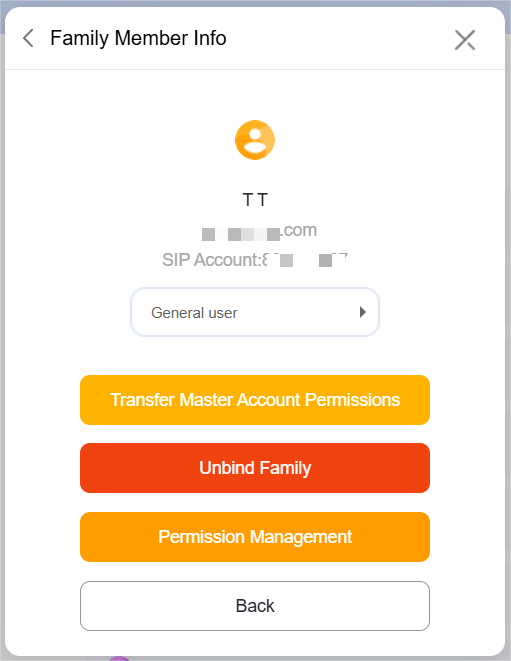
 > Family Members. Select the desired member account.
Do any of the following:
Click
 under the member’s name to change the account type.
Click
 to remove the account from your family. This immediately revokes their access to the home control via the BelaHome app.
Click
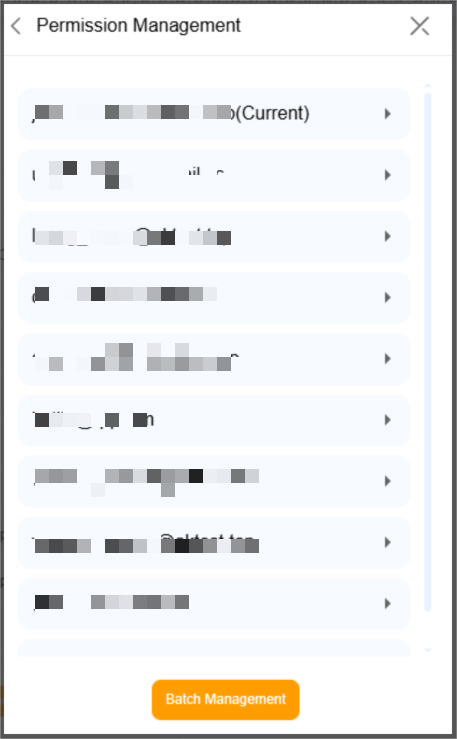
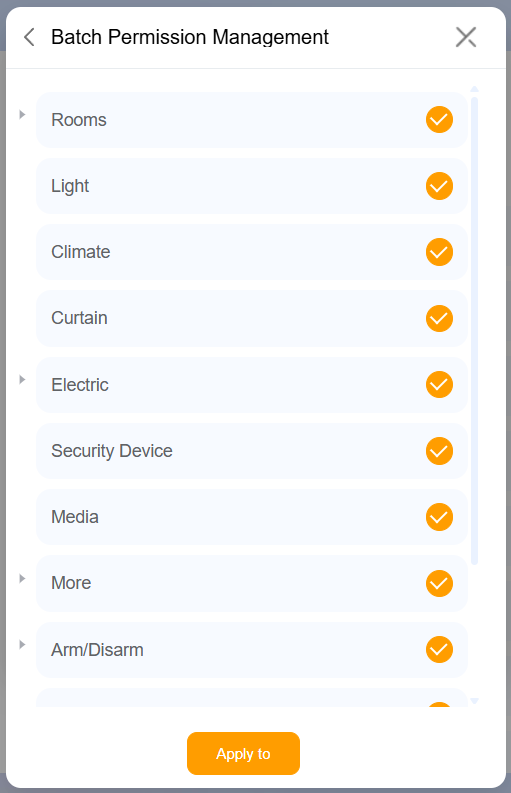
 to choose which rooms, device categories, or scenes are visible to this member, or sync these specific permission settings across all family member accounts at once for consistency.