You can control smart devices based on specific actions, events, schedules, or manual triggers.
Access Your Scenes
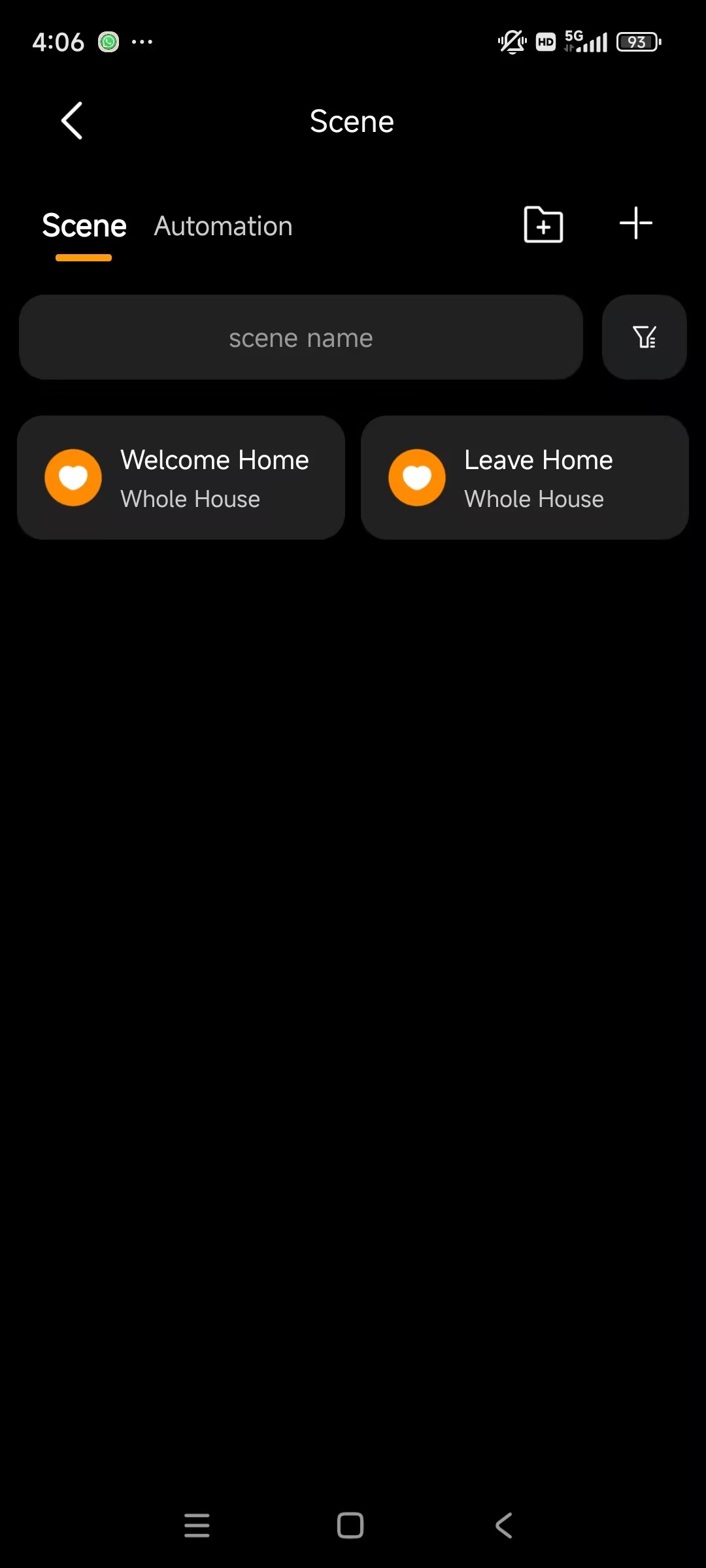
All created scenes are located under Me > Scene.
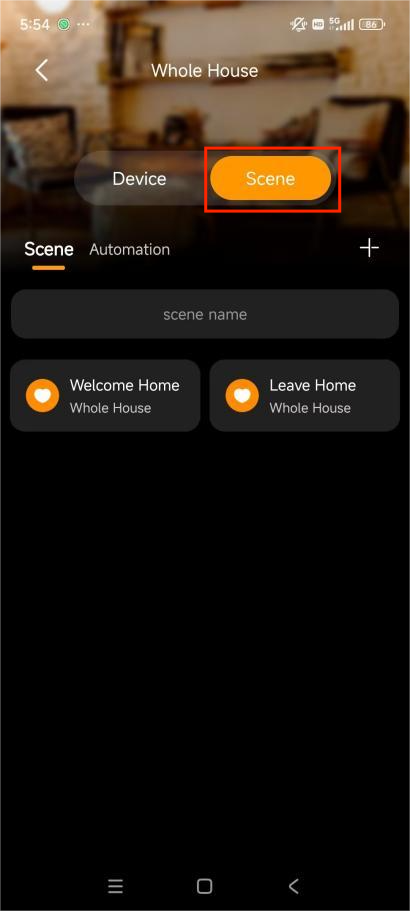
If you assign a scene to a specific space, it will also appear under Room > [selected room] > Scene.
Understand Scene Types
There are three ways a scene can behave, identified by their icons and execution methods.
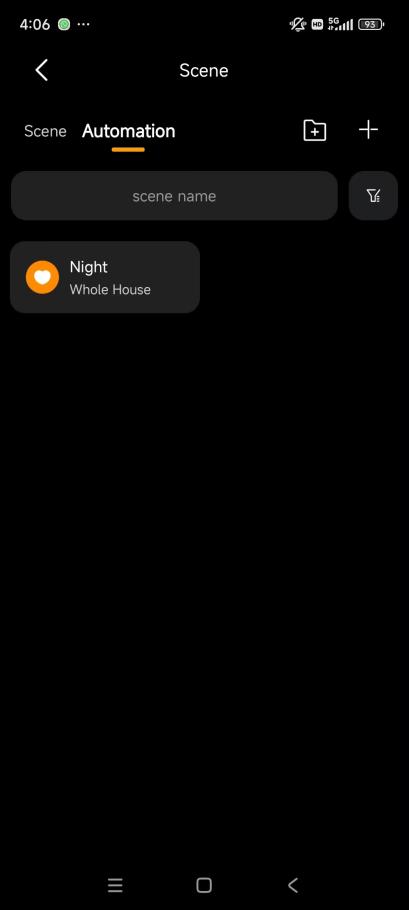
Auto scenes: Trigger automatically based on schedules or events. They are listed under Me > Scene > Automation.
NOTE:
Not displayed on HyPanel devices.
Manual scenes: Triggered manually by tapping the scene card. They are listed under Me > Scene > Scene.
Hybrid(Auto & manual) scenes: Can be triggered either automatically or manually. They are also listed under Me > Scene > Scene.
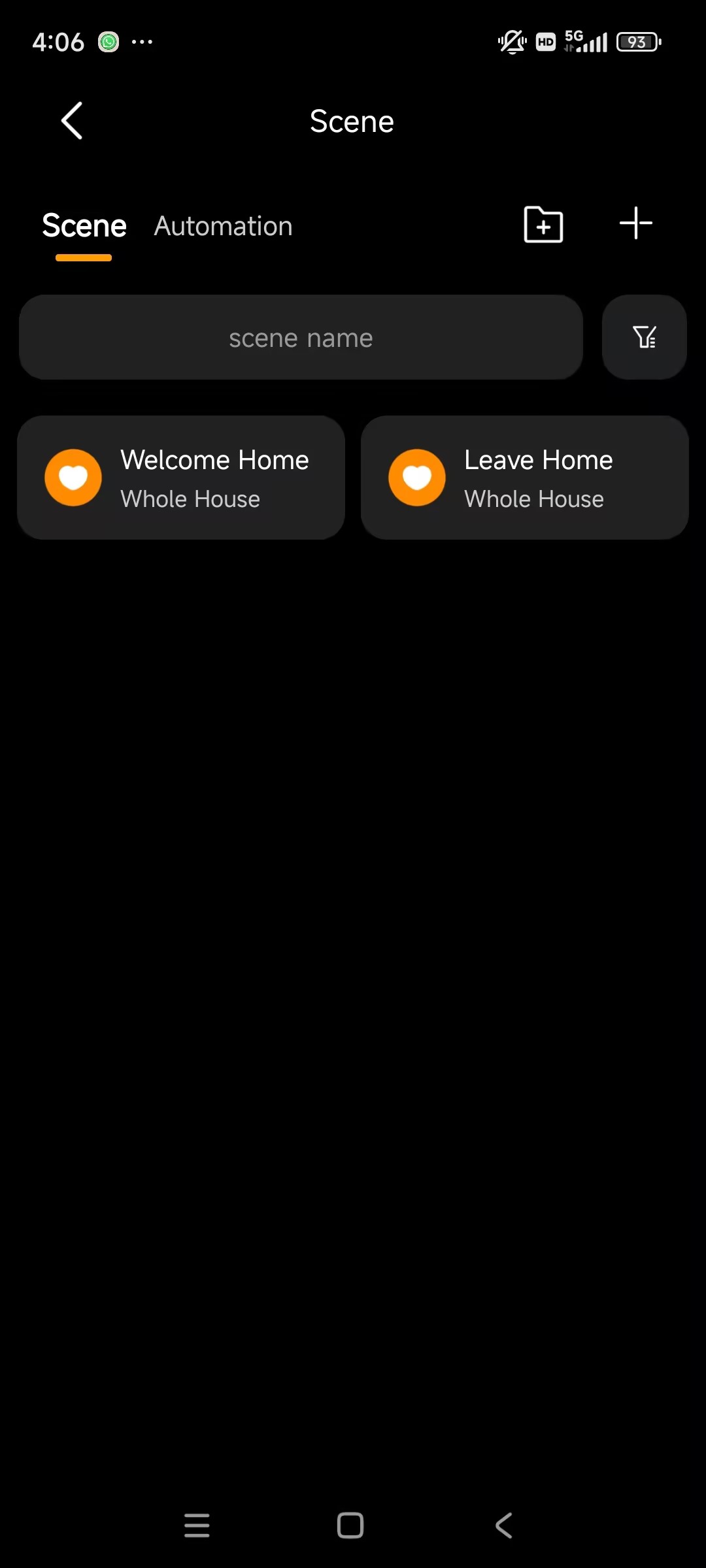
Create a Scene
A scene consists of trigger conditions and actions. When conditions are met, the defined actions are executed.
To create a scene, go to Me > Scene > + or Room > [specific room] > Scene > +, then:
Enter a scene name.
Select the trigger type (Auto or Manual).
Assign a room (optional, for easier organization).
Choose a scene icon.
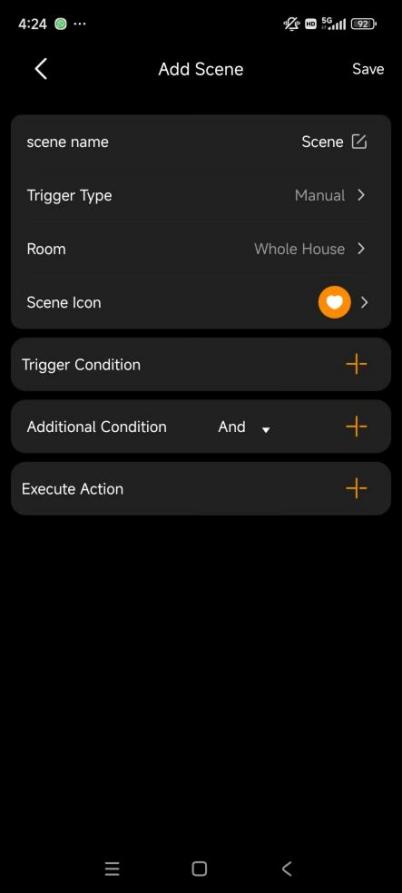
Add one or more trigger conditions. If you add multiple, the scene activates when any of them are met.
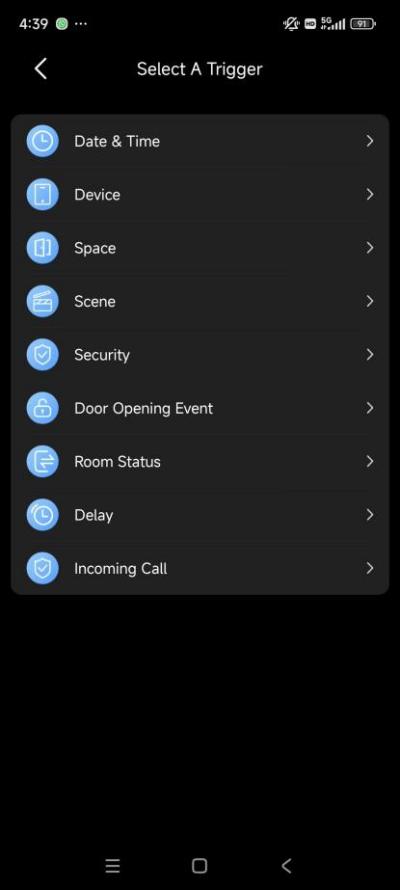
Date&Time: Run at a specific times and days.
Device: Trigger based on device actions (e.g., motion detected, door unlocked).
Space: Trigger based on conditions across a room.
Scene: Trigger when another scene runs or changes state.
Security: Trigger on arm/disarm or alarm events.
Door Opening Event: Trigger when specified users unlock a door using defined methods.
Room Status (Hotel project only) :Trigger on check-in/check-out status.
Delay: Trigger after a specified delay.
Incoming Call (Available only when the home center is running firmware version 4.0.1 or later): Triggered when an intercom call is received. To ensure activation, the intercom must be configured to call the Home Center directly or include it as part of a designated group call
(Optional) Add additional conditions.
Additional conditions are combined with the trigger conditions using AND logic by default. You can change this to OR logic if needed.
Within the additional conditions, you can also define whether individual conditions use AND or OR logic.
Set execute conditions.
NOTE:
Email notifications require users to have registered email addresses.
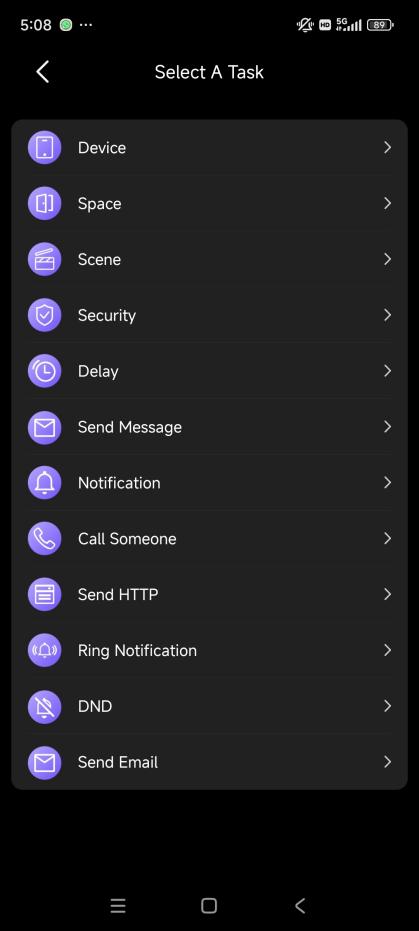
Activate Scenes
Auto Scenes: Run automatically when conditions are met.
Manual Scenes: Tap the scene card to activate.
TIP:
You can disable a scene via the user web portal to prevent it from running.
Check Scene Logs
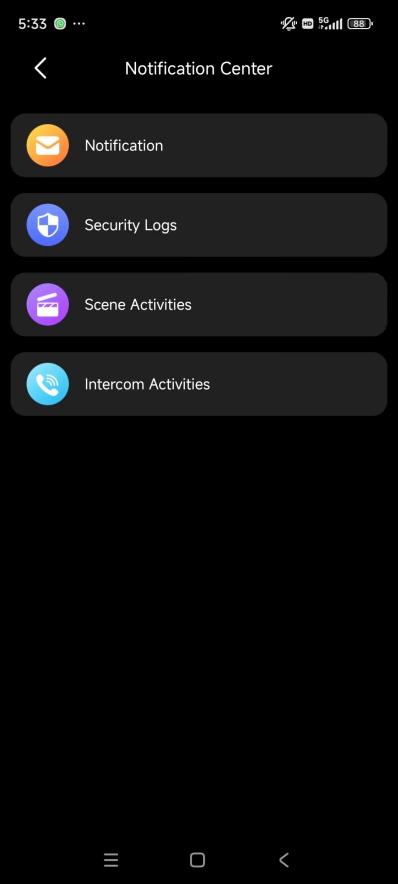
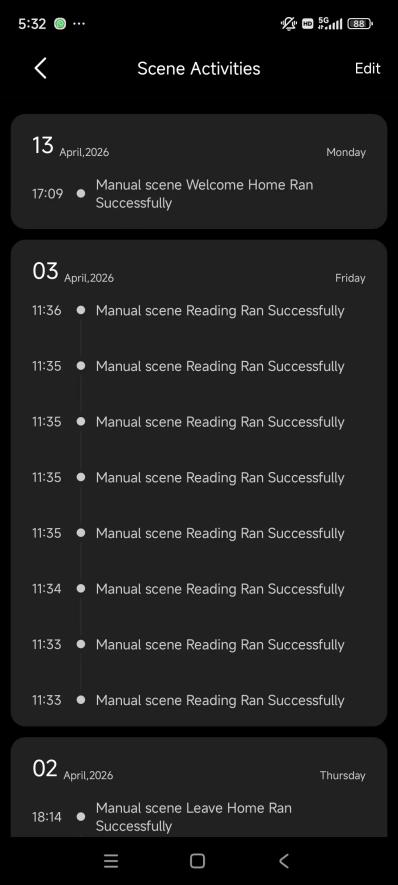
To view or manage scene activity logs, go to Home >  > Scene Activities.
Manage Scenes
Search for a Scene
NOTE:
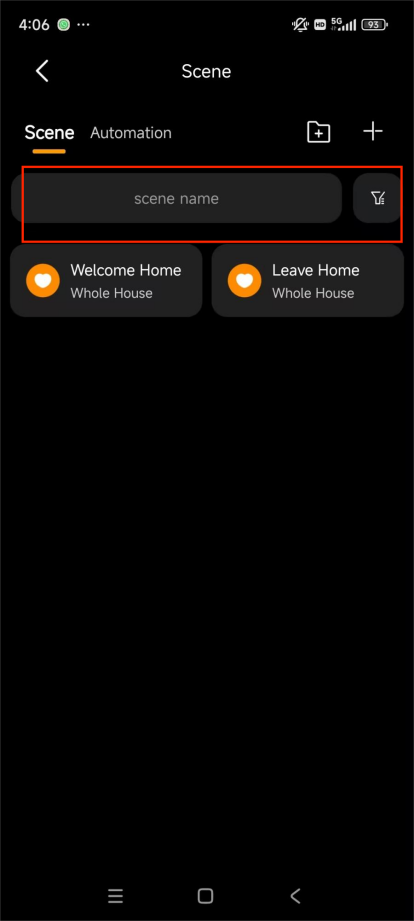
This feature is available only when the home center is running firmware version 4.0.1 or later.
Go to Me > Scene.
Enter the scene name in the search box.
Edit or Delete a Scene
Go to Me > Scene.
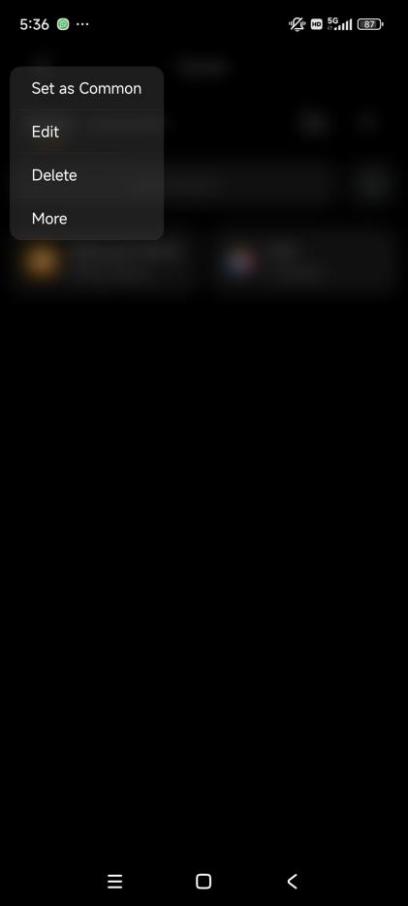
Find the desired scene card or folder, and long press it.
Select Edit or Delete.
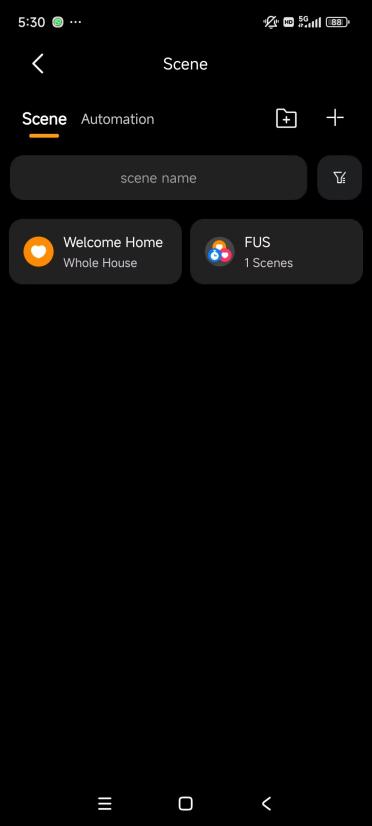
Add Scenes to a Folder
Keep your scene list tidy by grouping them into folders (e.g., "Security," "Lighting," or "Holiday").
Go to Me > Scene >
 .
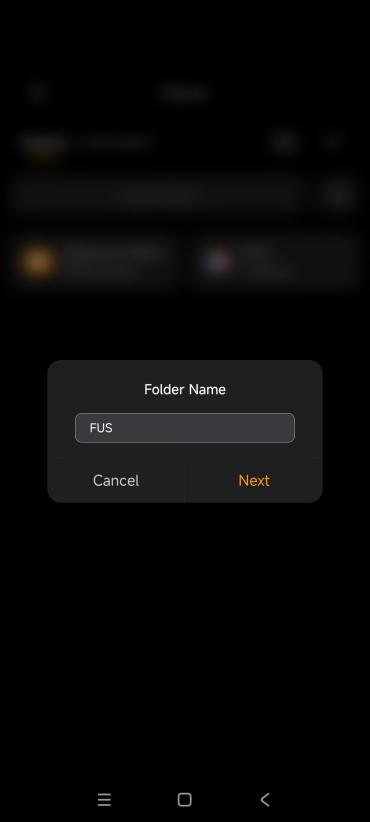
Name the folder, and tap Next.
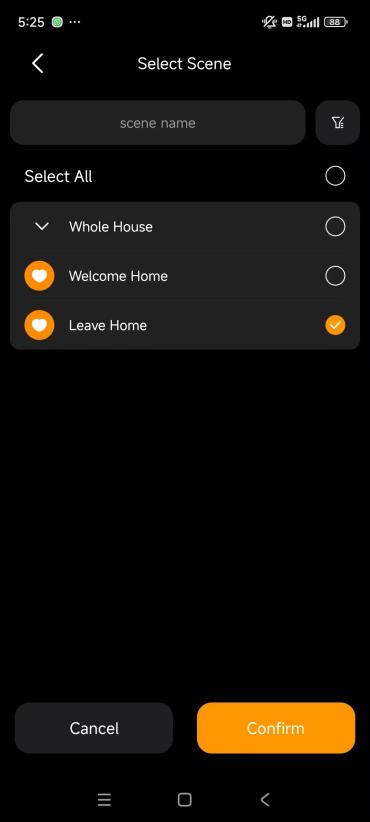
select the scenes to include.
Tap Confirm.
Add Scenes to Board
For scenes you use daily, add them to your Home screen for instant access.
Long-press a manual scene card under Me > Scene > Scene.
Select Set as Common or assign it to a custom board.
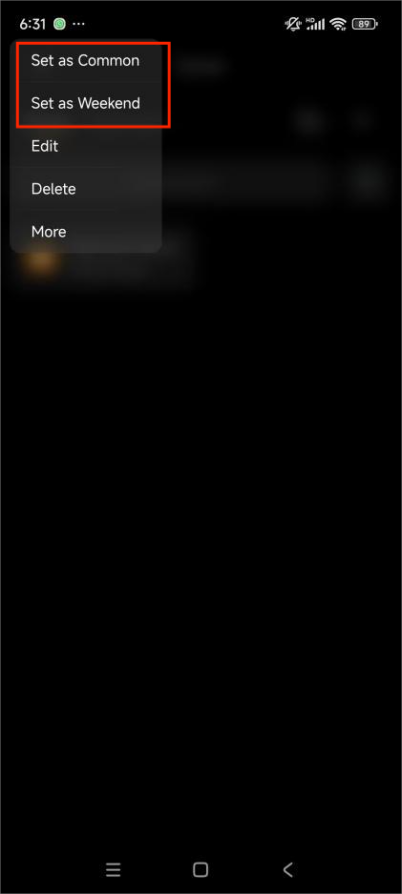
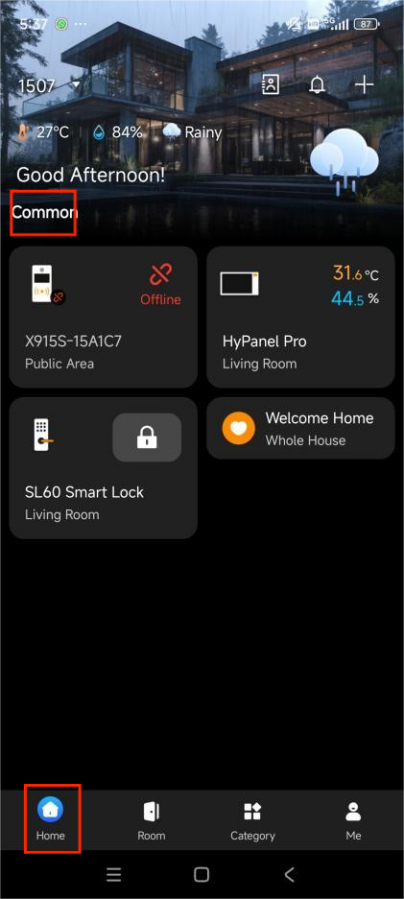
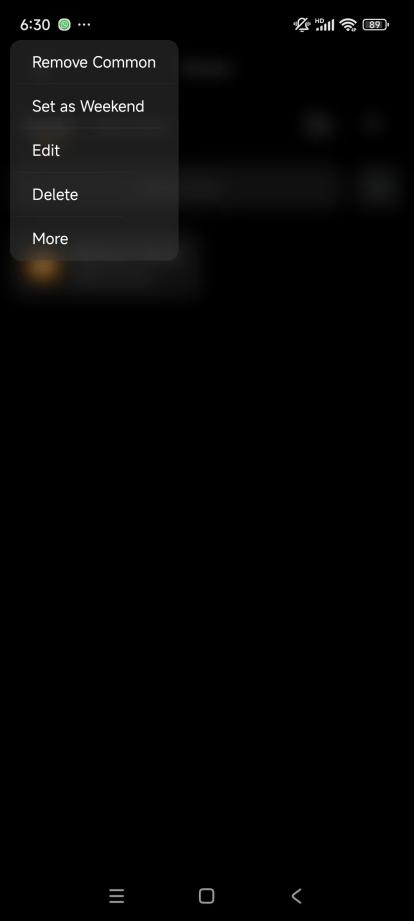
To remove, long-press the card again and select Remove Common or custom board.