On the Device
You can configure a variety of features of the screen display in terms of brightness, screen saver and font size, etc.
Set up the screen display on the Settings > Display screen.
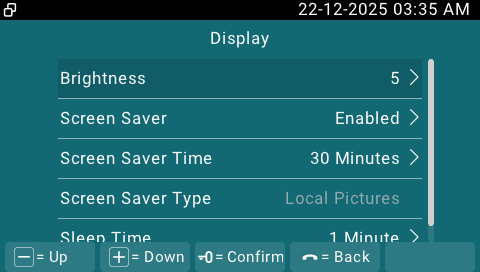
Brightness: Select the brightness value. The default is 5. The higher the value, the brighter the screen.
Screen Saver: Determine whether to display the screensaver when the device goes into sleep mode.
Screen Saver Time: The time for displaying the screensaver.
Screen Saver Type:
SDMC Pictures: Display pictures uploaded to the SDMC.
Local Pictures: Display pictures uploaded to the indoor monitor as the screen saver.
Sleep Time: Set the sleep timing based on the screen saver (15 seconds to 30 minutes).
If the screen saver is enabled, the sleep time here is the screen saver start time. For example, if you set it to 1 minute, the screen saver will start automatically when the device has no operation for 1 minute.
If the screen saver is disabled, the sleep time here is the screen turn-off time. For example, if you set it to 1 minute, the screen will be turned off automatically when the device has no operation for 1 minute.
On the Web Interface
You can upload screen saver pictures on the Device > Display Settings > Screen Saver Settings interface.

Screen Saver Pictures: Max Size:256K; Format: 480x272 jpg; File name can only contain digits, letters, and “_”.
Note
Previous pictures with the same ID will be overwritten if they are designated again.
You can set the screen brightness and sleep time on the Device > Display Settings> Display Settings interface.

Brightness: Select the brightness value. The default is 5. The higher the value, the brighter the screen.
Sleep Time: If the screen saver is enabled, the sleep time is the screen saver's start time. For example, if you set it to 1 minute, the screen saver will start automatically when the device has no operation for 1 minute. If the screen saver is disabled, the screen will be turned off automatically when the device has not been used for 1 minute.
Upload Device Booting Image
You can upload the booting image to be displayed during the device’s booting process.
Navigate to Device > Display Settings> Boot Logo interface.

Boot Logo: Max size:100K; Format:480×272 jpg; File name can only contain digits, letters, and “_”.
Home Screen Tab Display
Akuvox indoor monitor allows you to customize icon display on the home screen for the convenience of users' operation.
To set it up, navigate to Device > Display Settings interface.
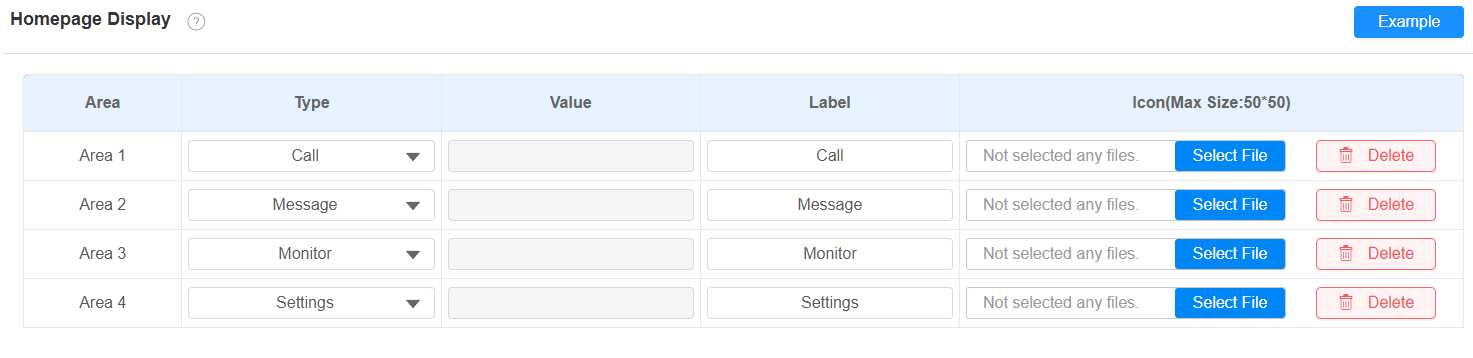
Type: Select the functional icon to be displayed on the home screen.
All Call/All Call 1-3: Tap to initiate multicast calls. When All Call is selected, and more than one multicast group is configured, users can choose the desired group after tapping All Call. All Call 1-3 correspond to the multicast groups 1 to 3.
Label: Name the icon. The DND icon cannot be renamed.
Type: Click to upload the icon picture. The maximum icon size is 50×50. The picture format can be JPG, JPEG, or PNG.
You can click Example to see the icon layout.
Unlock Tab Configuration
You can customize the unlock tab and select the relay type on the talking, monitor, and call preview screen for the door opening.
To set up the unlock tab on the talking screen, go to Device > Relay > SoftKey In Talking Page interface.

Status: With it enabled, the unlock tab will be displayed on the talking screen.
Display Name: Name the unlock tab.
Type: Select the relay trigger type according to the actual setup.
Scroll down to set up the unlock tab on the Call Preview screen.

Status: With it enabled, the unlock tab will be displayed on the call-preview screen.
Display Name: Name the unlock tab.
Type: Select the relay trigger type according to the actual setup.
Scroll down to set up unlock tabs on the Monitor screen.

Status: With it enabled, the unlock tab will be displayed on the monitoring screen.
Display Name: Name the unlock tab.
Type: Select the relay trigger type according to the actual setup.
Scroll down to set up the unlock button  .
.

Status: It is enabled by default.
Type: Select the relay trigger type according to the actual setup.
Note
Please refer to the Access Control Configuration chapter for different unlock types setup.