You can configure the three default security modes or create custom modes to suit your needs.
Configure Default Security Modes
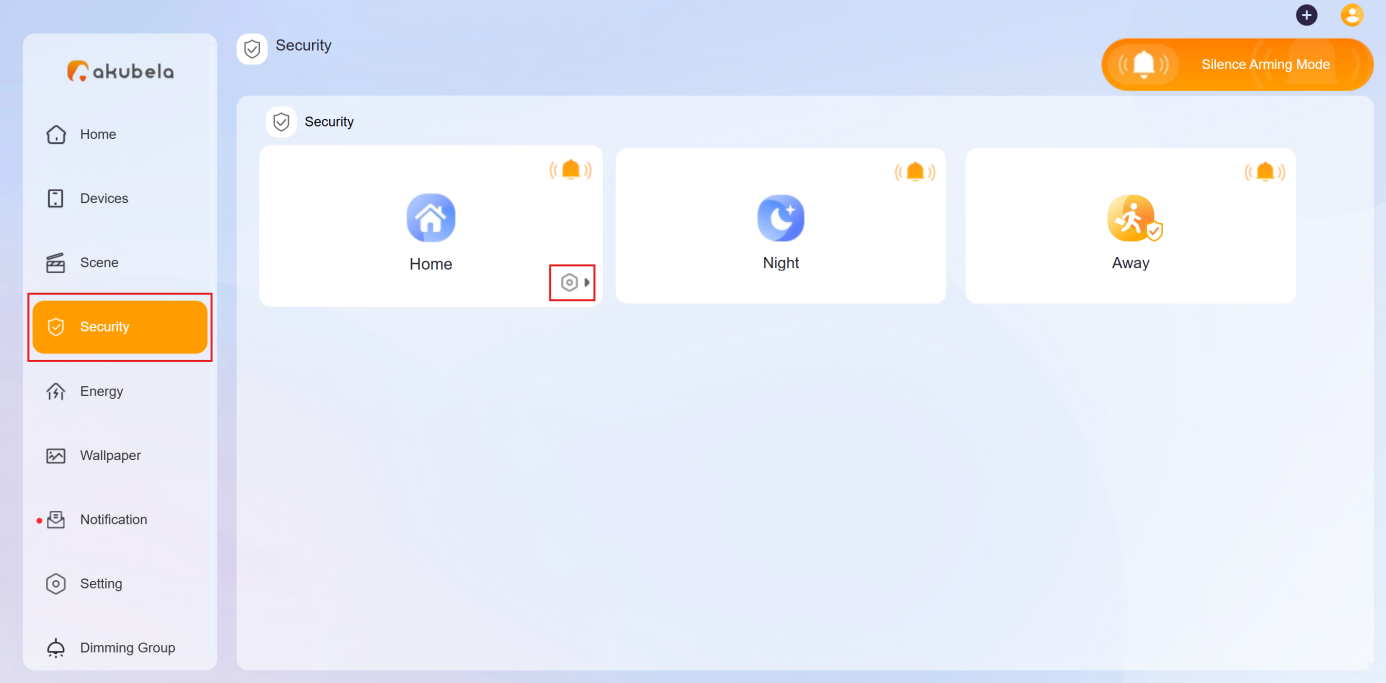
akubela provides three default modes: Home, Away, and Night. You should configure them before you can arm your system.
Click Security on the left-side menu, and click
 at the bottom right of the desired mode.
On the followed screen, complete the below settings:
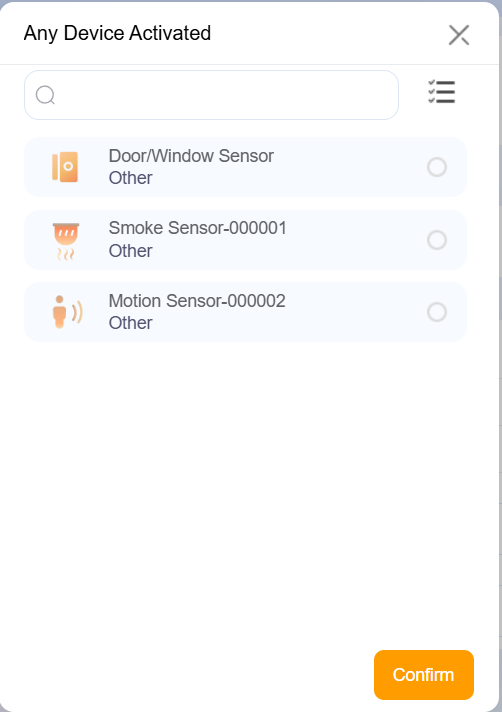
In Any Devices Activated field, click
 to select one or more devices to act as trigger -- for example, when a device is turned on/off or detects motion.
In Task field, do any of the following:
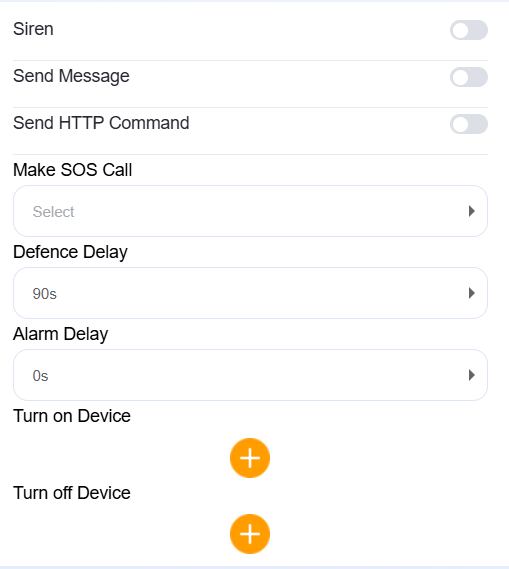
Siren: Enable to trigger a siren sound.
Send Message: Notify all family members and panels.
Send HTTP command: Perform custom actions through HTTP requests.
Make SOS Call: Automatically call a designated emergency number. To add the SOS numbers, see here.
Add a defence delay before the system arms.
Turn on/off devices when the mode is triggered.
Create Custom Security Modes
You are able to create your own security mode.
Click
 in the upper right corner, and select Add security.
On the creating mode screen, complete the following settings:
Name the mode.
In Any Devices Active field, click
 to select one or more devices to act as trigger.
In Task field, choose the actions that should happen when the condition is met. The options are the same as those in configuring default security mode.
Click Save.
The newly-created modes will be displayed on all the panels’ and BelaHome's Security screen.
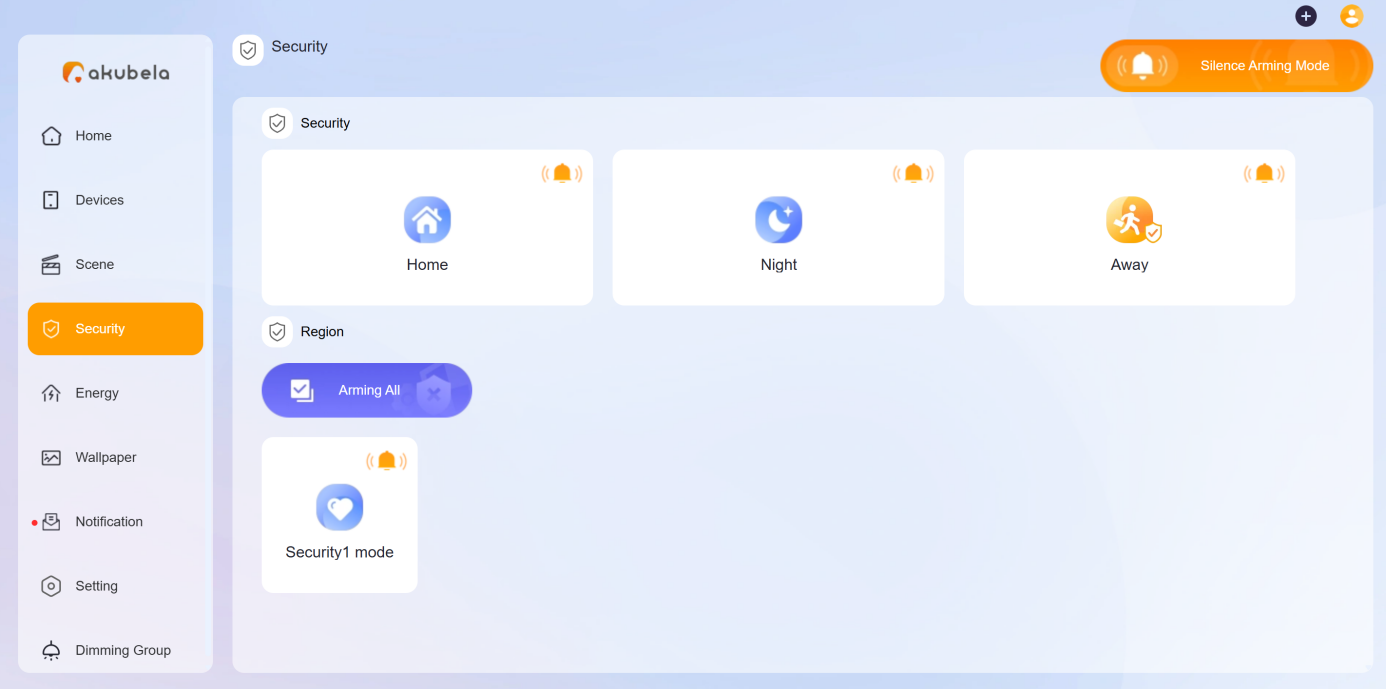
Edit Security Modes
To change the mode settings, go to Security, and click the mode’s icon  at the bottom right.
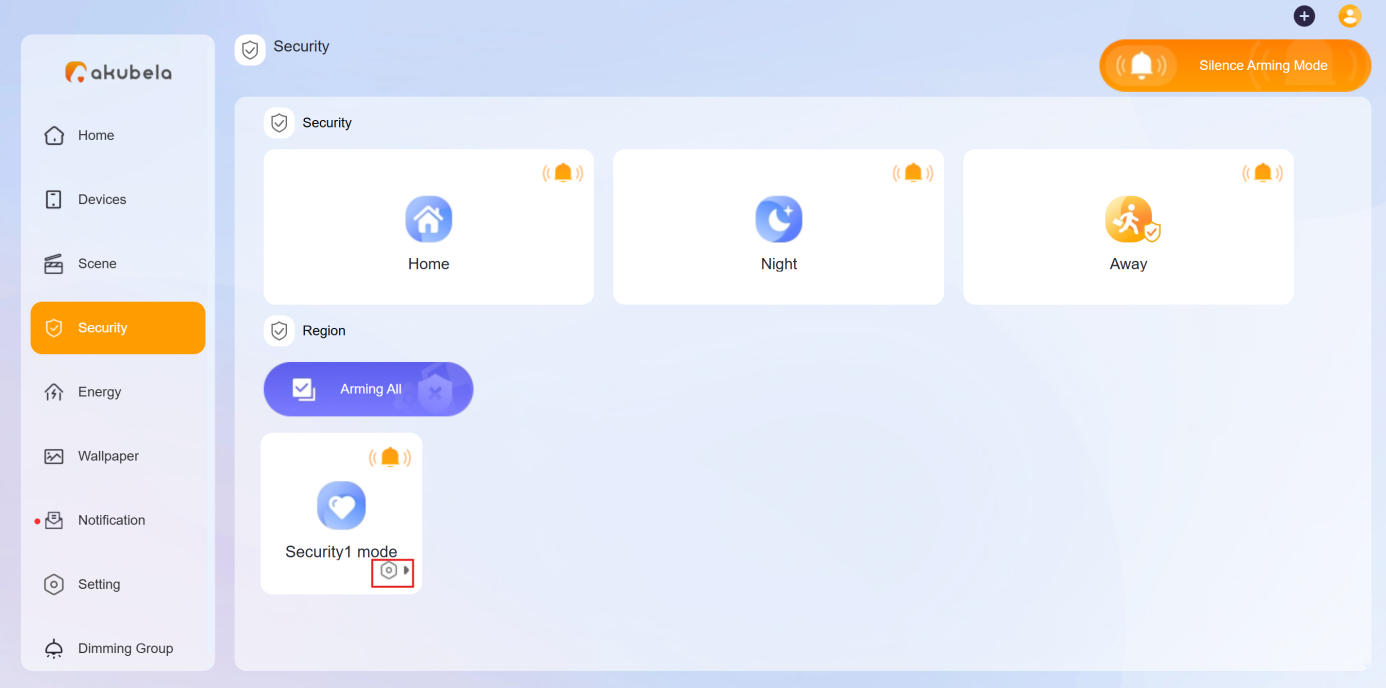
Remove Custom Security Modes
To delete a custom mode, go to Security, click on its  at the bottom right, and click Delete.
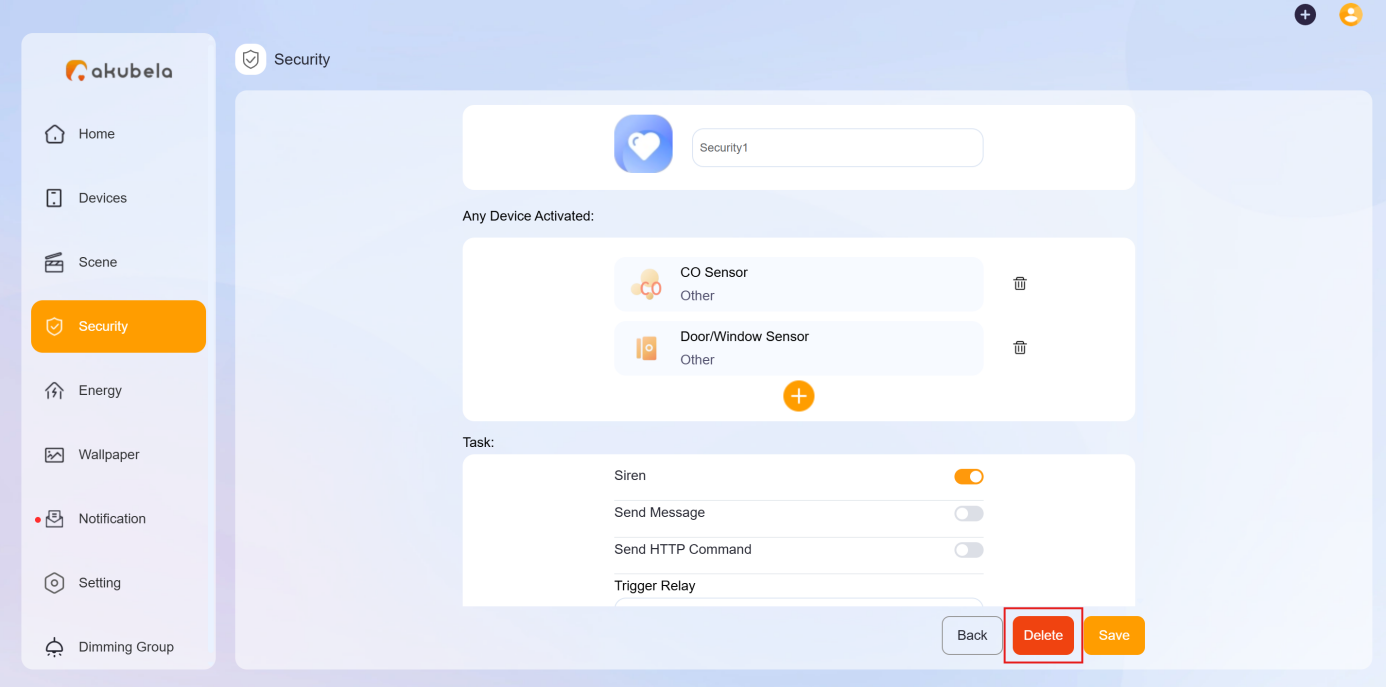
Enable Siren and Alert Notifications
When an alarm is triggered, the system can sound a siren and send push notifications.
In the Security section, you’ll find a bell icon in the upper-right corner of each mode.
The orange icon  indicates the siren feature is active. To disable it, click the icon and it will turn blue
 .
To manage this setting for all security modes at once, click  in the upper right corner.
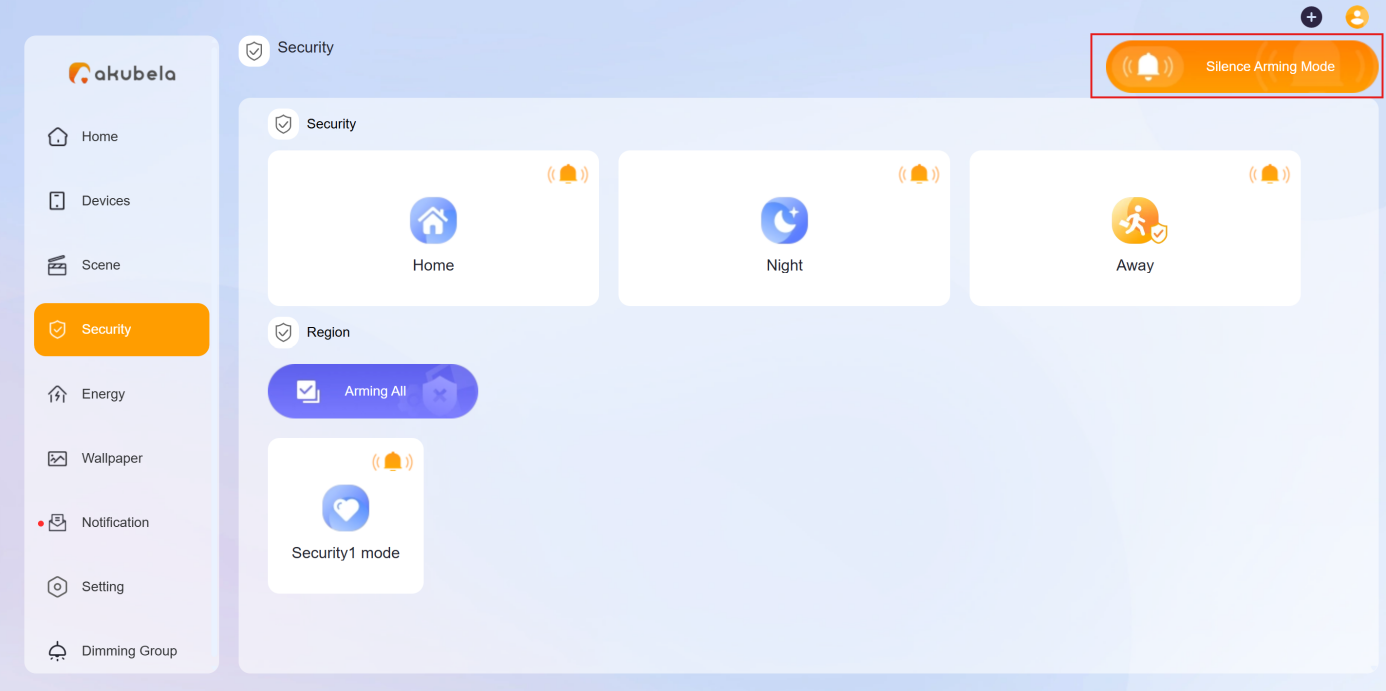
Arm and Disarm the System
To arm the system, click the desired security mode, and its card will change to orange. Custom and default modes can be enabled at the same time, but the default ones cannot.

To disarm the system, simply click the mode again. The color will turn back to blue.
View Security Logs
To view or clear scene-related logs, go to Notification > Alarm Logs.
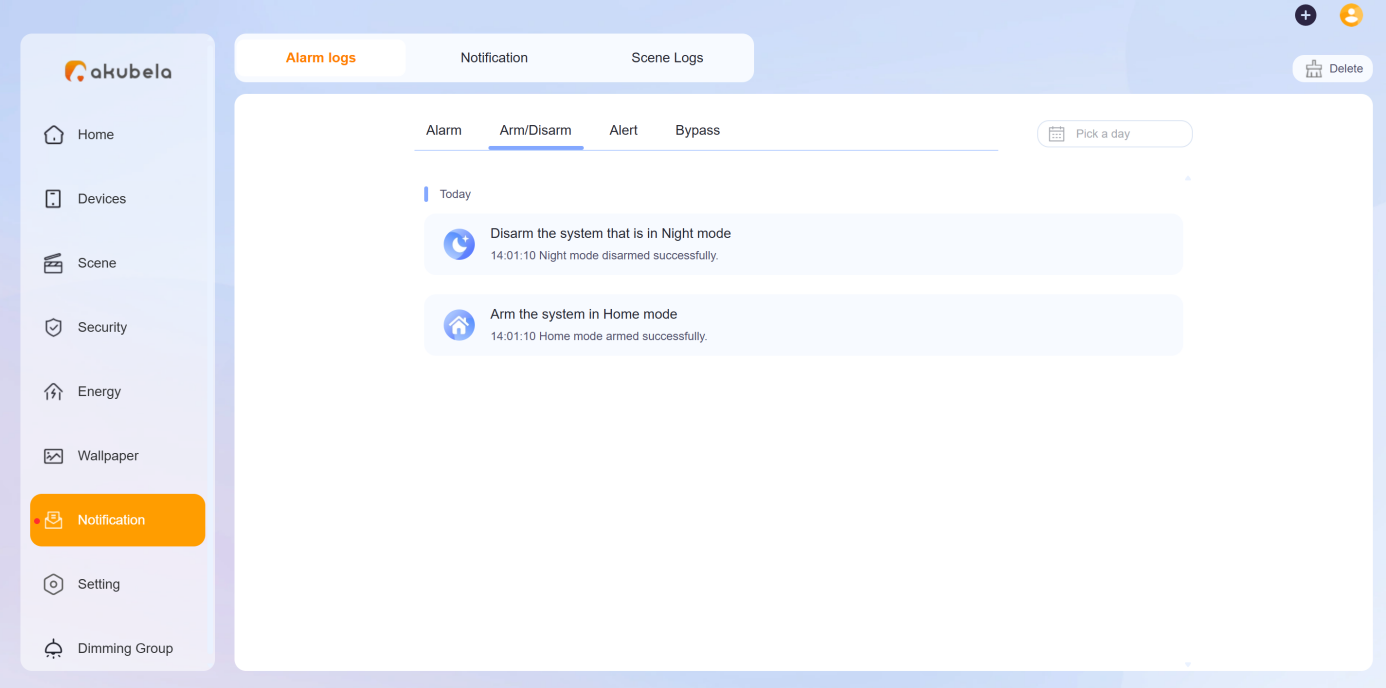
On this screen, you can see the following types of histories:
Alarm: Display sensor alarm and alarm-cleared histories triggered in any security mode, including Away, Home, Night, and custom modes.
Arm/Disarm: Display the system’s arming and disarming histories.
Alert: Display all triggered histories associated with sensors, whether they are triggered in security mode or not.
Bypass: Display histories of sensors being ignored and restored to function.
Modify Arming/Disarming Code
If you forget your current security code, you can set a new one.
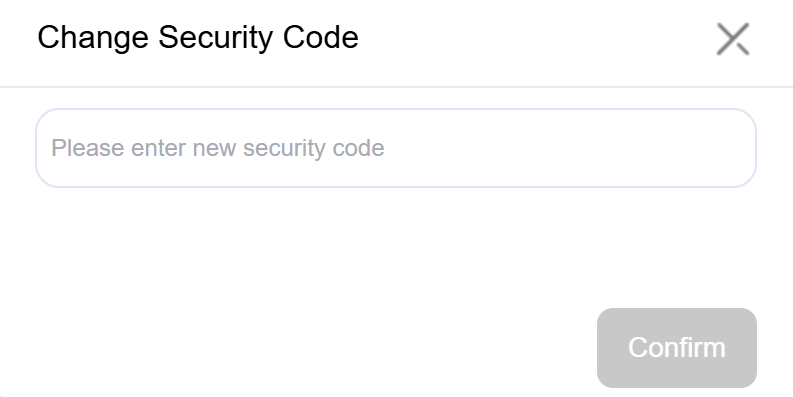
Click Setting > Change Security Code.
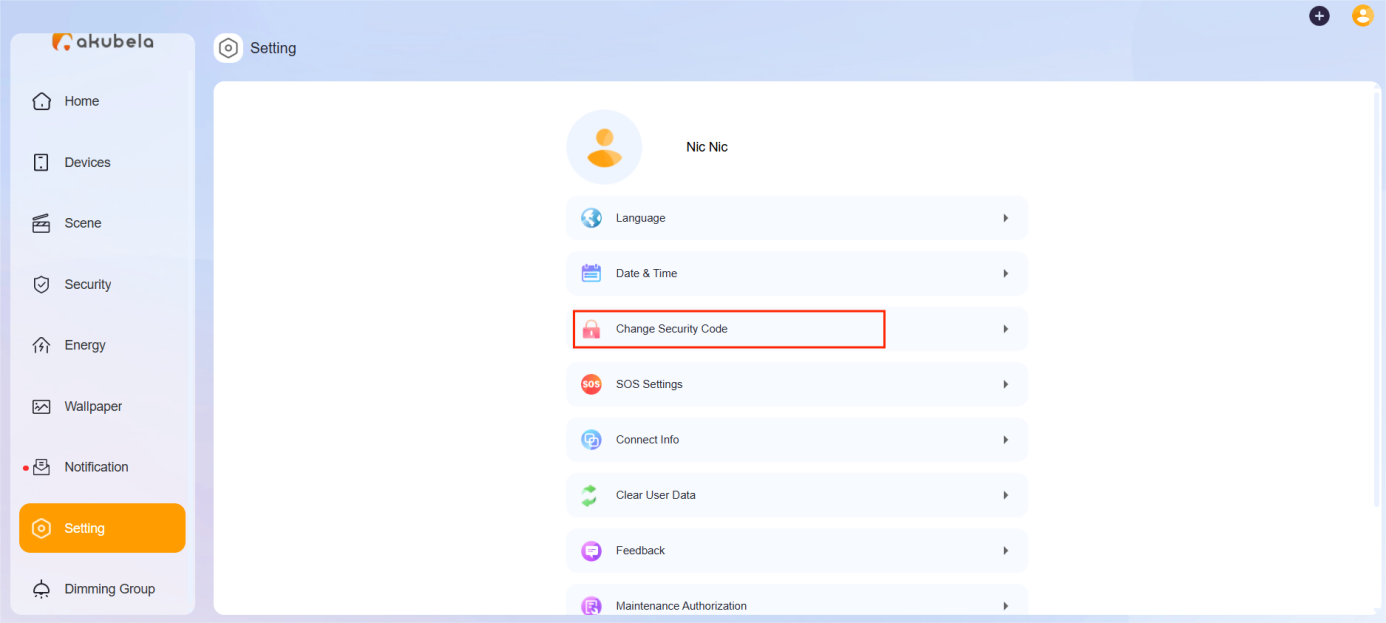
In the pop-up window, enter a new 6-digit code, then click Confirm.