Time
The time settings on the web interface allow you to configure the NTP server address for automatic time and date synchronization. Once a time zone is selected, the device will notify the NTP server of the chosen time zone, enabling it to synchronize the time zone settings on your device.
Set it up on the Setting > Time interface.
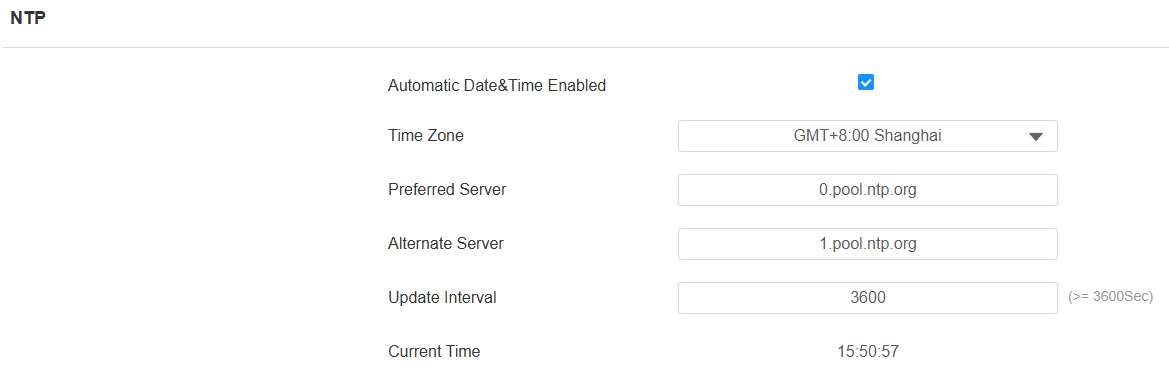
Automatic Date & Time Enabled: Enable it for NTP-based automatic time update; disable it to manually set up the time and date.
Preferred Server: Set the primary NTP server, which will update the device time periodically.
Alternate Server: Set the backup NTP server. This will be used when the primary NTP server fails.
Update Interval: Set the time interval that the device sends the request to the NTP server for the time update automatically.
Current Time: Display the current device time.
Fire Alarm
When EC33 is triggered by a fire alarm event, it can respond to it with a preset action by sending a preset HTTP command (URL) to a third-party HTTP server for the pre-defined action.
Set it up on the Setting > Fire Alarm interface.
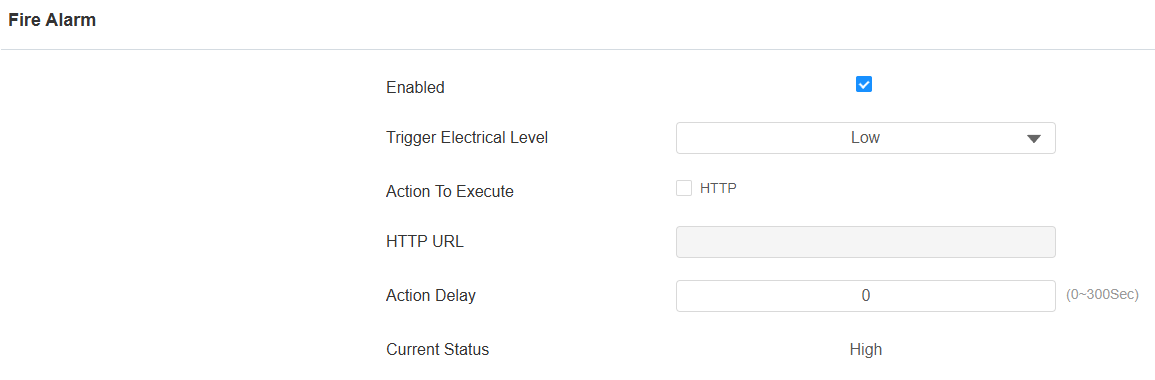
Triggered Electrical Level: Select the trigger electrical level options between High and Low according to the actual operation of the fire alarm switch. The default setting is Low.
Acton to Execute: Enable it so that you can type in the HTTP command for the pre-defined action.
HTTP URL: Enter the HTTP URL. The command includes 512 characters at a maximum.
Action Delay: Set the action delay time (0-300 seconds) when the alarm is triggered. The default is 0.
Action URL
You can use the device to send specific HTTP URL commands to the HTTP server for certain actions. These actions will be triggered when the alarm status or RF card access changes.
Akuvox Action URL:
No | Event | Parameter format | Example |
1 | Turn on Fire Alarm | $input1status | Http://server ip/inputtri=$input1status |
2 | Disarm Fire Alarm | $input1status | Http://server ip/inputclose=$input1status |
3 | Valid Card Entered | $card_sn | Http://server ip/validcard=$card_sn |
4 | Invalid Card Entered | $card_sn | Http://server ip/invalidcard=$card_sn |
For example: http://192.168.16.118/help.xml? mac=$mac:ip=$ip:model=$model:firmware=$firmware:card_sn=$card_sn
Set it up on the Setting > Actions URL interface.
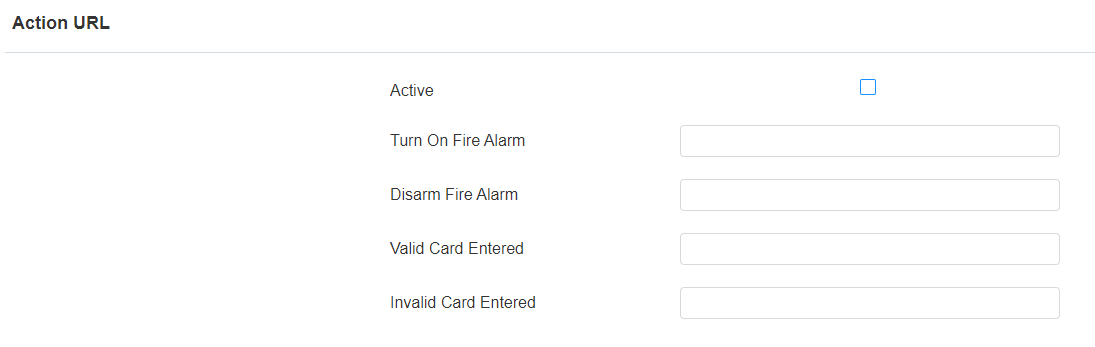
Active: Enable it if you want the Action URL to be sent to the preset server for predefined actions.
Turn On Fire Alarm: The URL will be sent to the preset HTTP server when the fire alarm is triggered.
Disarm Fire Alarm: The URL will be sent when the fire alarm is cleared.
Valid Card Entered: The URL will be sent whenever an access attempt is made by using a valid RFID card.
Invalid Card Entered: The URL will be sent whenever an access attempt is made by using an invalid RFID card.
Schedule
A door access schedule lets you decide who can open the door and when. It applies to both individuals and groups, ensuring that users within the schedule can only open the door using the authorized method during designated time periods.
You can add, import, edit, and search the access control schedule. Click +Add to add a schedule manually.
Set it up on the Setting > Schedule interface. You can add 100 local schedules.
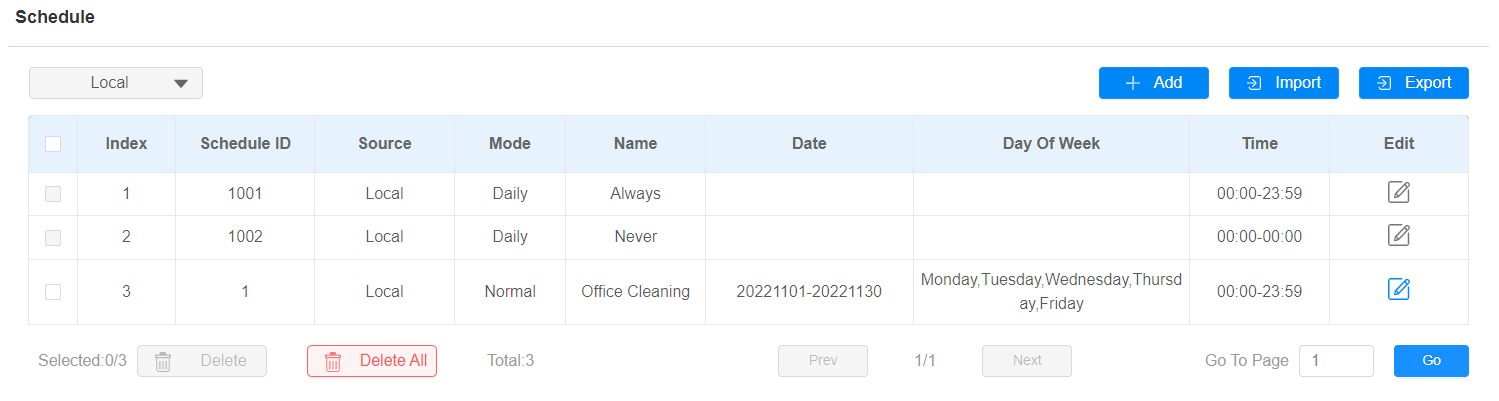
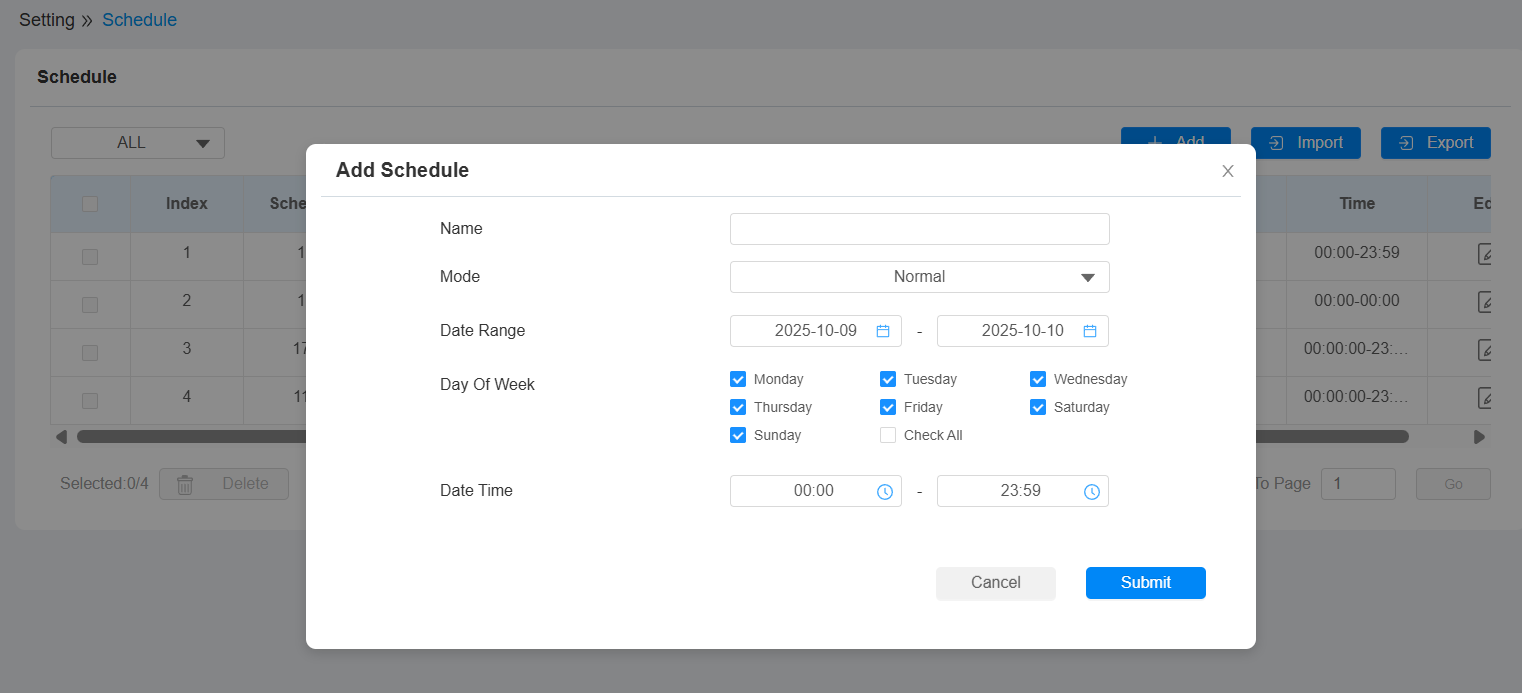
Name: Name the schedule.
Mode:
Normal: Set the schedule based on the month, week, and day. It is used for a long-term schedule.
Weekly: Set the schedule based on the week.
Daily: Set the schedule based on 24 hours a day.
HTTP API
HTTP API is designed to achieve a network-based integration between the third-party device and the Akuvox device.
Set it up on the Setting > HTTP API interface.
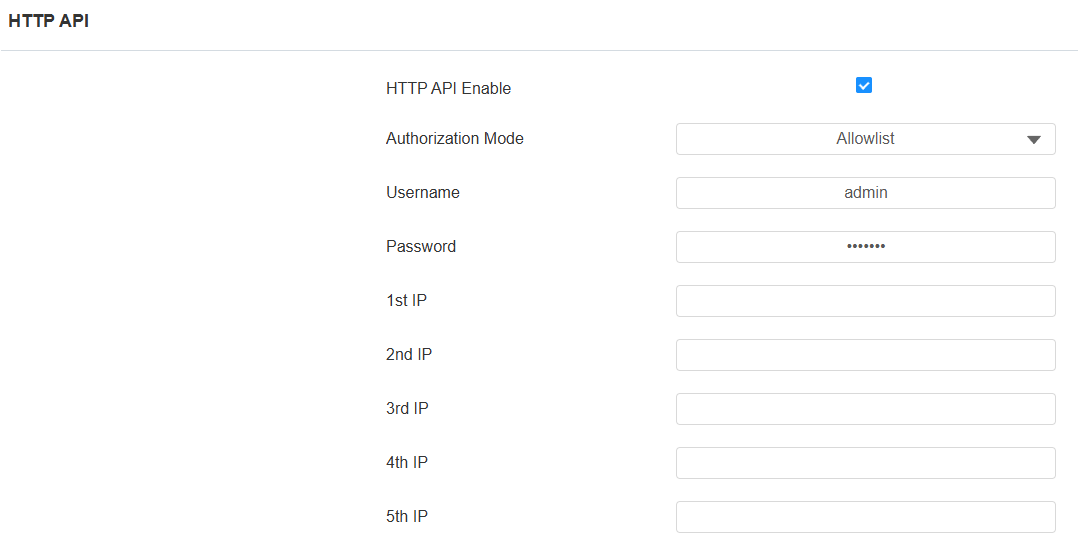
HTTP API Enabled: Enable or disable the HTTP API function for third-party integration. If the function is disabled, any request to initiate the integration will be denied and return HTTP 403 forbidden status.
Authorization Mode: Select among the following options: None, Allowlist, Basic, Digest, and Token for authorization type, which will be explained in detail in the following chart.
User Name: Enter the user name when Basic or Digest authorization mode is selected. The default username is admin.
Password: Enter the password when Basic or Digest authorization mode is selected. The default password is admin.
1st IP-5th IP: Enter the IP address of the third-party devices when the Allowlist authorization is selected for the integration.
Please refer to the following description for the authentication mode:
Authorization Mode | Description |
|---|---|
None | No authentication is required for HTTP API as it is only used for demo testing. |
Allowlist | If this mode is selected, you are only required to fill in the IP address of the third-party device for the authentication. The allowlist is suitable for operation in the LAN. |
Basic | If this mode is selected, you are required to fill in the username and password for the authentication. In the Authorization field of the HTTP request header, use the Base64 encode method to encode of username and password. |
Digest | The password encryption method only supports MD5. MD5( Message-Digest Algorithm) In the Authorization field of HTTP request header: WWW-Authenticate: Digest realm="HTTPAPI",qop="auth,auth-int",nonce="xx", opaque="xx". |
Token | This mode is used by Akuvox developers only. |