4.1. Prepare the Cloud Project
A cloud connection is required when G32 is used as the Home Center. Create the home in akubela Cloud before adding G32.
Sign in to akubela Cloud with an installer account.
Create or open the target home and enter the G32 MAC address.
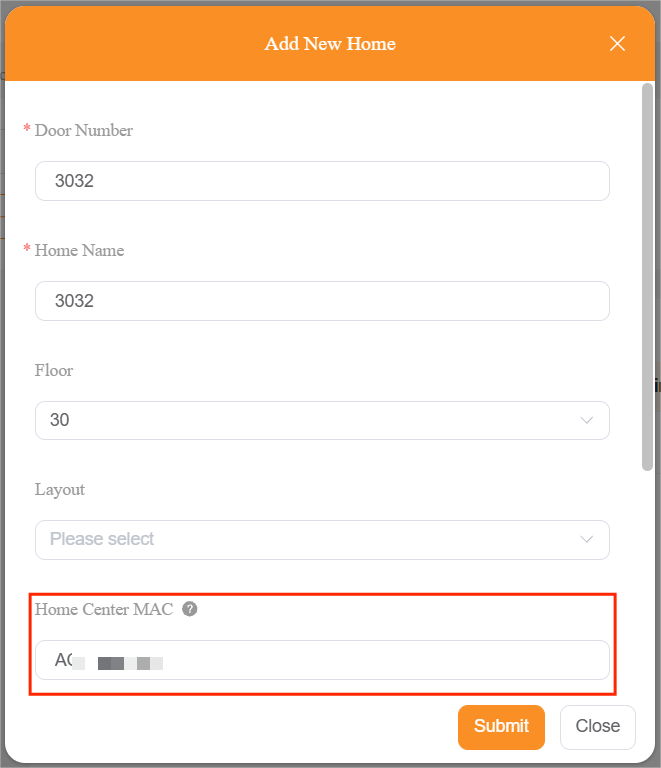
Optionally enter the family administrator’s email address or mobile number. If no administrator is entered, the user can register a BelaHome account before adding.
TIP:
For the detailed cloud-based project creating instructions, refer to the following guides:
4.2. Preconfigure G32 by an Installer
NOTE:
This step is optional. You can also complete the setup using the family administrator account (See section 4.3). However, the account must be handed over to the user afterward.
Using an Installer account allows pre-configuration without Internet access. The devices automatically connect to the cloud once Internet access is available.
Turn on Bluetooth on your mobile phone.
Open the BelaHome app, go to More > Installer, and sign in with the installer account.
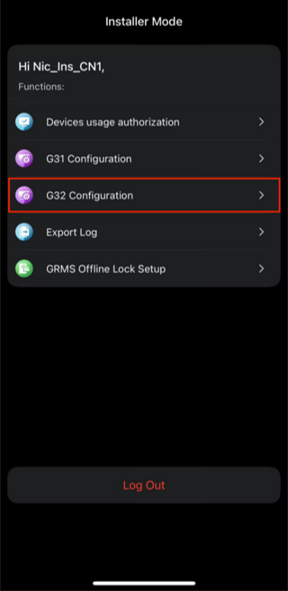
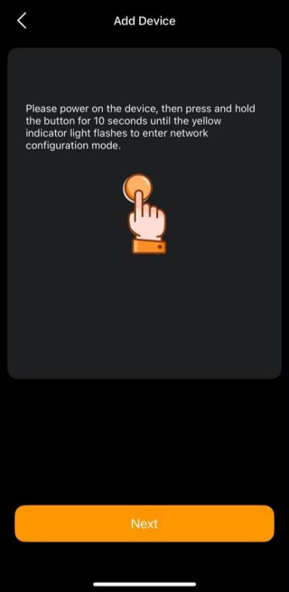
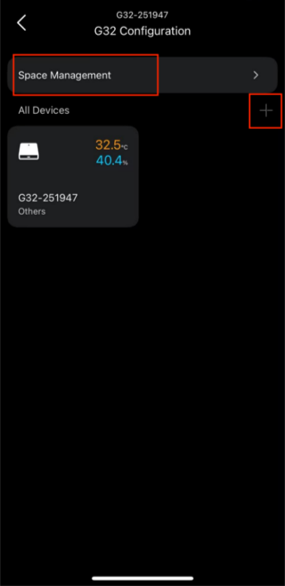
Select G32 Configuration. Press and hold the G32 button for 10 seconds until the yellow indicator flashes, and tap Next in BelaHome.
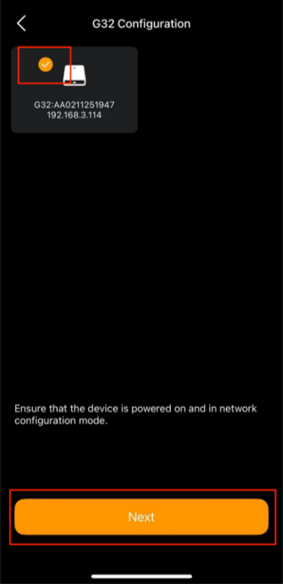
Wait for the G32 to be detected, select it, and tap Next.
Configure spaces and add Zigbee devices if required.
4.3. Add G32 to a Home
NOTE:
If the family administrator account was already registered in the cloud, simply log in after G32 connects to the Internet. Wait for G32 and any installer-added Zigbee devices to appear automatically.
If no family administrator account is entered in the cloud, register or sign in, and add G32 to the home as described below.
4.3.1. Add a Wired G32
Connect the G32 to an Ethernet network with internet access.
Turn on your phone’s Bluetooth and connect your mobile phone to the same network as the G32.
Register and sign in to BelaHome with the family administrator account.
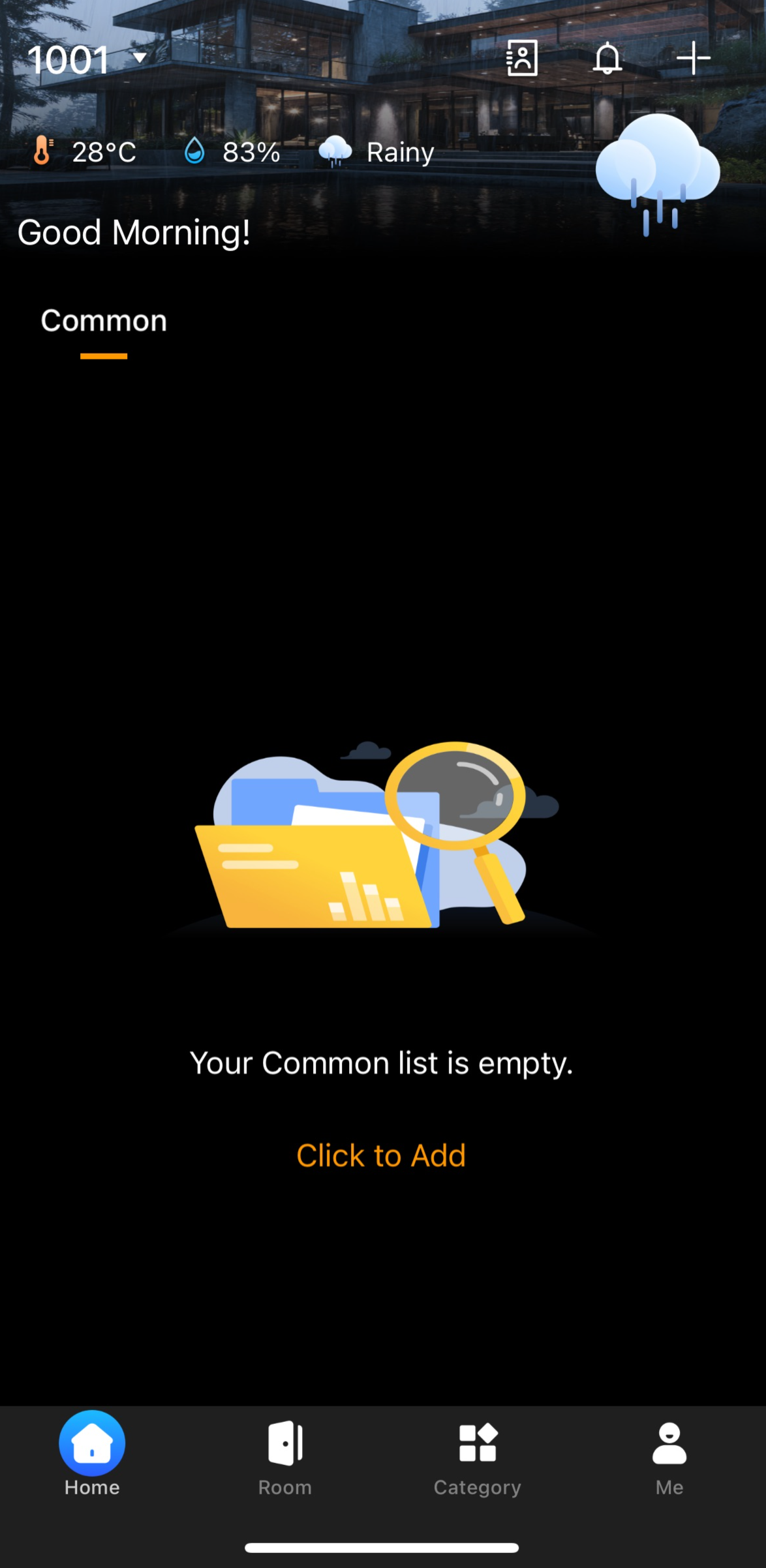
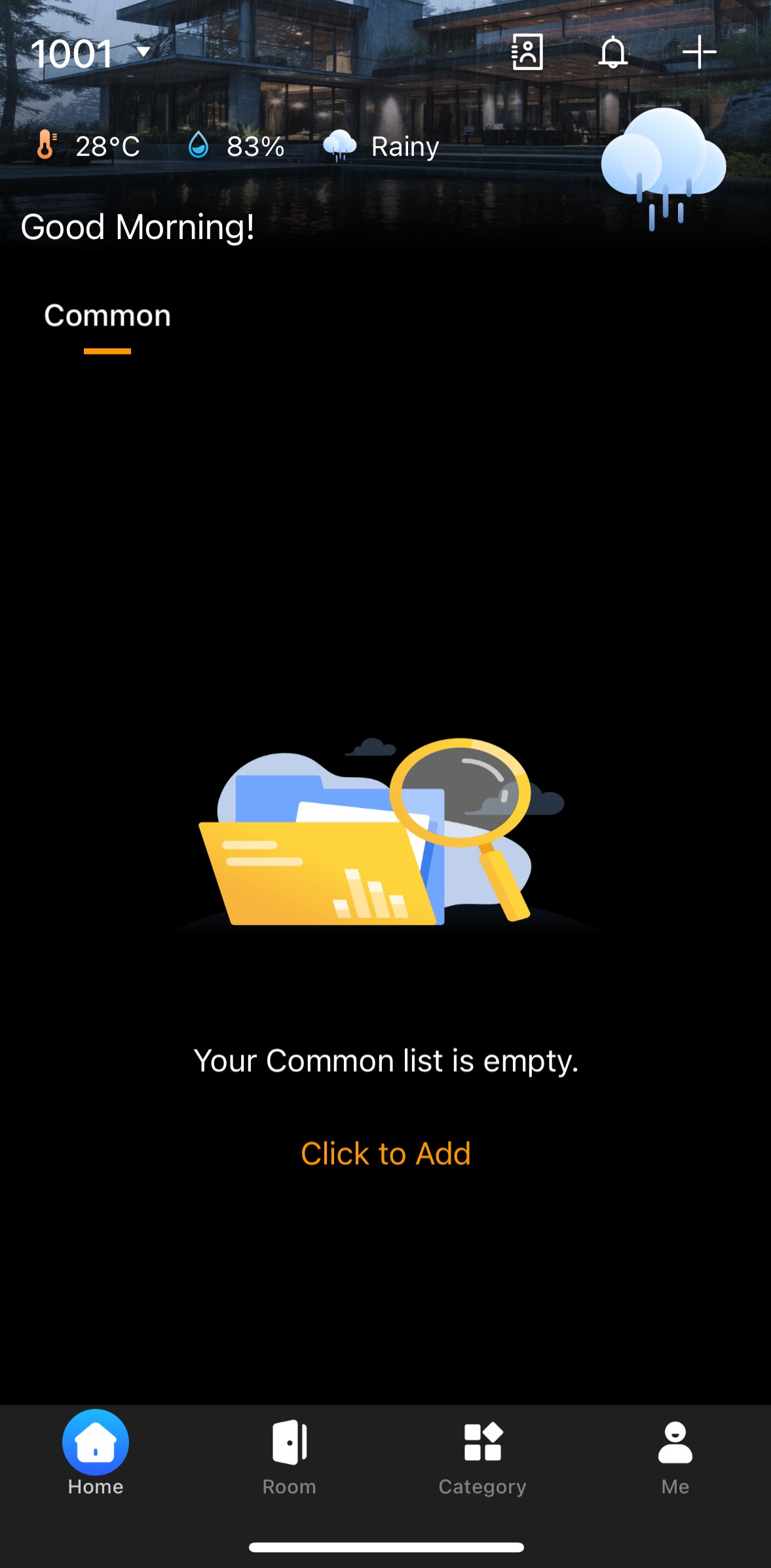
On the Home screen, tap Click to Add > G32 > Next.
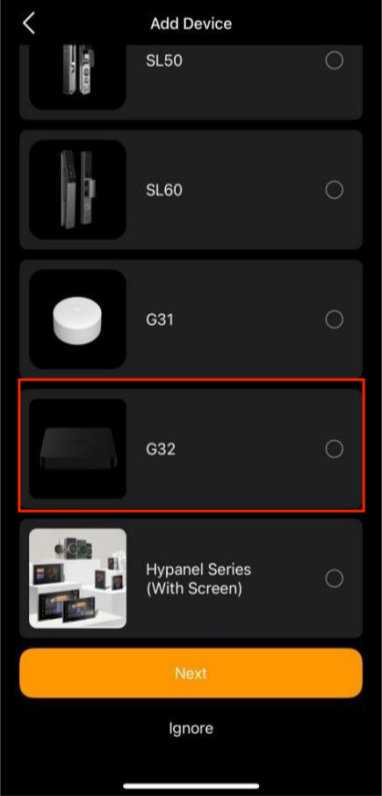
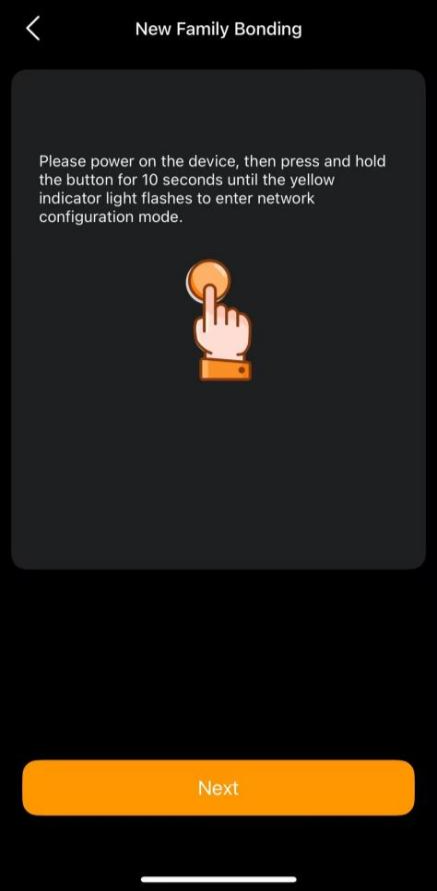
Press and hold the G32 button to put it in pairing mode.
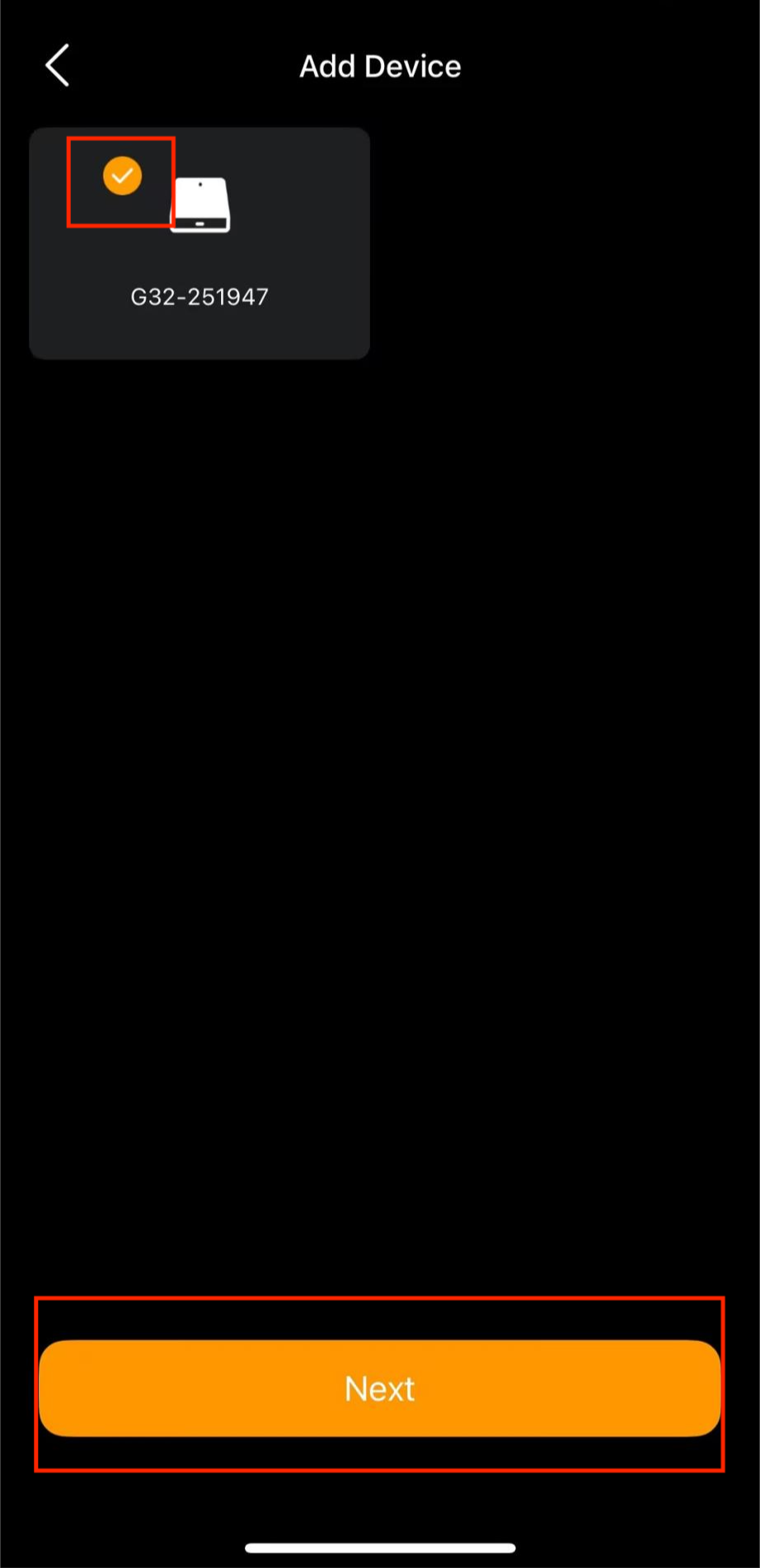
Wait for the G32 to be detected, tap Next.
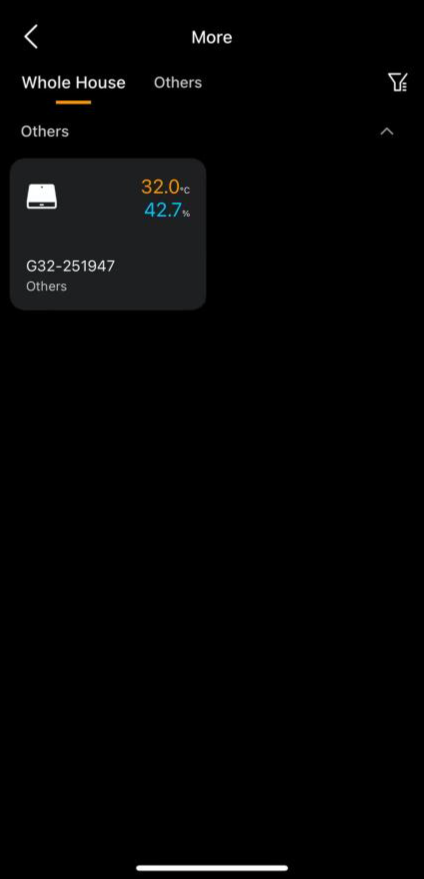
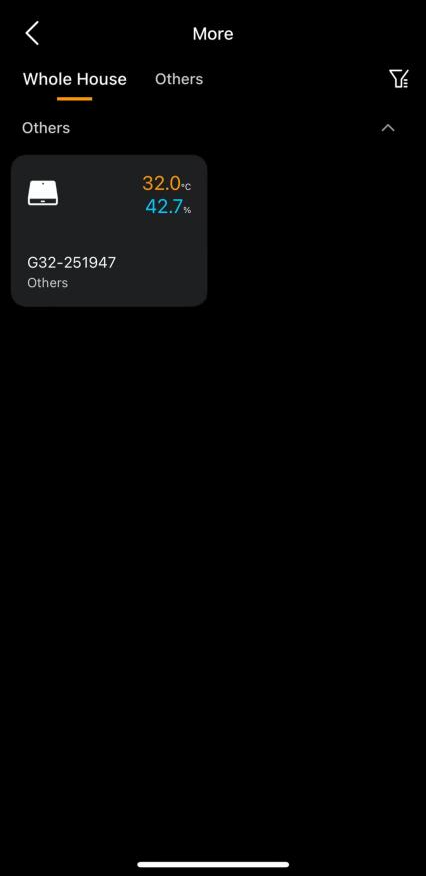
The app will return to the Home page automatically. Go to Category > More to confirm that the gateway status is normal.
4.3.2. Add G32 over Wi-Fi
Enable Bluetooth on the phone.
Sign in to BelaHome with the family administrator account.
On the Home screen, tap Click to Add > G32 > Next.
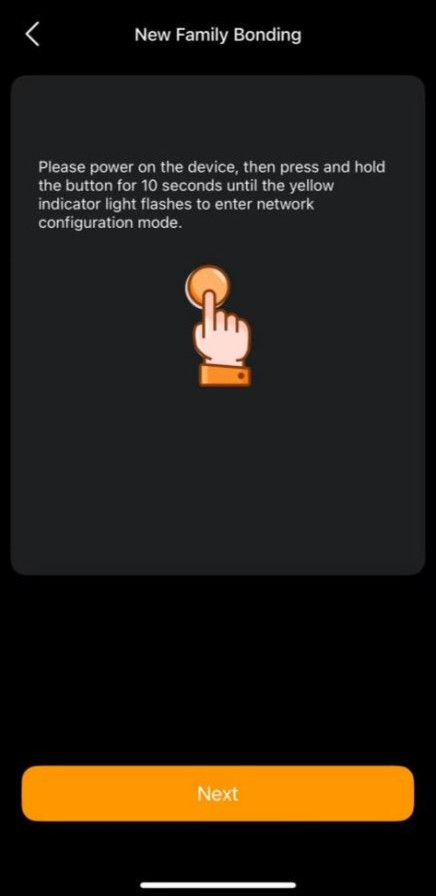
Press and hold the G32 button to put it in pairing mode.
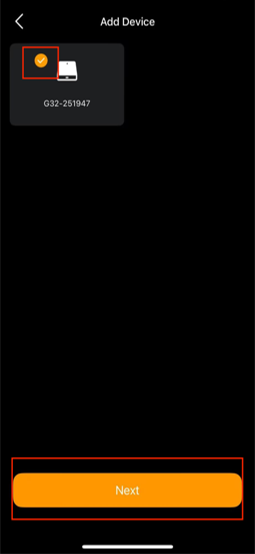
Wait for the G32 to be detected. Select it the Tap Next.
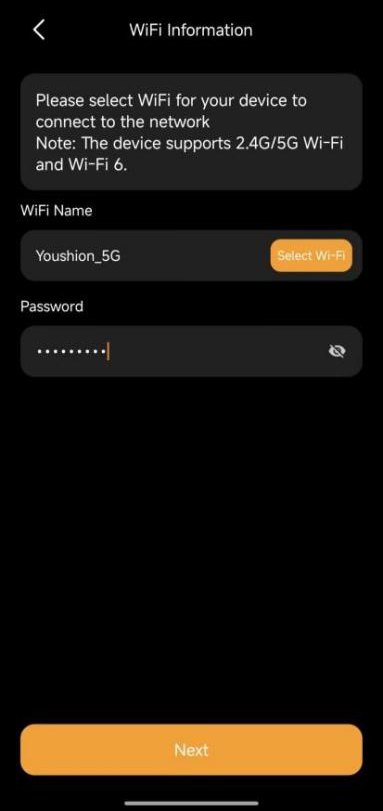
Select the target Wi-Fi network and enter its password.
Wait for the app to return to the Home page automatically. Go to Category > More to confirm that the gateway status is normal.
TIP:
To change G32’s Wi-Fi network, go to Category > More > [G32 device card] >
> Wi-Fi Setting, then follow the onscreen instructions.
4.4. Remove G32
Log in to the akubela Cloud with the installer account, find the target project, and delete the home.
Remove the G32 MAC address from the Distributor MAC Library.
Wait for the G32 to be released from the original family.
Factory reset G32.