Before You Start
To make login and setup as smooth as possible, have the following items available:
Internet connection: Make sure your mobile device has internet access via Wi-Fi or cellular data.
NOTE:
If your account is created in the Local mode, ensure your mobile phone is connected to the same local network as the akubela home center device.
BelaHome App: Download the latest version from Google Play Store or App Store.
Your BelaHome account.
If your devices are connected to the cloud, do any of the following:
Tap Account Registration on any HyPanel device’s screen to self-register an administrator account.
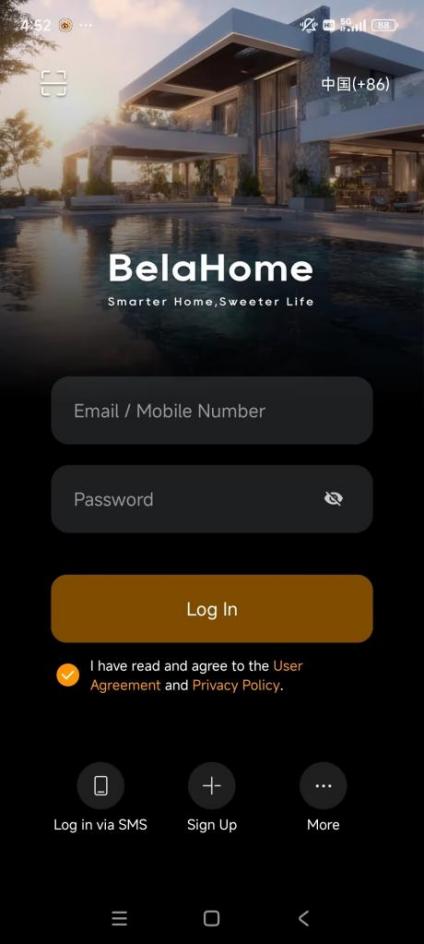
Tap Sign Up on the BelaHome app login screen to self-register an account.
Contact your service provider with your email address and other required information. You’ll receive your account credentials via a “Welcome to akubela” email.
If your devices are not connected to the cloud, use the default credentials:
Username: Admin888
Password: Admin888
Home center device: Ensure your home center device is powered on and connected to a network.
NOTE:
To access all features in this guide, we recommend updating your home center device to the latest firmware version.
Sign In
To log in to the app, do one of the following:
Sign in with email
Enter your email address and password, and tap Log In.
Find the QR code.
If your devices are connected to the cloud, the QR code is included in the Welcome email.
If your devices are not connected to the cloud:
Ensure your phone and home center device are on the same local network.
Swipe down from a HyPanel screen, and go to
 > System Settings > About > Family > Family Account.
Tap
 in the upper left corner of the app.
Scan the QR code with your phone, or tap the album icon to select a saved QR code image from your photo gallery.