Roles and Permissions
The akubela system uses three distinct account types to balance security and ease of use.
Administrator (One per family)
Can log in to the user web portal
Has full access to all features and functions
Manages family data
Manages family member accounts
Manager
Has access to all available features and functions
Can manages general member accounts
General member
Can use features such as controlling devices and scenes
Cannot add devices or scenes, or modify existing settings
All account types can edit their profile, change passwords, leave families, and delete their account.
Profile and Password
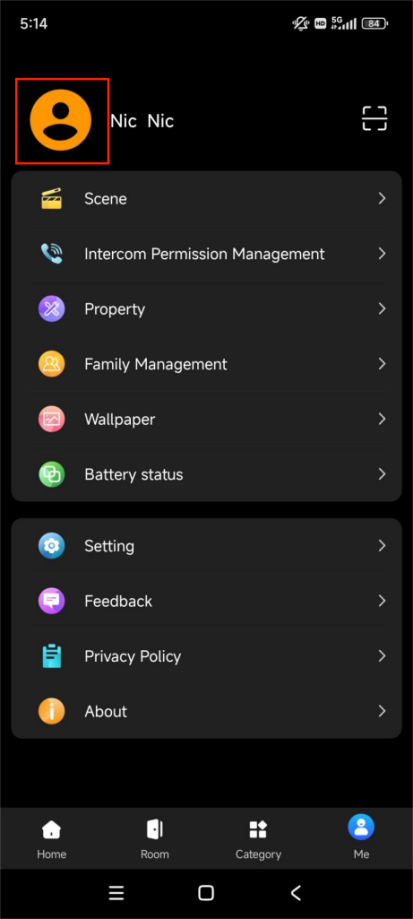
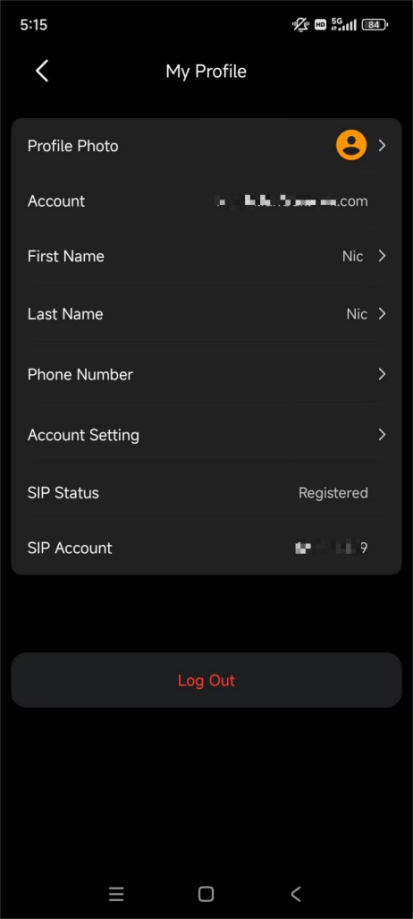
Edit Your Profile
To update your name, avatar, or phone number, go to Me > [your avatar].
NOTE:
You cannot modify your photo or name when:
The home is running in Local Mode and your phone is not connected to the same network as the home center.
The home center device is offline.
Manage Your Password
NOTE:
Password features are disabled if your family system is in Local Mode. All devices must be connected to the cloud to modify security credentials.
Reset Password
You’ll receive a reset email.
Change Password
For security, it is recommended to update passwords regularly.
Go to Me > [your avatar] > Account Setting > Change Password.
Set a new and stronger password.
Notification Permissions
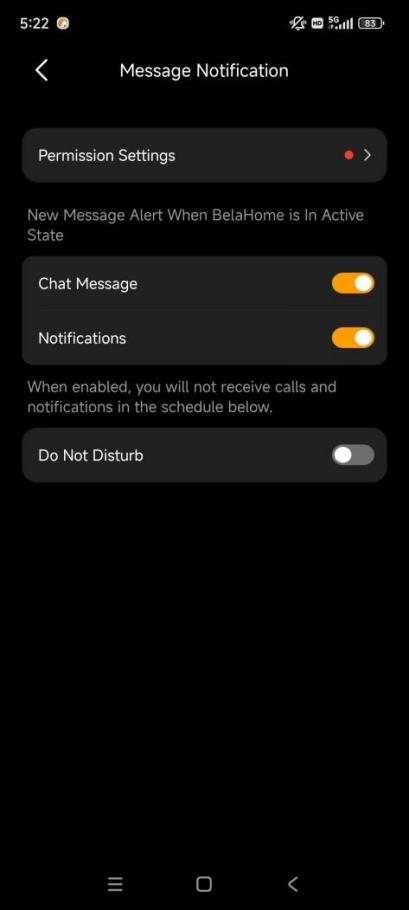
Tailor how you receive notifications by going to Me > Setting > Message Notification.
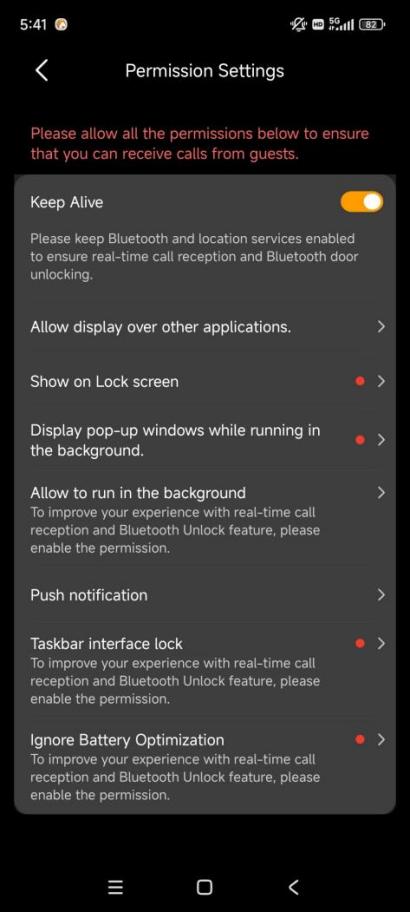
Permission Settings: To ensure you do not miss doorbell calls, security alarms, or important updates, allow the app to run in the background.
Chat Messages: Enable pop-up notifications for voice and text messages from contacts, including messages triggered by automation.
Notifications: Enable pop-up notifications for system messages listed under Home >
 > Notifications.
Do Not Disturb: Silence notifications and calls during a selected period. Critical alerts (such as alarms) are still delivered.
Family Access
Join and Switch Families
You can belong to multiple families by scanning a unique Family QR Code.
If signed in: Tap Me >
 to scan the family QR code.
From login screen: Tap
 and scan the family’s QR code.
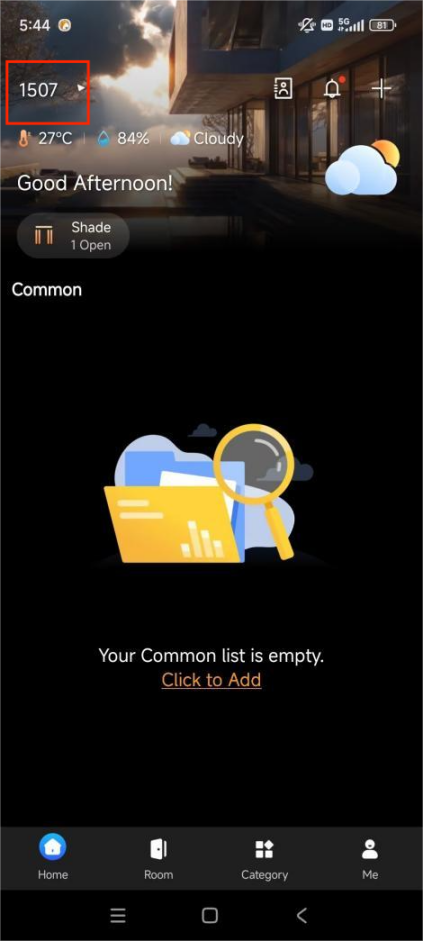
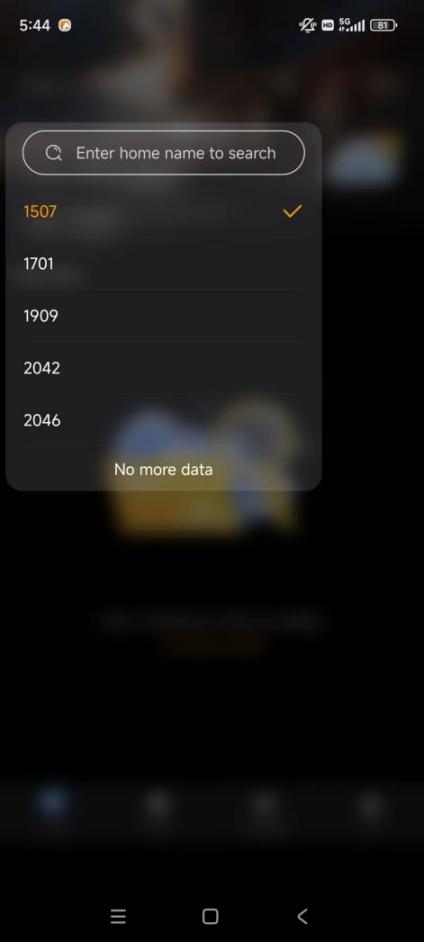
Switching: Simply tap the family name on the Home screen to toggle between different properties.
Leave a Family
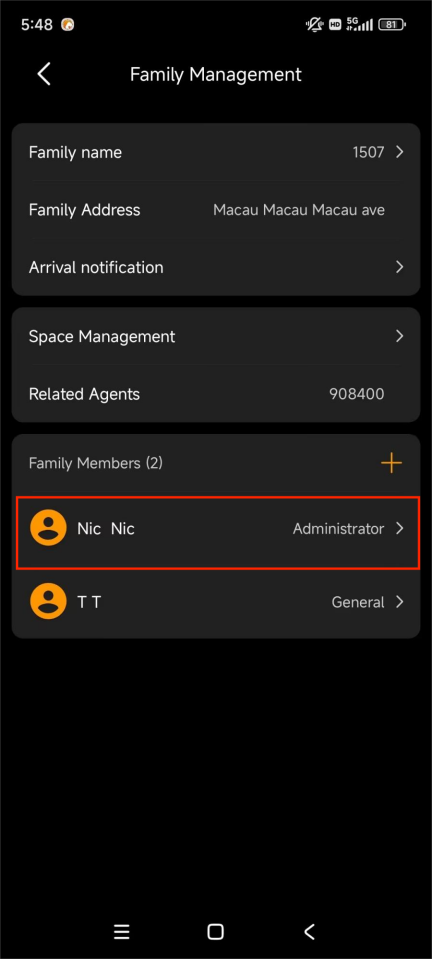
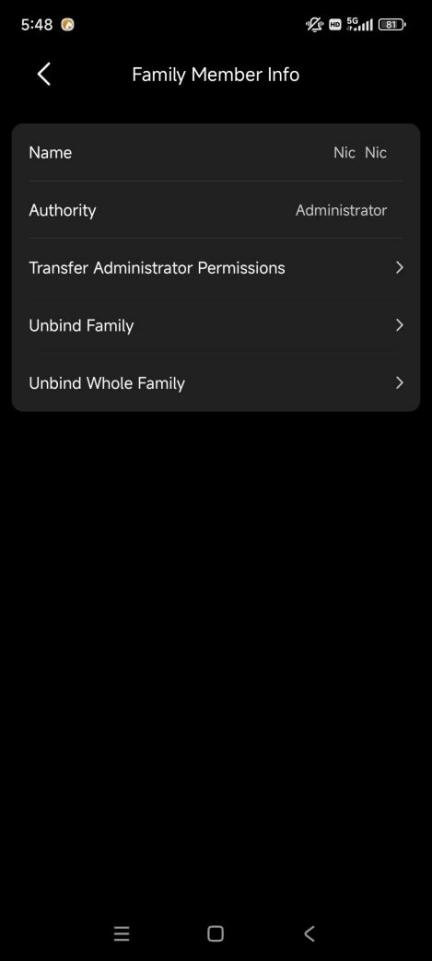
If you wish to leave a family, go to Me > Family Management > [your account] > Unbind Family.
NOTE:
If you are the administrator, transfer the administrator role first.
All associated families must be connected to the cloud.
After unbinding:
You keep access to the app
You lose access to that family
Related permissions and chat data are removed
Delete Your Account
To permanently close your account, go to Me > [your avatar] > Account Setting > Delete Account.
NOTE:
This action is permanent. You will lose access to all joined families and data.
Administrators must transfer their role to another member before the account can be deleted.