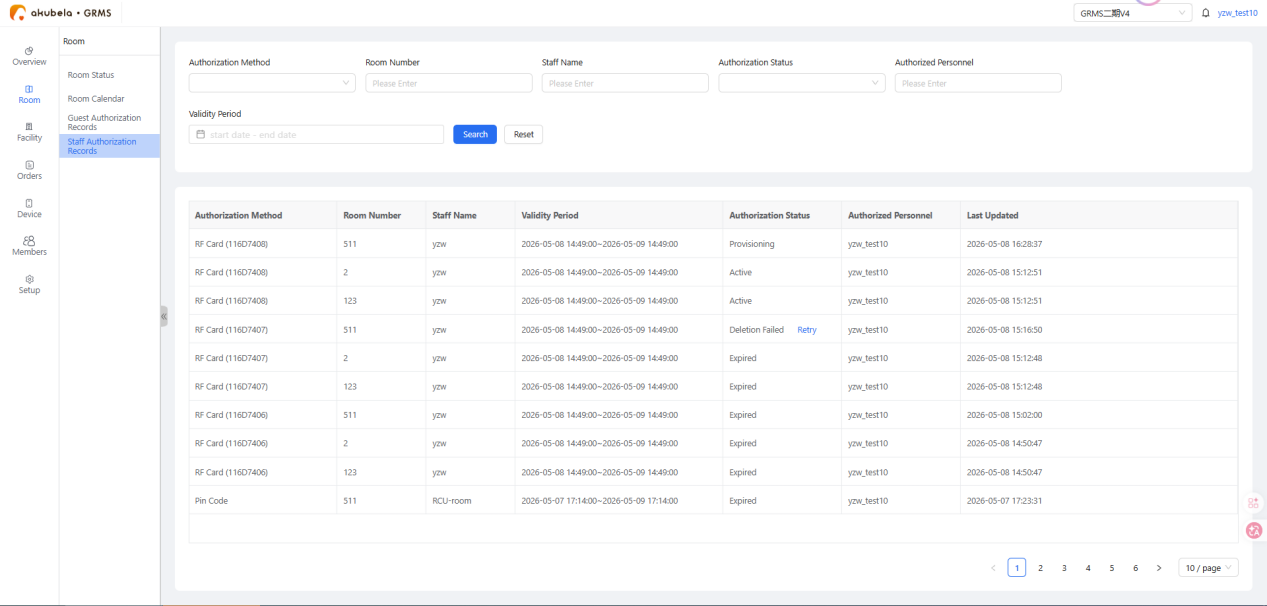
The GRMS platform enables managers to add new staff and managing their access credentials.
Add New Staff
NOTE:
Only manager accounts can access the Staff Management option.
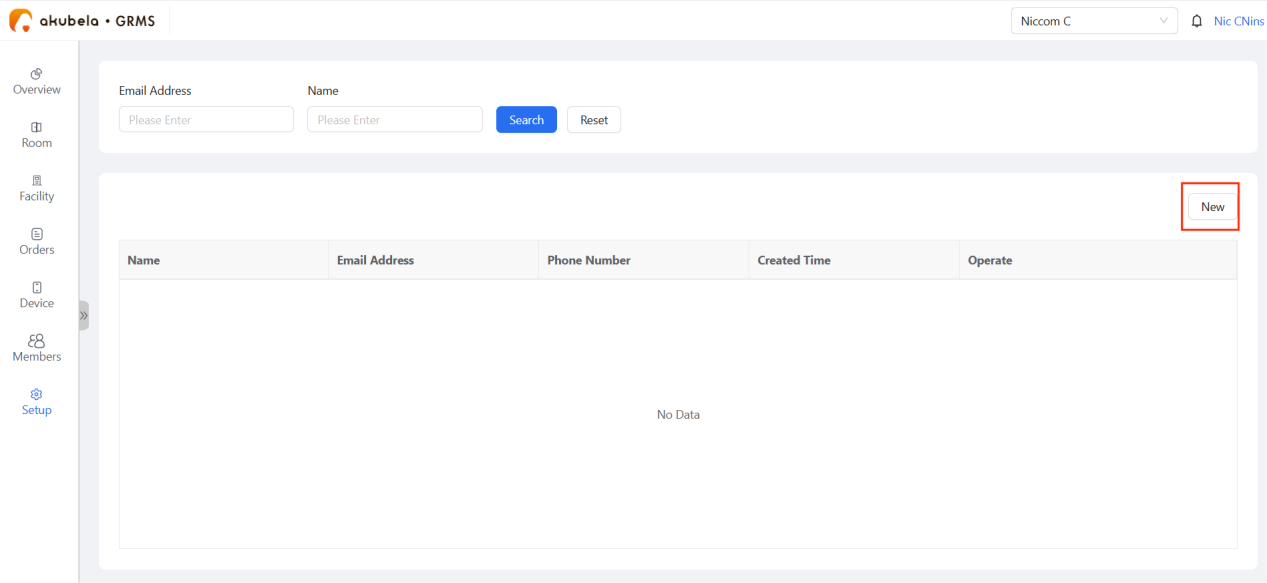
Click Setup > Staff Management > New.
Enter the staff details.
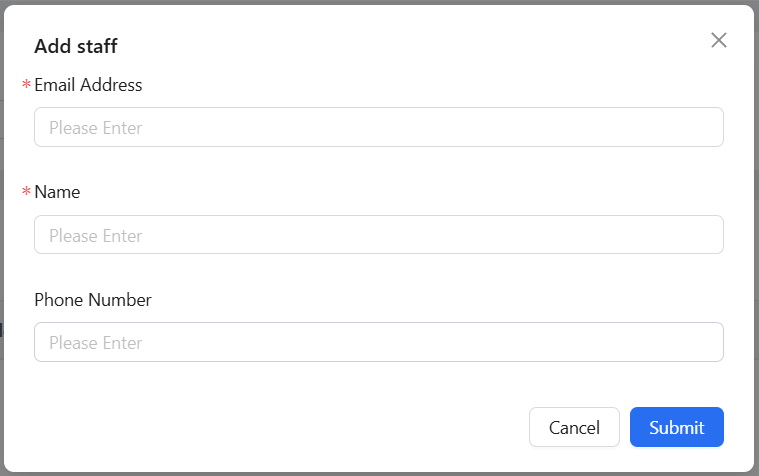
The new staff member will receive an email with GRMS login credentials.
Create Access Permission Groups
Define access groups to grant permissions for designated service areas and/or specific guest rooms based on roles or predefined rules.
Go to Setup > Card Access > Permission Group.
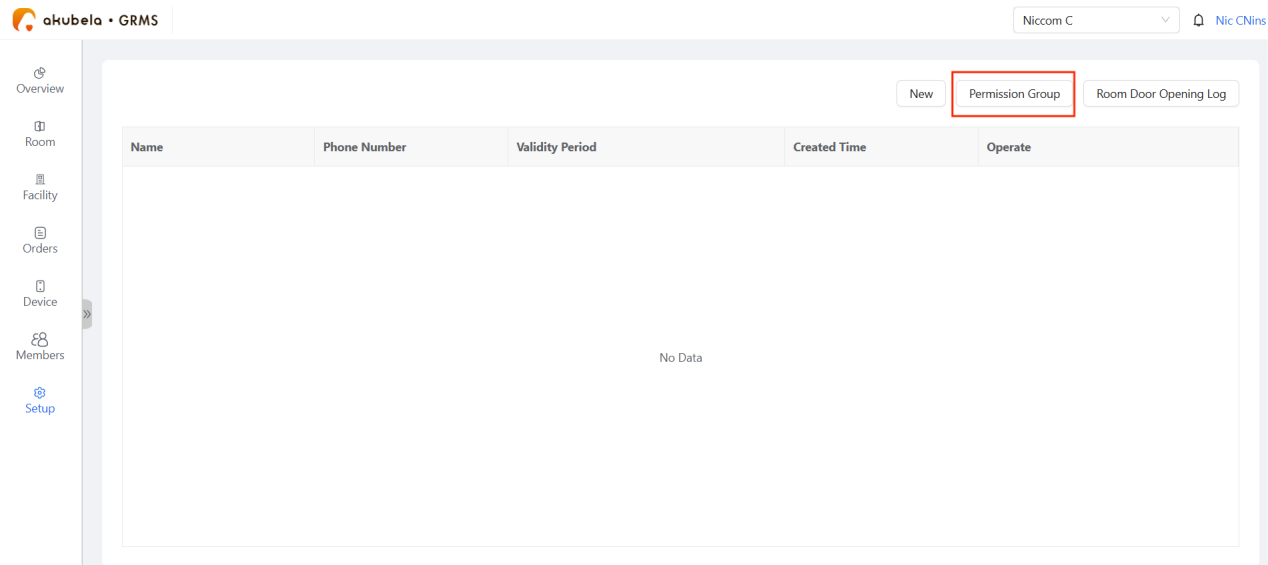
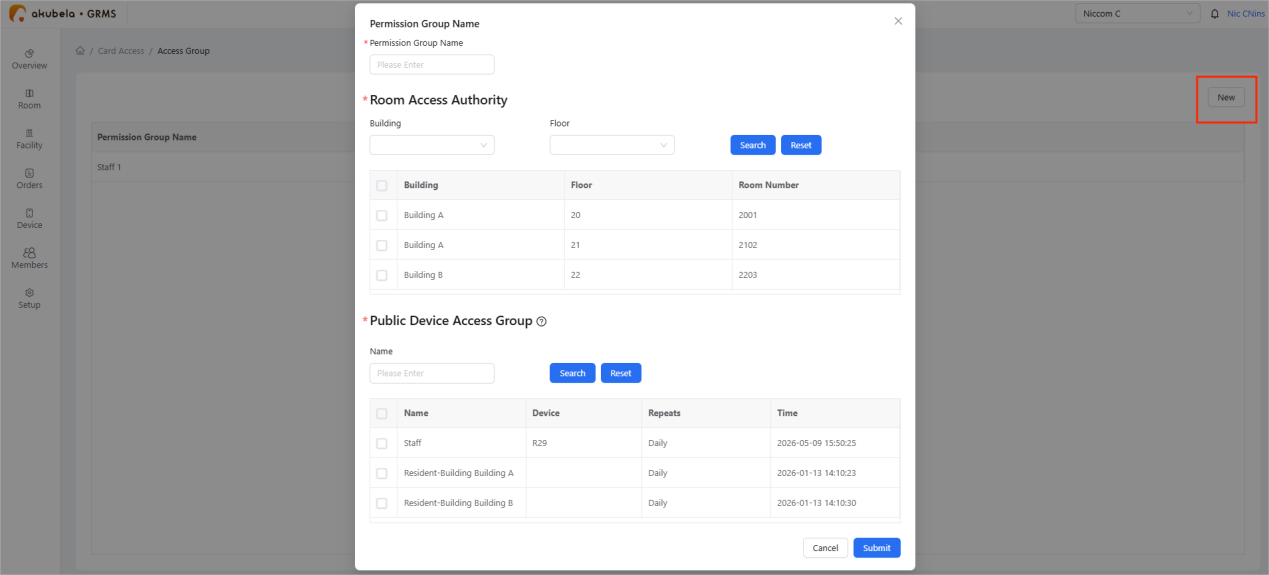
Click New to create a group. Name the group, select the assigned rooms and public devices, and then click Submit.
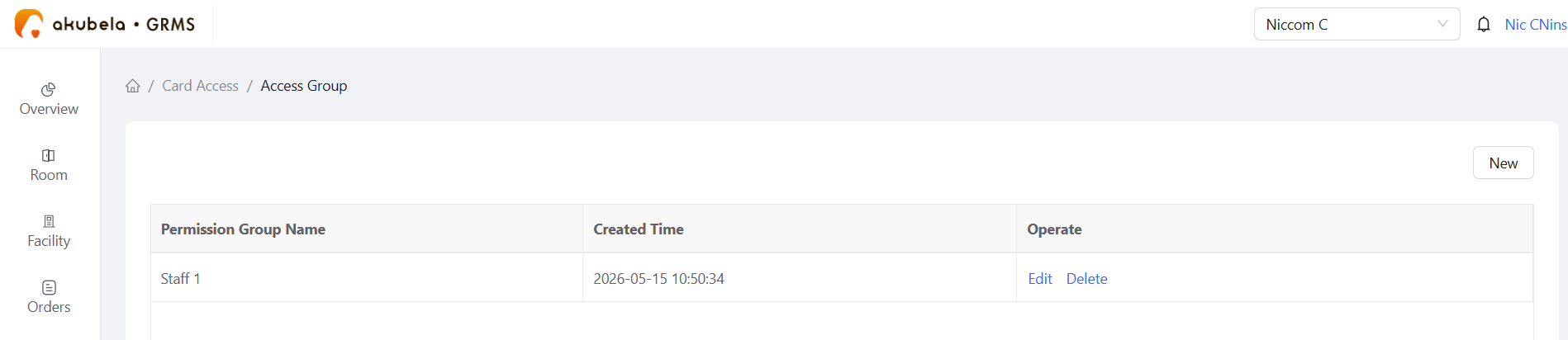
The new groups will listed on the Access Group page.
Add a Staff Access Card
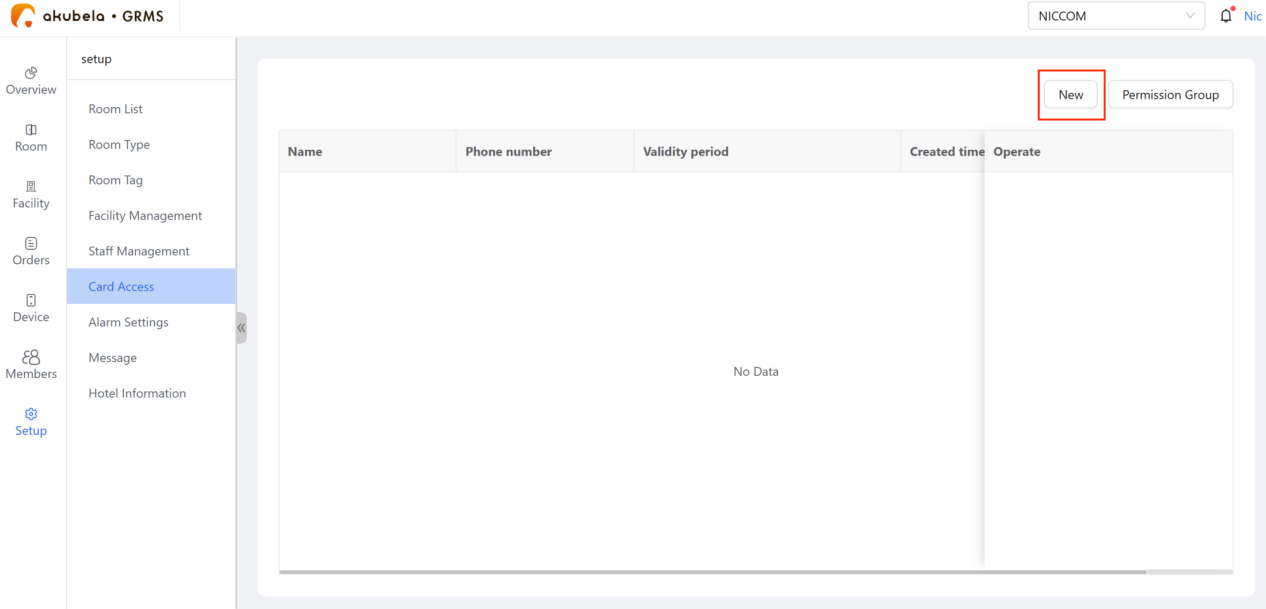
Click Setup > Card Access > New.
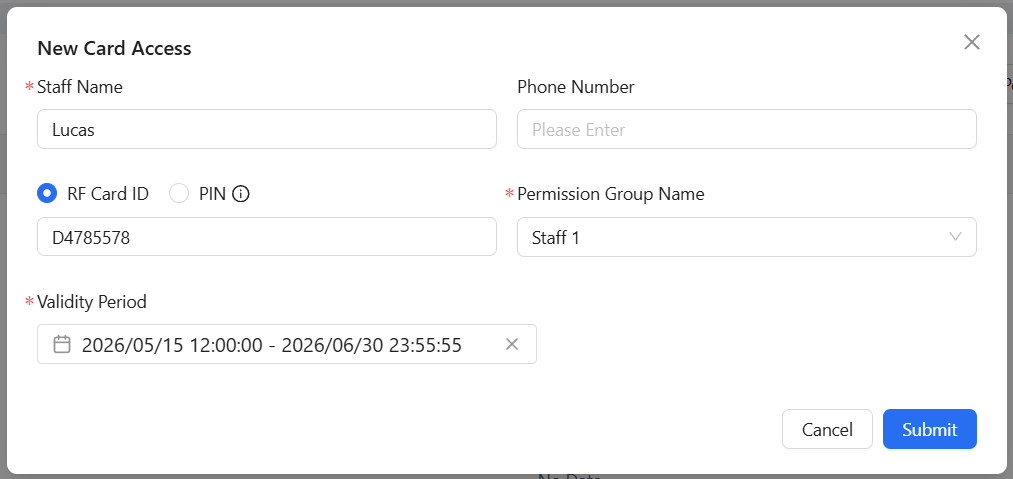
Fill in the required information, assign the access group, set the validity period, ans click Submit.
NOTE:
PIN code access for room doors is supported only on C6 smart locks.
Logs and Authorization Records
Staff Door Access Logs
The GRMS platform records staff access activity for auditing and security management.
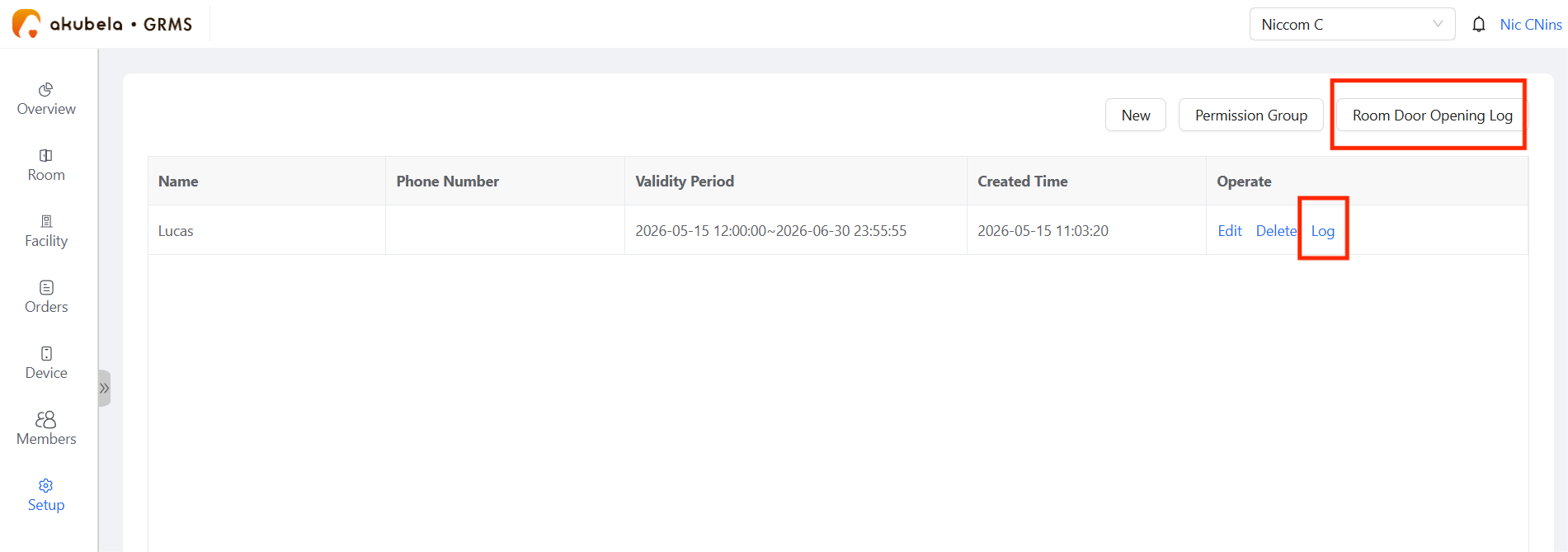
All Room Access Logs: Go to Setup > Card Access > Room Door Opening Log.
Individual Staff Logs: Go to Setup > Card Access > [the target staff] > Log.
Verification of Credential Issuance
To verify whether access credentials were issued successfully or to view issuance records, go to Room > Staff Authorization Records.