When encountering a SmartPlus-related calling failure, please first check:
whether the feature is configured correctly, e.g. assign devices to different network groups for making SIP calls on the SmartPlus Cloud platform;
whether the device firmware is the latest version, if not, upgrade it to the latest version and see if the problem still occurs.
Devices Fail to Call the SmartPlus App
The failure may appear as:
“Not Found” display on the touch-screen device;
The push-button door phones make a beep and hang up the call directly.
The failure may result from:
The device’s SIP account registration fails;
The IP scanner tool interferes. Upgrade the IP scanner to the latest version or turn it off to see whether the problem still occurs.
Then, check and set up these features on the device’s web interface. Take R29 as an example.
Use the device IP to log into its web interface. The default username and password are both admin.
Check the SIP Account Status
Go to the Status > Basic > Account Information interface. When the device is in normal Registered status, it will appear as Registered and display the server information.

If it appears as Unregistered, please try to re-register the account and make the call again.
The SmartPlus App Fails to Receive the Call
The failure may appear as:
“Temporarily Unavailable” display on the touch-screen device;
The device keeps calling but the App does not respond.
The failure may result from:
Poor network condition;
The SmartPlus App account connection or registration fails;
Permissions in the SmartPlus App is disabled;
The Do Not Disturb(DND) feature of the SmartPlus App is enabled;
The local configuration overwrites the Cloud one.
Adjust the Network Environment
Test whether the SmartPlus App can receive calls from other devices. If it can, the problem may be led by the device’s network condition.
Try replacing the network cable or using a different port to see if the problem still occurs.
Check the SmartPlus App’s Status
You can check the SmartPlus App’s status by requesting a screenshot or a video from the user recording the process of opening the SmartPlus App.
On its homepage, there are two indicators in the upper left corner. They will disappear automatically after a few seconds.
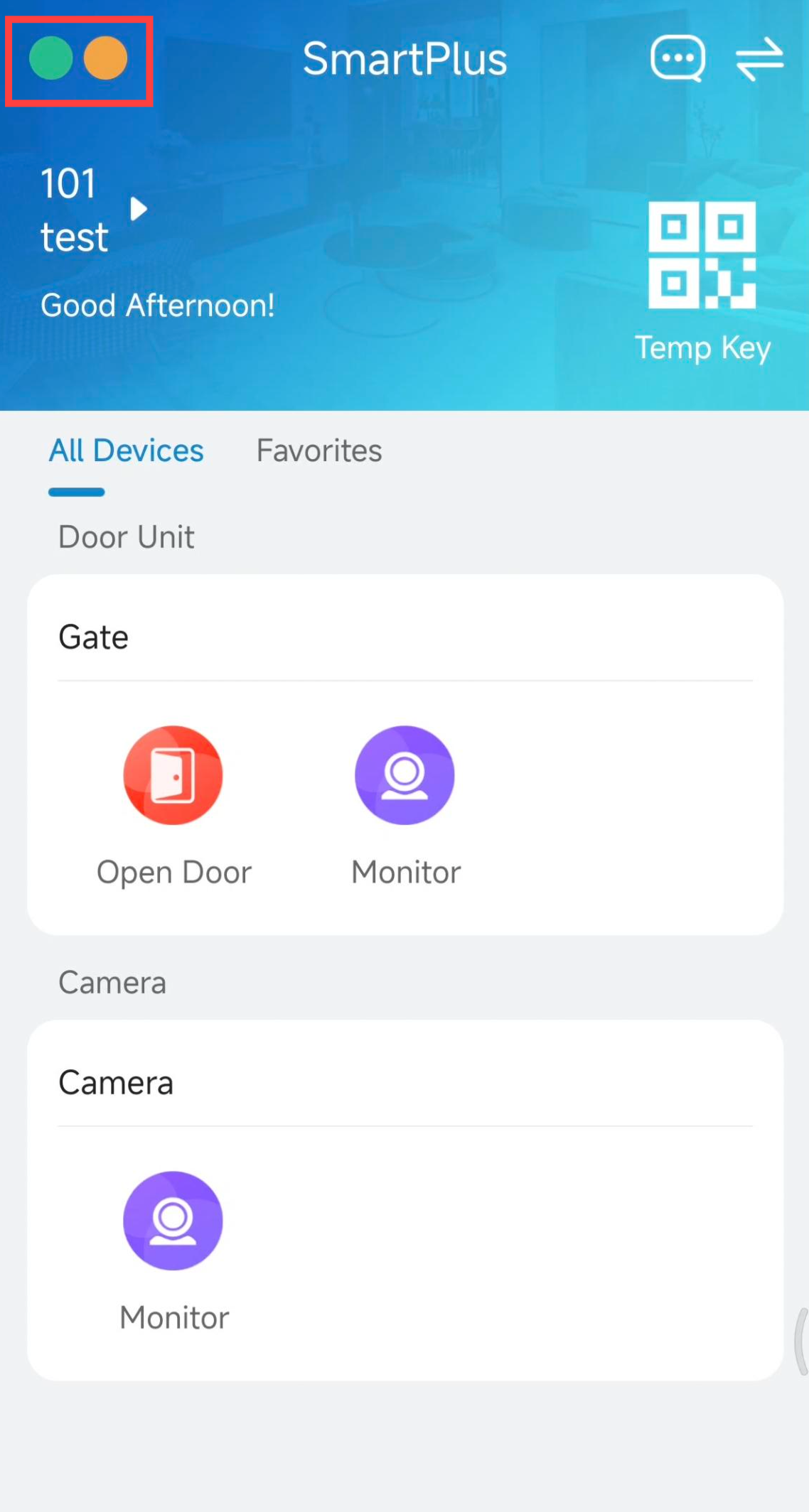
The left one indicates whether the account is connected to the Cloud server.
The right one indicates whether the account is registered.
See details in the chart:
Indicator Status | Description |
|---|---|
The left indicator is green. | Connected to the Cloud. |
The left indicator is orange. | Connecting to the Cloud. |
The left indicator is red. | Fail to connect to the Cloud. |
The right indicator is green. | Registered SIP account. |
The right indicator is orange. | Registering SIP account. |
The right indicator is red. | Fail to register SIP account. |
If the SmartPlus App registration or connection fails, please ask the user to reproduce the problem and upload the App log to the Cloud server for further problem analysis.
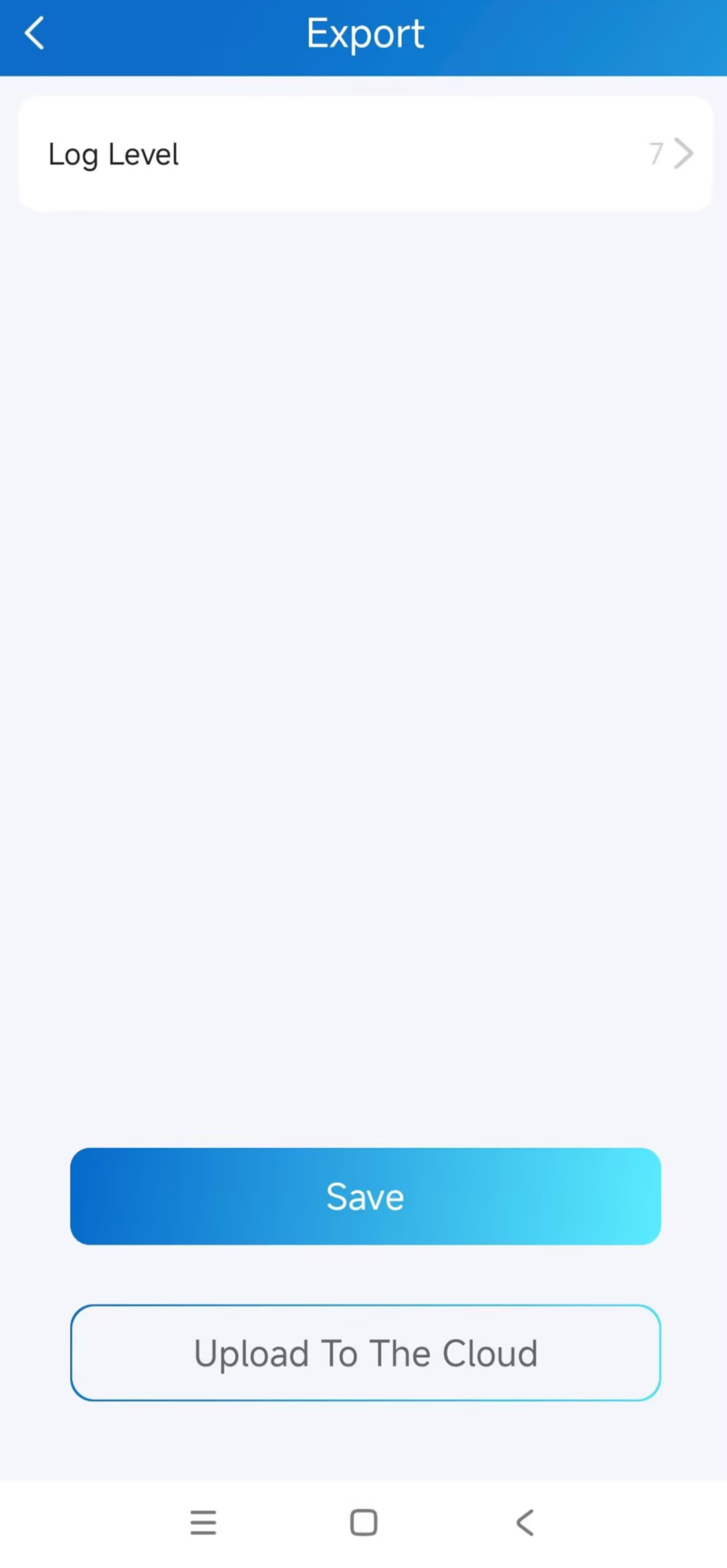
Tap Me > Settings > Advanced Settings > Export Log.
Select the Log Level as 7. The higher the level is, the more complete the log is.
Tap Upload To The Cloud.
Grant Permissions to the SmartPlus App
It is suggested to grant all permissions to the SmartPlus App for a smooth calling and door-opening experience.
Tap Me > Settings > Notification Settings > Permissions. The red dot means the App does not have permission.
Tap Notification Permissions Setting Guide to see how to enable each permission.
.jpg "32e51b2d11bfeca1061814e3013b2370_origin(1).jpg")
Disable DND in the SmartPlus App
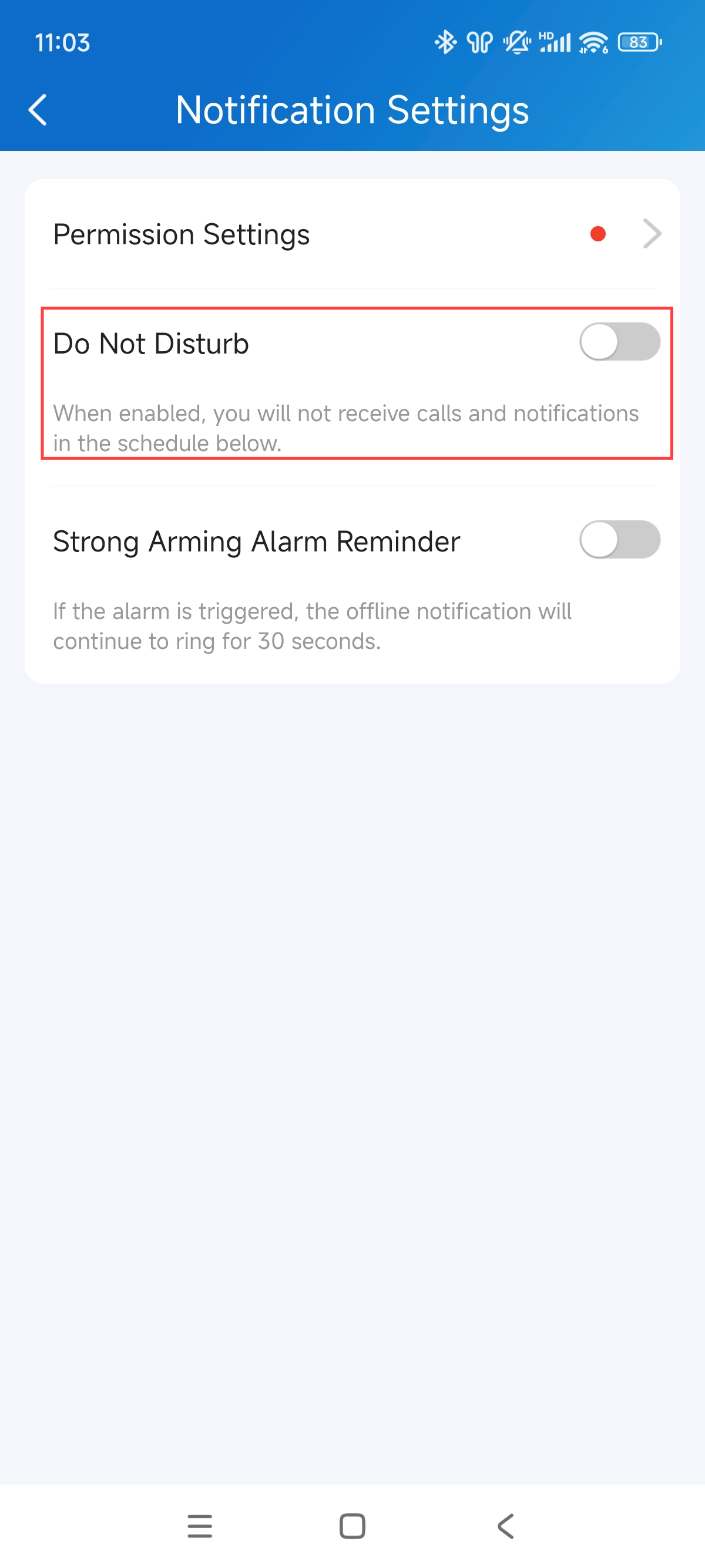
When DND is on, the SmartPlus App will not receive calls.
Tap Me > Settings > Notification Settings and disable DND mode if it is on.
Delete the Local Configuration
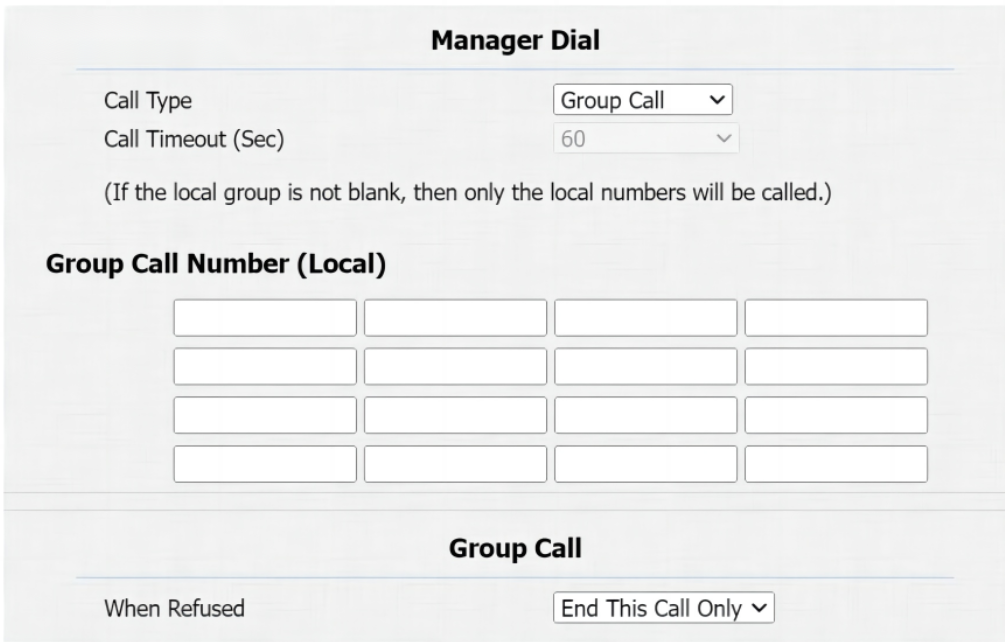
The local IP number may overwrite the Cloud SIP account, leading to a call failure.
Take the Group Call of R20A as an example.
Use the device IP to log into its web interface. The default username and password are both admin.
Go to the Intercom > Basic > Manager Dial interface and delete the entered IP numbers if there are.
Try to make the call again and see whether the problem still occurs.
No Video on the SmartPlus App when Receiving Calls
The failure may appear as:
no videos during both call and preview;
no video after picking up the call but there is a video preview;
no video preview but there is a video after picking up the call.
The failure may result from:
The hardware issue of the door phone;
The SmartPlus App does not have the camera permission;
The connection fails between the SmartPlus App and the Cloud server, or between the device and the server.
Check the Device’s Hardware
Test whether the door phone can make a normal call to other devices such as an indoor monitor.
If it can, the problem is not related to the device’s hardware.
If it can not, the problem needs further analysis on the device.
Grant Permissions to the SmartPlus App
Users cannot view videos on the SmartPlus App when it does not have camera permission.
It is suggested to grant all permissions to the SmartPlus App for a smooth calling and door-opening experience.
Tap Me > Settings > Notification Settings > Permissions. The red dot means the App does not have permission.
Tap Notification Permissions Setting Guide to see how to enable each permission.
Check the SmartPlus App’s Status
You can check the SmartPlus App’s status by requesting a screenshot or a video from the user recording the process of opening the SmartPlus App.
On its homepage, there are two indicators in the upper left corner. They will disappear automatically after a few seconds.
The left one indicates whether the App account is connected to the Cloud server.
The right one indicates whether the App account is registered.
See details in the chart:
Indicator Status | Description |
|---|---|
The left indicator is green. | Connected to the Cloud. |
The left indicator is orange. | Connecting to the Cloud. |
The left indicator is red. | Fail to connect to the Cloud. |
The right indicator is green. | Registered SIP account. |
The right indicator is orange. | Registering SIP account. |
The right indicator is red. | Fail to register SIP account. |
If the SmartPlus App registration or connection fails, please ask the user to reproduce the problem and upload the App log to the Cloud server for further problem analysis.
If the registration or connection is normal, the problem may caused by the connection between the device and the Cloud. Please ask the user to enable Video Quality Analysis before reproducing the problem and uploading the log.
Tap Me > Settings > Advanced Settings and enable Video Quality Diagnosis.
Tap Export Log.
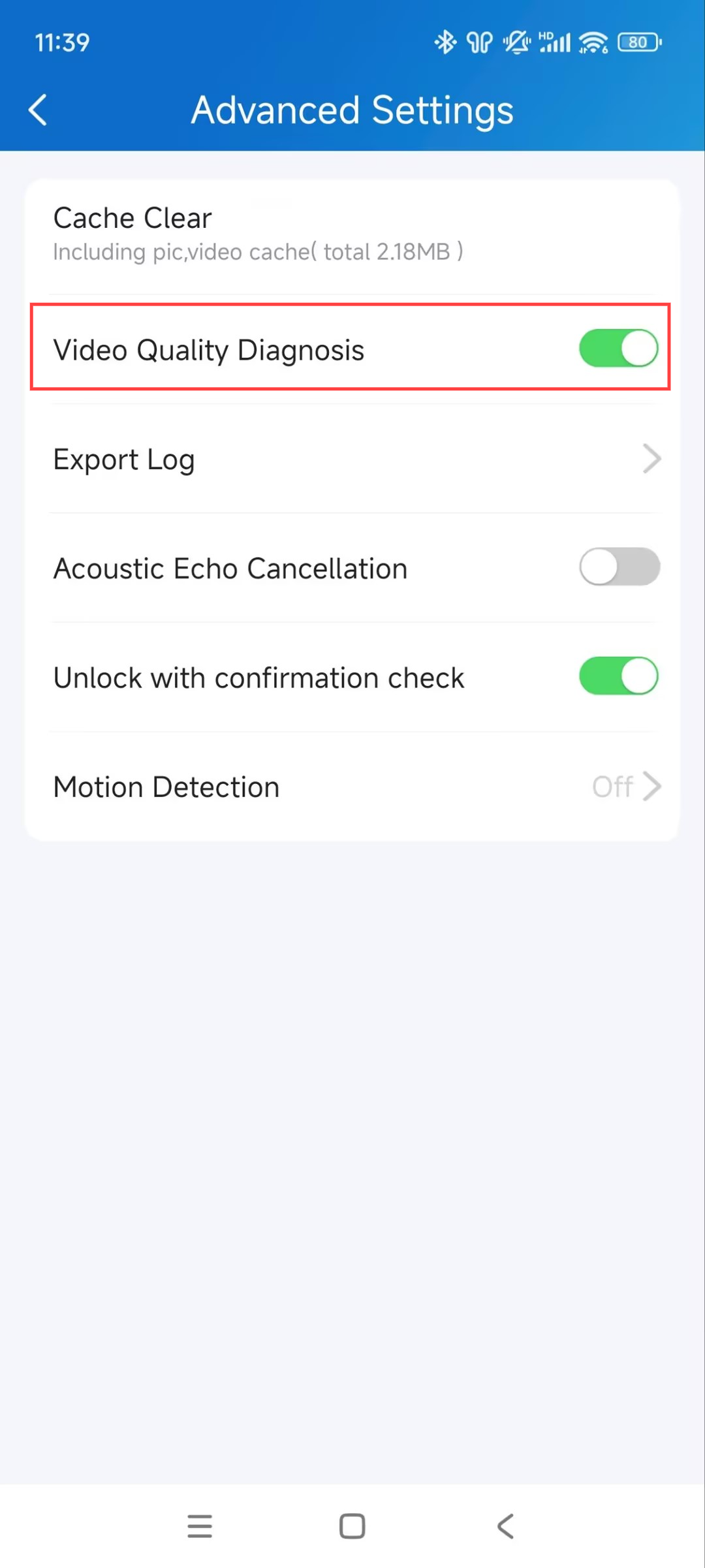
Select the Log Level as 7. The higher the level is, the more complete the log is.
Tap Upload To The Cloud.
Tip
When unable to troubleshoot, please report the problem through the Ticket system and provide relevant information.
Please view the article Feedback a Problem to Akuvox Technical Team for instructions on collecting information.