Upgrade
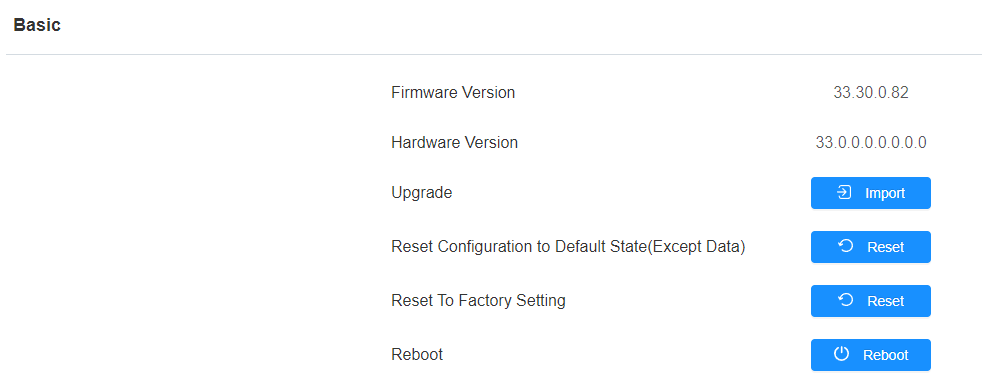
Upgrade the device on the System > Upgrade interface. Click Import to select and upload the file.
Tip
Click here to download the latest firmware and view changelogs.
Reboot and Reset
Reboot and reset the device on the System > Upgrade interface.
The device provides two reset options:
Reset to Factory Setting: Reset all data to the factory default.
Reset Configuration to Default State(Except Data): Retain the user data, such as the RF cards and schedules.
Maintenance
System Log
System logs can be used for debugging purposes.
Export system logs on the Maintenance > System Log interface.
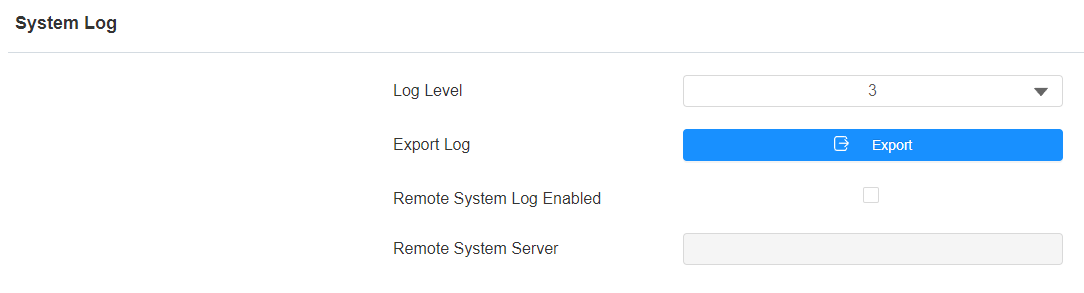
Log Level: Select log levels from 1 to 7. You will be instructed by Akuvox technical staff about the specific log level to be entered for debugging purposes. The default log level is 3. The higher the level is, the more complete the log is.
Export Log: Export the system log file to a local PC before you send it to the Akuvox technical support team.
Remote System Server: Enter the remote server address to which the system log will be sent. The remote server address is provided by the Akuvox technical team.
Remote Debug Server
When the device is having a problem, you can use the remote debug server to access the device log remotely for debugging purposes.
Set it up on the System > Maintenance > Remote Debug Server interface.
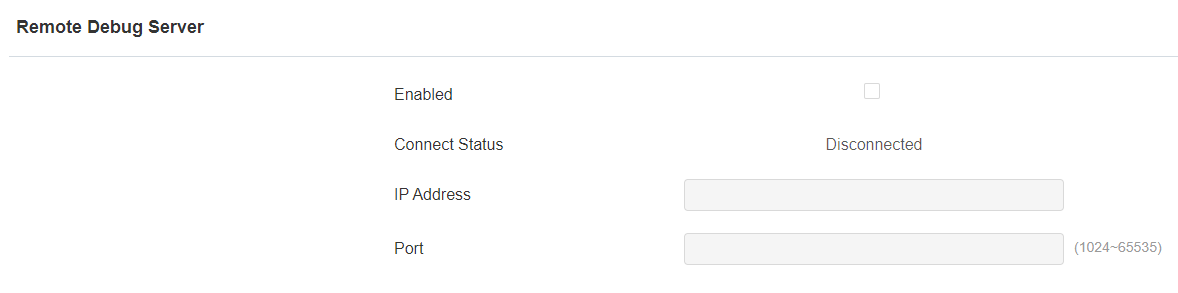
Connect Status: Display the remote debug server connection status.
IP Address: Enter the remote debug server IP address. Please ask the Akuvox technical team for the server IP address.
Port: Enter the remote debug server port.
PCAP
PCAP is used to capture the data package going in and out of the devices for debugging and troubleshooting purposes.
Set it up on the System > Maintenance > PCAP interface.

Specific Port: Select the specific ports from 1-65535 so that only the data packet from the port can be captured. You can leave the field blank by default.
PCAP: Pick a certain data packet range by clicking Start and Stop. Then export the data packet captured during the time interval to your local PC.
PCAP Auto Refresh Enabled: If you enable it, the PCAP will continue to capture data packets even after the data packets reach their maximum capacity. If you disable it, the PCAP will stop data packet capturing when the data packet captured reaches the maximum capturing capacity of 1MB.
Backup
You can import or export encrypted configuration files to your Local PC.
Navigate to the web System > Maintenance > Others interface. The supported file formats are TGZ, CONF, and CFG.

IP Announcement
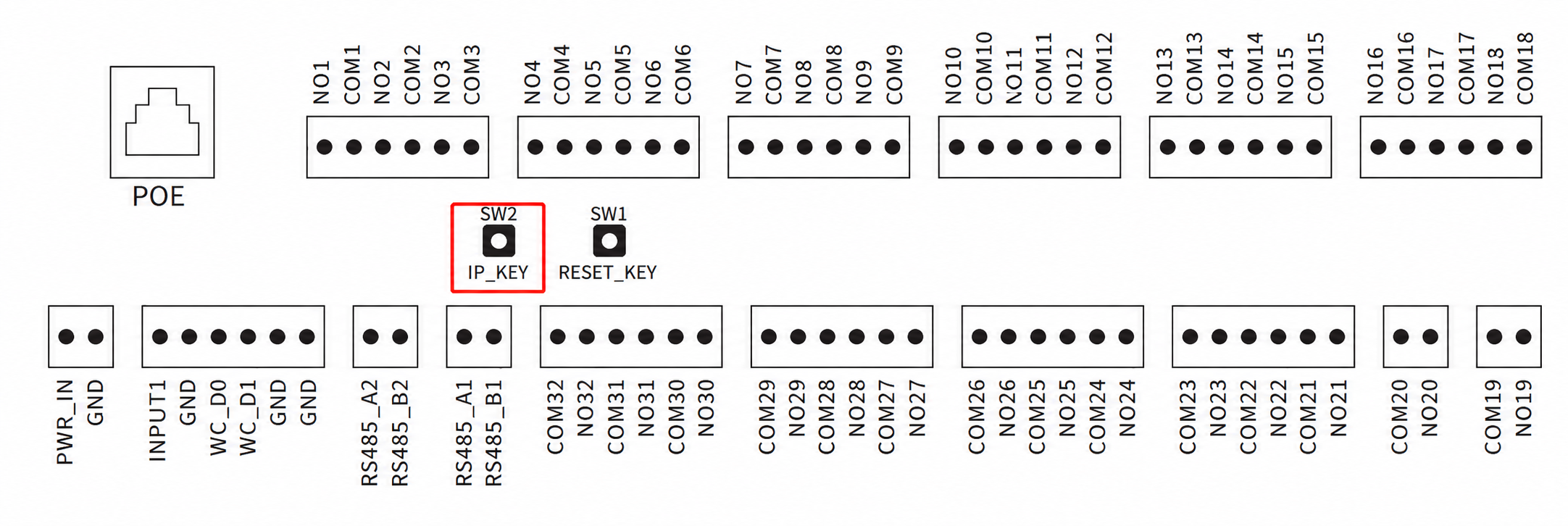
With IP announcement enabled, you can obtain the EC33's IP address by holding the physical button on the control board during deployment.
You can set the number of IP announcements on the System > Maintenance > IP Announcement interface. This feature is enabled by default.

Note
Both the EC33 and EC33P support IP announcement by pressing and holding the SW2 button on the main board for 5 seconds. On the EC33P, the button is inside the plastic enclosure and requires removing the cover. To avoid disassembly, it is recommended to obtain the IP address using Akuvox IP Scanner.
Security
Web Interface Password
The web password is used to access the device’s web settings. You can change it on the System > Security interface.
Select admin for the administrator account and user for the user account. Then, click the Change Password tab.

You can also enable or disable the user account.

Emergency Action
This feature works with Akuvox SmartPlus Cloud. It keeps the door open when an emergency happens.
Click here to view the detailed configuration of this feature.
Enable this feature on the System > Security interface.

Web Interface Automatic Log-out
You can set up the web interface's automatic log-out timing, requiring re-login by entering the user name and the passwords for security purposes or for the convenience of operation.
Set it up on the System > Security interface.