Reboot
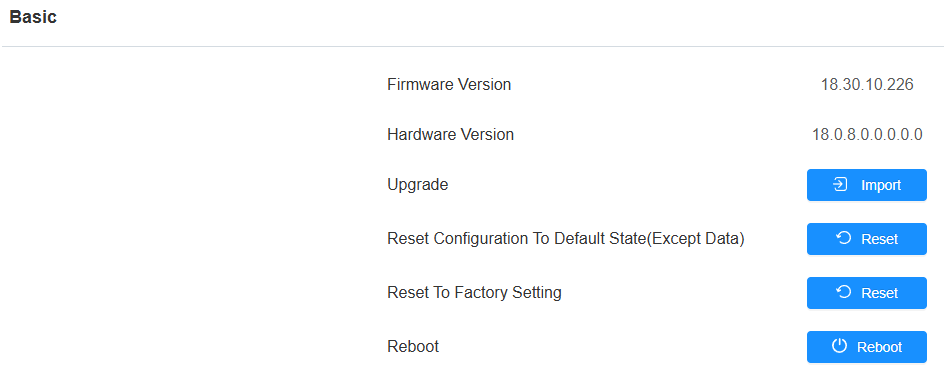
You can reboot the device on the System > Upgrade > Basic interface. Moreover, you can set up a schedule for the device to be restarted.
To set up the schedule, go to the System > Auto Provisioning > Reboot Schedule interface.

You can also reboot the device on the Setting > Advanced Setting screen.

Reset
The device provides two reset options:
Reset to Factory Setting: Reset all data to the factory default.
Reset Configuration to Default State(Except Data): Retain the user data, such as the RF cards, face data, schedules, and call logs.
You can reset the device on the web System > Upgrade > Basic interface.
You can also reset the device on the Setting > Advanced Setting screen.
Tip
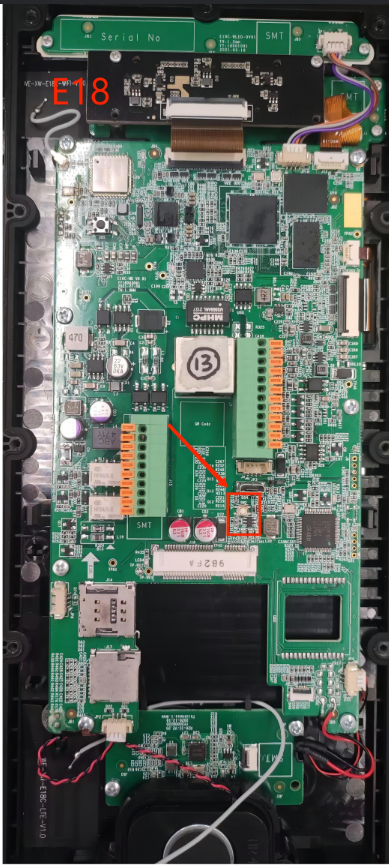
The device can be reset by pressing a physical button.
Remove the back cover of the door phone.
Power on the device.
Hold the white button until the backlight and white fill light in the card reader area light up simultaneously for 1 second.
When the device screen does not light up, hold the white button for about 3-5 seconds.
When the device is in a normal working state, hold the white button for about 8-10 seconds.
Then, the device will go into factory reset and reboot.