API Control allows a third-party system or device to trigger scenes on the akubela home center through HTTP or TCP requests. For example, a door phone can send an API request when a door is opened, triggering scene actions such as turning on lights, playing music, or controlling curtains.
Before Getting Started
Before configuring API Control, make sure that:
The home center is one of the supported models and is running the required firmware versions.
Supported Device | Required Firmware Version |
HyPanel Supreme (PHX1) | 1001.1.39.24 and later |
HyPanel Ultra (PH81) | 281.1.39.22 and later |
HyPanel Pro (PG71) | 71.1.39.37 and later |
HyPanel KeyPlus (KS53) | 53.1.39.7 and later |
HyPanel Plus (PS52) | 52.1.39.7 and later |
HyPanel V2.0 (PS51) | 251.1.39.4 and later |
HyPanel V1.0 (PS51) | 51.1.39.15 and later |
HyPanel Elite 10 (PH59) | 159.1.39.137 and later |
SmartPanel Elite 10 (PH58) | 119.1.39.10 and later |
SmartPanel (X933H) | 933.1.39.10 and later |
The third-party system or device support sending TCP or HTTP commands.
Create a Scene
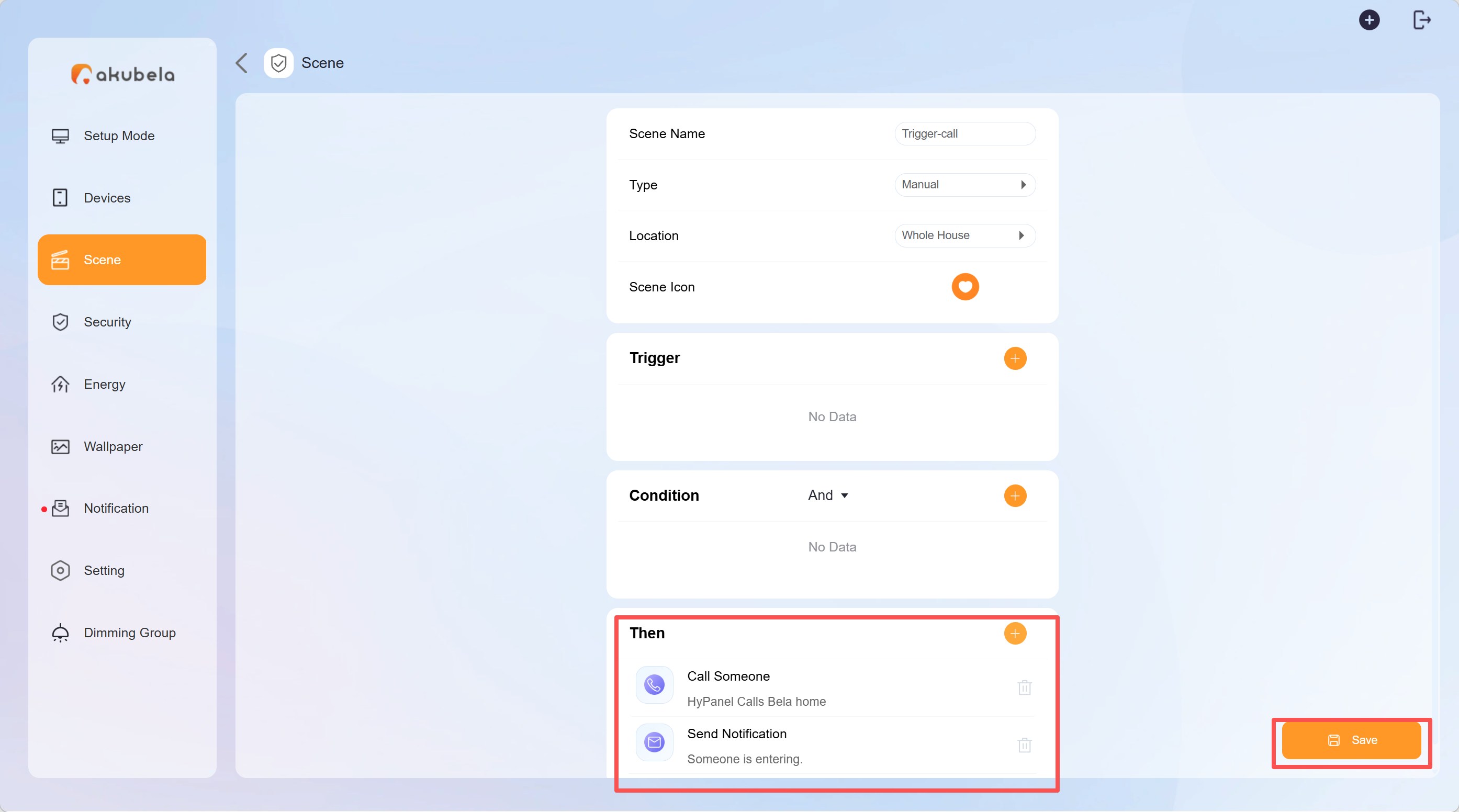
Open a web browser and enter the Home Center's IP address to log in to the device web portal. The default username and password are both admin.
Go to Scene>
 > Add Scene.
Configure the scene’s name, type and location.
Under Then, configure the actions to be performed when the scene is triggered.
Click Save.
Enable API Control
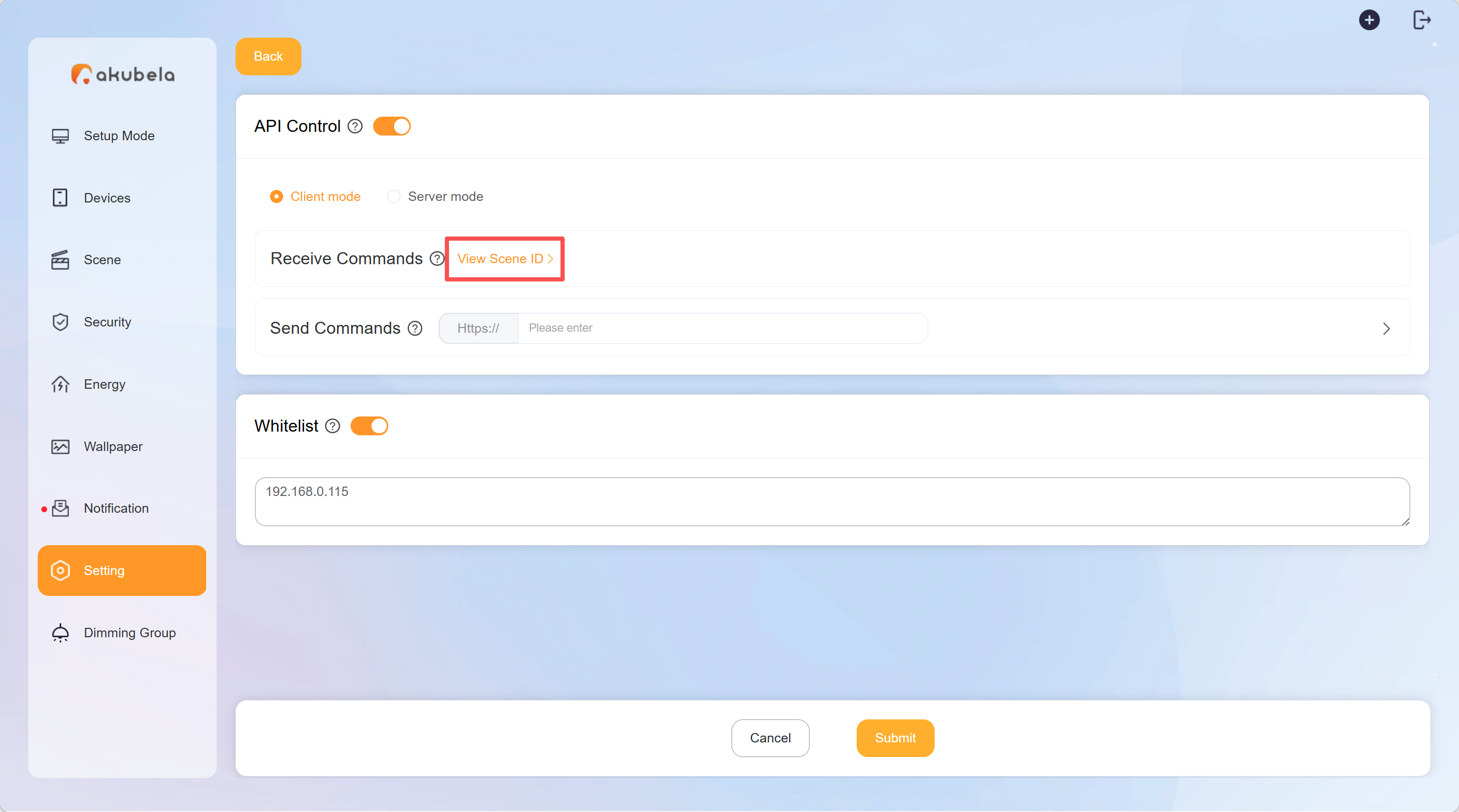
Go to Setting > API Control.
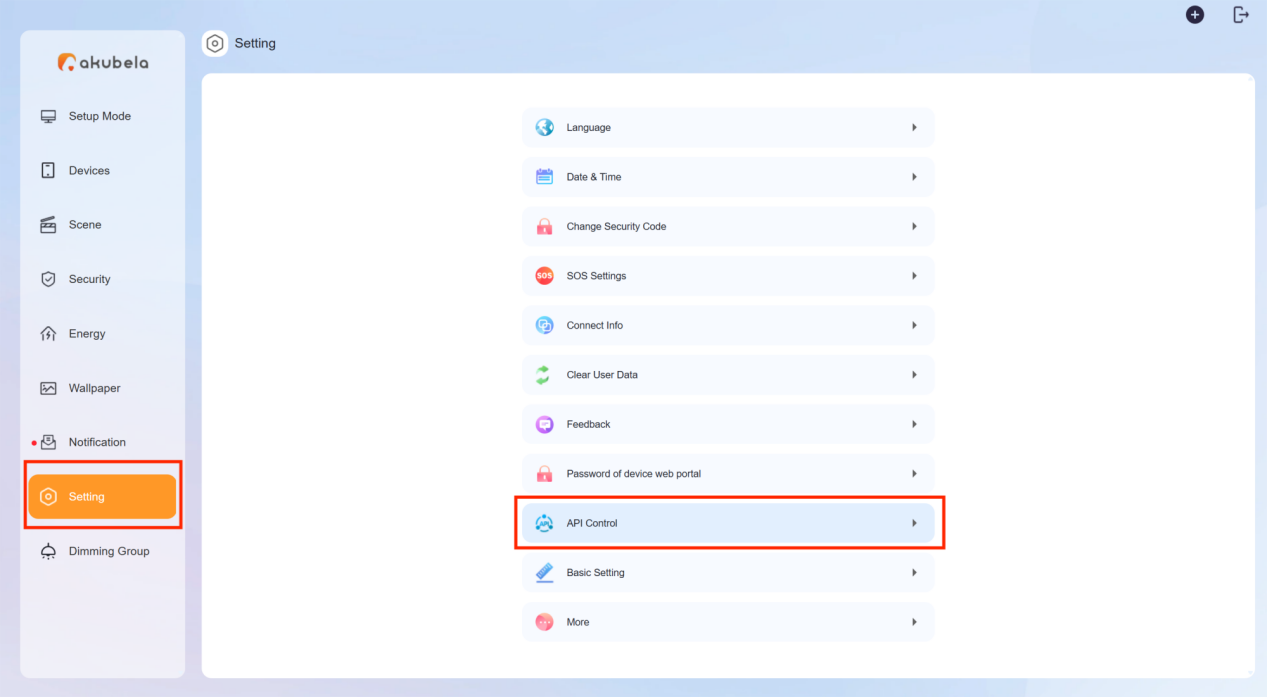
Enable API Control, then click Submit.
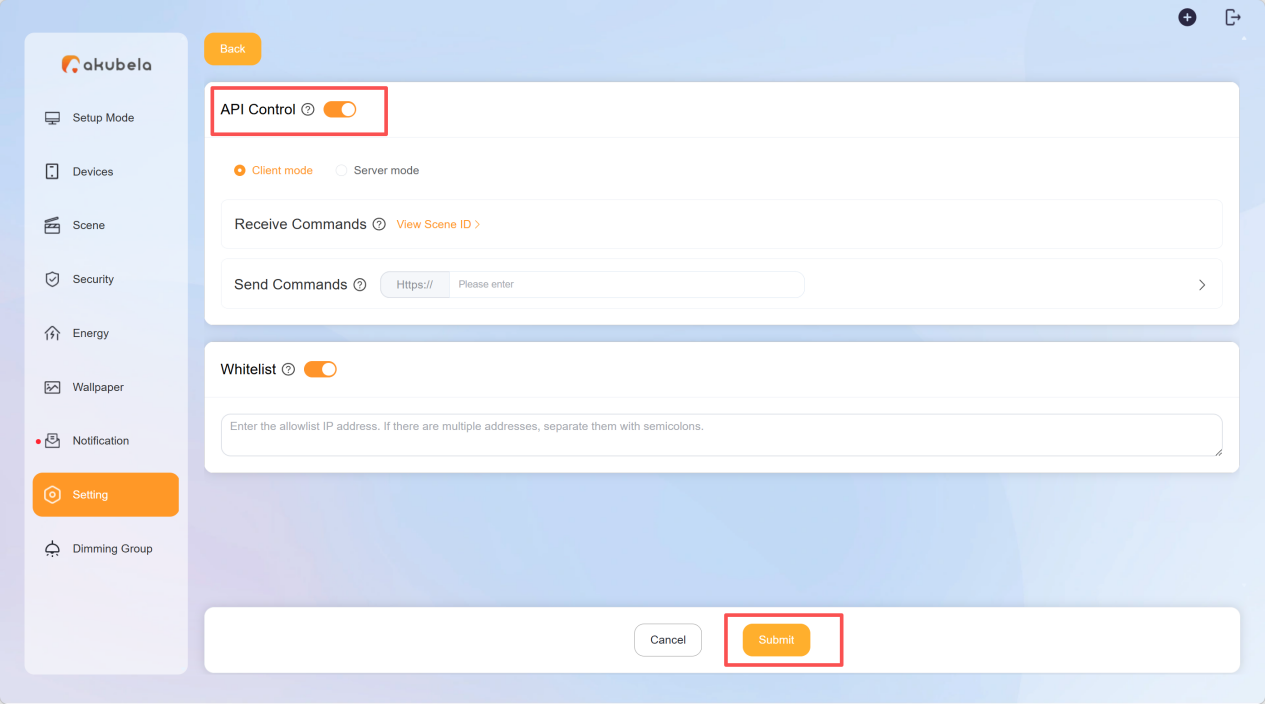
Choose an API Control Mode
Client Mode
In Client Mode, the home center and the third-party system communicate over the HTTP protocol.
In this example, a door phone triggers a scene when its relay is activated.
1. Select Client Mode
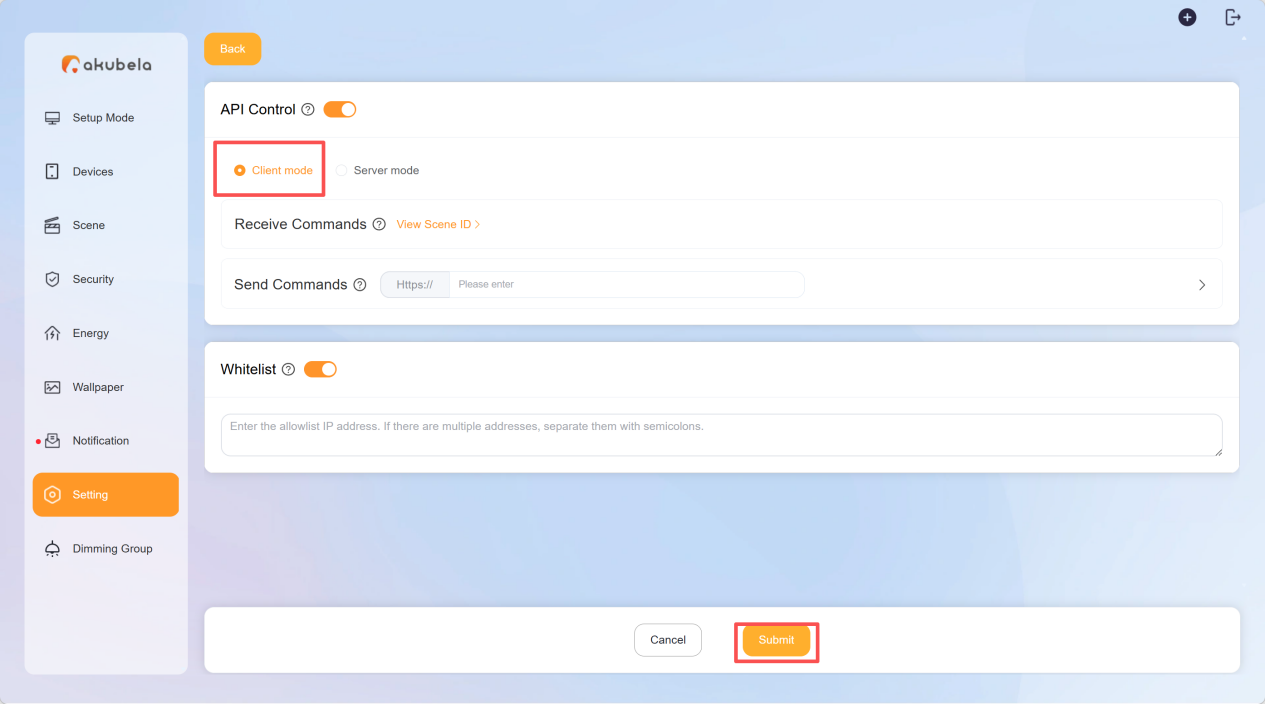
On the API Control page, select Client mode.
Click Submit.
2. Obtain the Scene ID
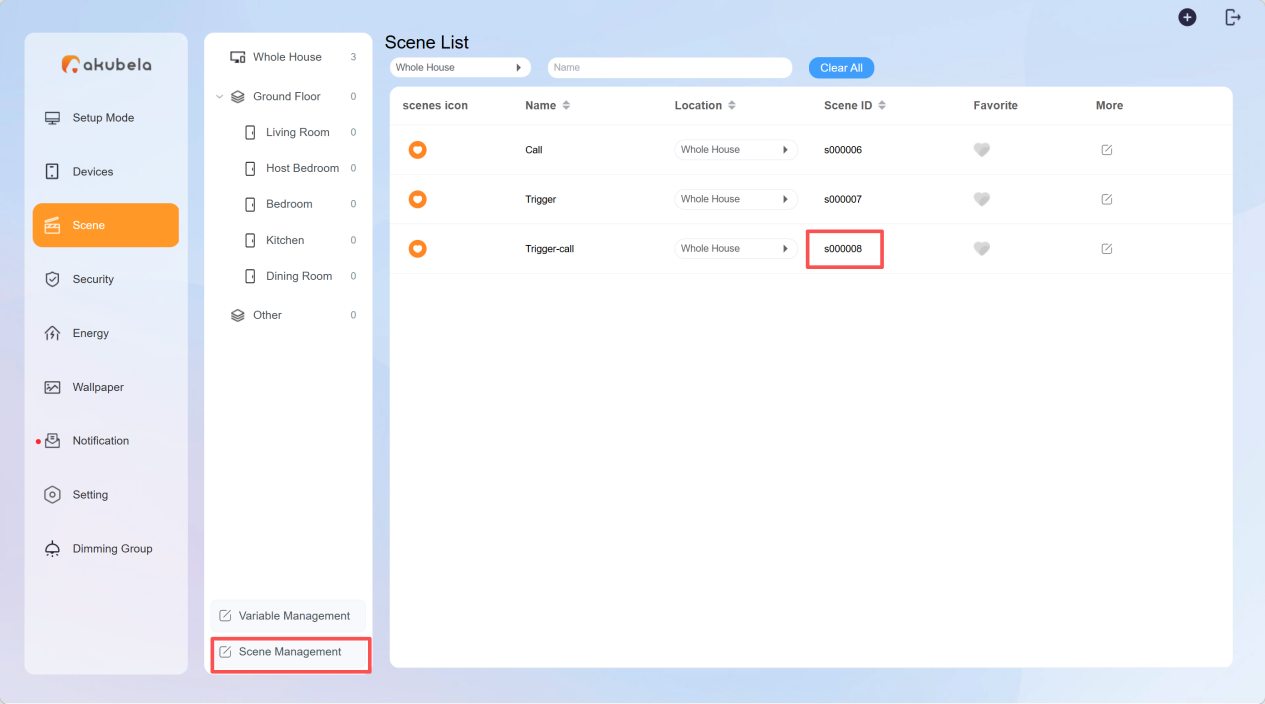
Click View Scene ID on the API Control page, or go to Scene > Scene Management.
Find the scene you created and note its Scene ID.
3. Configure the Third-Party System
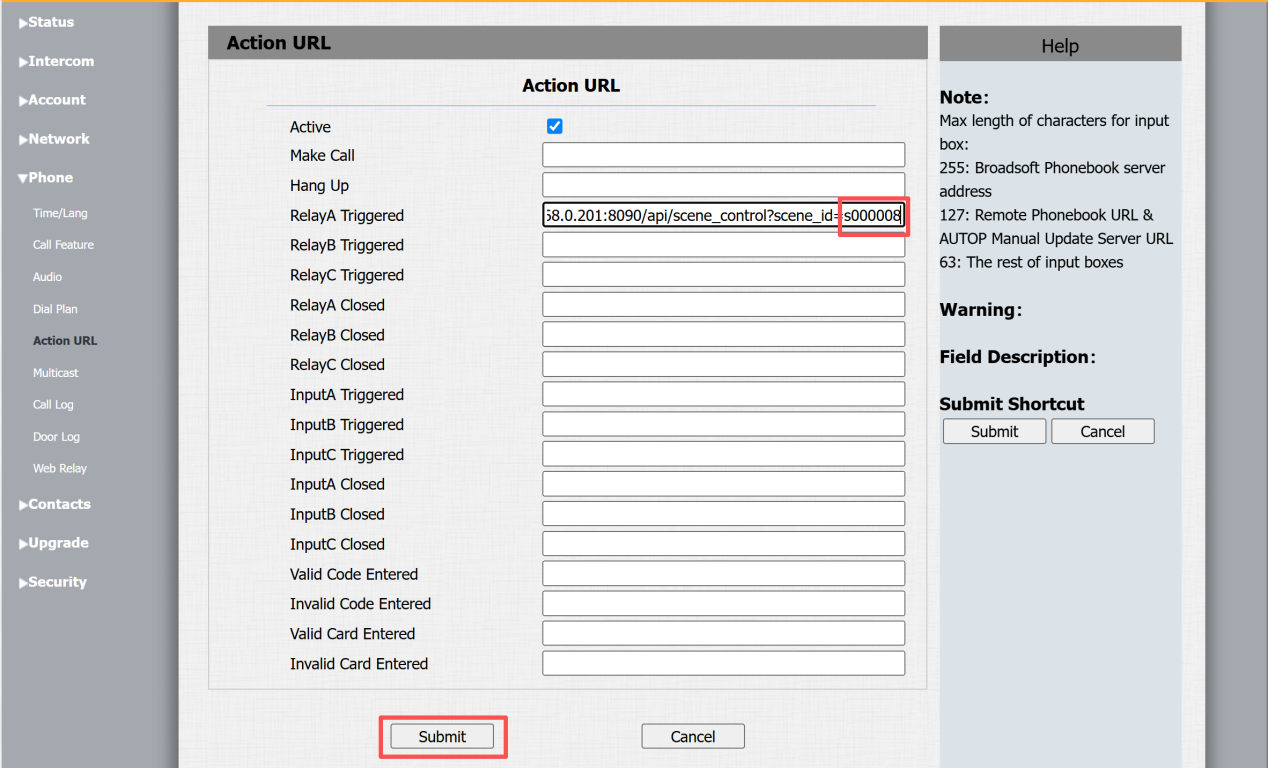
Log in to the third-party device’s web portal.
Configure an HTTP request using the following format:
http://[Home Center IP]:8090/api/scene_control?scene_id=[Scene ID]
[Home Center IP]: The IP address of the home center.
[Scene ID]: The ID of the scene to be triggered.
4. Test the Request
Send the HTTP request from the third-party system. The scene should then execute the configured actions.
Server mode
In Server Mode, the home center and the third-party system communicate over the TCP protocol.
If you need to use the TCP commands, contact akubela technical team for support.
Set up Whitelist (Optional)
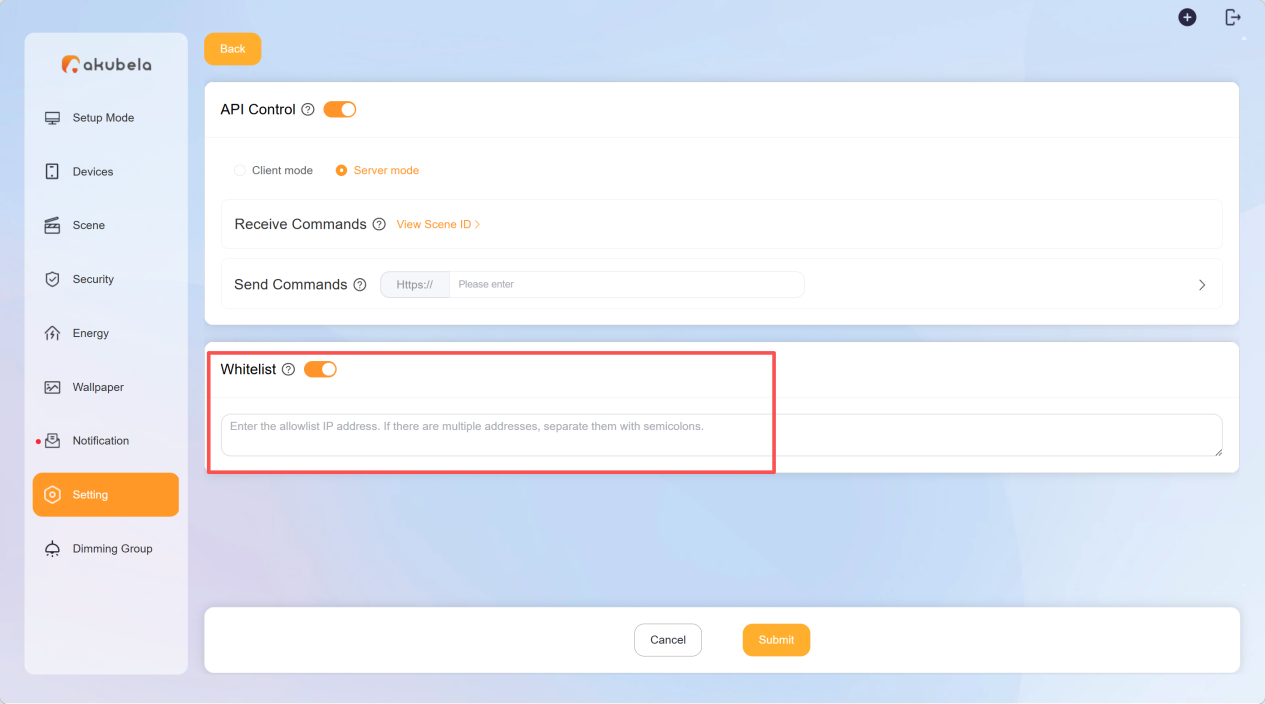
The whitelist allows API access only from specified remote devices or systems.
Go to Setting > API Control > Whitelist
Enter the IP addresses of the devices or systems that are allowed to access the API.
Click Submit.
NOTE:
The whitelist restricts access from remote devices only. Requests initiated by the local device are not restricted.