Users can utilize the security mode to protect their home. For instance, when armed, if someone breaks a window that triggers the window sensor, and the system will send notifications and call the guard for assistance.
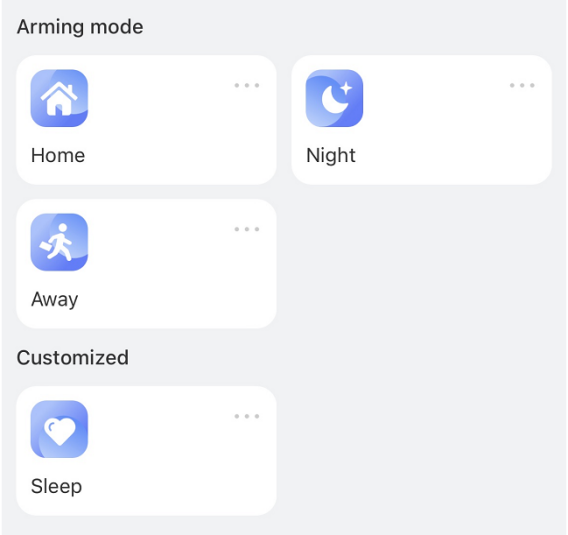
akubela provides three default security modes - Home, Away, and Night, requiring configuration prior to activation, along with the option to create custom modes tailored to specific needs. These settings are accessible on the user web portal, BelaHome app, and specified panel models.
Before getting started
Before starting the configuration, make sure the home center device within the family is powered on and function properly.
Using the user web portal
Via the home center device’s IP address
Ensure your computer and the devices are on the same local network.
Open a browser and enter the home center device’s IP address into the address bar.

c. Enter the administrator account credentials. If the device has never been connected to the cloud, the default username and password are both Admin888.
Go to https://my.akubela.com (Only available when the device is connected to the cloud)
Type https://my.akubela.com in the browser.
Enter the administrator account credentials.
Click on Security on the left-side menu, and do any of the following:
To configure the default mode, click on
 at its bottom right.
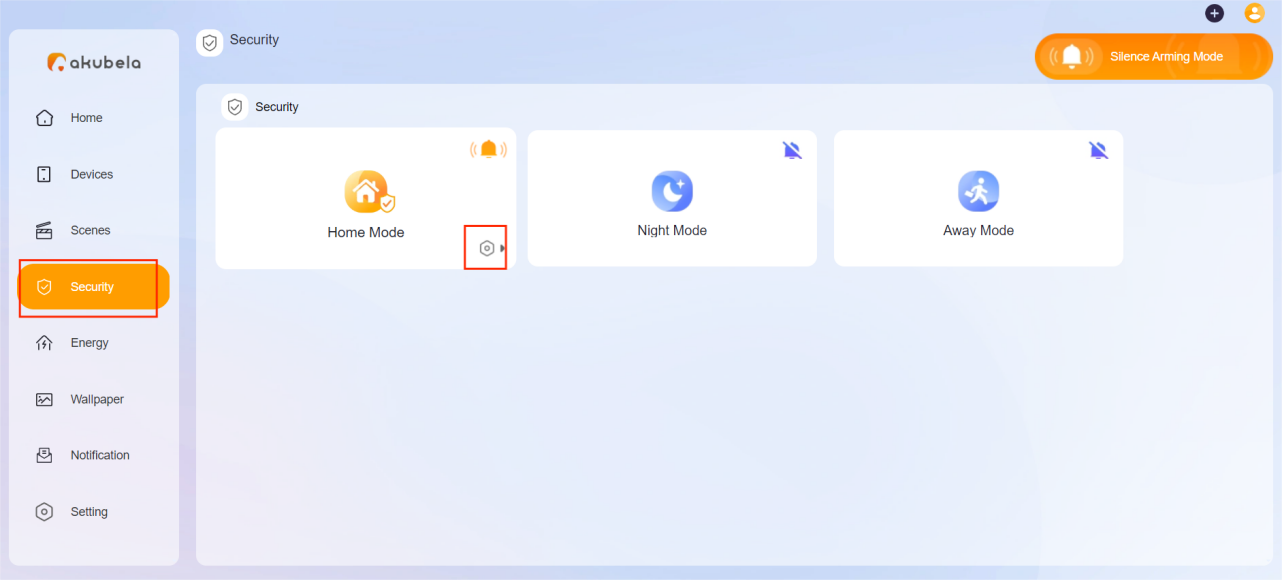
To create a custom mode, click on
 > Add security.

Name the mode. Required only when creating a custom one.

Click on
 to select the device(s) to start the task when any of them is triggered or detects something unusual. Click OK.

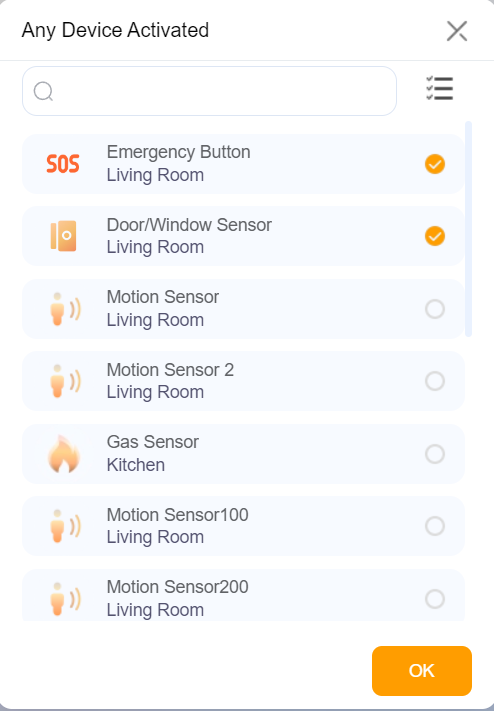
Tip:
Below are the commonly used devices and their triggers.
Device
Trigger
Door/Window Sensor
Being opened
CO Sensor
Carbon monoxide gas detected
Gas Sensor
Gas leakage detected
Motion Sensor
Movement detected
Flood Sensor
Water presence detected
Smoke Sensor
Smoke or fire detected
Emergency Button
Being pressed
Configure the task(s) to execute when the designated device is triggered.
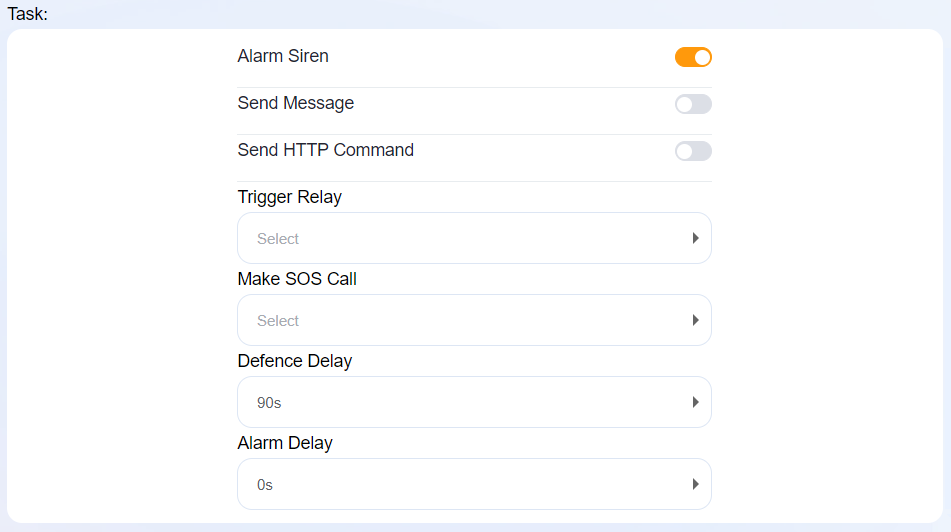
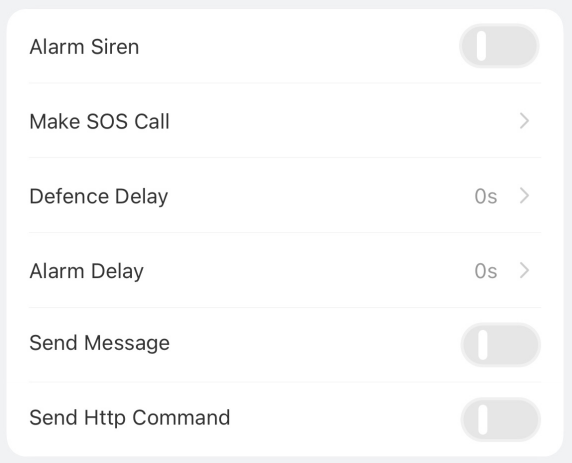
Alarm Siren: Activate audible siren and push alarm across all panels and the phones with BelaHome app installed.
Send Notifications: Input the customized message to be sent to all panels and family members.
Send HTTP command: Enter the HTTP command URL to trigger certain devices to perform designated actions.
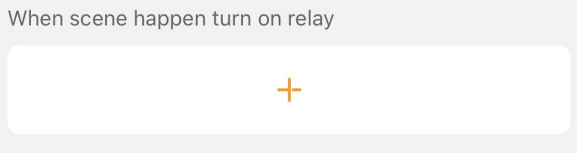
Trigger Relay: Choose the relay(s) to be activated.
Make SOS Call: Call the desired service provider.
Note
SOS numbers must be preconfigured either through the user web portal or the Cloud(Contact your service provider for assistance).
Defence Delay: Set a time interval before the security mode takes effect.
Alarm Delay: Set delay for the alarm activation.
Click Save.
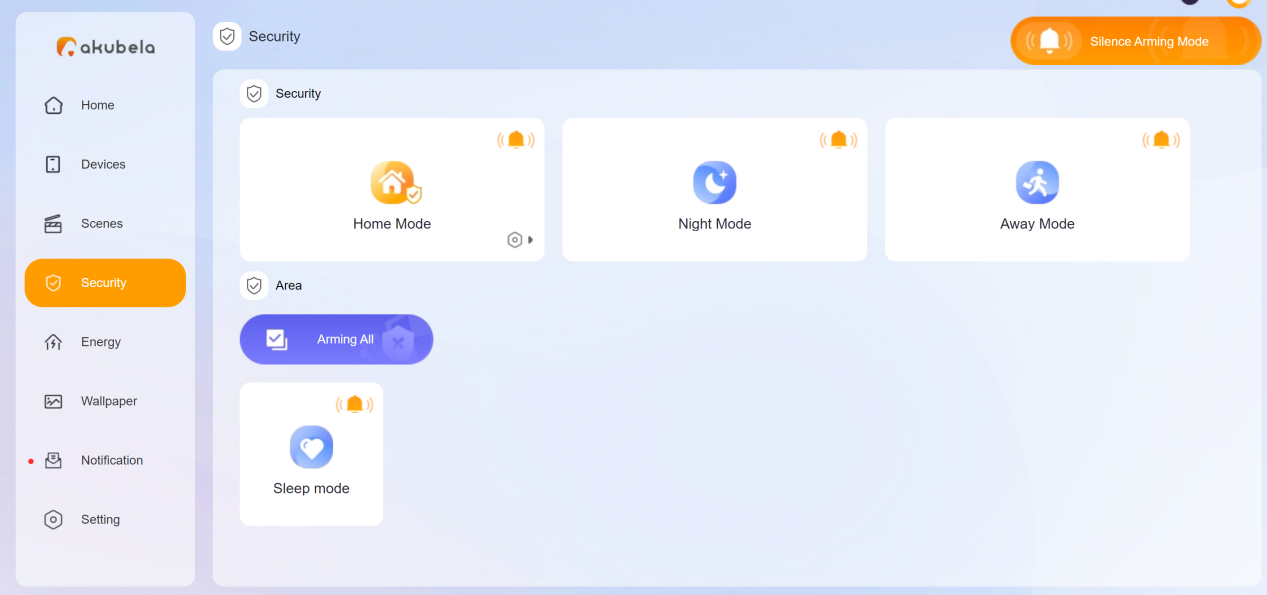
Newly-created modes will be displayed on the Security interface and synced to BelaHome app and all panels. Simply tap the desired mode to arm the system.
Using BelaHome app
Note
If you only have HyPanel Lite devices in your family, the security feature is not available, and its tab is hidden.
Log in with the account credentials. If the devices have never connected to the Cloud, the username and password are both Admin888 by default.
Tap
 > Security.
Do any of the following:
To configure a default mode, tap its
 .
.
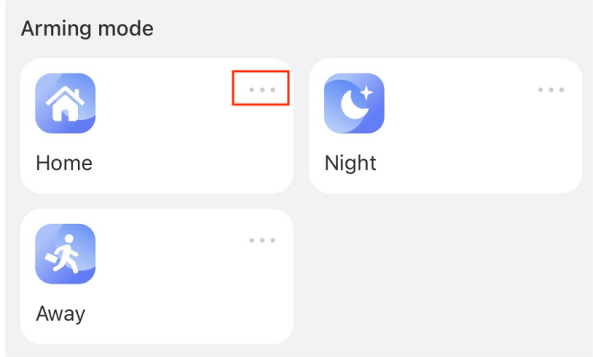
To create a custom mode, tap
 > Add security.
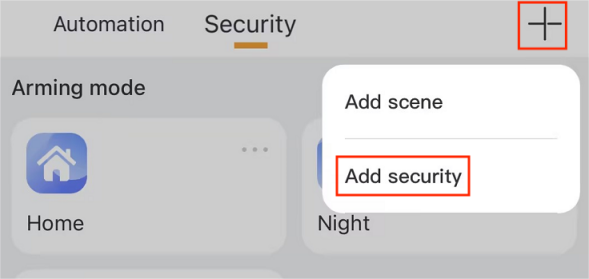
Name the mode. Required only when creating a custom one.

Tap
 to select the device(s) to start the task when any of them is triggered or detects something unusual.

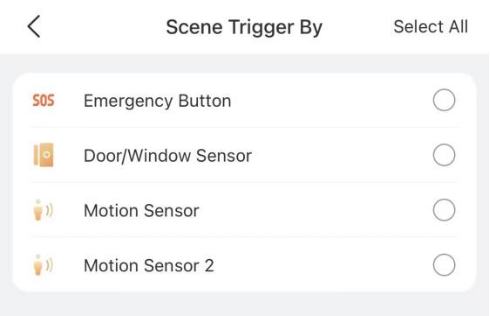
Configure desired task(s), including the relay, to execute when the designated device is triggered. The options are the same as those on the user web portal.
Newly-created modes will be displayed on the Automation screen and synced to the user web portal and all panels. Simply tap the desired mode to arm the system.
Using HyPanel Devices
Note
Only the following HyPanel models with specific firmware versions support direct configuration of security modes. Please note that the configuration paths and UIs may vary.
HyPanel Pro: 71.1.22.60 and later.
HyPanel Ultra: 281.1.31.18 and later
HyPanel Supreme: 1001.1.31.37 and later
Here we use the HyPanel Ultra with version 281.1.35.8 as an example.
Tap
 on the Home screen and then select Arming
  (It may be Security in some firmware versions).
Enter the arming/disarming code. The default is 000000.
On the next screen, do any of the following:
To configure default modes, tap
 and select a mode.
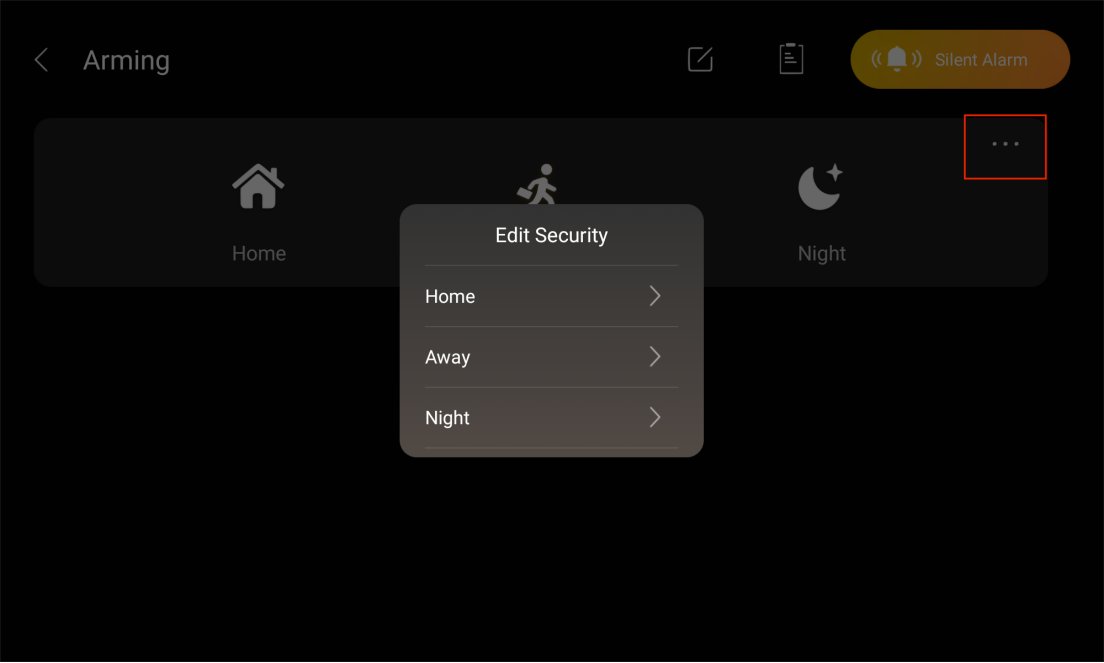
To create a custom mode, tap
 > Add Security.
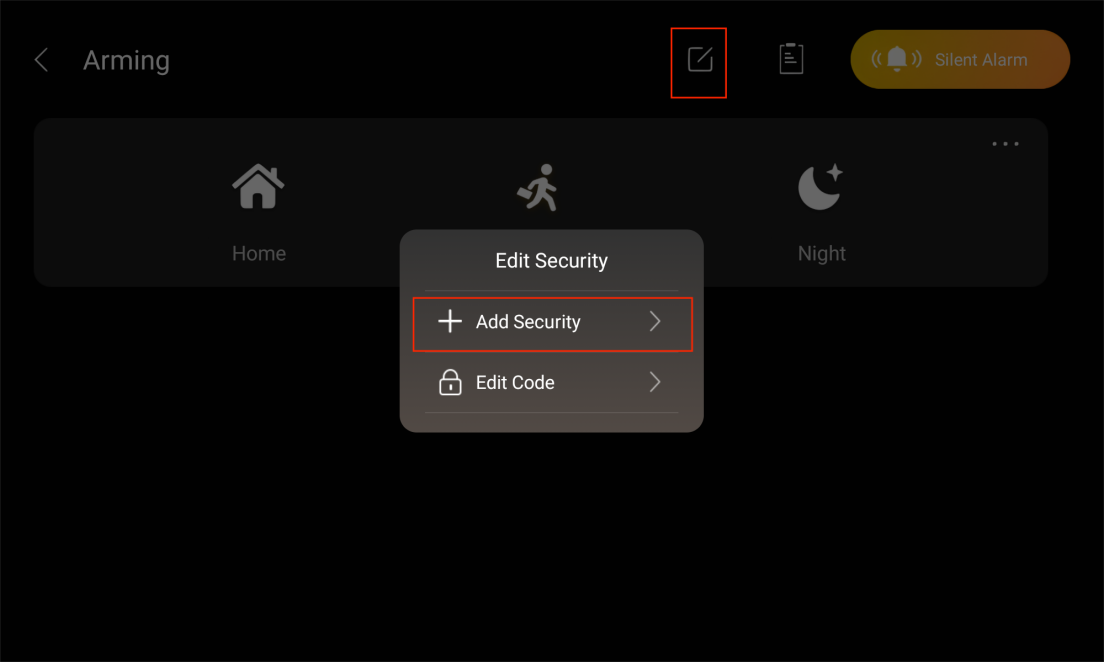
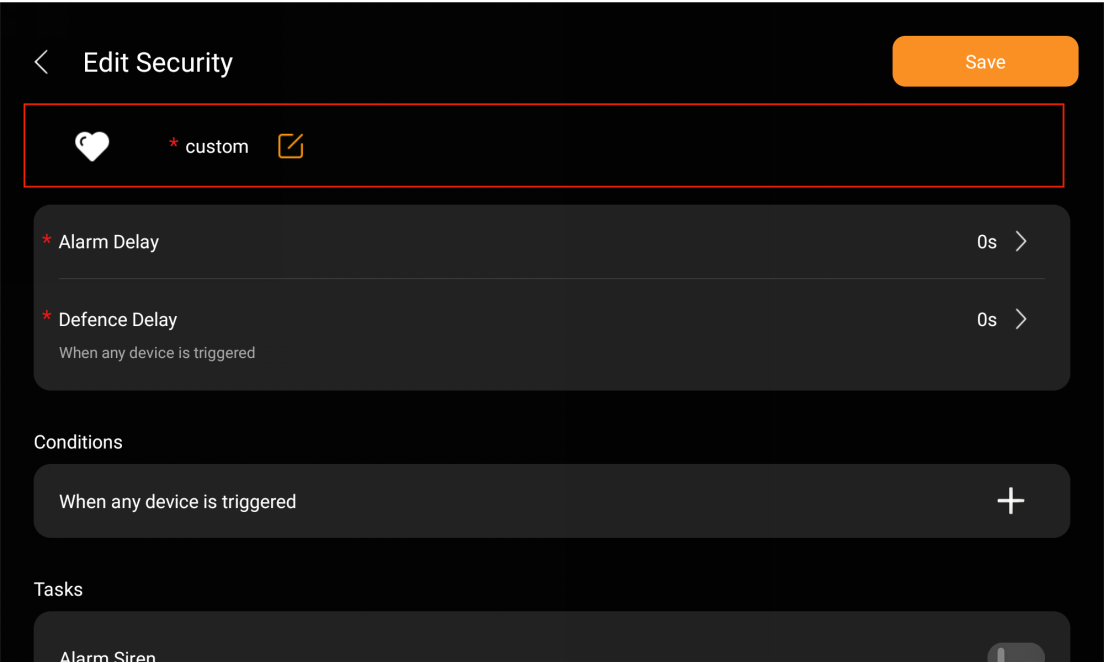
Name the mode. Required only when creating a custom one.
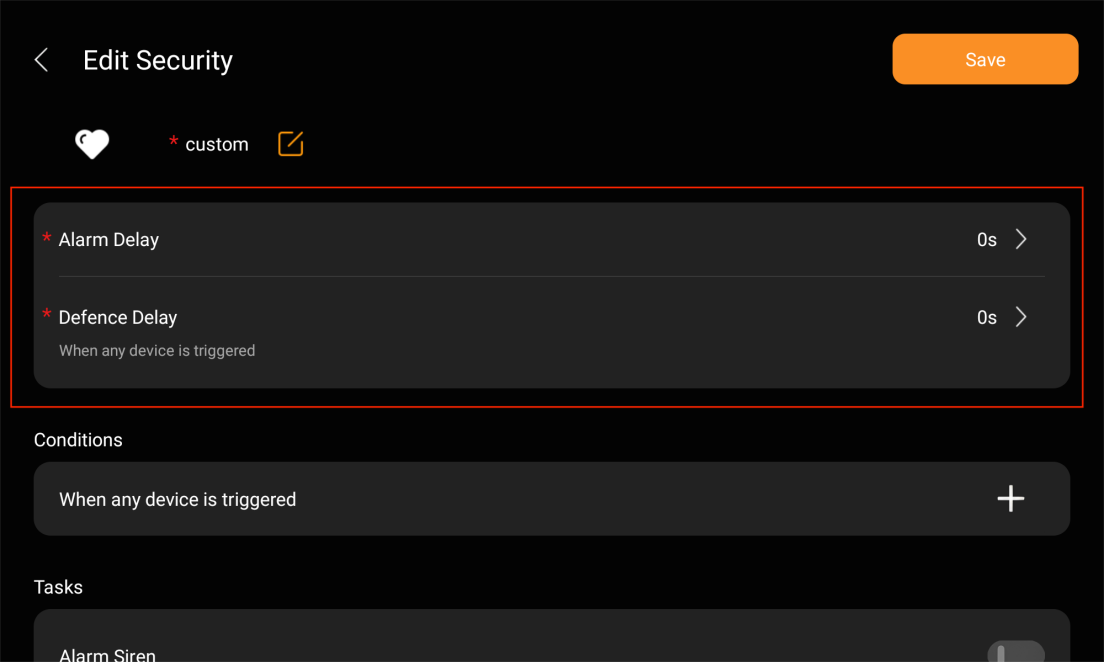
Set the following delay time periods:
Alarm Delay: Set delay for the alarm activation.
Defense Delay: Set a time interval before the security mode takes effect.
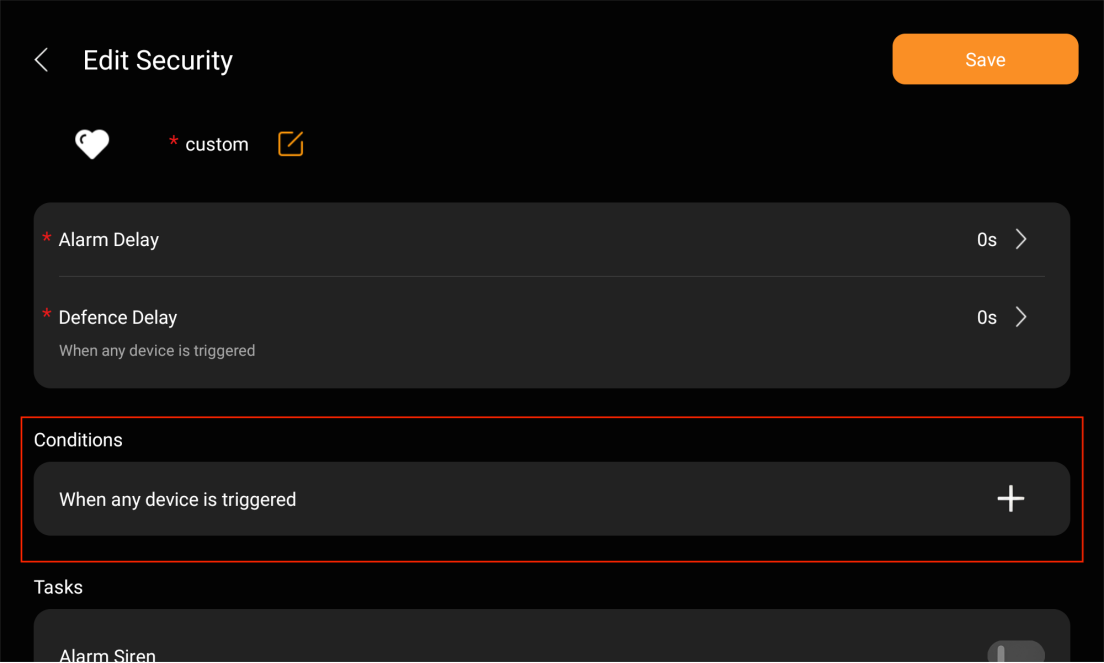
Tap
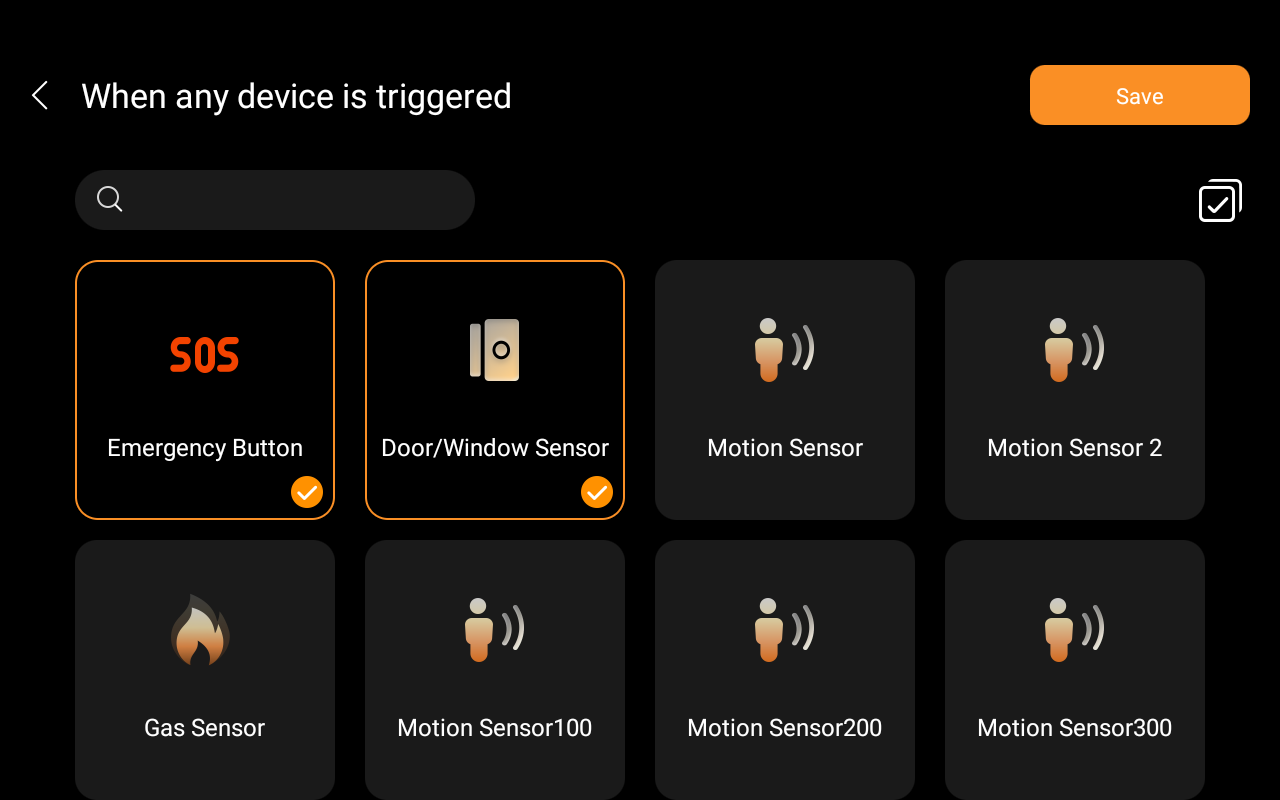
 to select sensors to start a task when any of them is triggered, and then tap Save.
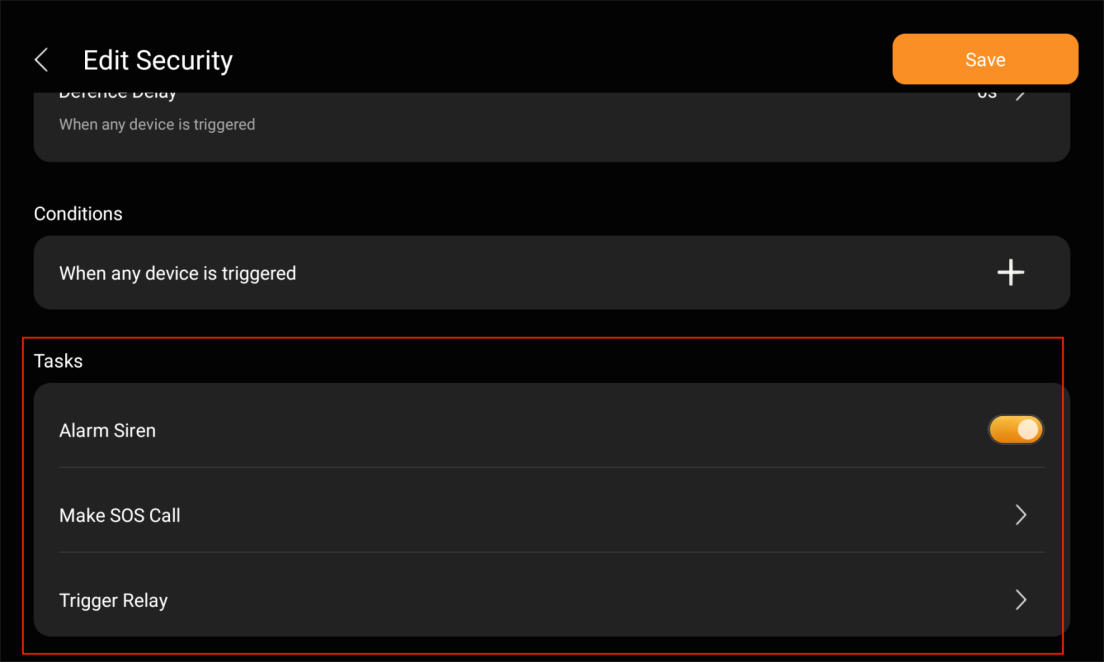
Set tasks the system performs when any selected sensor is triggered.
Alarm Siren: Activate audible siren and push alarm across all panels and the phones with BelaHome app installed.
Make SOS Call: Call the desired service provider.
Note
SOS numbers must be preconfigured on either the user web portal or the cloud(Contact your servcie provider for assistance).
Trigger Relay: Choose the relay(s) to be activated.
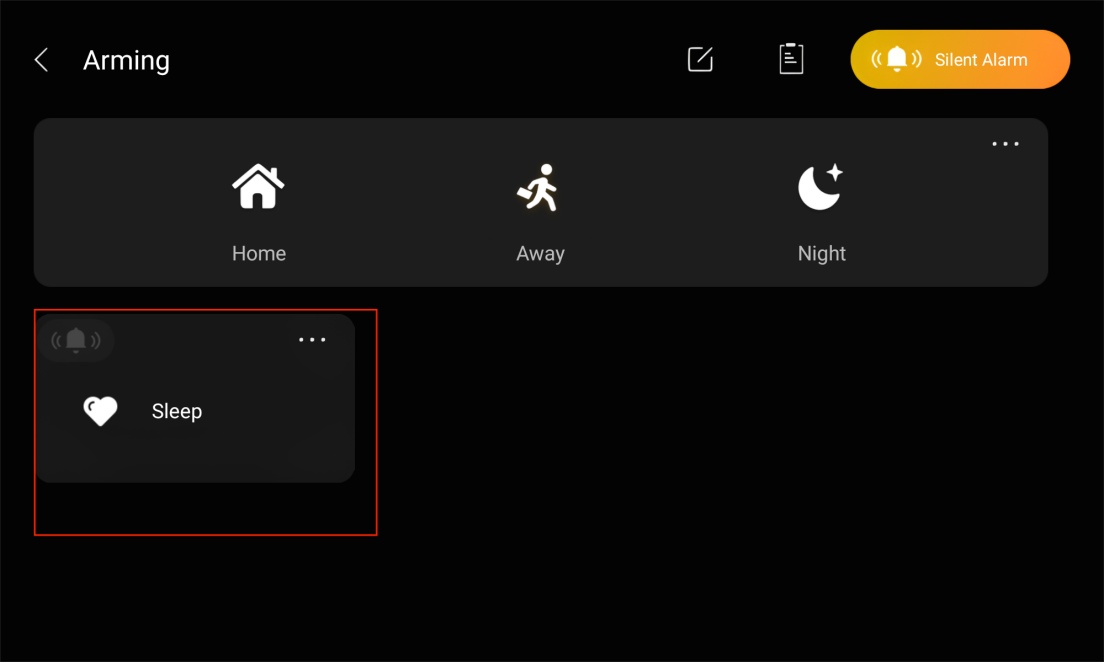
Newly-created modes will be displayed on all panels’ Arming screen(On Security screen in other firmware versions) and synced to the user web portal and BelaHome app. Simply tap the desired mode to arm the system.
Tip
For more configurations and functions on various devices, like deleting custom modes, enabling/disabling alarms, viewing security mode logs, and more, please consult the provided guides.