Apple Wallet Pass allows you to use your iPhone or Apple Watch as a contactless credential to unlock authorized doors.
This guide explains how to request Apple Wallet Pass and add your access card to Apple Wallet.
Before You Start
Supported SmartPlus App version: 7.52.0004(Android)/7.52.4(iOS) or later.
Supported OS Versions: iPhone: iOS 17 or later; Apple Watch: watchOS 8.0 or later.
Service activation: Apple Wallet Pass is a paid feature. Your Installer must activate the service before you can add your access card to Apple Wallet.
Apple Wallet Pass is unavailable in Mainland China, Nepal, and Vietnam.
Configuration
To use Apple Wallet Pass, submit an activation request in the SmartPlus App. Once your Installer approves the request and activates the service, you can add your access card to Apple Wallet.
Note
You cannot submit an activation request if none of the devices in your account support Apple Wallet Pass.
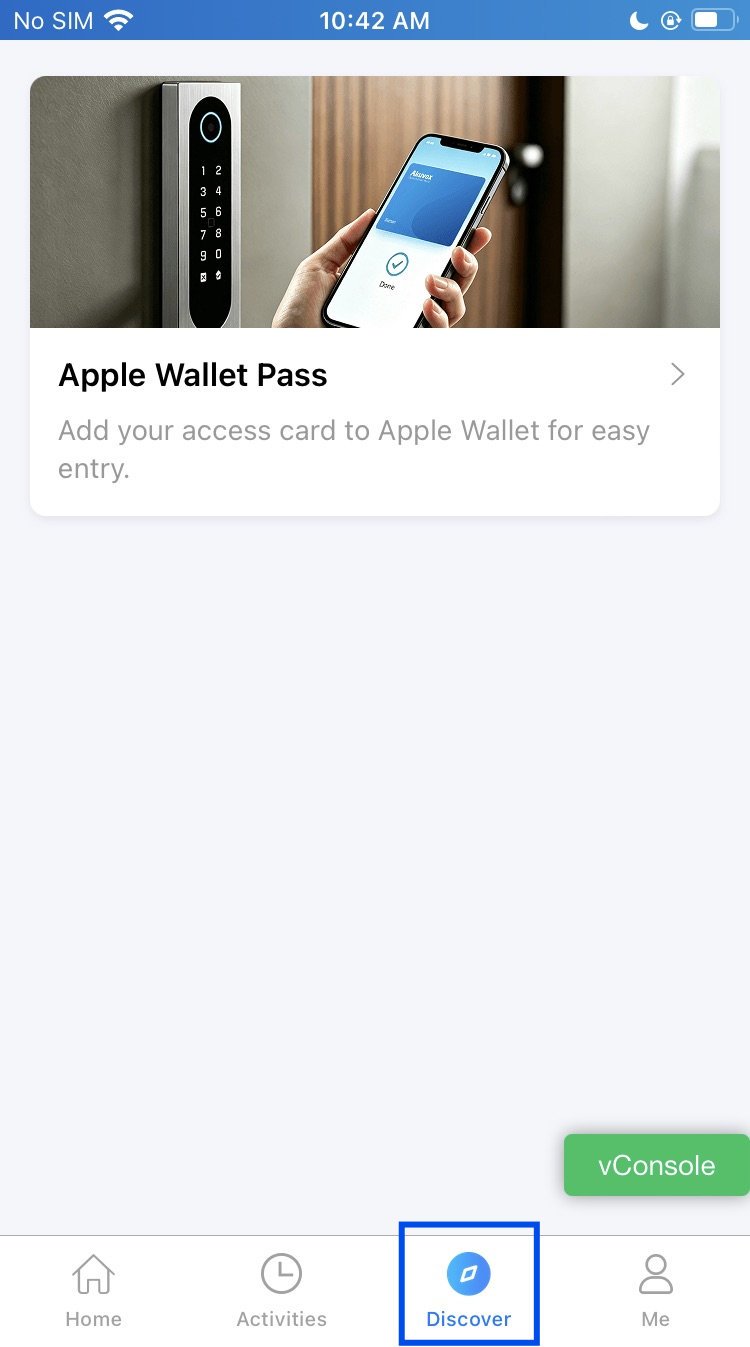
Tap Discover > Apple Wallet Pass. Alternatively, tap Me > Authorization > Apple Wallet Pass.
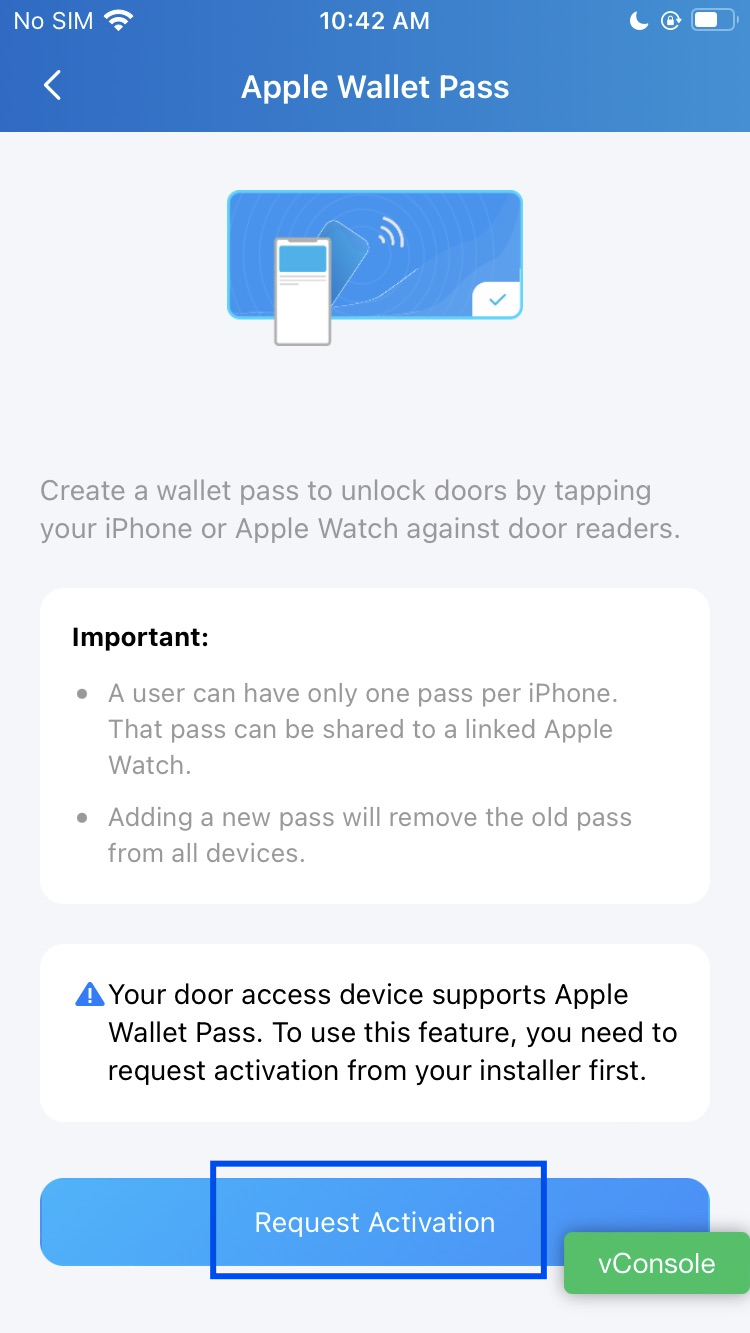
Tap Request Activation.
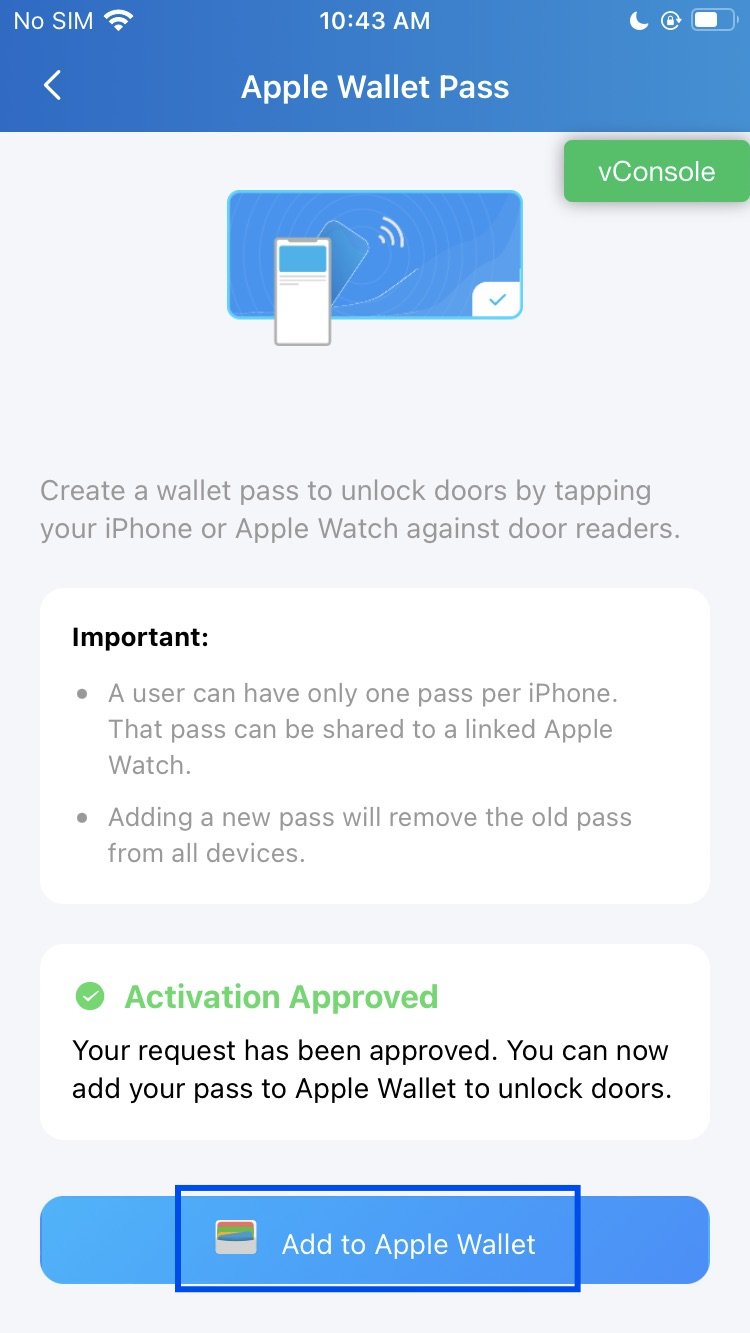
After your activation request is approved and the service is activated, tap Add to Apple Wallet.
Tap Add.
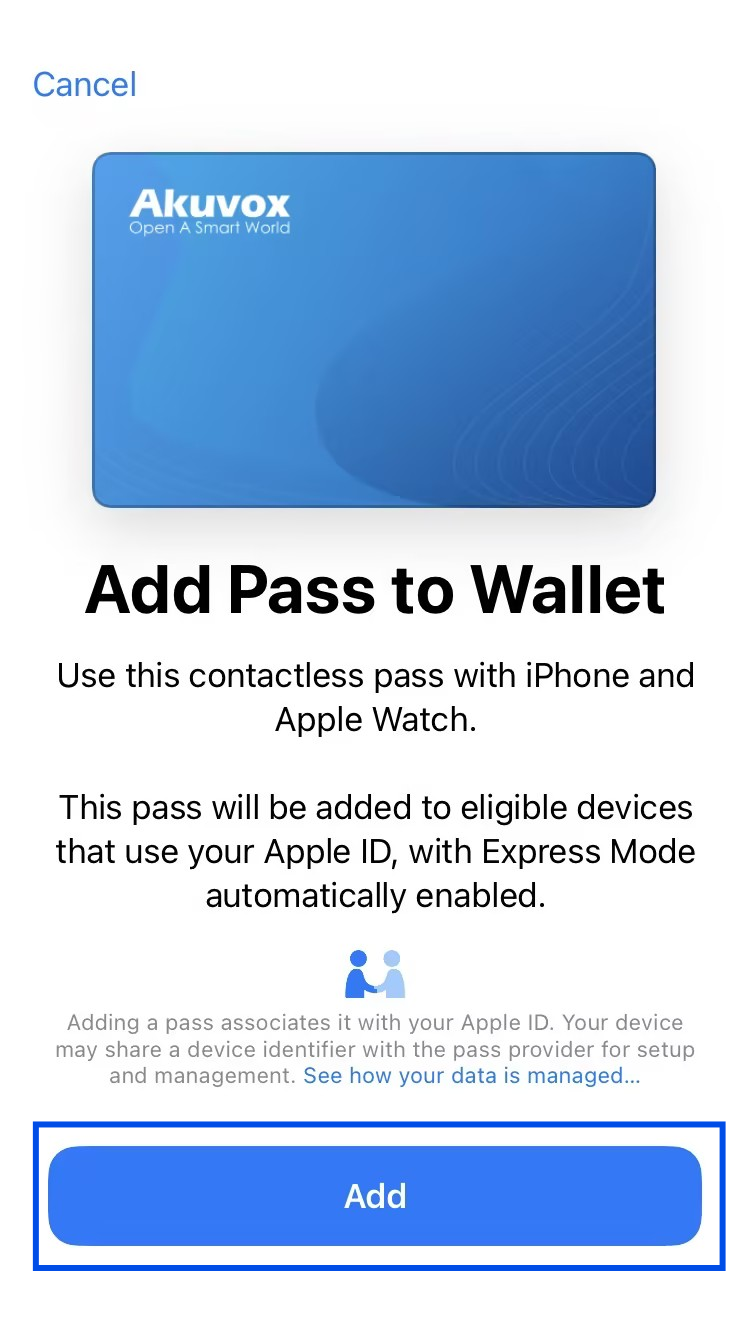
After adding successfully, the card will appear in your Apple Wallet.

Verification
Tap your iPhone or Apple Watch at a supported device reader to confirm the door opens.
Note
By default, Express Mode is turned on when the card is added, so you can hold your device near the reader and the door opens without unlocking your phone.
If Express Mode is turned off, you'll need to unlock your phone first before tapping the reader.
Troubleshooting
Issue | Possible Cause | Solution |
|---|---|---|
Cannot submit an activation request. | None of the devices in your account may support Apple Wallet Pass. | Contact your Installer to confirm device compatibility. |
Cannot add the card to Apple Wallet. | The service may not have been activated, or the activation request may still be pending. | Check the request status. If the service has not been activated, contact your Installer or Property Management. |