Update the system
Device update requires cloud connection. Please contact your service provider for assistance.
To update the device to the latest version:
Swipe down from the top edge of any screen.
Tap
 > System Settings > Update.
 On the Update screen, do any of the following:
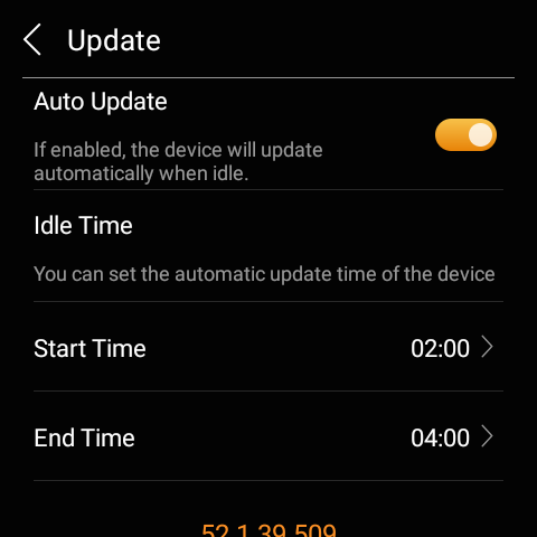
Enable Auto Update to automatically download and install firmware during idle time. You can also set a preferred update time period.
NOTE:
Updates will occur at the scheduled time only if:
a) The device has been in standby mode for the past hour, and
b) No alarms and countdowns are set within the next hour.
Disable Auto Update to download updates automatically but install them manually. If a new version is available, tap Install.
Restart HyPanel Plus
To restart the system, do any of the following:
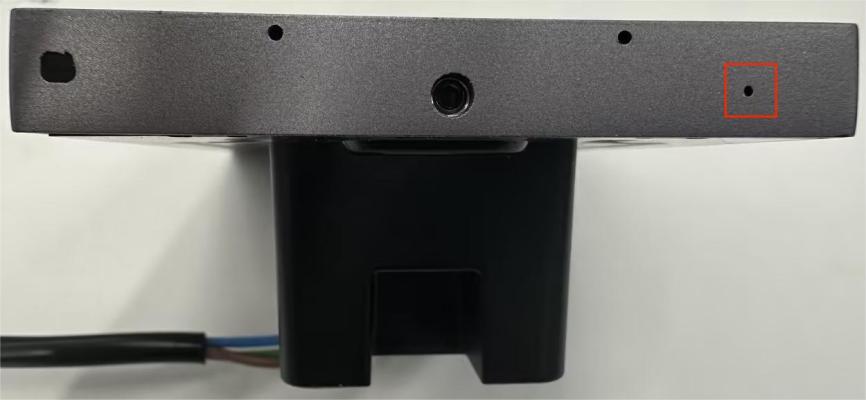
Press the restart button at the bottom edge(refer to the picture) using a paperclip or needle until the display turns off.
Swipe down from the top edge of any screen to open Control Center, and tap
 > Reboot.
Reset HyPanel Plus
To reset your device, do as the following.
Swipe down from the top edge of any screen to open Control Center.
Tap
 > System Settings > Reset.
NOTE:
The reset results depend on the device’s usage mode your service provider selected in the initial setup.
Choosing the Installation Code option will reset the device to the settings that your installer set up, and remove all user data and subsequently added devices.
Selecting local mode will initiate a reset to factory settings, and delete all user data and devices.
Please consult with your service provider before resetting devices.