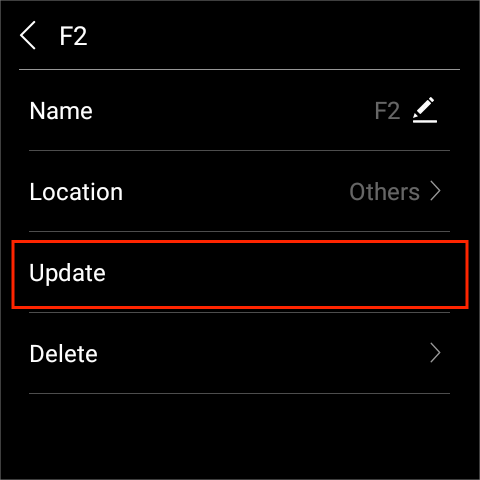
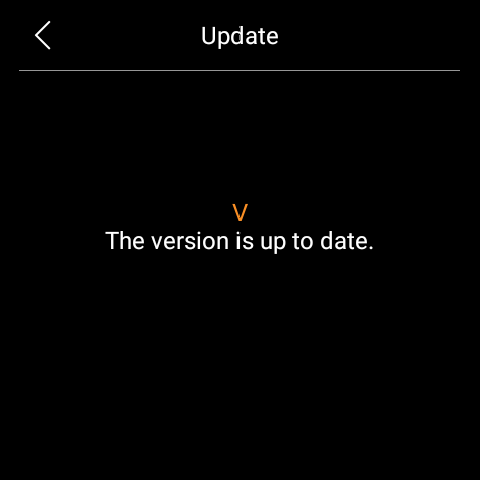
This guide applies to the akubela Zigbee locks, including the C6 and F2 models.
The upgrade process is performed locally through the device web portal.
Before Getting Started
Ensure the lock has been added to the akubela system.
NOTE:
To prevent unintended updates, ensure the target lock is the only device of its model connected to the gateway during the upgrade. Otherwise, all locks of the same model under that gateway will be upgraded simultaneously.
Identify which specific panel the lock is paired with:
Large-screen panels: Go to Security > [the lock card] >
 > Master by.
Web portal: Go to Devices > [the lock card] >
 > Device Ownership.
BelaHome app: Go to [the lock card] >
 > Device Ownership.
Make sure the home center device and the specific panel are powered on and connected to the network.
Contact the akubela techical support for the requied firmware file.
Upgrade the Lock
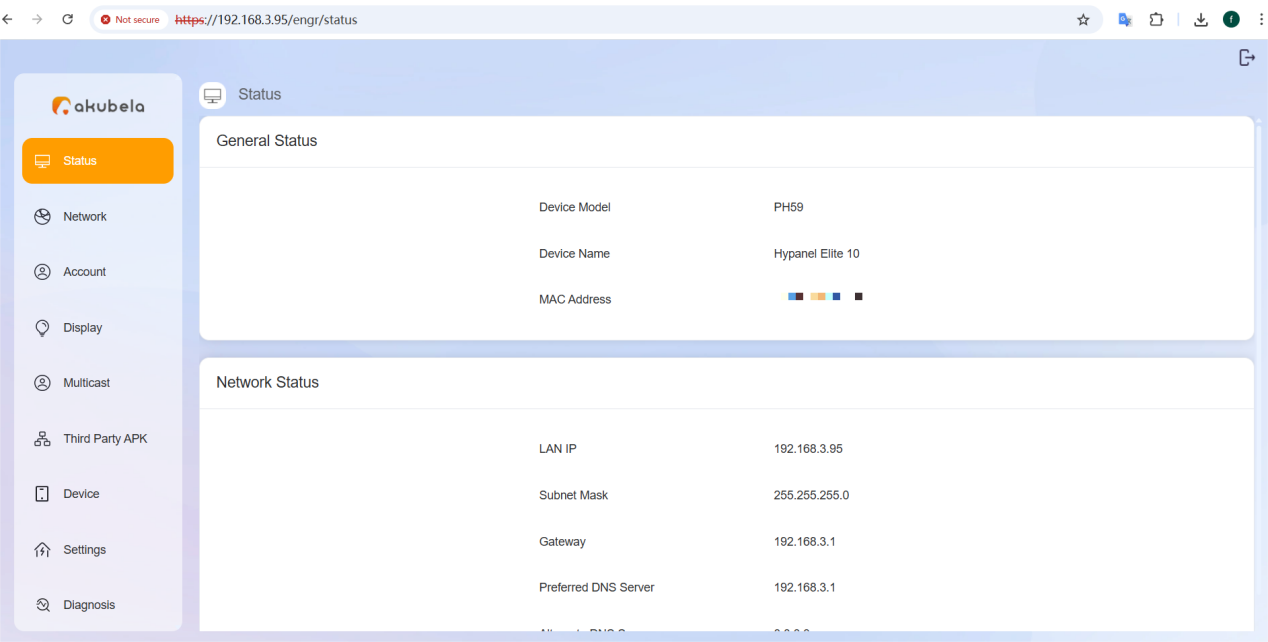
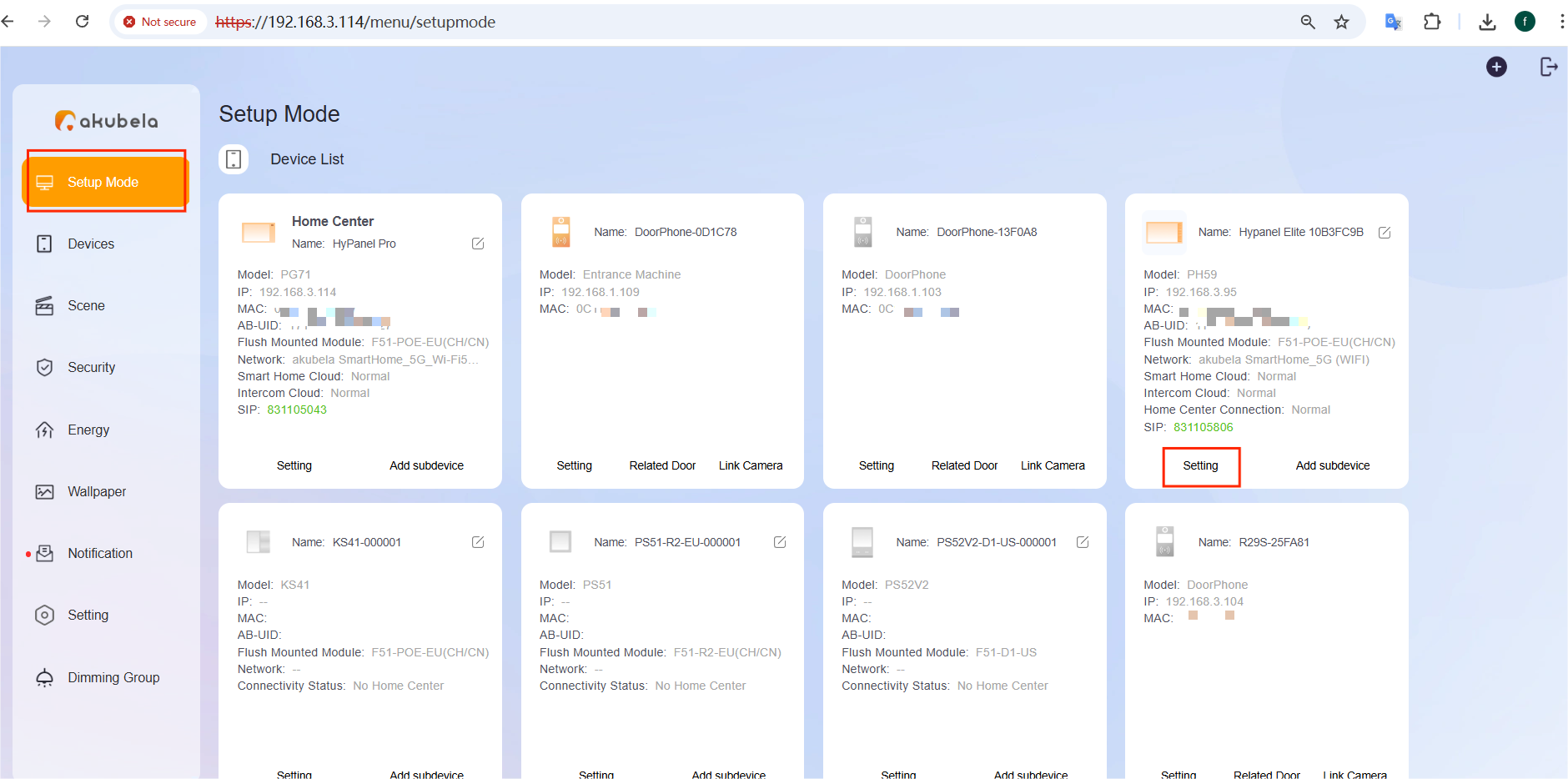
Log in to the web portal of the specific panel to which the lock is paired. (Default credentials: admin/admin).
Option A: Enter the panel’s IP address directly into your web browser.
Option B: Access the home center’s IP address, locate the gateway panel in the Set Mode interface, and click Setting to redirect to its portal.
Go to Settings > Accessories > Import, then upload the firmware file.
NOTE:
The firmware file name must follow the format below:
F2: LOCK2-[Version] (e.g., LOCK2-V16)
C6: LOCK4-[Version] (e.g., LOCK4-V4)
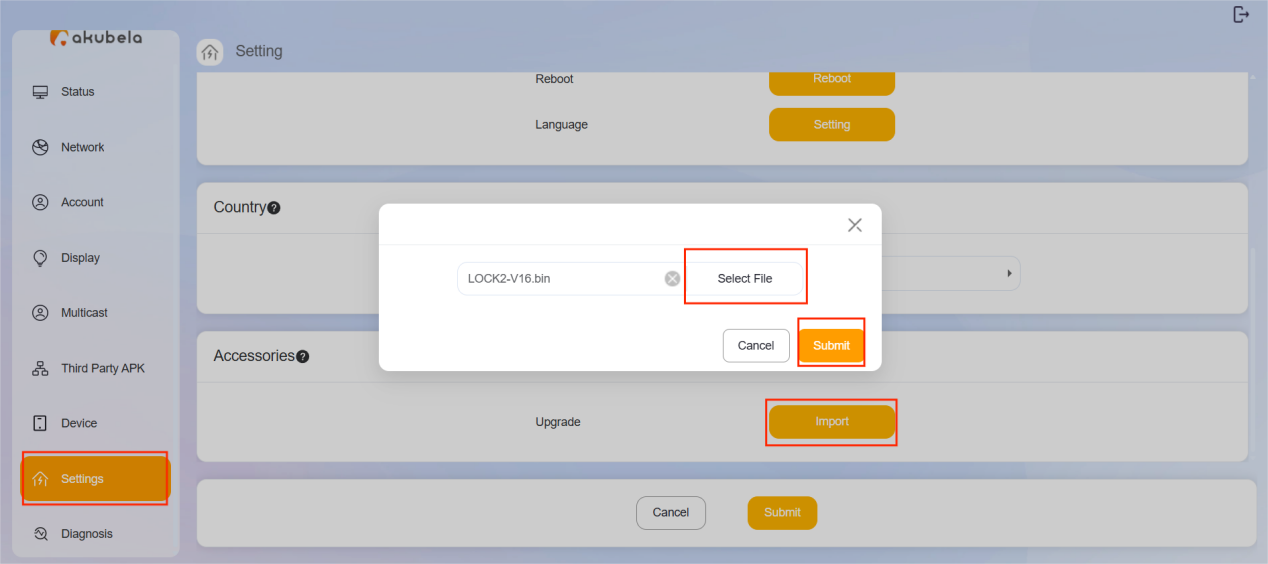
Wait for the system to process the file. Do not refresh the page or power off the devices until the upgrade confirmation appears.
Verify the Update
After the upgrade, you can verify the lock’s firmware version:
On large-screen panels: Security > [the lock card] >
 > Update.
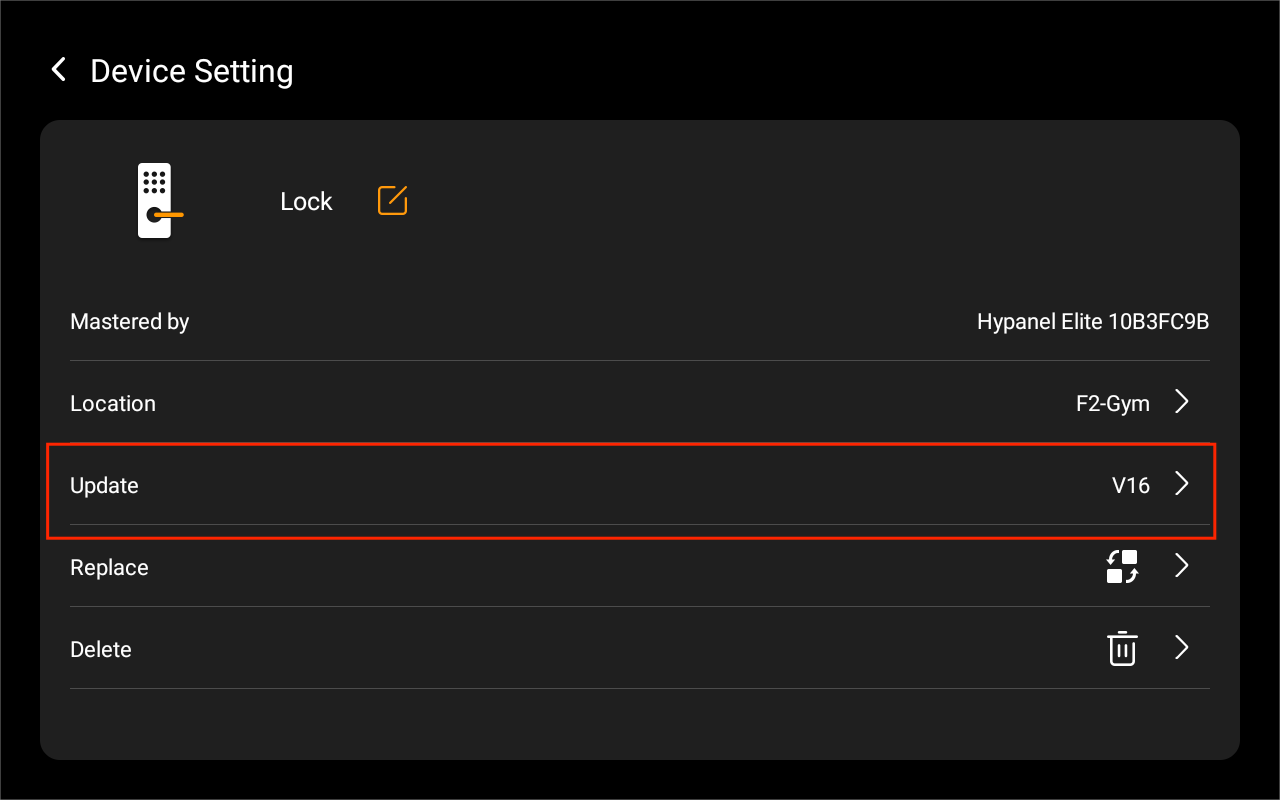
On small-screen panels: Settings > Device Management > [the lock] > Update.