Volume Configuration
You can configure the volume of the microphone, speaker, etc. Moreover, you can also set up the tamper alarm volume when unwanted removal of the device occurs.
On the Web
Set up volumes on the web Device > Audio interface.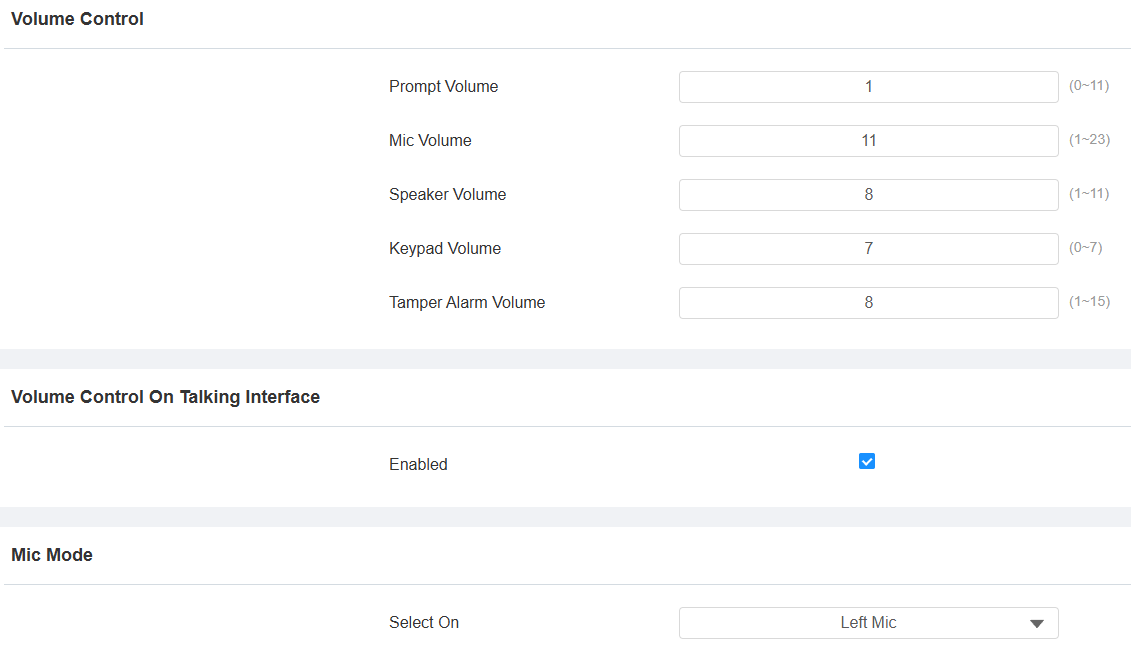
Prompt Volume: Include door-opening prompts, instruction tones, and ringback. The default is 9.
Mic Volume: The default is 11.
Speaker Volume: The default is 8.
Keypad Volume: The icon tapping sound. The default is 7.
Tamper Alarm Volume: Set the volume when the tamper alarm is triggered. The default is 8.
Volume Control on Talking Interface: When enabled, users can adjust the call volume during the call session.
Mic Mode: Select which mic to apply between the left and right microphones.
On the Device
You can set up volumes on the Setting > Basic Setting > Volume screen.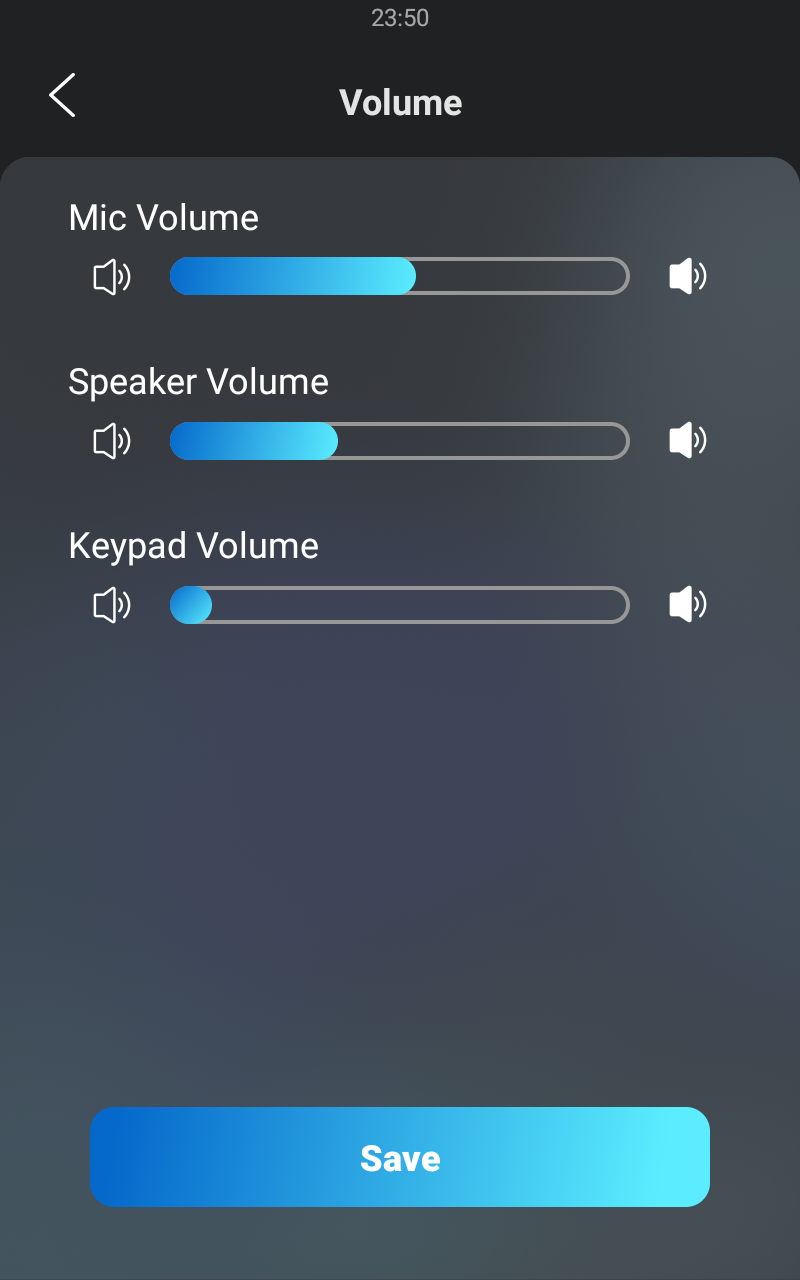
Upload Tones
You can upload the tone for different scenarios on the Device > Audio > Voice Prompt Setting interface.
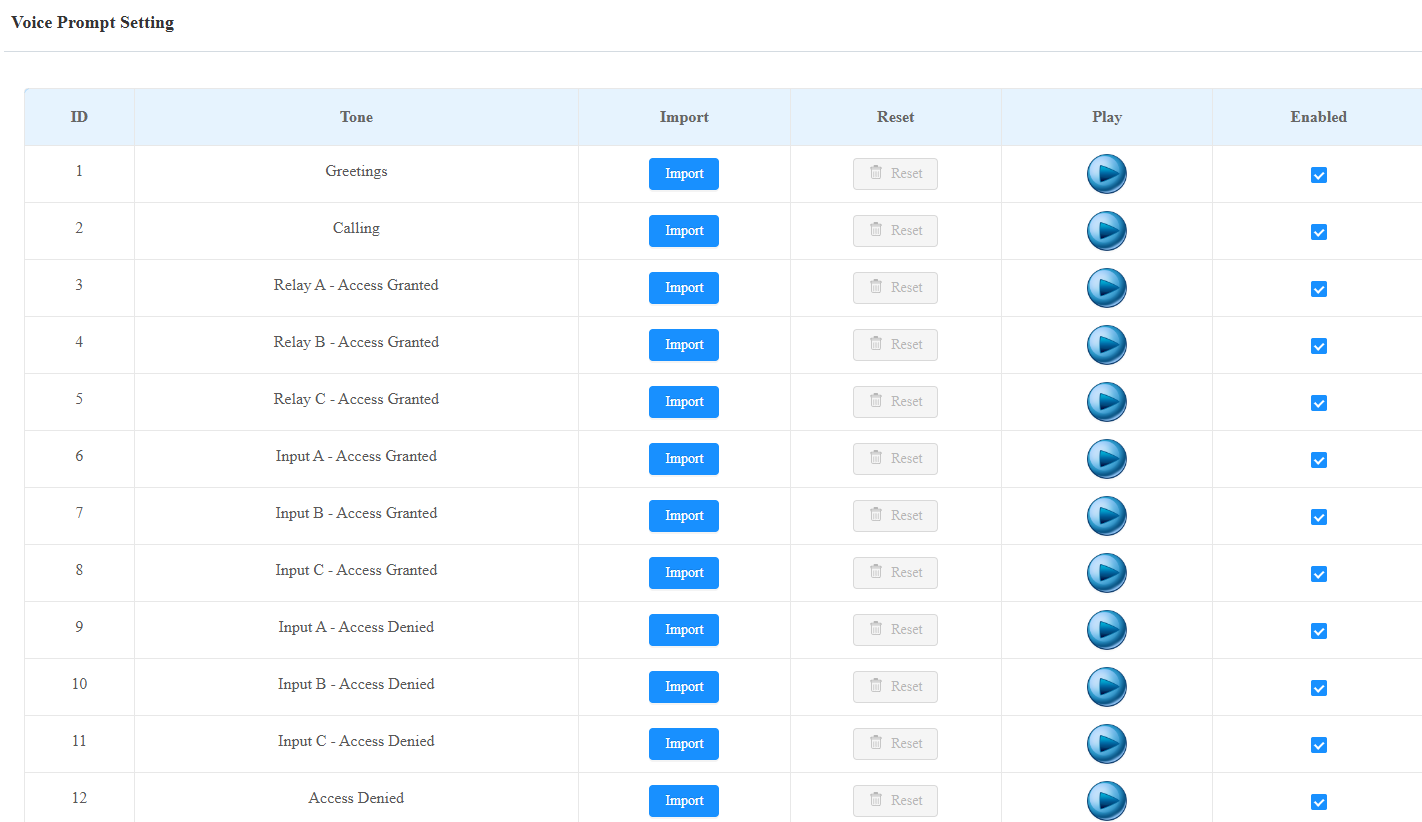
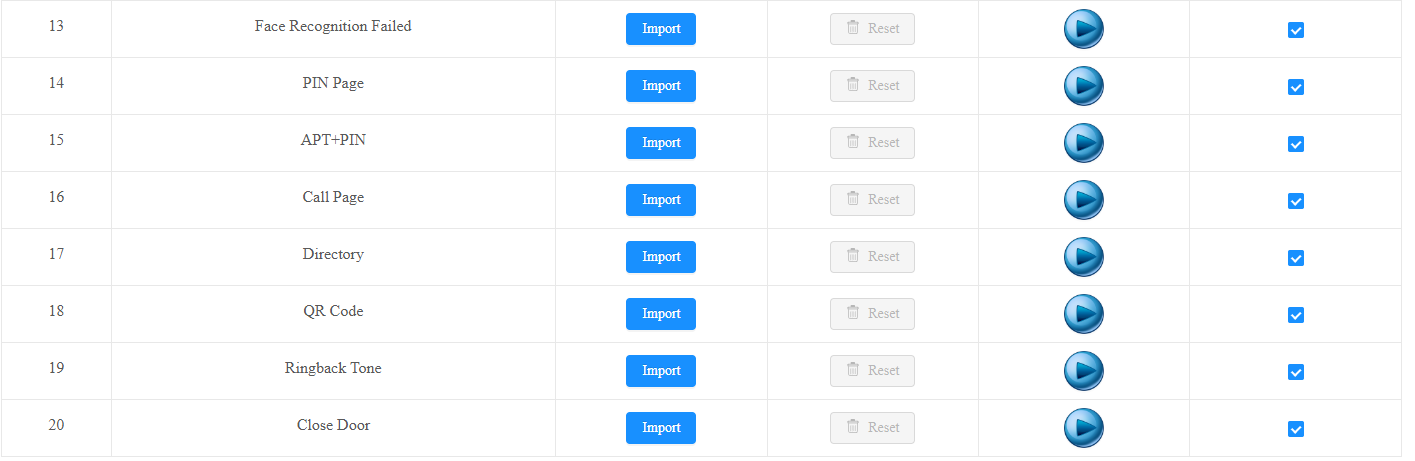
Close Door: The door-closing tone works for relay(s) set to Bistable mode.
Note
File Format: wav/mp3; Size: < 200KB; Sample Rate: 16000; Bit Depth: 16 Bits.
Ringback Tone
The ringback tone setting prioritizes the playing of local ringtones and determines what kinds of previews the callee can receive.
Set it up on the Intercom > Call Feature interface.

Ringback Source:
Remote, Local As Backup: The local ringtone will be played.
When the door phone calls another device, for example, an Akuvox indoor monitor, and the SIP server returns non-183, the indoor monitor will not have any intercom preview.
If the SIP server returns 183, the indoor monitor will receive the video preview without voice.
Local: The local ringtone will be played. Whether the SIP server returns 183 or not, the callee will not have any intercom preview.
Remote:
If the SIP server returns non-183, the local ringtone will be played, and the callee will not have any intercom preview.
If the SIP server returns 183, the SIP server’s ringtone will be played, and the callee will receive the video preview without voice.
Visitor-friendly Mode
This feature decides whether to give auditory or visual prompts when recognition fails.
Set it up on the Device > Audio > Visitor-friendly Mode interface.

Face: When enabled, no prompts are given when facial recognition fails.
QR Code: When enabled, no prompts are given when scanning QR codes fails.
Open Door Tone Mode
You can decide the door-opening tone mode on the Device > Audio interface.

Voice Prompt: Play the default prompt “Welcome, please come in” when the door is opened.
Sound Effect: Play the Beep sound when the door is opened.