Version: 7.5.0 | Date: August 2026
About This Manual
This guide applies to version 7.50.0003(Android)/7.50.3(iOS).
Akuvox SmartPlus is a mobile App working with SmartPlus Cloud Service and intercom products. This App enables you to manage users, devices, access groups, and visitor access, check logs, issue notifications, receive alarms, etc., making property management easier and more convenient.
Note
You can use the SmartPlus property manager web portal for free, but using the app requires a monthly fee. Please contact the service provider for the pricing details.
Currently, SmartPlus PM App ONLY supports community projects.
What’s New:
Before You Use
To make login and setup as smooth as possible, have the following items available:
An internet connection through a Wi-Fi network or cellular data service through a carrier.
SmartPlus App (Make sure you have the latest version installed). You can download the App on Google Play Store or App Store.
Already installed, but not sure about its version?
Open SmartPlus and go to Me > About.
Your SmartPlus account.
No account yet?
Provide an email address to your service provider, and you will receive an email from Akuvox containing login information.
Login
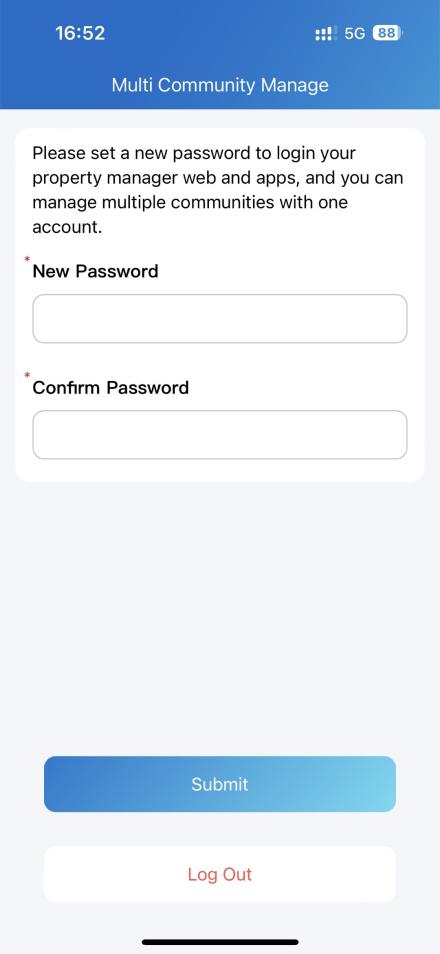
1. After upgrading the App, you are required to set a new password to manage multiple communities with one account.
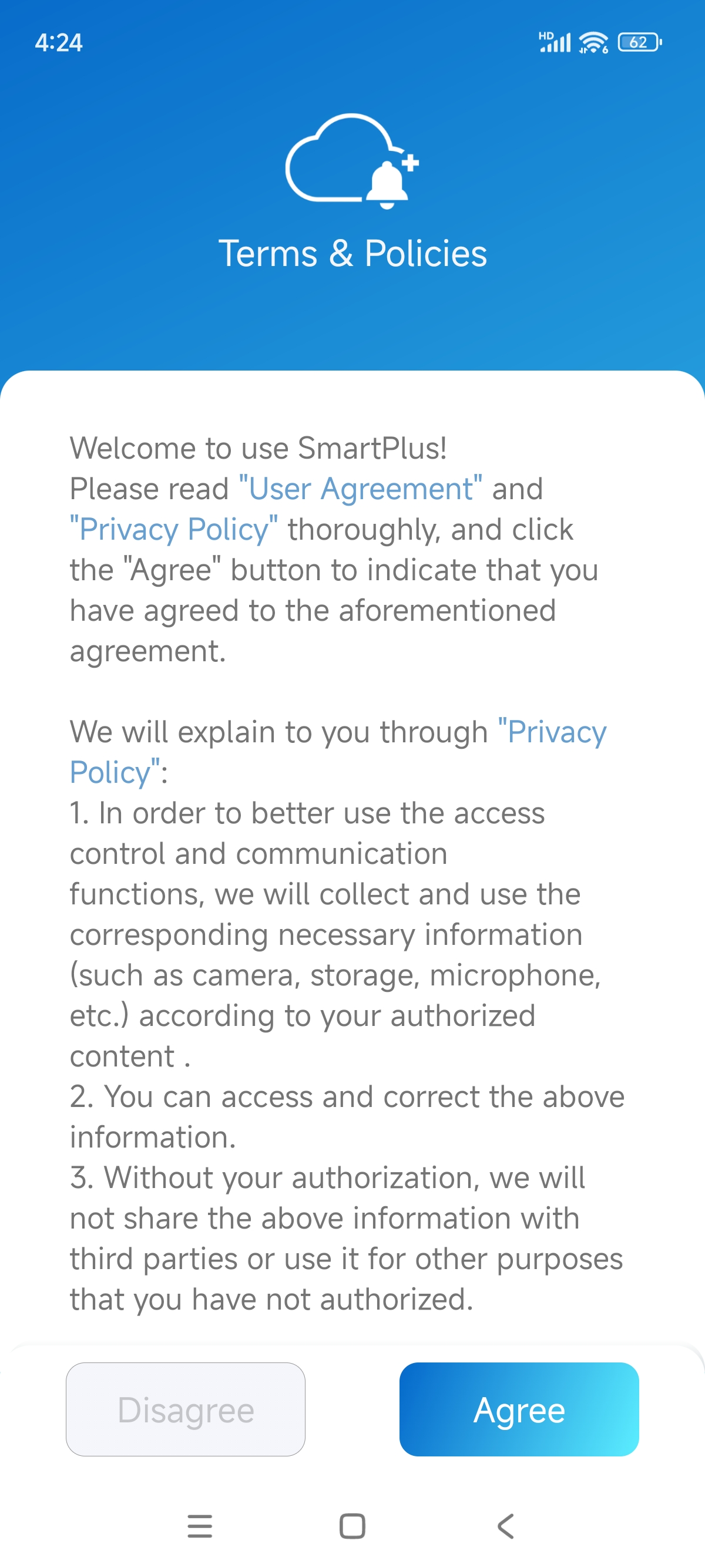
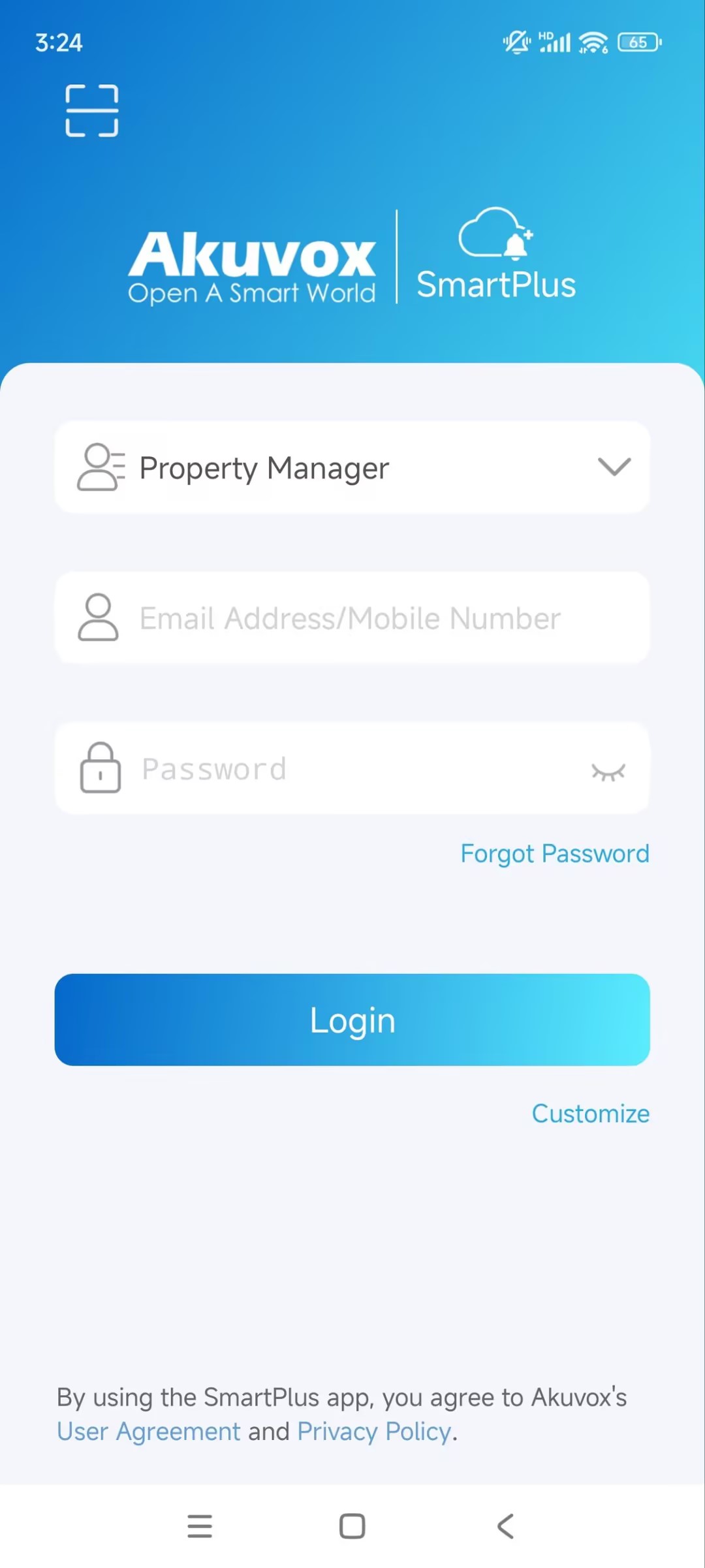
2. Select Property Manager on the login page. To use the SmartPlus App, you need to agree to the User Agreement and Privacy Policy.
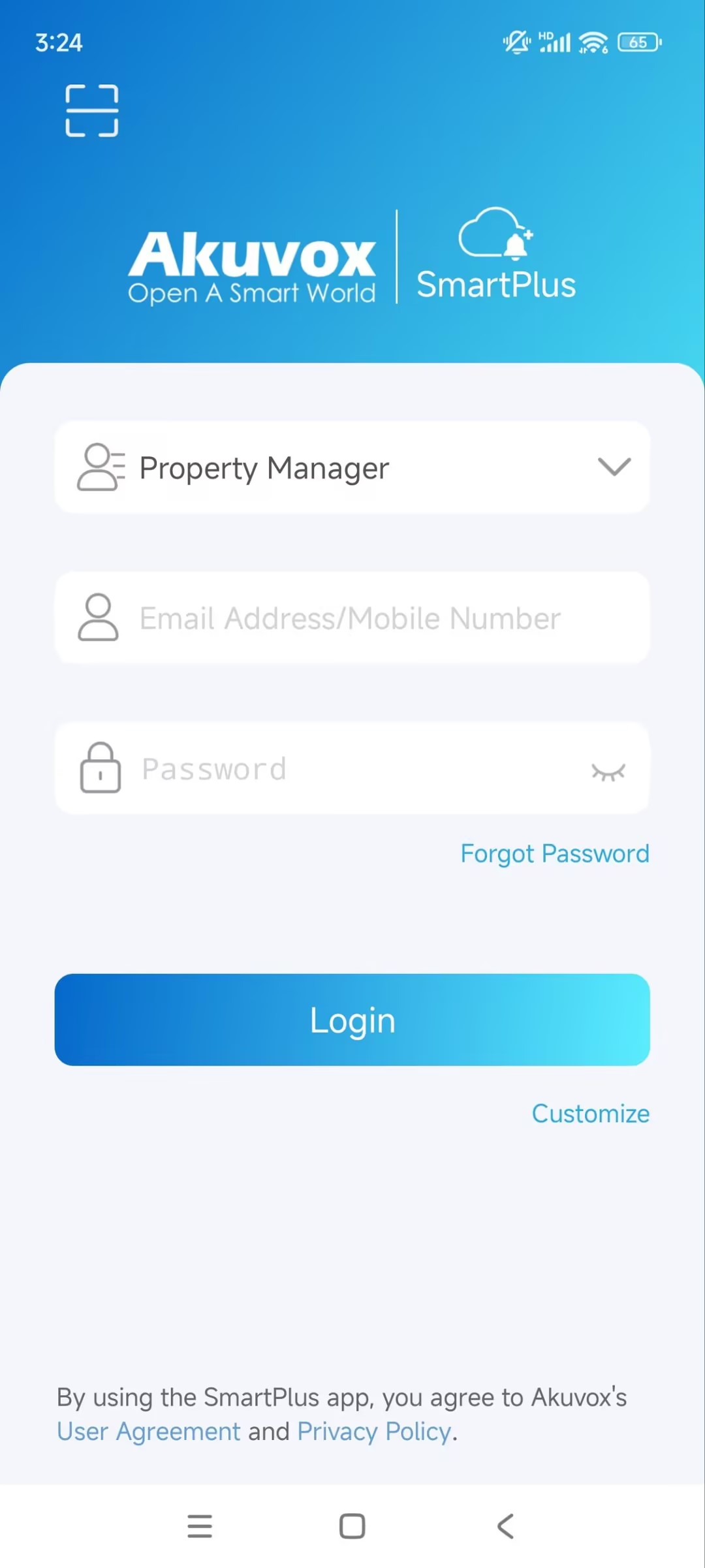
3. To sign in to the App, do one of the following:
Login with username
1. The area code will be chosen automatically in the lower-right corner. You can also select it manually, and the information can be found in the Welcome Email.
2. Enter your username and password, and tap Login.
3. Read and agree to the Privacy Policy, and follow on-screen instructions to complete initial settings.
Login with QR code
Open the Welcome Email with your PC or other device, and you will see a QR code attached below. Or open the Email with your phone, and don't forget to save the QR code to your photo album.
Open the SmartPlus App, tap the scan icon
 on the upper left corner, and the QR code scanner will be opened.
Center the QR code in the camera view until you hear a Ding sound. Or select the saved code picture from your album.
Read and agree to the Privacy Policy, and follow the onscreen instructions to complete initial settings.
Forget password? See Forgot Password.
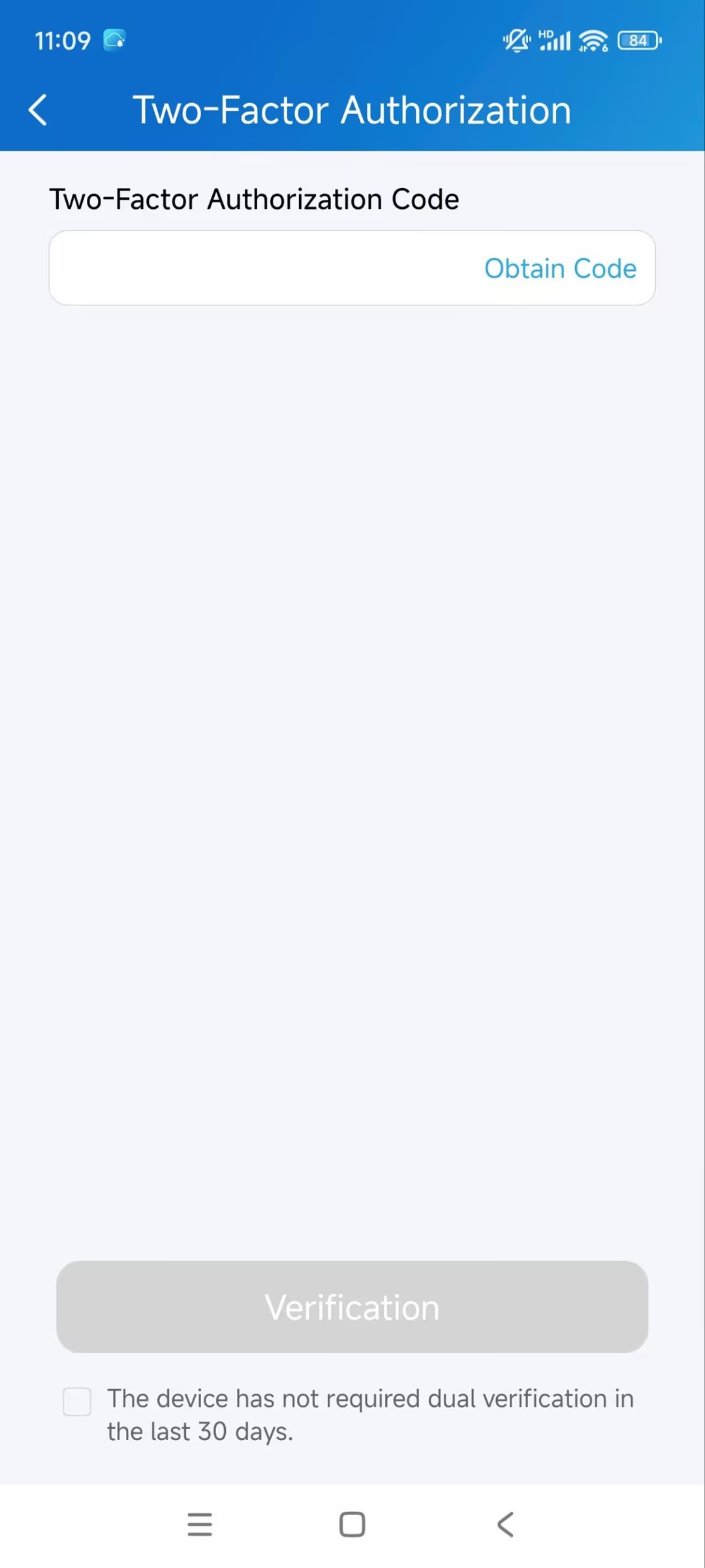
Two-factor Authorization
Enter the verification code sent to your email address when your installers enable the Two-factor Authentication feature for you.
Click Obtain Code, and an email will be sent to you.
Switch Sites
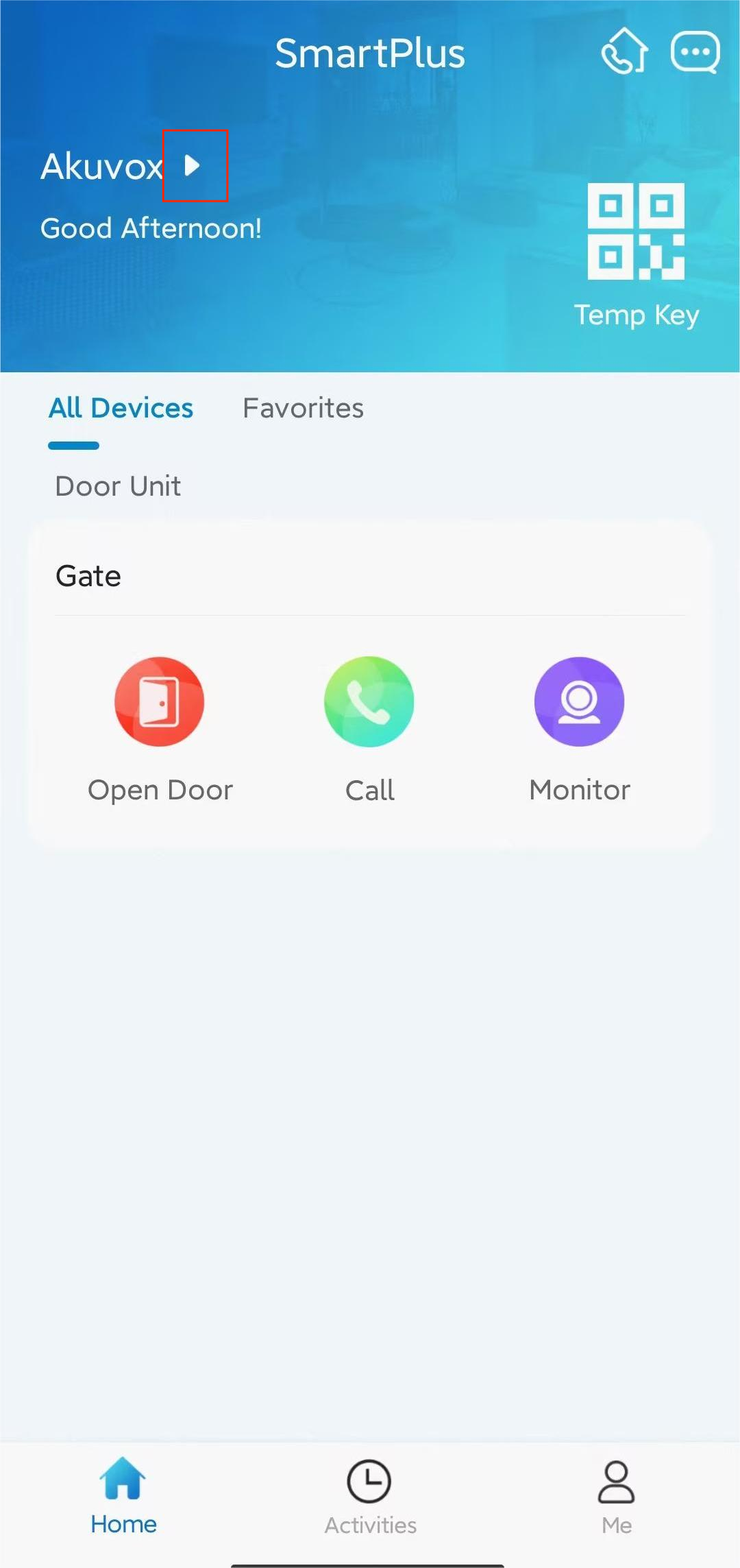
After linking sites on the SmartPlus Property Manager web portal, you can switch between different sites on the App by tapping .png) .
.
Switch Display Mode
The SmartPlus App supports two homepage display modes: Card Mode and List Mode.
The main difference between Card Mode and List Mode:
Card Mode is device-oriented. You can tap the functional icons on desired devices to make calls, open doors, or monitor. If a door phone has multiple relays enabled, you need to tap the Open Door icon and select the relay to be triggered.
List Mode is relay-oriented. You can directly tap the desired relay to open doors. To make a call or monitor, you need to tap the Call or Monitor icon and select the desired device to perform the action.
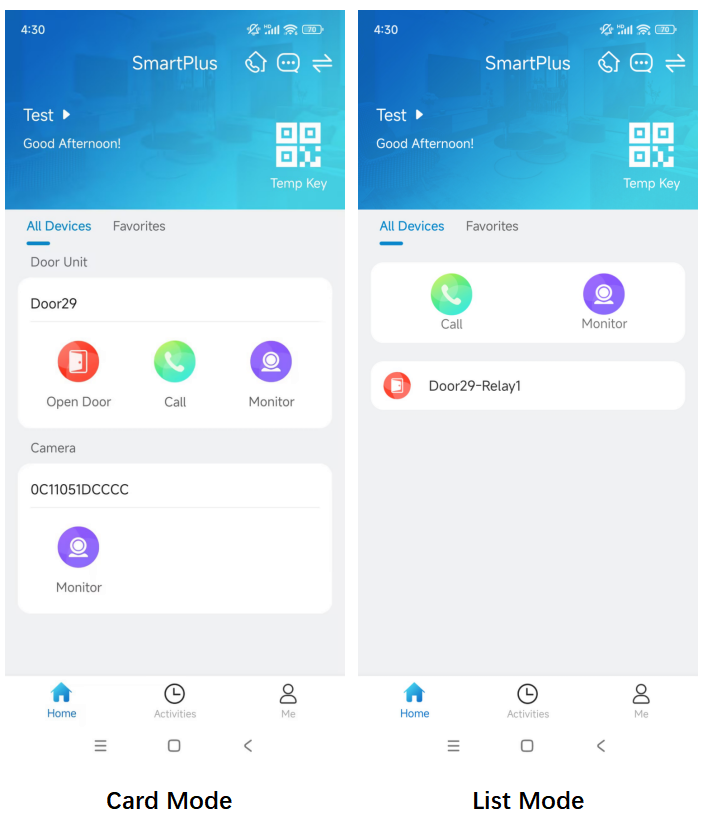
You can tap the Switch icon in the upper-right corner to switch between the Card Mode and List Mode.

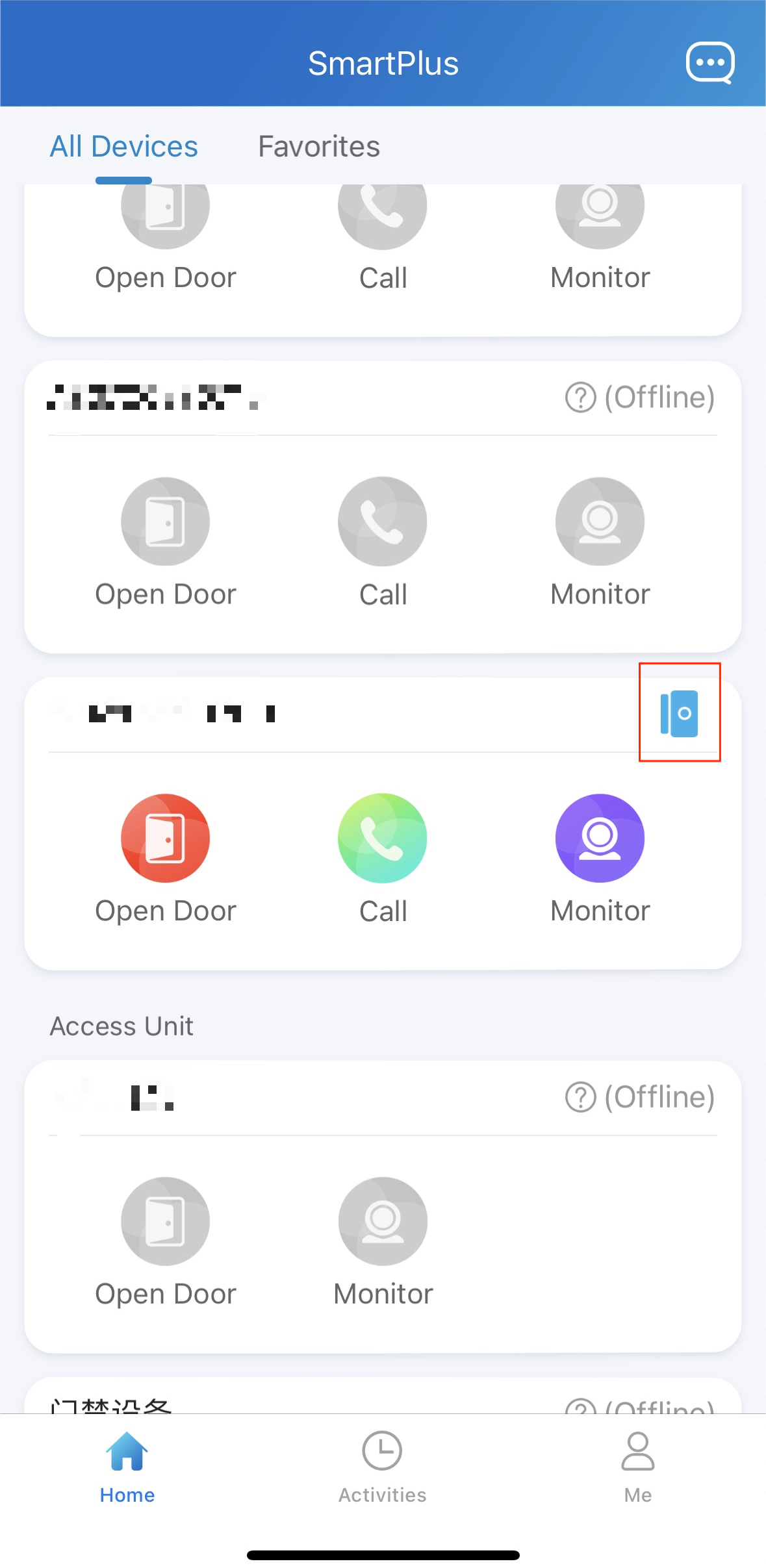
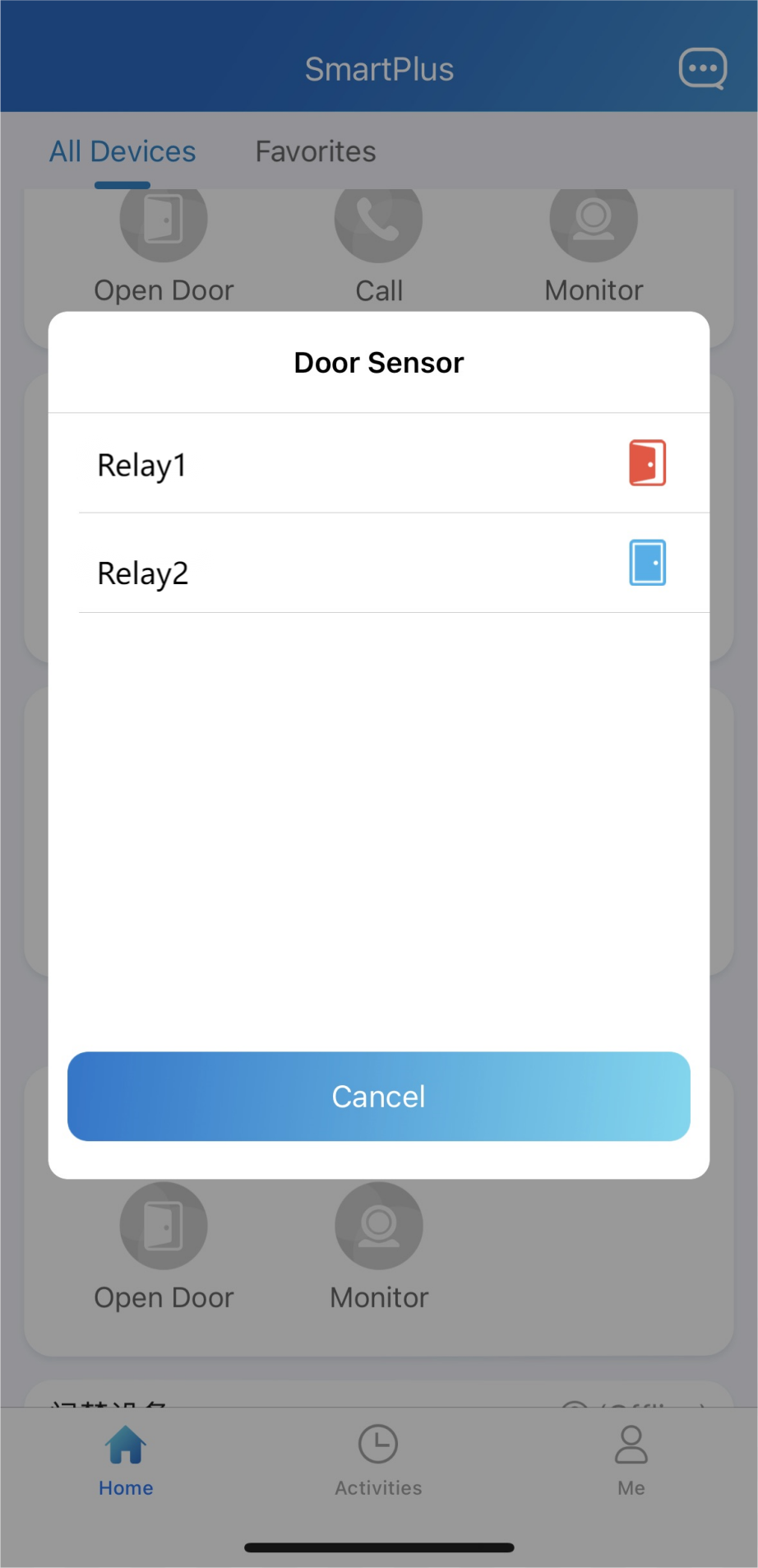
Check Door Status
You can check whether the door is closed or not on the App home screen in case users forget to close the door.
.png) : Open
: Open  : Close
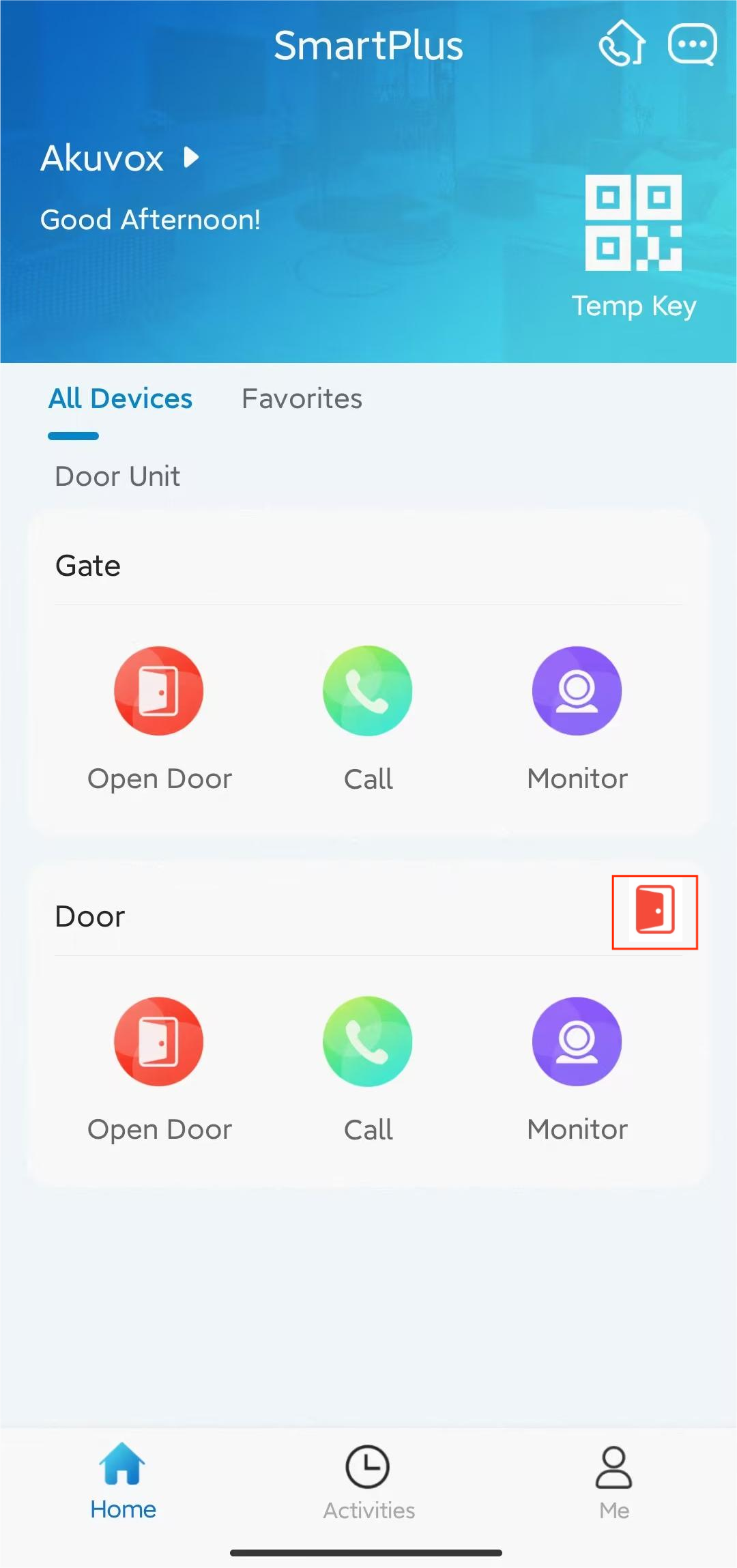
When multiple relays are set up, you can check them by clicking  .
.
Open Door for Visitors
When you need to let somebody access the door, you have various options, including issuing temp keys, a remote control, opening the door during a call, or opening it on the monitoring screen.
Open Door During a Call
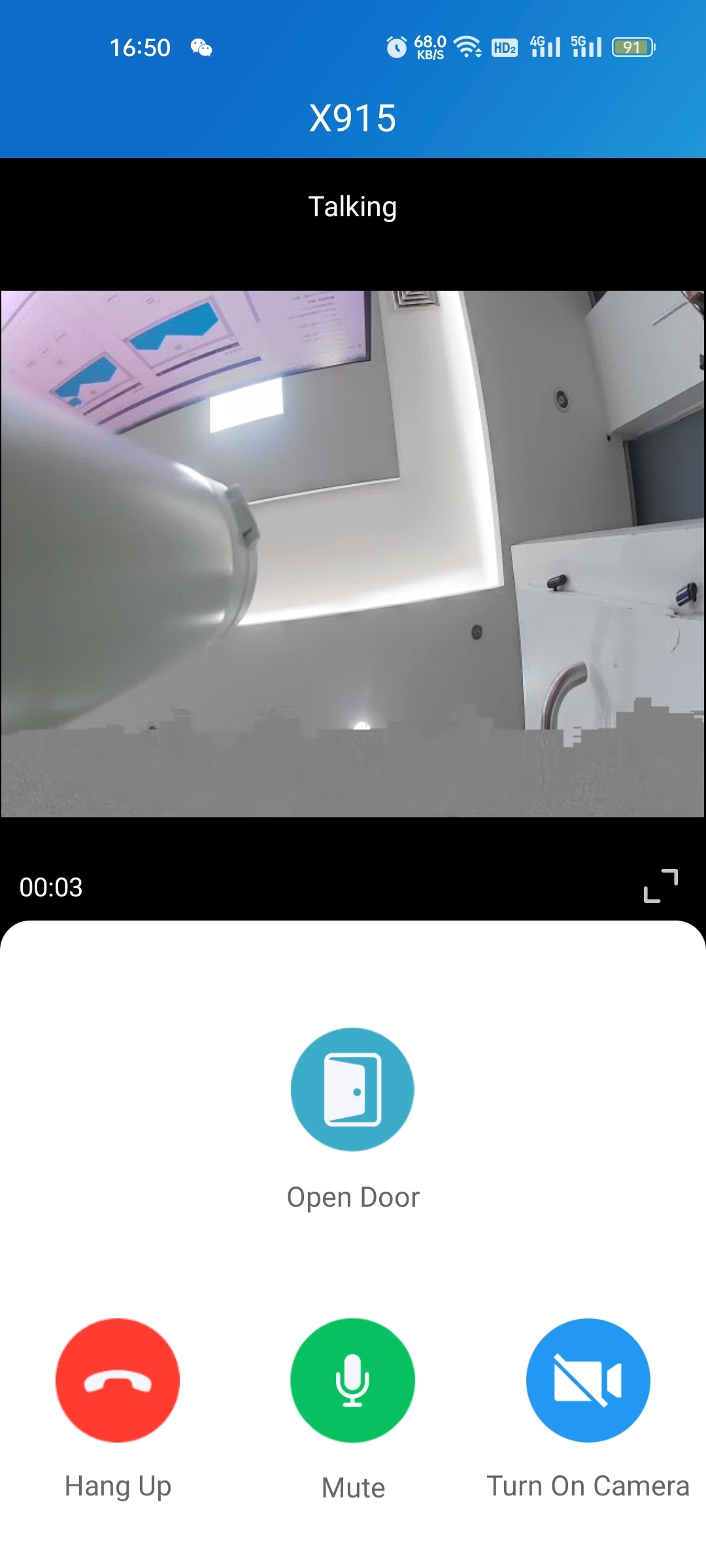
To open the door when answering an incoming call, do as follows:
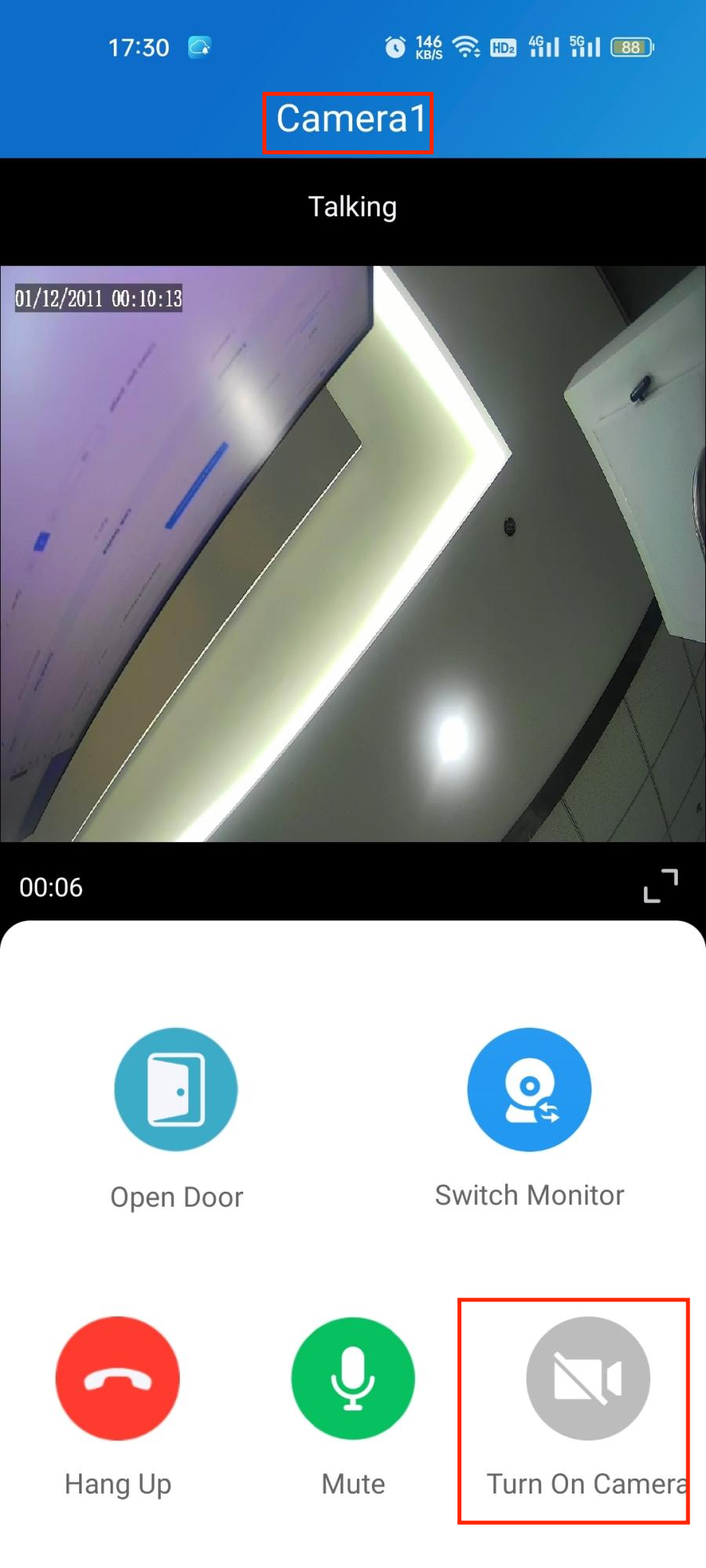
Answer the call, and tap Open Door on the talking page.
Select the desired relay from the list. And the screen shows Opening the door succeeded.
What else you can do on the talking page:
Tap Mute to silence your microphone while on the call.
Tap Hang Up to end the call.
Tap Turn On Camera/Turn Off Camera to turn your phone’s camera on/off in video calls. Your choice to turn on/off will be applied to later video calls with the device.
Note
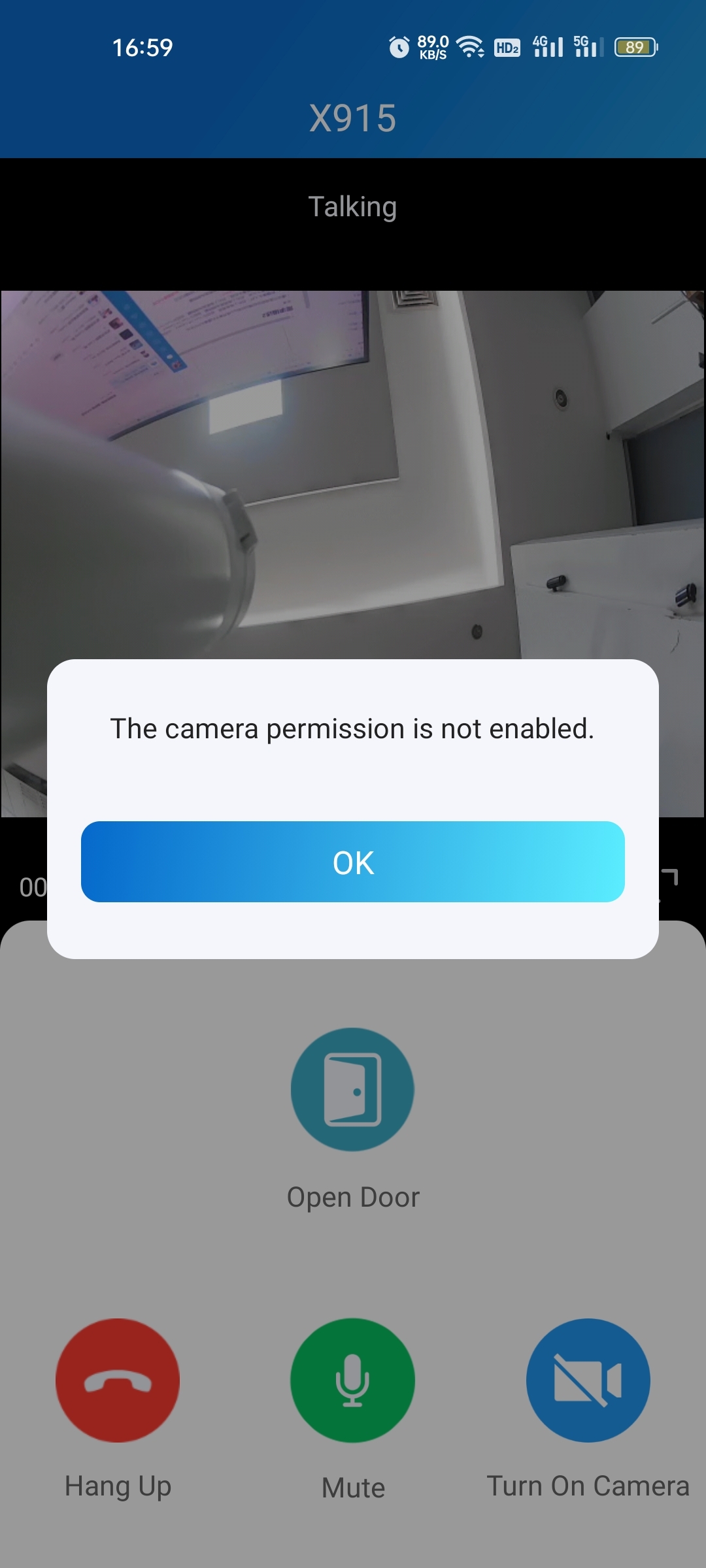
To use the Turn On Camera/Turn Off Camera feature, you must allow the SmartPlus to turn on/off the cameras when using this app. Or you will see the below pop-up message.
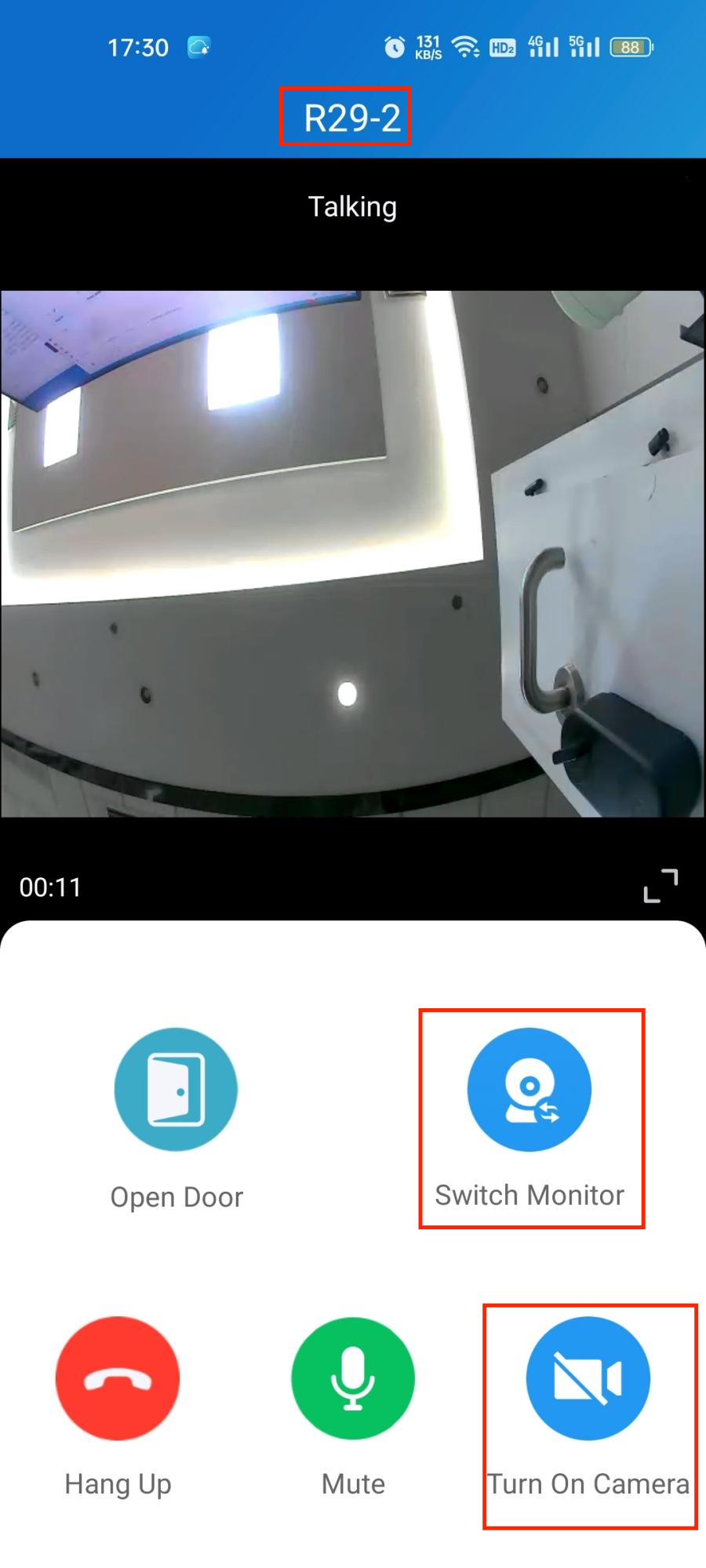
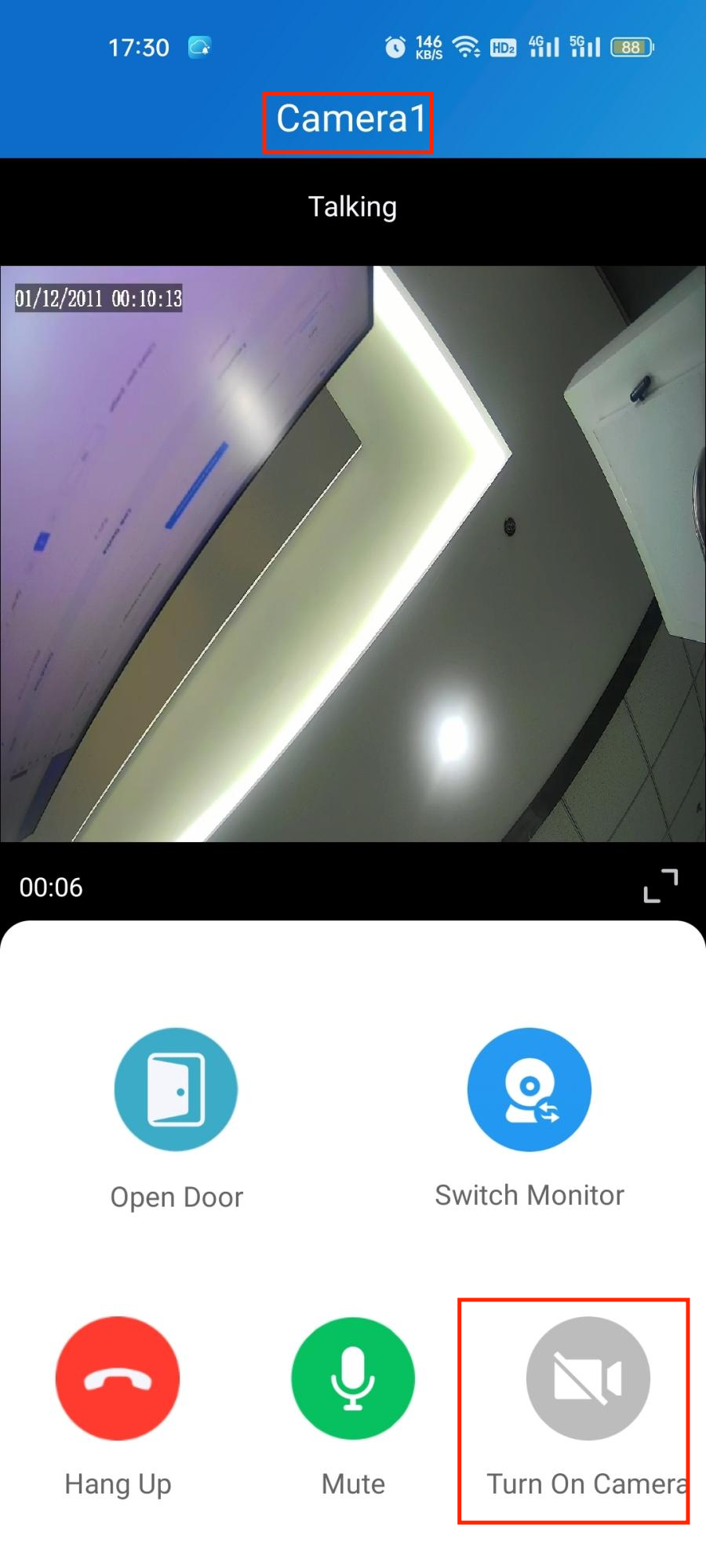
If the door phone is linked with a third-party camera, then you are also allowed to tap Switch Monitor to switch monitoring streams between the door phone and the third-party camera. However, the Turn On Camera feature is unavailable when you change to see the third-party camera’s stream.
Open Door on Monitoring Page
You can see the live view of door phone cameras when you want to see the visitor's face or talk to the person on the other end on the screen before you decide whether to open the door or not.
To open the door, do the following:
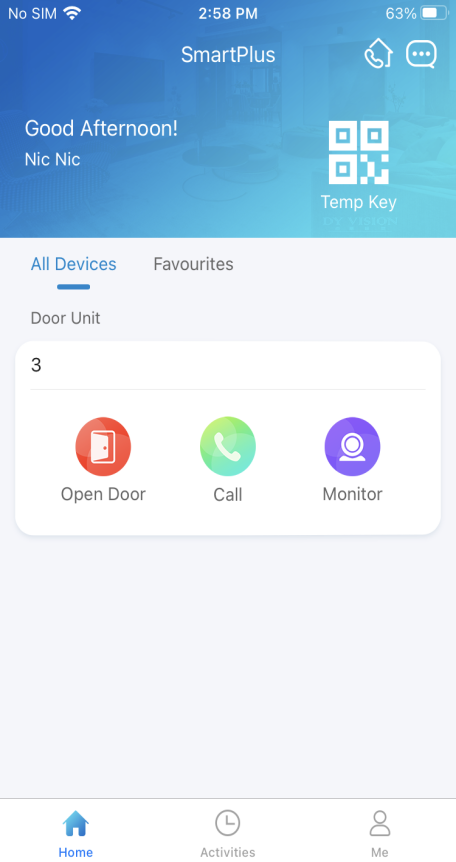
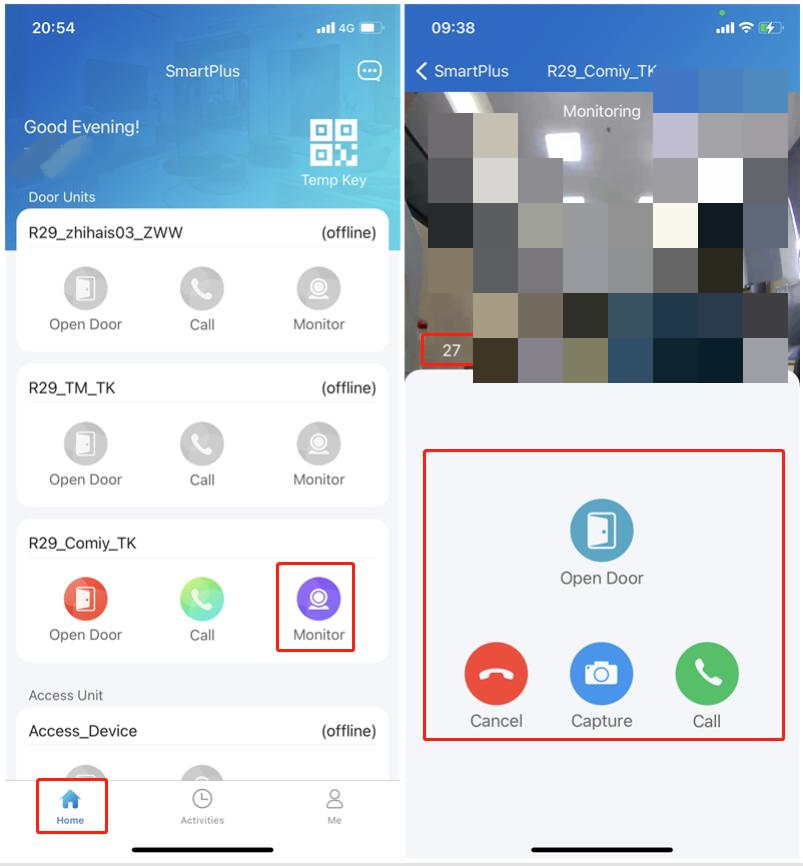
Tap Home, and choose the device.
Tap Monitor
 . Note that door phones without cameras do not have a monitor button.
Tap Open Door and select the relay.
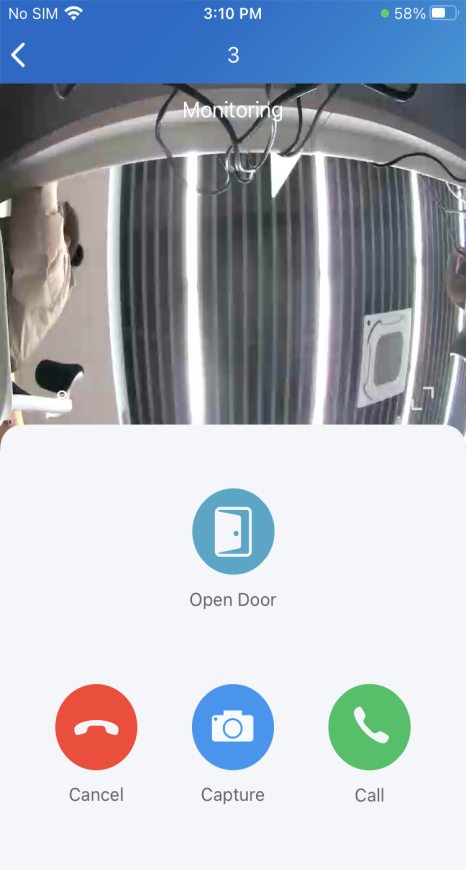
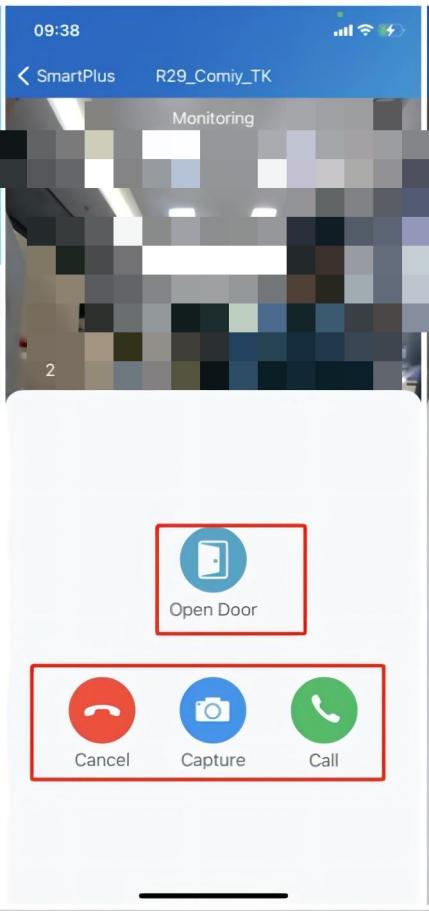
What else you can do on the monitoring page:
Tap Cancel to exit live-streaming page.
Tap Capture to make a screenshot.
Tap Call to talk to the visitor.
Open Door on the Preview Page
When someone calls, you can preview the monitoring streams to see who it is before answering the call.
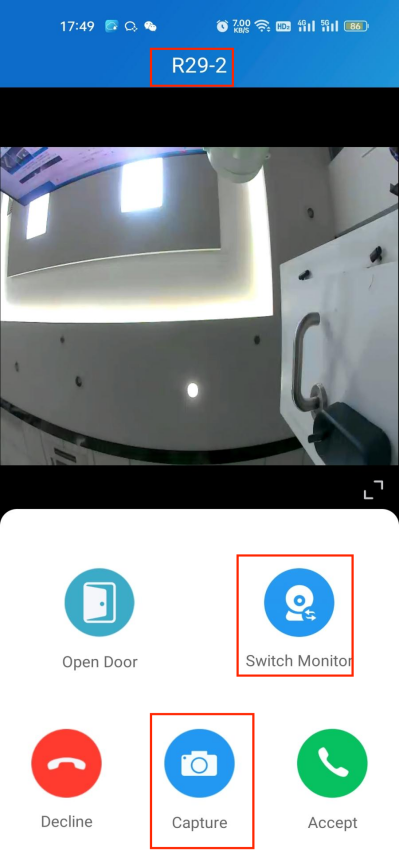
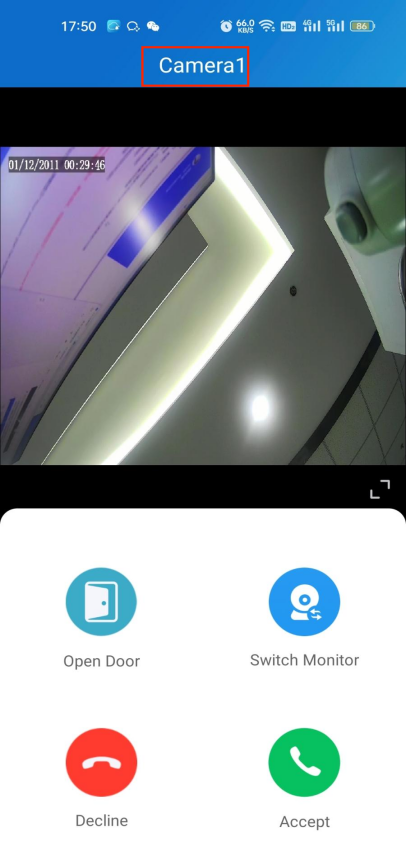
On the call receiving screen, tap Open Door if you know who the visitor is.
If the door phone is linked with a third-party camera, then you can switch the streams by switching monitors. Note that the Capture feature is unavailable after switching to the third-party camera stream screen.
Issue Temp Keys
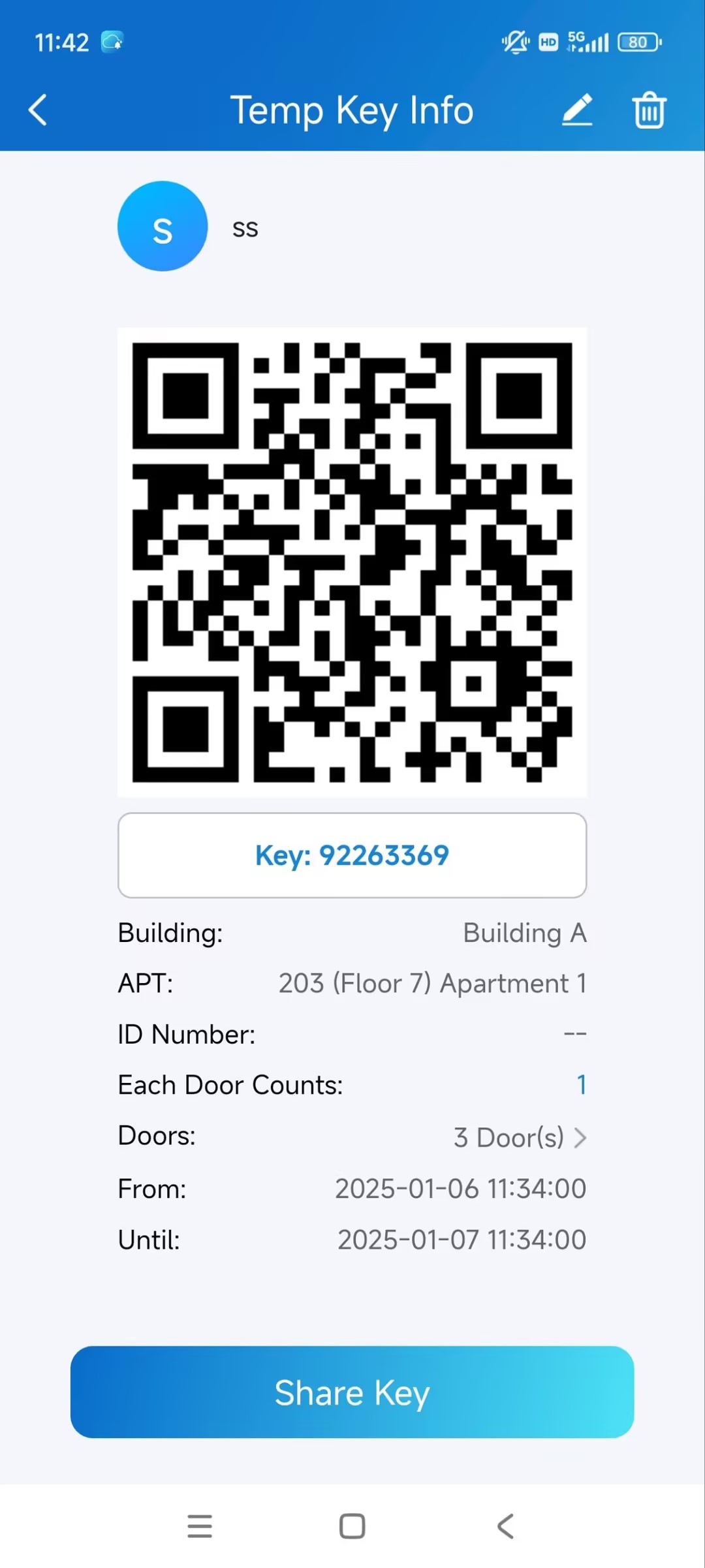
A Temp Key contains a QR code and an 8-bit PIN, any of which can be used to unlock the door(s). You can issue Temp Keys for staff, visitors, housekeepers, deliveries, and so on. The keys will be valid for use as soon as they are created.
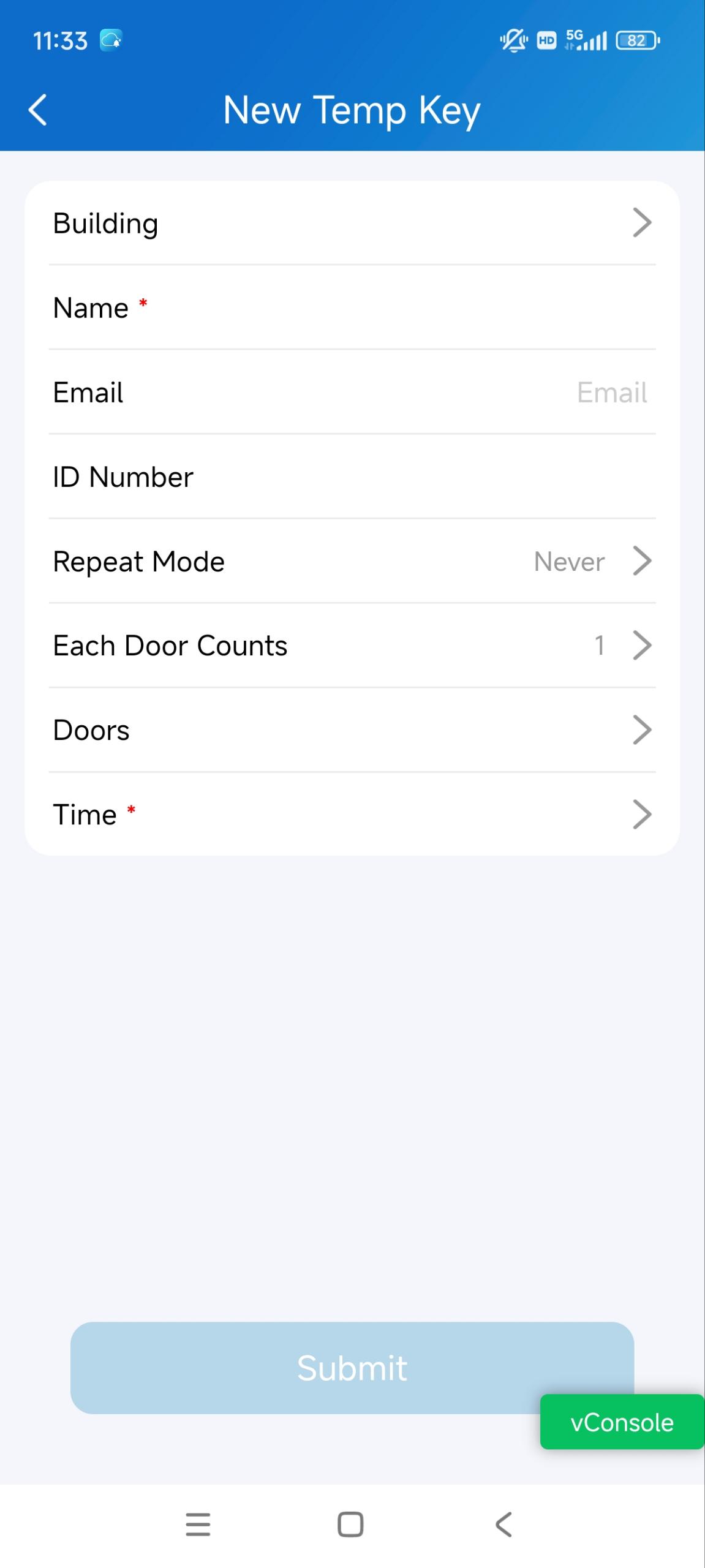
1. Tap the temp key icon on the Home page or tap Me > Authorization > Temp Keys.
2. Tap the Add icon in the upper-right corner.
3. Select the building and apartment.
4. Enter the visitor's name and enter the email address used to receive the temp key.
5. Set the ID number.
6. Select the Repeat Mode.
7. Select the doors to be opened.
8. Set the time for using the temp key.
Note
When repeat mode is Never, there is a limit to the total times of use. The total times equal to Each Door Counts * the number of selected devices.
After the temp key is created and when it does not expire, you can change the valid time of using the temp key by clicking the Edit icon in the upper right corner.
Share Key to User
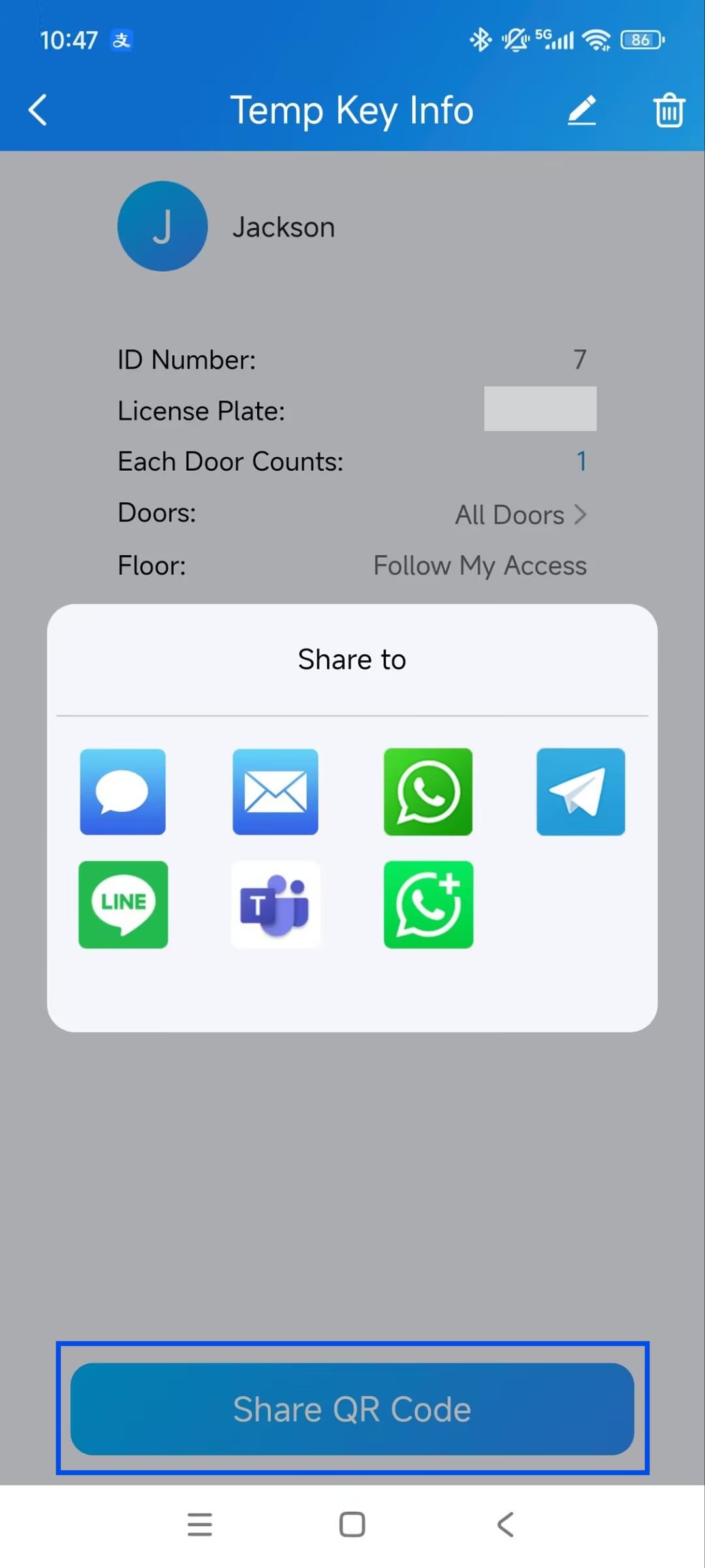
If you did not send the key to the designated user in the creation procedure by entering his/ her email address, you can still share keys to users, just do as follows:
Tap the QR code icon
 on the Home page, or go to Me > Authorization > Temp Keys.
Tap the key you created for the user, then tap Share Key.
Share the key through desired methods. Please note that the WhatsApp Business option is currently ONLY supported on Android phones.
Open Door with Temp Key
A Temp Key contains a QR code and an 8-bit key. The user can use either of them to unlock doors.
Use QR code. Tap Temp Key on the door phone's screen, and place the QR code in front of its camera. When the camera reads the code, the door will open automatically.
Use 8-bit key. Tap Temp Key on the door phone's screen, enter the code, and the door will open automatically.
Open the Door for Yourself
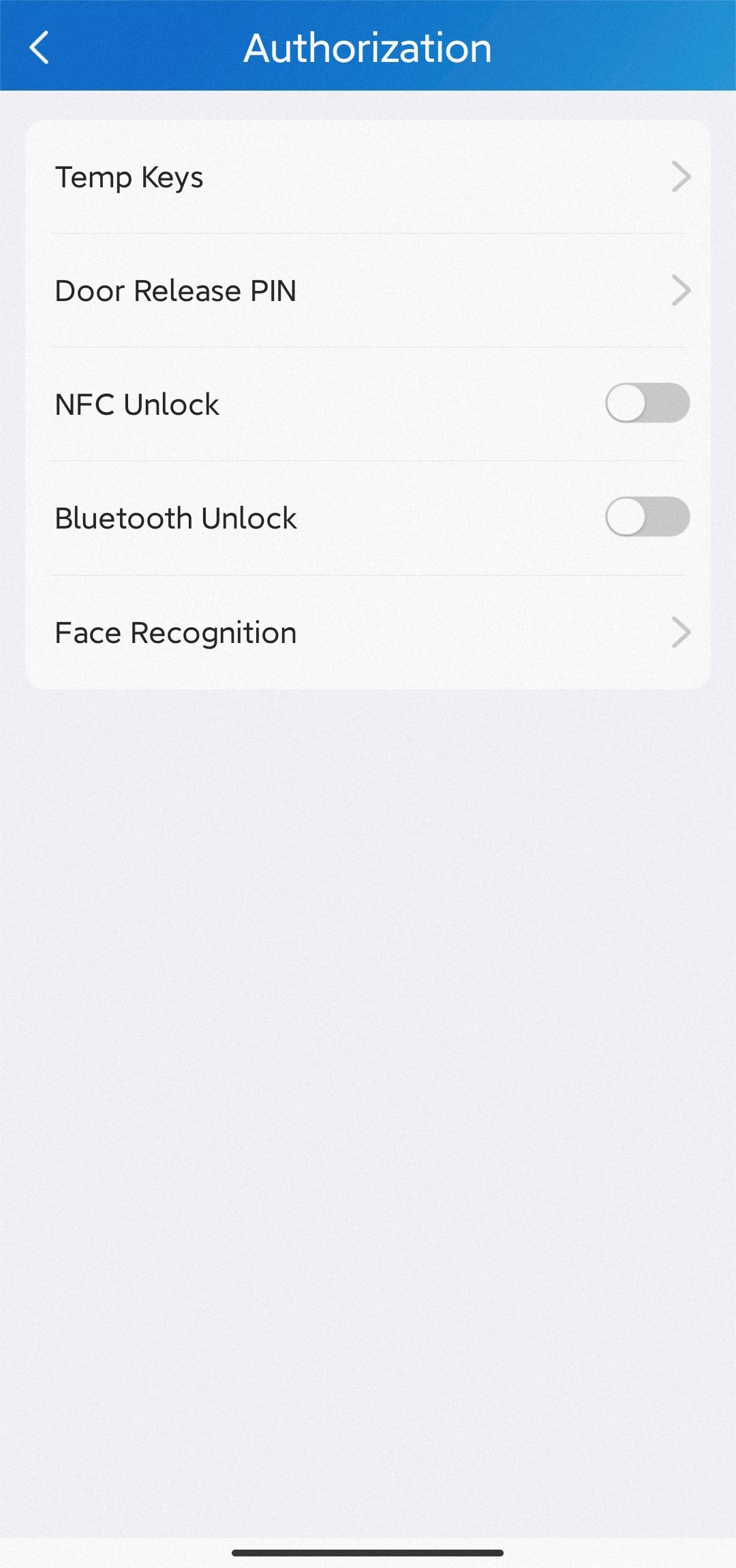
When you need to open doors or enter buildings frequently in daily work, for more convenience, you can remotely open the door and configure PIN, Bluetooth, NFC, and facial recognition for yourself.
.png)
Remote Opening
You can open the door directly by tapping the specified softkey.
Select the device on the homepage, and tap Open Door.
Select the relay (the door) in the list.
The screen shows Opening Door Succeeded, which means the door is opened.
.png)
Open the Door with a PIN
You can set a private PIN code for door entry.
In your first login, you are asked to set up a PIN code for your private use.
If you didn't set it up, or you want to change the code for better security, go to Me > Authorization > Door Release PIN.
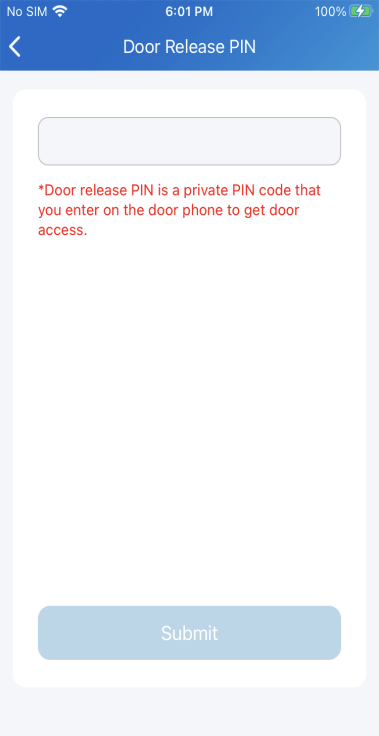
With the PIN, you can open the door by entering the PIN.
Open the Door via Bluetooth
You can use the Bluetooth connection to open doors without touching them.
Note
To learn about the supported door phones and detailed steps of Bluetooth door opening, please refer to Open the Door via Bluetooth.
Ensure Bluetooth is turned on, both on your phone and SmartPlus App, before using this feature.
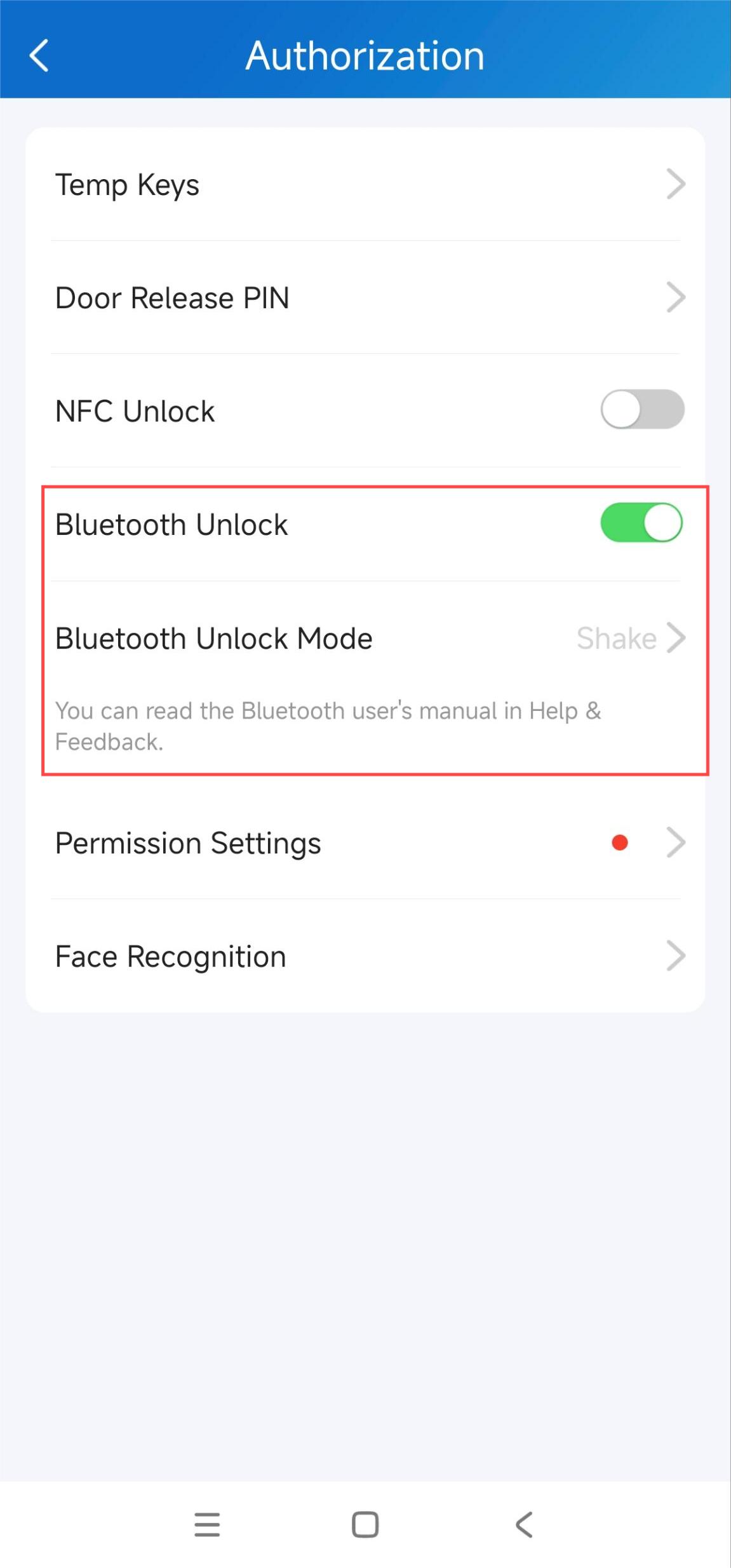
Go to Me > Authorization, and enable Bluetooth Unlock.
2. Select a Bluetooth Unlock Mode between Shake, Hands-free, and Tap as Card.
Shake: Place your phone near the door unit, shake your phone a few times, and the door will open automatically.
Hands-free: Your phone must be within about 3.3 feet (1 meter) of the door unit, and the door will open automatically.
Tap as Card: Open the door by placing the mobile phone on the door phone’s card reader area.
Open the Door with Face ID
Using the facial recognition feature helps you open the door fast and safely.
Set up Face ID
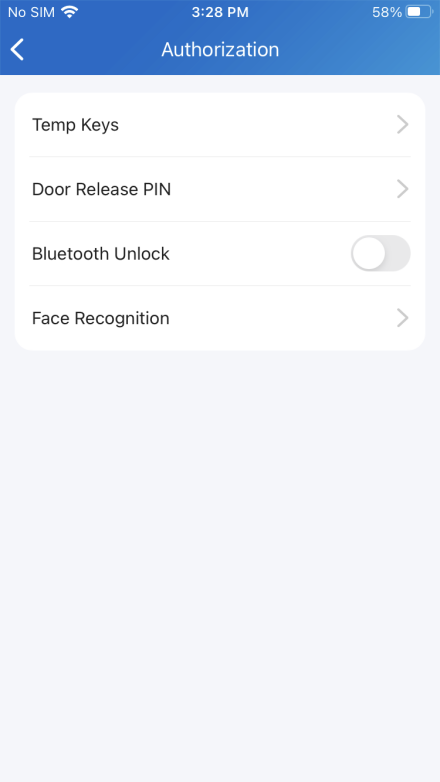
Go to Me > Authorization > Face Recognition.
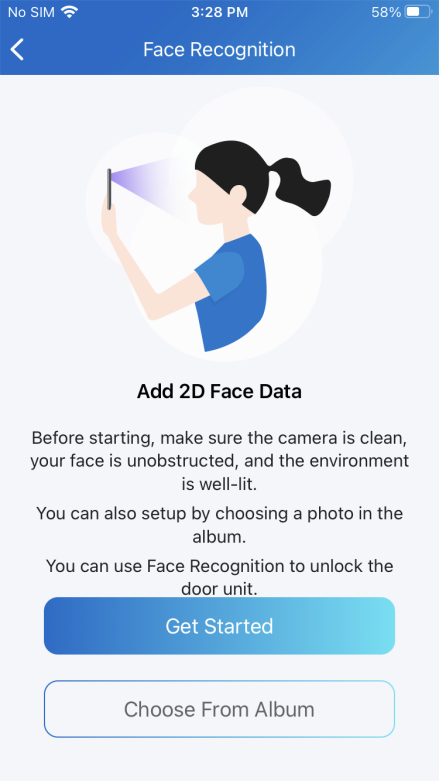
Tap Get Started, or select a picture from your phone album, then follow the onscreen instructions.
Use Face ID to Open Door
After you finish setting it, you can use it for door access.
Tap anywhere on a door phone screen to wake it.
Make sure your face is centered in the camera view, glance at the camera, and then the door will open automatically.
Open the Door with an NFC
It is convenient when using a phone with an NFC feature to open the door. You just need to put your phone onto the door phone's card reader, then the door will open for you.
Note
This feature is NOT available on iPhone and Android phones without an NFC module.
Enable NFC to Unlock
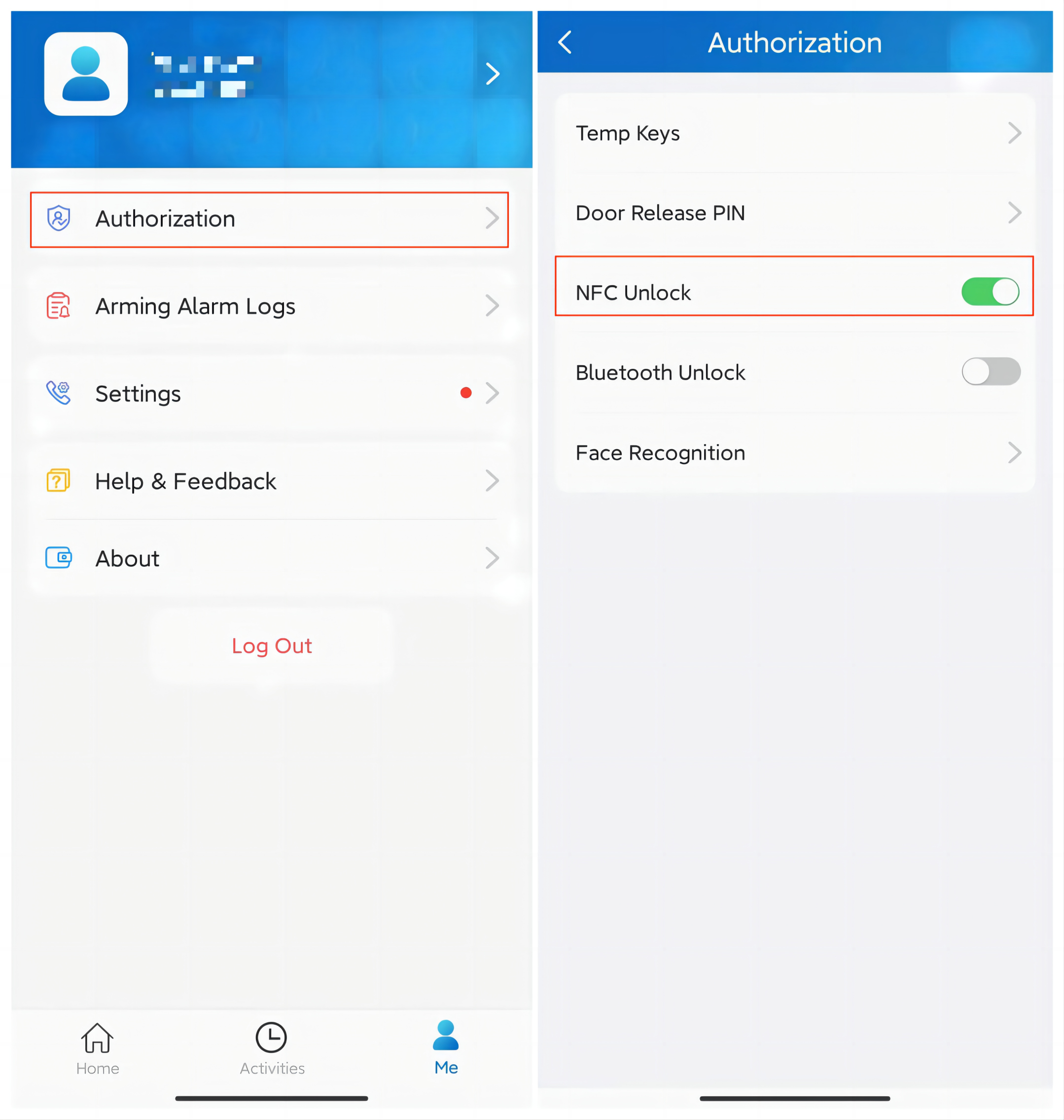
Go to Me > Authorization, and turn on NFC unlock. This function will be activated immediately.
Use NFC to Open the Door
Ensure NFC is turned on, both on your Android phone and SmartPlus App, before using this feature.
Wake up your phone.
Place the NFC detection areas of both your phone and the door phone against each other for a few seconds. Then the door will open automatically.
Open the Door with Siri
You can open the door through Siri with IOS 12 or higher.
Note
You can record no more than 10 voice commands.
Commands do not interoperate between different accounts.
1. Go to Me > Add to Siri.
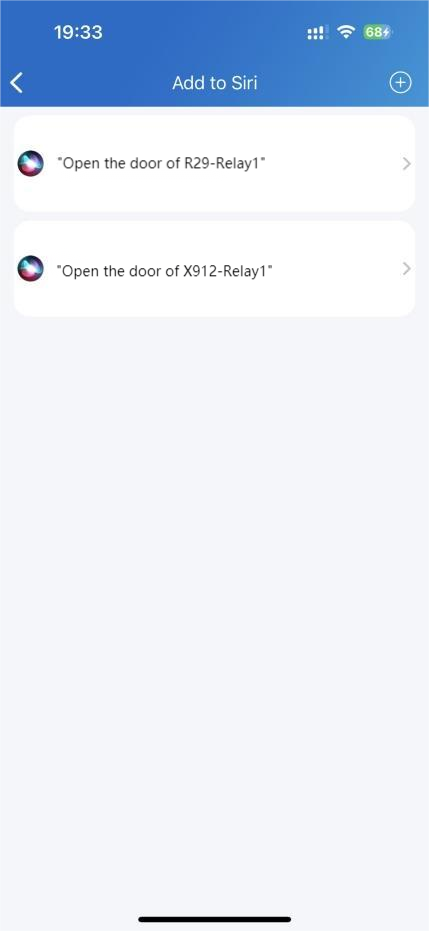
2. Tap + in the upper-right corner. Select the desired relay and record the command.
.png)
Open the Door with Apple Watch
You can open doors by tapping  on SmartPlus that is installed in Apple Watch.
1. Download and install the SmartPlus App on your Apple Watch.
2. Log in to your SmartPlus account on your iPhone that is linked to the Apple Watch.
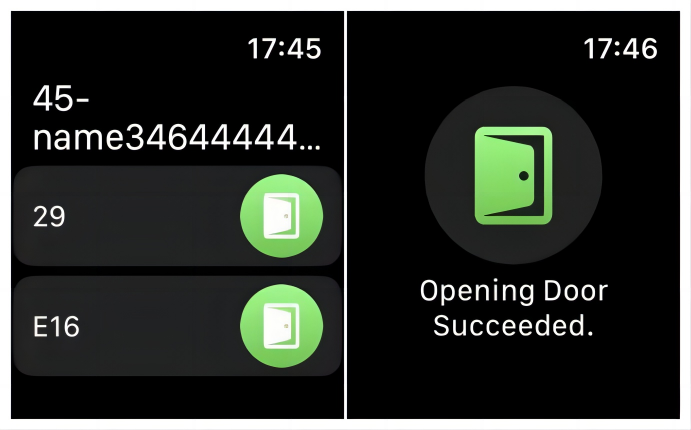 Devices with relays configured under your accounts will be synchronized to the Apple Watch.
Note
Apple Watch cannot acquire the latest device status in real time. Only after the data update on your iPhone do the data on your Apple Watch refresh.
Open Doors with Apple Wallet
Apple Wallet Access allows you to use your iPhone or Apple Watch as a contactless credential to unlock authorized doors.
Click here to view the configuration guide.
Unlock Third-Party Locks
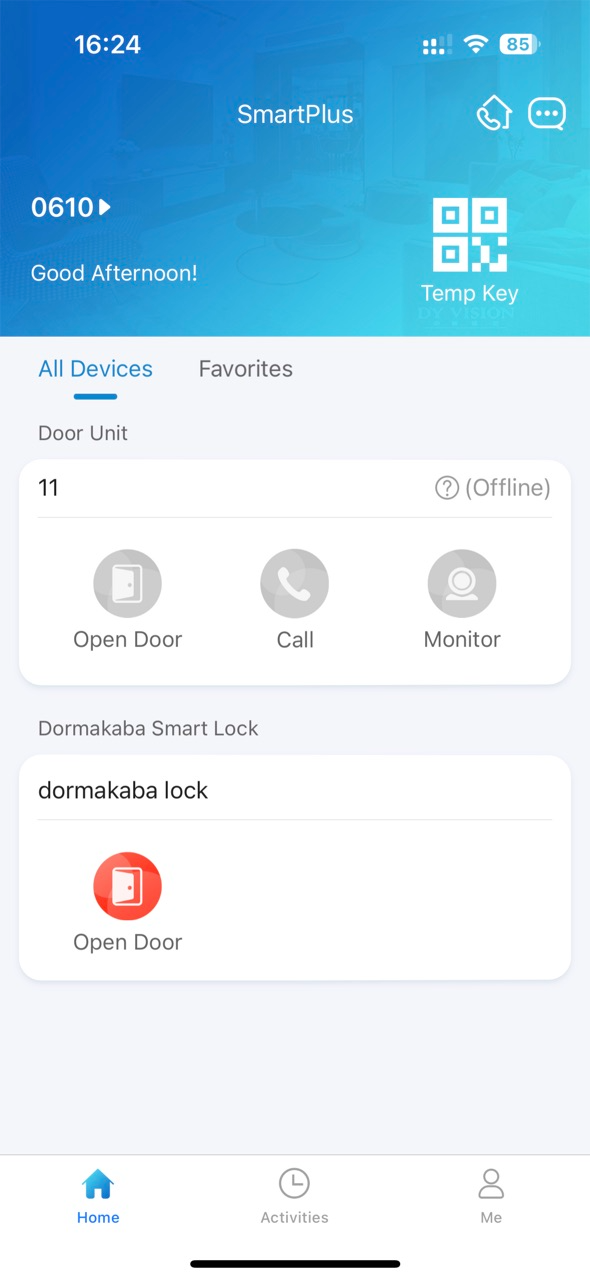
You can unlock the Dormakaba, Salto, and iTec locks after installers add the locks in public areas on the SmartPlus platform.
When the lock is not linked to a door phone, the lock will be displayed on the Home page, and you can tap Open Door to unlock it.
When the lock is linked to a door phone, it will be displayed in the door phone's Relay list. Tap Open Door of the linked door phone to open it.
Keep the Door Open During a Specific Time
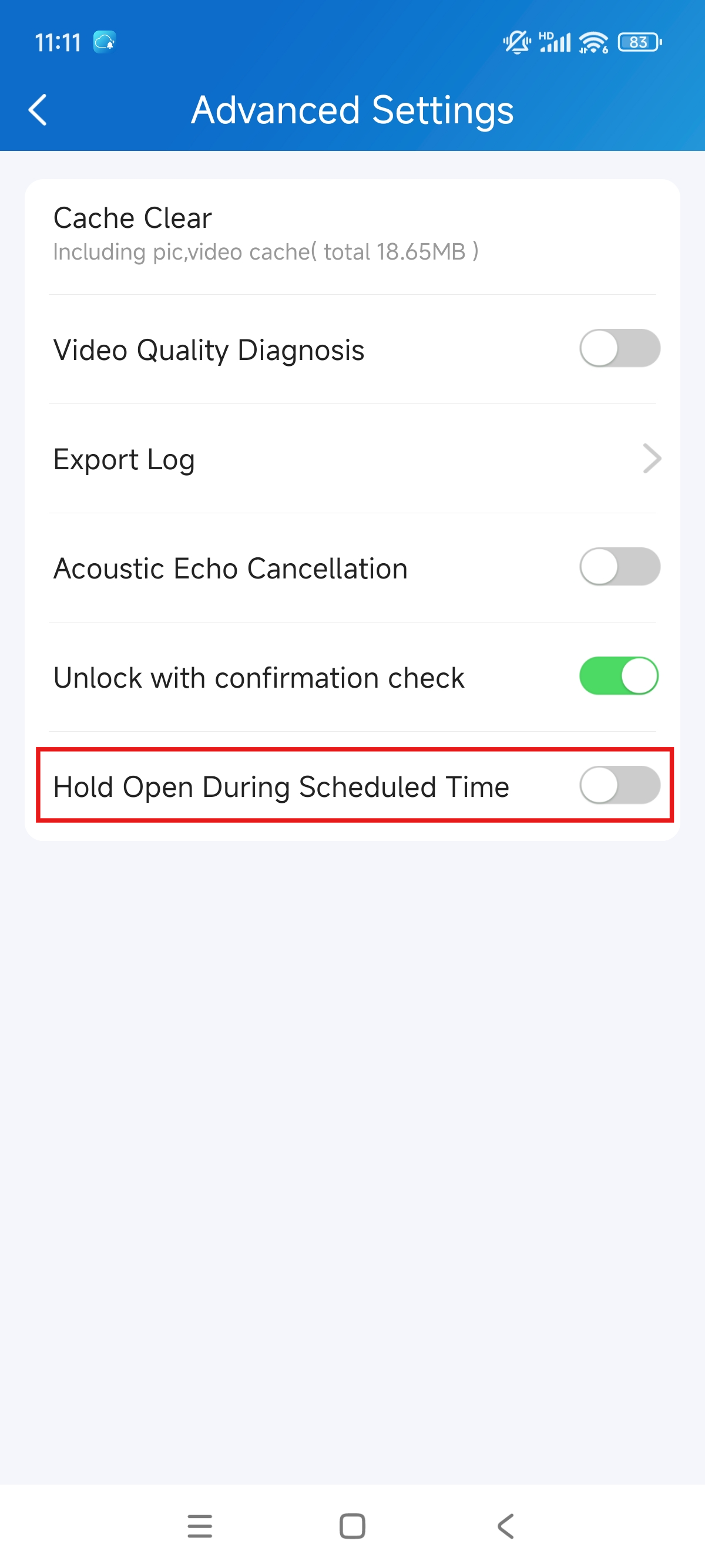
You can set doors to be open during the scheduled time.
Note
Click here to view the detailed configuration of the feature.
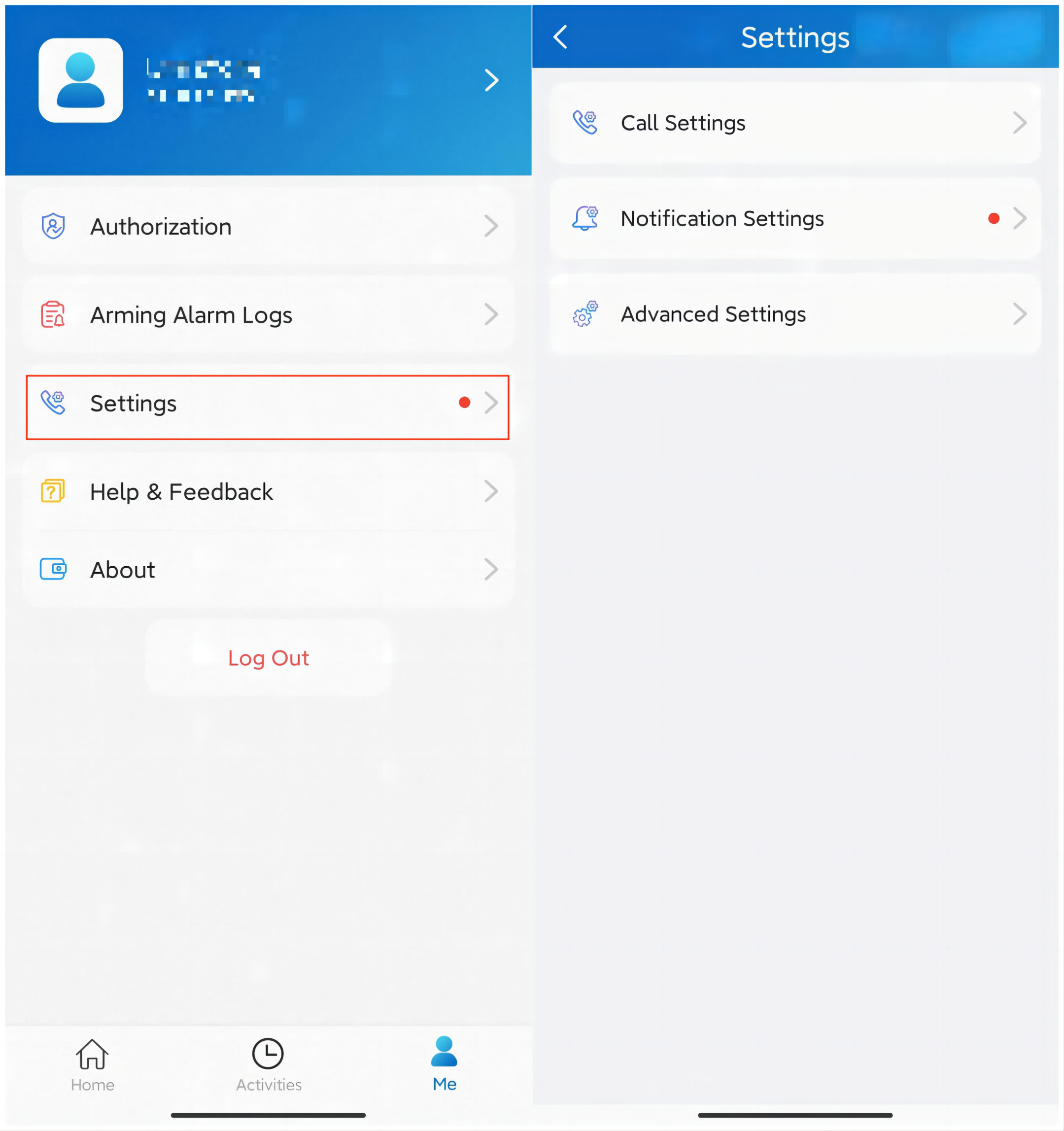
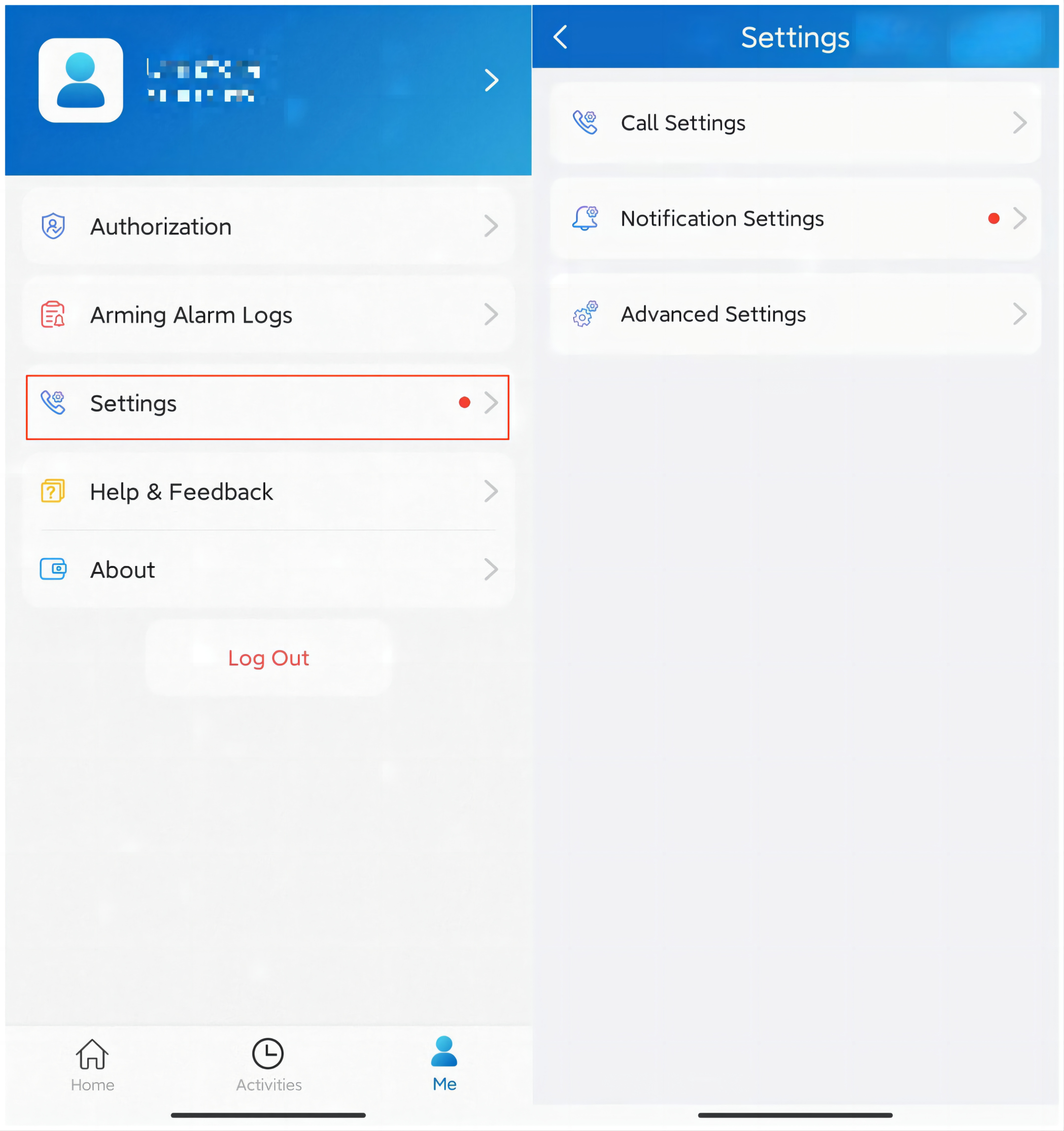
Enable this feature on the Me > Settings > Advanced Settings page. It is disabled by default.
Calling
Call Devices
You can call public devices on the home page directly, or preview the monitoring live stream and talk to the person on the other end of the screen.
On Homepage
Choose the desired device on the homepage.
Tap Call to start a call.
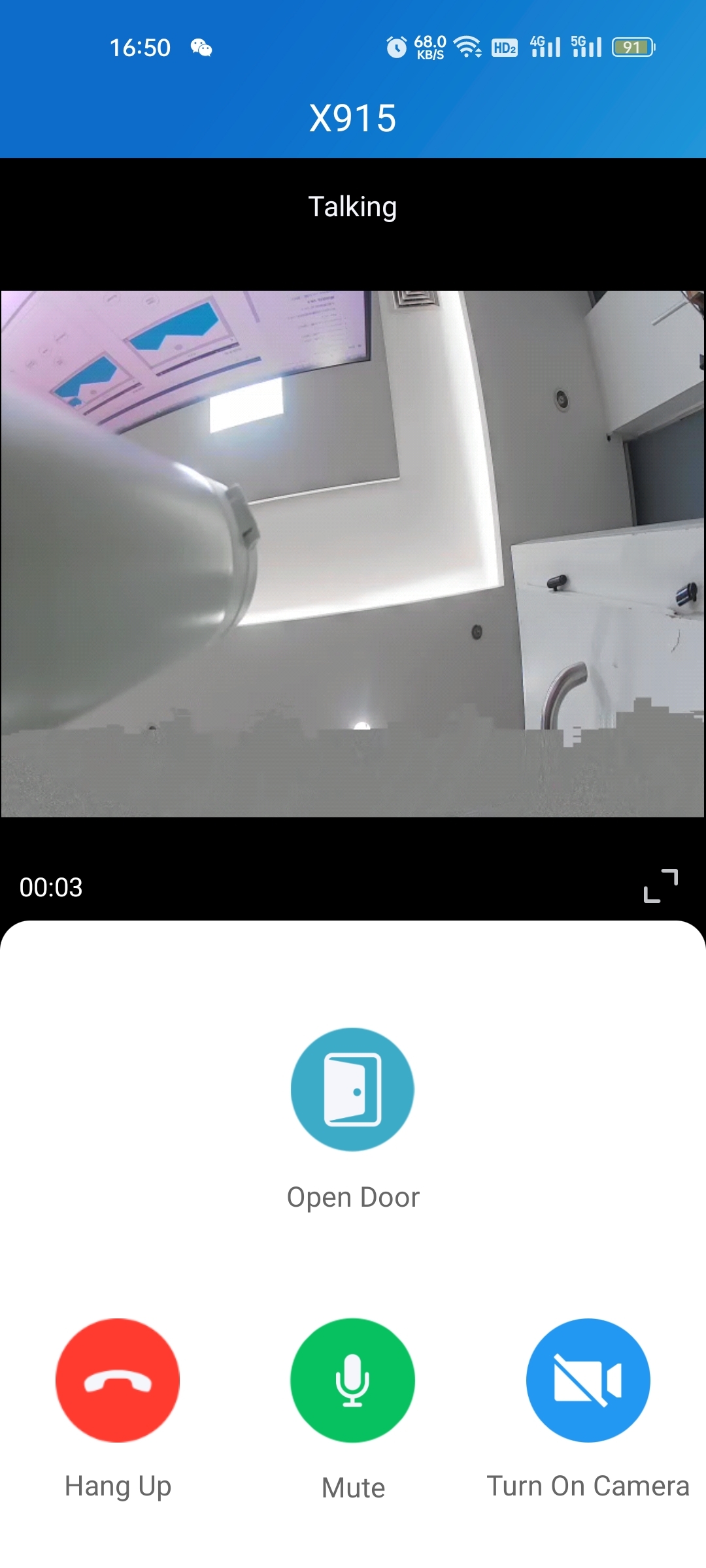
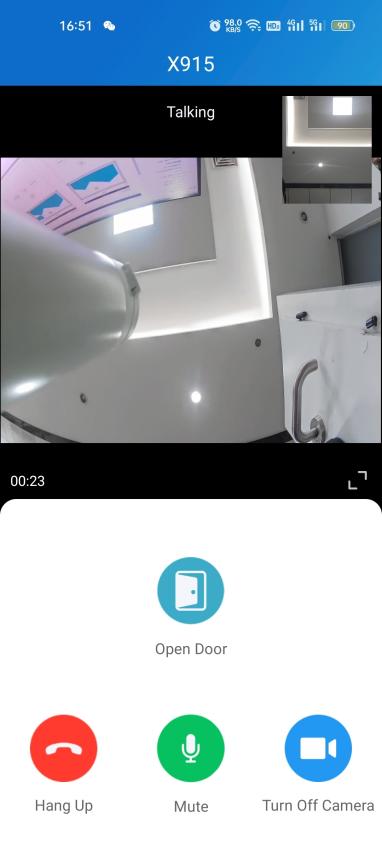
Tap Turn On Camera to turn your phone’s camera on if you want the called party to see you. You can turn off the camera at any time.
Your choice to turn on/off will be applied to later video calls with the device.
Note
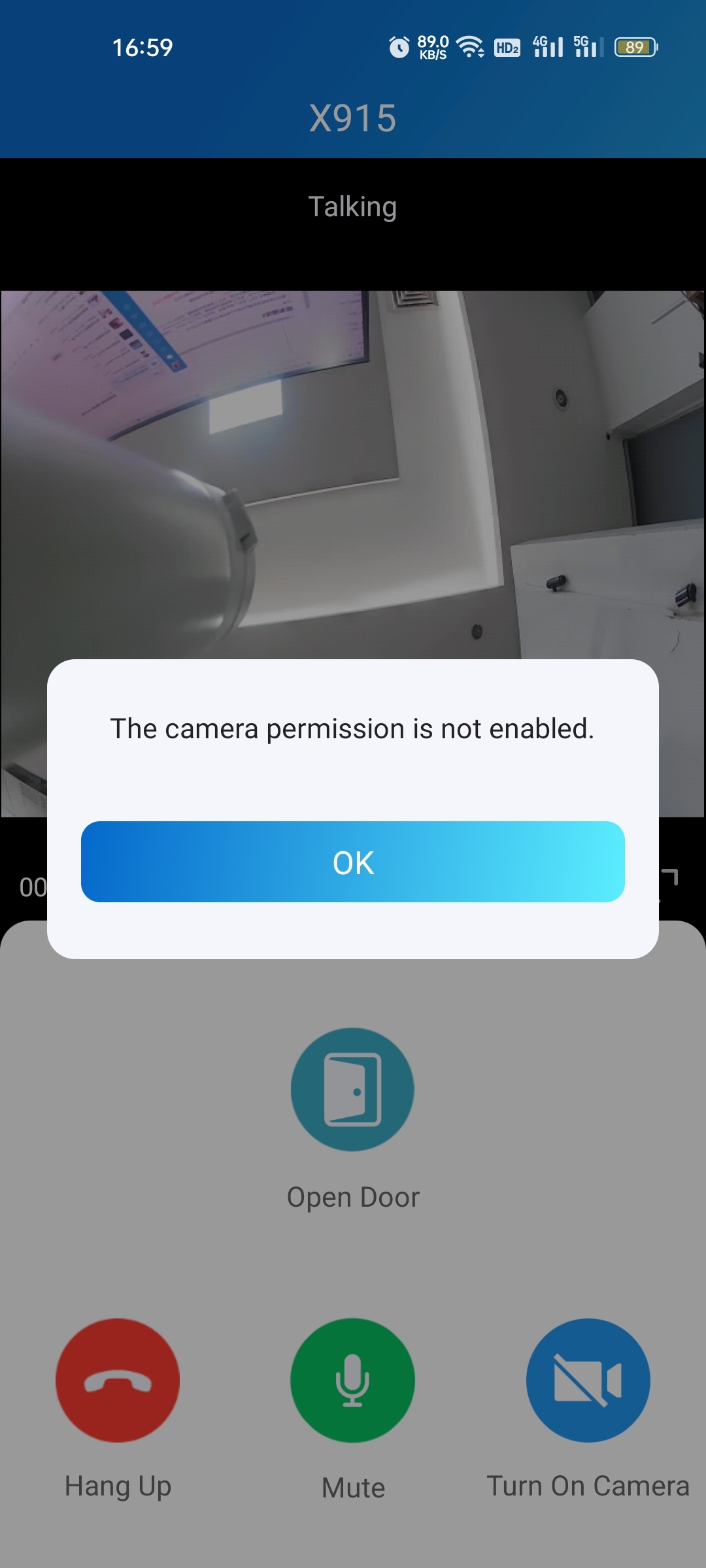
To use the Turn On Camera/Turn Off Camera feature, you must allow the SmartPlus to turn on/off the cameras when using this app. Or you will see the below pop-up message.
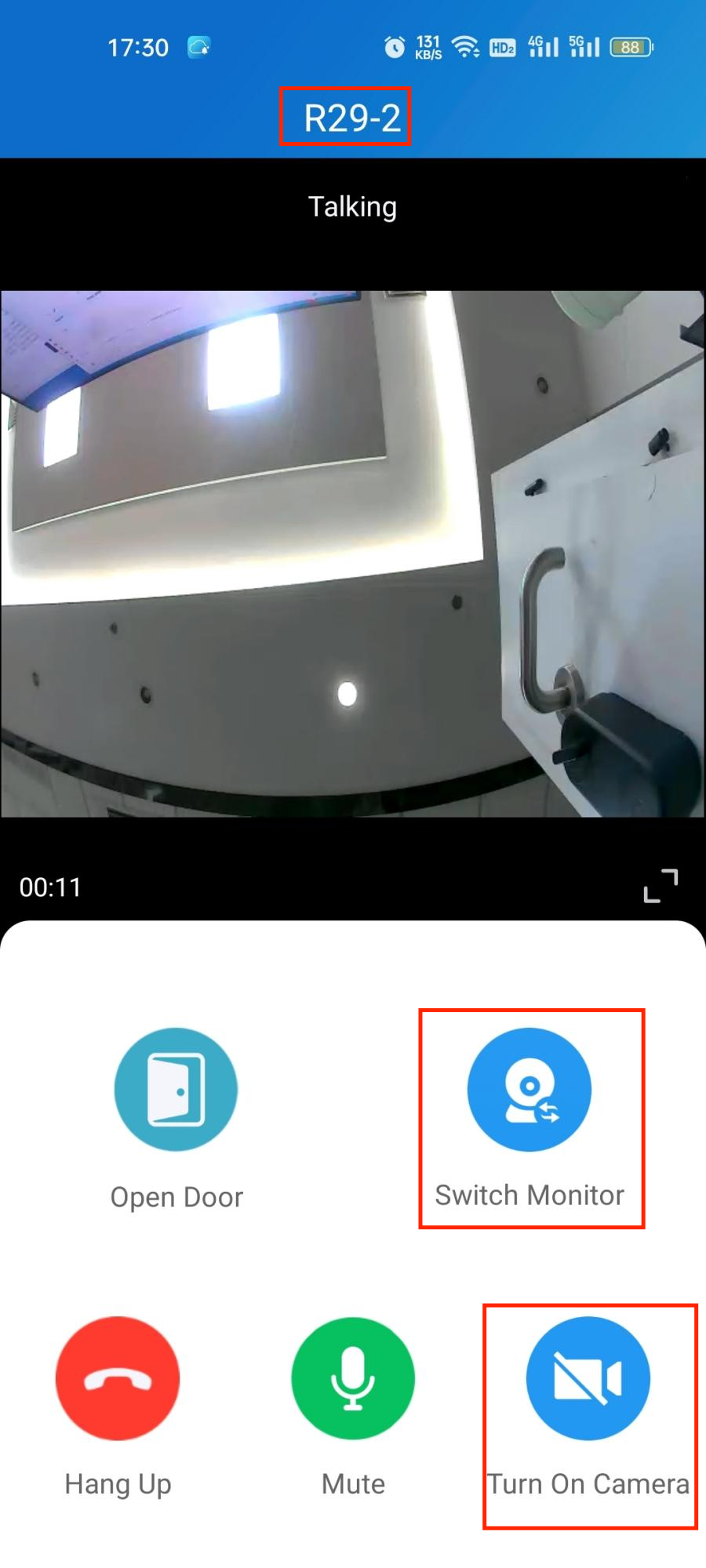
If the door phone is linked with a third-party camera, you can tap Switch Monitor to switch monitoring streams between the door phone and the third-party cameras. However, the Turn On Camera feature is unavailable when you change to see the third-party camera’s stream.
On Monitoring Page
Tap Home.
Select a device.
Tap Monitor to preview the monitoring video, and tap Call if you'd like to talk to the visitor.
Call a Resident or Other Property Managers
SmartPlus enables you to call residents, their indoor monitors, and other property managers within the community.
To call a resident, do the following:
1. Tap the icon  on the top right.
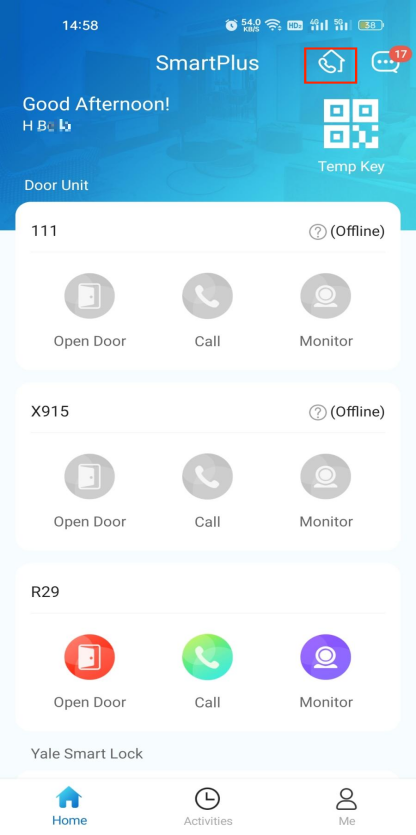
2. A directory screen opens.
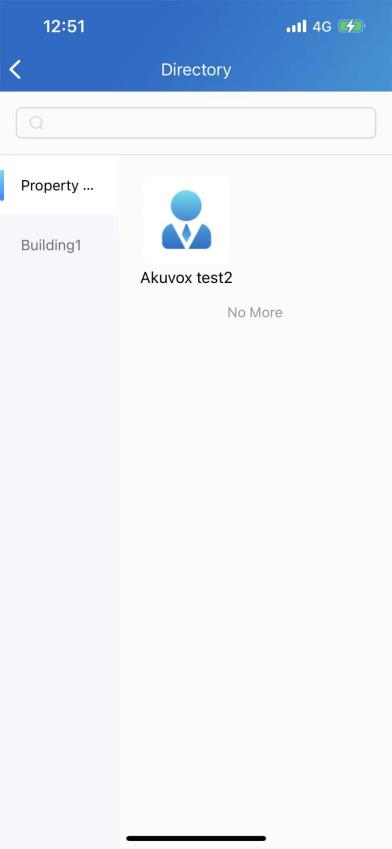
3. On the Directory screen, do any of the following:
Tap Property Managers on the left side to see and call other property managers in this community.
Note
Only when there are other property managers in this community and their app permissions are turned on by your installer, can you see their accounts listed here. Otherwise, the Property Manager tab will not be displayed.
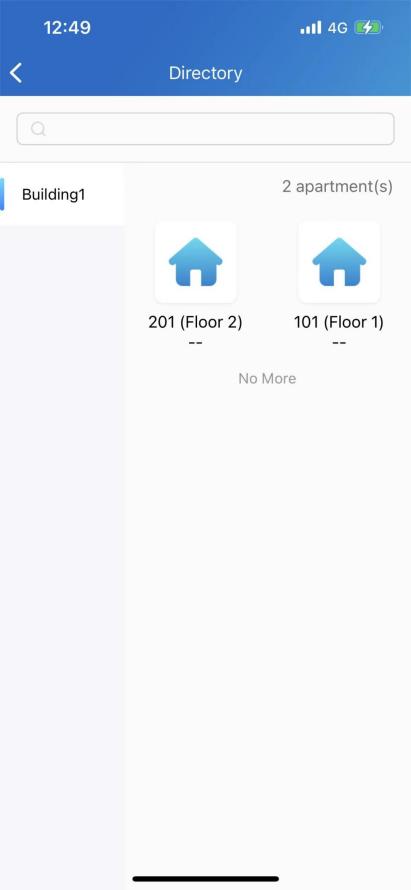
Tap the specific building to see all apartments within.
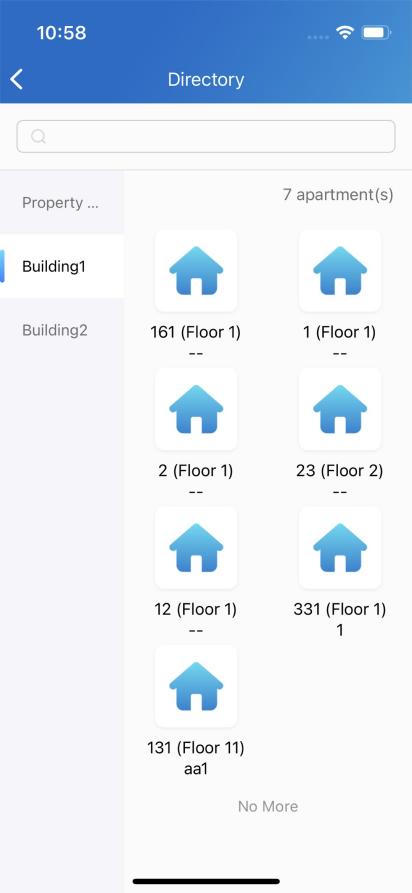
Tap any of the apartments listed on the right side to
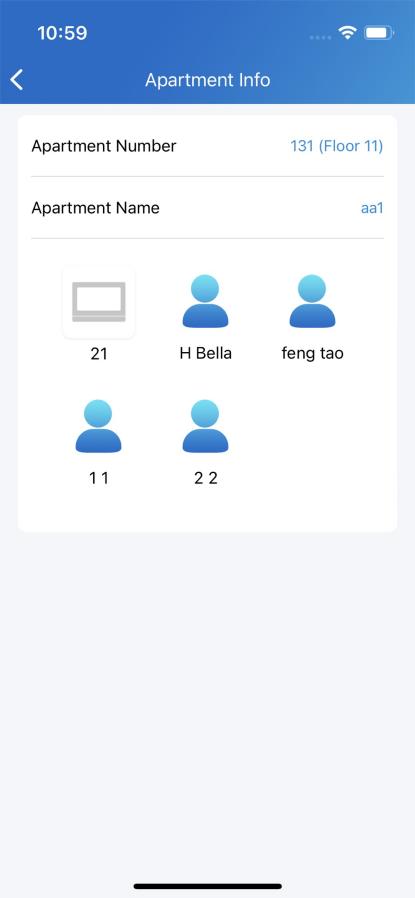
—See its information, including the door number, apartment name, and the members and indoor monitors in this family.
—Tap and call a member’s app or an indoor monitor.
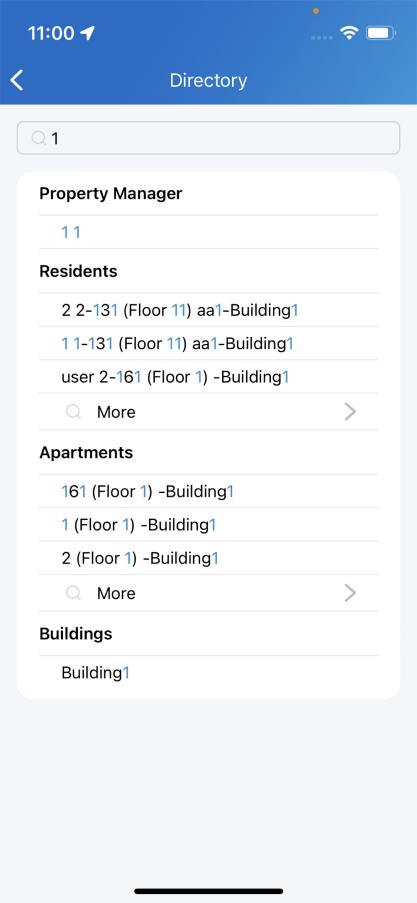
Tap the search box on the top to search for a family or property manager. The search results will be displayed in the order of Property Manager-Resident-Apartment-Building.
Landline, Contacts, and Call Preference
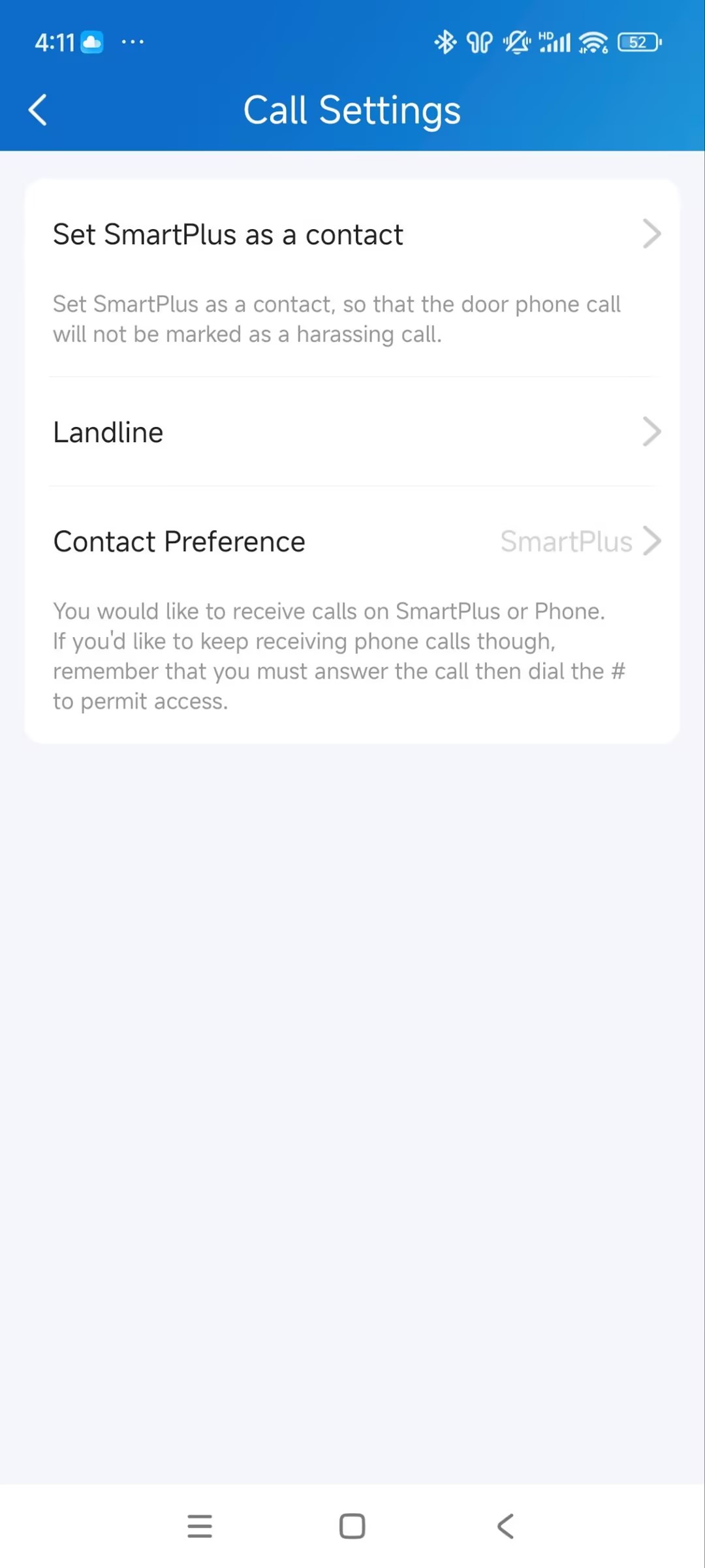
You can answer or decline a call via SmartPlus, or you can forward calls to the landline number.
Note
ONLY when your service provider enabled the Landline Service at the same time he created your community project, are you able to use the feature.
Call Forwarded to Phone
To set up call forwarding, do the following:
Go to Me > Settings > Call Settings.
Tap Landline, and select the country/region the phone number belongs to.
Tap Landline, and type in the number in the pop-up box.
Tap Submit.
Set up Call Receiver
Contact Preference feature allows you to decide whether to receive calls on SmartPlus or your phone.
Go to Me > Settings > Call Settings.
Tap Contact Preference.
Select a call type.
SmartPlus. When selected, SmartPlus will be called.
Phone. When selected, the landline number will be called.
Set SmartPlus as a Contact
You can set SmartPlus as a contact, in case calls from doorphones are marked as harassing ones.
Go to Me > Settings > Call Settings.
Tap Set SmartPlus as a contact, and the screen shows Adding Succeeded. You will then see the Doorphone Call Number in your phone's contact list.
Not to Receive Calls
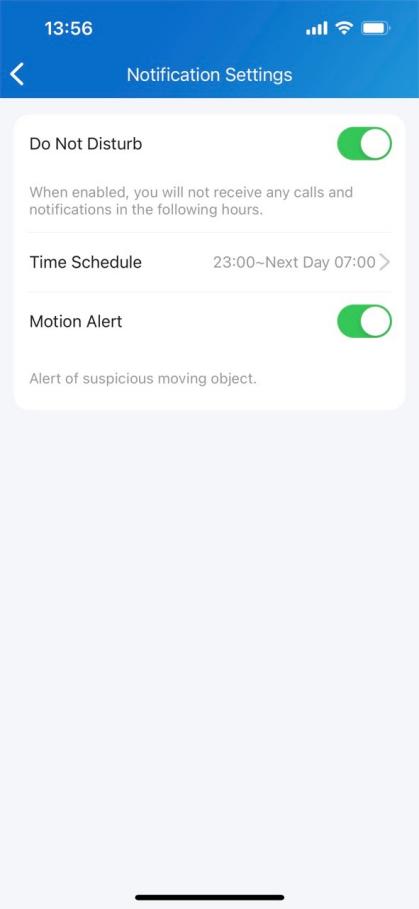
SmartPlus allows you to silence all calls when you do not want to be disturbed.
Go to Me > Settings > Notification Settings.
Turn on Do Not Disturb.
Set up a Time Schedule.
Note
Call histories will still be recorded when enabling Do Not Disturb.
Receive Calls from a Different Site
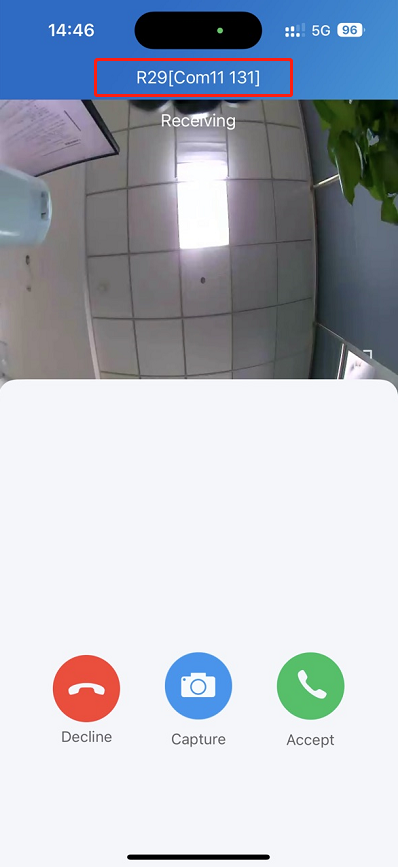
You can receive calls from site 2 when you select site 1.
The receiving page will display the information on site 2.
The call logs will only be displayed on site 1.
Set up Call Kit
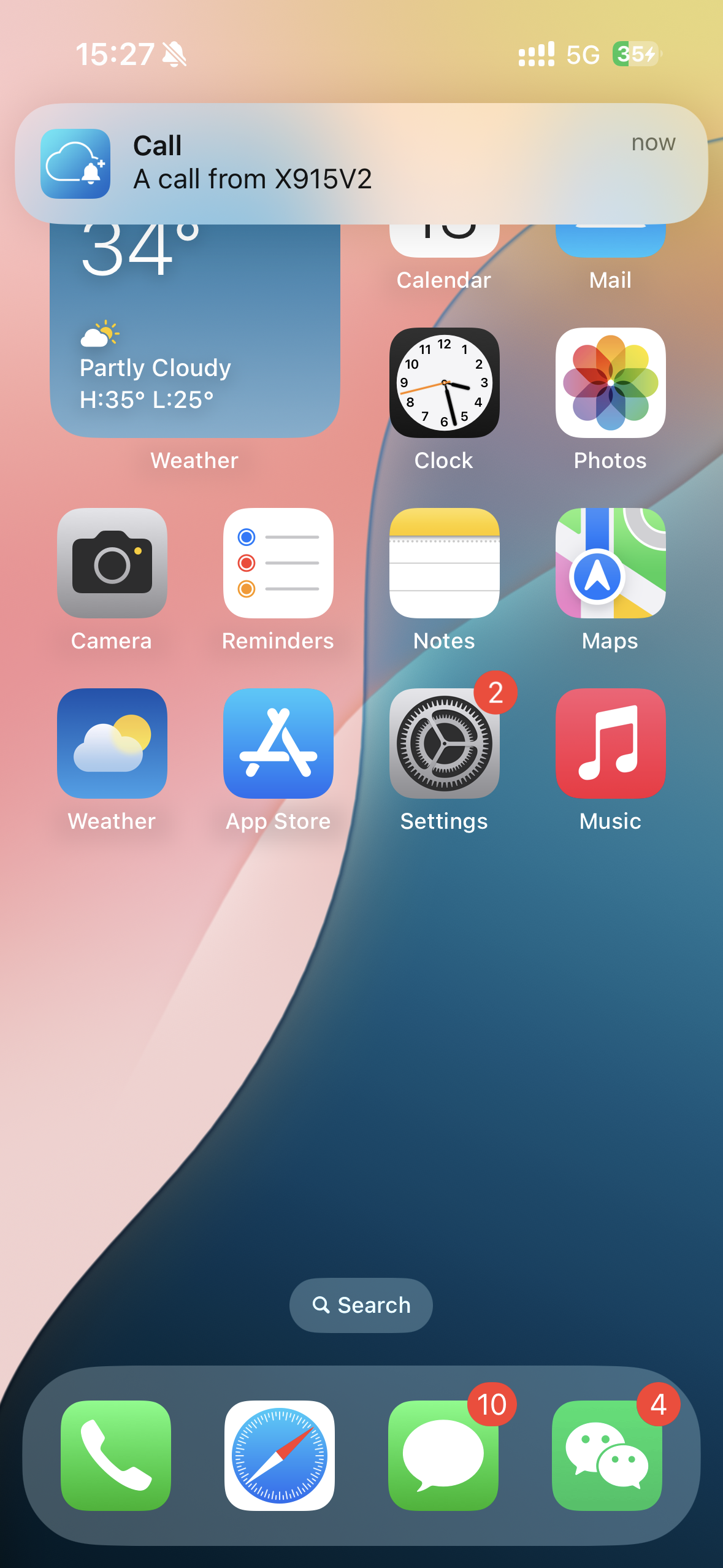
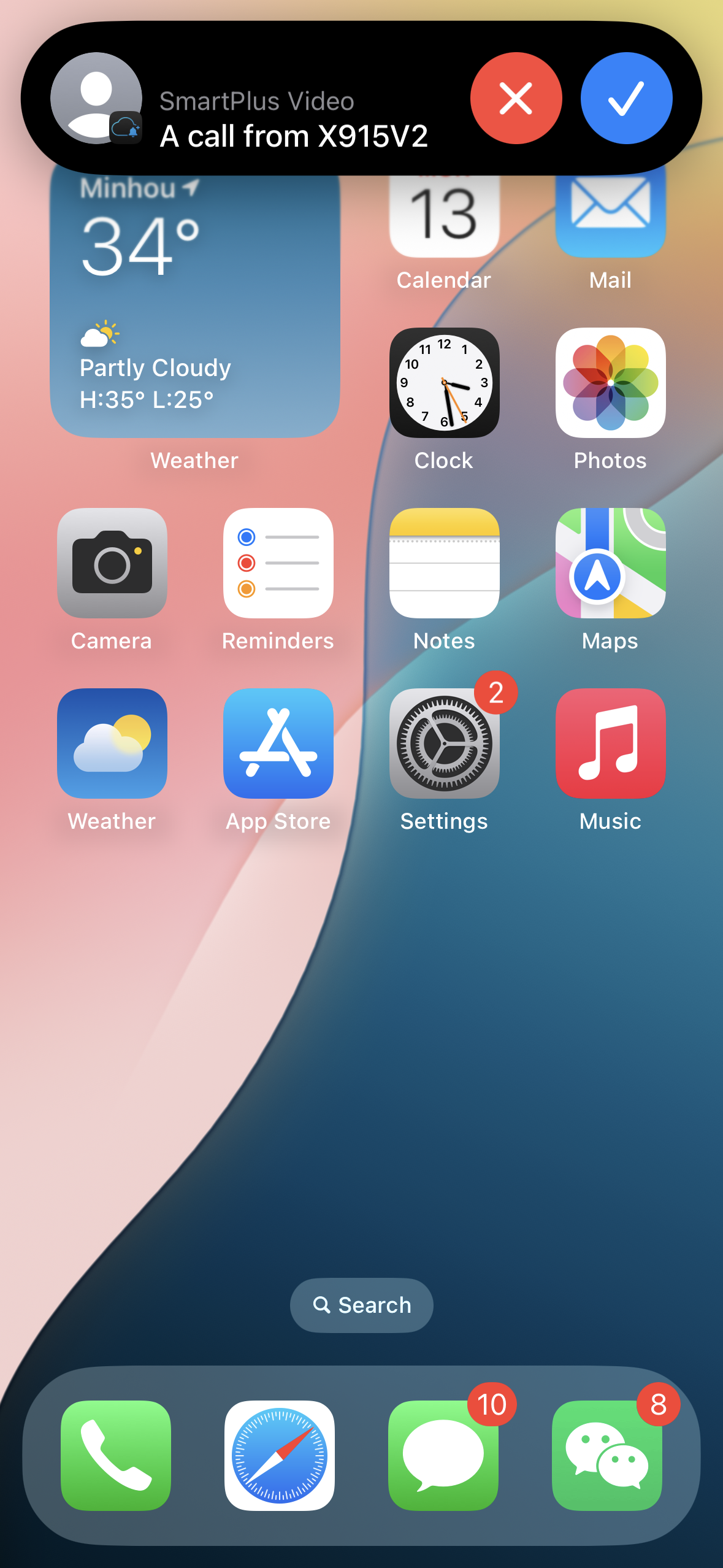
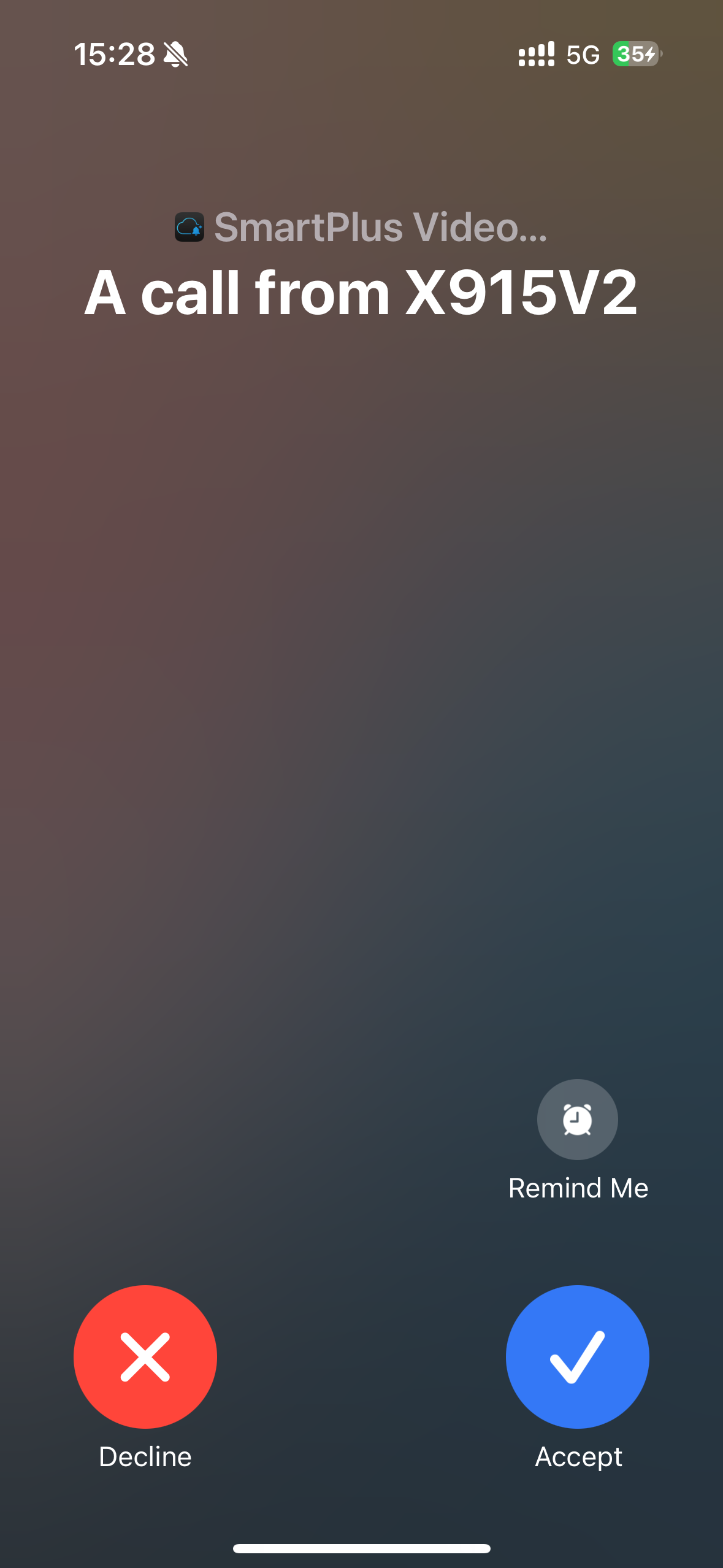
The call kit feature prevents you from missing incoming calls. The incoming call notification will be displayed on the full screen just as you receive a phone call.
Note
ONLY the iOS system supports this feature.
1. Tap Me > Settings > Call Settings > Display Incoming Calls.
2. Select the incoming call display mode.
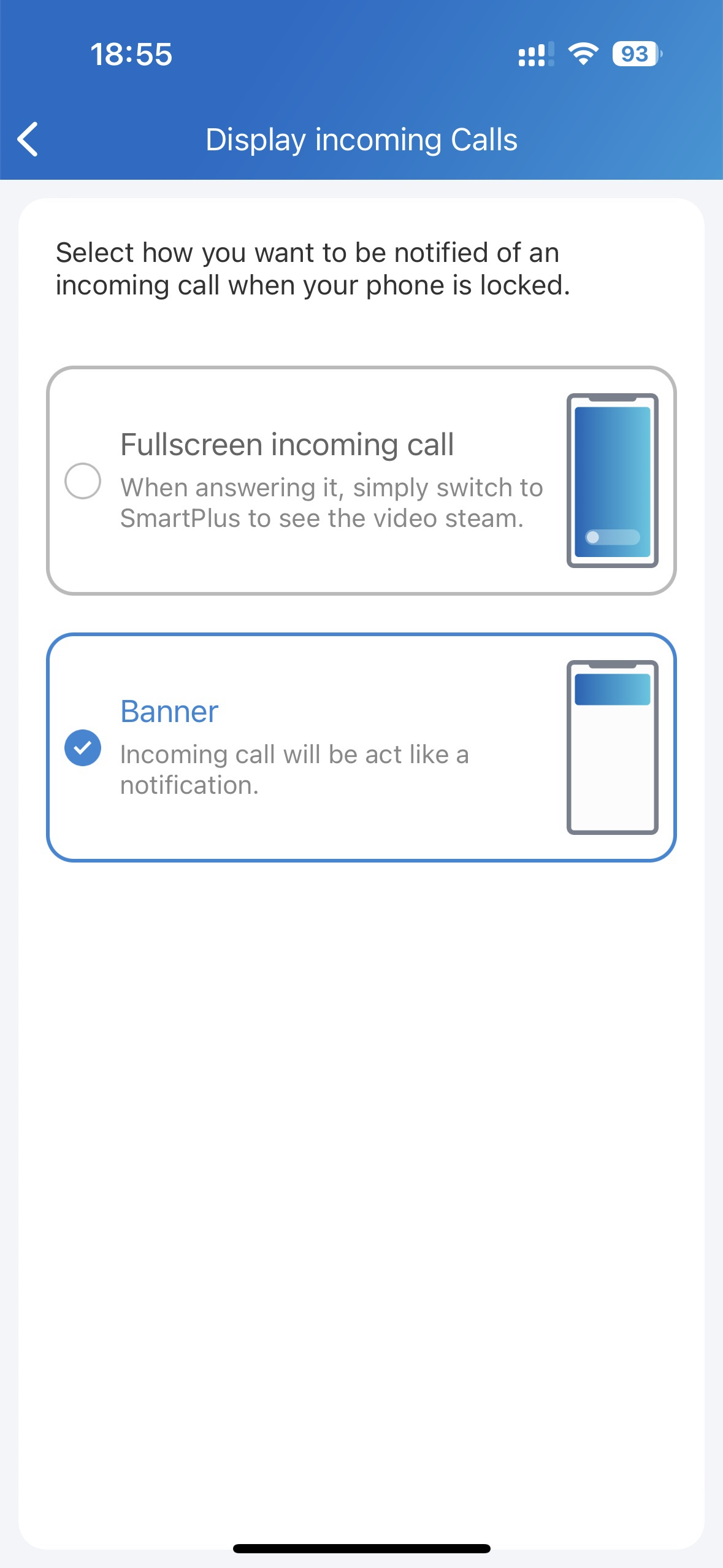
Banner Mode | Full Screen Display | |
|---|---|---|
|
|
|
Security
Monitor
You can check the monitoring streams from either Akuvox intercom devices or third-party cameras to see who the visitor is or what's happening at your front door.
See Door Phone Stream
Select the device and tap . The monitoring streams will be shown for 30 seconds.
Note
Door phones without cameras do not have a monitor button.
What you can do on the monitoring page:
Tap Cancel to exit the current video-watching page.
Tap Capture to make a screenshot.
Tap Call to make a call with the visitor.
Tap Open to unlock the door.
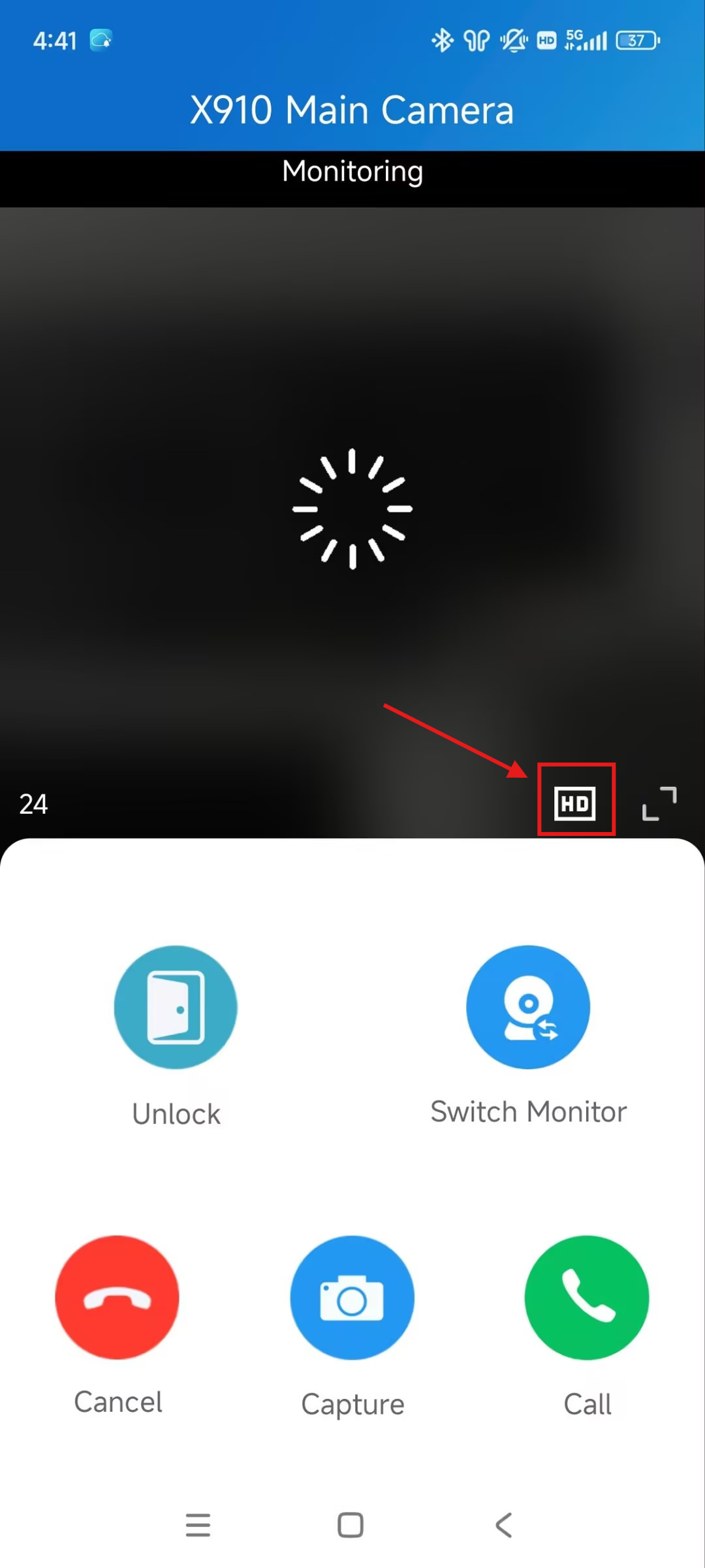
When viewing the live stream from X910, you can switch the video format between High Definition(HD) and Standard Definition(SD).
HD has a higher resolution and presents a clearer image.
See Third-party Camera Stream
If your community has third-party cameras installed on buildings or some public areas, you are enabled to see their streams directly on the app. Besides, these cameras can be linked with Akuvox door phones.
When cameras are not linked with door phones
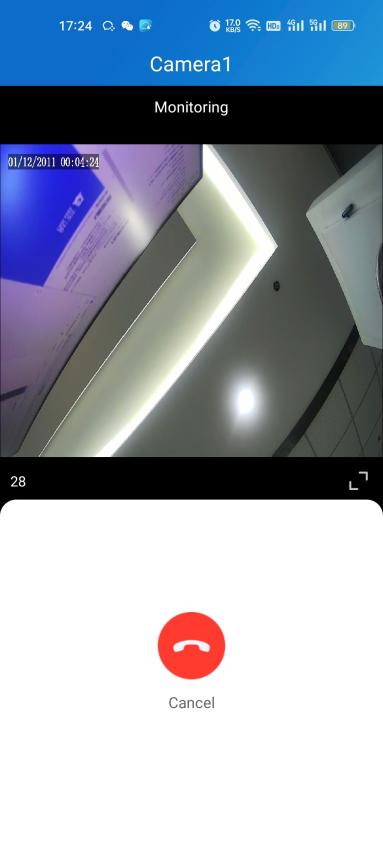
Tap the desired camera’s monitor icon  , then you can see the live monitoring video. Note that the screen exits automatically in 30 seconds.
When cameras linked with door phones
If the camera is linked with a door phone, then you can switch monitoring streams between the door phones and cameras. Tap of the linked door phone.
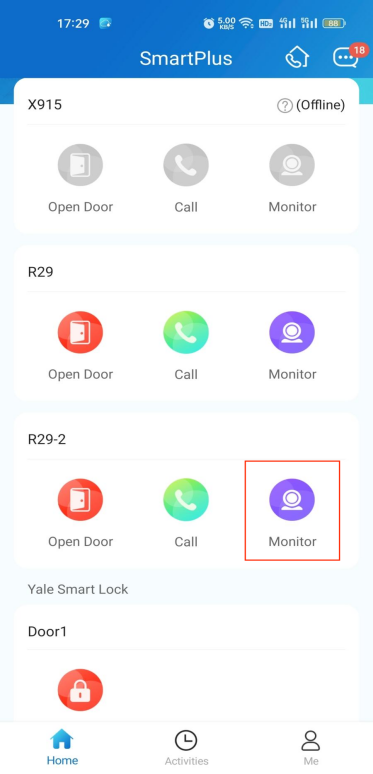
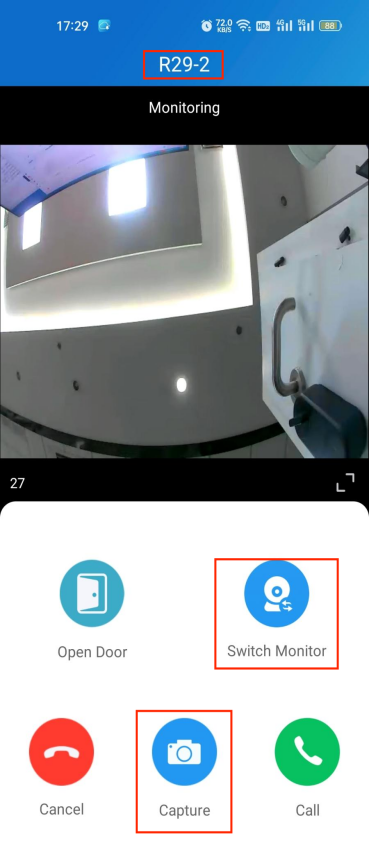
3. The default shown stream is from the door phone. To switch the stream, tap  . Note that the Capture feature is not available on third-party camera screens.
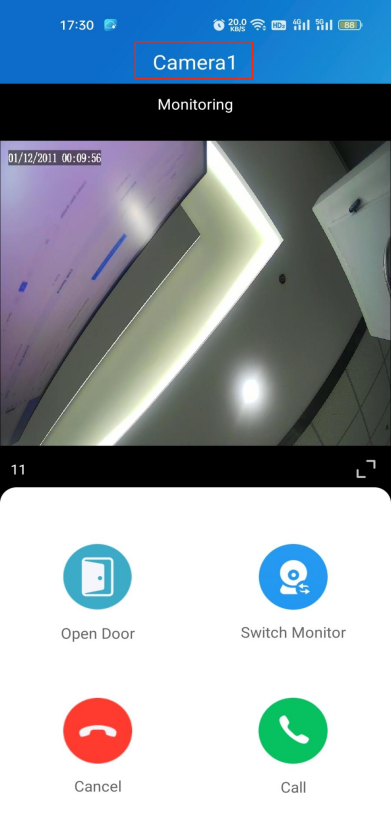
You are also able to switch the streams on the calling screen and monitoring preview screen.
Alarm and SOS Warnings
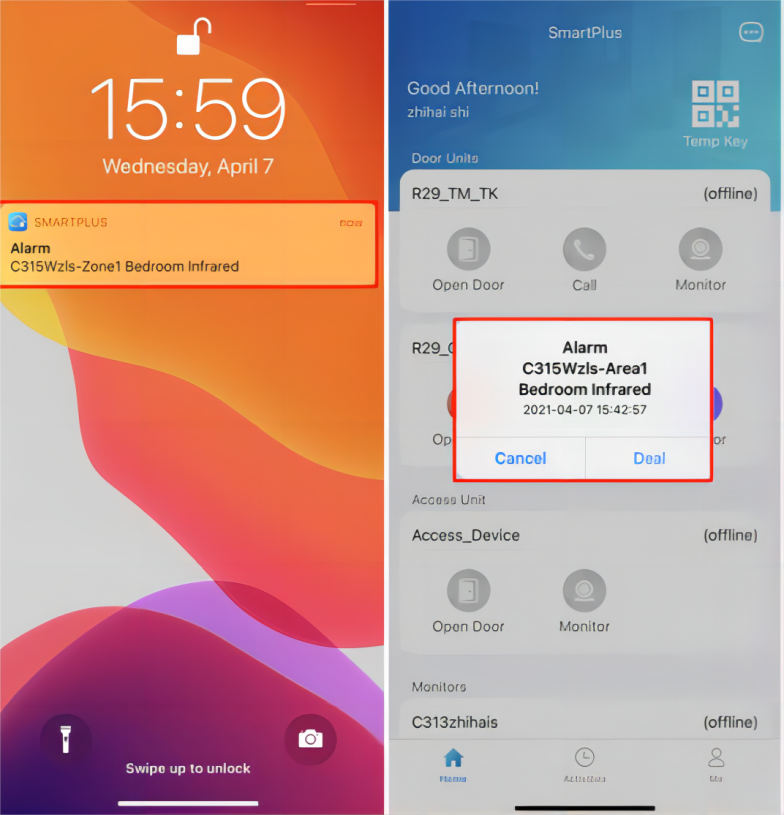
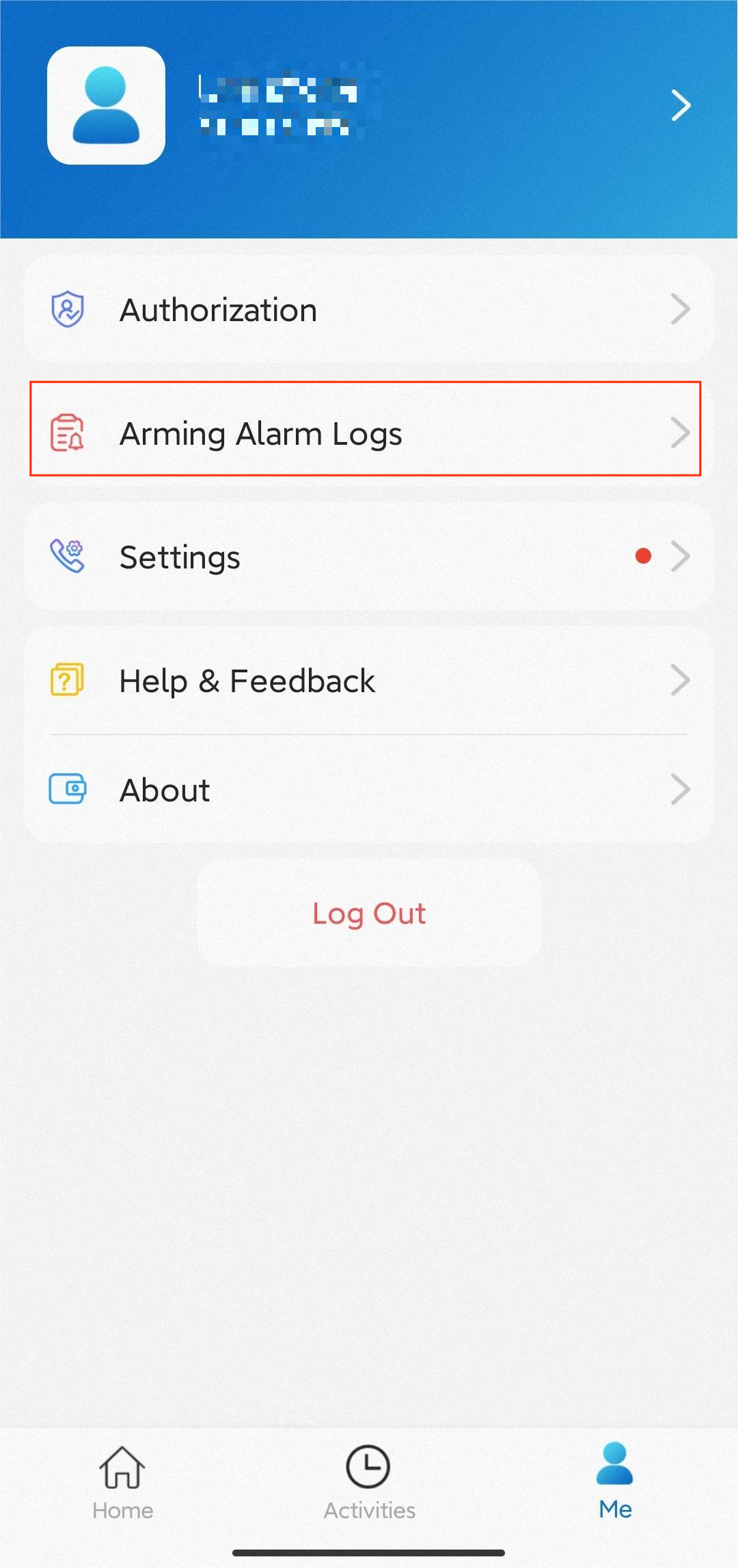
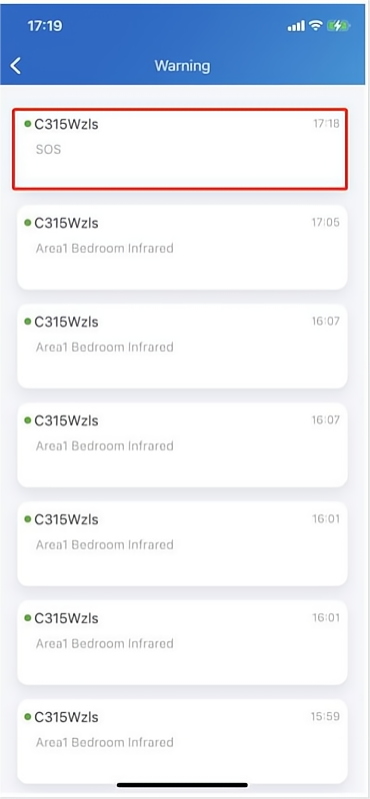
Alarm and SOS warnings triggered by indoor monitors can be received on the App. You can go to Me > Arming Alarm Logs to see and deal with warnings or tap Deal on the pop-up notifications.
Strong Arming Alarm Reminder
If this feature is enabled, the alarm ringtone will ring continuously for 30 seconds when the alarm is triggered.
Go to Me > Settings > Notification Settings.
Enable or disable Strong Arming Alarm Reminder.
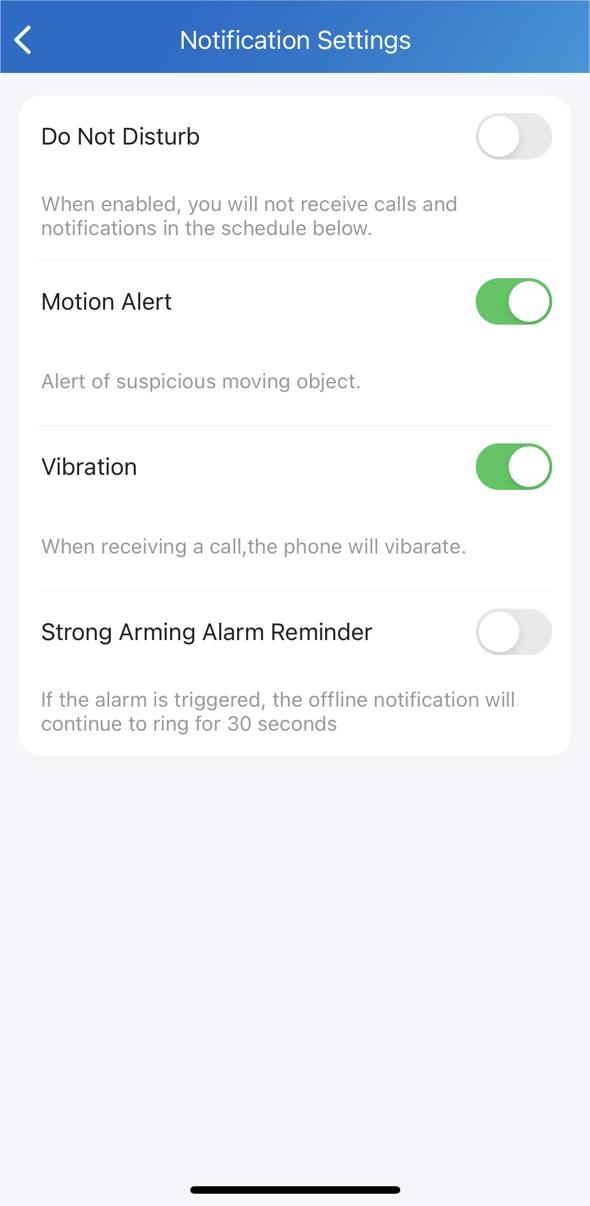
Please note that for Android mobile phones, ringing will stop when the device is disarmed.
For IOS mobile phones, ringing will continue for 30 seconds.
Record and Check Videos
You can enable the Video Storage feature, record videos, and check video logs.
Click here to view the configuration guide.
Detection Alerts
You can control whether to receive notifications of motion and package detection.
1. Tap Me > Settings > Advanced Settings.
2. Enable/disable Detection Alert.

Messages
Send Messages to Residents
To send messages to all residents or the designated ones, do the following:
1. On the homepage, tap the message icon  in the upper-right corner.
2. Tap  .
.
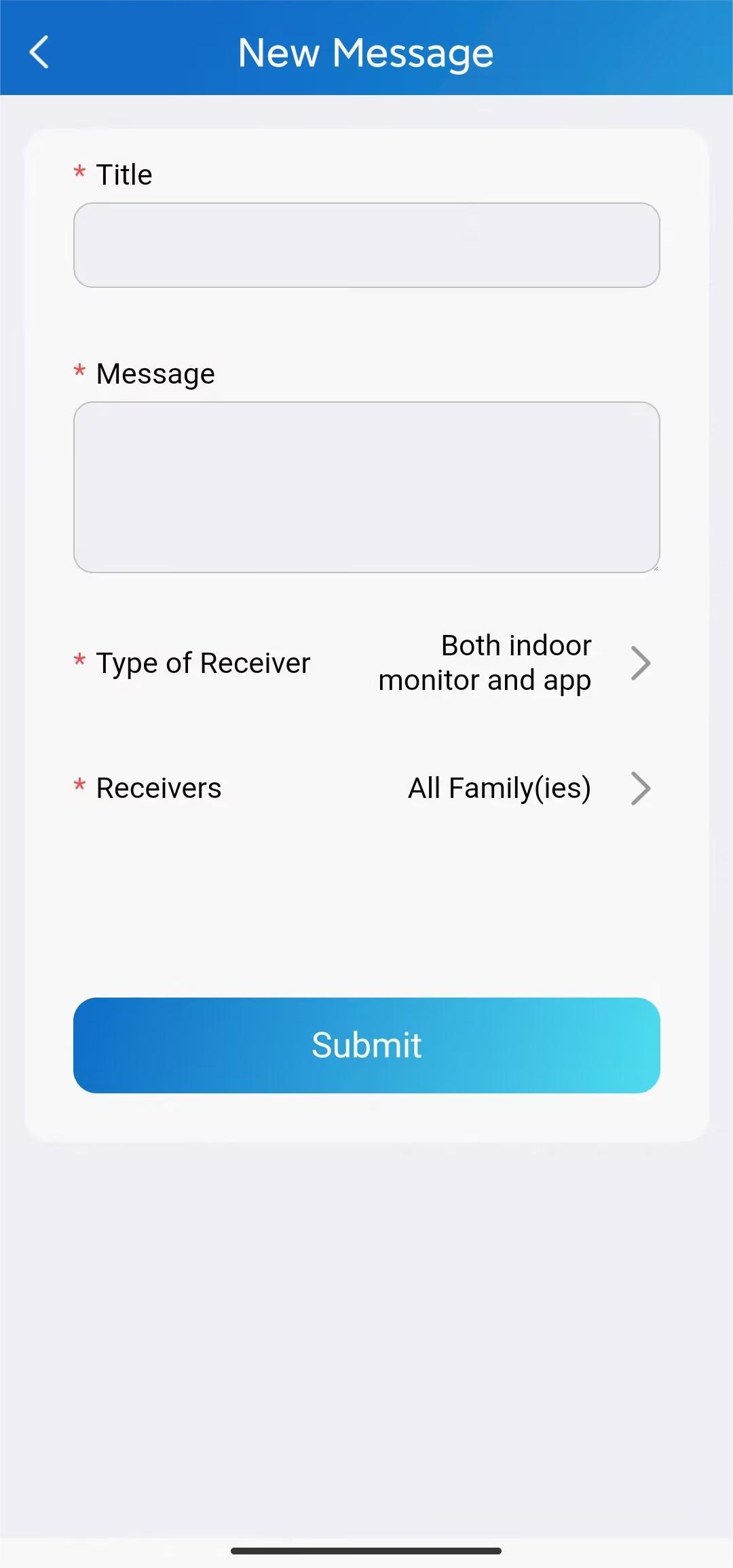
3. Enter the message title and content, define the receiving device(s), and select residents or families to receive the message.
Note
The following indoor monitors with specific firmware versions or higher can receive messages exceeding 256 bytes within 1024 bytes.
C316: 316.30.12.802;
C319: 119.30.10.204;
X933: 933.30.12.802;
IT88: 88.30.12.904;
S563: 563.30.12.901;
S567: 567.30.12.3.
Other indoor monitors can receive messages of fewer than 256 bytes.
4. Tap Submit.
.png)
.png)
Check Messages
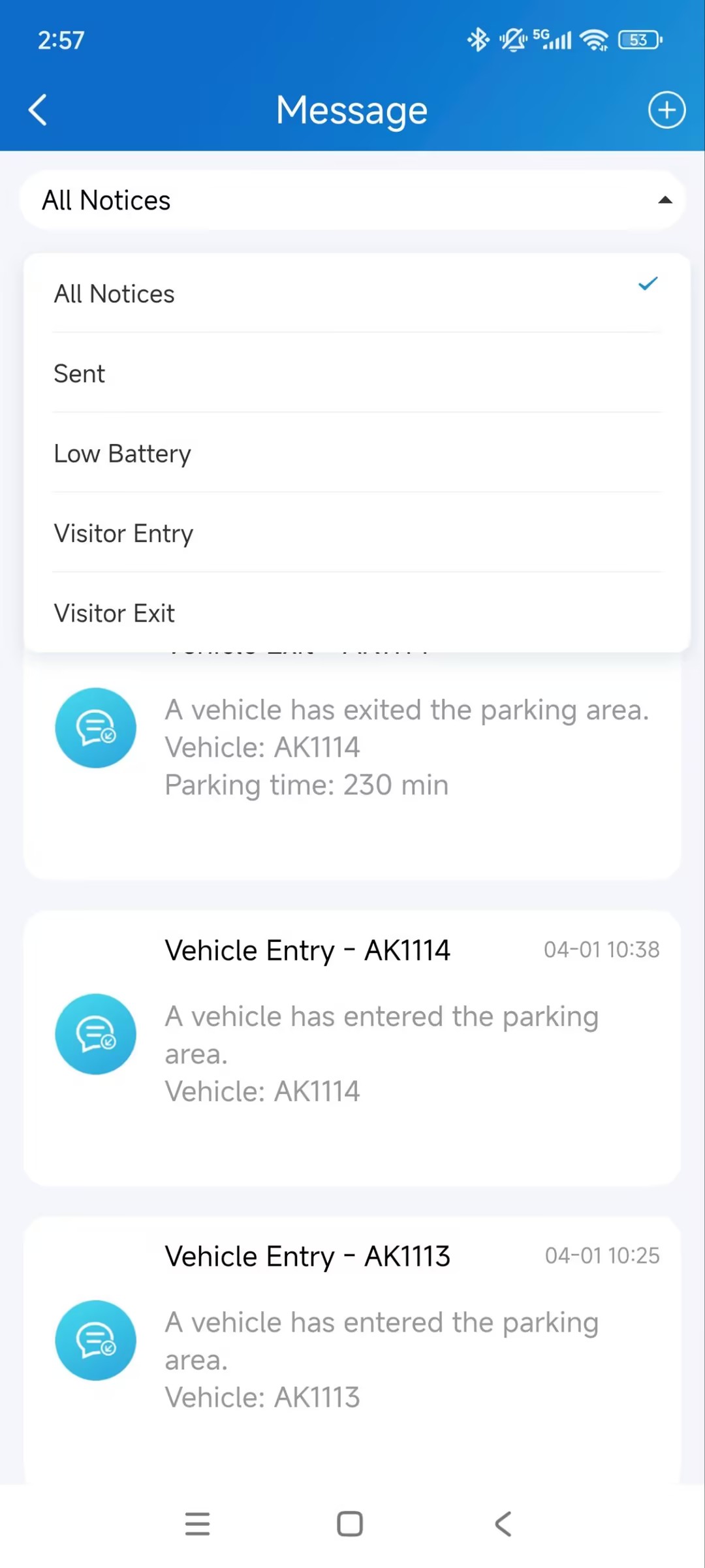
All messages sent from the SmartPlus App and Property Manager web portal are real-time sync, and all are recorded in the message list.
To go to the message list and any message's detailed information, do the following:
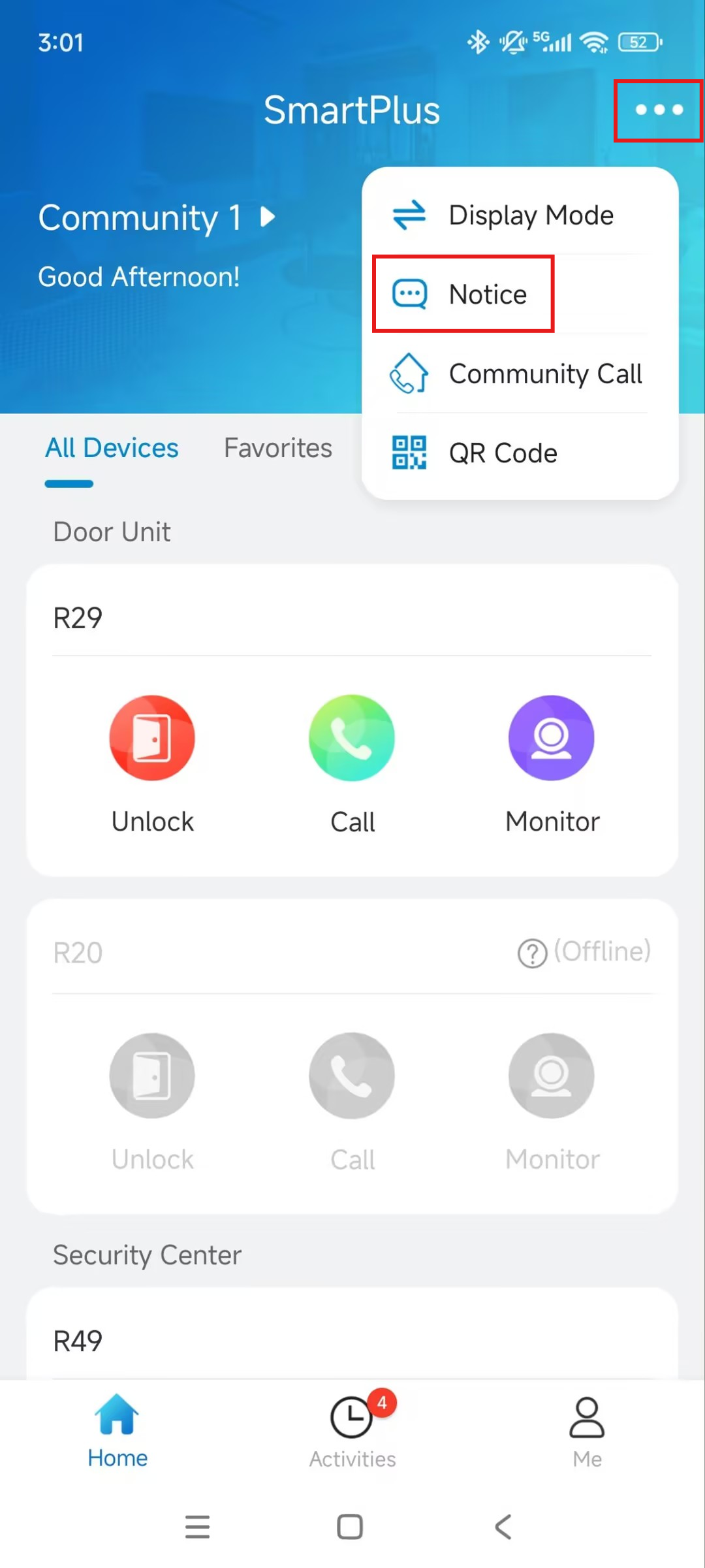
On the homepage, tap the menu icon in the upper-right corner > Notice.
You can check messages by their types.
Tap the desired one to view the details.
Logs and Histories
With Log Access Control enabled by your installer, you can check door logs, call history, captured images, and detection logs of all public devices. Without Log Access Control enabled, you can only check motion logs. Logs can also be uploaded to the Cloud if needed.
Tap Activities in the bottom tab bar to see any of the following:
Door logs: All calling and door-opening histories. If the door phone has relays added, the triggered relay is also displayed here.
Call history: All outgoing/incoming/missed calls. No call-back function here.
Capture logs: All snapshots of live videos or videos recorded with the video storage function enabled. You can only delete your snapshots, while you cannot delete snapshots made by others.
Detection Logs:
Motion Detection: Suspicious movement is detected by the door phone.
Package Detection: Someone puts or takes the package within the camera detection area of the door phone.
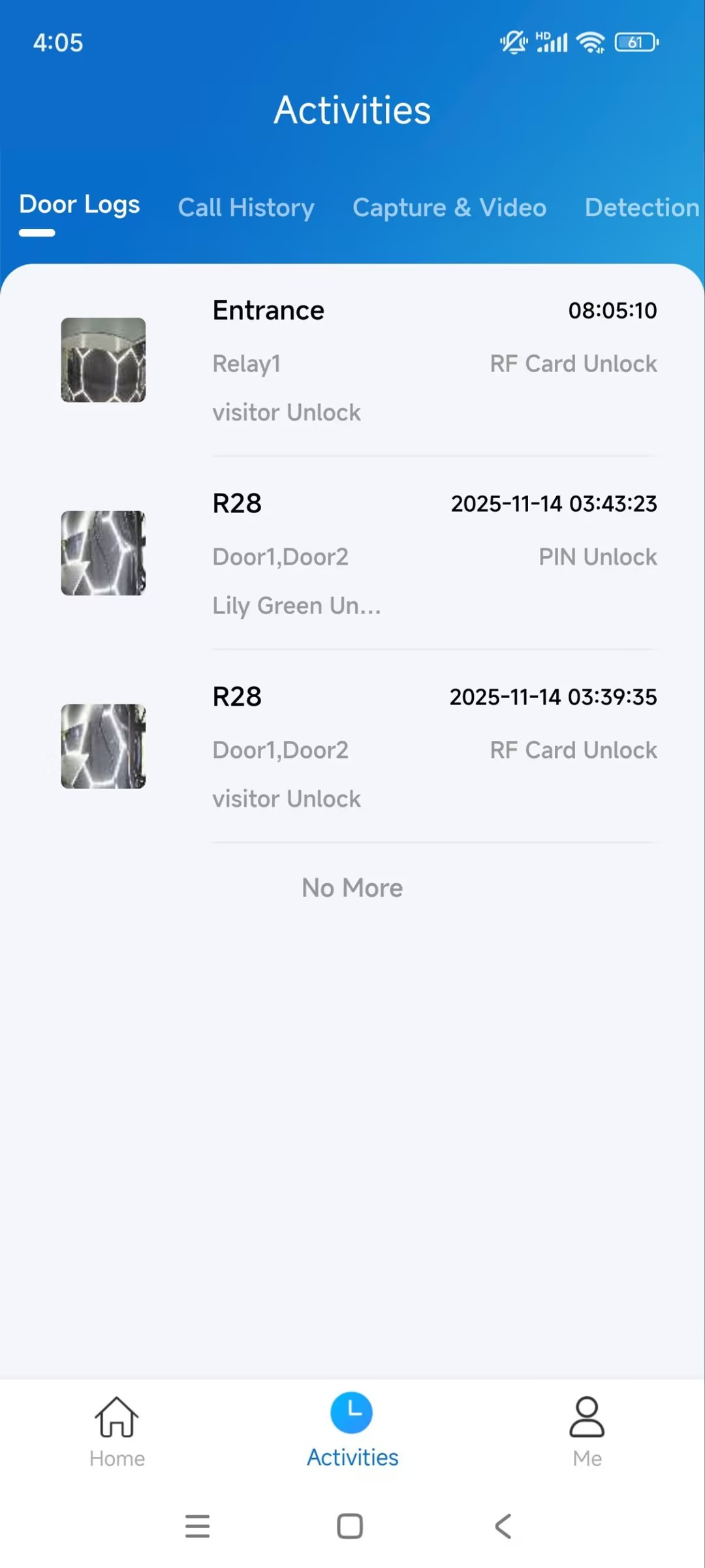
Specific devices support reporting the door-opening failure reason to the cloud.
Compatible models and versions(or higher):
X912: 912.30.12.16
A08: 108.30.11.110
Tap a specific door log to check the reason.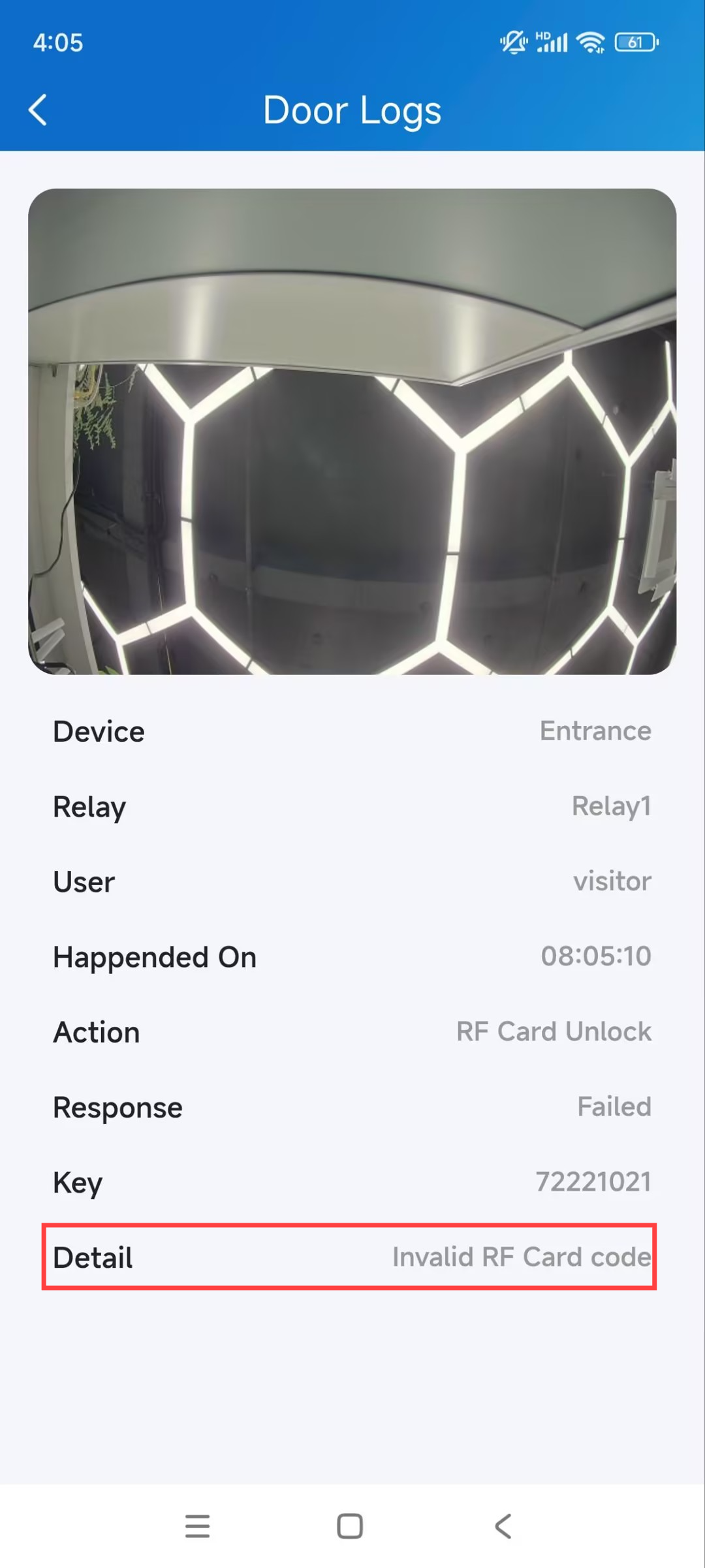
Set up and Upload Log
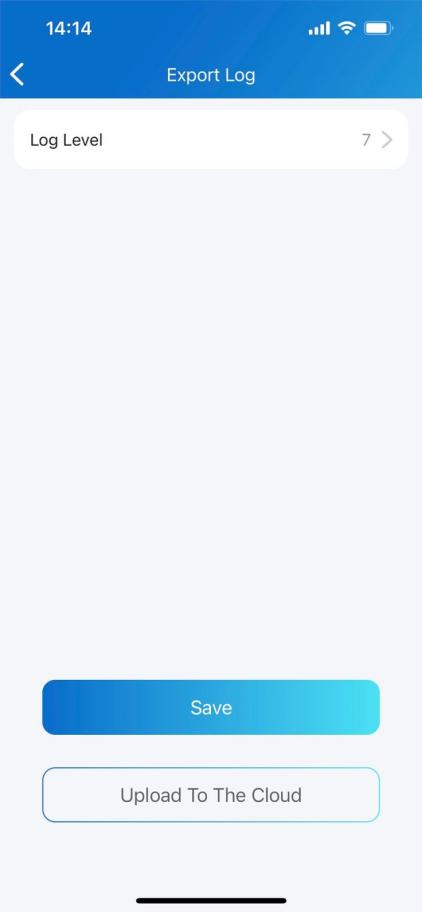
The log has 7 levels. By default is level 3. The higher the level is, the more detailed the log content is. When you can upload logs to the Cloud, Akuvox technical engineers can analyze if the device malfunctions.
Go to Me > Settings > Advanced Settings > Export Log.
Select a level and Tap Save. You can ask our technical engineer for detailed information on each level.
Tap Upload To the Cloud.

System Settings
Check Video Communication Qualities
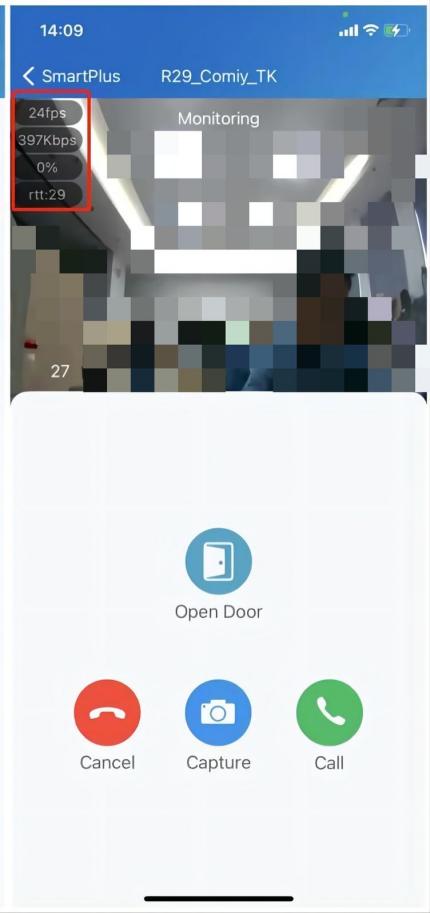
Video Quality Diagnosis enables you to check real-time video quality. It can be applied to video calls, live monitoring videos, and preview pages.
Go to Me > Settings > Advanced Settings, and turn on Video Quality Diagnosis, then you can see below information shown in the upper left corner of the screen:
fps: frames per second. If the value is low, it'll give a slow-motion or motion-blur effect to your video.
bps: bits per second. The higher the bps rate is, the faster the download or upload time will be.
packet loss rate: The lower the rate is, the better the network will be.
rtt: round-trip time. It’s the total time taken by a data packet as it travels from its source to the destination and back.
Clear Cache to Improve App Performance
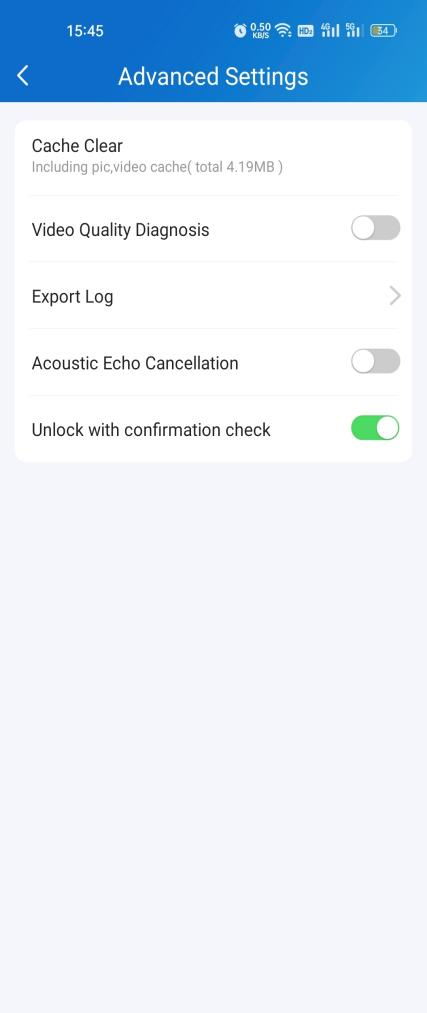
After using the App for a long time, you can clear the cache to run the App better and free up storage space. Go to Me > Settings > Advanced Settings, and tap Cache Clear.
Enable Confirmation Prompts when Opening Doors
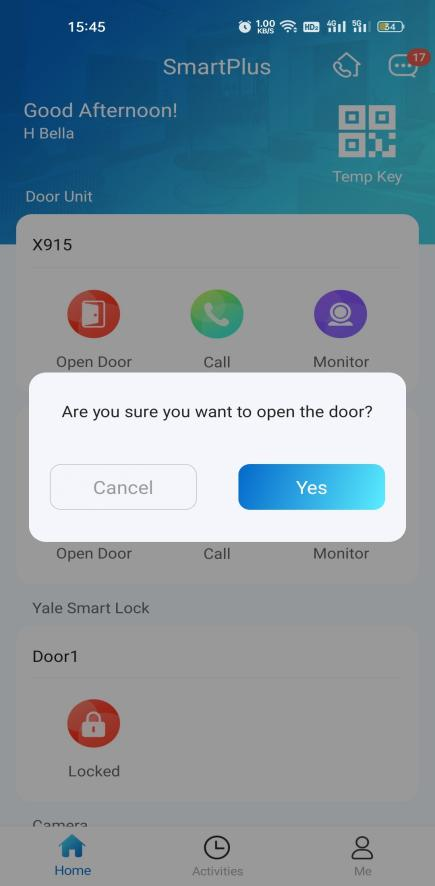
Unlock with confirmation check feature shows you a prompt to confirm your opening door command when you tap the unlock button of a device that links with only one door (relay). This helps prevent you from tapping the Unlock button by accident and gives you a chance to double-check before you open the door.
To enable this feature, go to Me > Settings > Advanced Settings, and toggle on Unlock with confirmation check.
Favorite Devices
Favorite Device feature enables you to quickly find and control your frequently-used devices.
Follow the steps below to access, view, or modify your Favorites for devices:
Favorite Devices in Card Mode
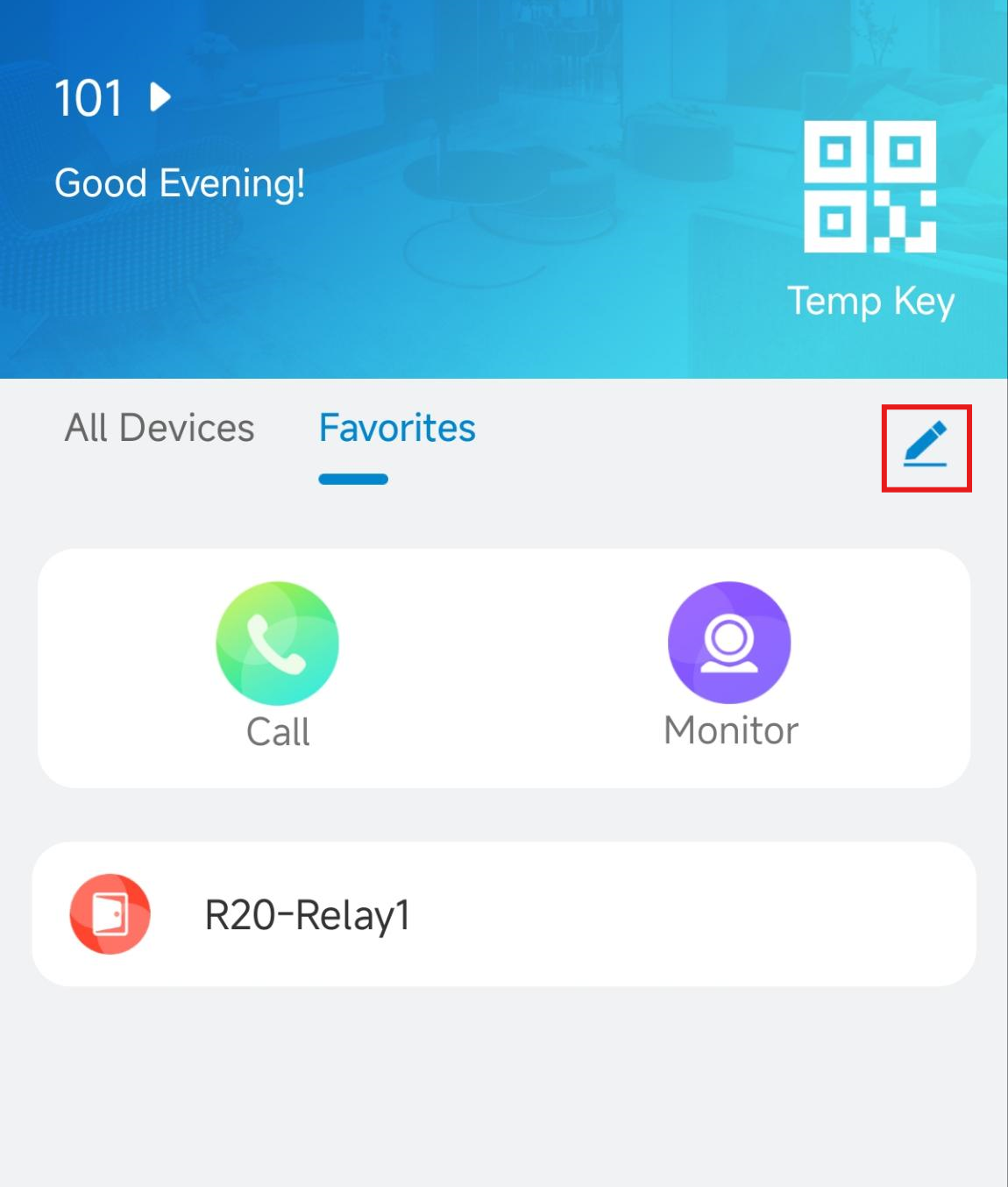
1. Tap Home > Favorites.
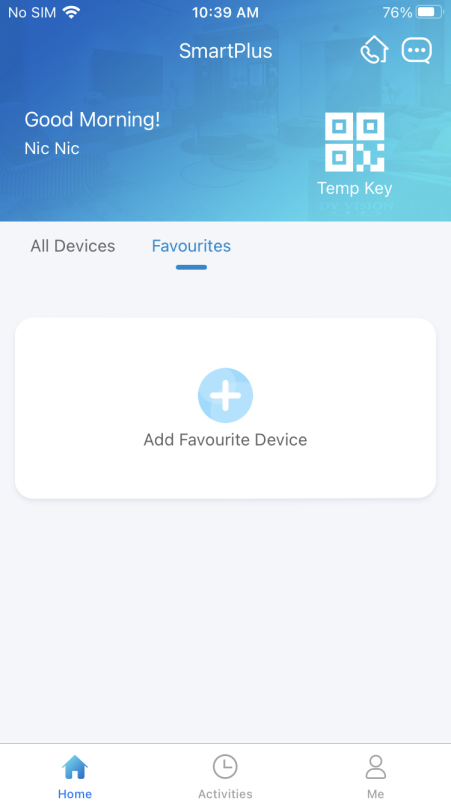
2. Tap Add to Favorites, and tick on the desired devices.
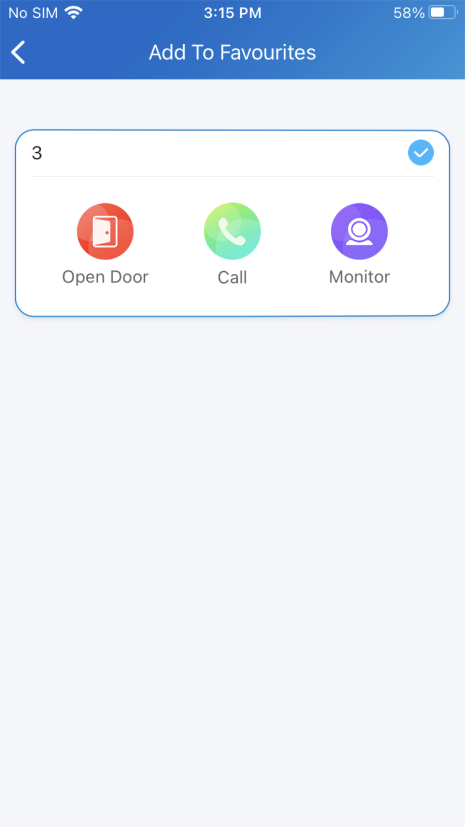
3. Tap  at the upper left corner if you finish. The favorite devices will automatically display on the Favorites list.
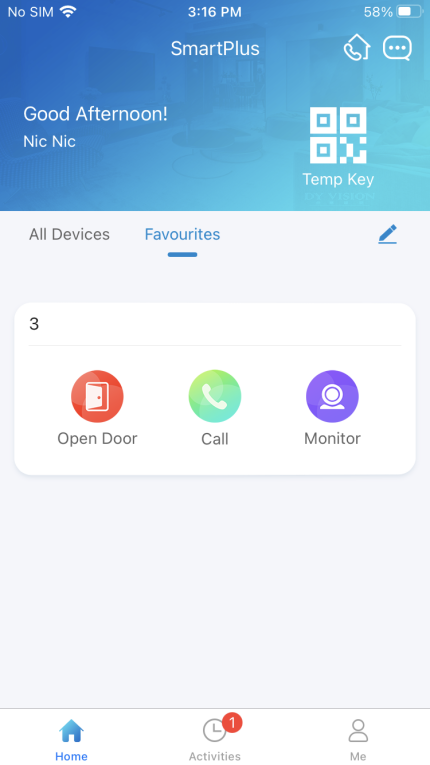
To reorder the favorite devices, tap  at the upper right.
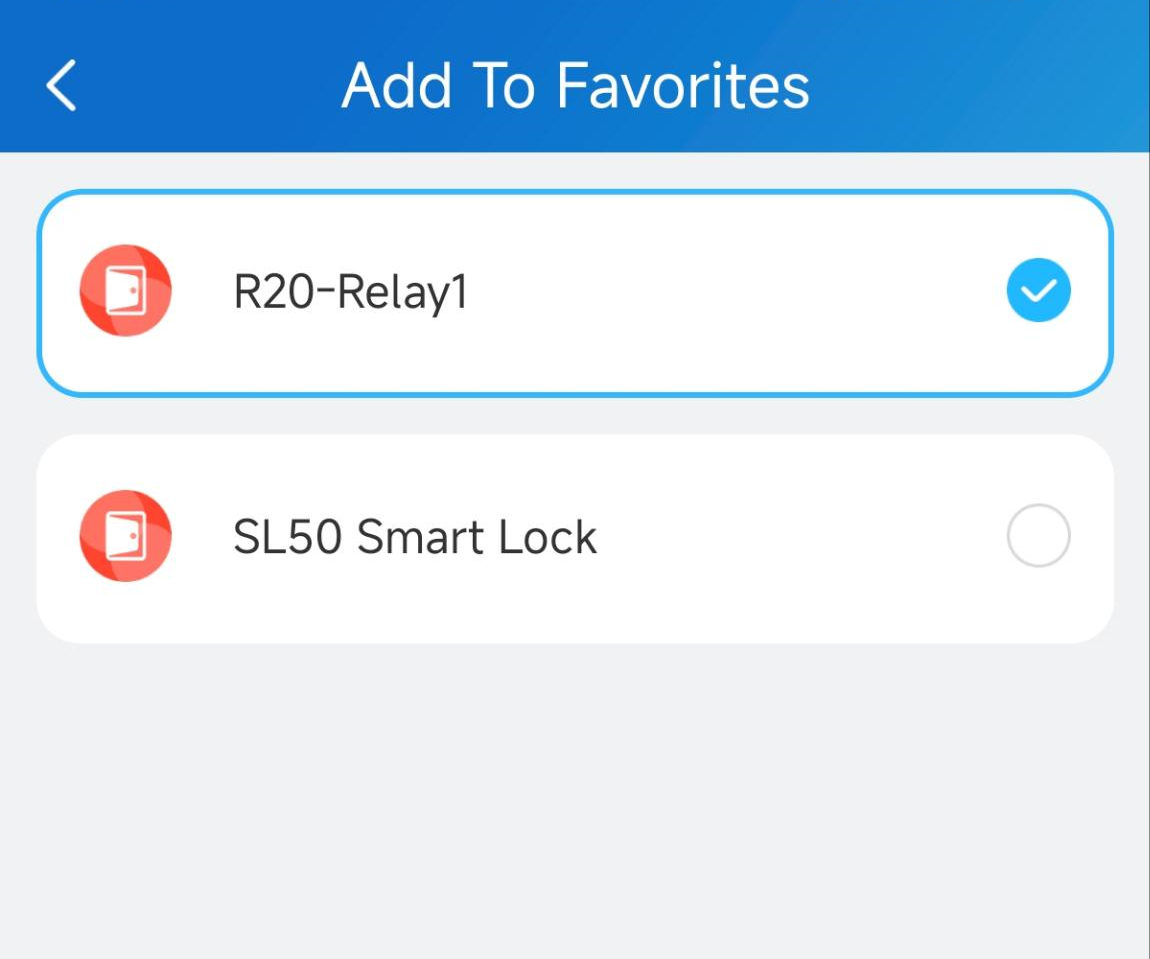
Favorite Relays in List Mode
You can favorite frequently used relays in List Mode for quick access. Please note that if you favor a specific device in Card Mode, its relays will all be favored in List Mode.
1. Tap Favorites > Add Favorite Device on the home page.
2. Select the desired relay and return to the last page. The relay will be seen in the Favorites list.
To reorder the favorite devices, tap .
Note
Once you switch the SmartPlus account, the previous account’s Favorites will be cleared.
Account Settings
You can check your account information, including your SIP account, username, and Email address. For better security, you can change your login password.
.png)
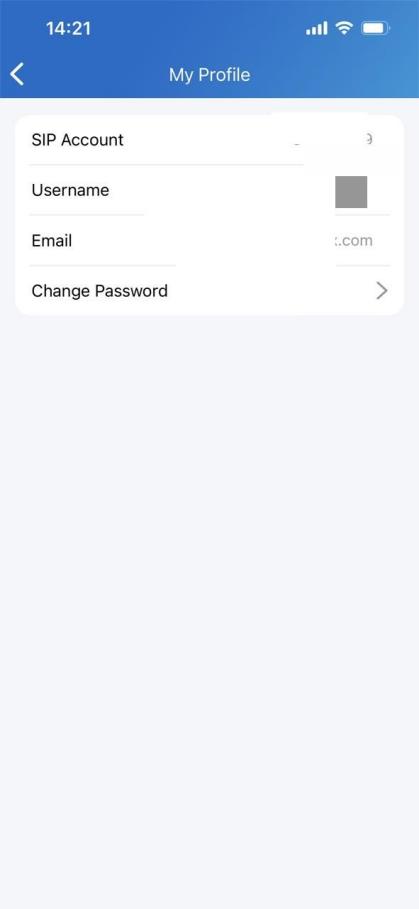
Check Account Information
Tap Me on the bottom tab bar;
Tap [your name], and you can see the details.
Change Weak or Compromised Password
You can change a compromised or weak (for example, it is easily guessed or has been used for a long time) login password, just do the following:
Go to Me > [your name].
Tap Change Password.
Create a new password. When doing so, you are asked to enter your old password.
Tap Submit to validate the change.
Forget Password
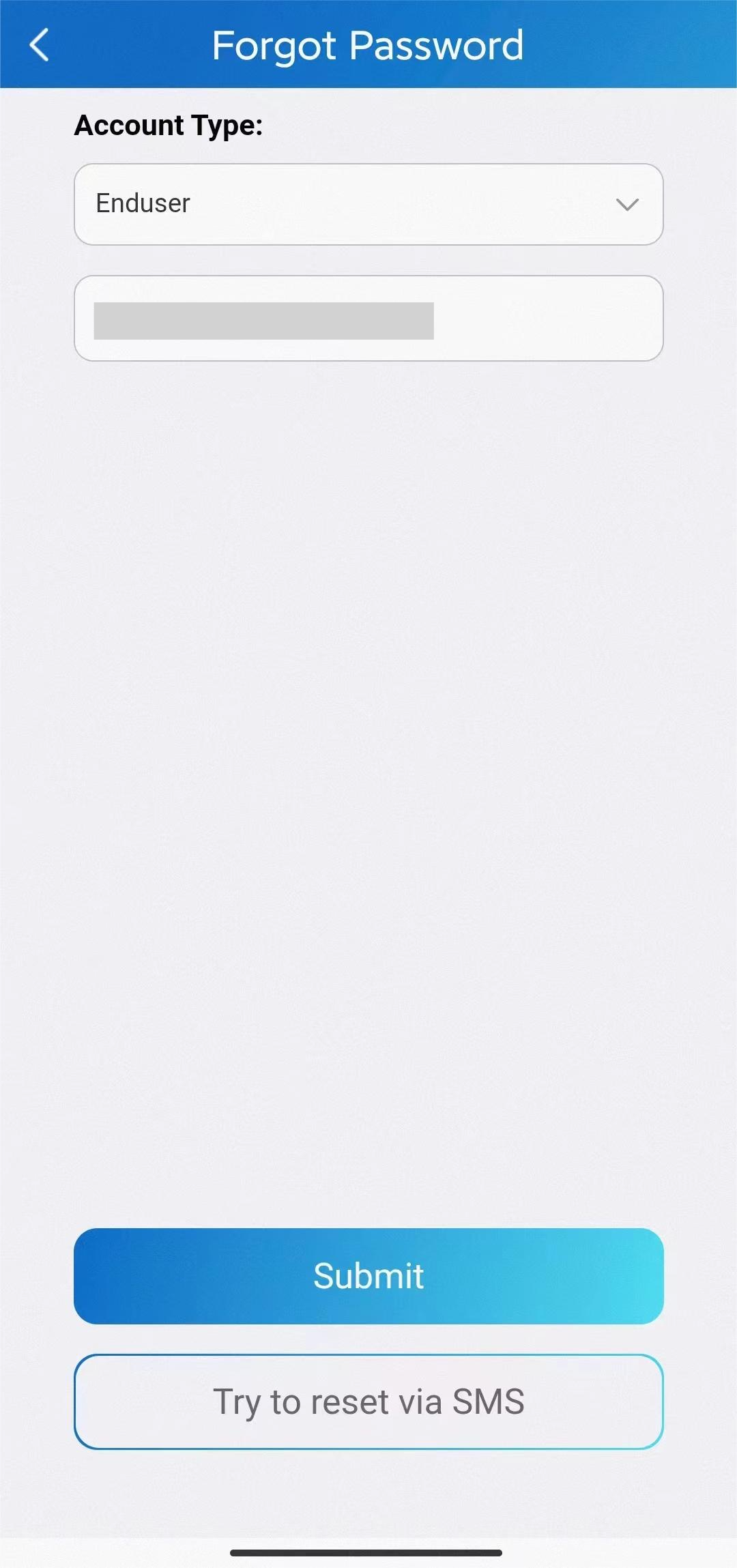
To reset your login password, do the following:
Tap Forgot Password on the login page.
Enter your username (NOT the Email Address the screen shows) in the box.
Tap Submit. You will receive an email containing a link that will redirect you to the reset page.
App New Features
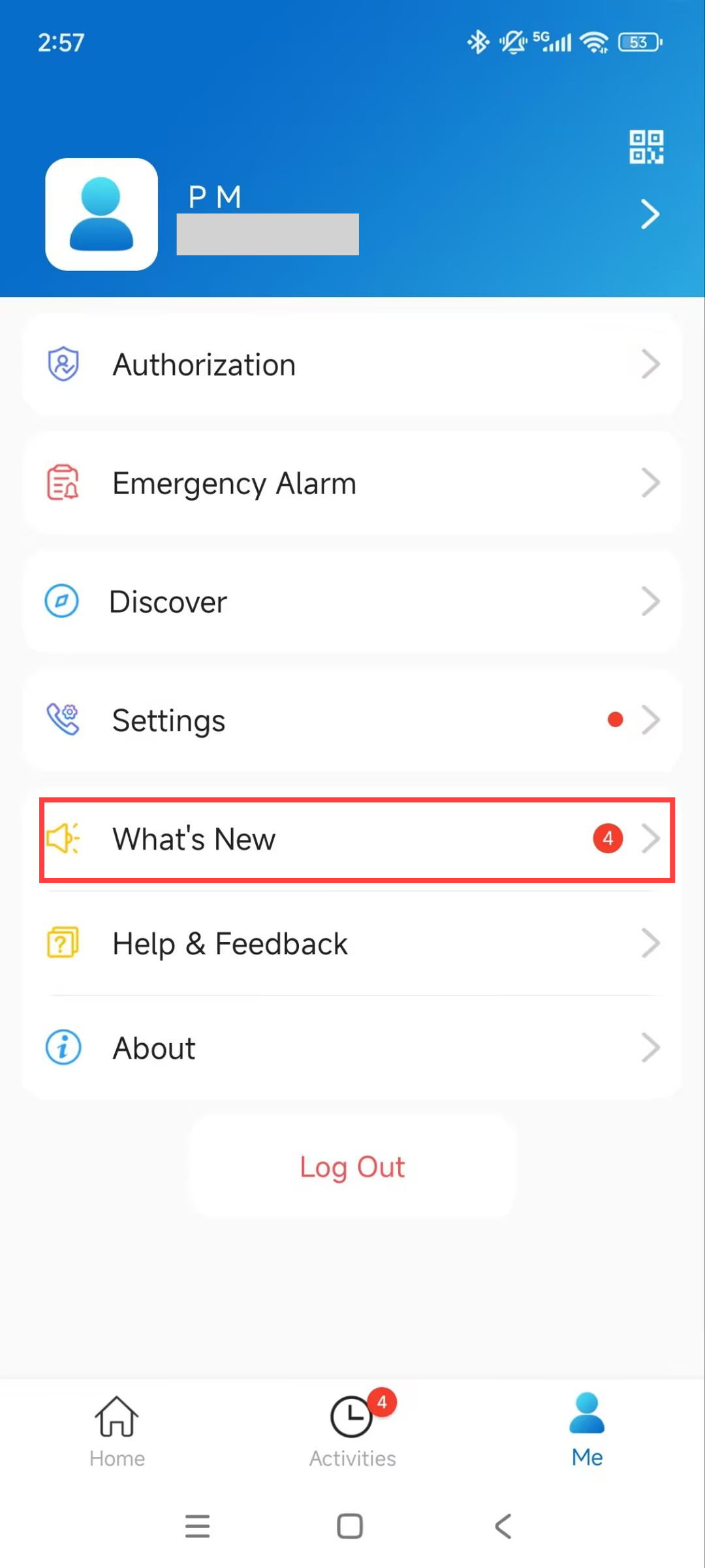
Check the SmartPlus App’s new features on the Me > What’s New page.
Support, Terms, and Safety
Update
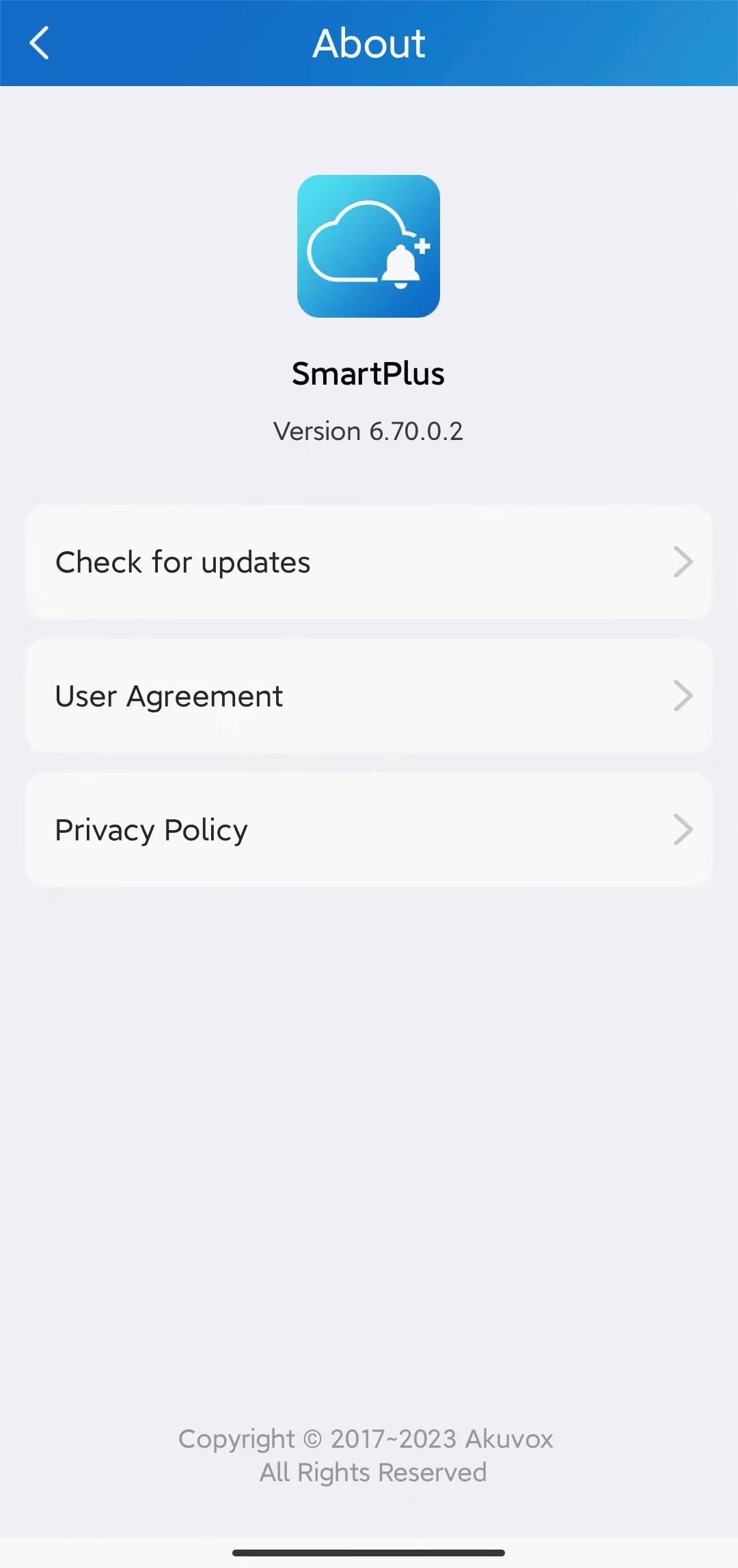
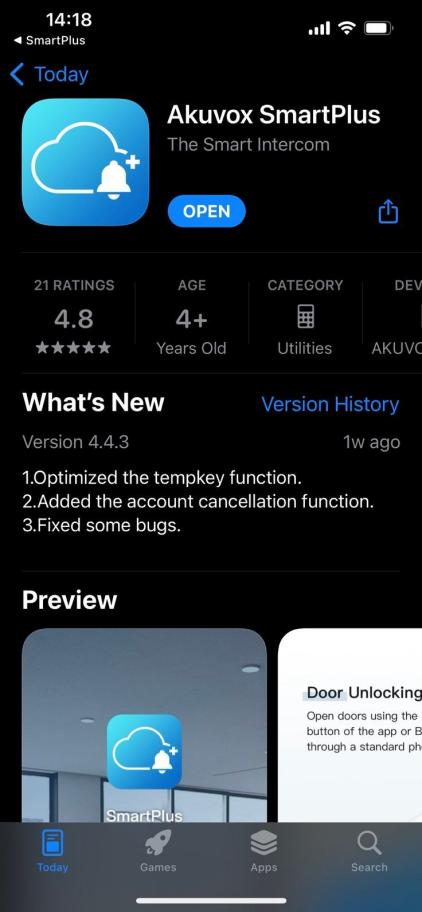
You can go to Me > About to see the current software version. Tap Check for Updates, it will turn to App Store or Google Play automatically, then you can check whether it is the latest one.
Your settings and data will remain unchanged when you update the App to the latest version.
.jpg)
Get Help
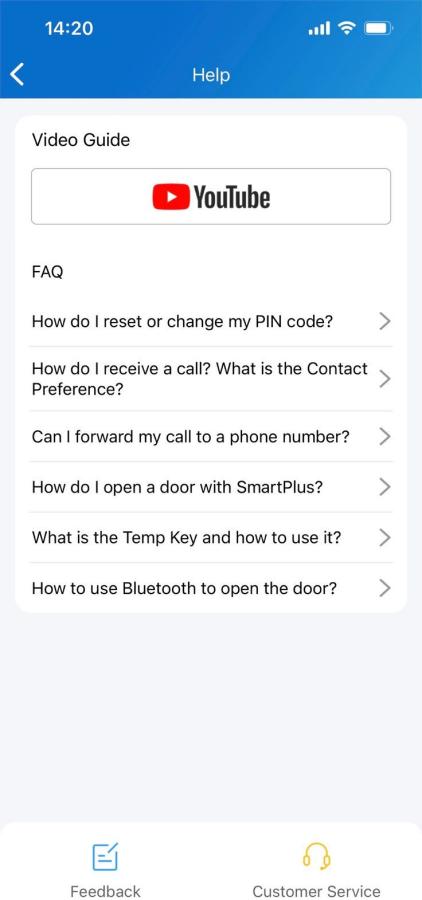
If you need help, go to Me> Help & Feedback. You can do any of the following:
Watch video tutorials.
Get answers to some frequently asked questions.
Tap Customer Service to contact us for technical support.
Tap Feedback to describe and submit your problems.
Service Agreement and Privacy Policy
To learn the terms and conditions for using the Akuvox Cloud service, and the privacy policies related to data collection, go to Me > About.