Video Storage allows property managers to review recorded videos from community doors after an event occurs — helping verify visitor or delivery access, and investigate motion detection events without needing to monitor live video continuously.
Note
When the Video Storage subscription expires:
Existing video logs remain viewable until the log entry is deleted.
New logs generated after expiration will only include a snapshot image; no video will be recorded or stored.
The SmartPlus App’s version should be 7.20.0006(Android)/7.20.5(iOS) or higher.
Model Compatibility
Video Storage requires door phones and indoor monitors on specific firmware versions.
See the supported model list in Configure Video Recording and Storage.
Part 1: Enable Video Storage on the Cloud Portal
Log in to the SmartPlus Cloud portal with your PM account.
Go to Settings > Advanced Settings.
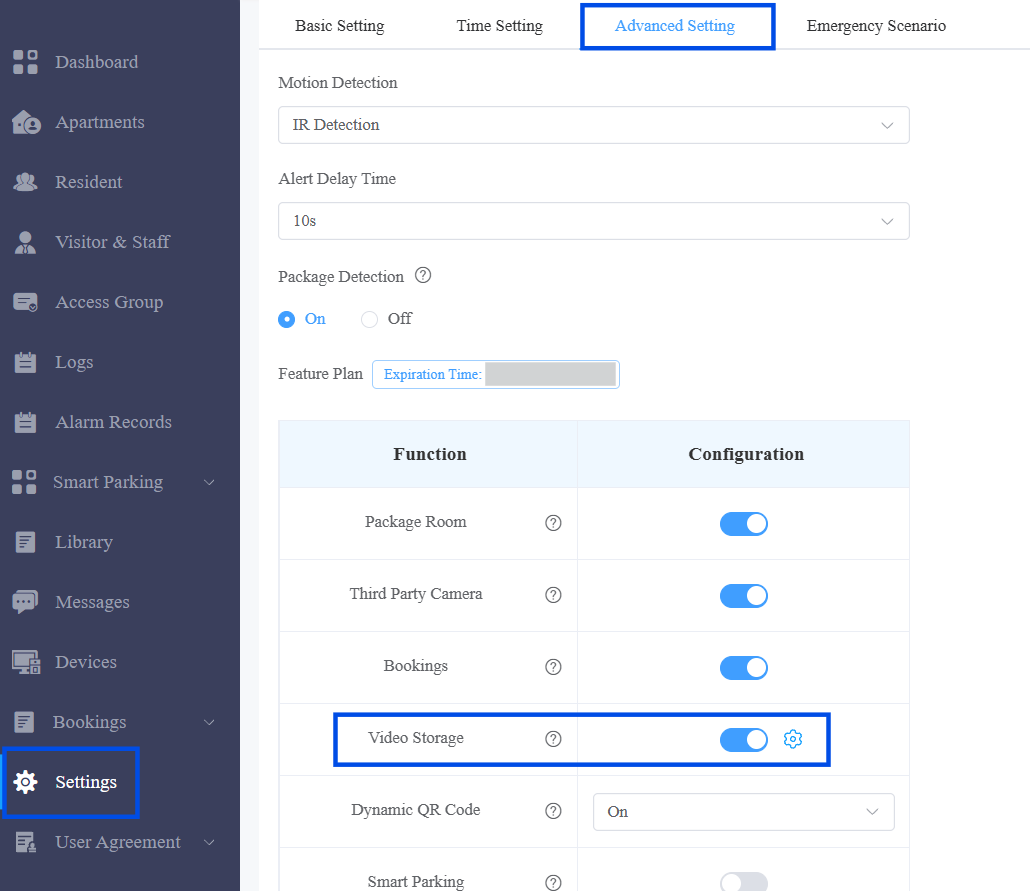
Turn on Video Storage. Or, click
 to change the settings.
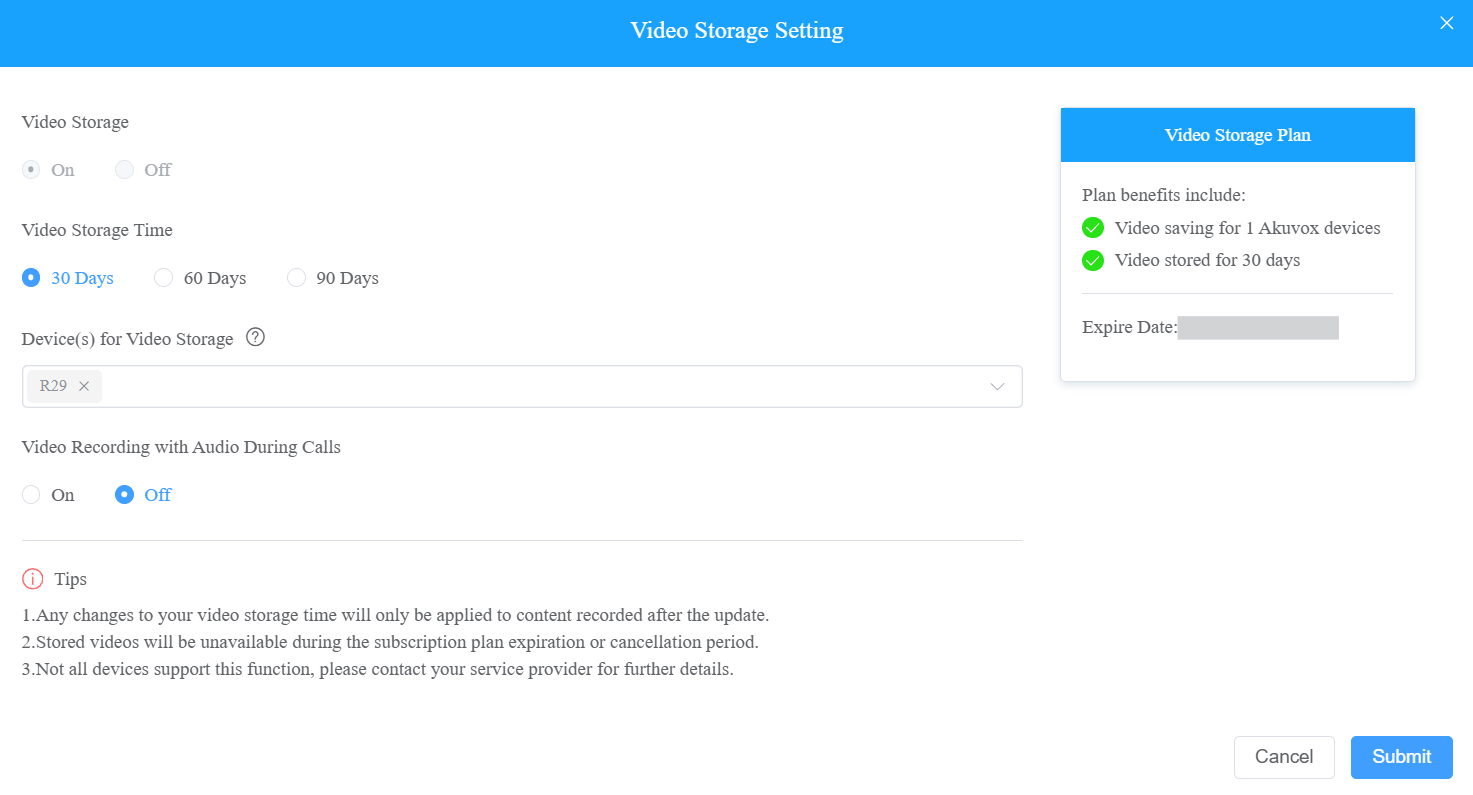
 Set up relevant settings based on actual needs. First-time activation includes a 7-day free trial.
Video Storage Time: 30 Days, 60 Days, and 90 Days are available. It is 30 days by default.
Device(s) for Video Storage: Select the specific device(s).
Video Recording with Audio During Calls: Decide whether to record videos with audio during calls.
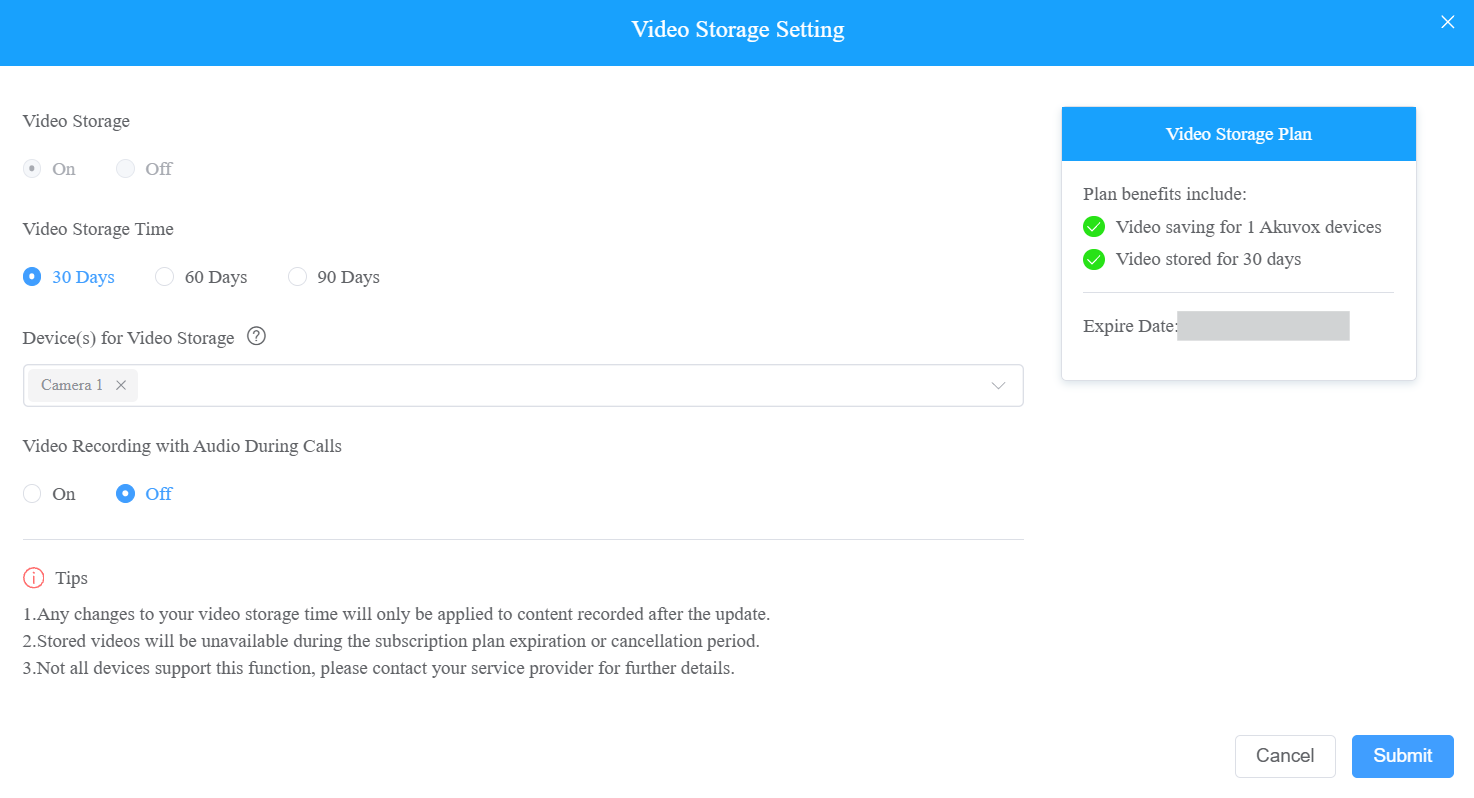
Click Submit.
Enable Video Storage When Editing a Device
This is an additional entry point to the project-level steps above, useful when you only need to turn on Video Storage for one device.
Go to Devices.
Click
 of the target device.
 Turn on Video Storage. Or, click
to change the settings.
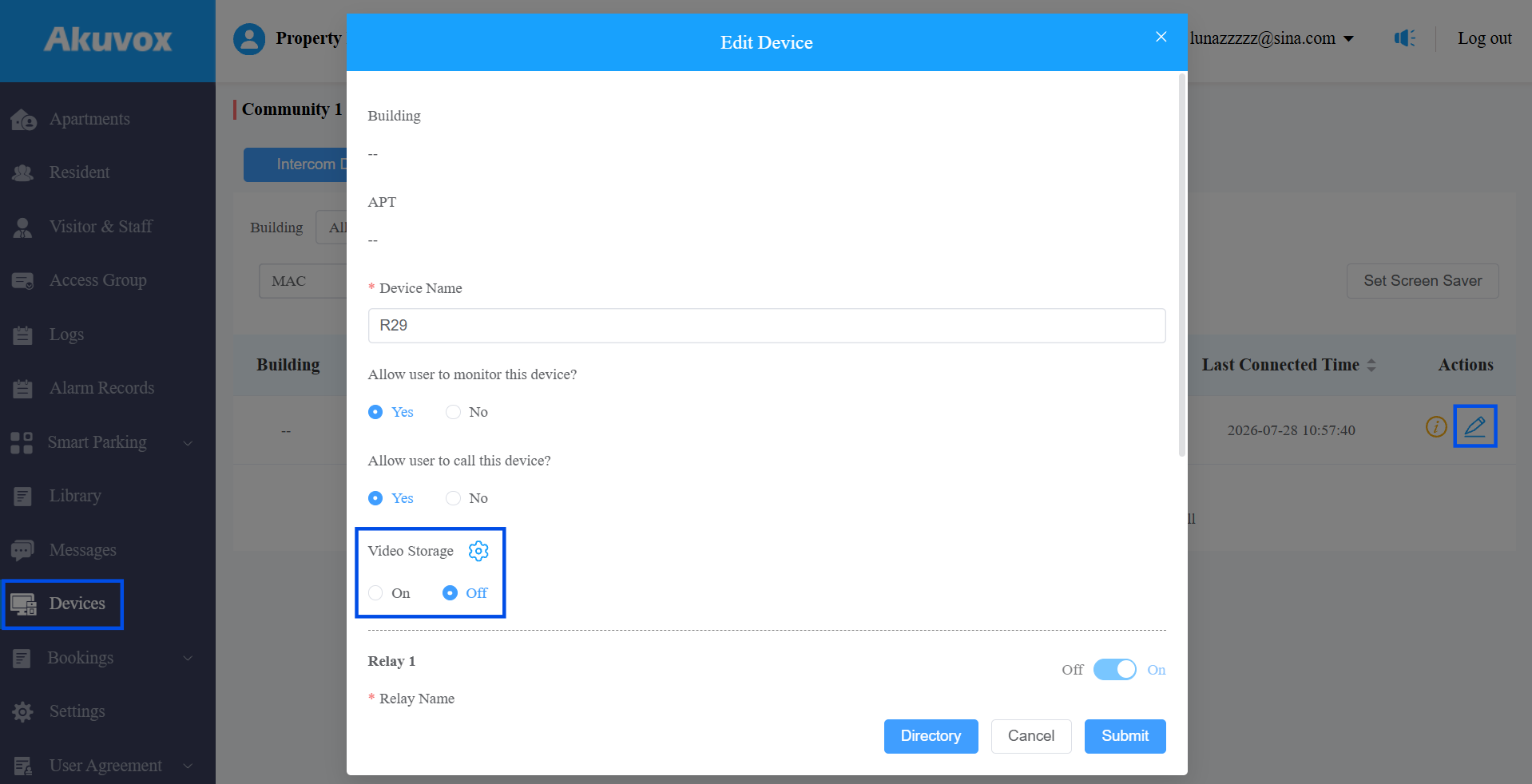
Set up relevant settings based on actual needs. First-time activation includes a 7-day free trial.
Video Storage Time: Set the time for this device. It is 30 days by default.
Video Recording with Audio During Calls: Decide whether to record videos with audio during calls.
Click Submit.
Part 2: Enable Video Storage via the App
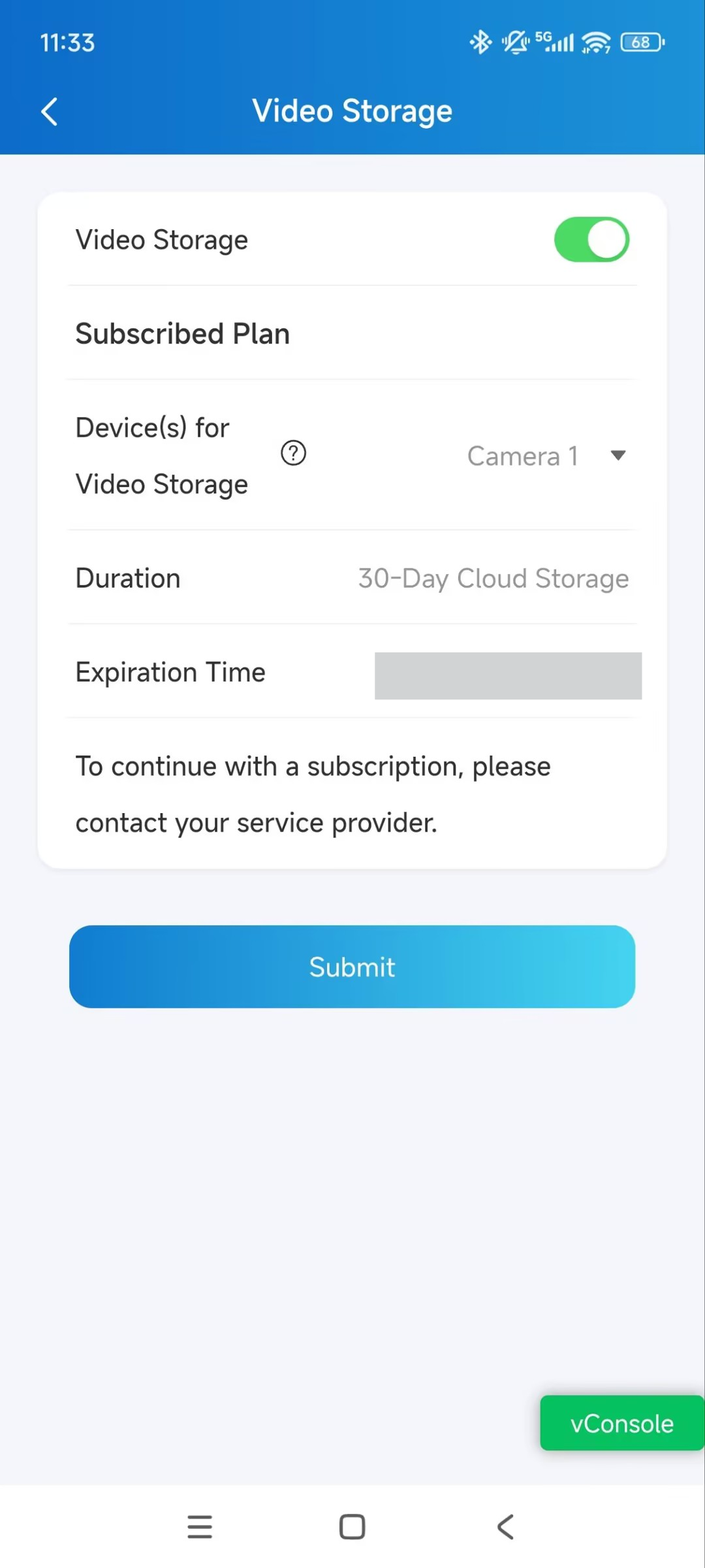
You can also configure video storage on the SmartPlus App if the app service is activated by your installer.
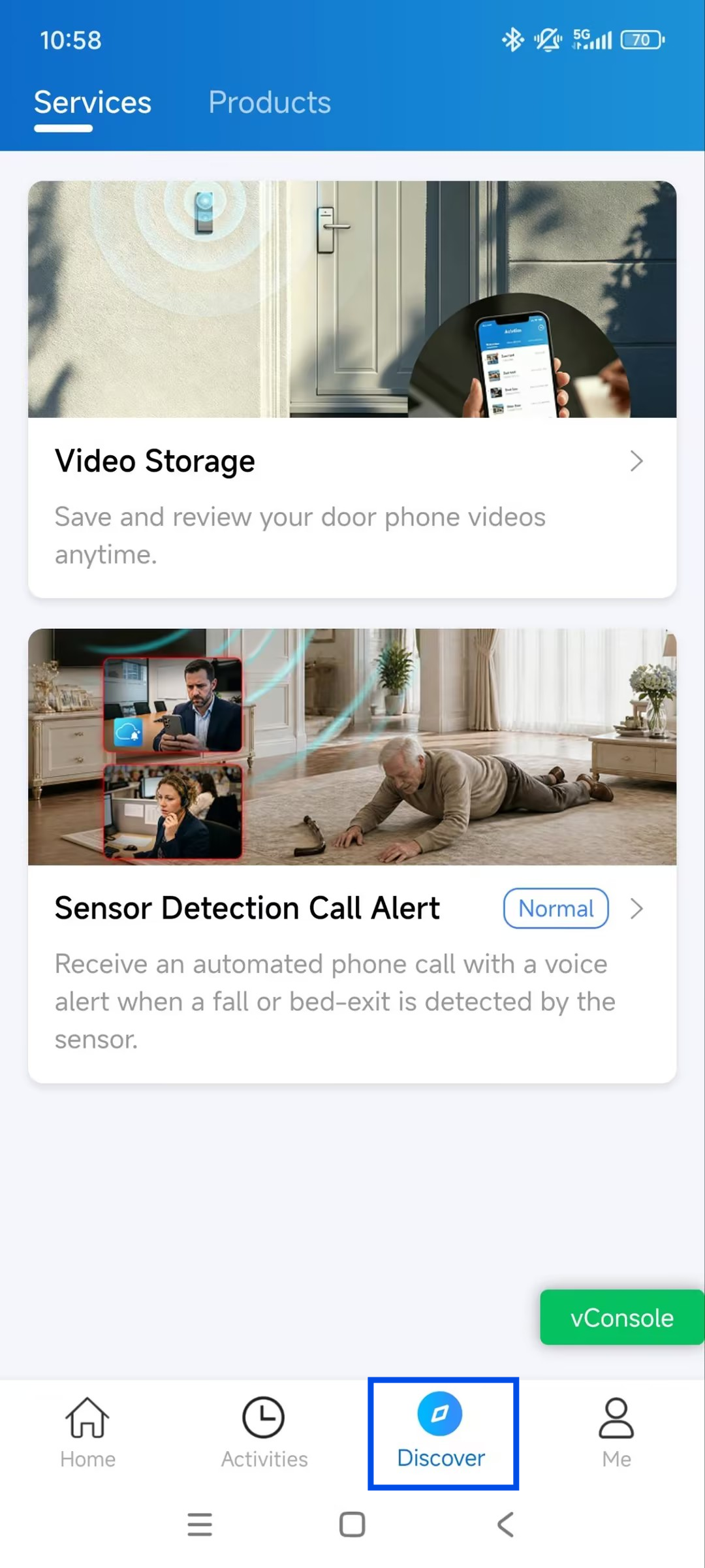
Tap Discover > Video Storage > Settings. Please note that in the latest SmartPlus App version, the Discover page has been moved from the Me page to the bottom navigation bar.
Part 3: Record Videos
Record Videos Automatically
The device will record 10-second videos automatically when:
users open doors;
users make or receive calls;
the device detects motion.
If the device model is X910, it will also record videos when package detection occurs.
Record Videos Manually
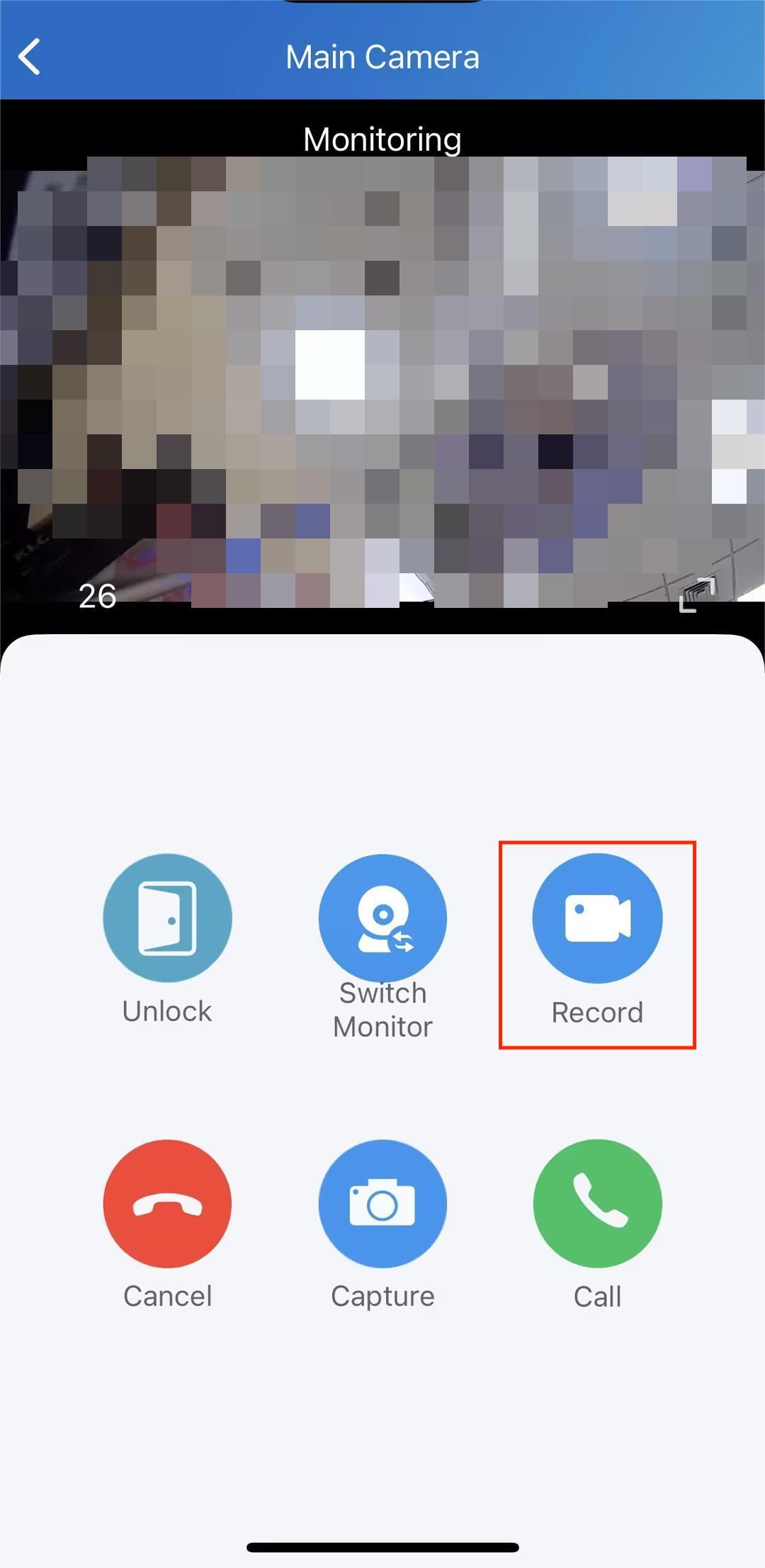
You can record videos with the SmartPlus App.
Tap Record to start recording when viewing the device’s monitoring stream.
Part 4: Check Video Logs
On the Cloud Platform
Go to Logs and select the log type.
Click the image in the Capture & Video column.
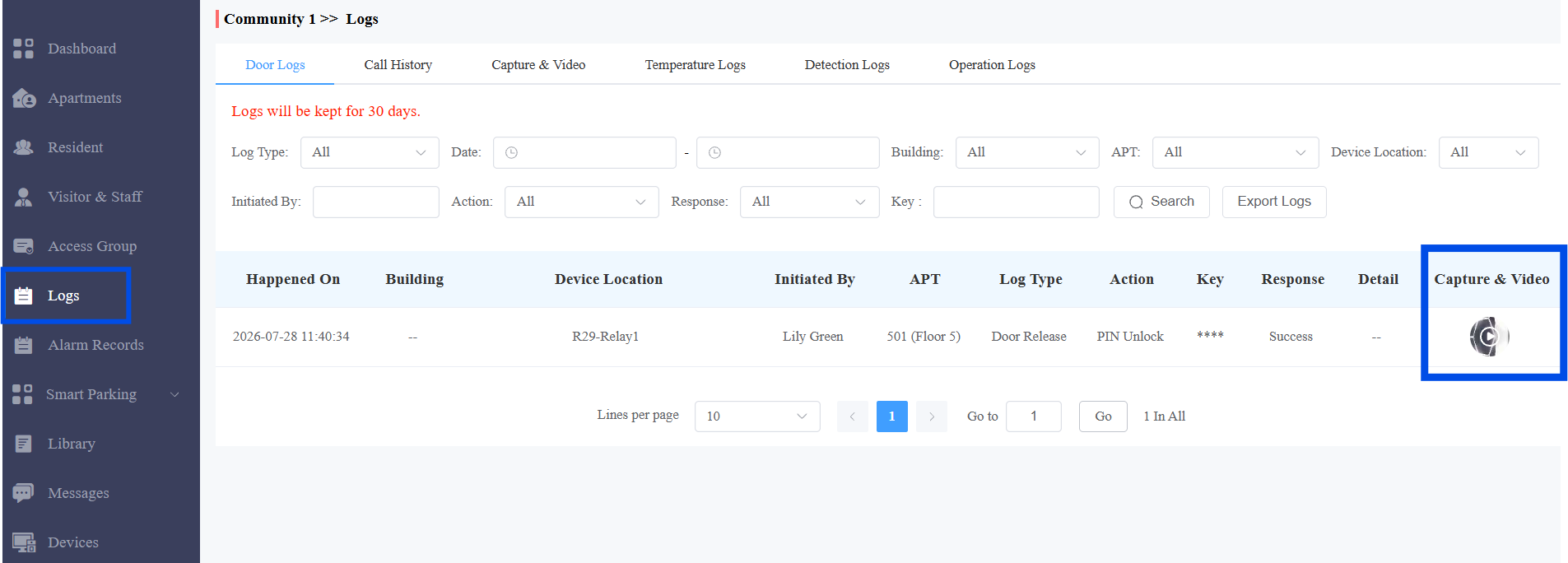
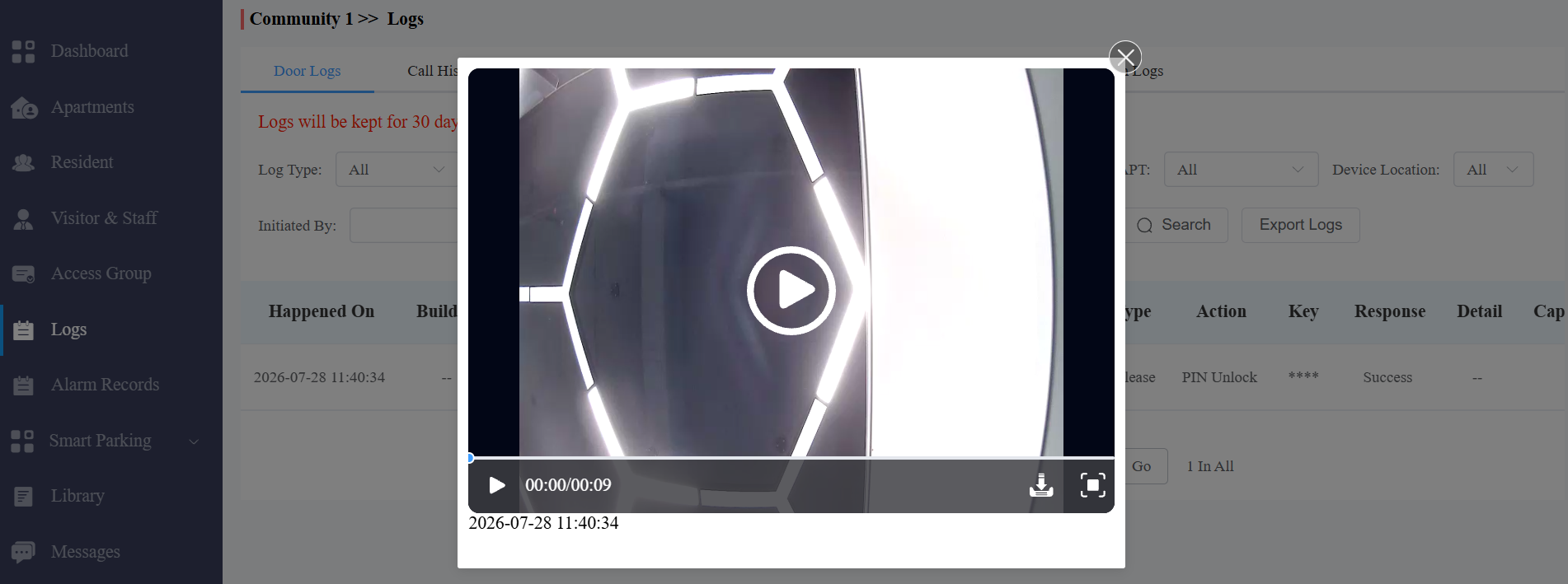
Click the video to play it.
Click
 to download the video to the local drive.
Click
 to enlarge the video.
On SmartPlus App
You can check the videos with the SmartPlus App.
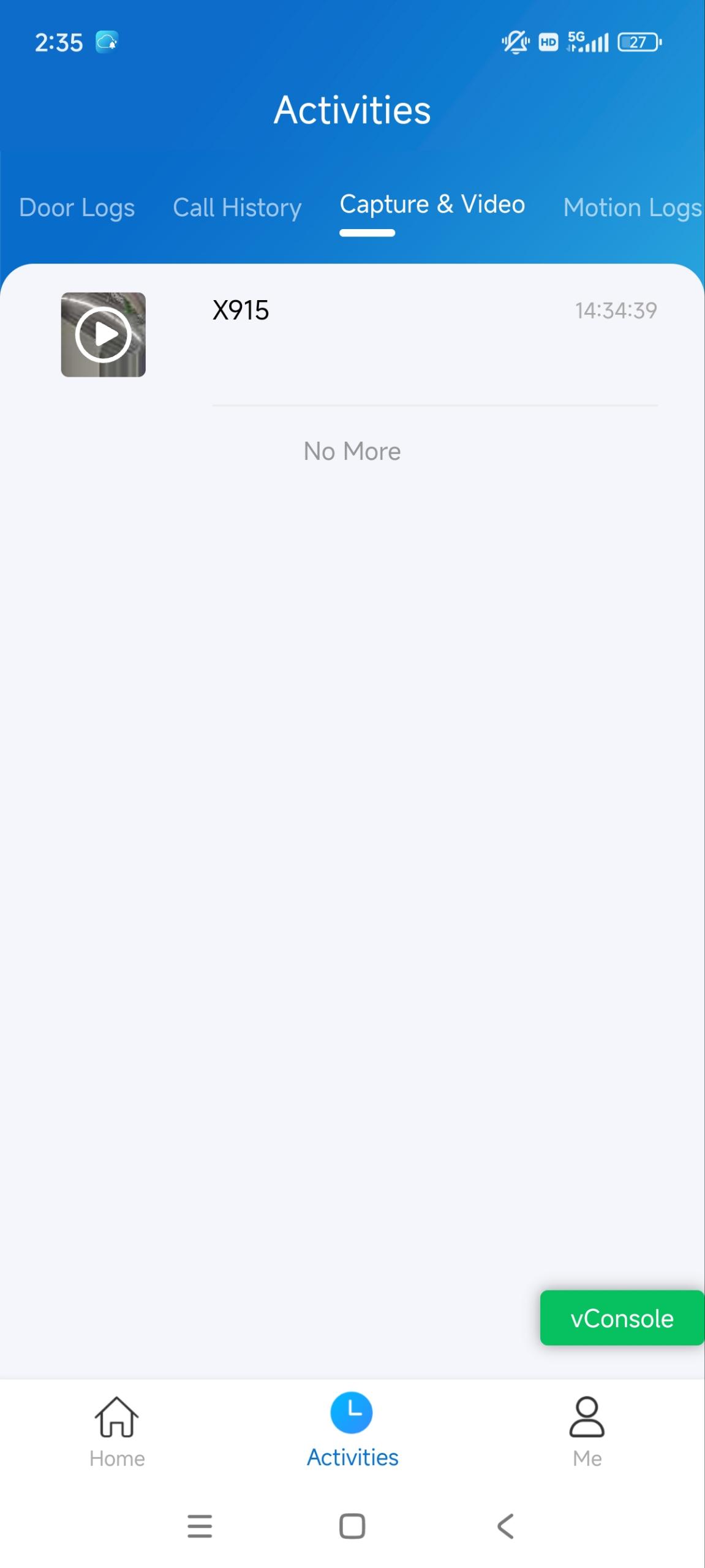
Tap Activities and select the log type.
Tap a specific log.
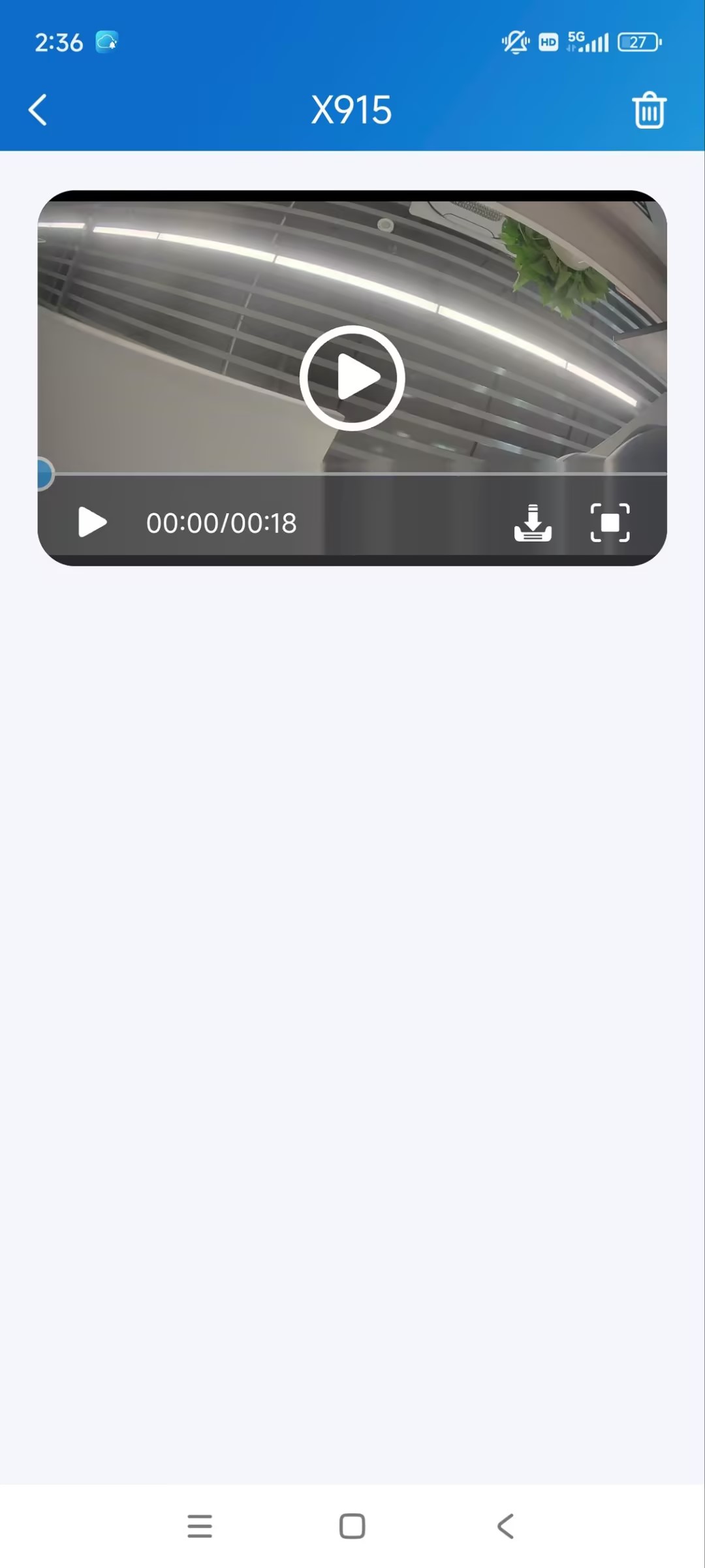
Tap the video to play it.
Tap
to download the video to the local album.Tap
to enlarge the video.
On the Indoor Monitor
The indoor monitor can store the videos automatically recorded by the door phone when:
The devices are in a call or a call preview.
Opening doors.
Note
Please note that the indoor monitor only stores the latest video from the door phone.
Examples:
During a call preview with one door phone, open the door of another door phone. The indoor monitor will only store a 10-second video of the door opening.
While on a call with a door phone and opening its door, the indoor monitor will only save a 10-second video of the door opening.
If users pick up the call while the indoor monitor is in a call preview with a door phone, it will only store a 10-second video of the call, not the preview.
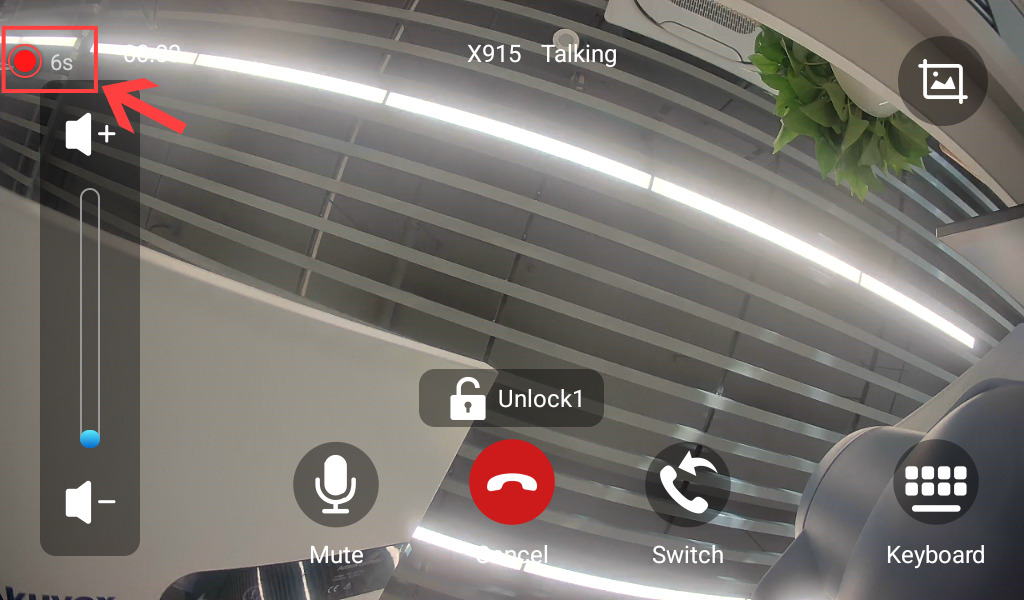
When the door phone is recording, a recording icon will display on the indoor monitor.
Tap Setting > Advance.
Enter the system code and confirm it. The default is 123456.
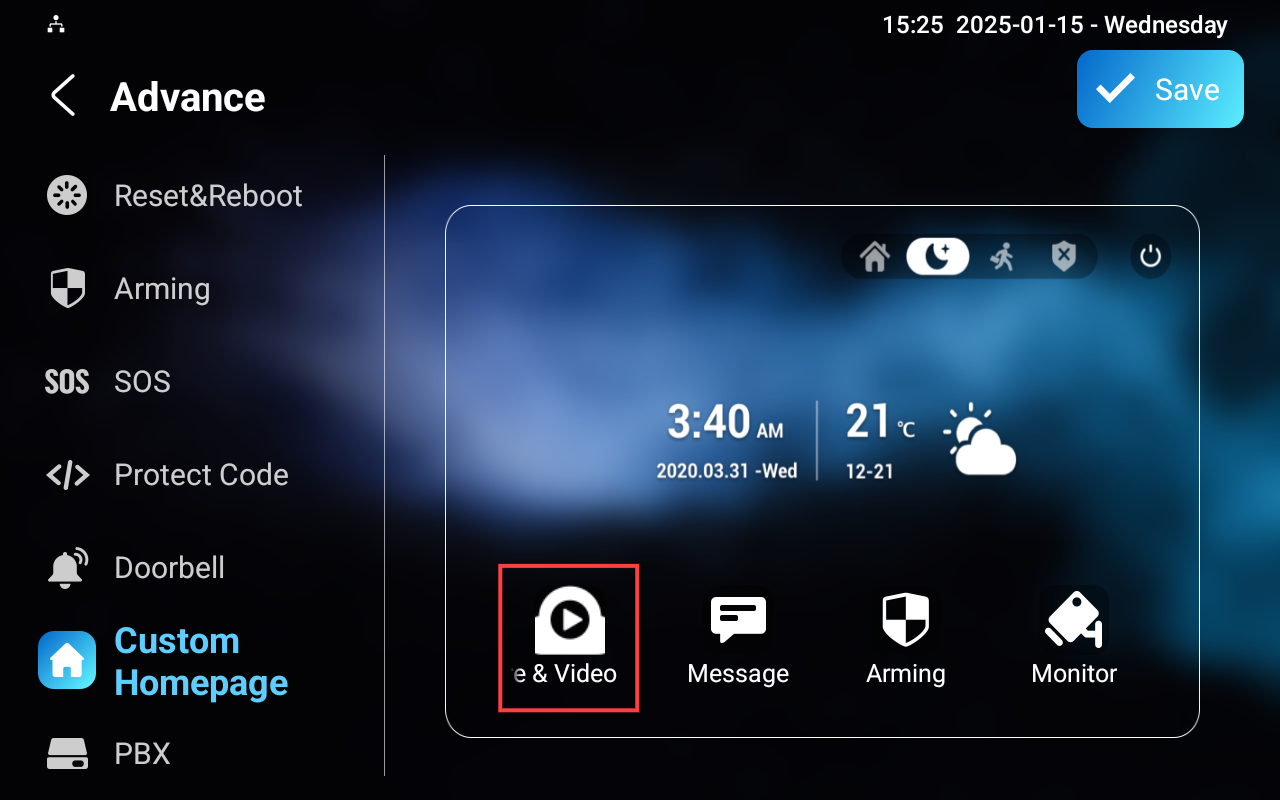
Tap Custom Homepage. Select an area to display the Video & Capture tab.
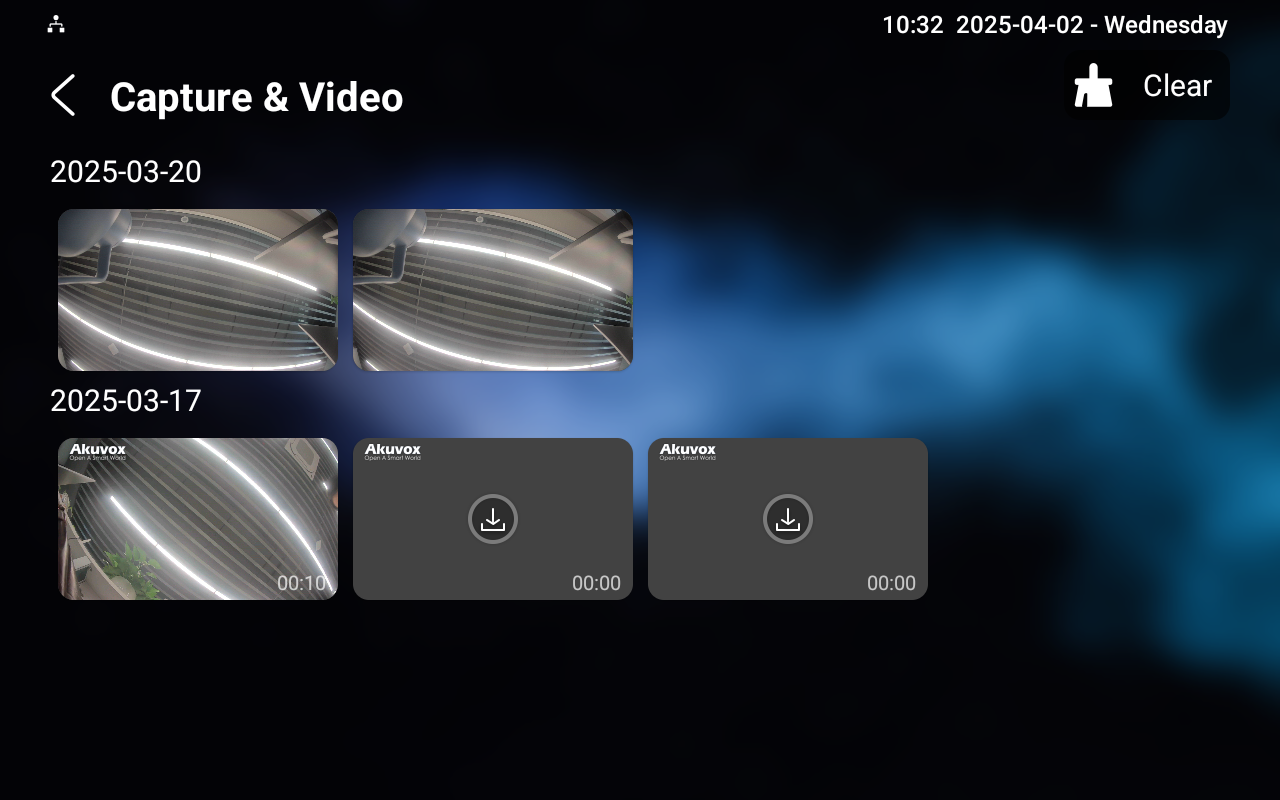
Tap it on the home screen to check captured images and videos. To delete them, tap Clear in the upper right corner and select the desired item(s) to be deleted.
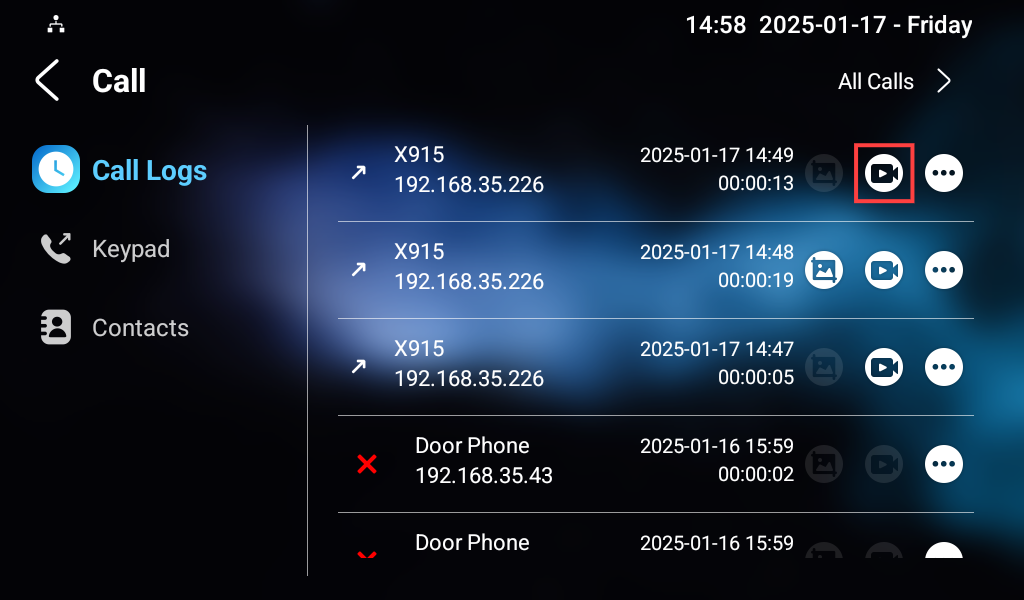
You can also check videos on the Call > Call Logs screen. Tap the video icon to view it.