The Wiegand feature enables the Akuvox door phones/access control terminals to act as a controller connected to a door lock.
Users can open the door by swiping an RF card or entering a PIN code on the third-party card reader.
Tip
To learn about the connection between a Wiegand card reader and a device, watch the video Wiegand Card Reader Connection.
This article takes the door phone R29 as an example.
On the Device Web Interface
Log in to the device's web interface with the username and password. The default is admin.
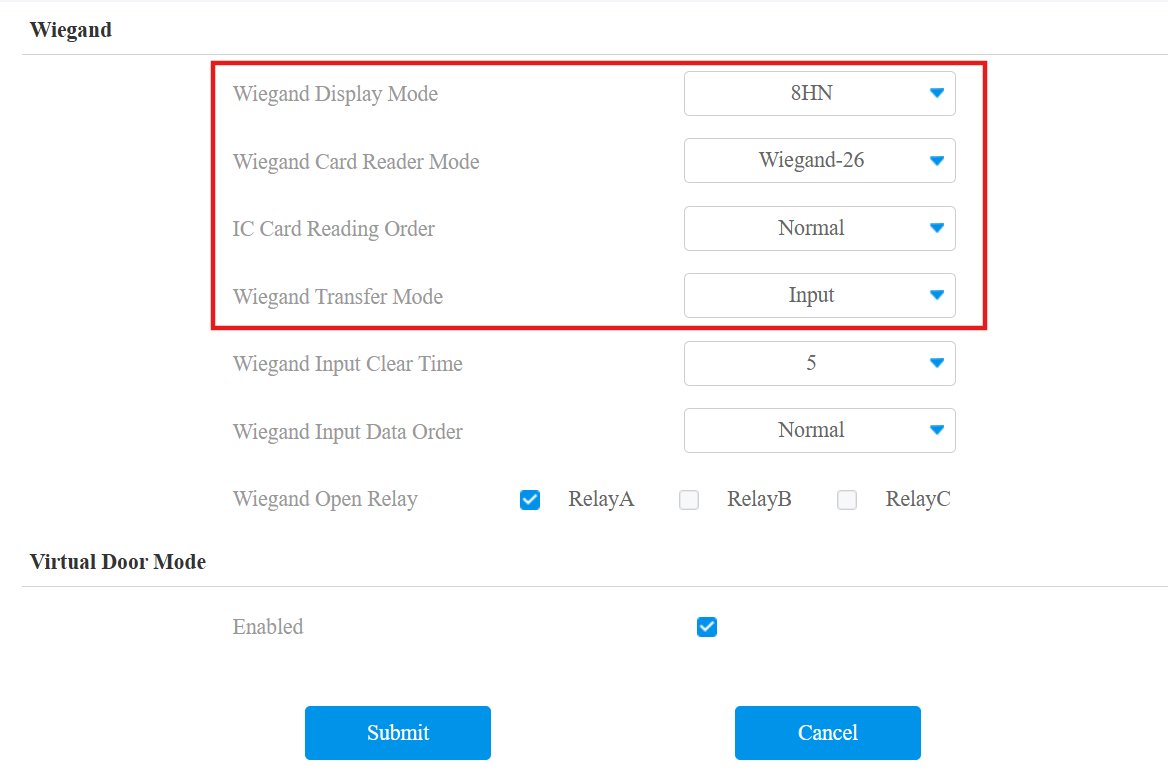
Go to Device > Wiegand interface and select Input in the Wiegand Transfer Mode field.
Make sure Wiegand Card Reader Mode and Wiegand Display Mode are the same as those of the third-party card reader.
Note
Please consult the service provider of the third-party card reader for Wiegand Card Reader Mode and Wiegand Display Mode.
Check the relay(s) that are connected to the door lock.
Select Wiegand Input Data Order if needed, which determines the sequence of the card number input.
Normal: The card number is displayed as received.
Reversed: The card number is reversed.
Note
On some devices’ web interfaces such as E16, the options of Wiegand Input Data Order are Default and Compatible which are equivalent to Normal and Reversed.
On the Smart Access Cloud
When the device is deployed on the Smart Access Cloud and used in a new commercial project(created after Oct.15, 2024), you can set up the Wiegand feature on the cloud.
Installers have permission to add and edit devices, while property managers can only modify devices’ settings.
Compatible Model and Minimum Version
The following devices support synchronizing Wiegand settings from the cloud:
Model | Version | Model | Version |
|---|---|---|---|
R29 | 29.30.10.404 | R28 V2 | 228.30.10.231 |
R25 | 25.30.10.117 | R20 | 320.30.11.30 |
X915 V2 | 2915.30.10.420 | X916 | 916.30.10.508 |
X912 | 912.30.11.107 | E16 V2 | 216.30.10.208 |
S535 | 535.30.11.8 | S539 | 539.30.10.507 |
A08 | 108.30.11.8 | A01/A02 | 101.30.10.206 |
A03 | 103.30.10.204 | A094 | 92.30.10.205 |
S538 | 538.30.10.705 | A095 | 95.30.10.110 |
A05 V2 | 205.30.11.114 | X910 | 2910.30.11.28 |
E16 V3 | 416.30.11.206 | E12V2 | 312.30.11.106 |
S532 | 532.30.10.336 | E18 | 18.30.11.136 |
A15 | 1115.30.10.407 |
Take an installer account as an example.
Log in to the cloud with your account.
Navigate to the target project and click Devices on the left column.
Click New to add a device or click
 to modify a device’s settings.
Select the relay to be triggered by Wiegand, for example, Relay A.
Specify that the Wiegand card reader is used as the entry or exit reader.
Select the device’s Wiegand port that is connected to the card reader. If the device only has one port, choose Wiegand A.
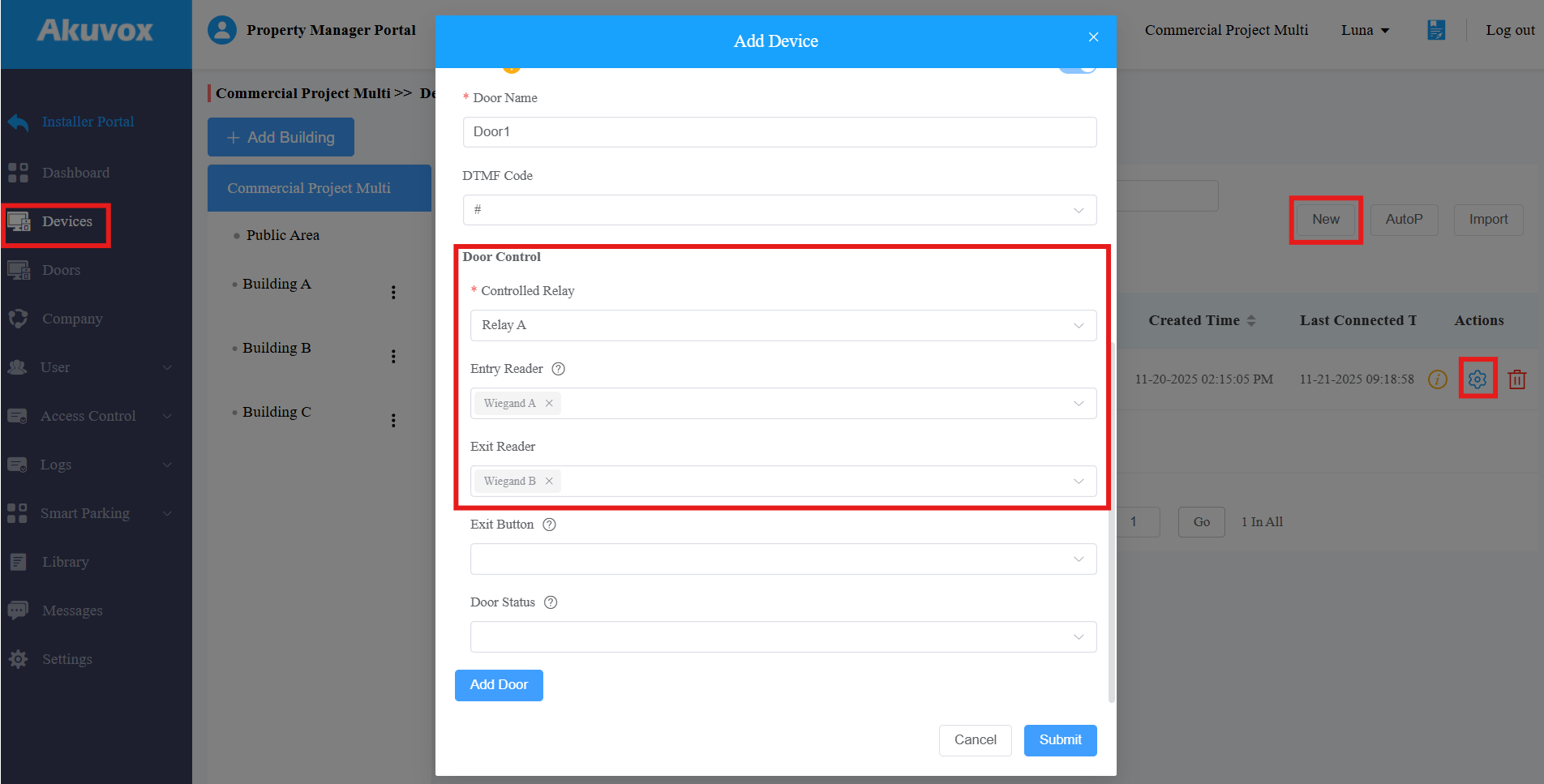
Click Submit.
Note
The same Wiegand option can be selected for multiple doors, but it must either all be entry or all be exit. It cannot be an entry for door1 and exit for door2.
After configuration, users can open doors with their credentials issued from the cloud.