Akuvox door phones/access control terminals can be integrated with the third-party access control system via Wiegand.
Users can enter PIN codes, swipe cards, scan their faces, or scan QR codes on Akuvox devices. When the verification passes on the third-party system that controls the door lock, the doors will be opened.
Configuration
This article takes E16 V2 as an example.
Use the device IP to log into its web interface. The initial username and password are admin.
Set up the Wiegand feature on the Device > Wiegand interface.
Unlock by PINs
Akuvox door phones/access control terminals can output PIN codes directly or in a designated format through Wiegand. This function applies to a scenario where the third-party access control system only receives PINs in a specific format.
Note
Specific models support outputting PINs in a designated format(The Convert to Wiegand Output option):
S539, S538, S535, S532, X912, X915 V1/V2, X916, R29, R28 V2, R27, R25K, E16, E18, A02, A08, and A15.
Set Wiegand Transfer Mode to Output.
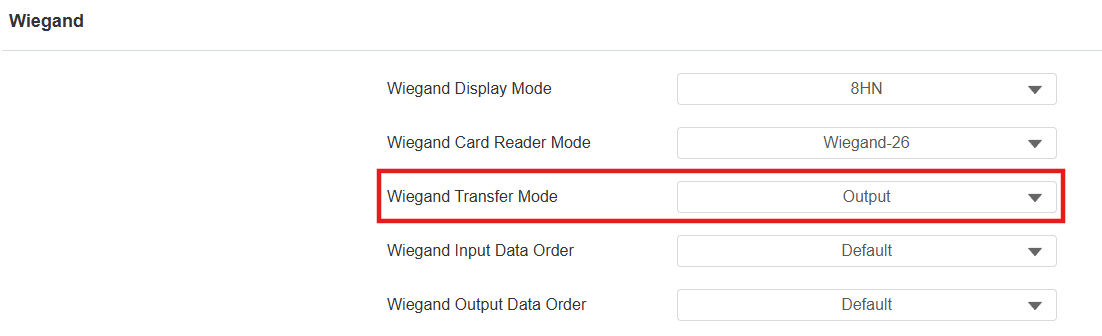
Set the output PIN format that the third-party system can identify.
8 bits per digit: When users press "1" on the keypad, the binary data will be transmitted in 8 bits "11100001".
4 bits per digit: When users press "1" on the keypad, the binary data will be transmitted in 4 bits "0001".
All at once: After users enter the whole PIN code, the data will be transmitted according to the Wiegand card reader mode. For example, “123456” will be converted to “01e240” in Wiegand 26.

Click Submit.
When 8 bits per digit or 4 bits per digit is selected, output the PIN by pressing “*+PIN code+#” on the door phone’s keypad.
When All at once is selected, press the PIN code and then the Confirm tab.
Unlock by RF Card Codes
Akuvox devices can directly output the RF card codes.
Set Wiegand Transfer Mode to Output and click Submit.
Unlock by Facial Recognition
Akuvox devices cannot directly output face data via Wiegand. The face photo must be registered for a user and the user should have a card code. The third-party system verifies the card code for door opening.
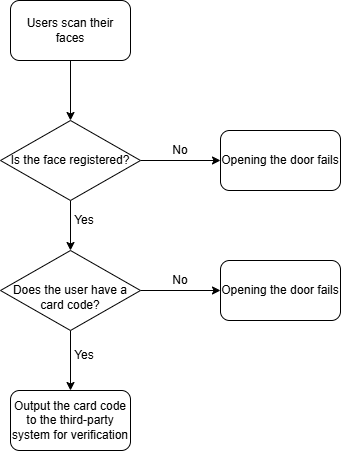
Go to the Device > Wiegand interface. Set Wiegand Transfer Mode to Convert to Card No. Output.
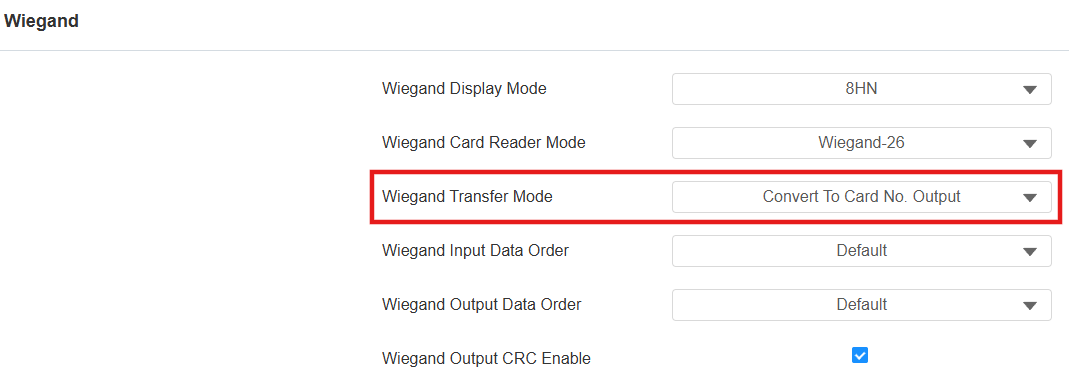
Go to the Directory > User interface.
You can:
click Add to add a new user;
click
 to modify credentials for an existing user.
Enter the card code. Or, click Obtain and place the card on the door phone’s card reader area.

Click Select File to choose the user’s front-face photo and upload it.

Click Submit.
Unlock by QR Codes
Tip
Go to the Intercom > Wiegand interface. Set Wiegand Transfer Mode.
When the third-party system can identify the QR code value, set the Wiegand Transfer Mode to Output. In this case, the Akuvox door phones/access control terminals can directly output the QR code value.
When the third-party system cannot identify the QR code value, set the Wiegand Transfer Mode to Convert to Card No. Output. Assign the QR code value and card code to the same user. When users scan QR codes, the device will find the user and output the card code.
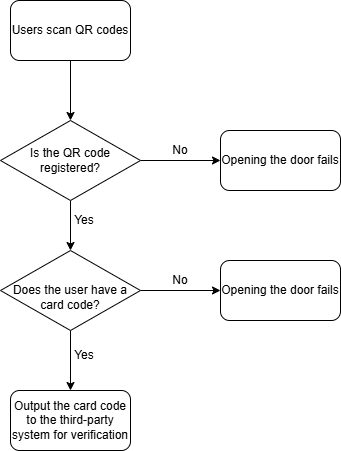
Note
Models E16 V2/V3, X915V1/V2, S539, and A08 support outputting card codes when scanning QR codes.
Go to the Directory > User interface.
You can:
click Add to add a new user;
click
 to edit an existing user.
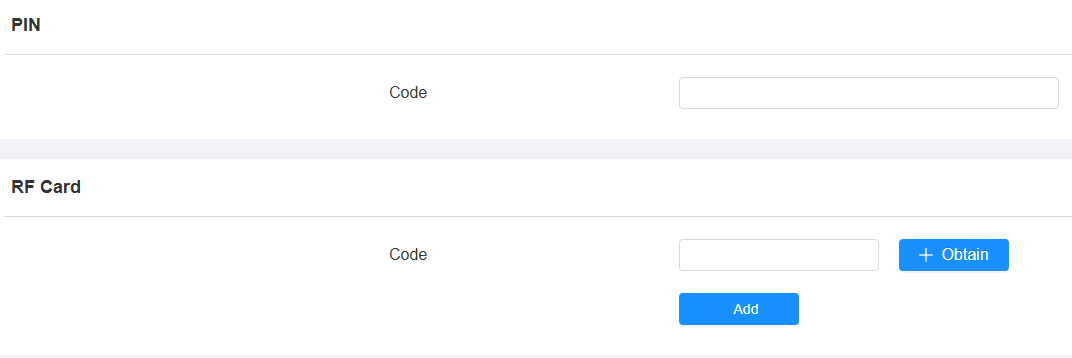
Enter the QR code value in the PIN box.
Note
Specific models support setting and identifying QR code values as PINs:
E16 V2/V3, X915V1/V2, S539, and A08.
Only support identifying converted unencrypted QR codes.
Enter the card code in the RF Card box.
Click Submit.