Property managers/project managers(PMs) can check door status on the SmartPlus and Smart Access Cloud platform, enhancing management security.
For Community Projects
Compatible models and versions(or higher)
Model
Version
Model
Version
X915 V1
915.30.10.125
X915 V2
2915.30.10.106
X916
916.30.10.216
X910
2910.30.10.240
R29
29.30.10.123
R28 V2
228.30.10.135
R20 V5.0
320.30.10.125
R25A
25.30.10.22
R25K
25.30.10.117
S539
539.30.10.118
S535
535.30.10.233
S532
532.30.10.117
X912
912.30.10.225
E21 V3
321.30.10.6
E16 V2
216.30.10.69
E16 V3
416.30.11.206
A08
108.30.1.16
E12 V2
312.30.10.105
A03
103.30.10.30
A01/02
101.30.10.49
A05 V2
205.30.10.104
E18
18.30.10.205
A095
95.30.10.110
A094
92.30.10.112
R25
25.30.10.206
S538
538.30.10.705
S532
532.30.10.336
E18
18.30.11.136
A15
1115.30.10.407
WR01
1401.30.11.221
Take R29 as an example.
Enable Door Status Display
Before checking the door status on the cloud, enable the feature on the door phone’s web interface.
Use the device IP(scanned by IP Scanner) to log in to its web interface. The initial username and password are admin.
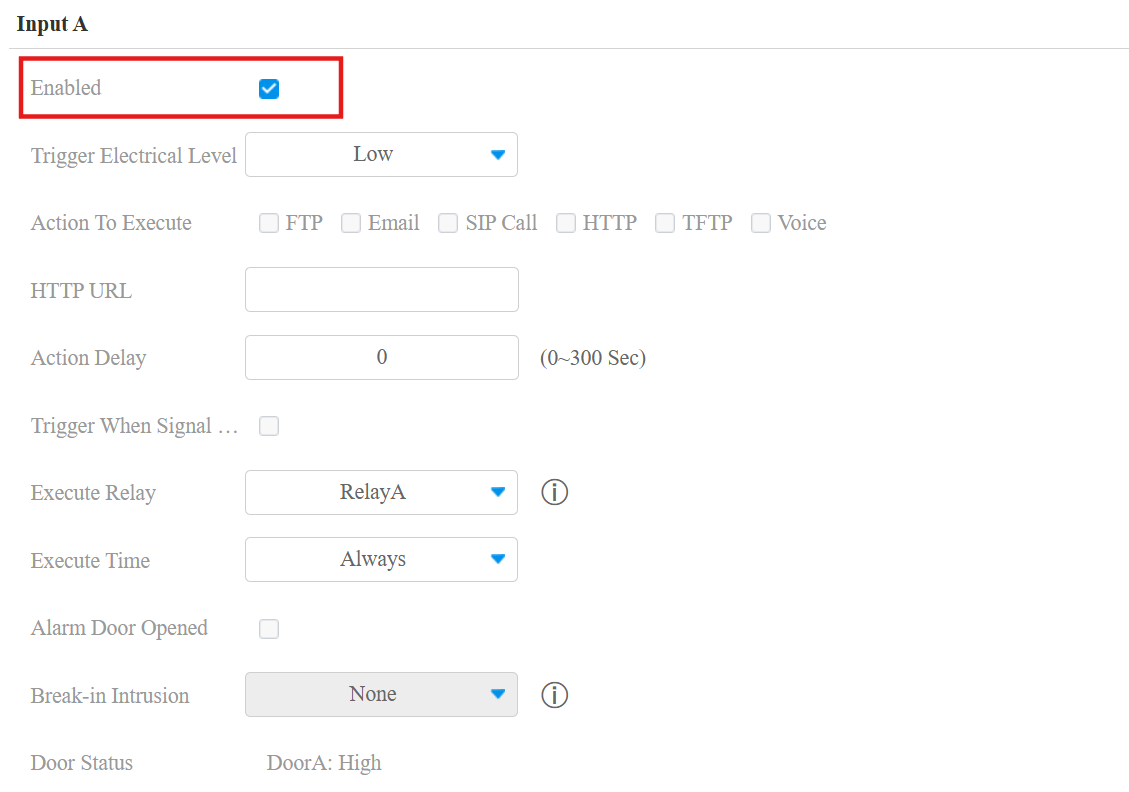
Navigate to the Access Control > Input interface and enable Input. Whether the door is opened by triggering the Input or the Relay, the Input needs to be enabled to display the door status.
Navigate to the System > Security interface. Find the Real-Time Monitoring section.
Select the Input or Relay that is triggered to open the door.
Check specific relay(s) or input(s) that apply this feature.
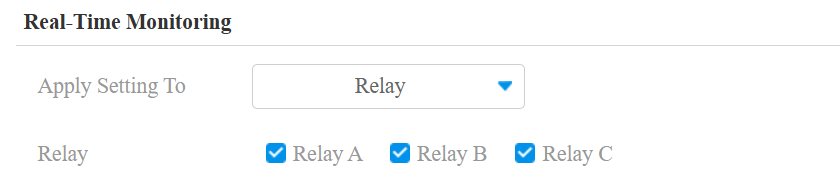
Submit the setting.
Check Door Status
Note
In community projects, PMs cannot check the door status of residents’ private devices.
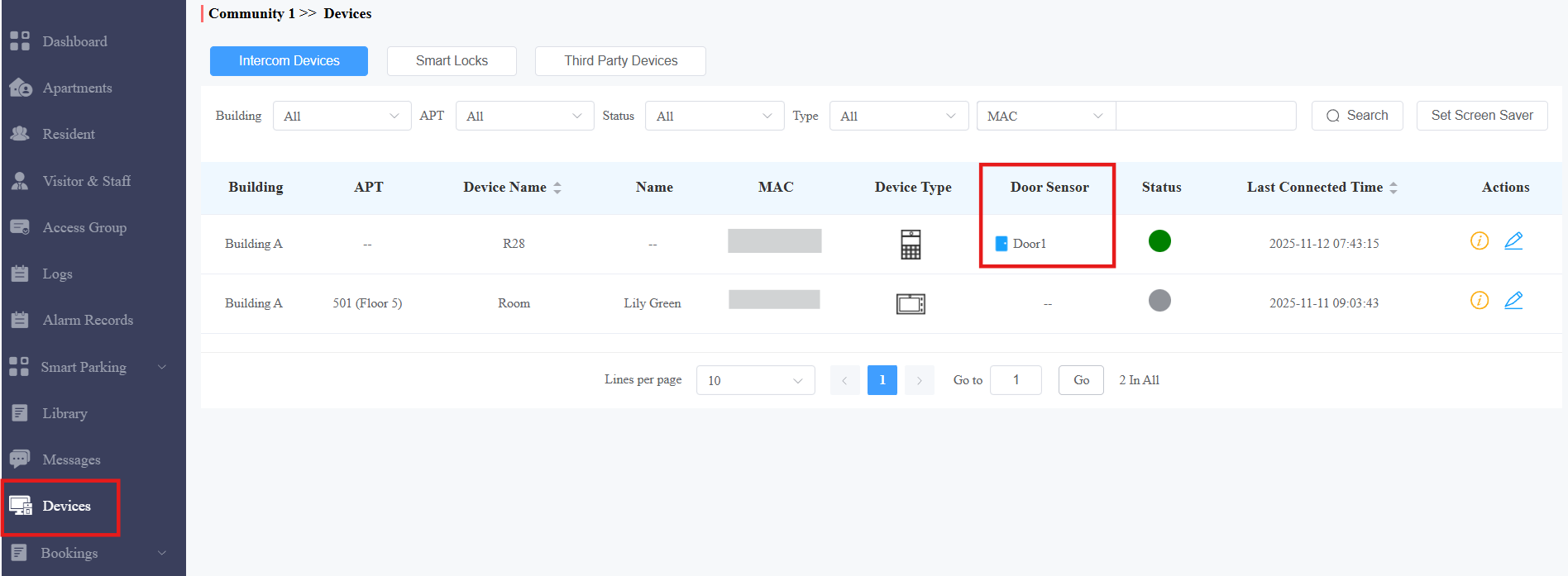
Log in to the cloud with the PM account.
Click Devices in the left column.
.png) : Closed
: Closed.png) : Open
: Open
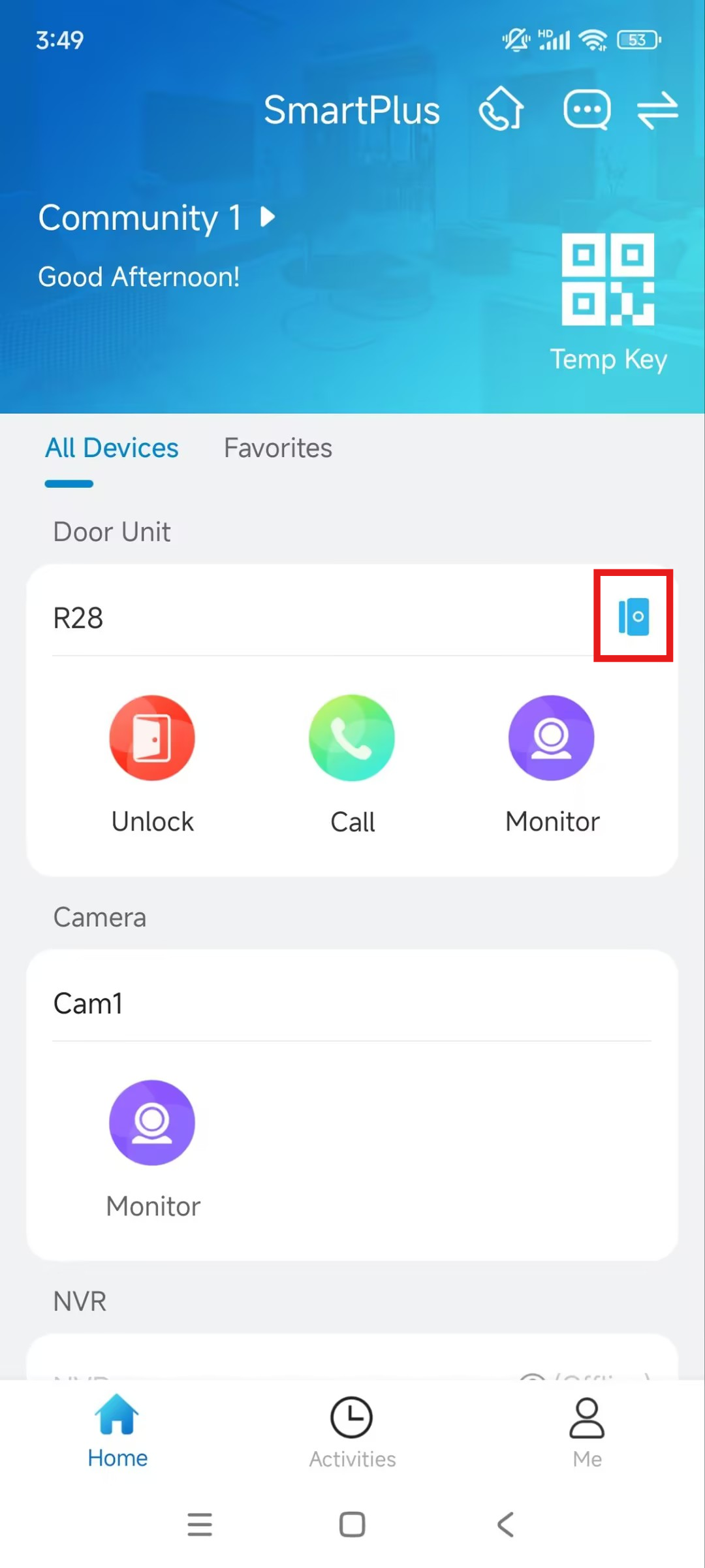
With the SmartPlus App enabled by your installer, you can also check the door status on the app’s homepage.
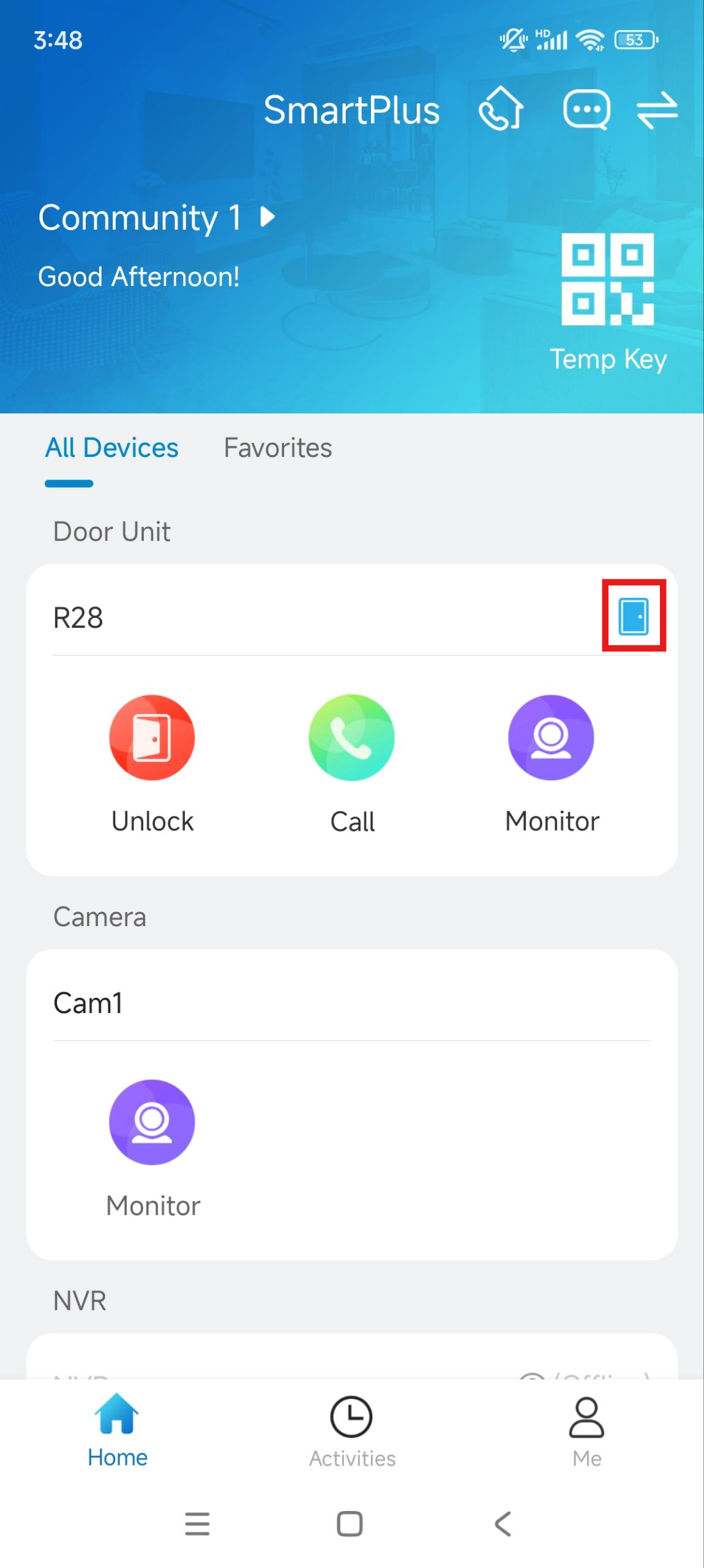
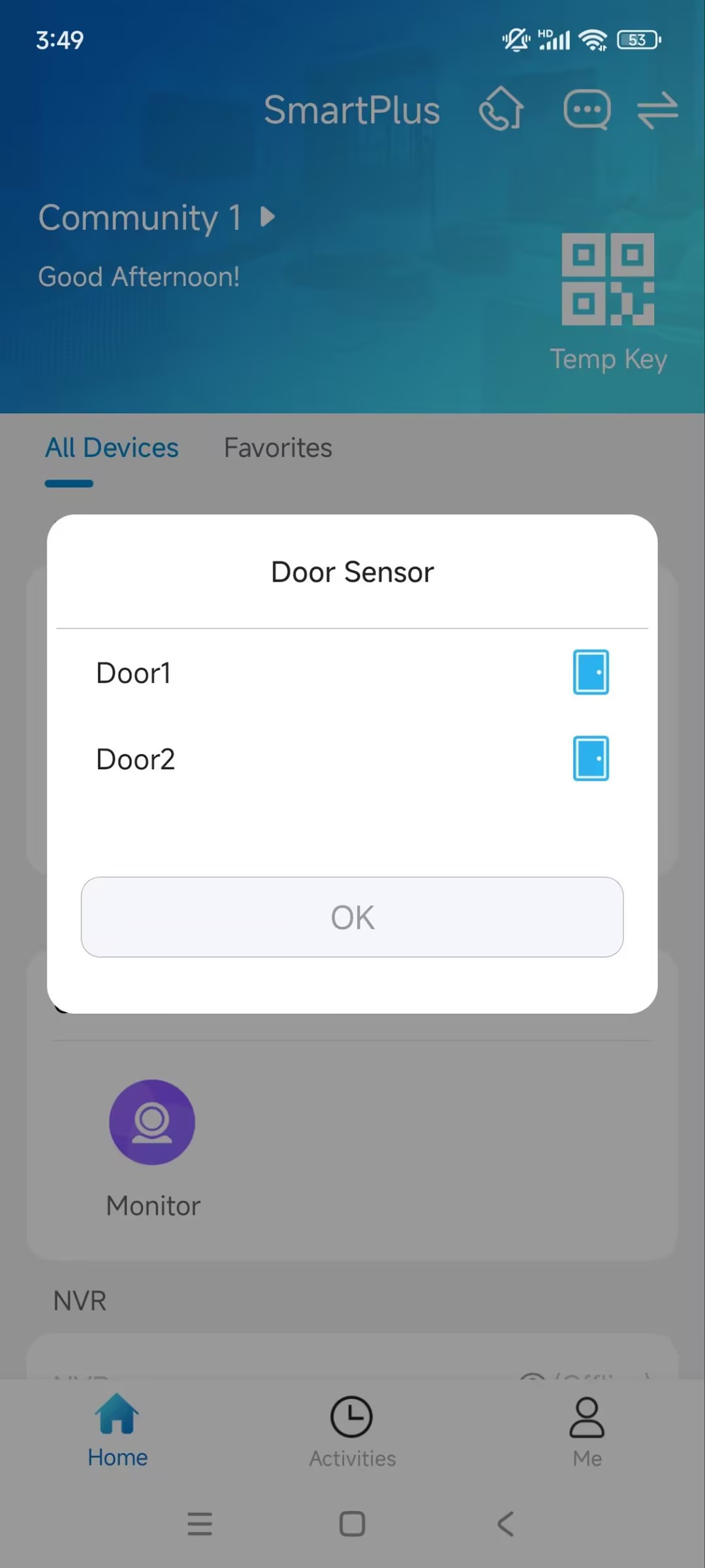
When there is more than one door, check them by tapping  .
.
For Commercial Projects
Commercial projects created after Oct.15, 2024, support checking door status.
Compatible models and versions(or higher):
Model
Version
Model
Version
X910
2910.30.11.104
X912
912.30.12.22
X915V2
2915.30.10.619
X916
916.30.10.508
R29
29.30.10.507
R28V2
228.30.11.6
R25
25.30.10.206
R20
320.30.11.206
E16V2
216.30.11.107
S539
539.30.10.507
S538
538.30.10.705
S535
535.30.11.8
A08
108.30.11.110
A01/A02
101.30.11.12
A03
103.30.11.6
A05V2
205.30.11.114
A095
95.30.10.203
A094
92.30.11.8
E16V3
416.30.11.206
E12V2
312.30.11.106
A15
1115.30.10.407
WR01
1401.30.11.221
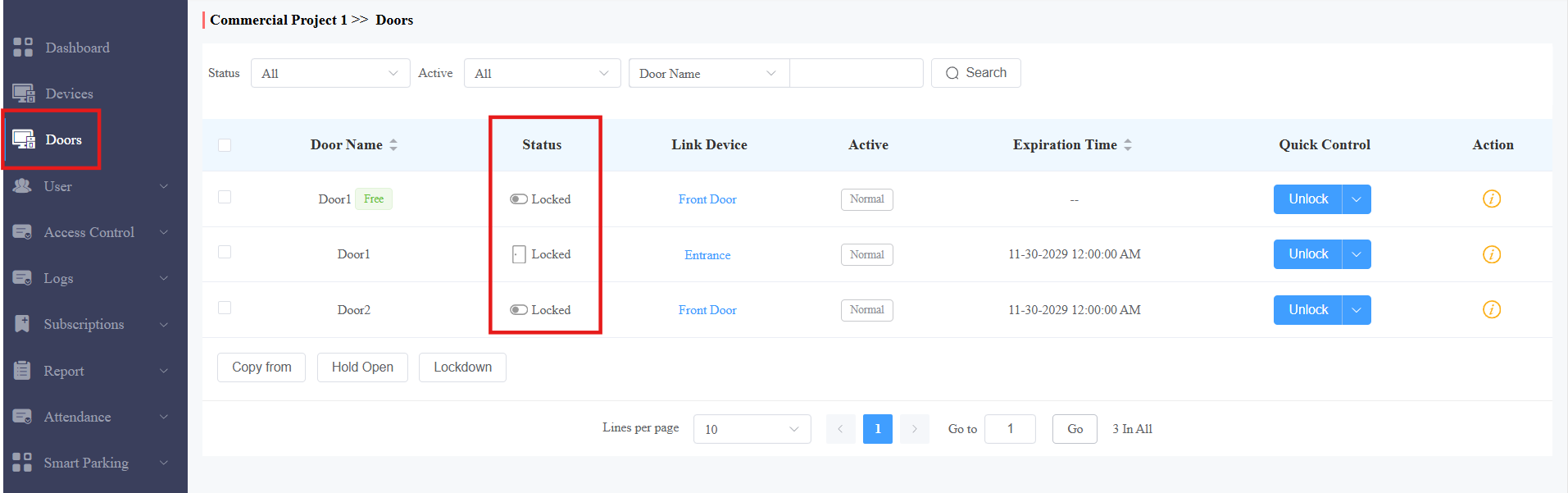
Click Doors in the left column. The door status icon differs based on your installer’s configuration when adding the device.
 /
/ : The door status is not configured.
 /
/ : The door status is indicated by the input status.