The local contact information is used to initiate SIP or IP calls to users. You can group the contact information to facilitate group calls to target users. Moreover, the contact list functions as a whitelist, allowing only listed numbers to open doors via DTMF during calls.
When the device is deployed on the SmartPlus Cloud, cloud contacts will display on the device web but not editable.
Manage Contact Groups
You can create and edit a contact group for the contacts. The contact group will be used when you are adding a user.
To set it up, navigate to the web Directory > User > Group interface. Click +Add to create a group. The device supports adding up to 1,000 groups.
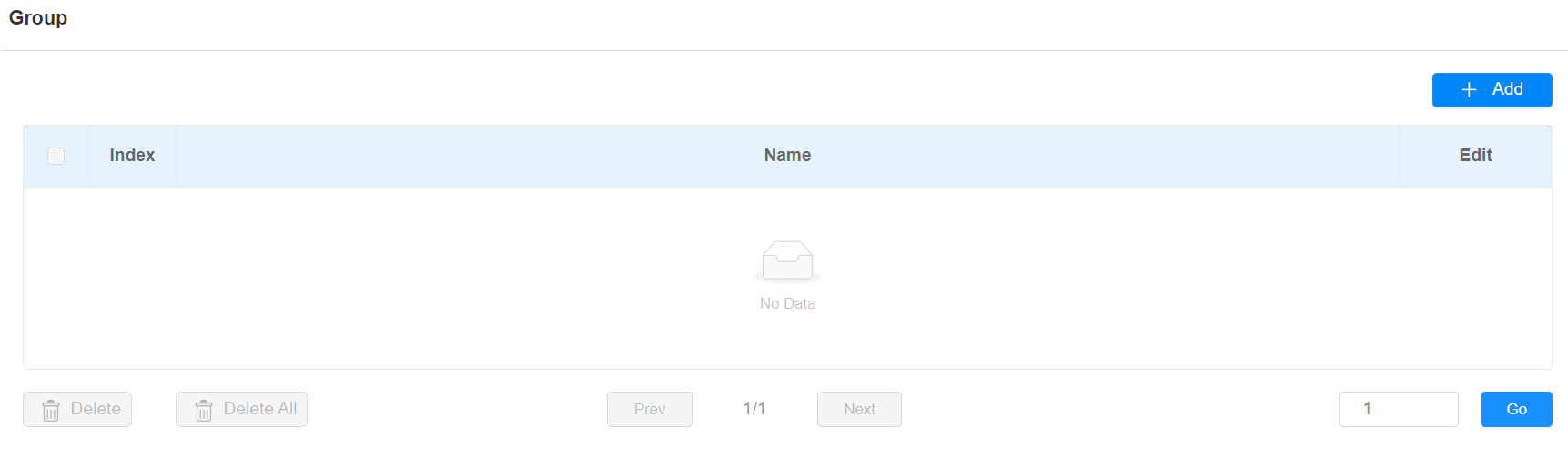
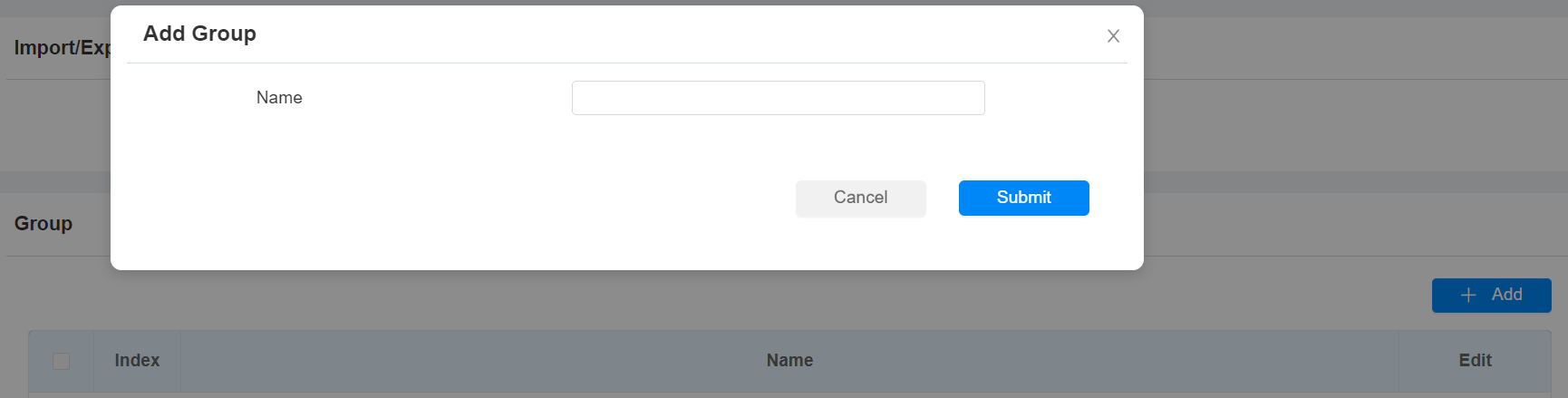
Set up Contact Details
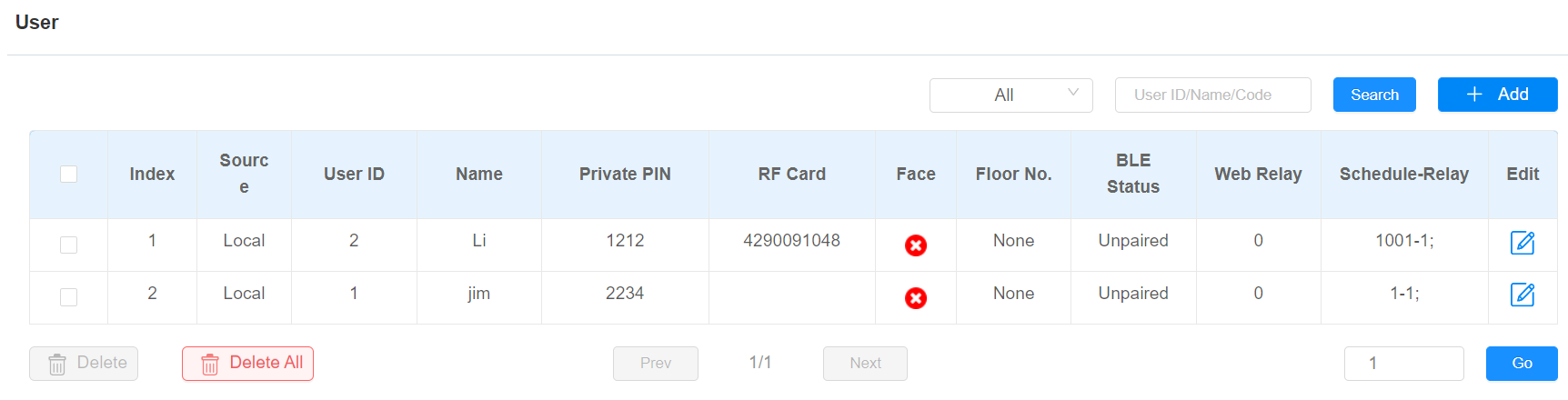
You can add users’ contact information when adding or editing a user on the Directory > User interface. The users added will be displayed on the device’s Directory screen.
Click +Add to add a user or click to modify a user. Scroll to the Contacts Details section.
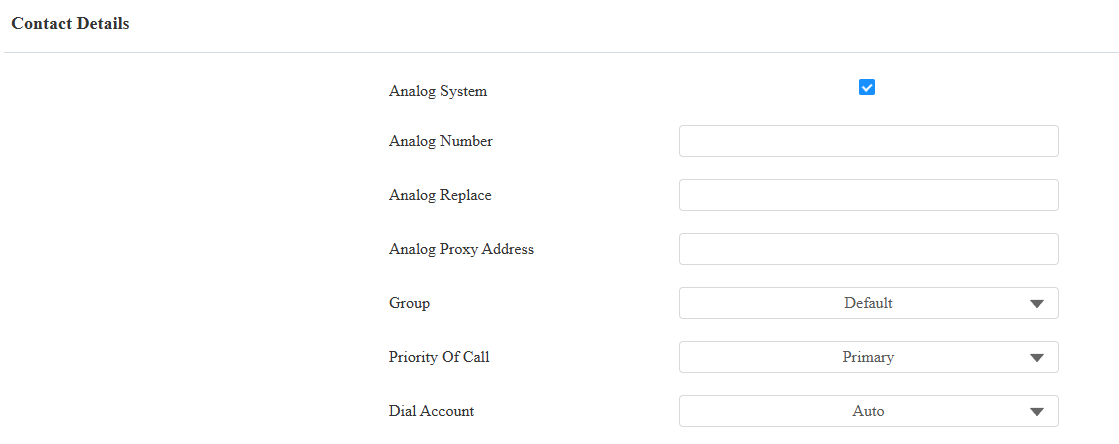
Analog System: The analog feature works with the Akuvox S532 door phone connected to the analog handset. It allows end users to call analog handsets by selecting contacts or entering numbers on the X912 door phone.
When enabled, configure the following settings.
Analog Number: The number of the analog switch.
Analog Replace: Optional configuration. The short number replaces the analog number. Users can call the analog handset by entering the short number on the X912 door phone's keypad.
Analog Proxy Address: The IP address of the S532 in Direct mode.
Note
To see detailed steps of configuring analog feature, please refer to:
Phone: The contact’s SIP or IP number.
Group: Assign the contact to the Default or self-created group.
Priority of Call: Set the priority of the call among three options: Primary, Secondary, and Tertiary. For example, if you set the priority of a call for one of the contacts in a specific contact group as Primary, then the contact will be the first to be called among all the contacts in the same contact group when someone presses the contact group to make a group call.
Dial Account: The account to make the call.
Contact List Display
You can customize the contact list display to cater to users' operational and visual preferences.
To set it up, navigate to the Directory > Directory Setting interface.
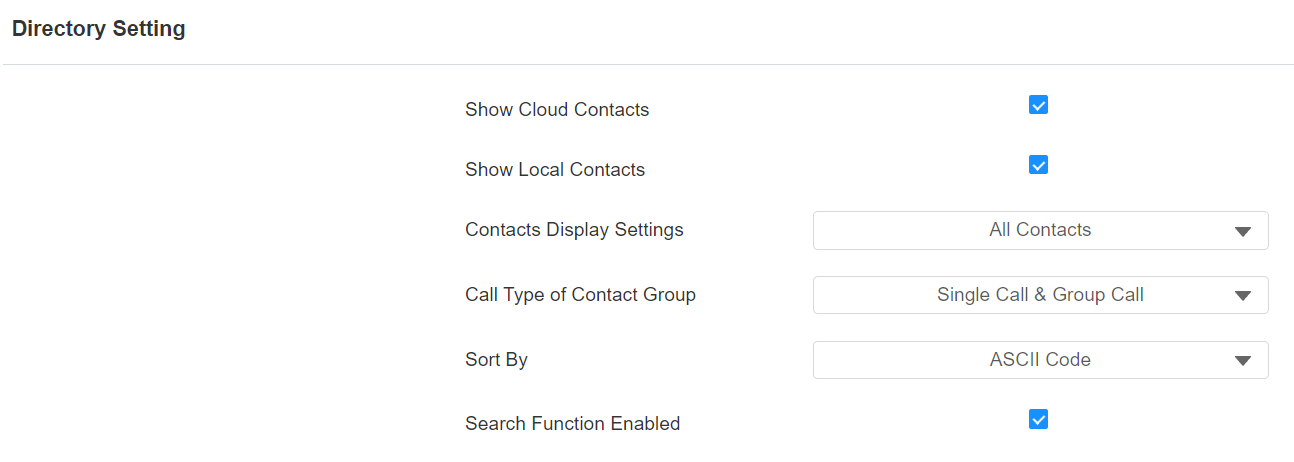
Show Cloud Contacts: Set whether to display the contacts configured on the cloud. This option changes by the device’s deployment. If the device is deployed on the SmartPlus Cloud, it shows Show Cloud Contacts. If it is on SDMC, it shows Show SDMC Contacts.
Show Local Contacts: The local contacts can be displayed on the device’s home screen.
Contacts Display Settings:
All Contacts: Display all the contacts.
Groups Only: display contact groups. Press the desired group on the device screen to make a group call.
Groups On Entry Page And Their Contacts On Subpage: Display contacts by groups. Press the group, and users can see the contacts in it.
Call Type of Contact Group:
Single Call & Group Call: Users can call contacts one by one or simultaneously in a group.
Only Single Call Allowed: Users can only call contacts one by one.
Only Group Call Allowed: Users can only call contacts in a group simultaneously.
Sort By:
ASCII Code lists the tenants by their names in the sequence of the ASCII code.
Room No. lists the tenants according to their room numbers.
Import lists the tenants according to their order in the imported file.
Search Function Enabled: Decide whether users can search for the desired contact.
Cloud Call Permission Control: This option will display when the device is connected to the SmartPlus Cloud. It decides whether to link the SmartPlus user’s permissions to open doors and make calls.
For example, when users are not authorized to open doors during a specific time and the Cloud Call Permission Control feature is enabled, their SmartPlus App and/or indoor monitors will not receive calls from the door phone.
If this feature is disabled, even if users cannot open doors, they can receive calls.