Video Storage enables Akuvox devices to automatically record short video clips when events such as door unlocks, calls, or motion detection occur. This allows end users and property managers to review what happened at the door, even if they missed the live call or notification.
This article explains how installers enable and configure the feature on the SmartPlus Cloud portal for single-family projects, community projects, and individual devices.
Note
When the Video Storage subscription expires:
Existing video logs remain viewable until the log entry is deleted.
New logs generated after expiration will only include a snapshot image; no video will be recorded or stored.
Model Compatibility
Video Storage requires specific device models and versions.
See the supported model list in Configure Video Recording and Storage.
Part 1: Enable Video Storage for Single-family Projects
Log in to the cloud portal with your installer account.
Navigate to the Single-Family Site(s).
Click
 of the target site.
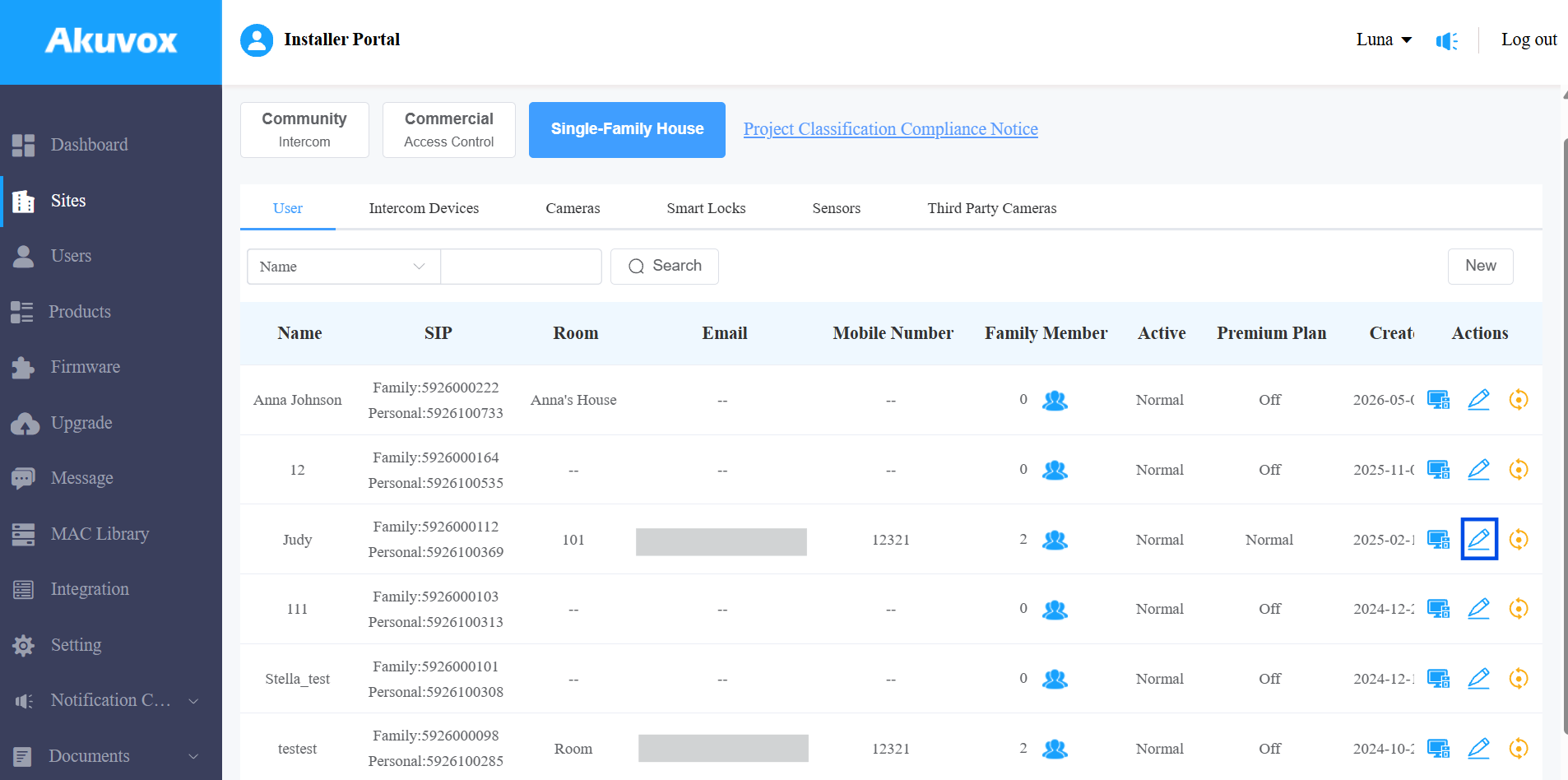
Select Advanced Info.
Turn on Video Storage.
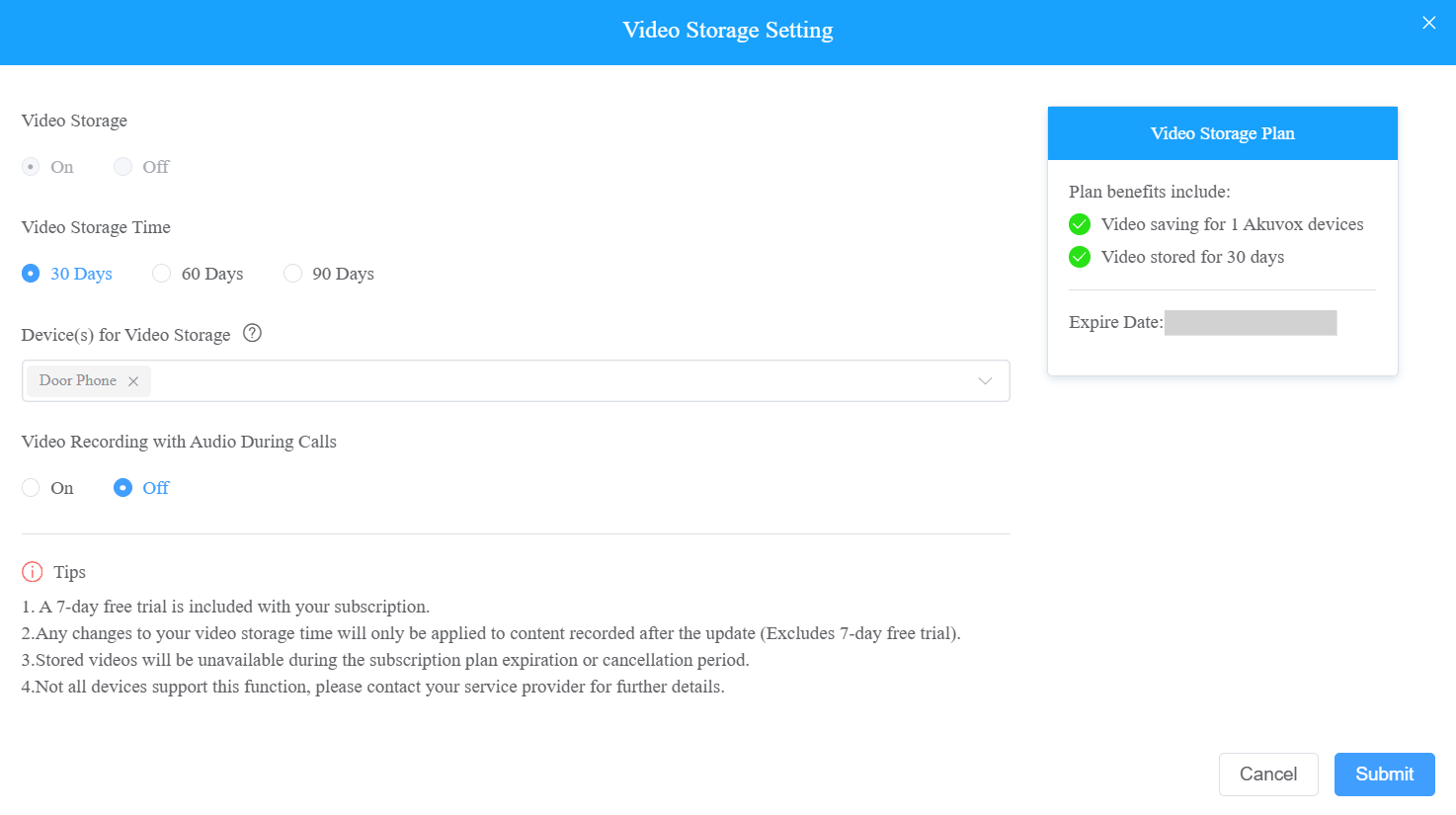
Set up the video storage feature based on actual needs. First-time activation includes a 7-day free trial.
Video Storage Time: 30 Days, 60 Days, and 90 Days are available. It is 30 days by default.
Number of Stored Devices: Choose the number of devices that record videos.
Device(s) for Video Storage: Select the specific device(s).
Video Recording with Audio During Calls: Decide whether to record videos with audio during calls.
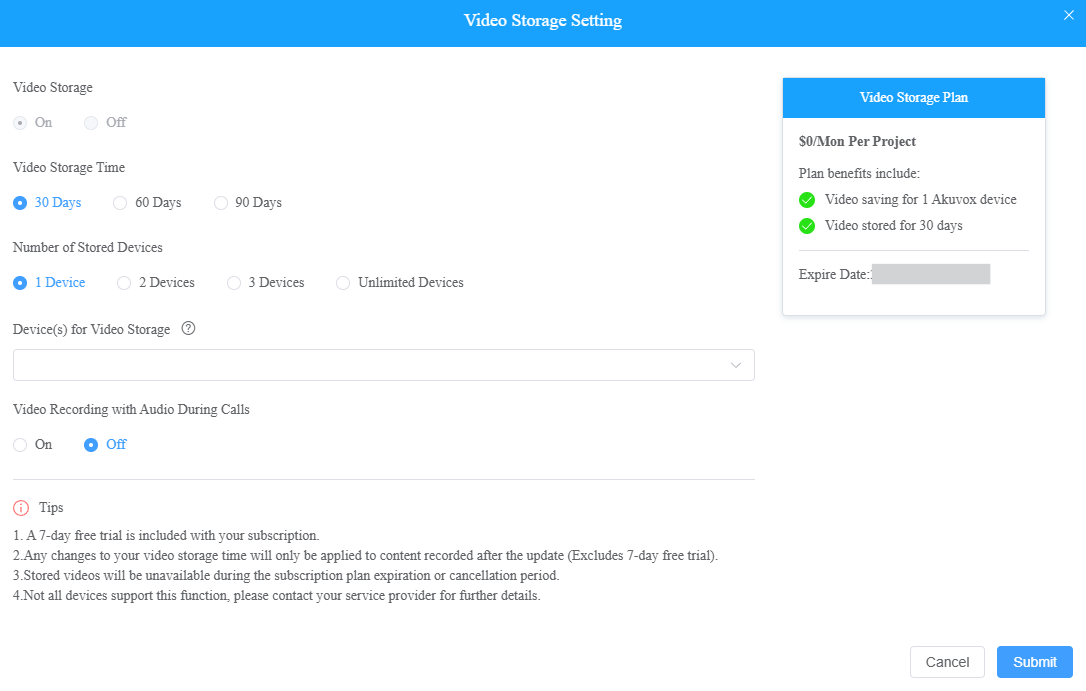
Click Submit.
Enable Video Storage When Adding or Editing a Device
This is an additional entry point to the site-level steps above, useful when you only need to turn on Video Storage for one device without opening the full Advanced Info flow.
Click
 of the target site.
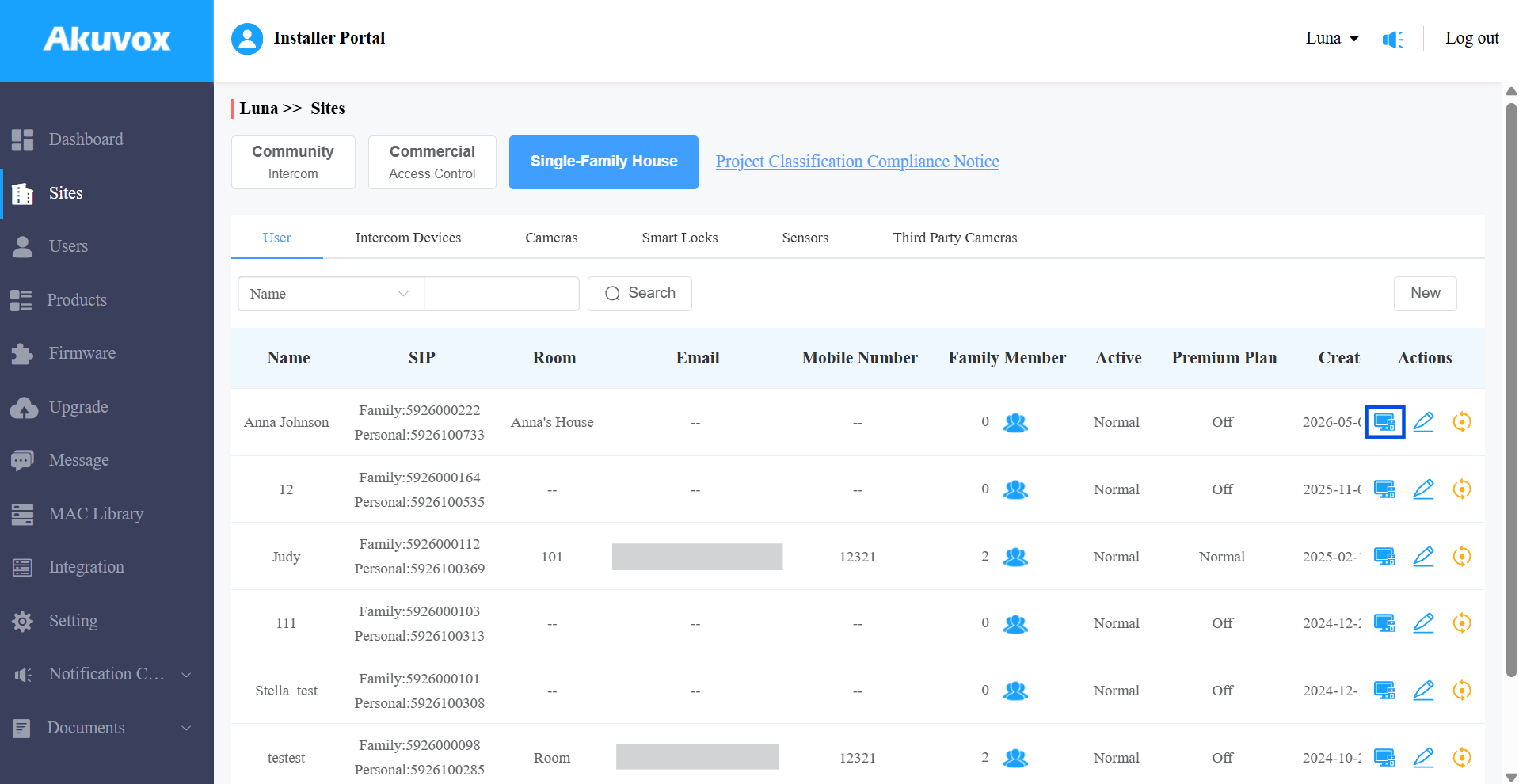
Click New to add a door phone/access control device; or, click
to modify an existing one. Turn on Video Storage. Or, click
 to change the settings.
 Once enabled, the device will be selected as the Device for Video Storage by default.
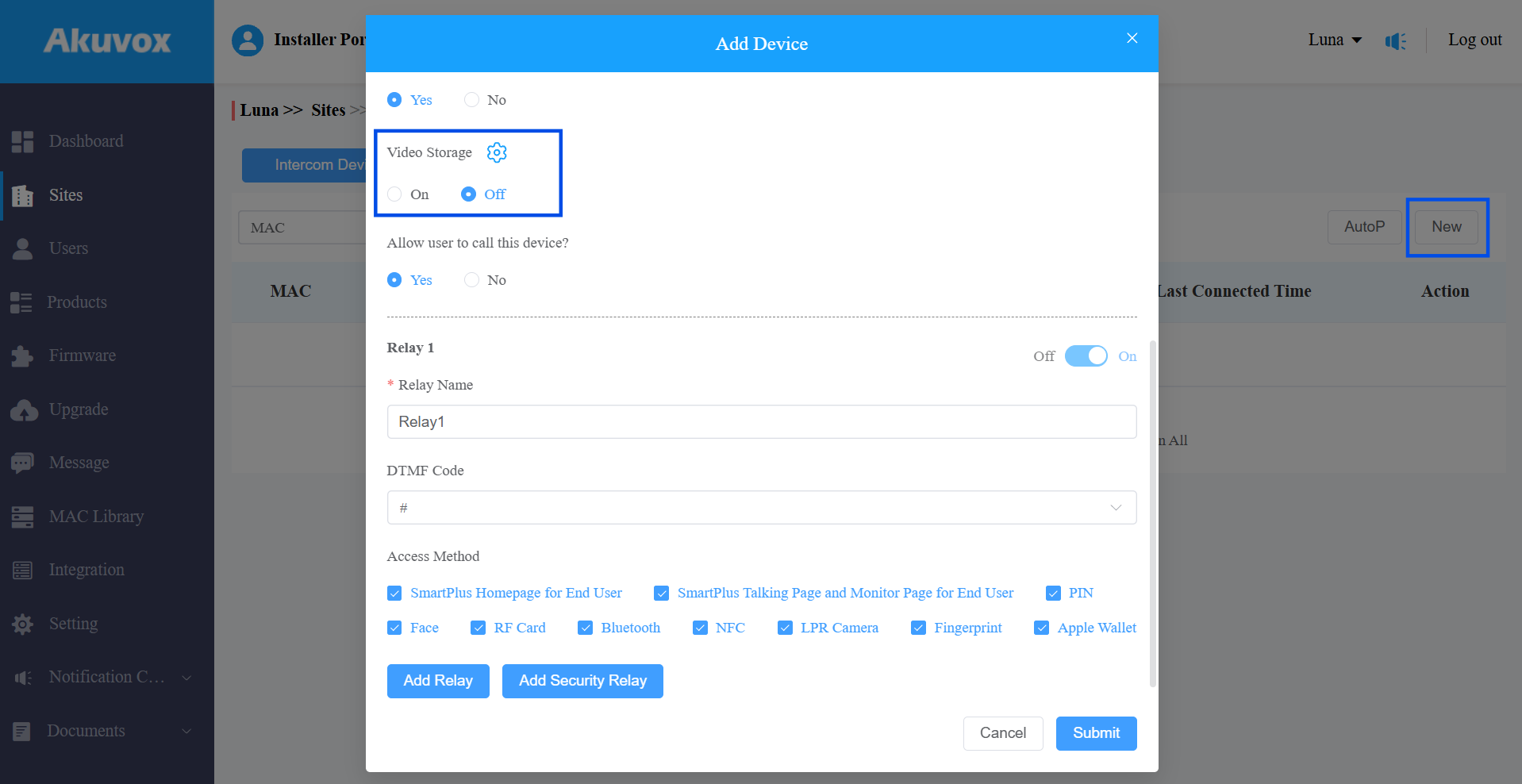
Set up the video storage feature based on actual needs.
Video Storage Time: 30 Days, 60 Days, and 90 Days are available. It is 30 days by default.
Video Recording with Audio During Calls: Decide whether to record videos with audio during calls.
Part 2: Enable Video Storage for Community Projects
Public Devices
Click
of the target community.Turn on Video Storage in the Feature Plan for Community section to access the settings.
Or, click
to change the settings.
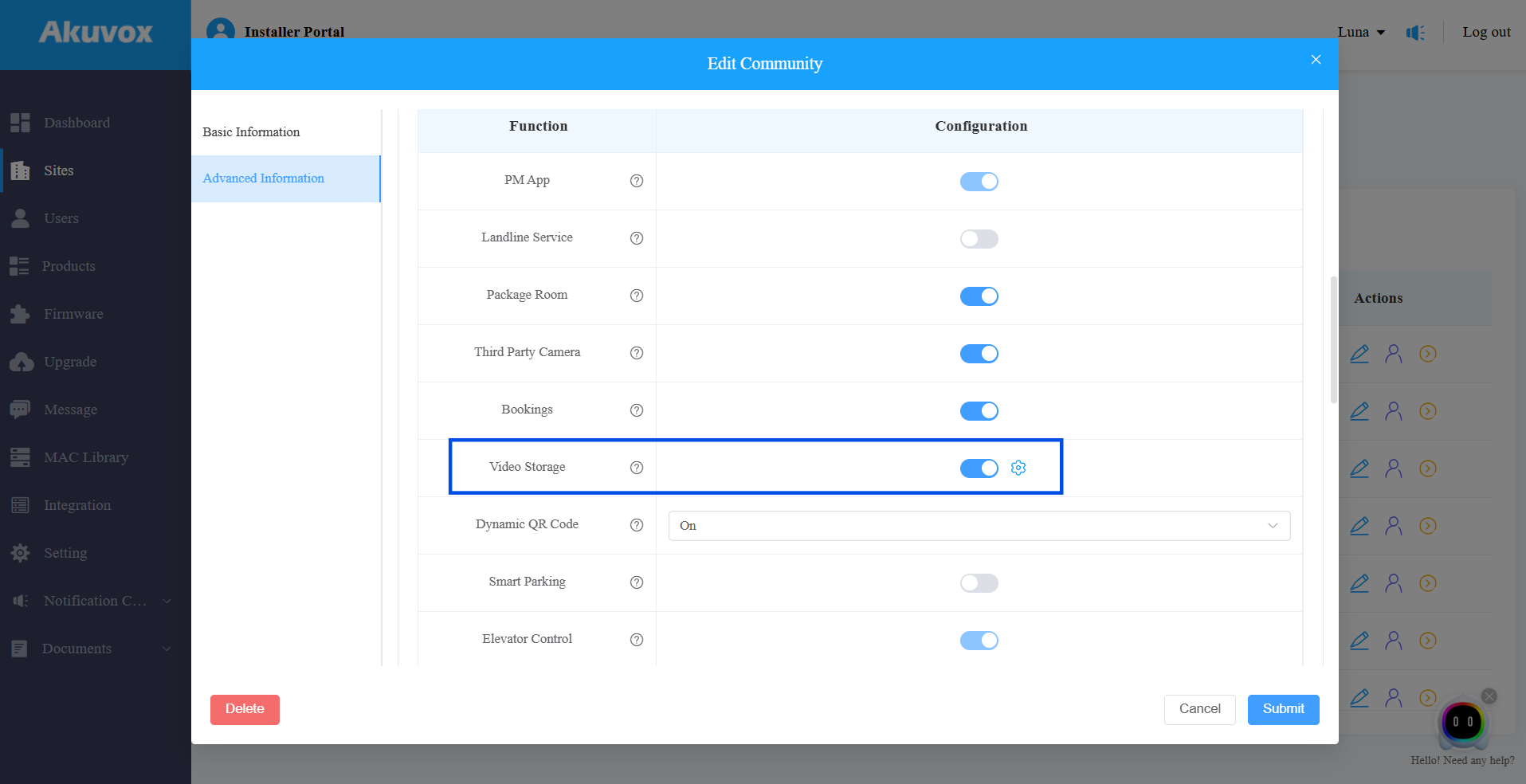
Set up the feature based on actual needs. First-time activation includes a 7-day free trial.
Video Storage Time: Set the time for all public devices in the community. It is 30 days by default.
Number of Stored Devices: Choose the number of devices that record videos.
Device(s) for Video Storage: Select the specific device(s).
Video Recording with Audio During Calls: Decide whether to record videos with audio during calls.
Click Submit.
Private Devices
Click
 of the target community on the Sites module.
Click
 of the desired apartment.
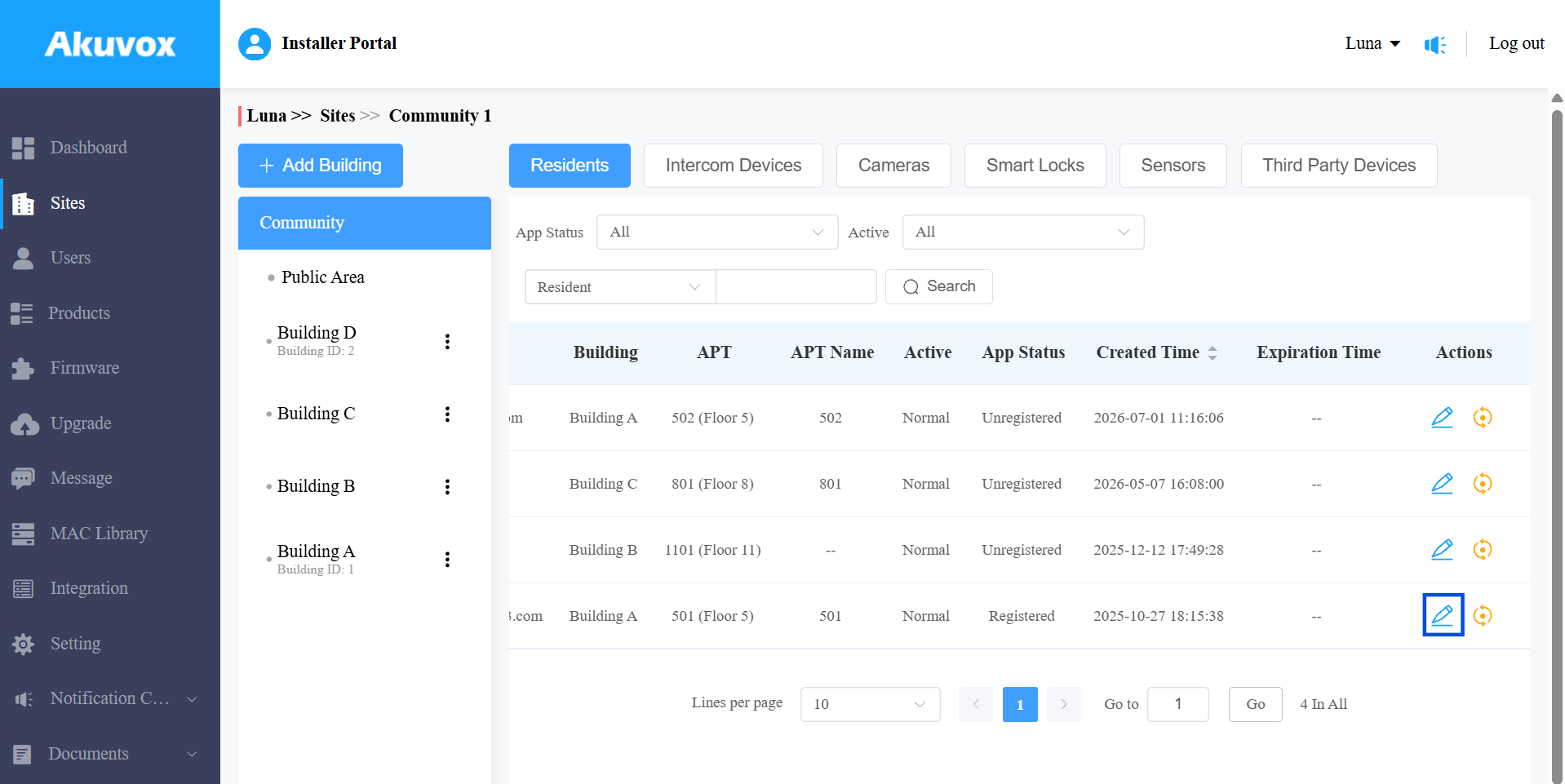
Click
 in the upper-right corner.
 Turn on Video Storage to access the settings.
Or, click
to change the settings.
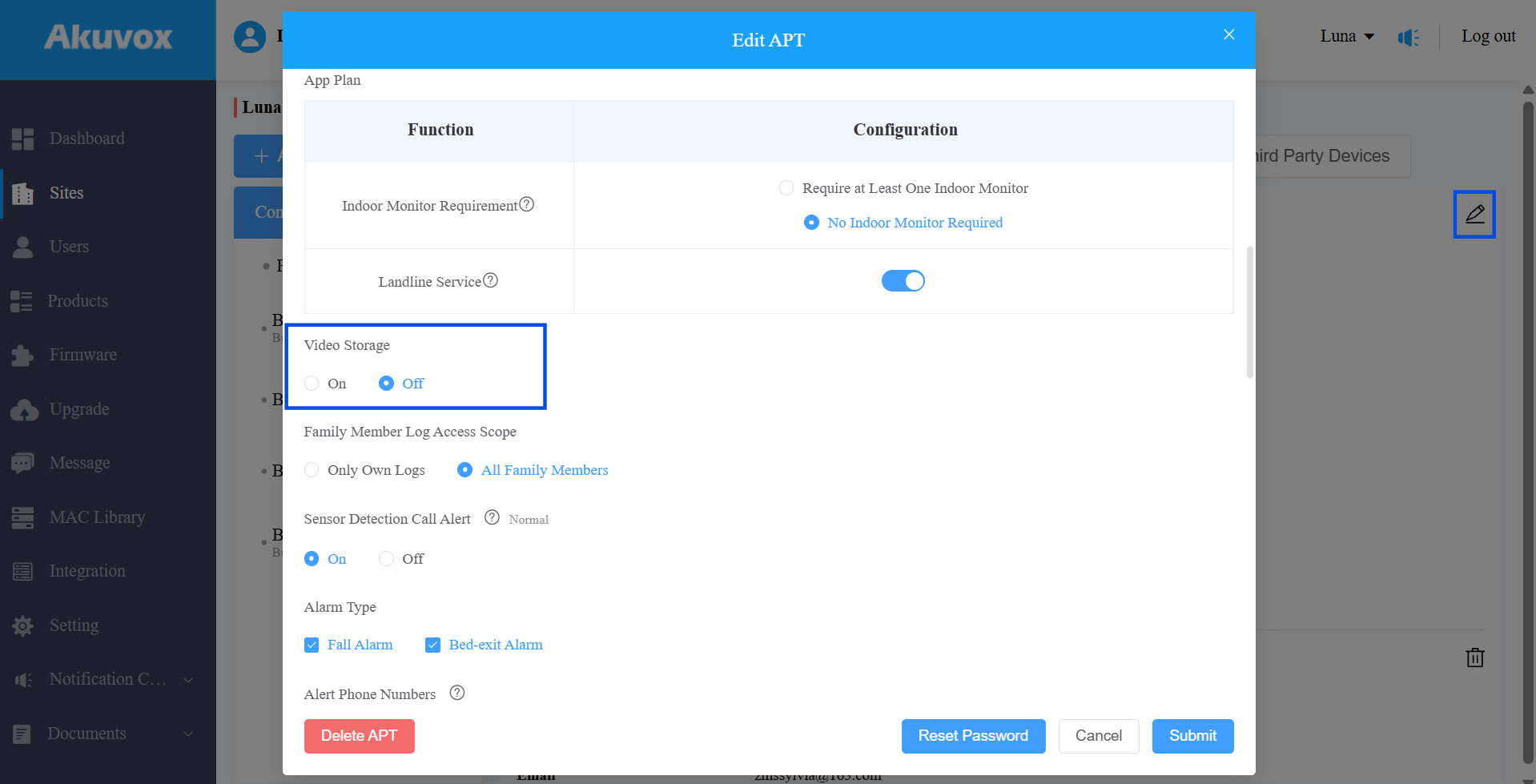
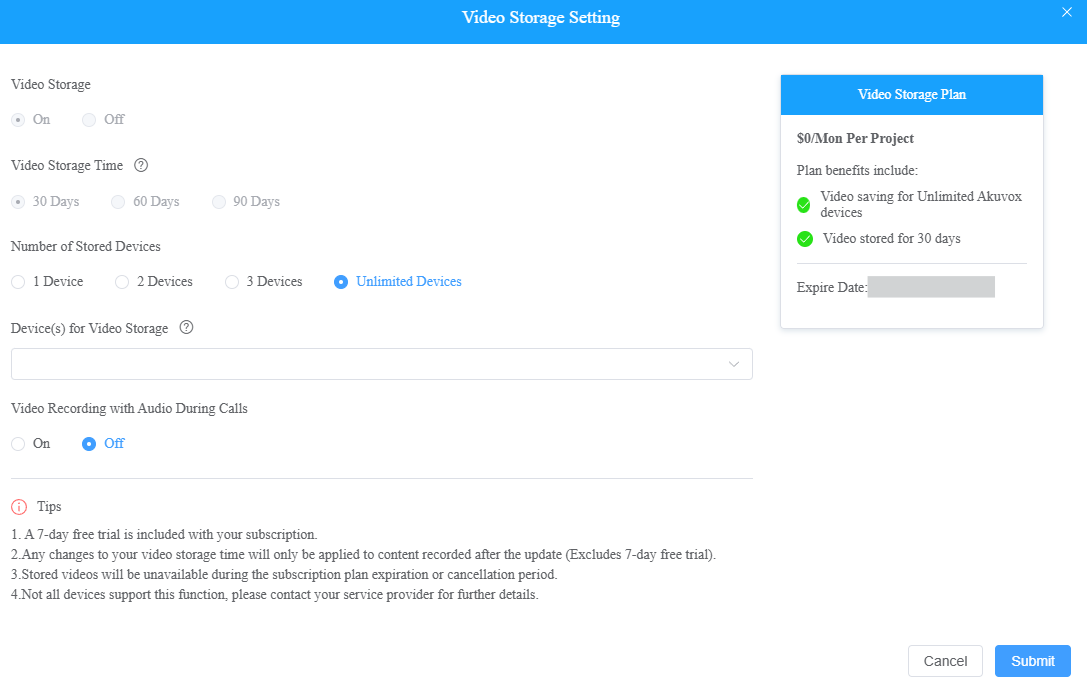
Set up the feature based on actual needs. First-time activation includes a 7-day free trial.
Video Storage Time: It is 30 days by default.
Number of Stored Devices: Choose the number of devices that record videos.
Device(s) for Video Storage: Select the specific device(s).
Video Recording with Audio During Calls: Decide whether to record videos with audio during calls.
Enable Video Storage When Adding or Editing a Device
This is an additional entry point to the community/apartment-level steps above, useful when you only need to turn on Video Storage for one device without opening the full editing page.
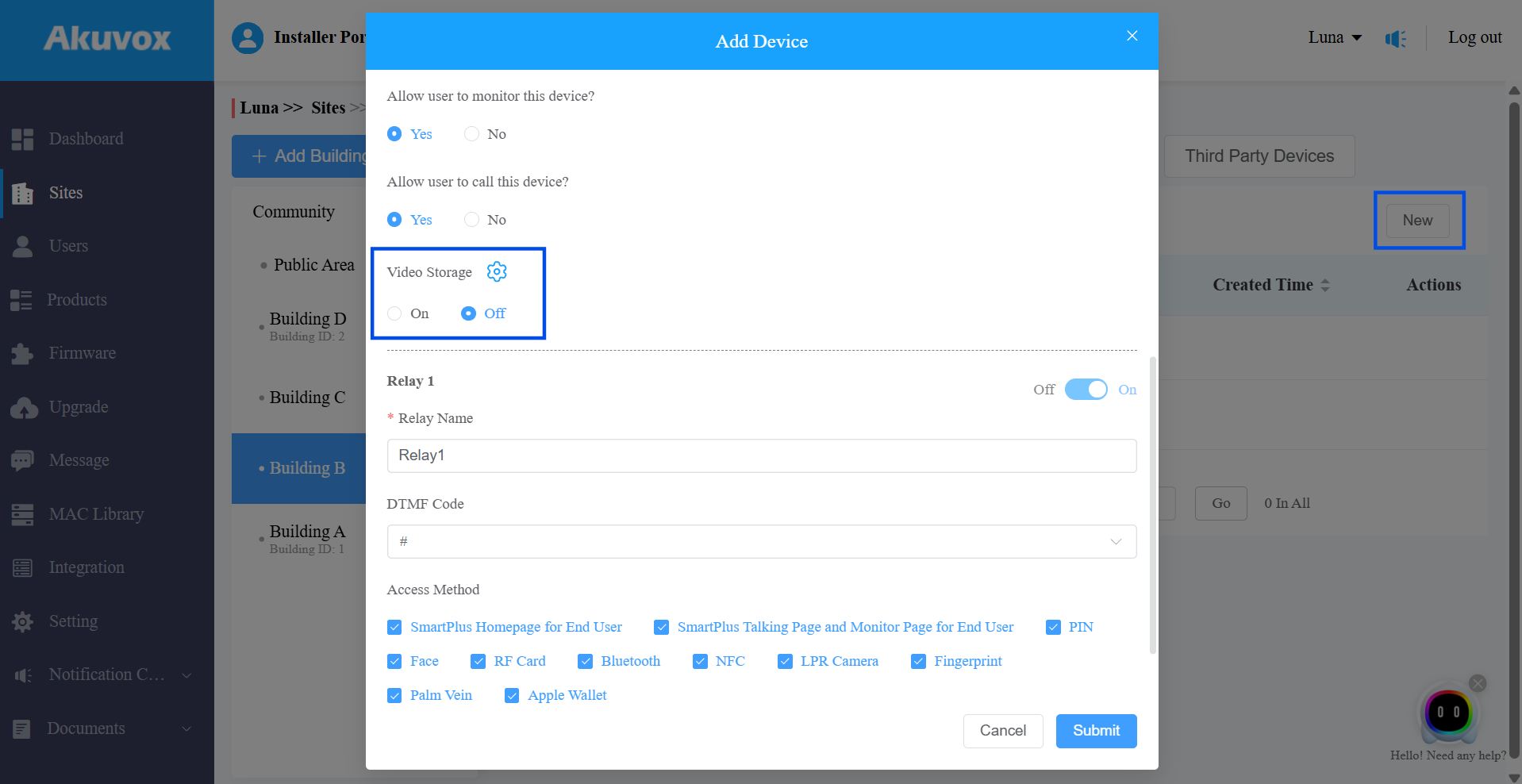
To add a device,
Select the location where it is installed.
Click New on the right.
Find the Video Storage section.
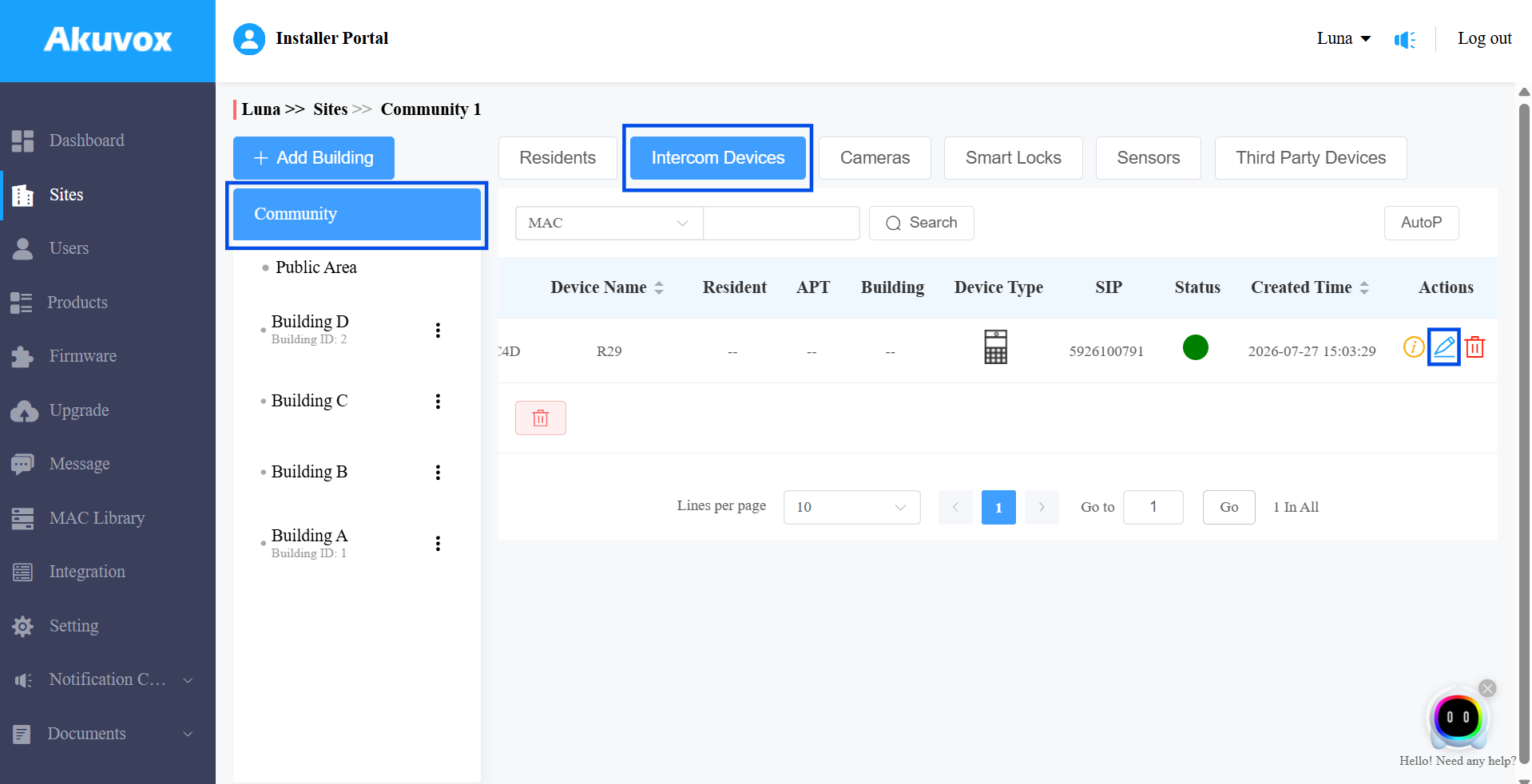
To edit a device,
Select Intercom Devices at the community level.
Click
of the target device. Find the Video Storage section.
Once you've reached the Video Storage section (via either path above):
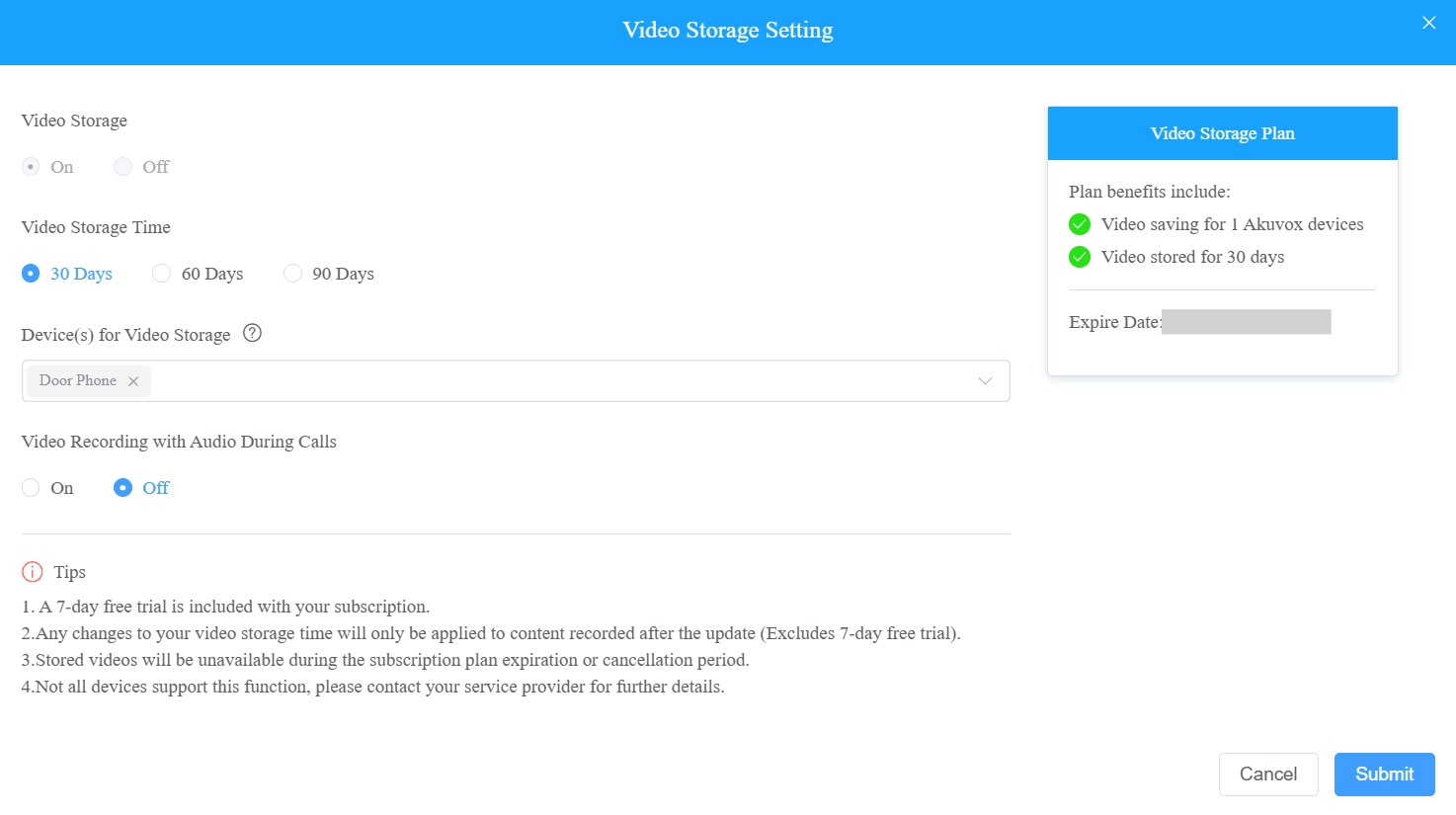
Turn on the feature to access the settings. First-time activation includes a 7-day free trial.
Or, click
to change the settings.Set up the feature based on actual needs.
Video Storage Time: Set the time for this device. It is 30 days by default.
Video Recording with Audio During Calls: Decide whether to record videos with audio during calls.
Click Submit.