About This Manual
This instruction provides an integration scenario, topology, and all functions’ configurations between the Akuvox door phone and the Nx witness VMS system.
Note
The tested door phones include R20, R29, and X915.
Integration Topology
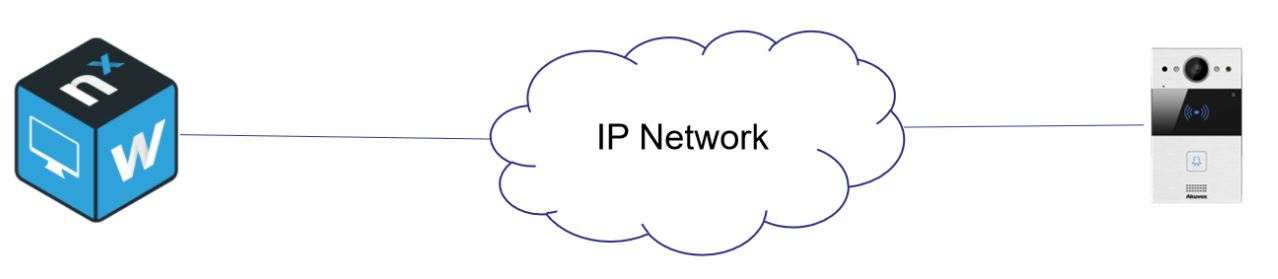
Data exchanges between the Nx witness system and the Akuvox door phone can be achieved through an IP-based network. The Nx witness system in this solution refers to a video surveillance system that can be installed on a computer.
System Application & Deployment Scenarios
In addition to the door phone installation, installers are required to connect the internet to the computer which is installed with the Nx witness VMS system.
With Nx witness VMS, maintenance staff can:
add or auto-discover Akuvox door phones;
obtain video and audio streams from Akuvox door phones;
open doors remotely.
Adding the Akuvox Door Phone to the Nx Witness Server
Set up the Door Phone
Use the door phone’s IP to log into its web interface with the username and password. The default is admin.
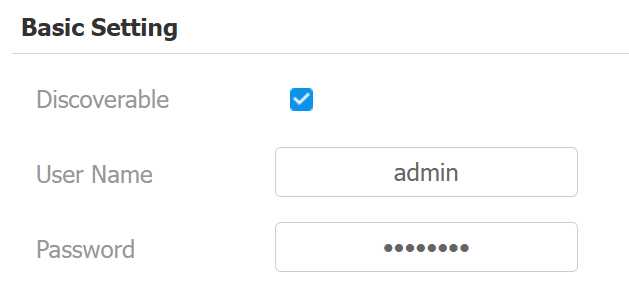
Go to Surveillance > ONVIF interface and enable Discoverable.
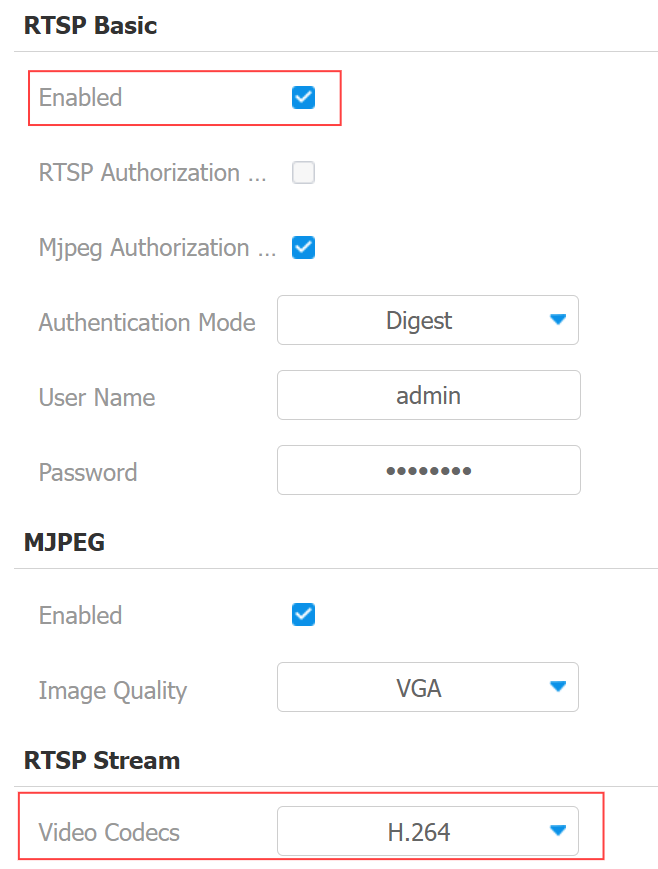
Then, go to Surveillance > RTSP interface. Enable the RTSP server and set the video codec to H.264 format.
Add the Device Manually at the Nx Witness Server
Click Add Device at the main menu.
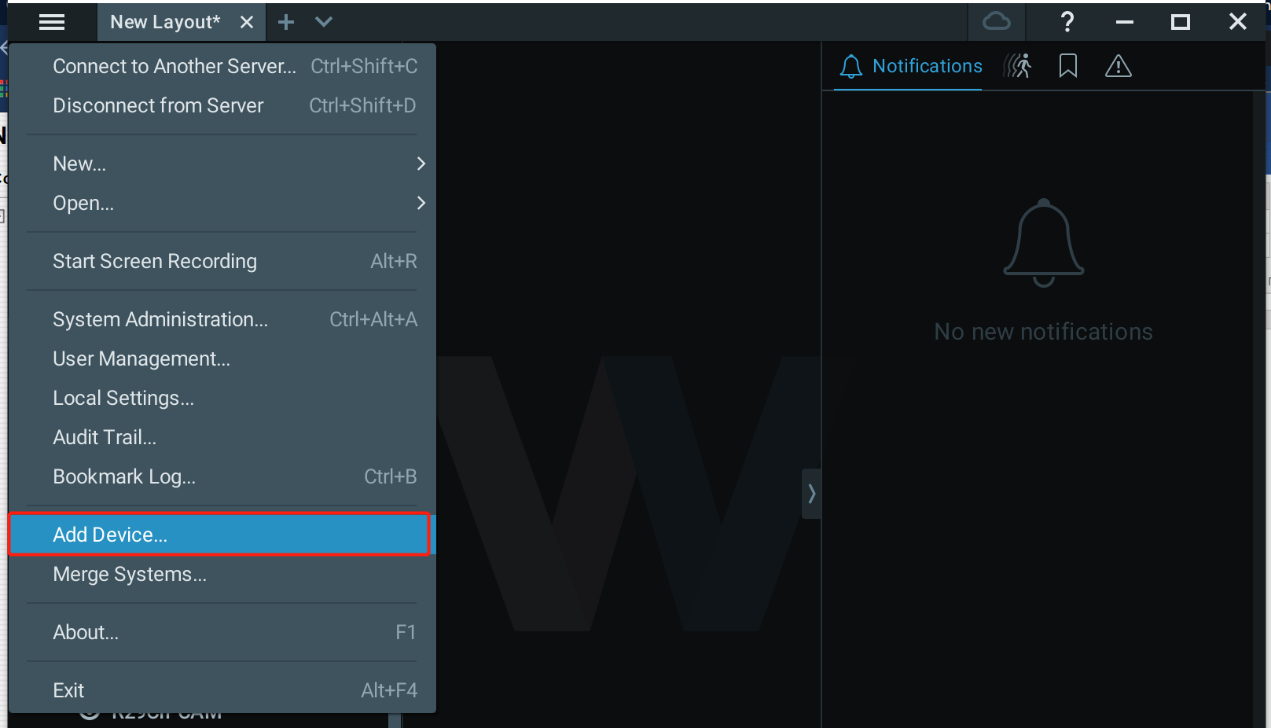
Enter the RTSP address of the Akuvox door phone. The default format is rtsp://{Device IP address}/live/ch00_0. For example, rtsp://192.168.36.123/live/ch00_0.
Tick to use the default port.
Click Search to find the door phone option.
Select the desired search result.
Click Add All Devices.

Discover the Device Automatically
After enabling ONVIF Discoverable in the door phone, the available devices will appear in the camera list.
Obtain Video & Audio Stream
Set up the Door Phone
Use the door phone’s IP to log into its web interface with the username and password. The default is admin.
Go to Surveillance > RTSP interface. Enable the RTSP server and set the video codec to H.264 format. If it is R20A, you also need to enable Audio.
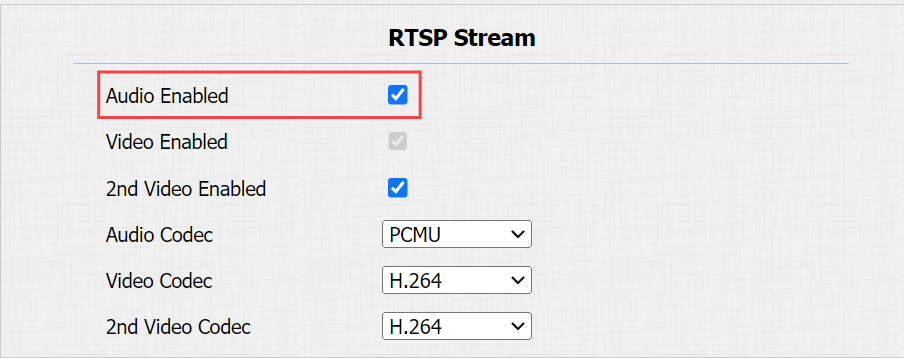
Click Submit to save the settings.
Set at the Nx Witness Server
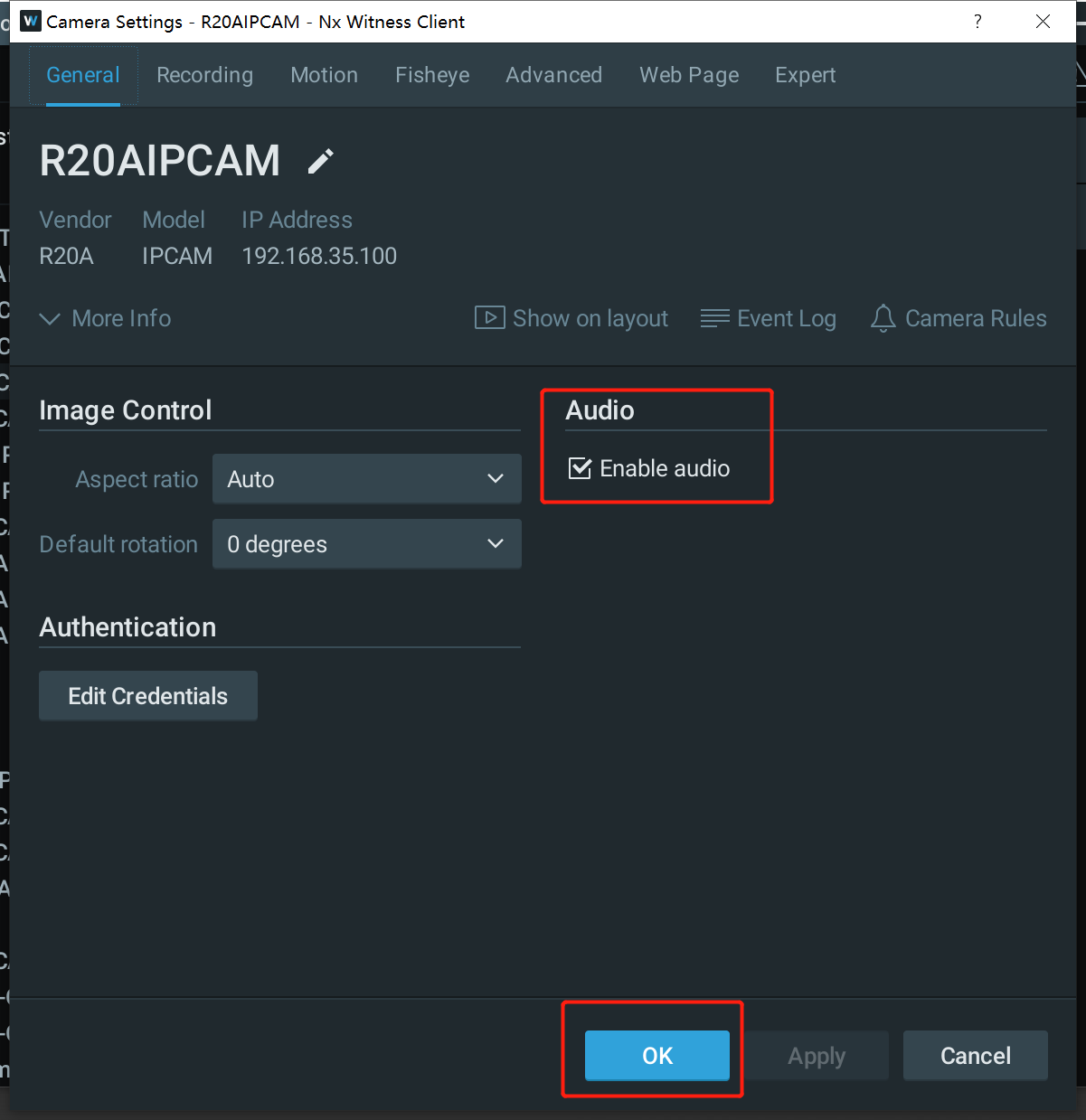
Right-click on your camera and select Camera Settings. Enable audio and click the OK button to save settings.
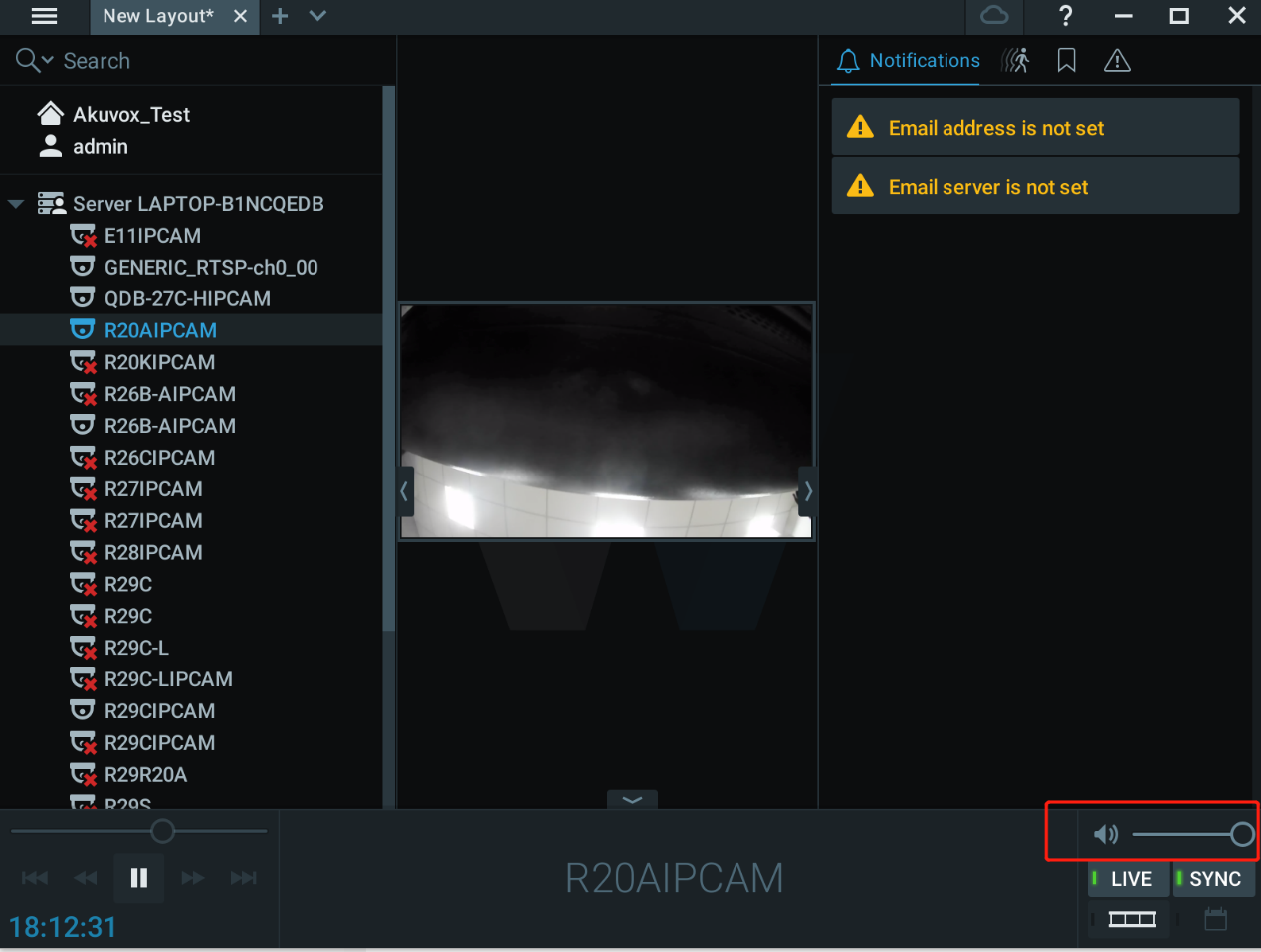
Drag the intercom camera stream into the layout from the device list just like any other camera. In live view or recording, you can set the audio volume at the lower rightmost corner of Nx Witness.
Trigger Door Phone Relay from Nx Witness Server
Set up the Door Phone
Go to the Access Control > Relay > Open Relay Via HTTP interface.
Enable the feature and customize the username and password that are part of the HTTP command. For example, http://192.168.36.111/fcgi/do?action=OpenDoor&UserName=admin&Password=admin&DoorNum=1.
DoorNum refers to the relay to be triggered. For relay A, DoorNum=1; for relay B, DoorNum=2.
Note
Whether the device is in high security mode decides which HTTP format can be used. Check the high security mode on the Security > Basic interface.
When the high security mode is enabled, the following two formats are supported:
http://{username}:{password}@{deviceIP}/fcgi/OpenDoor?action=OpenDoor&DoorNum=1
http://{deviceIP}/fcgi/OpenDoor?action=OpenDoor&DoorNum=1
When the high security mode is disabled, the device supports the above two new formats as well as the old one:
http://{deviceIP}/fcgi/do?action=OpenDoor&UserName={username}&Password={password}&DoorNum=1
When the device does not have the high security mode function, it only supports the above old format.
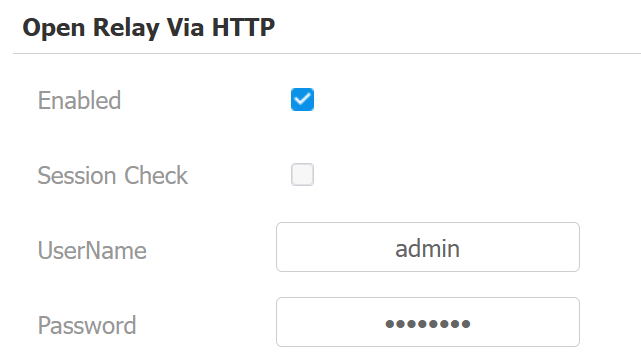
Click Submit to save the settings.
Set at the Nx Witness Server
Right-click on the target camera and select Camera Rules.

Click Add to create a new rule.
Select Soft trigger from the When list, at Target Camera.
Define available roles for this event
Select Do HTTP request in the action list
Enter the HTTP unlock command.
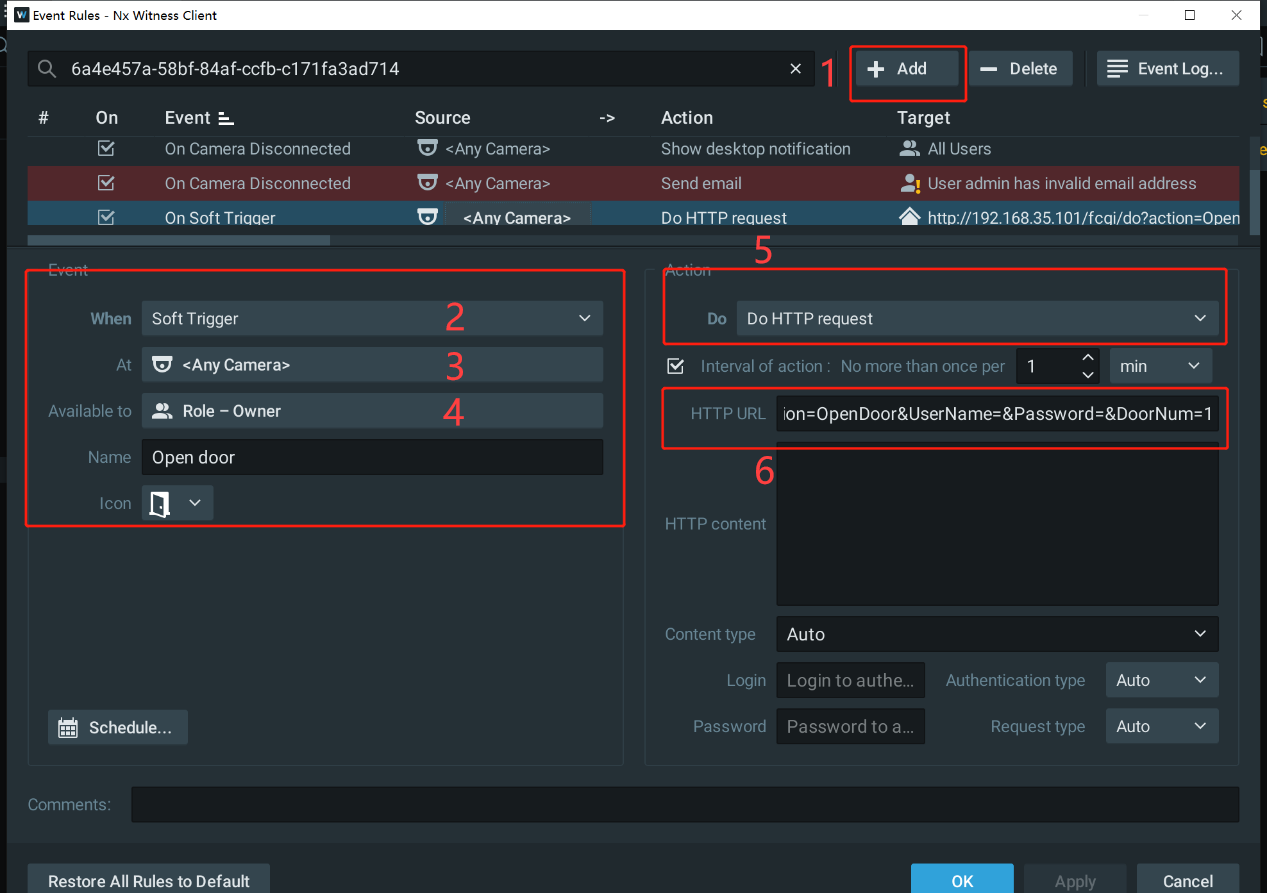
Click OK to save the configuration.
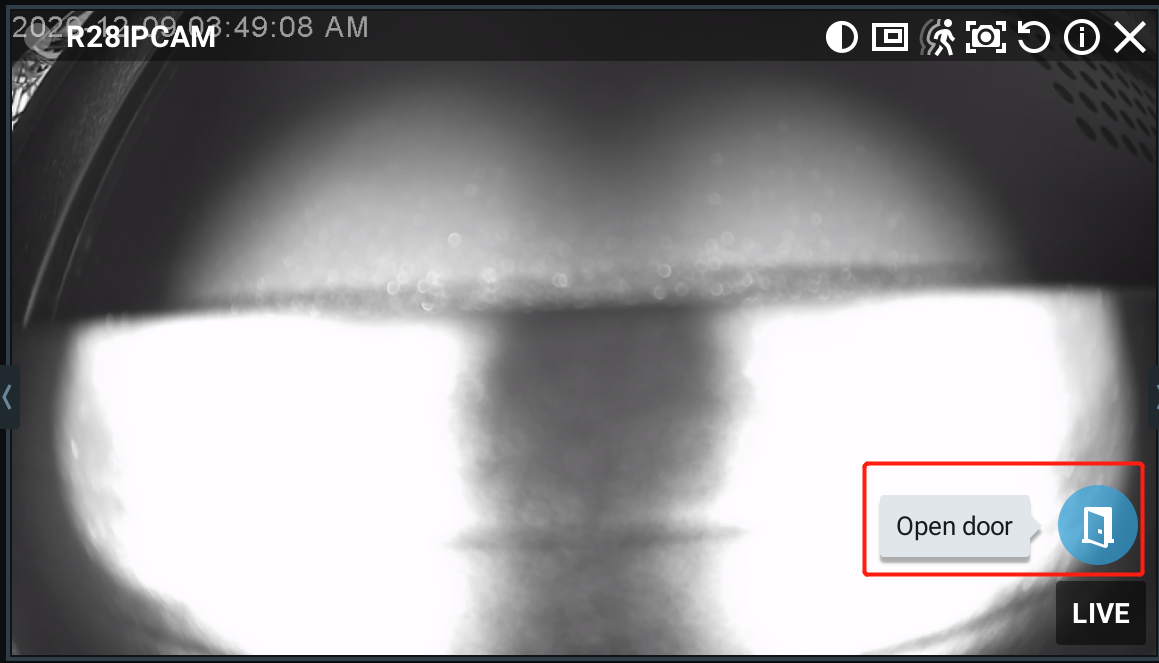
Click the Open Door icon on the live view, and the door phone relay will be triggered.