The Muster Report is used during emergency situations (such as fire alarms or evacuations) to quickly identify who is safe and who may still be inside the building.
It works by:
Tracking who entered the building.
Recording who checked in at the assembly point.
Automatically identifying missing personnel.
Installers, project managers, and administrators have permission to set this feature up.
Compatible models and versions(or higher):
Model
Version
Model
Version
R29
29.30.10.404
X910
2910.30.11.28
R28V2
228.30.10.231
X912
912.30.11.107
R25
25.30.10.117
X915V2
2915.30.10.420
R20
320.30.11.30
E16 V2
216.30.10.208
A08
108.30.11.8
E16 V3
416.30.11.206
A03
103.30.10.204
A01/A02
101.30.10.206
A095
95.30.10.110
A094
92.30.10.205
X916
916.30.10.508
S539
S539.30.10.507
S538
538.30.10.705
S535
535.30.11.8
A05V2
205.30.11.114
E12V2
312.30.11.106
S532
532.30.10.336
E18
18.30.11.136
A15
1115.30.10.407
WR01
1401.30.11.221
Scenario
During an emergency evacuation:
Personnel exit the building.
They gather at a designated assembly point.
They check in using access credentials.
Security verifies who is safe and who is missing.
The Muster Report automates this process.
How the Muster Report Works
The Muster Report is based on two key elements:
Perimeter Doors → Define who is inside the building or within an area
Muster Readers → Define who is safe after evacuation
The logic is:
A person enters through a perimeter door → counted as inside
During evacuation, the person checks in on a muster reader → marked Safe
If the person does NOT check in → marked Missing
This allows administrators to quickly identify who may still be inside.
Set up Muster Report
Click Report > Muster Report > Muster Report Setting.
Set up the following settings.
Perimeter Door Group: This defines which doors are used to determine whether a person is within the area.
You can select up to 20 doors.
Options include all available doors within the project.
When a person enters through one of these doors using card access or other entry methods but does not exit, they are considered to be still inside the area. Such individuals will be accounted for during the muster check.
Muster Readers: Serve as designated assembly points where personnel check in with their credentials, such as swiping cards. You can select up to 5 devices.
Reset the report daily at: If enabled, the system clears the report automatically at the specified time each day.
Remove user from report after being inactive for: If enabled, users who have not used access control for a specified time will be automatically removed. This is used to prevent inactive users from appearing in reports.
Generate Muster Report When an Emergency Alarm Occurs: Enabled by default. When the emergency alarm happens, the system will generate reports automatically for all companies.
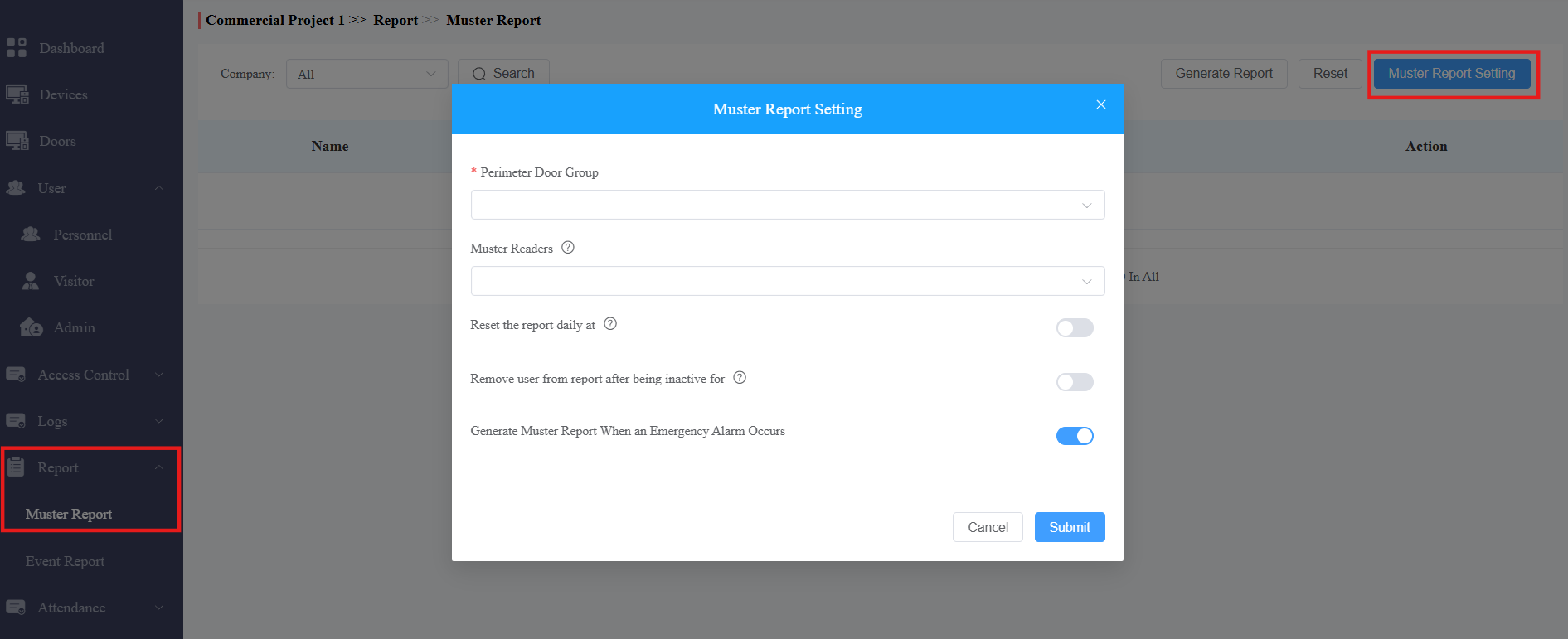
Submit the setting.
Generate Reports
After setting up the muster report, click Generate Report and select companies if it is a multi-company project.
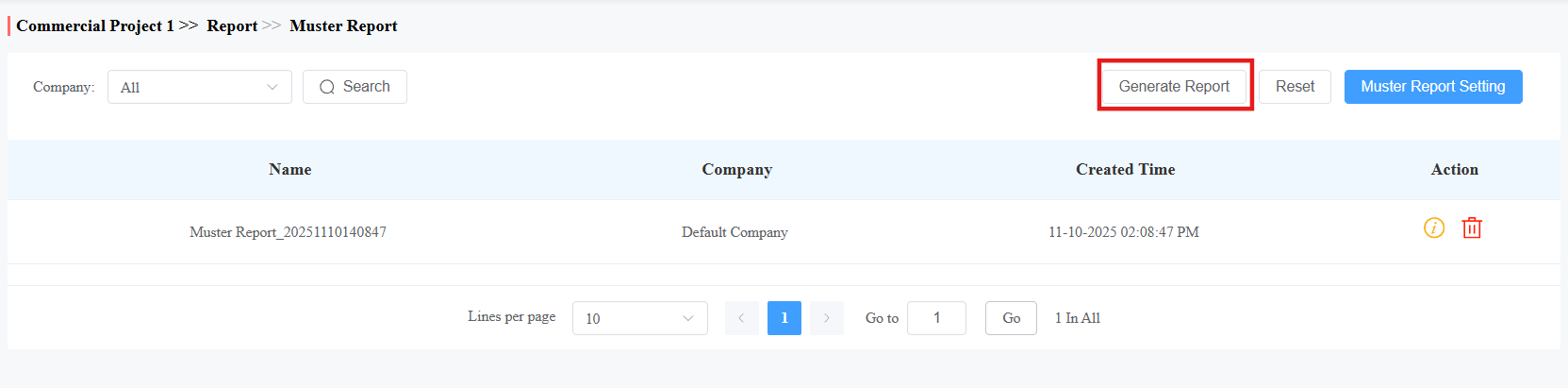
View Reports
After muster reports are generated, you can
click
 to view the report details.
click
 to remove it.
click Reset to set all personnel’s status to missing and to stop updating the previous reports.
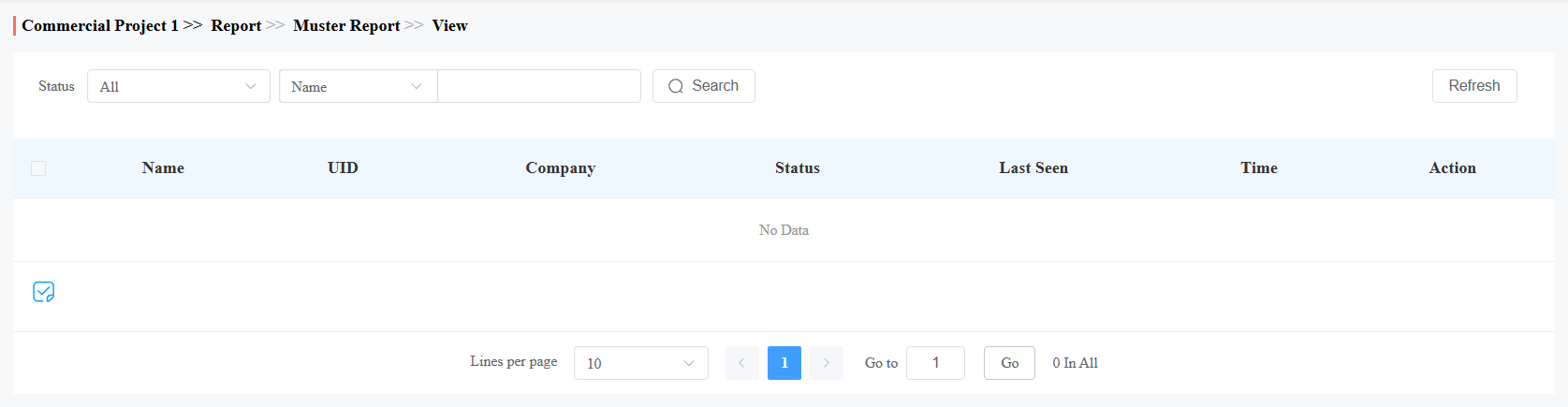
See the description of each item on the Info interface in the chart below.
Item | Descriptions |
|---|---|
Name | The username. |
UID | The user ID. |
Company | The company of the user. |
Status |
|
Last Seen | The latest door that the person enters through. |
Action | Click |
 to manually check in for the person.
FAQs
Why is a user shown as Missing?
Possible causes:
User did not check in.
User is already outside but did not swipe.
Reader misconfiguration.
User inactive.
Why is a user not included in the report?
Possible reasons:
Door not selected as perimeter door.
User inactive.
User never entered.
Can multiple muster readers be used?
Yes.
Maximum: 5 devices.
Recommended for: Large sites.
Can reports be generated without an alarm?
Yes.
Manual generation supported.