Before You Start
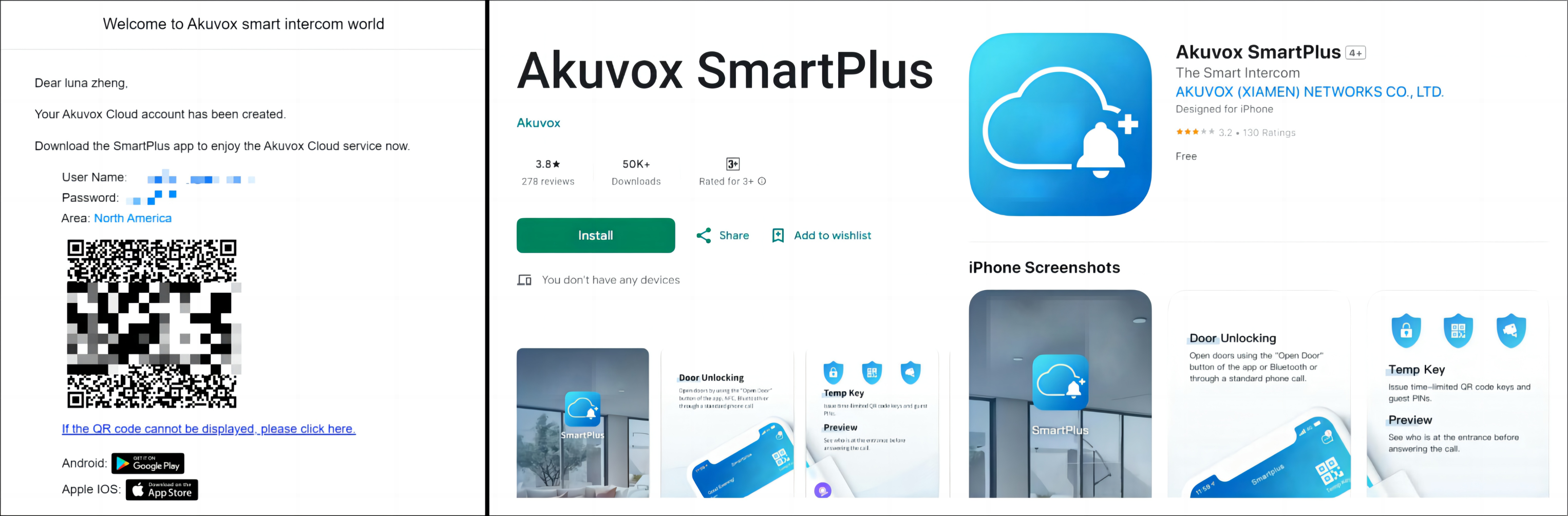
Provide a username and email address for installers to create a SmartPlus App account. If you want to log in via SMS, provide your mobile phone numbers as well.
Open the login email sent by Akuvox. Please check the spam folder if the email cannot be found in the inbox.
Download the latest SmartPlus App from the Android Google Play or IOS App Store.
Watch the Video Guide
Prefer a visual walkthrough?
Watch: [End User]SmartPlus App Login and Password Reset
Login
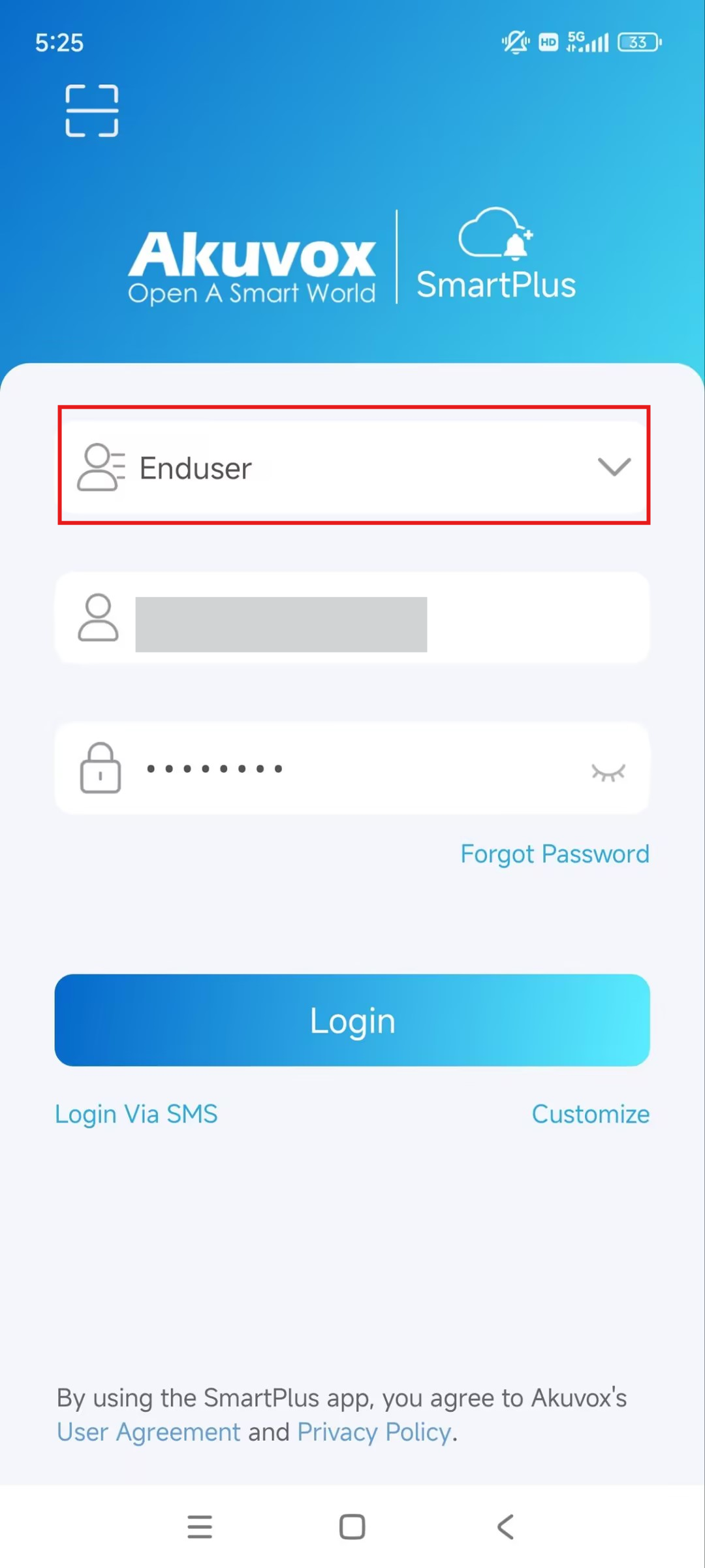
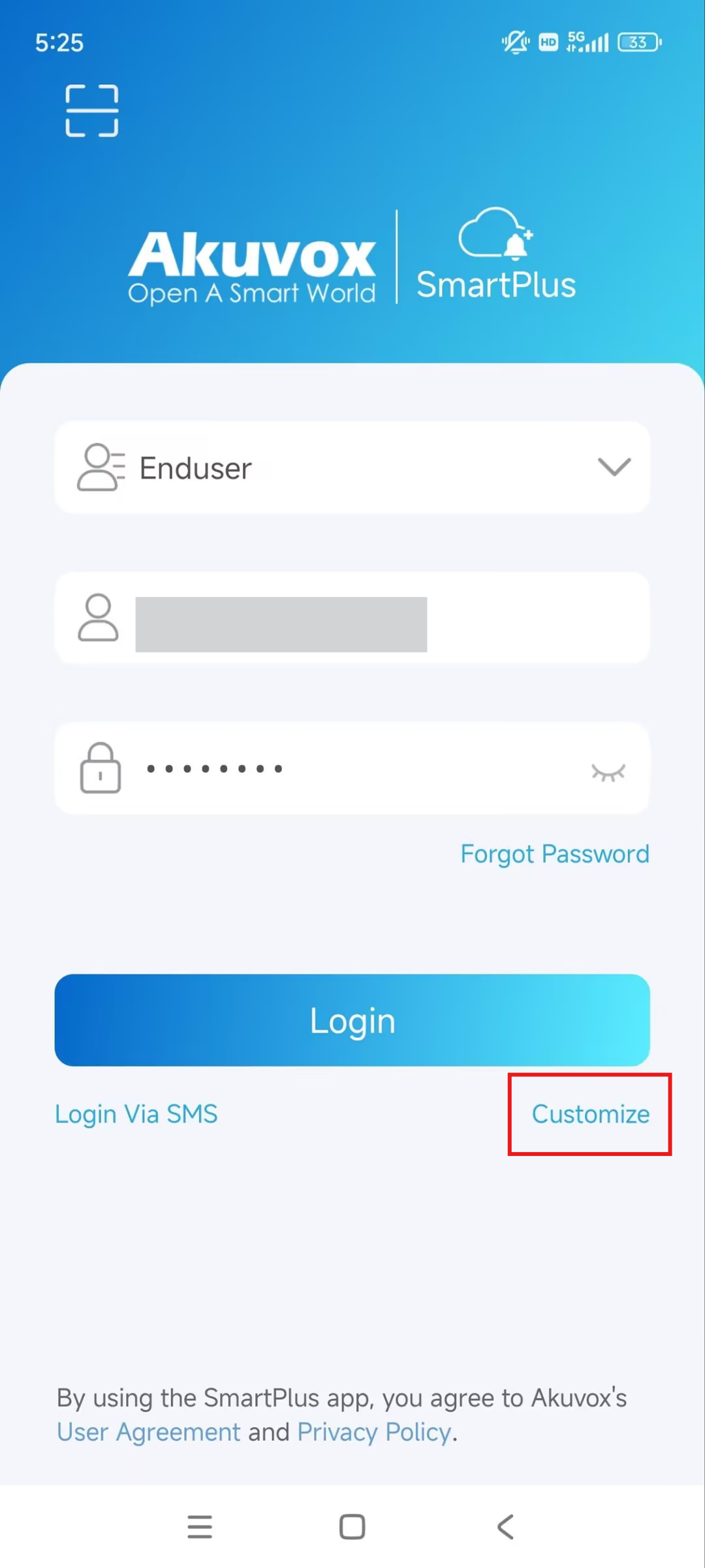
Open the App and select the role from Enduser, Property Manager, and Admin.
There are three login options: QR code scanning, Login with username, and Login via SMS.
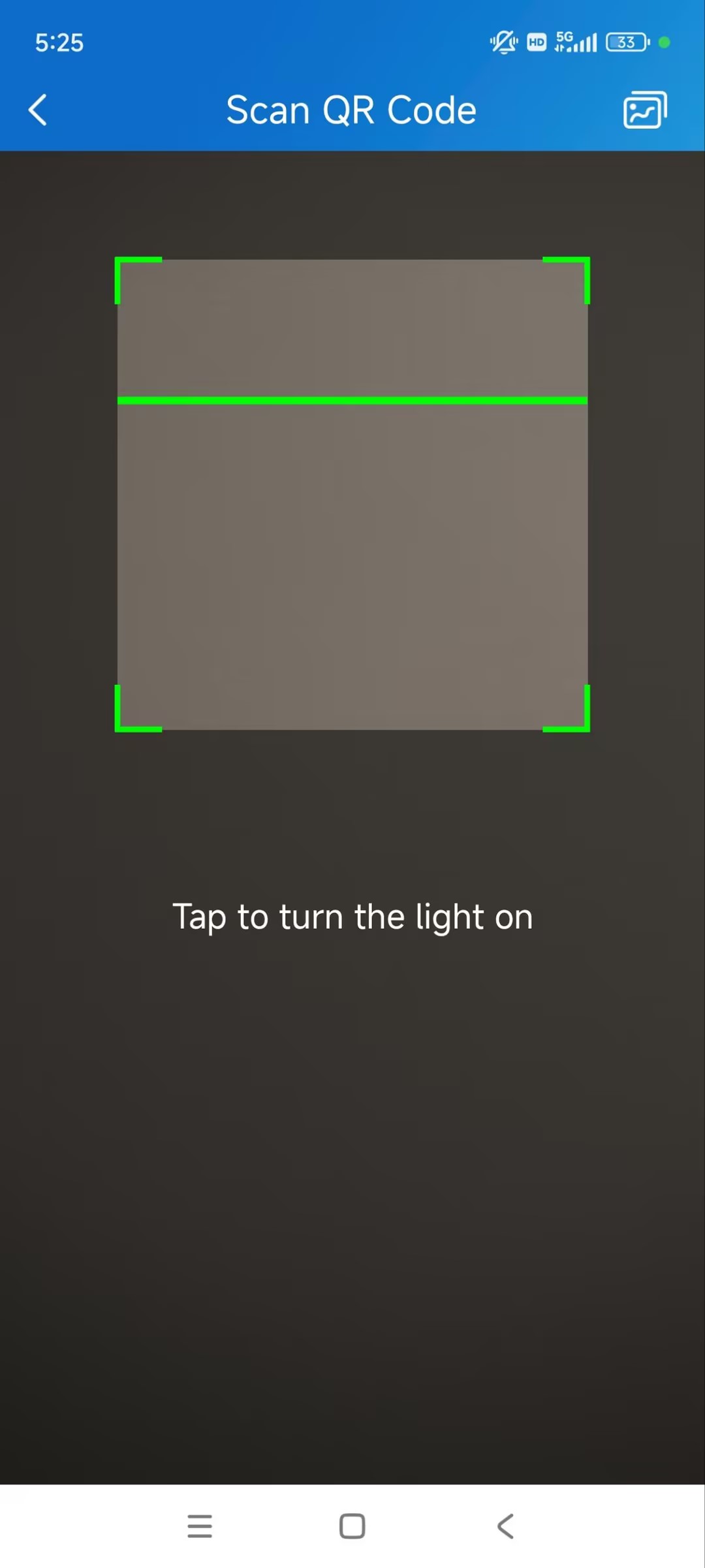
Login via QR Code
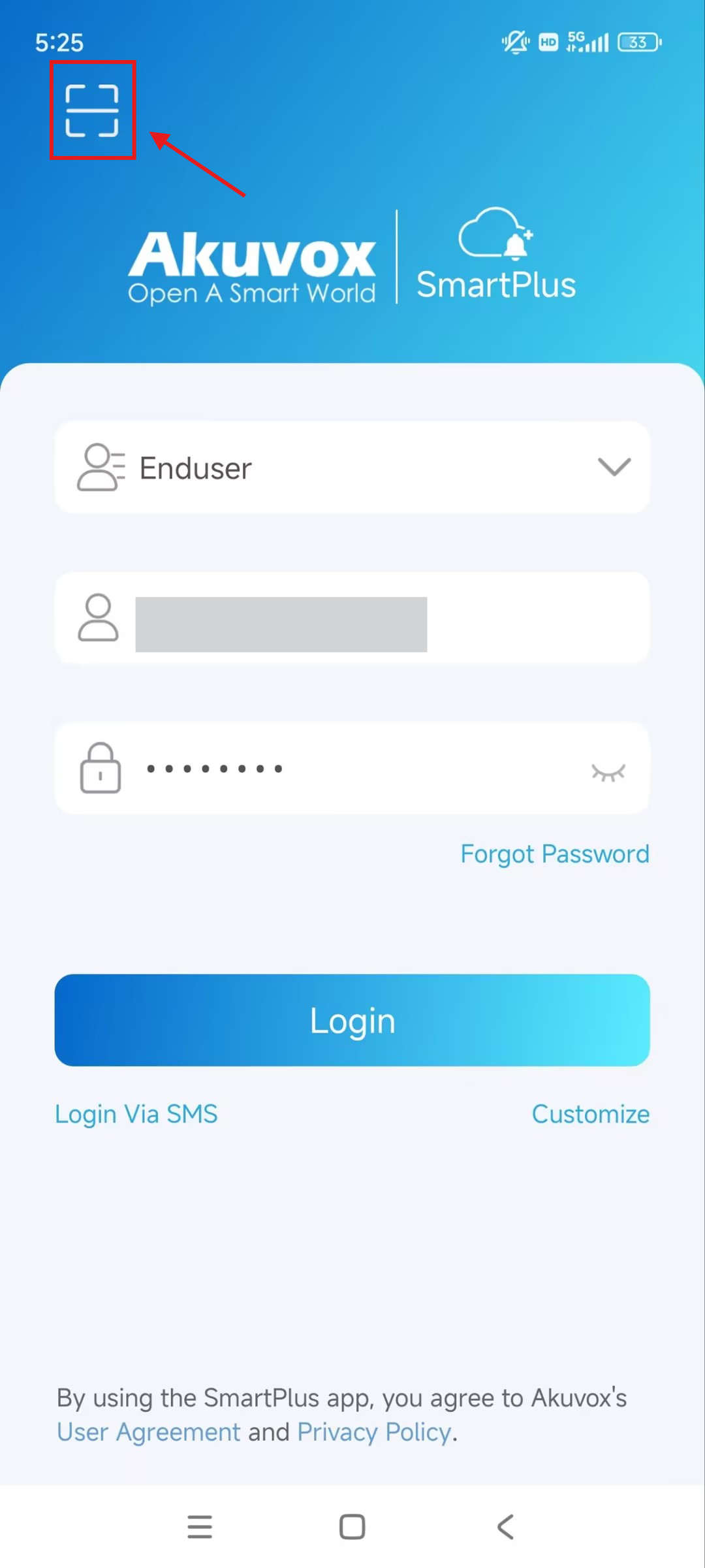
a. Tap the scan icon on the upper left corner.
b. Center the QR code included in the login email in the camera view. Or, select the QR code from the local album  .
.
Login with Username
a. Enter the username and password included in the login email.
b. Choose the area on the lower right corner and click Login.
Login via SMS
a. Click Login Via SMS on the lower left corner to switch the view.
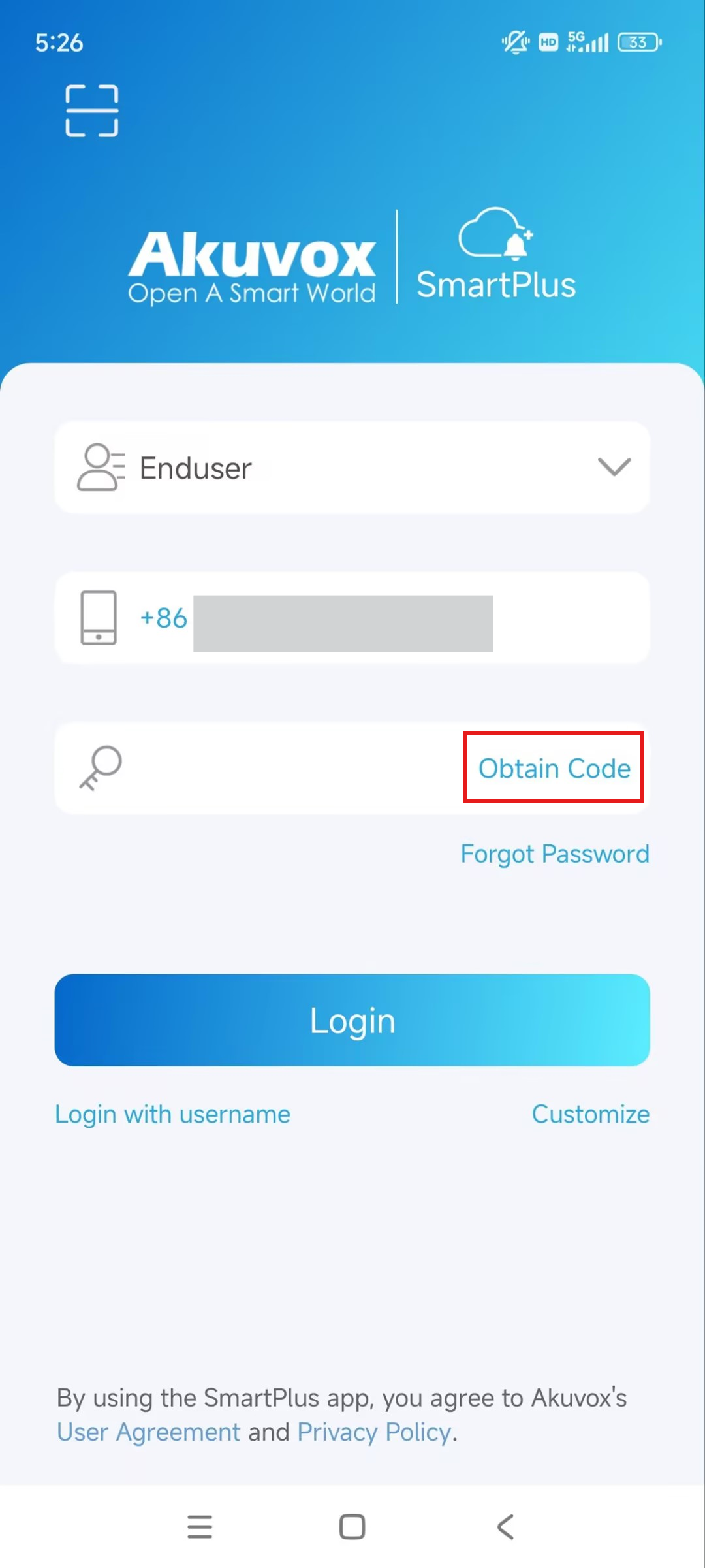
b. Click Obtain Code and a text message with a verification code will be sent to you.
c. Enter the code and click Login.