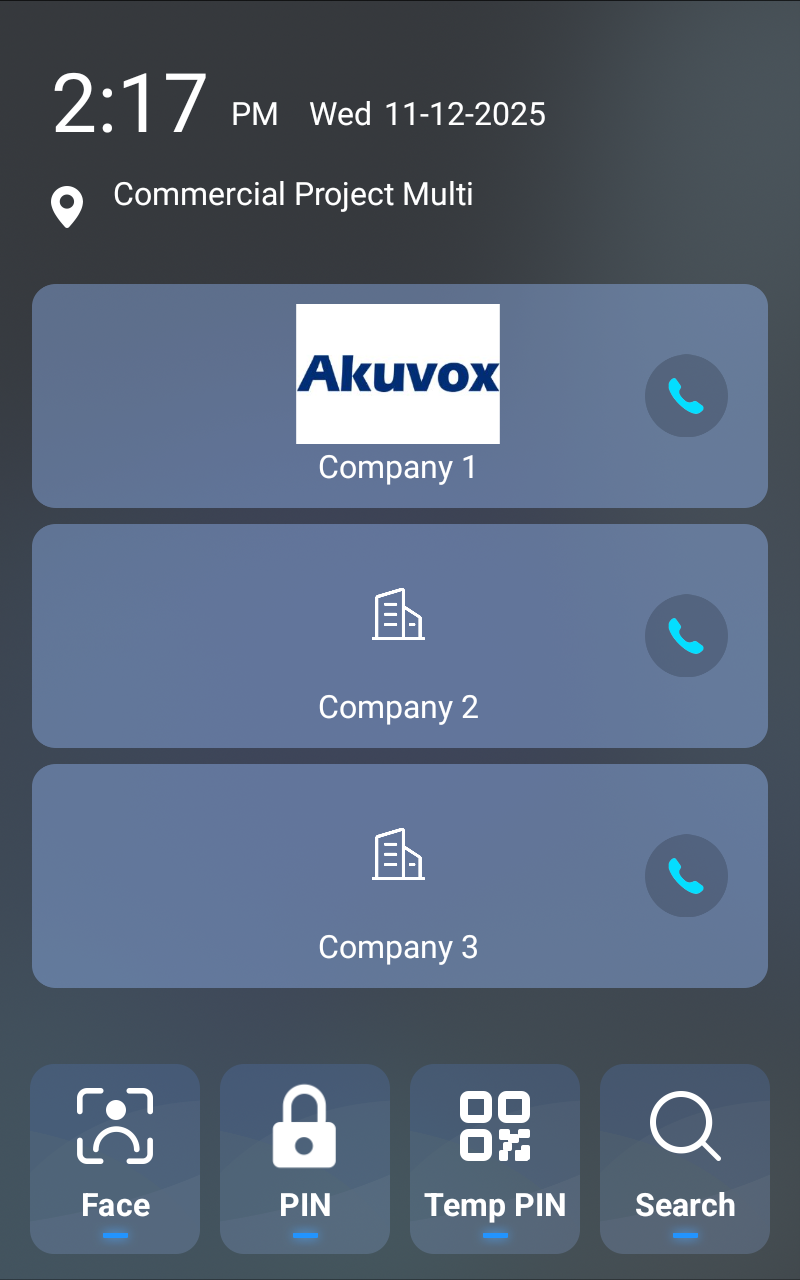
Visitors can call personnel by tapping a specific company on the Akuvox door phone’s home screen.
Then, personnel can unlock for the visitor.
Both installers and project managers can set up this feature in multi-company projects.
Compatible models and versions(or higher):
X915V2: 2915.30.10.619
S539: 539.30.10.507
S538: 538.30.10.705
Configuration on the Smart Access Cloud
1. Log in to the cloud platform with your account.
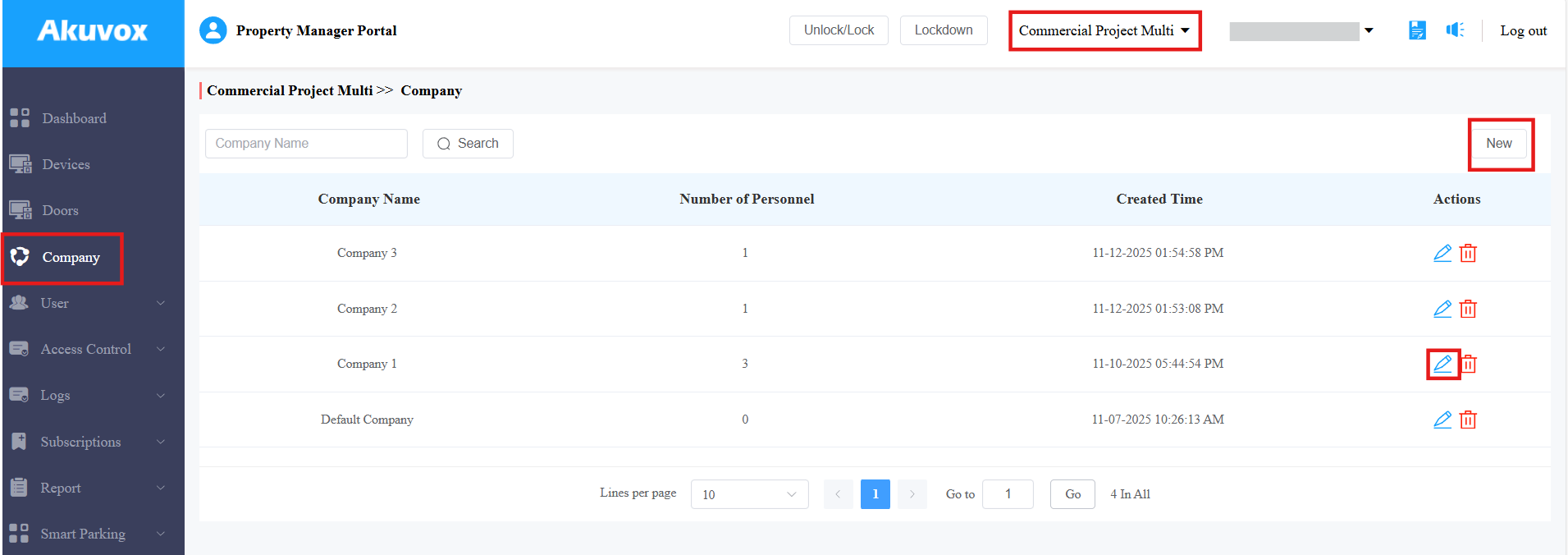
2. Select the desired project and click Company.
3. Click New to add a new company, or click  to set up a current one.
4. Enable Sequence Call.
5. Select up to 3 groups of personnel or devices to be called. The personnel will display in the list when the SmartPlus Intercom Feature is enabled for them.
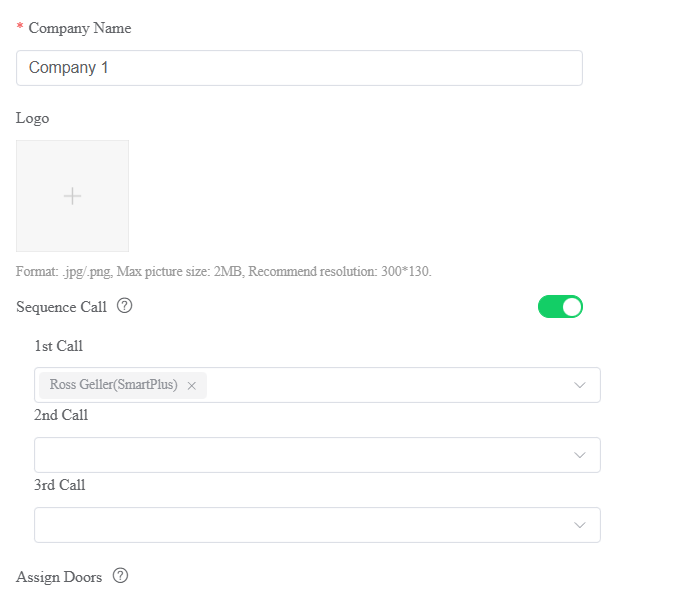
6. Submit the setting.
Note
The company is displayed on the door phone’s home screen when any of the users in the company has permission to open the door.
Configuration on the Door Phone
1. Use the device IP(scanned by IP Scanner) to log in to its web interface. The initial username and password are admin.
2. Go to the Setting > Key/Display interface.
3. Set the theme to Office.
4. [Optional] Select the desired key to display on the device’s home screen.
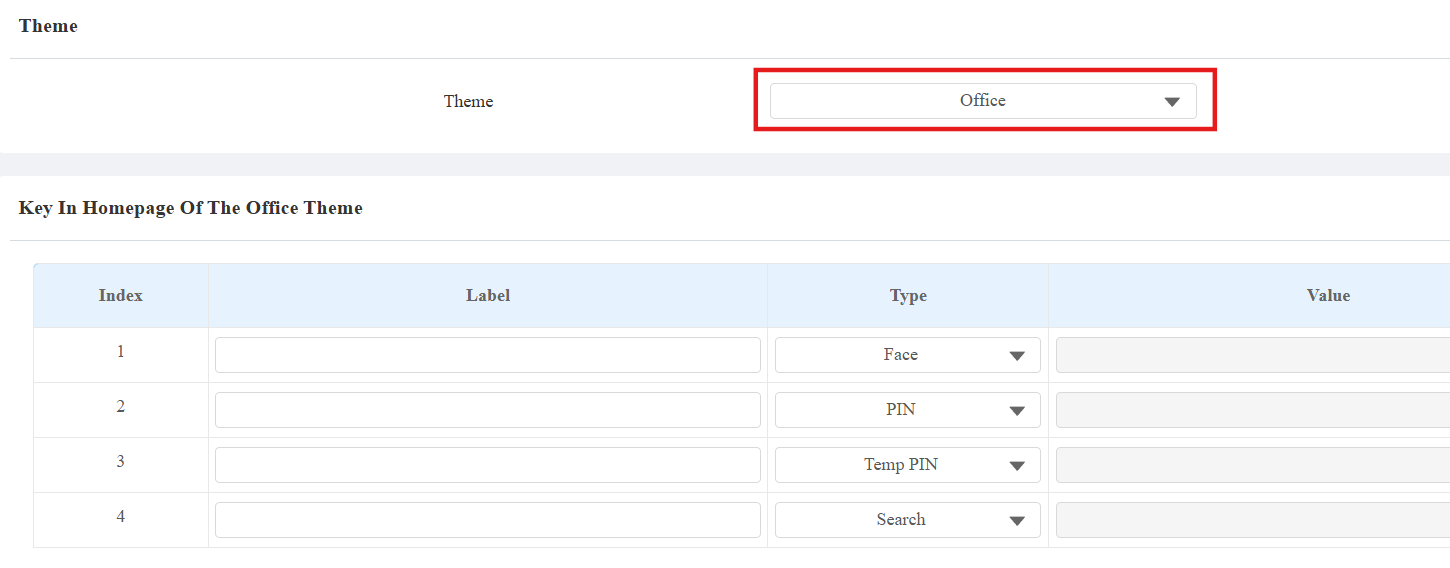
5. Submit the setting.
After configuration, visitors can call personnel in sequence by tapping the dial icon next to the target company.