The integration of the akubela SL20 with SmartPlus enhances home security and access control. You can securely unlock the smart lock remotely using the SmartPlus App and various access methods.
Note
The SmartPlus App version should be 7.13.3 for iOS and 7.13.0003 for Android or higher.
For End Users
Only with the family master accounts can you add the lock. You can add it via Bluetooth or an access point.
Add the Lock
Tap Me > Discover > akubela Smart Locks. For the latest app version, the path is Me > Device Management > Smart Locks.
Tap + in the upper-right corner and select SL20.
Set the lock to be in the pairing mode.
The lock has NOT been paired with the network before. | The lock has been paired with the network. |
|---|---|
|
|
Note
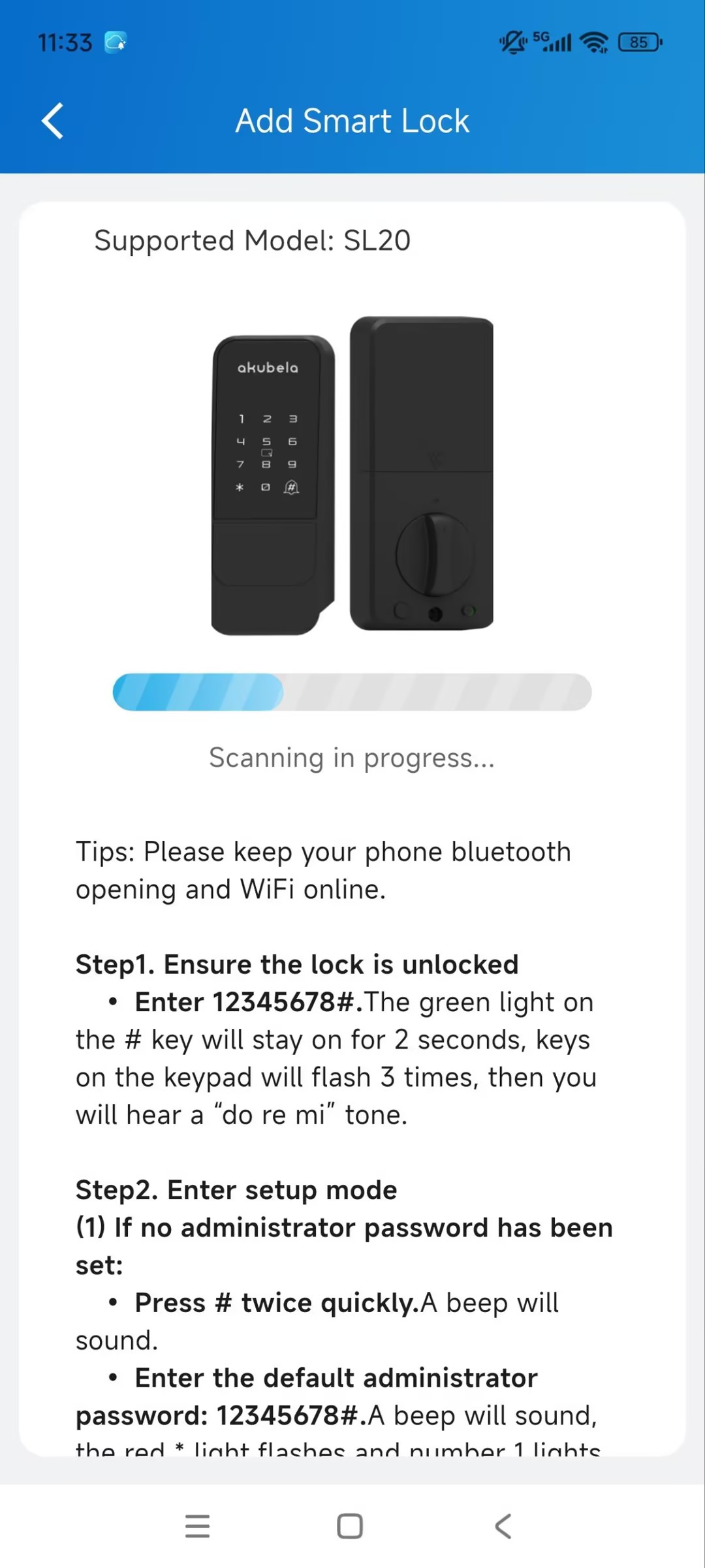
If it is a brand new lock, you need to set up its password first.
Enter 12345678# to unlock it and set the password.
Your installer or property manager can add the lock for you. You need to connect it to a Wi-Fi before using it.
Tap the Add icon in the upper-right corner. The app will start scanning the lock. Make sure the Bluetooth on your mobile phone is turned on.
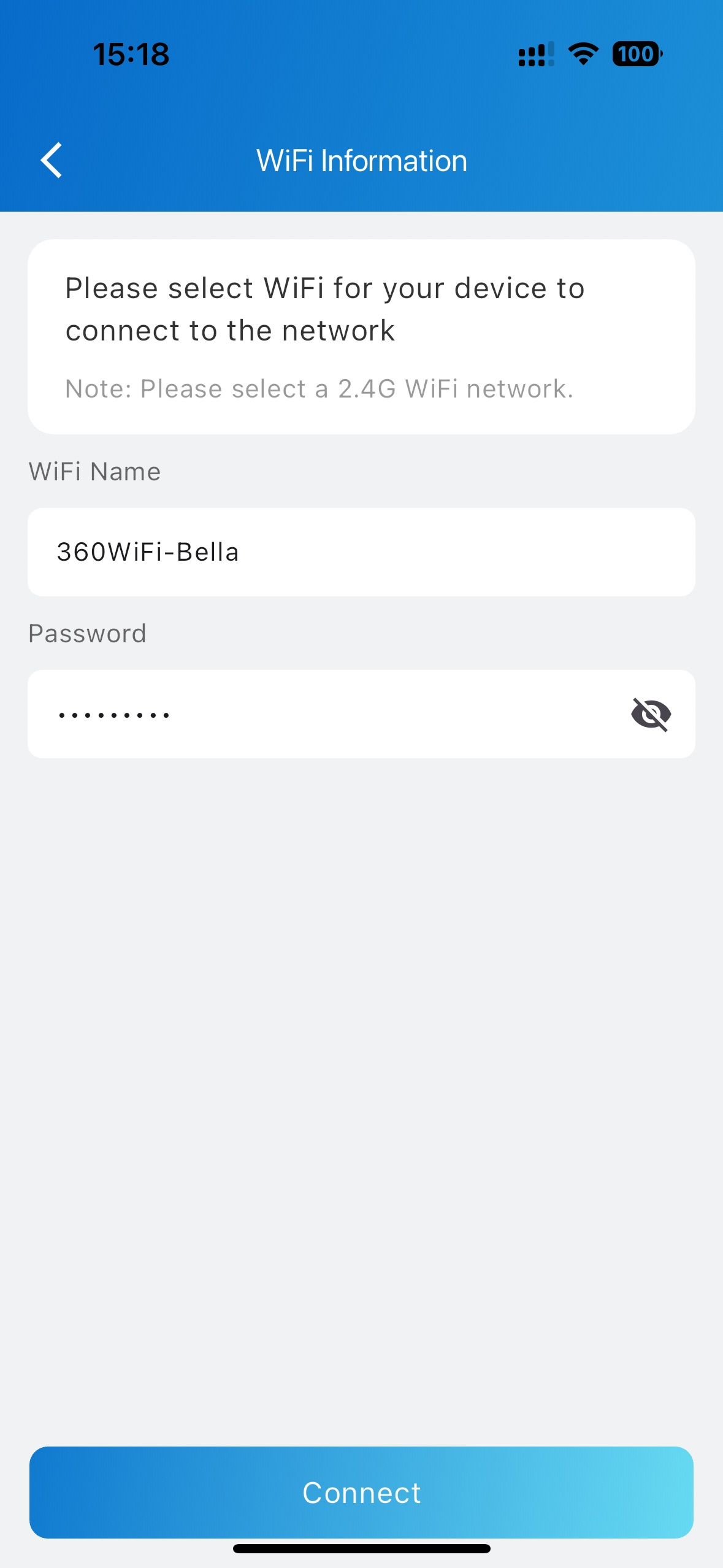
Select the Wi-Fi for the lock to be connected to the network.
Enter the Wi-Fi password and tap Connect.
If adding the lock via Bluetooth fails, you can add the lock via temporary Wi-Fi.
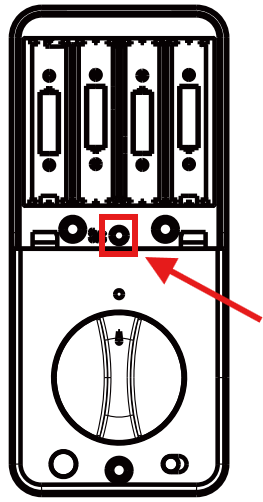
Remove the back cover of the lock.
Short-press the lock’s reset button to enter pairing mode.
.jpg)
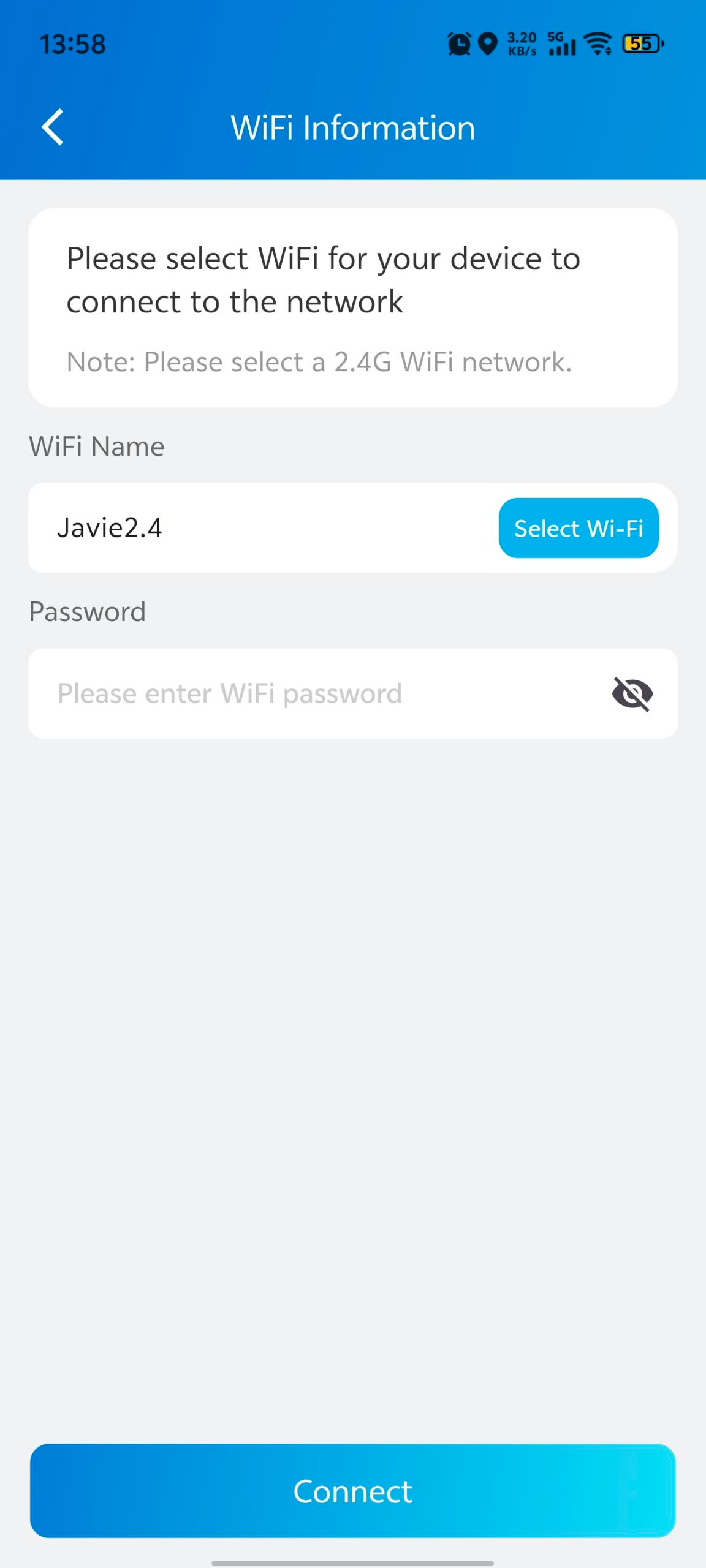
Connect your mobile phone to a temporary Wi-Fi named SL20_macxxx.
Configure the network for the lock and add it.
Set up the Lock
After adding the lock, the lock will be displayed on the homepage of the SmartPlus App.
Tap Me > Discover > akubela Smart Locks. For the latest app version, the path is Me > Device Management > Smart Locks.
You can:
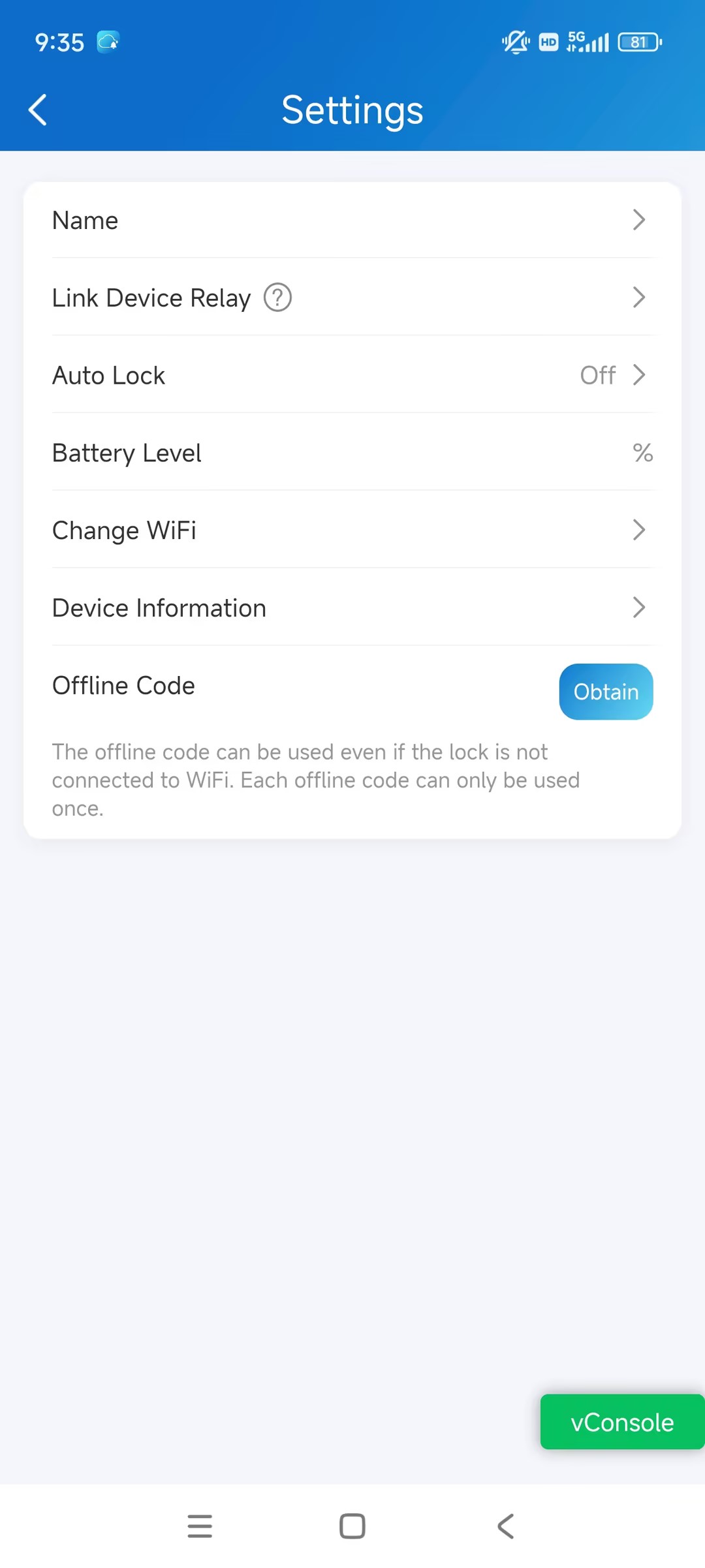
Change the lock name.
Link it to a door phone’s relay. Whether the lock is linked to relays determines how it is unlocked. See the Unlock the Lock sections for details.
Note
You can ONLY link the lock to relays of the door phone that is installed at your apartment door if you are a community resident.
Set Auto-Lock. For example, if you select 10s, the lock will be locked automatically 10 seconds after it is opened.
Check the battery level. When the level is lower than 15%, 10%, and 5%, you will receive the notification.
Change the Wi-Fi that the lock is connected to.
Check the lock’s information. On the info page, you can check the lock’s version and upgrade it. Please note that if the battery level is lower than 40%, you cannot upgrade it.
Obtain the offline code. It is a one-time unlocking password.
Unlock the Lock
The Lock Is NOT Linked
When it is not linked to a relay, it will display on the app homepage.
You can directly tap Unlock to unlock it.
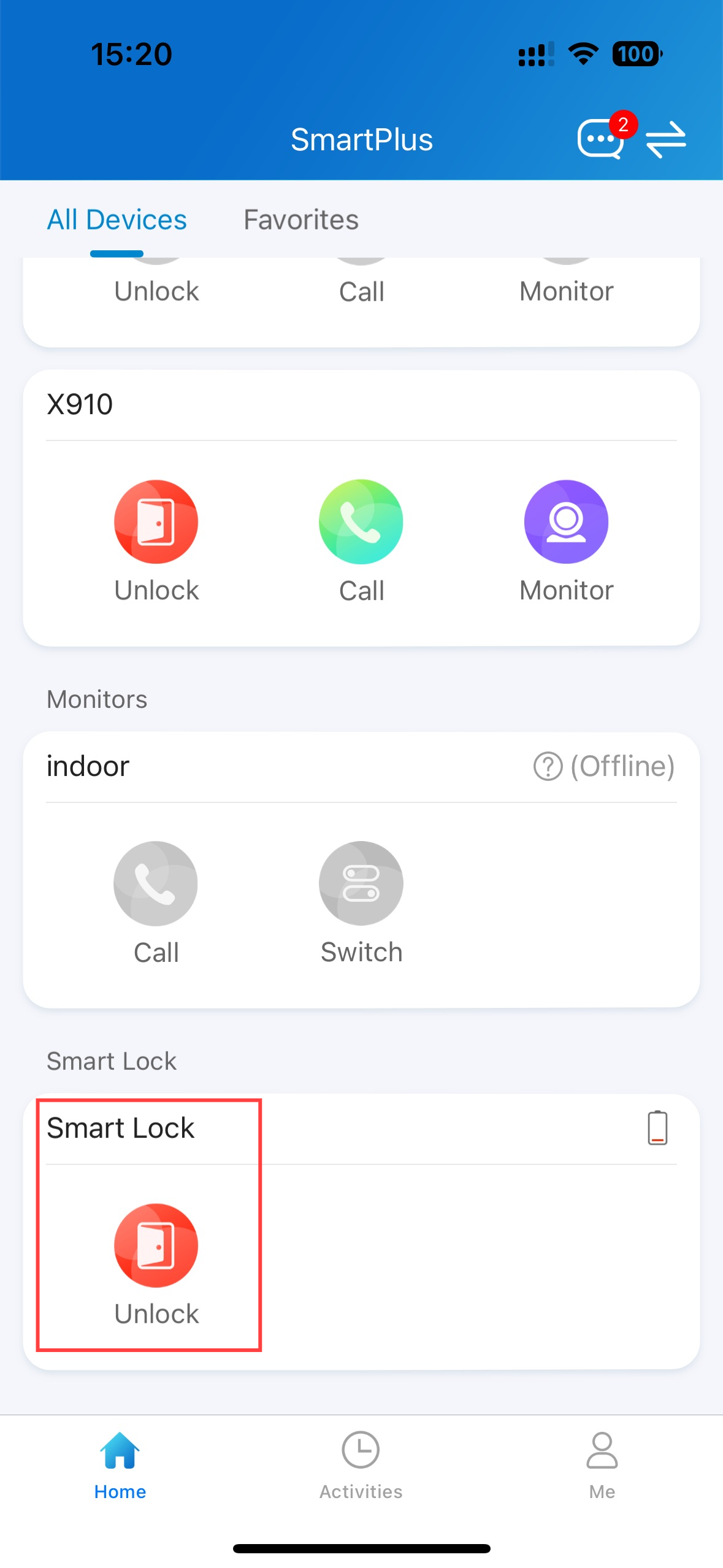
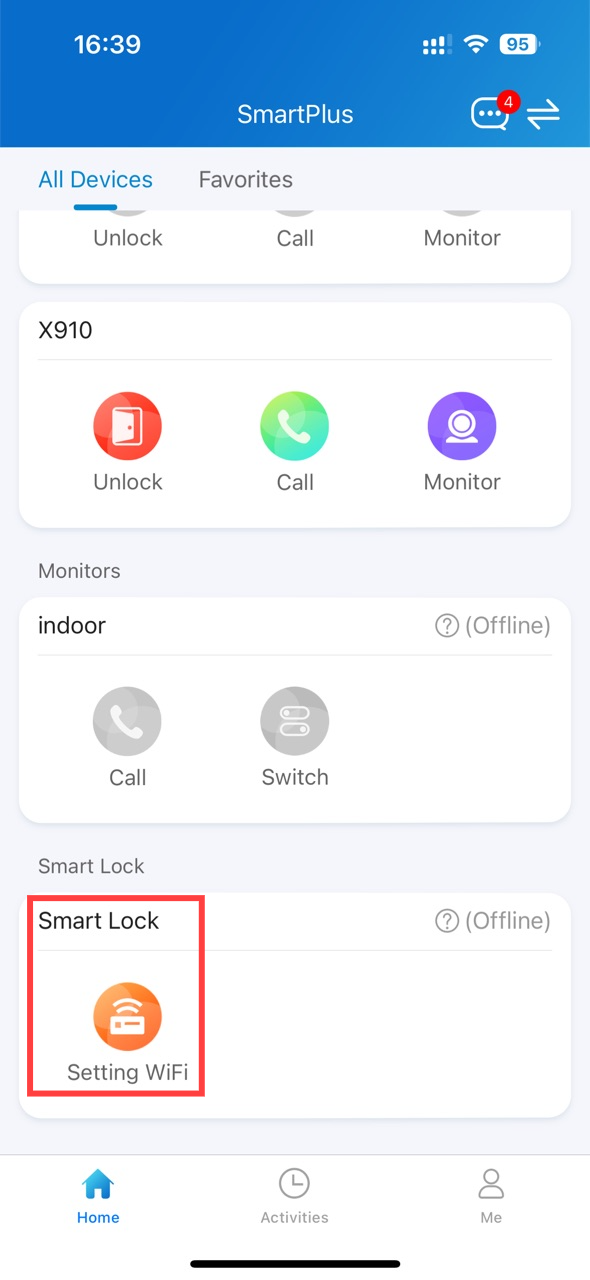
If the lock is not connected to Wi-Fi, it will display the Setting Wi-Fi icon.
Tap to set up the network connection.
The Lock is Linked
After the smart lock is linked to a door phone relay, it is no longer operated independently within SmartPlus.
Instead, the door phone becomes the access control device. Any successful unlock action on the door phone triggers the configured relay, which simultaneously unlocks the linked smart lock.
Unlock on the SmartPlus Homepage
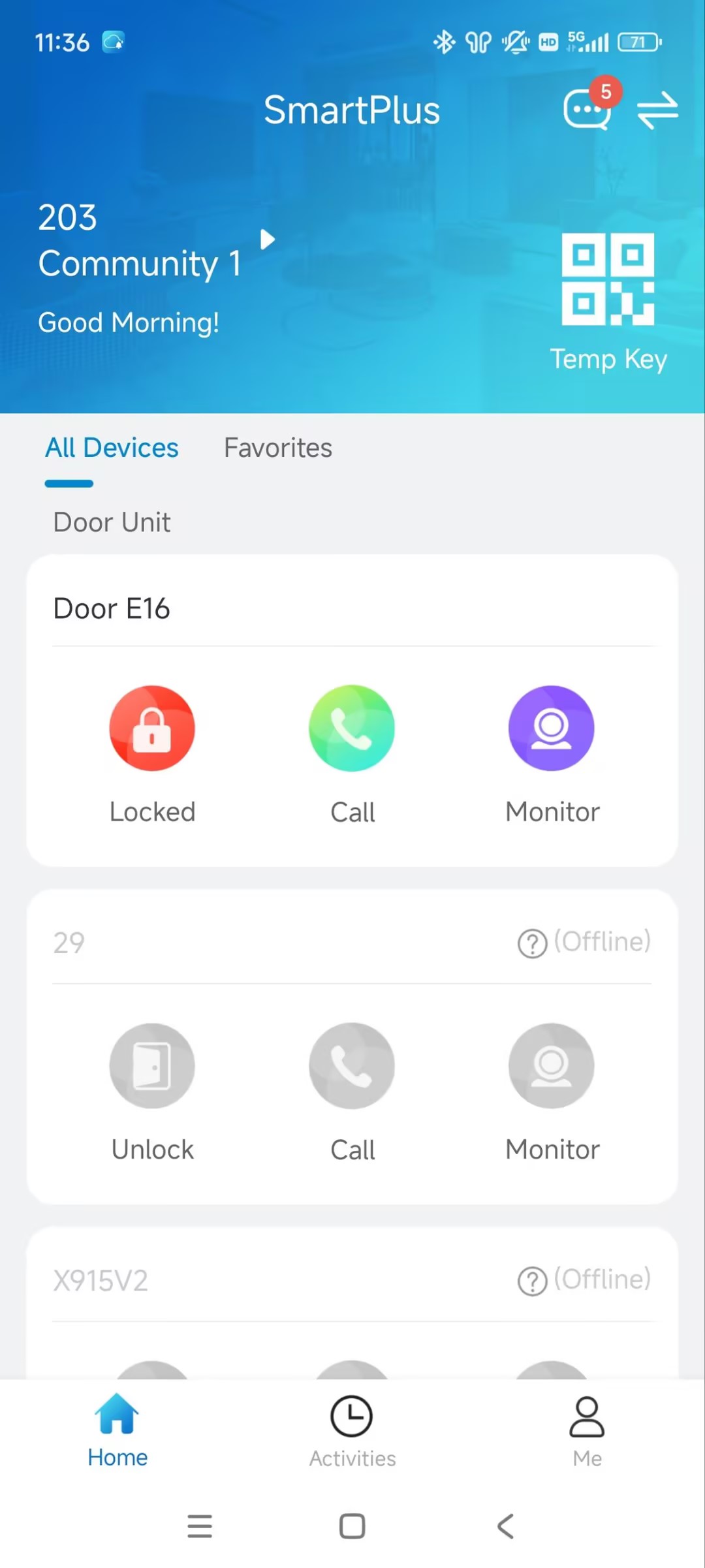
You can tap  to open the door phone’s relay. At the same time, the akubela lock is unlocked.
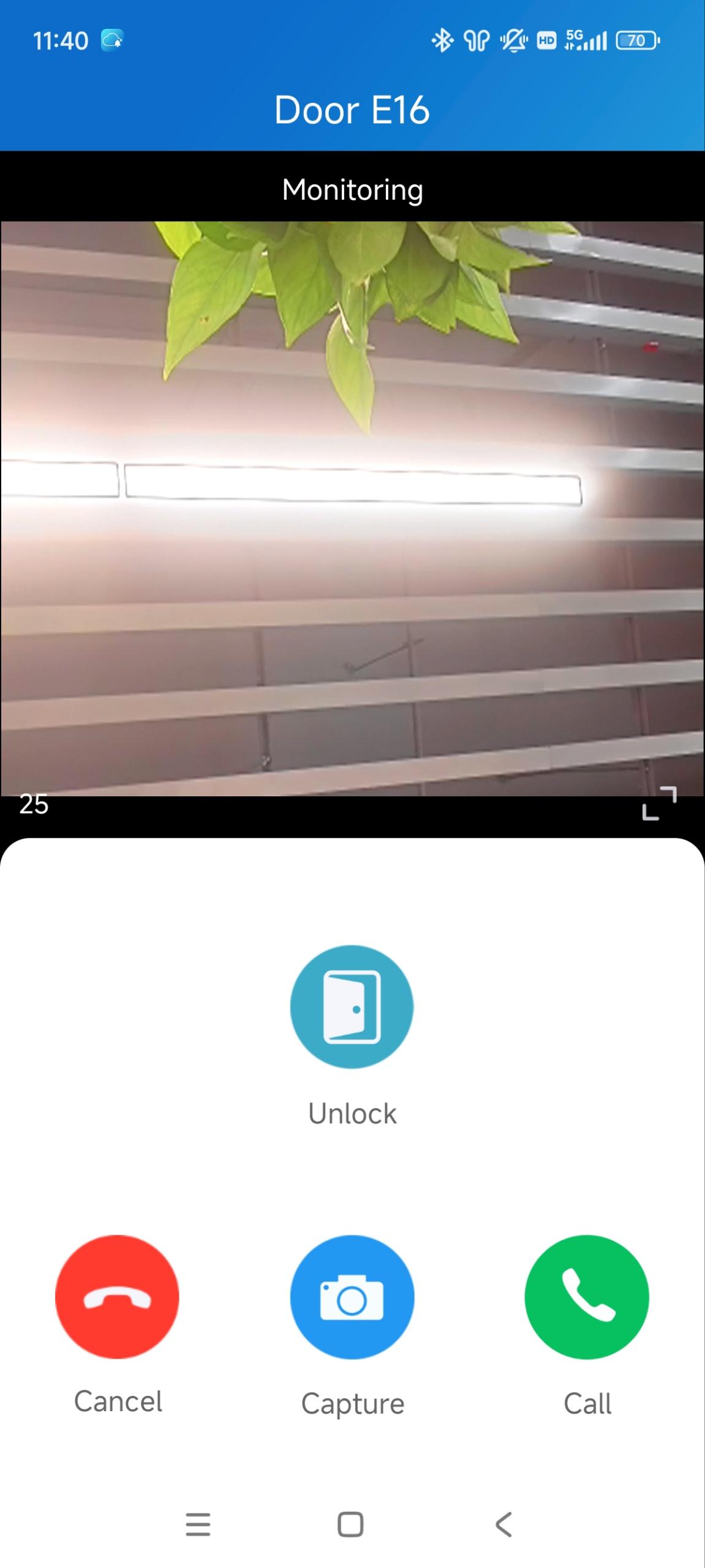
Unlock on the Calling and Monitoring Page
Tap Unlock on the Calling and Monitoring page to unlock the akubela lock.
Unlock the Linked Lock via the Door Phone
Once the lock is linked to a door phone relay, it can be unlocked through the door phone. The door phone authenticates the user using its supported access methods and then unlocks the linked smart lock.
Please click the following links to view how to set up specific access methods:
Note
Facial recognition, PIN, NFC, Bluetooth, or card authentication are performed by the door phone, not by the smart lock.
The access methods supported by the device vary by model. For example, some models do not support opening doors via Bluetooth.
If you want to learn what access methods are supported by your device, please refer to the product datasheet or admin guide.
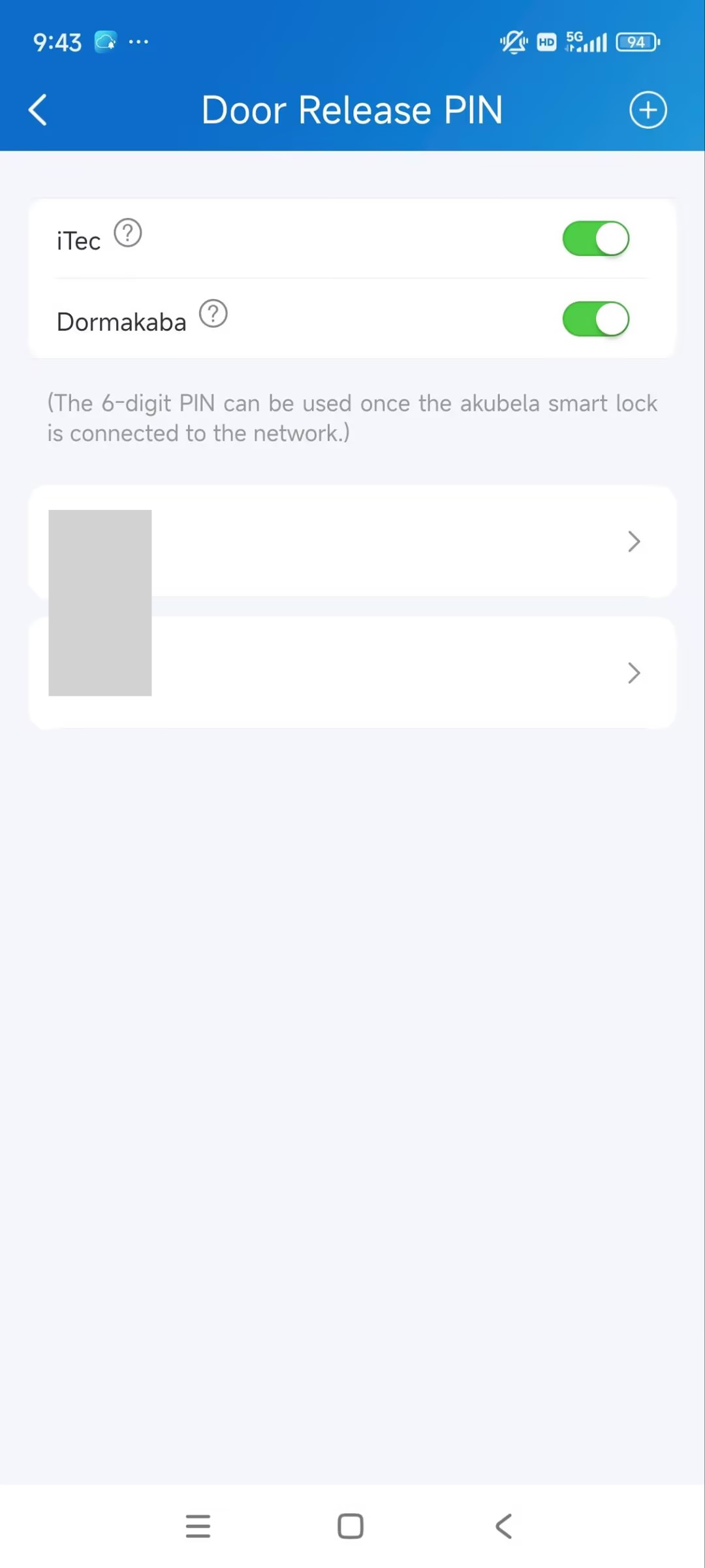
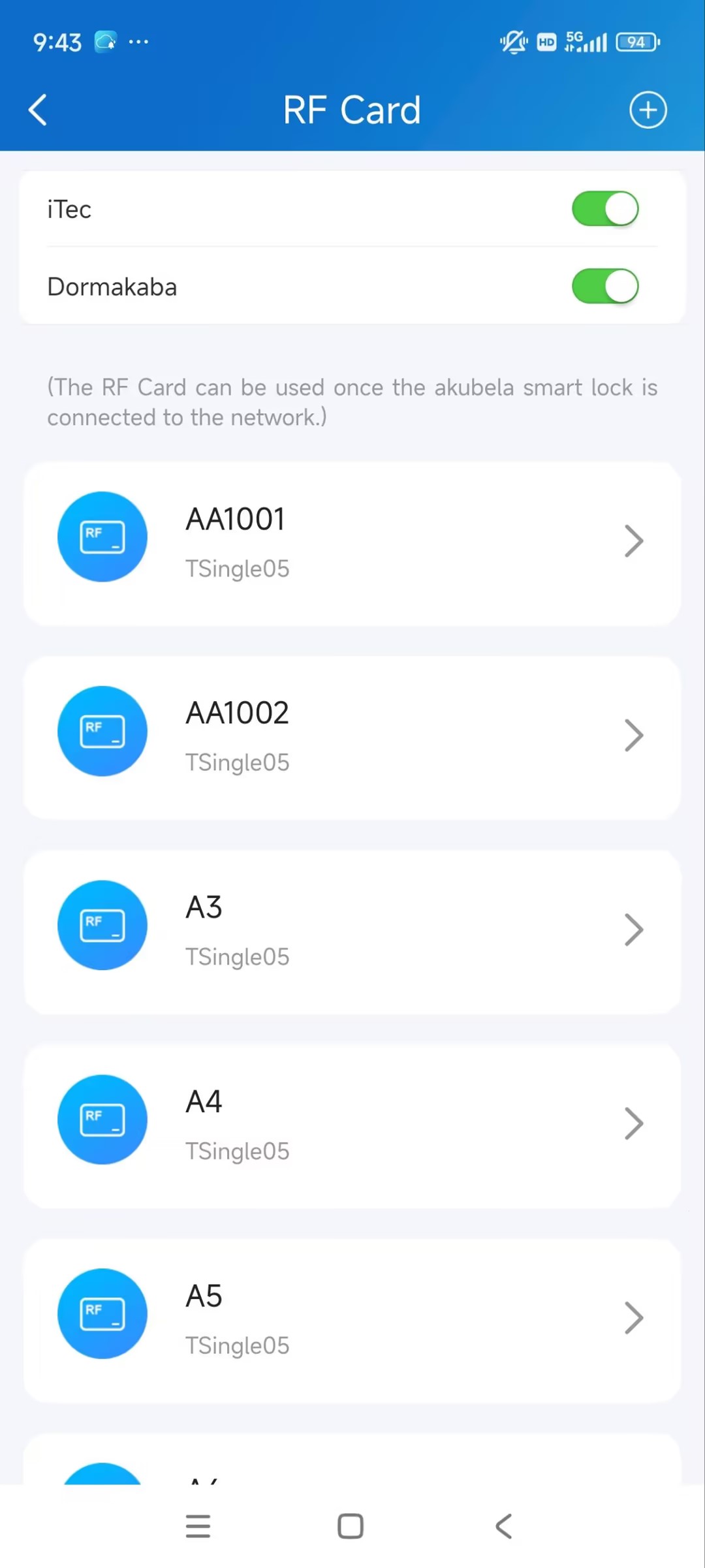
Sync PIN and RF Card to Open Locks
You can use added PINs and RF cards to open smart locks.
Tap Me > Authorization.
Select Door Release PIN or RF Card.
Enter the PIN or card code.
Note
PIN: Must be 6 digits.
RF Card: Must be 8 digits.
For Installers
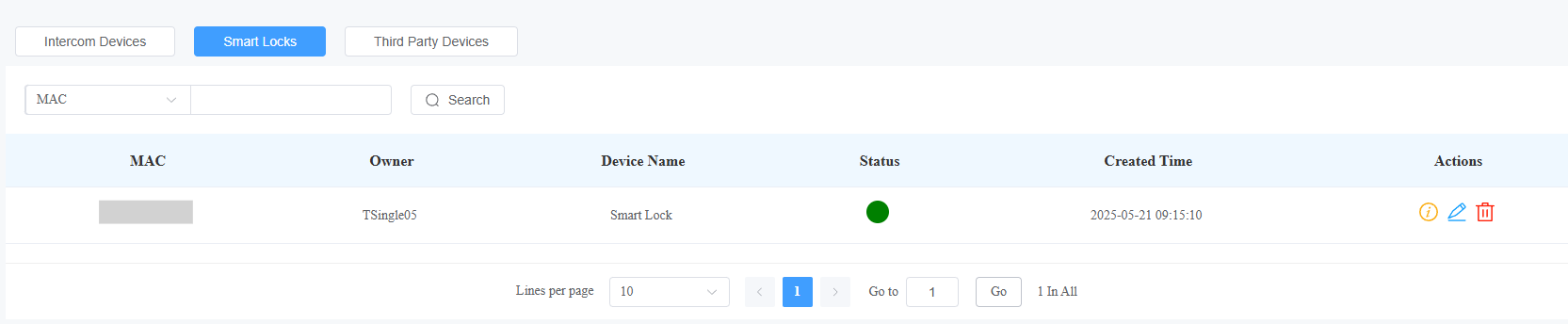
You can check the added lock for single-family house and community residents on the SmartPlus Cloud platform.
For Single-family House Users
Navigate to the Single-family Site.
Click
 of the target user.
Select Smart Locks.
Click
 to view the lock information,
  to change its name, and
  to delete it.
For Community Residents
Navigate to the target community project.
Click
of the target apartment.Scroll to the Smart Locks section.
Click
to view the lock information, to change its name, and to delete it.

For Property Managers
You can check the added locks and modify their names on the SmartPlus Cloud platform.
Click Devices on the left column and select Smart Locks.
Click
to view the lock information and to change its name.
