The integration of the akubela SL21 with SmartPlus enhances home security and access control. You can securely unlock the smart lock remotely using the SmartPlus App and various access methods.
Note
Compatible SmartPlus App’s version: 7.32.2(iOS) / 7.32.0002(Android) or higher.
The following features require App version 7.41.3 (iOS) / 7.41.0003(Android) or higher:
Show unlock logs on the property manager portal
Support cloud unlocking by your PM for emergency access.
ONLY community and single-family house residents can use the feature.
Only with the family master accounts can you add the lock. You can add it via Bluetooth or an access point.
Add the Lock
Before configuration, ensure that Bluetooth on your mobile phone is enabled.
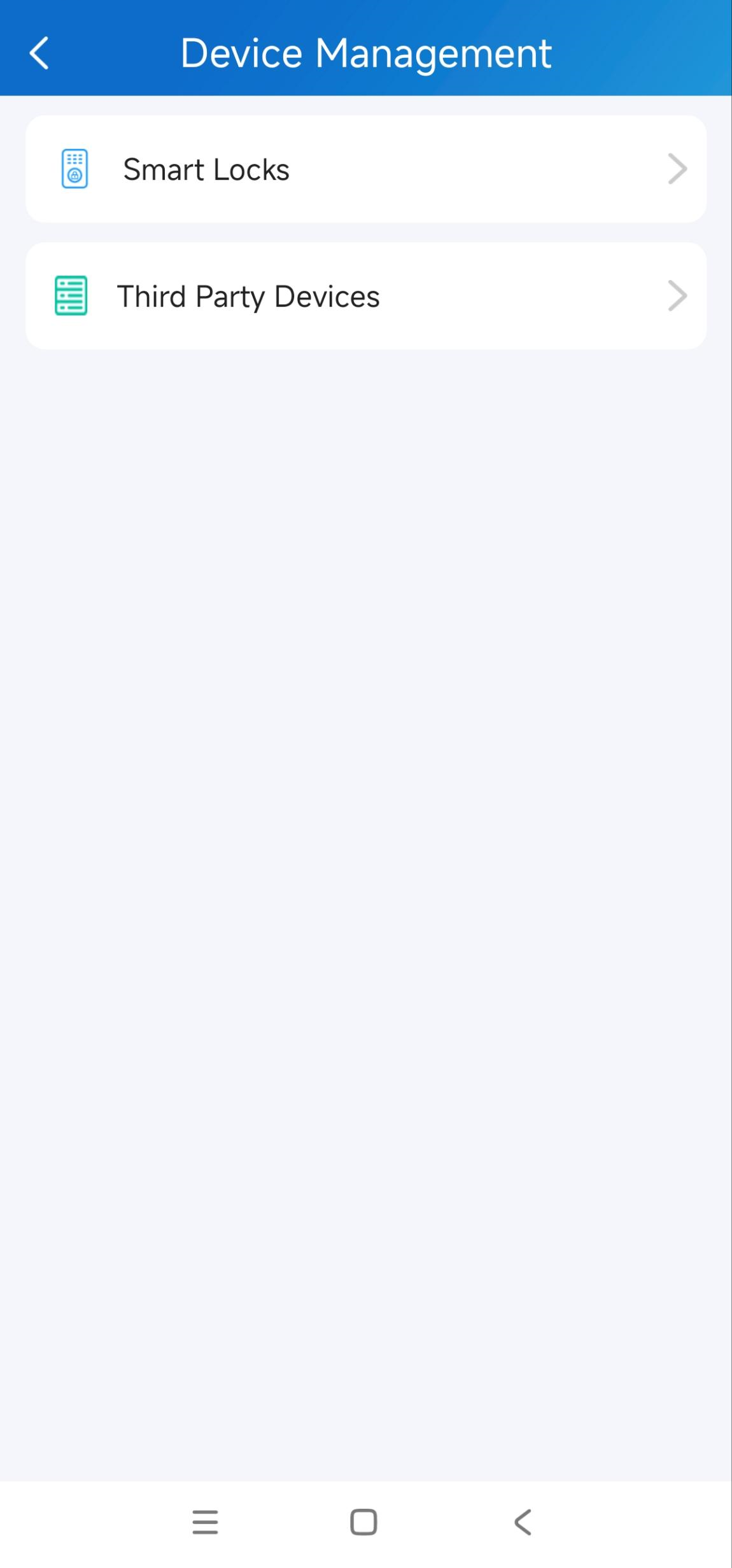
Tap Me > Device Management > Smart Locks.
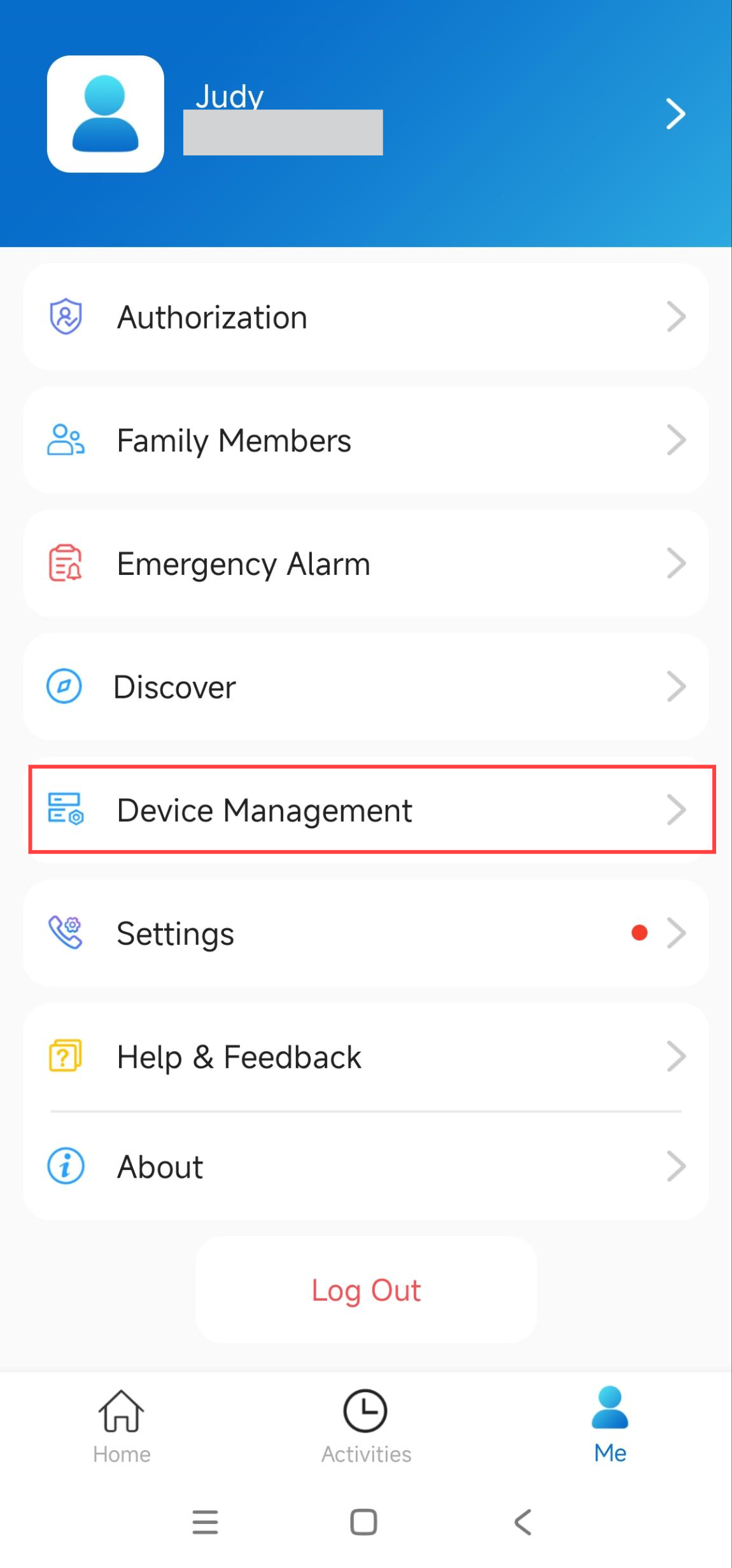
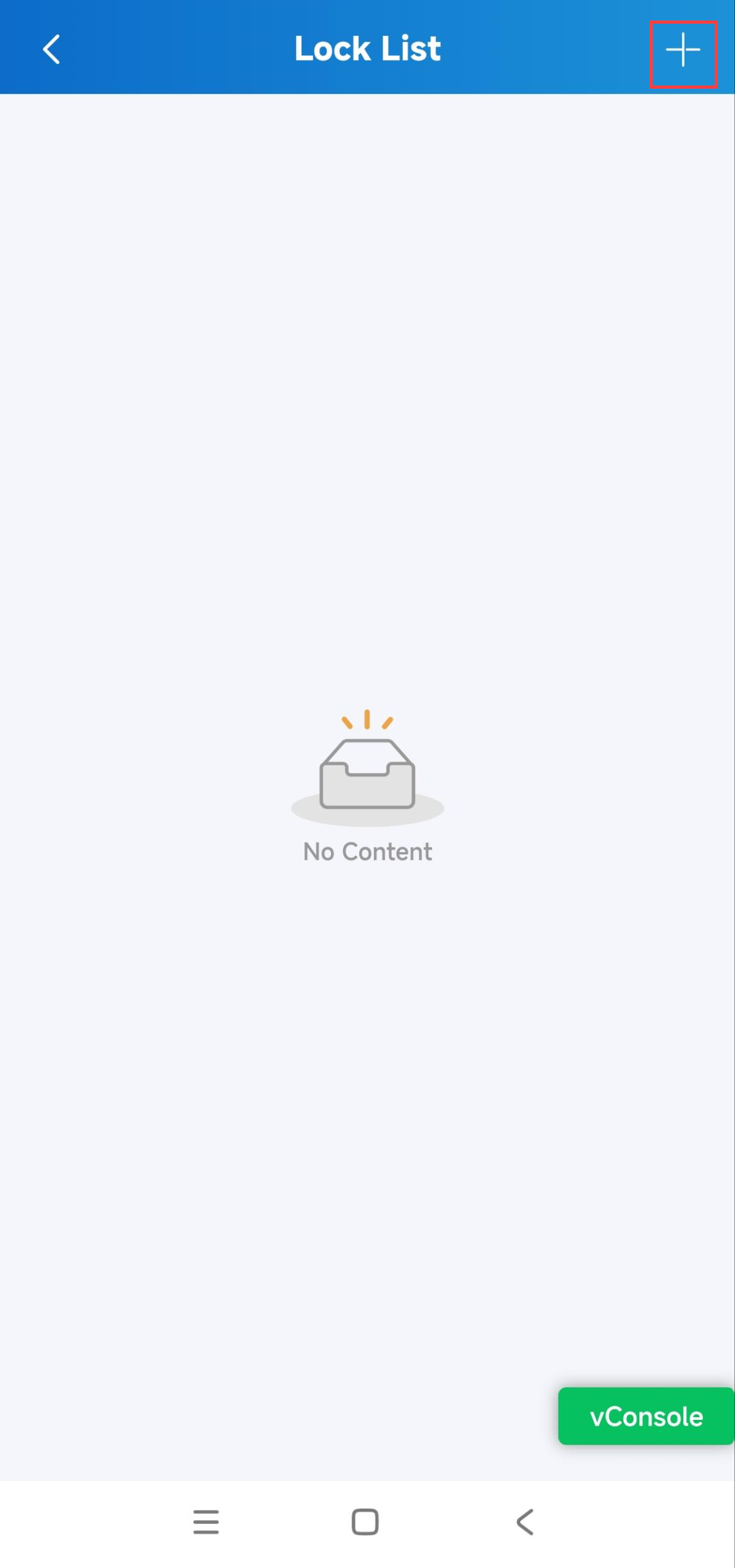
Tap + in the upper-right corner.
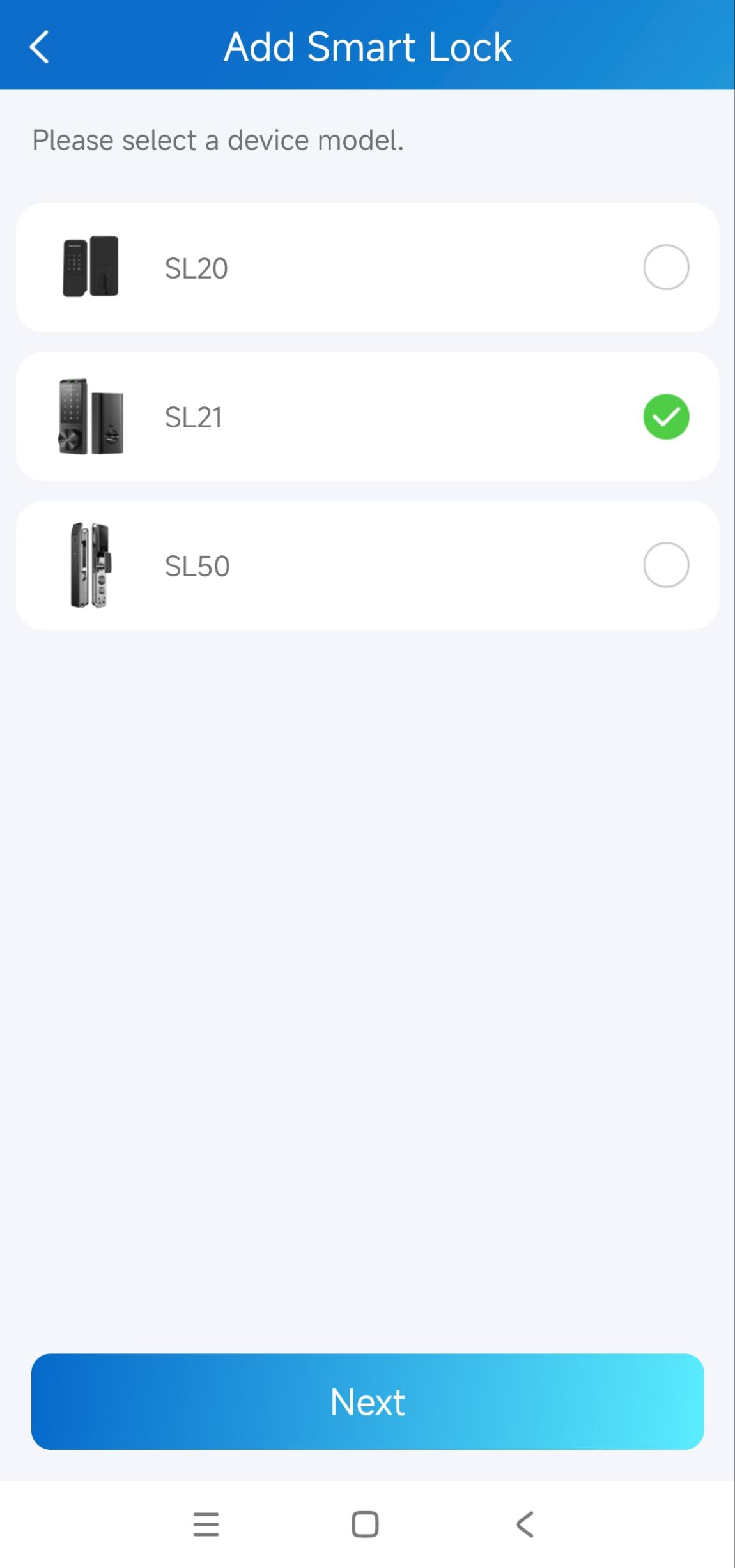
Select the lock model: SL21.
Set the lock to the network pairing mode by waking up the lock and entering 666#.
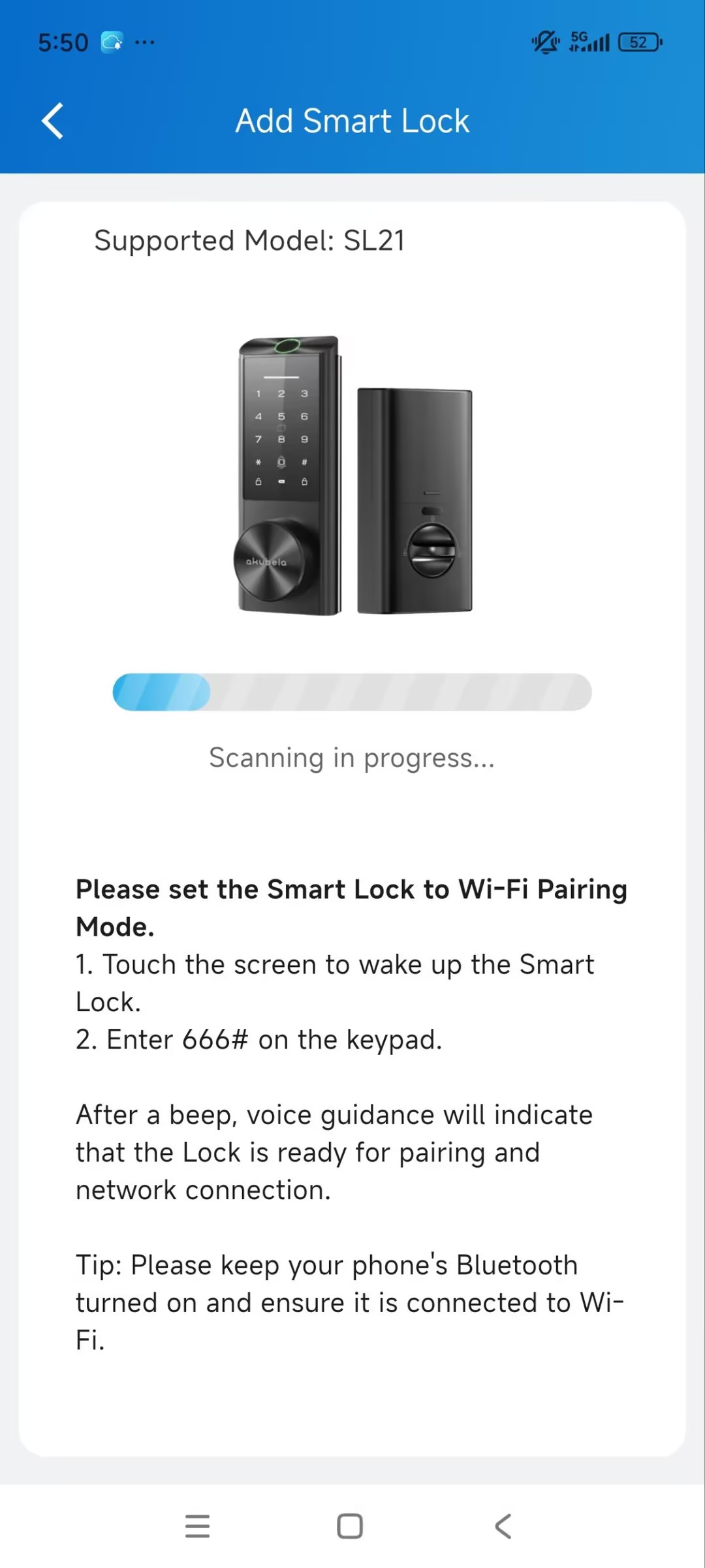
The lock plays a beep sound after entering the pairing mode.
Choose the desired configuration method.
Add the lock via Bluetooth
Enter the Wi-Fi name and password that provides the network to the lock.
Tap Connect.
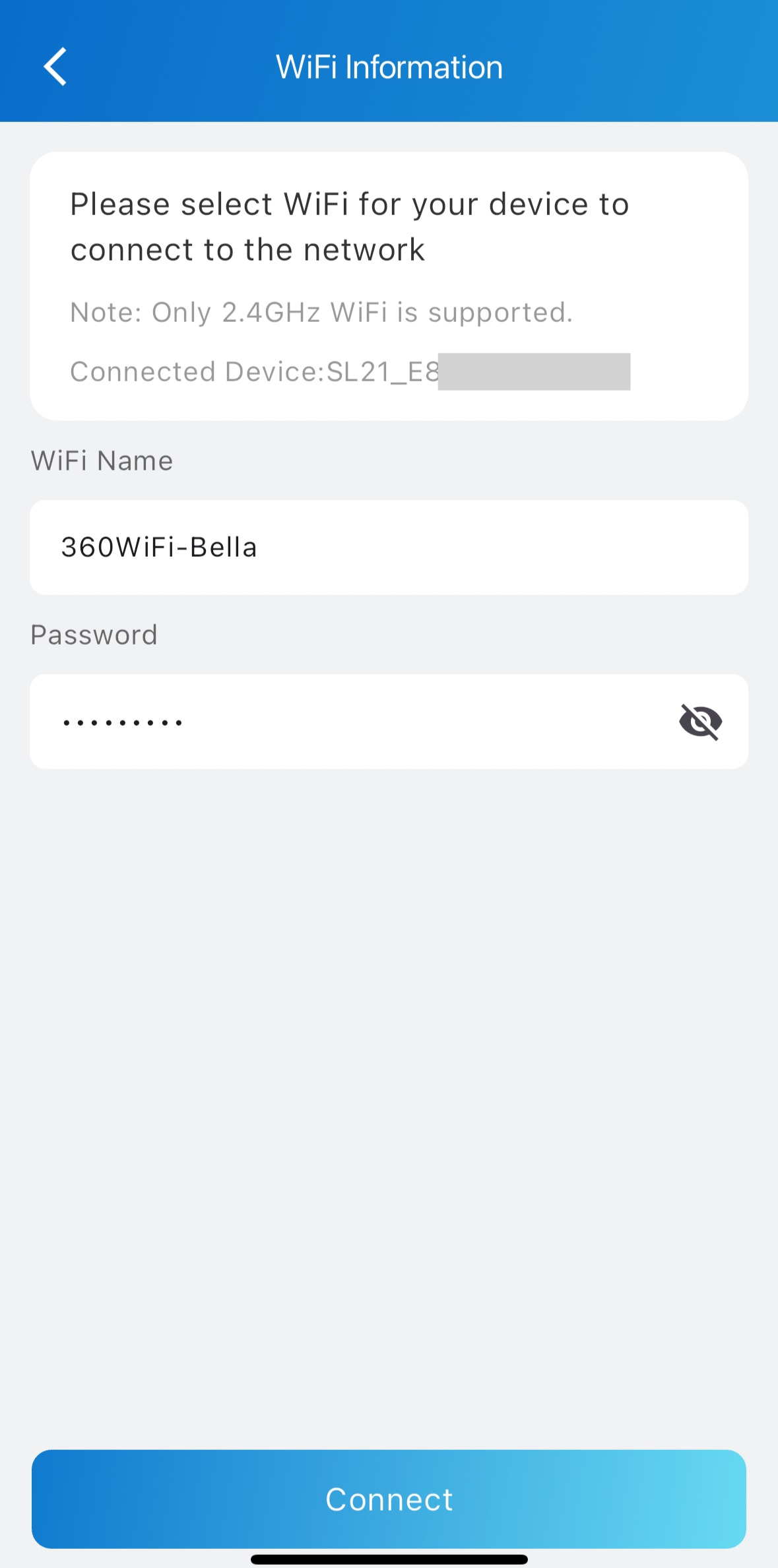
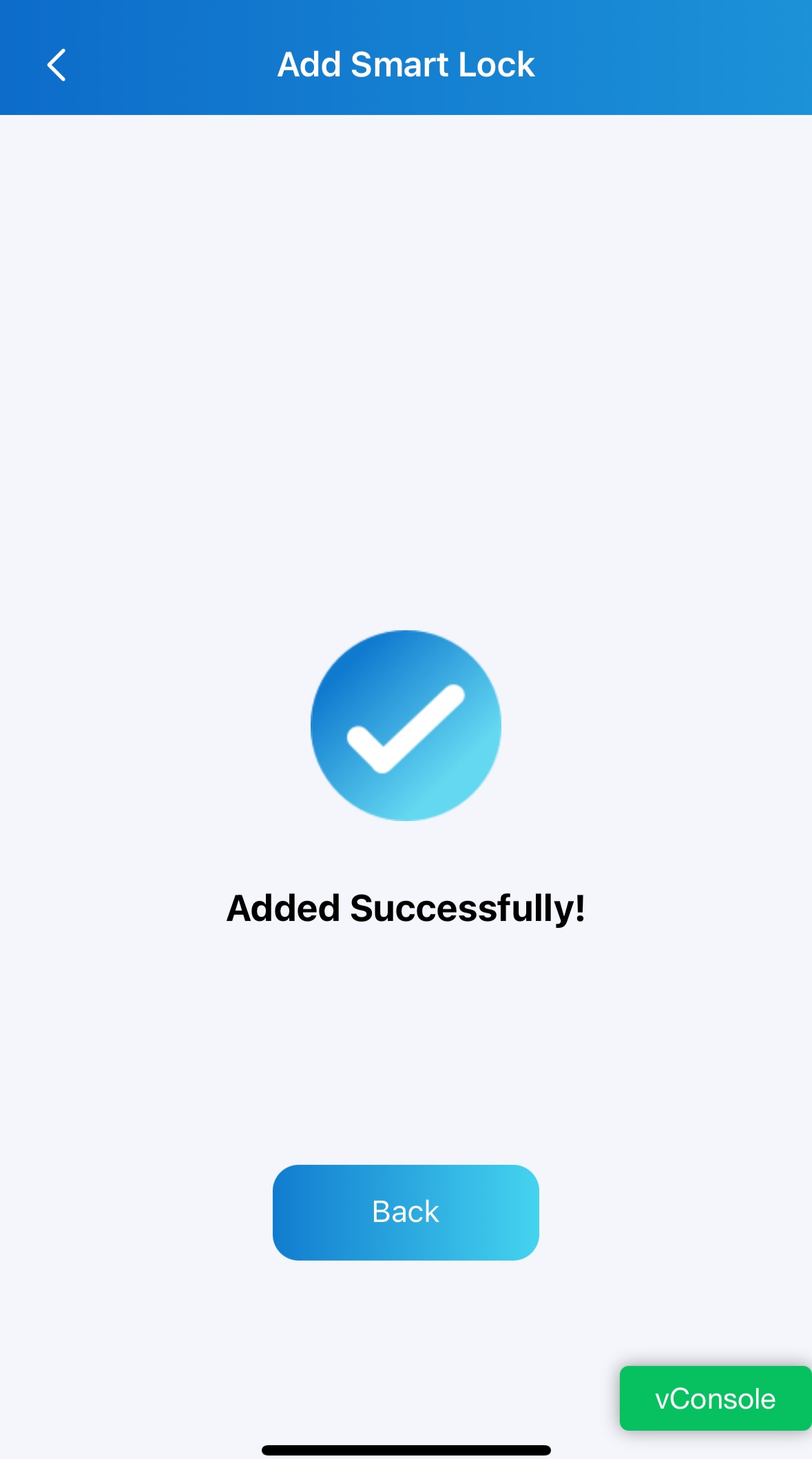
“Added Successfully” will display after a successful connection.
Add the lock via an access point
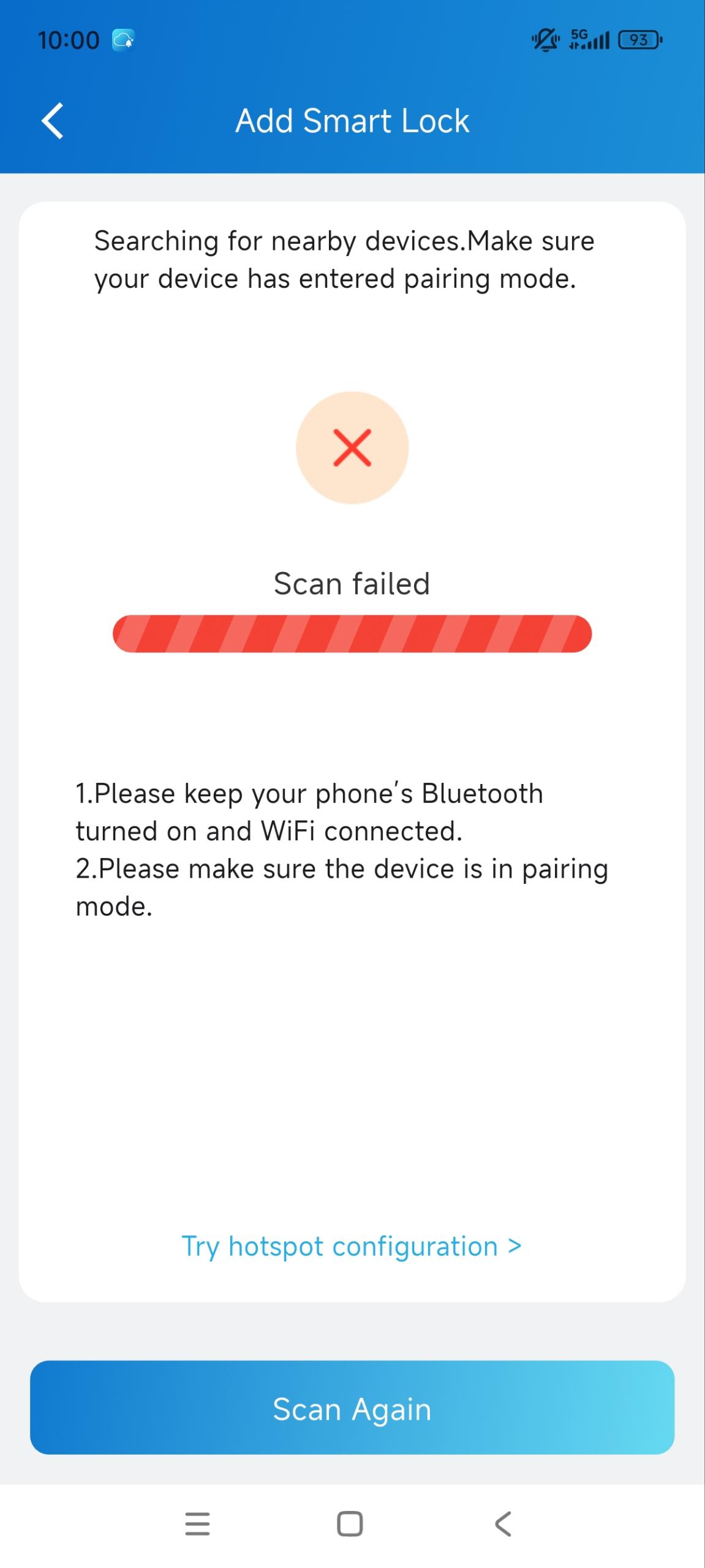
If adding via Bluetooth fails, you can tap Try Hotspot Configuration.
Connect your mobile phone to a hotspot called SL21_[The lock’s MAC]. Tap Go Immediately to redirect to the Wi-Fi connection page.
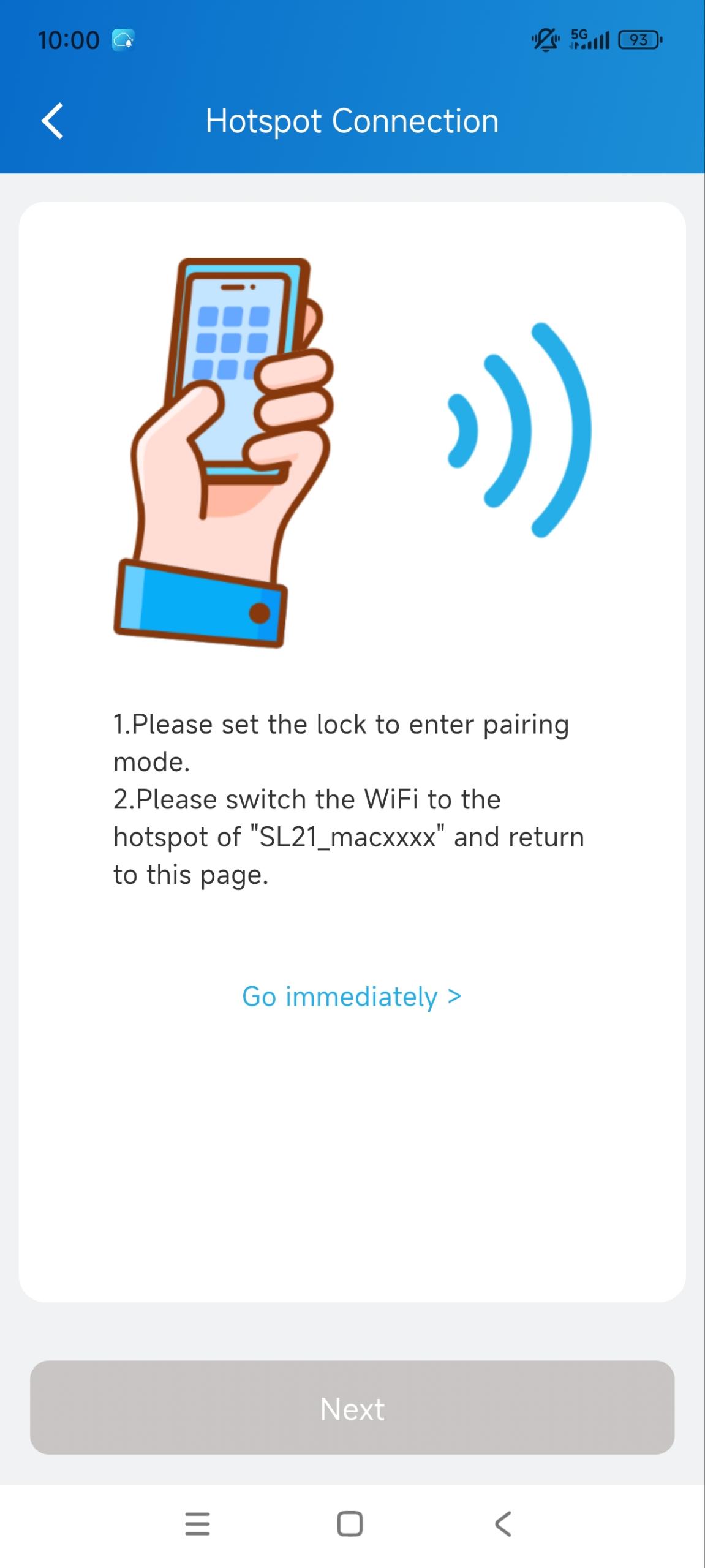
Tap Next.
Select the Wi-Fi and enter its password to provide the network to the lock.
Tap Connect.
It may take some time to finish adding. After that, adding successfully will display.
Set up the Lock
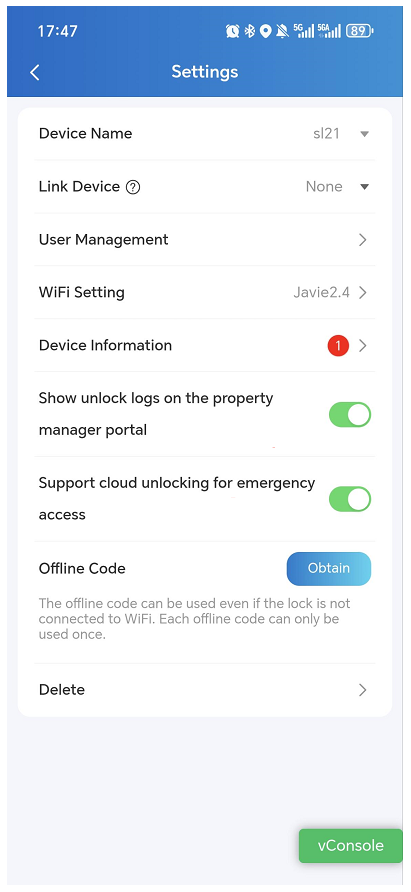
Tap Me > Device Management > Smart Locks > [the lock name]. Once the lock is offline, you cannot change its settings.
You can:
Change the lock name.
Link it to a door phone’s relay. Whether the lock is linked to relays determines how it is unlocked. See the Unlock the Lock sections for details.
Add credentials to unlock the lock.
Change its connected Wi-Fi.
Check the lock’s information. On the info page, you can check the lock’s version and battery level.
Set Show unlock logs on the property manager portal. This switch controls whether unlock logs generated by the SL21 are visible to your property manager on their PM portal. It is enabled by default.
Set Support cloud unlocking for emergency access. This switch allows the property manager to remotely unlock the SL21 via the Remote Unlock button on their PM portal.
Obtain the offline code. It is a one-time unlocking password. You can only use the code within its valid time.
Delete the lock.
Unlock the Lock
Add Credentials to Unlock
You can add credentials with the SmartPlus App for unlocking.
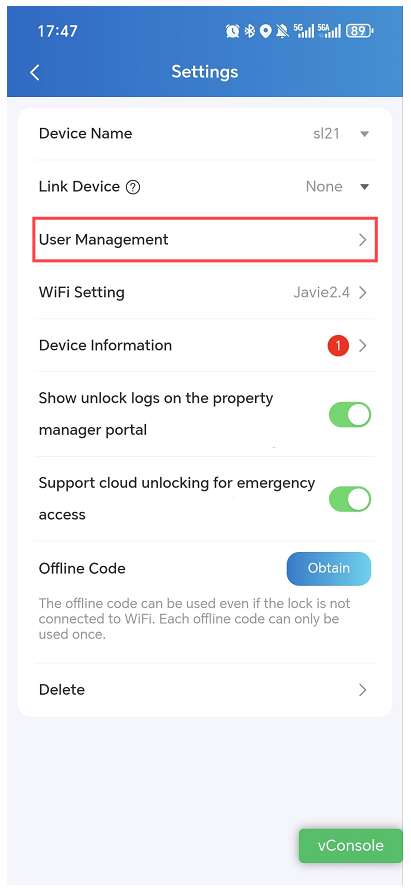
Tap Me > Device Management > Smart Locks > [the lock name] > User Management.
Tap New User.
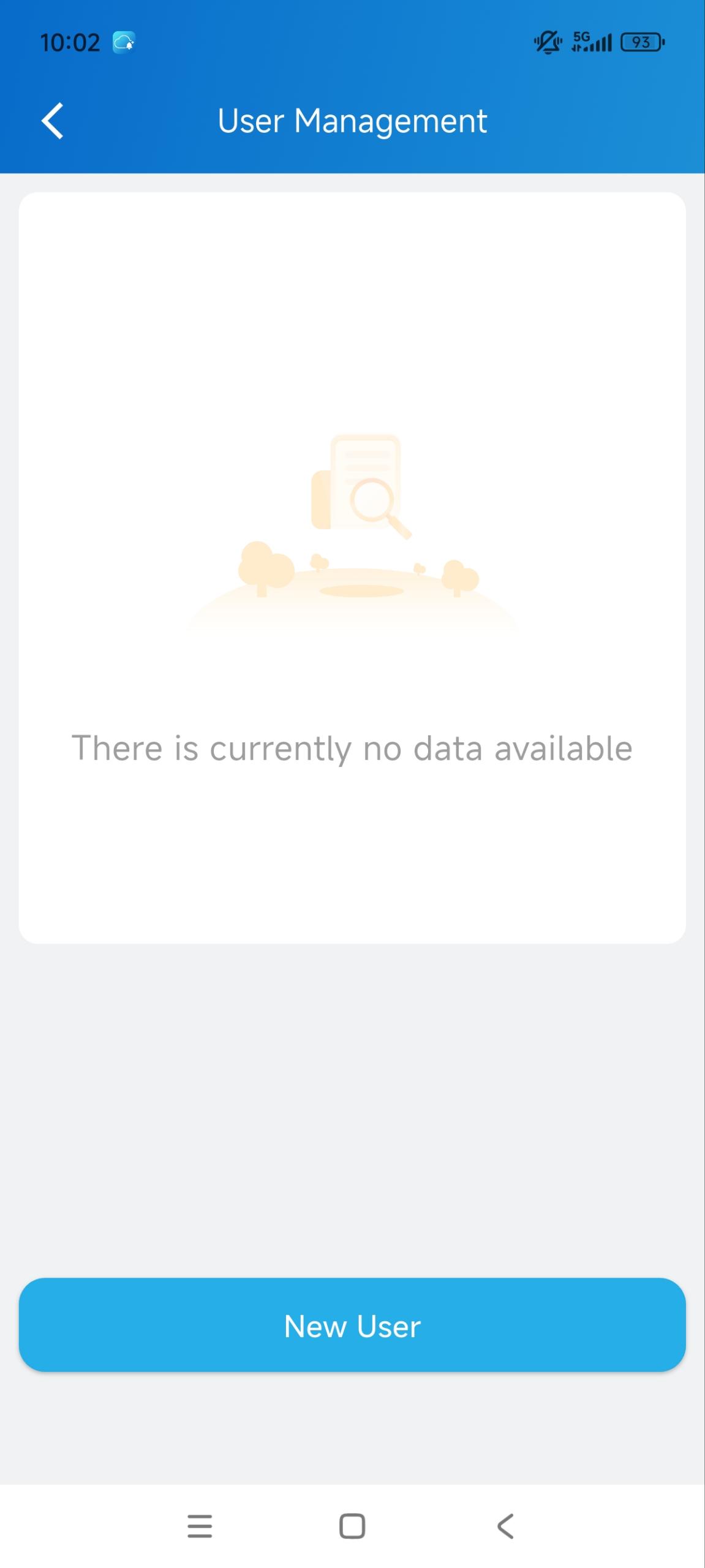
Enter the username and submit.
Add the desired credential.
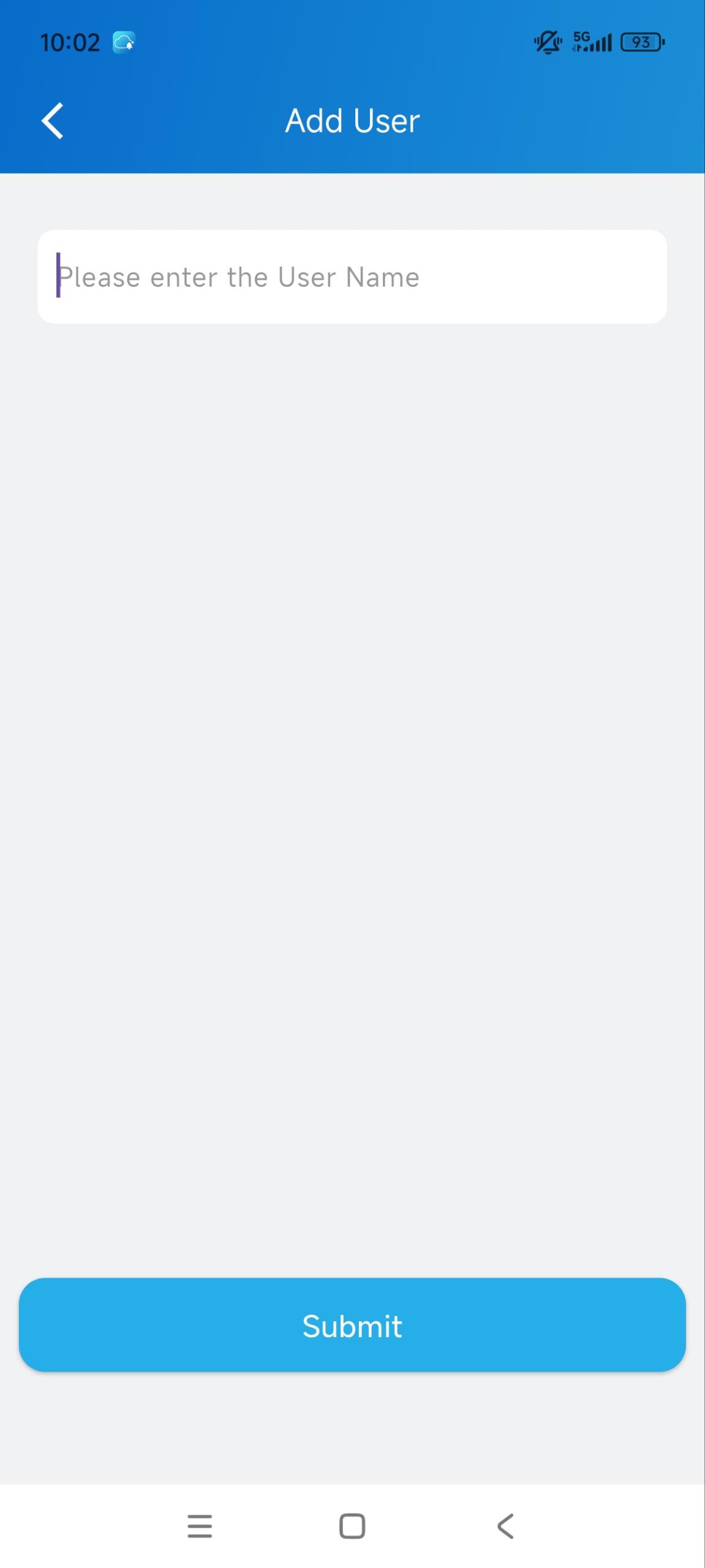
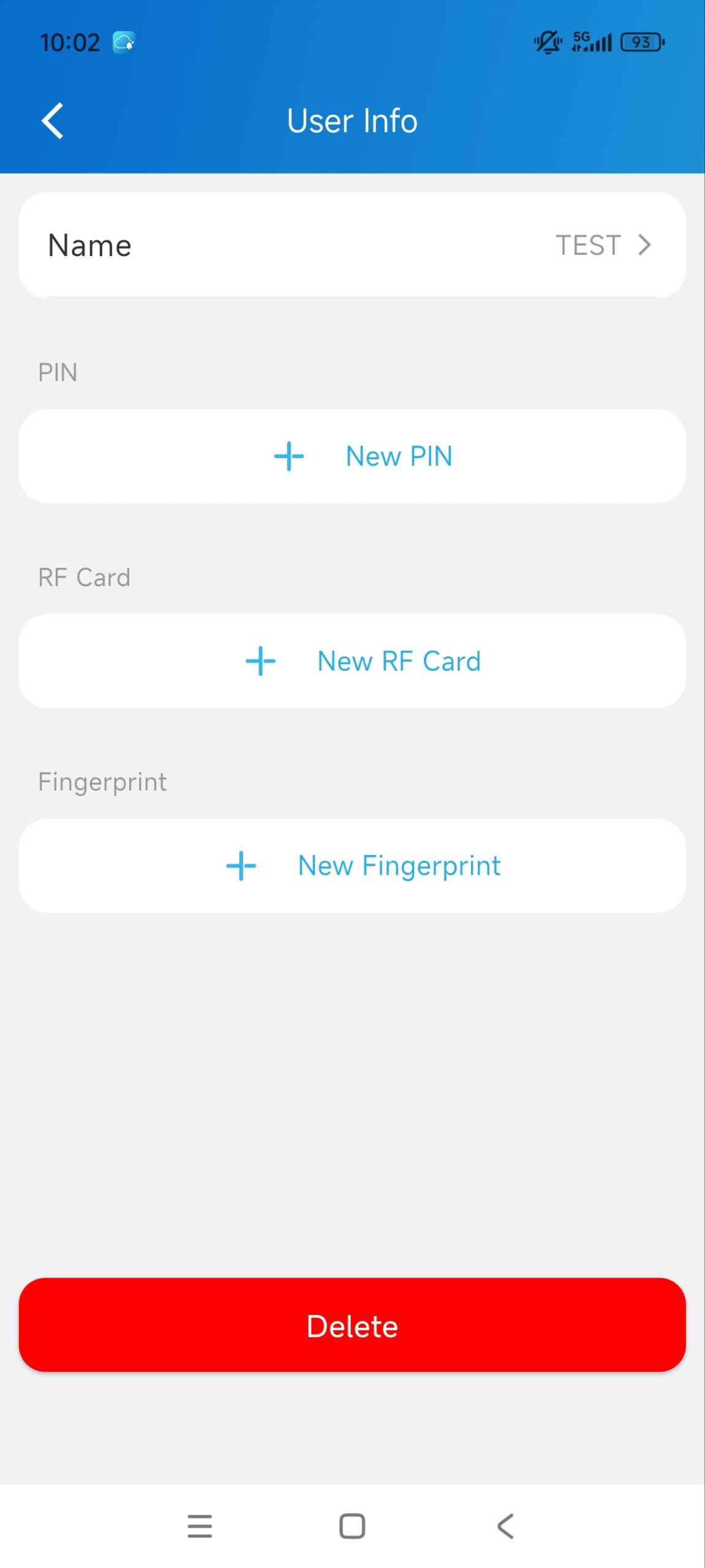
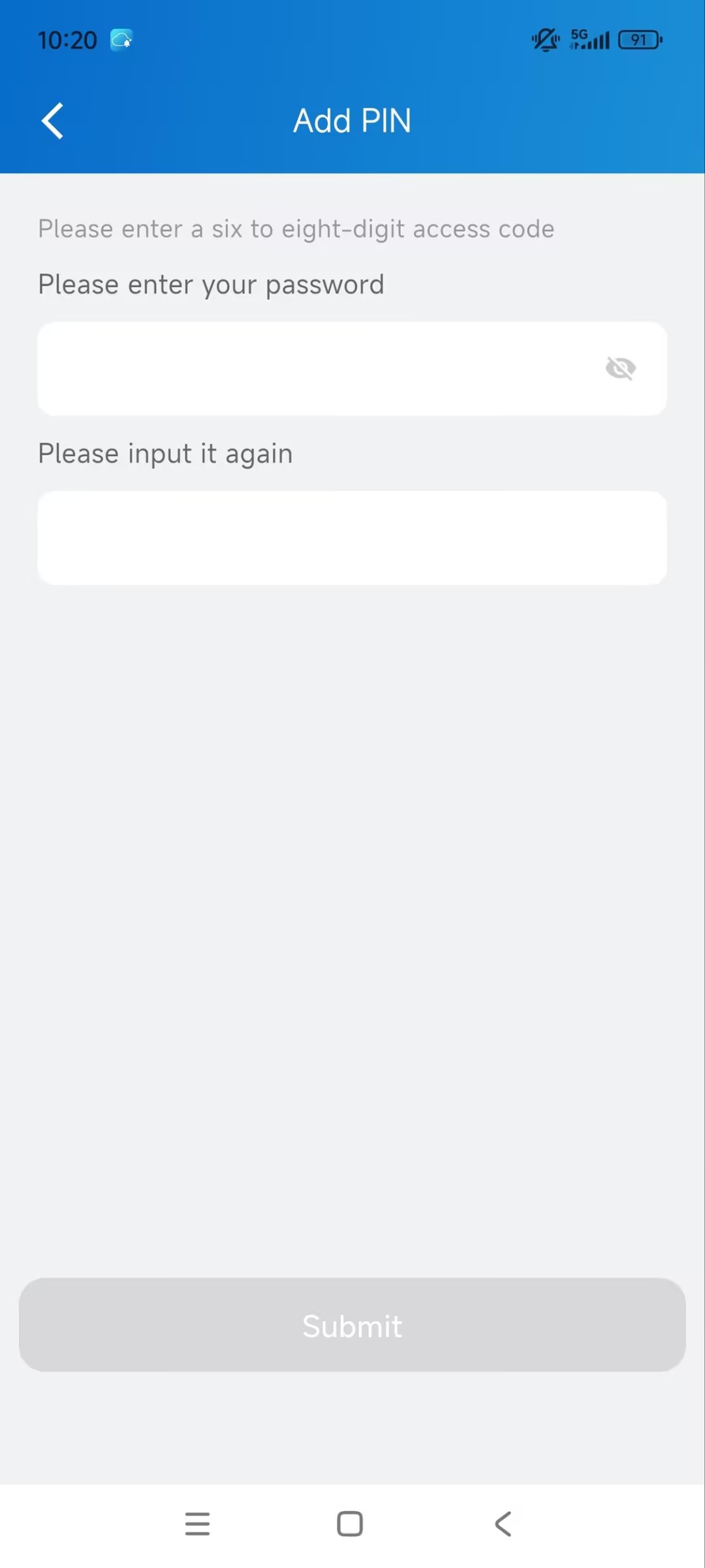
The PIN should be 6 to 8 digits. | To add the RF card, place it on the lock’s card reader. | To add your fingerprint, place your finger on the lock’s fingerprint sensor. |
|---|---|---|
|
|
|
.jpg)
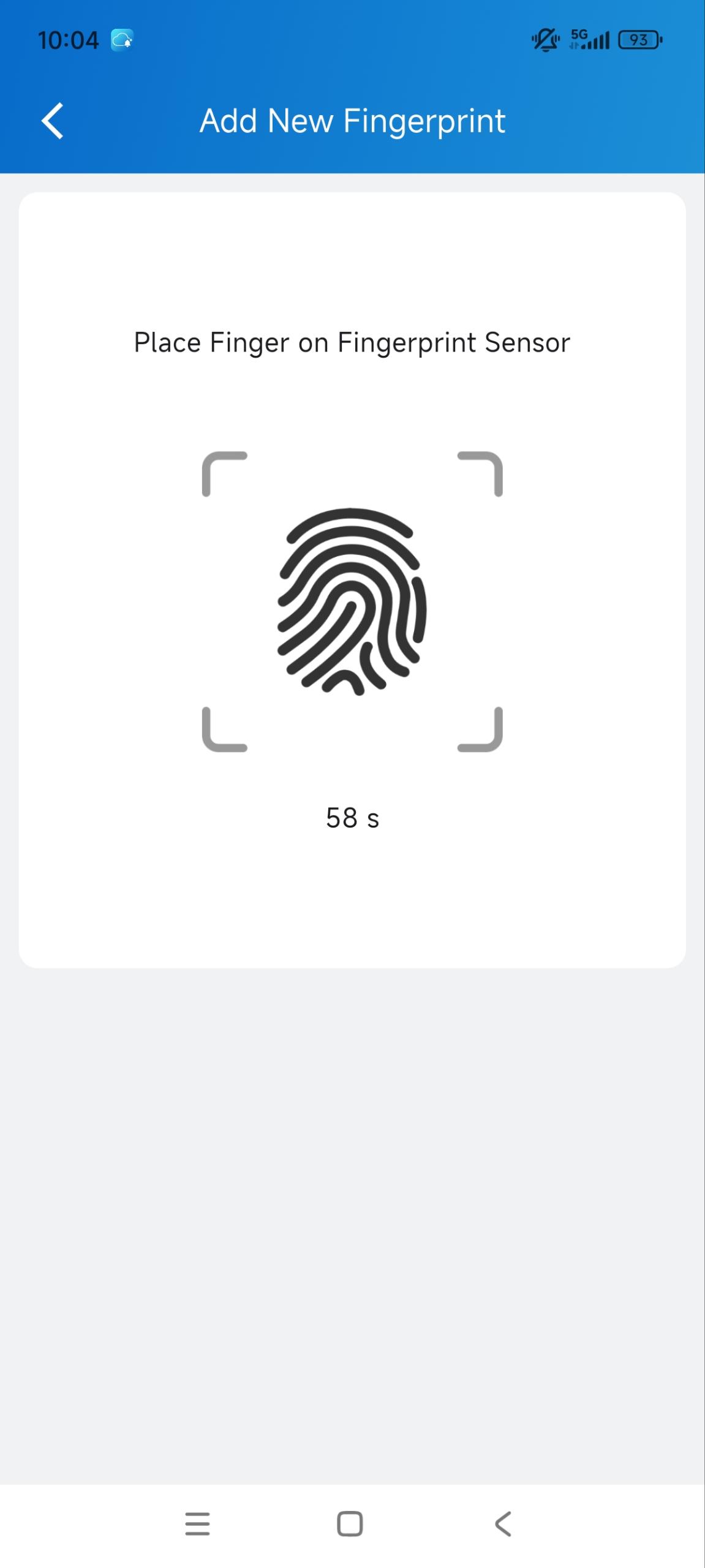
“Adding Successfully” will display after the configuration. You can use these credentials on the lock to open it.
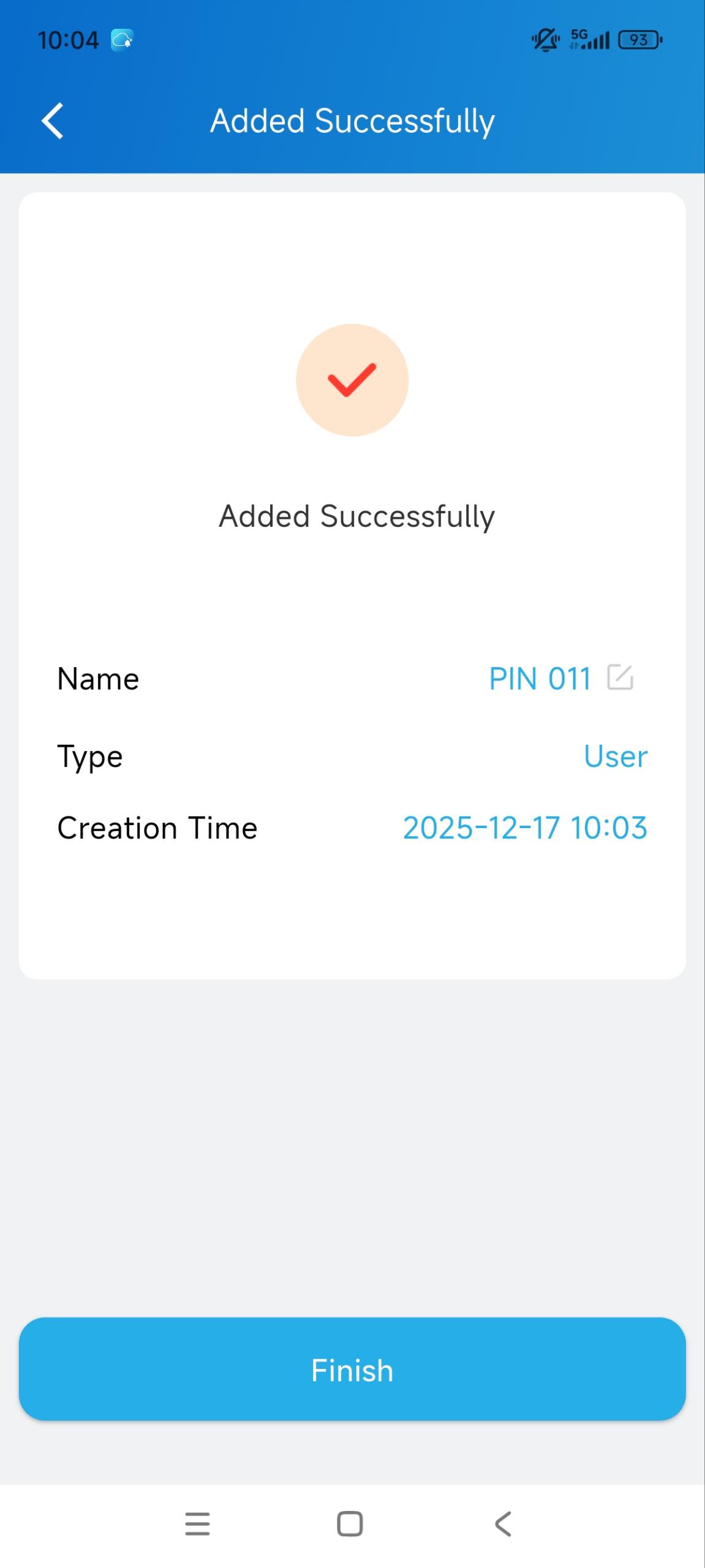
The Lock Is NOT Linked
When it is not linked to a relay, it will display on the app homepage.
You can directly tap Unlock to unlock it.
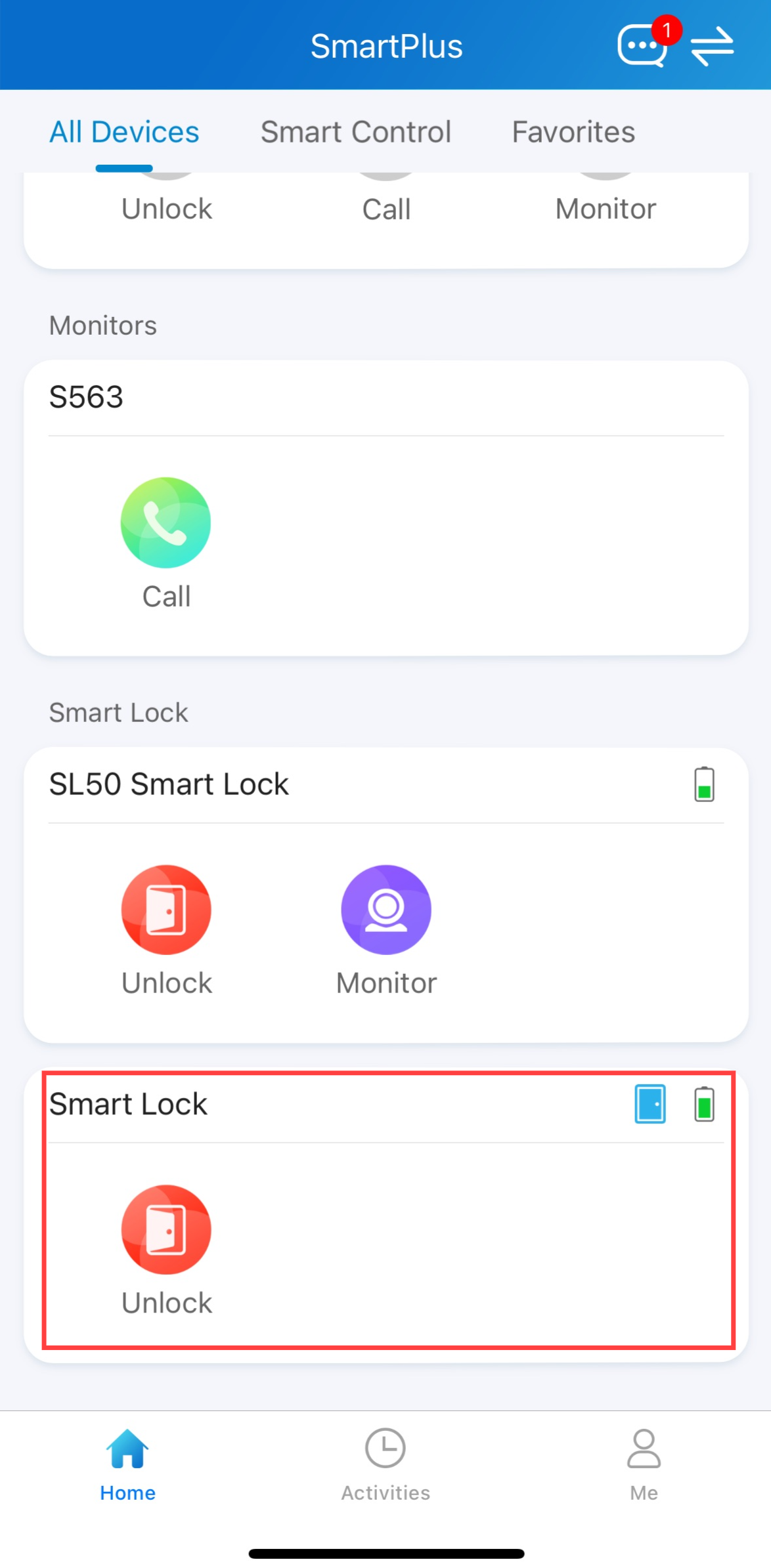
If the lock is not connected to Wi-Fi, it will display the Setting Wi-Fi icon.
Tap to set up the network connection.
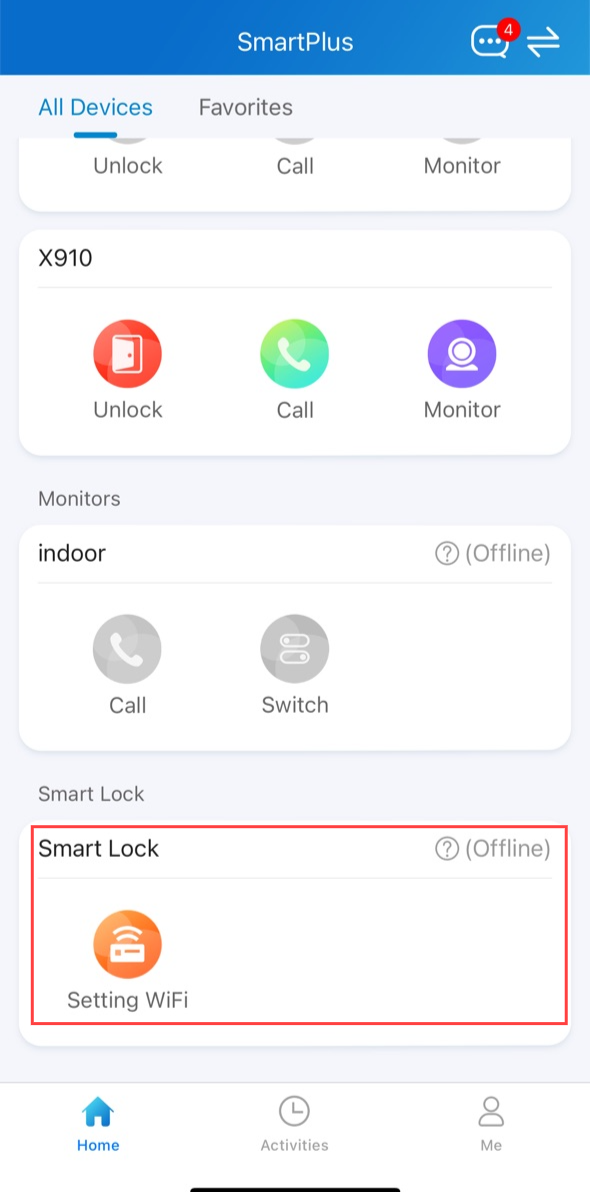
The Lock is Linked
After the lock is linked to a door phone relay, it is no longer operated independently within SmartPlus.
Instead, the door phone becomes the access control device. Any successful unlock action on the door phone triggers the configured relay, which simultaneously unlocks the linked smart lock.
Unlock on the SmartPlus Homepage
You can tap  to open the door phone’s relay. At the same time, the akubela lock is unlocked.
Unlock the Linked Lock via the Door Phone
Once the lock is linked to a door phone relay, it can be unlocked through the door phone. The door phone authenticates the user using its supported access methods and then unlocks the linked smart lock.
Please click the following links to view how to set up specific access methods:
Note
Facial recognition, PIN, NFC, Bluetooth, or card authentication are performed by the door phone, not by the smart lock.
The access methods supported by the device vary by model. For example, some models do not support opening doors via Bluetooth.
If you want to learn what access methods are supported by your device, please refer to the product datasheet or admin guide.
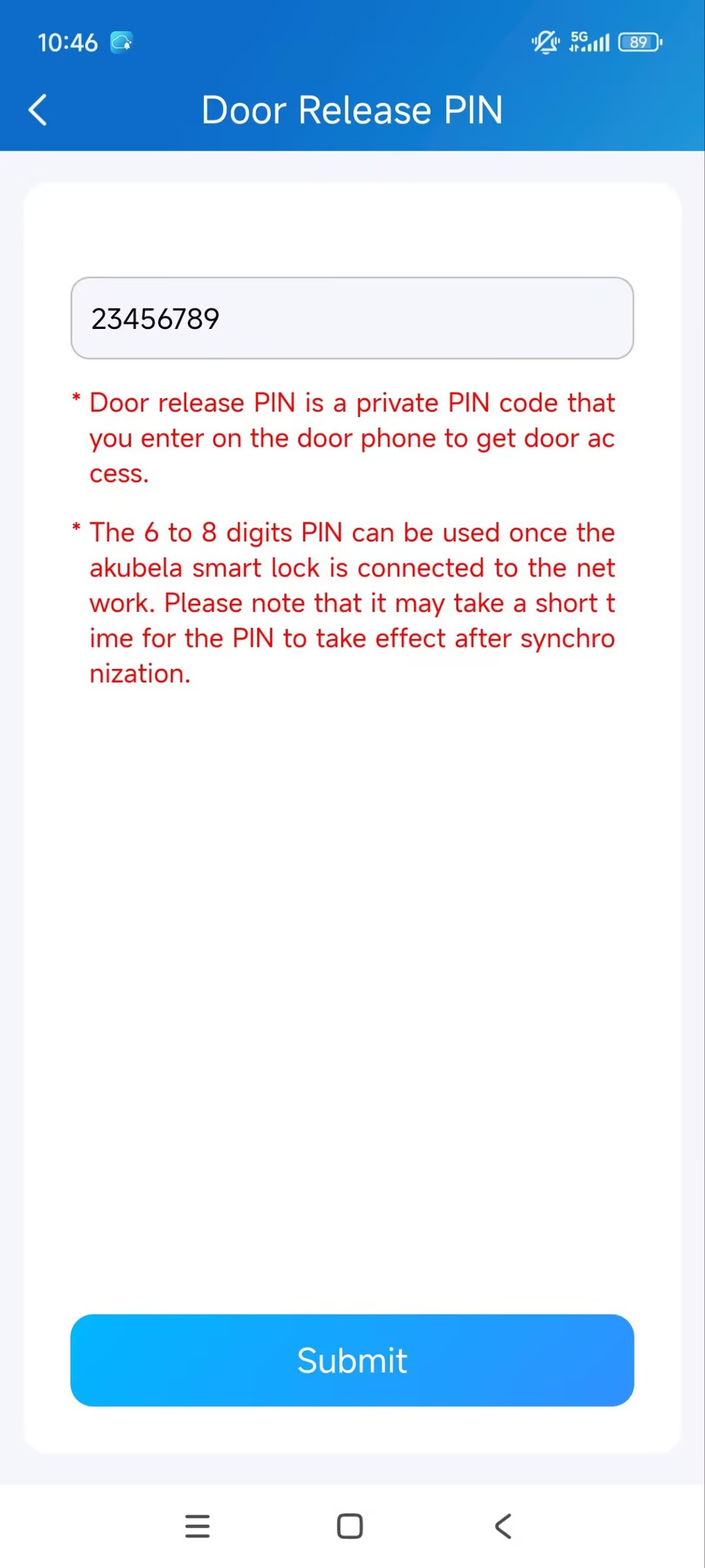
Sync PIN to Open Locks
The added PIN will be automatically synchronized to the lock for door access.
You can add or modify the PIN on the Me > Authorization > Door Release PIN page. It should be 6 to 8 digits for unlocking the SL21.
Receive Notifications from the Lock
You can receive the following types of notifications from the lock.
The battery level is lower than 15%, 10%, and 5%.
Enter the wrong passwords for consecutive 5 times.
A visitor rings the doorbell.
Unlock the Lock on Indoor Monitor
If your family has installed an S563 indoor monitor, you can unlock SL21 on its screen.
Note
S563’s firmware version should be 563.30.14.102 or higher.
Ensure the lock is properly configured and online before unlocking it.
Tap Settings > Advance > Custom Homepage. The default code to access advanced settings is 123456.
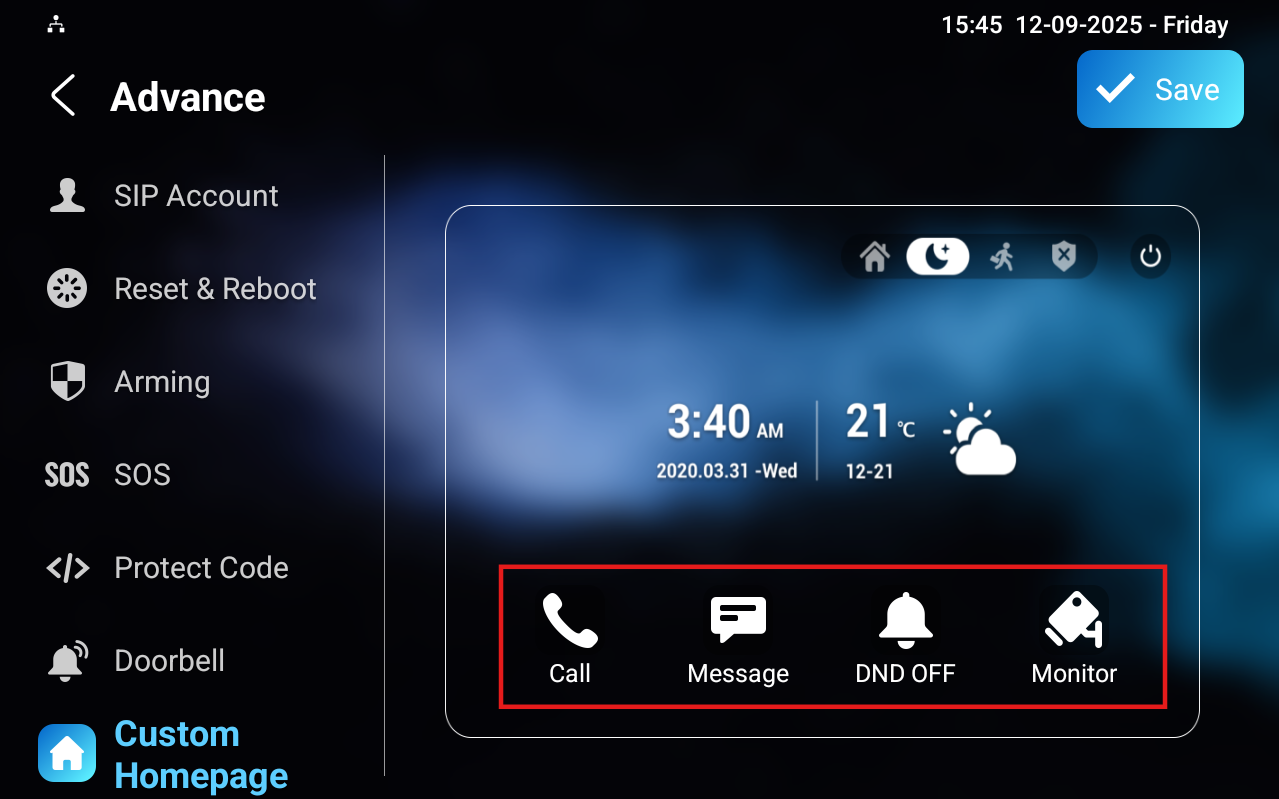
Tap the desired area to display the Smart Lock tab.
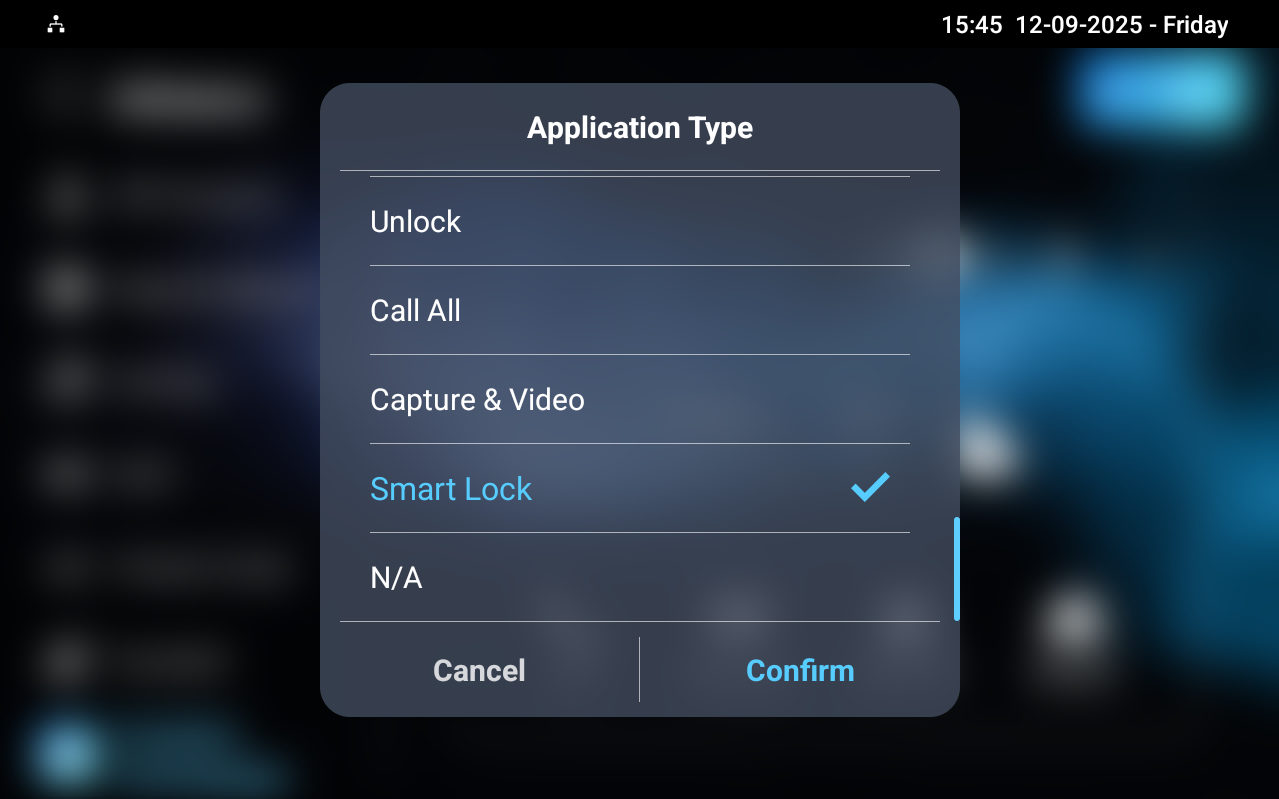
Tap Smart Lock > Open Door to unlock it.
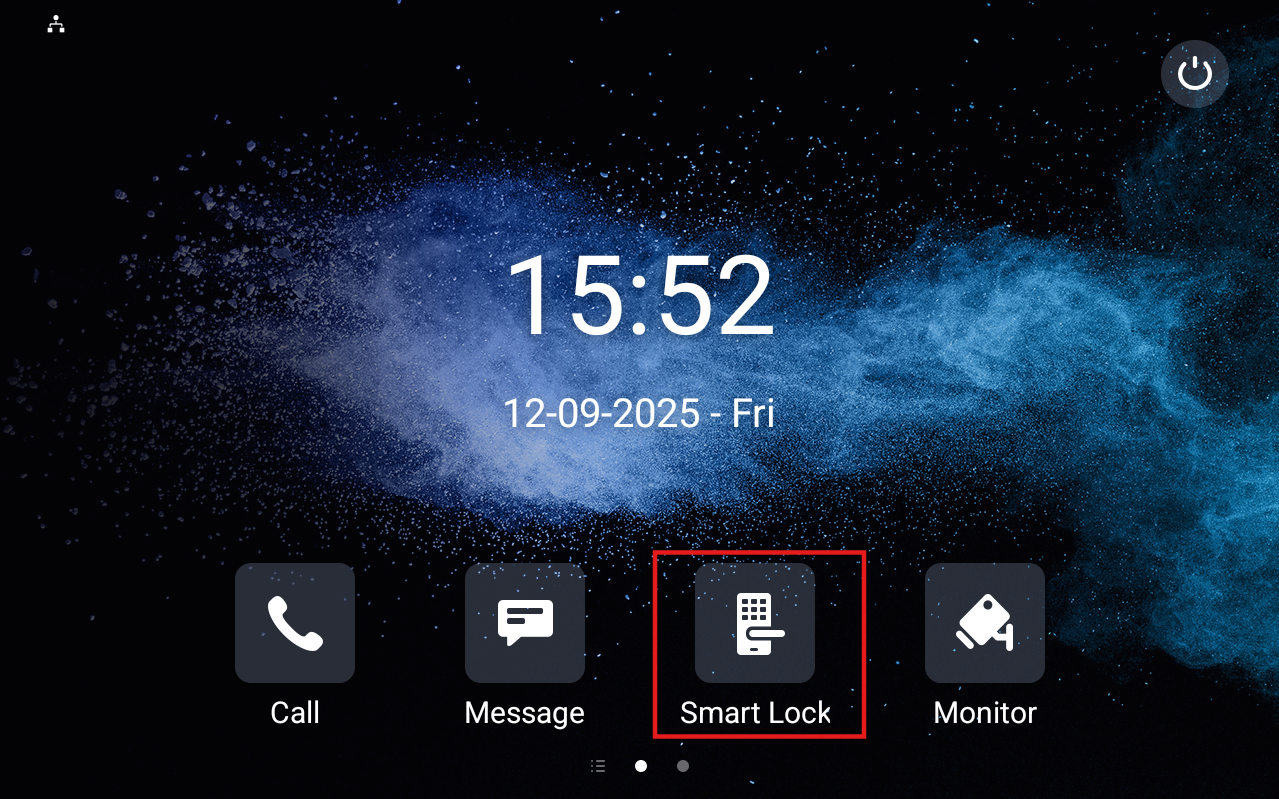
.png)
When someone rings the doorbell, the indoor monitor will push a notification.
.png)