The akubela SL60 smart lock integrates with SmartPlus, allowing residents to unlock the door remotely through the SmartPlus App and manage access credentials for the lock.
Note
The required SmartPlus App version or later: 7.52.0004(Android)/7.52.4(iOS).
ONLY community and single-family house residents can use the feature.
Only the family master account can add the lock.
Add the lock via Bluetooth or hotspot.
Add the Lock
Make sure Bluetooth is enabled on your phone before adding the SL60.
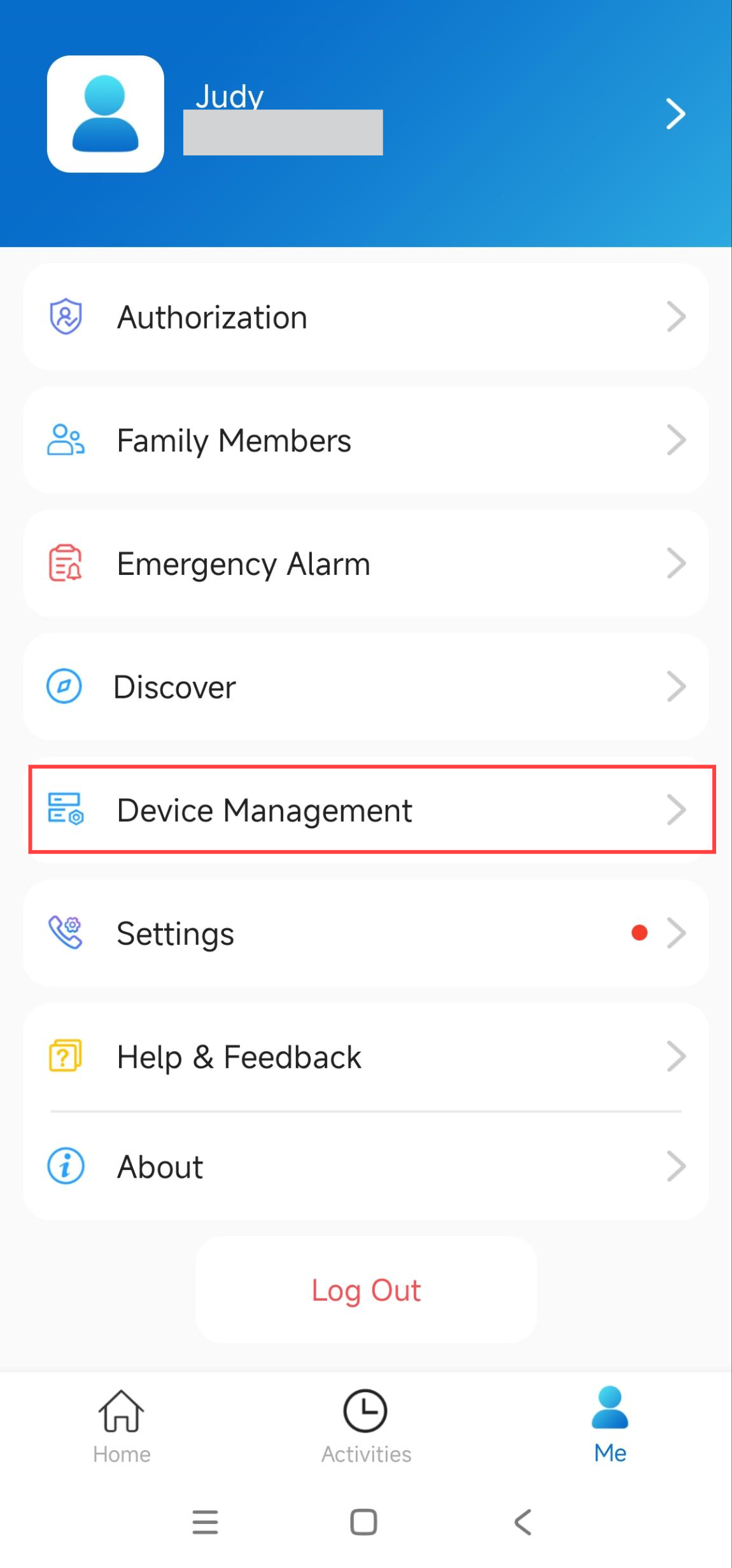
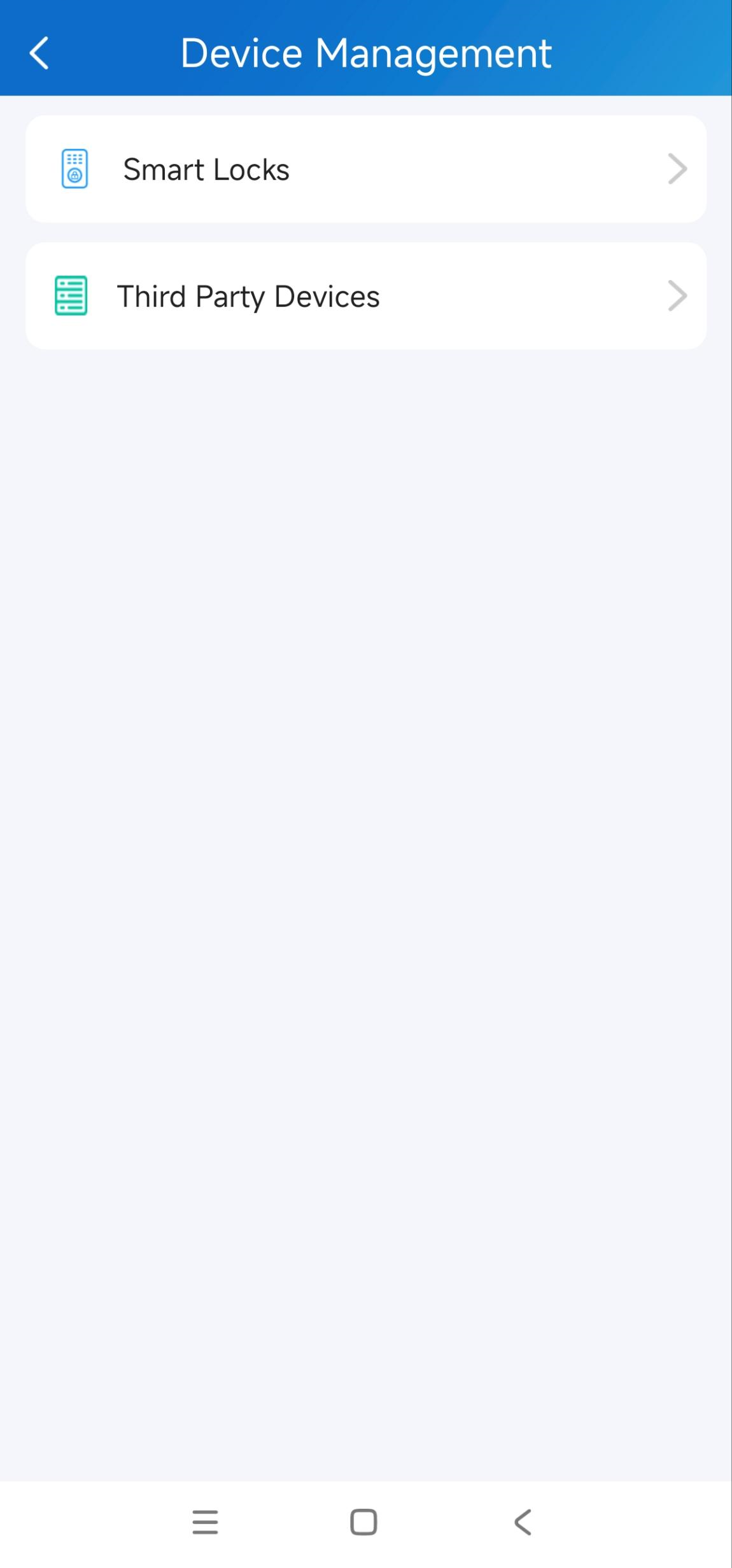
Tap Me > Device Management > Smart Locks.
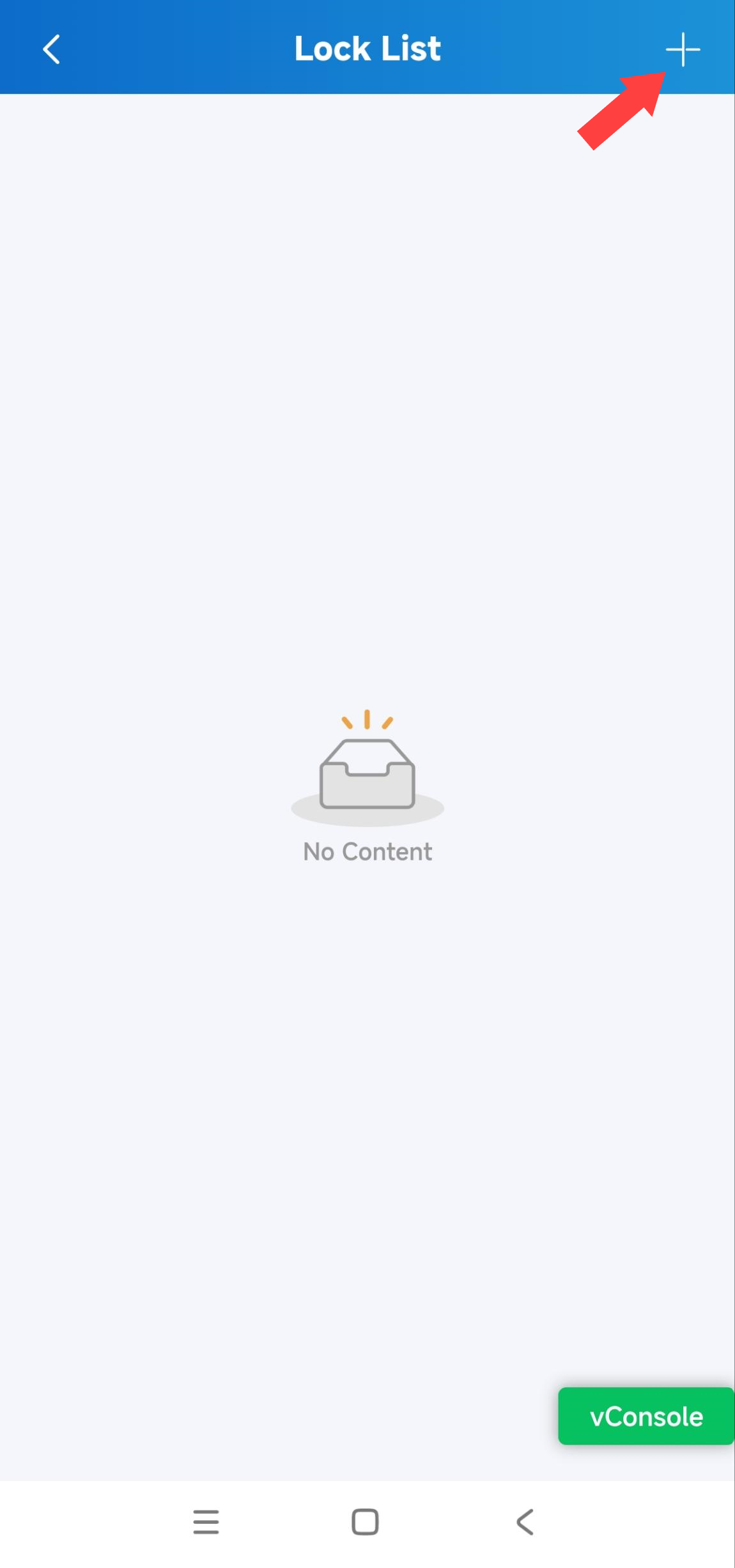
Tap + in the upper-right corner.
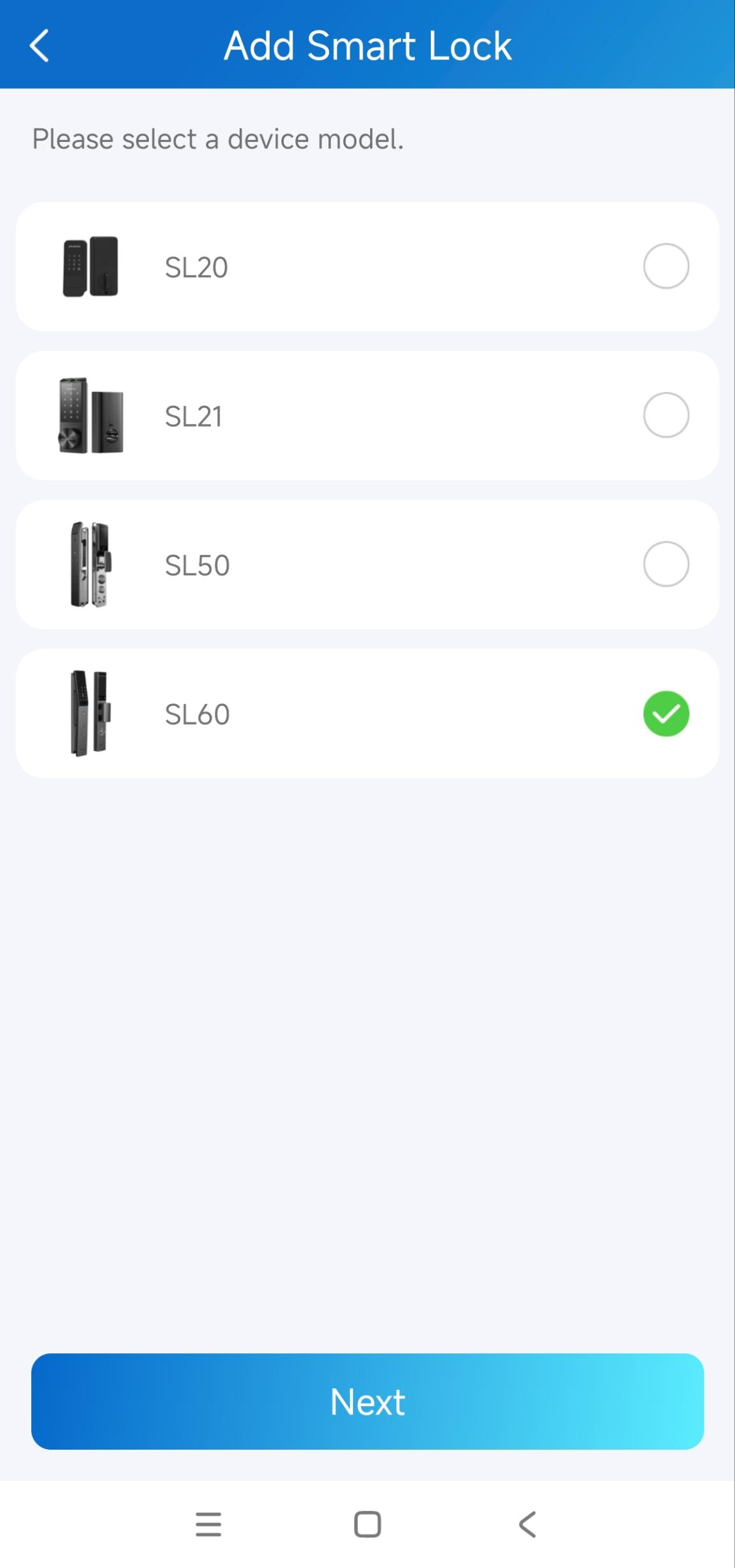
Select the lock model: SL60, and tap Next.
Enable Bluetooth on the lock using either of the following methods:
Method 1: Tap “—” button →
 →
→ 
Method 2: Wake up the keypad → 9 → ✔
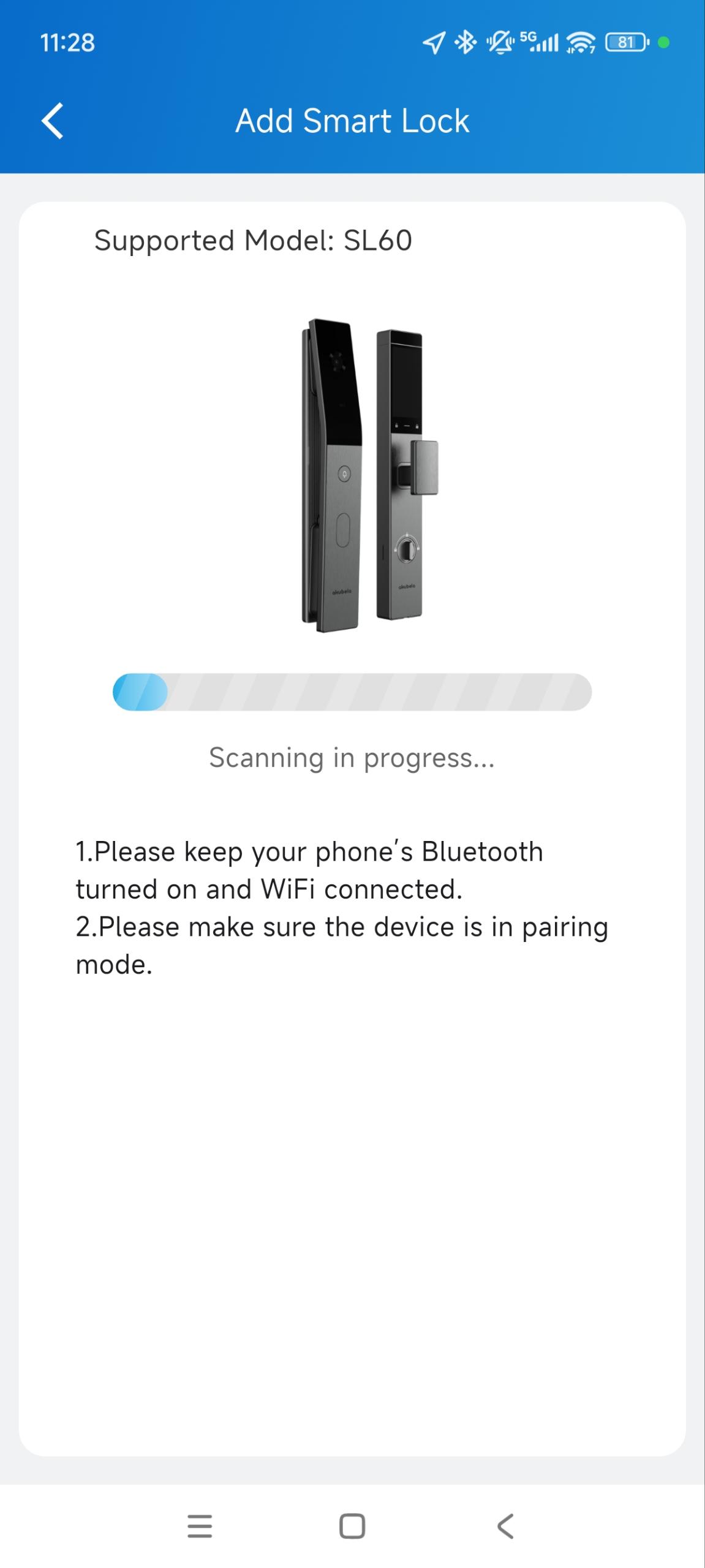
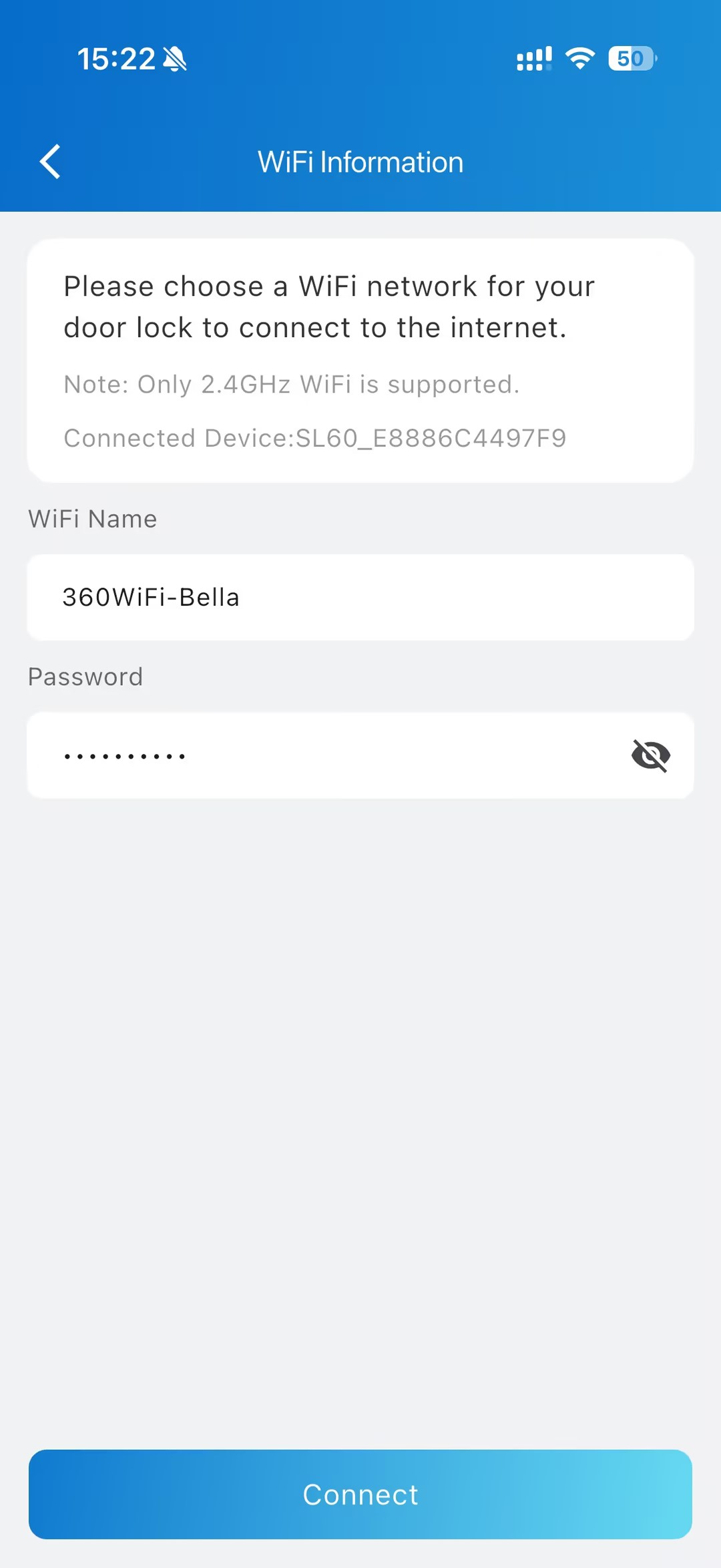
Connect the lock to a Wi-Fi network.
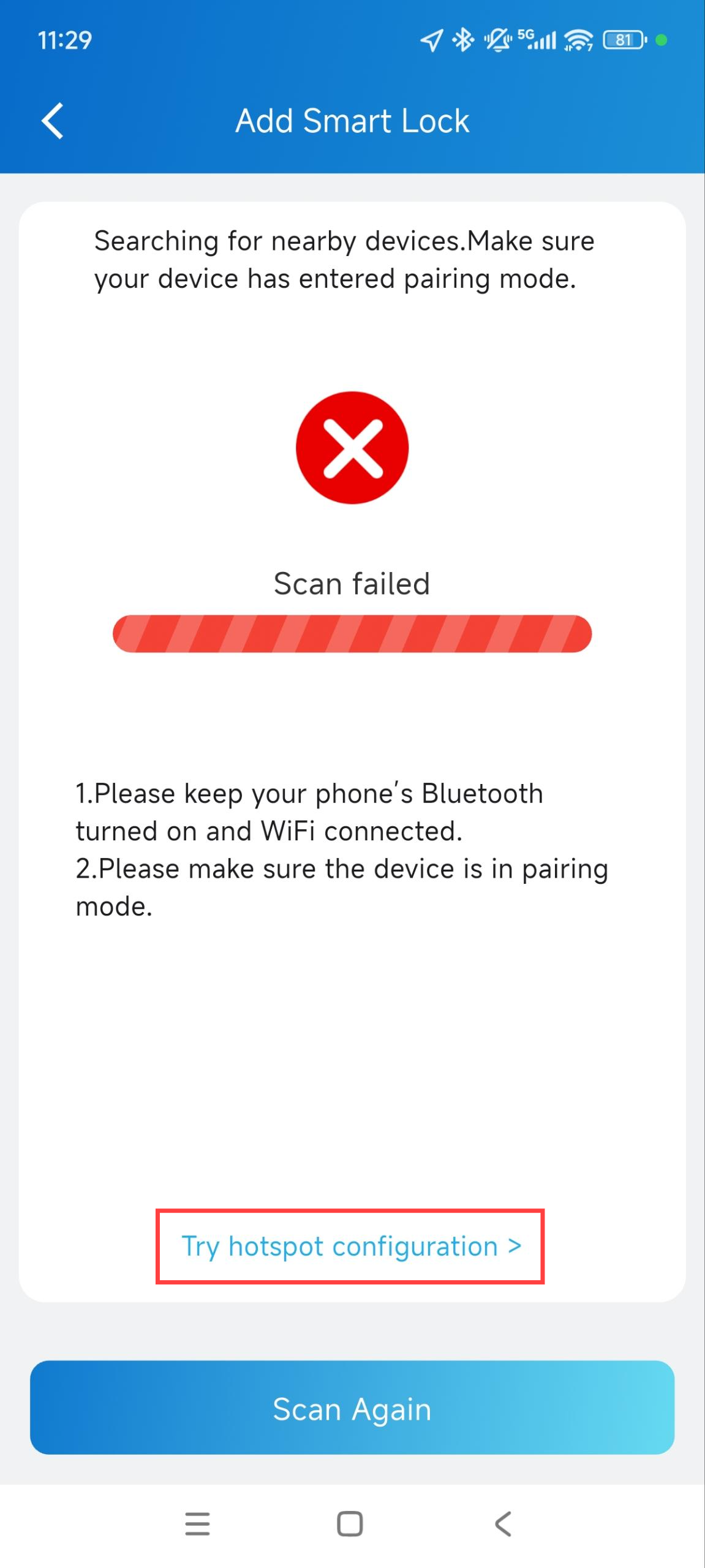
If Bluetooth configuration fails, use the hotspot method below.
Add the Lock via Hotspot
Tap Try hotspot configuration.
On your phone, connect to the Wi-Fi hotspot named SL60_[lock MAC address]. Alternatively, tap Go Immediately to redirect to the Wi-Fi connection page.
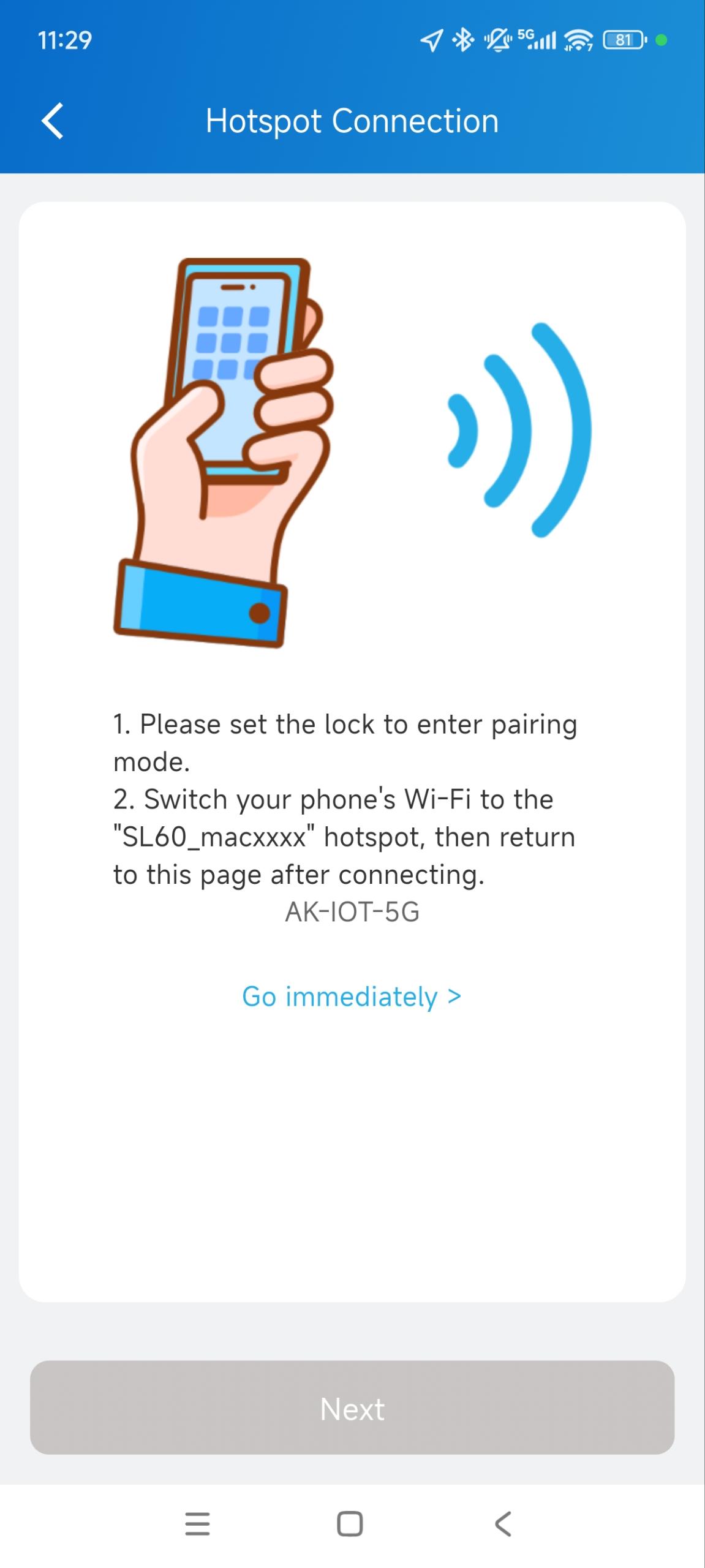
Tap Next.
Select the Wi-Fi and enter its password to provide the network to the lock.
Tap Connect.
It may take some time to finish adding. After that, a success message will display.
Set up the Lock
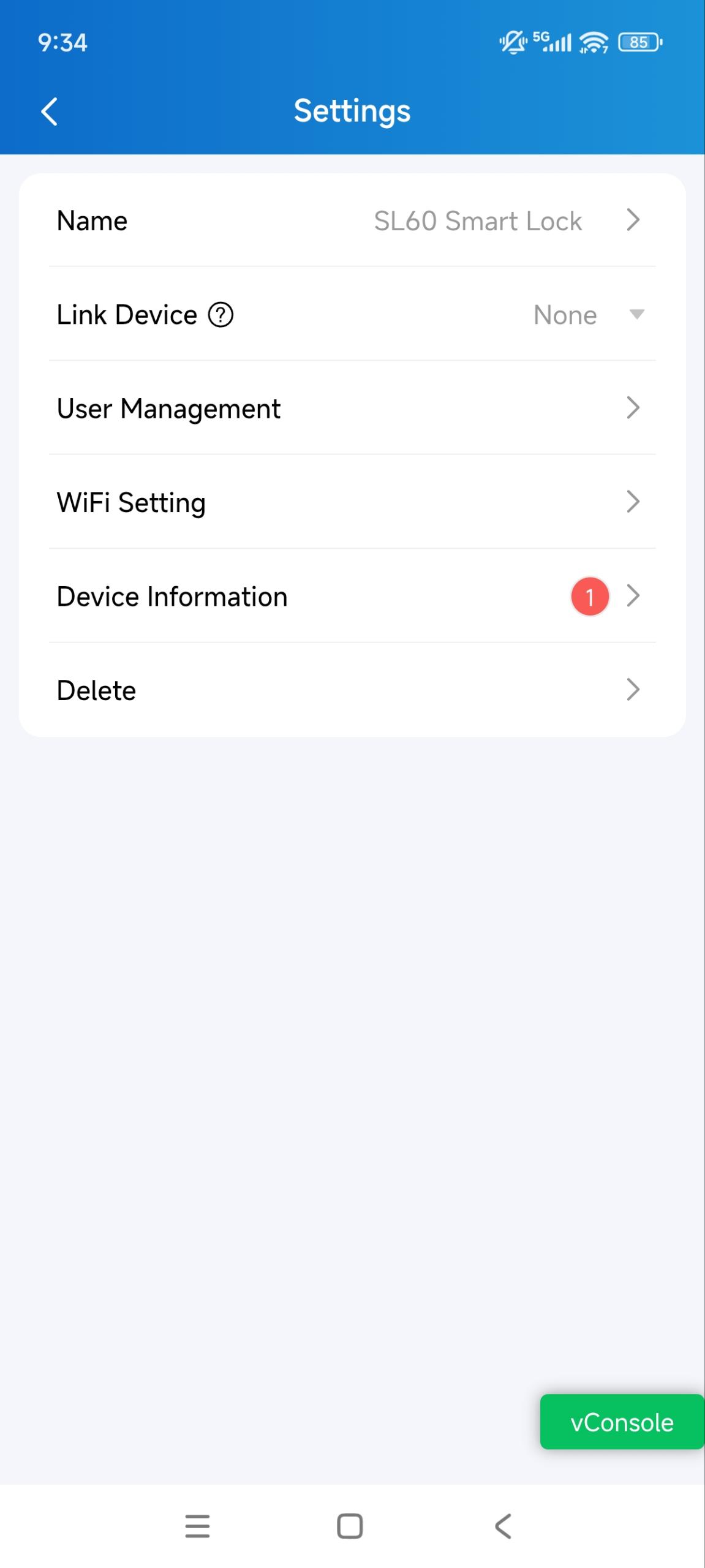
Tap Me > Device Management > Smart Locks > [the lock name]. Once the lock is offline, you cannot change its settings.
You can:
Change the lock name.
Link it to a door phone’s relay. Whether the lock is linked to relays determines how it is unlocked. See the Unlock the Lock sections for details.
Manage users.
Change its connected Wi-Fi.
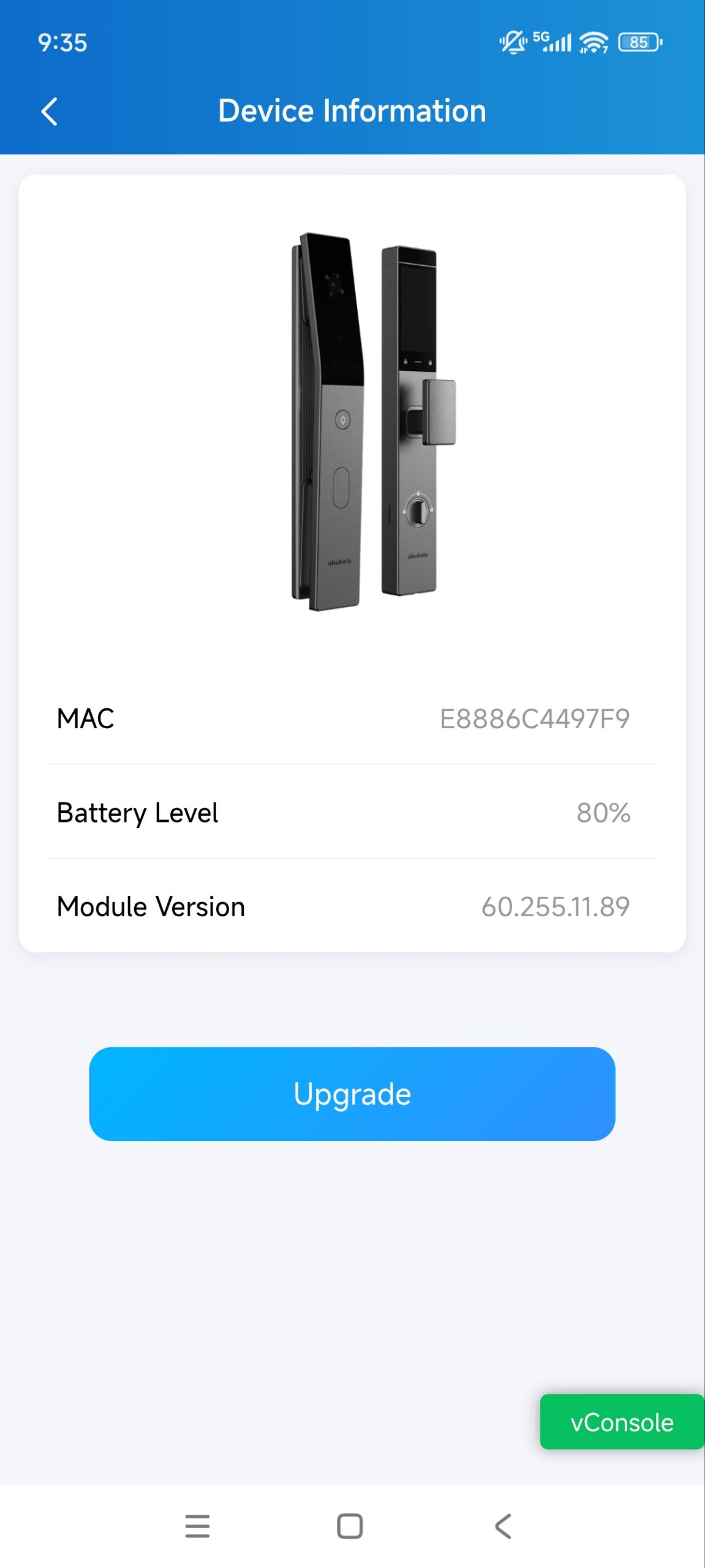
Check the lock’s information. On the info page, you can check the lock’s version and battery level, and upgrade it.
Delete the lock from the app.
User Management
You can add users and assign access credentials to them for unlocking the lock on the SmartPlus App.
To enroll face, palm vein, or fingerprint credentials via the app, make sure your phone is connected to the lock via Bluetooth.
Add an Admin
Each lock can have only one admin user. If no admin has been added, the User Management page displays an Add Admin button. The first user added to the lock is assigned the admin role. After an admin has been added, all subsequently added users are assigned the General User role.
Tap Me > Device Management > Smart Locks > [the lock name].
Tap User Management.
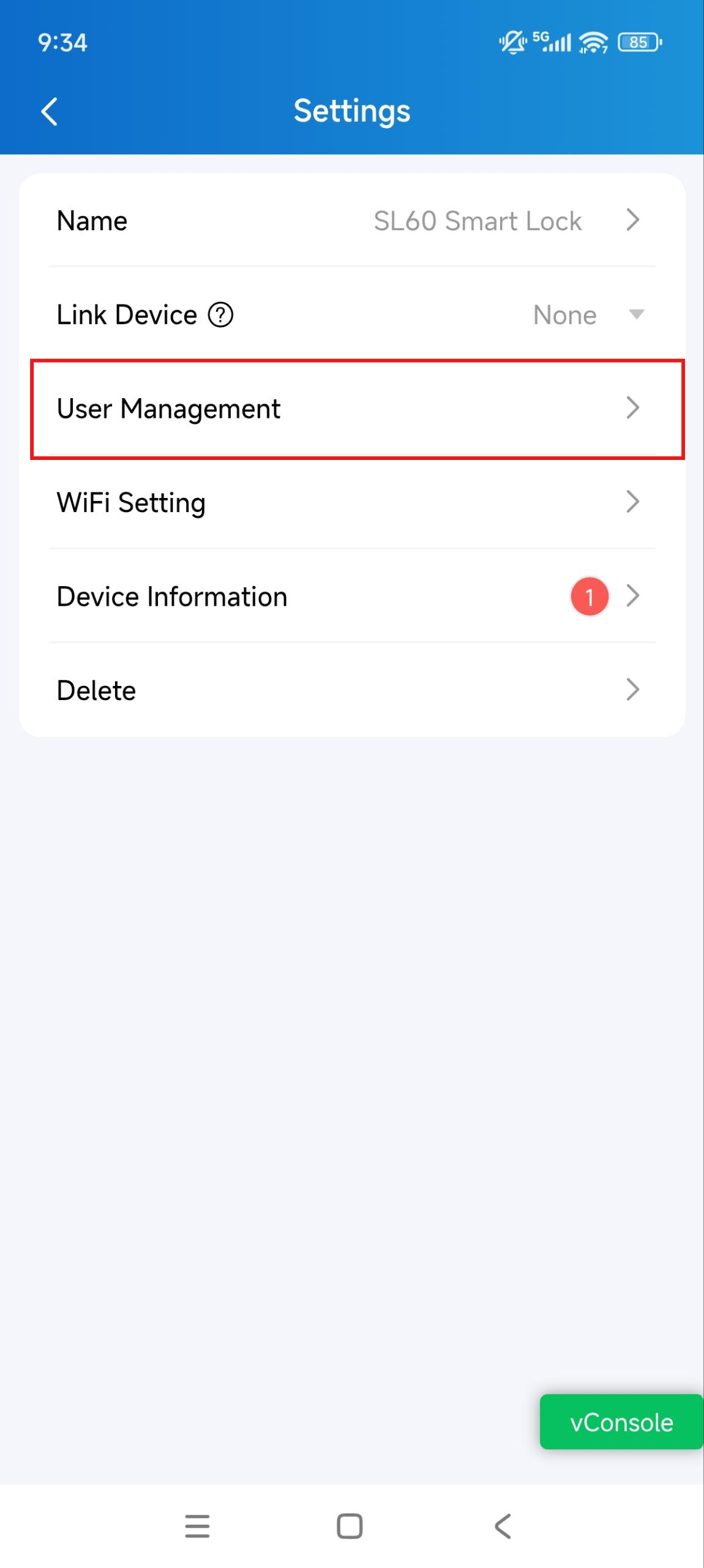
Tap Add Admin to add the administrator.
Enter the Admin Name and tap Submit.
.jpg)
Once the admin is added, it cannot be deleted from the SmartPlus App.
Add a User
Tap Me > Device Management > Smart Locks > [the lock name].
Tap User Management.
Tap Add User.
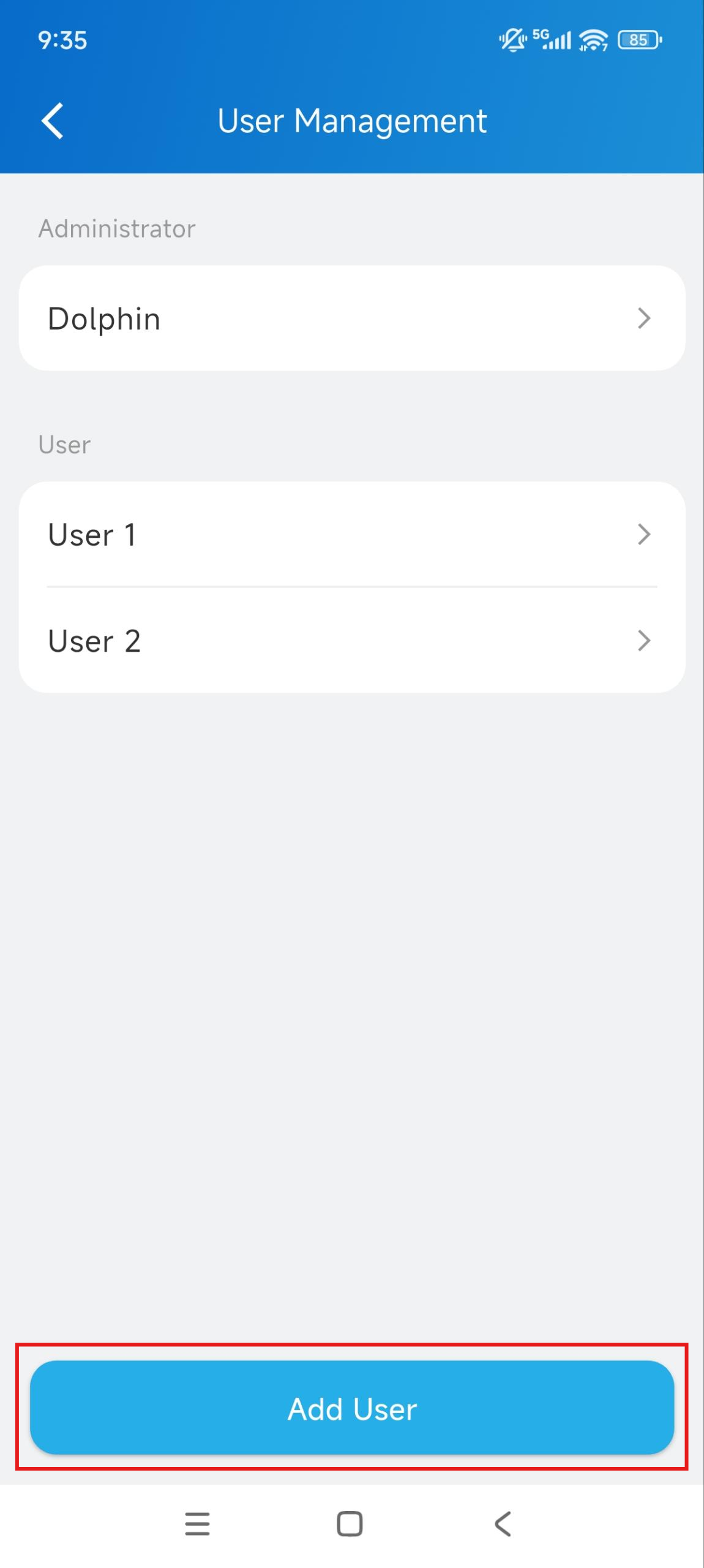
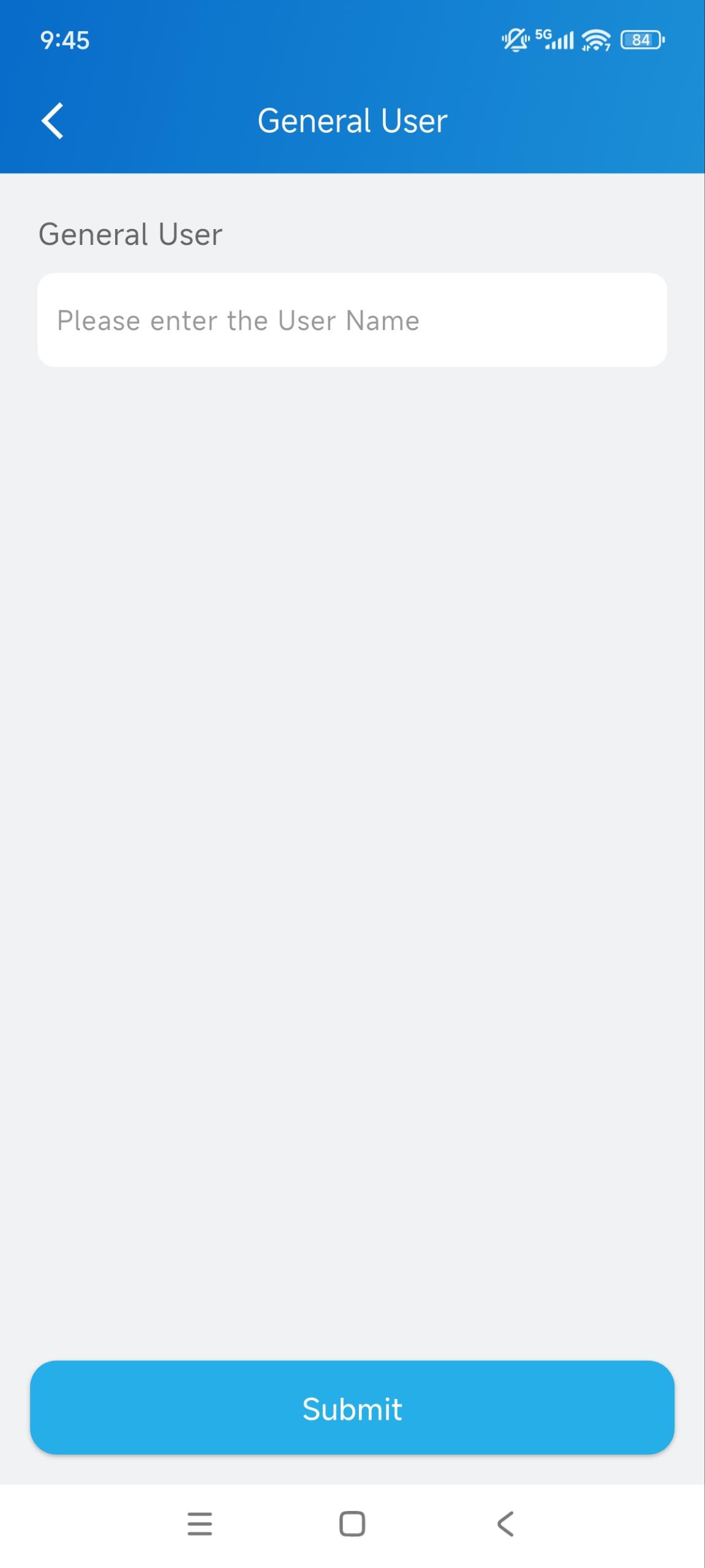
Enter the username and tap Submit.
Register Access Credentials
Tap Me > Device Management > Smart Locks > [the lock name].
Tap User Management.
Select the target user.
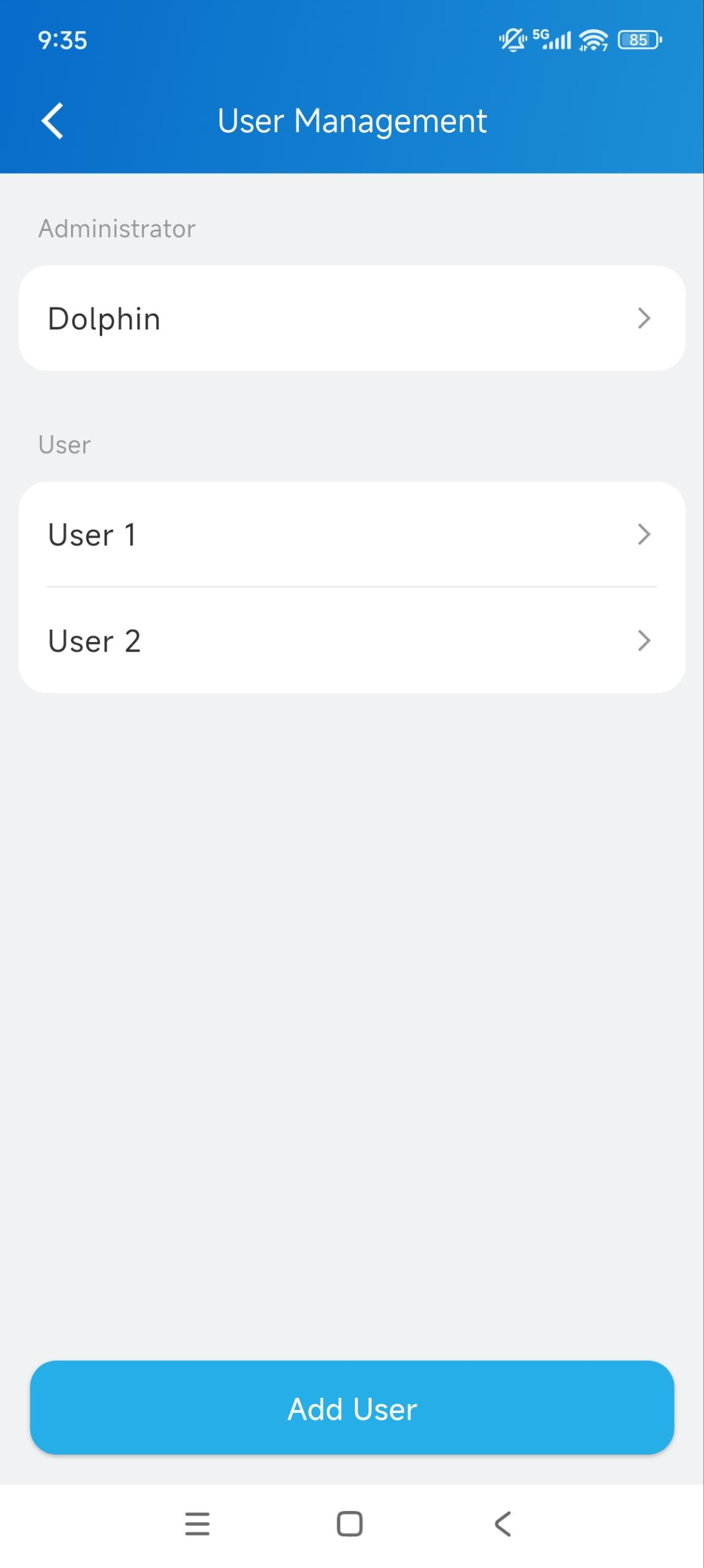
Tap +New Face, +New Palm Vein, or +New Fingerprint.
Complete the enrollment at the lock.
.jpg)
A success message will display after adding the credential successfully. After configuration, users can use the enrolled credential to unlock the lock.
Note
Each lock supports a maximum of 50 credentials of each type.
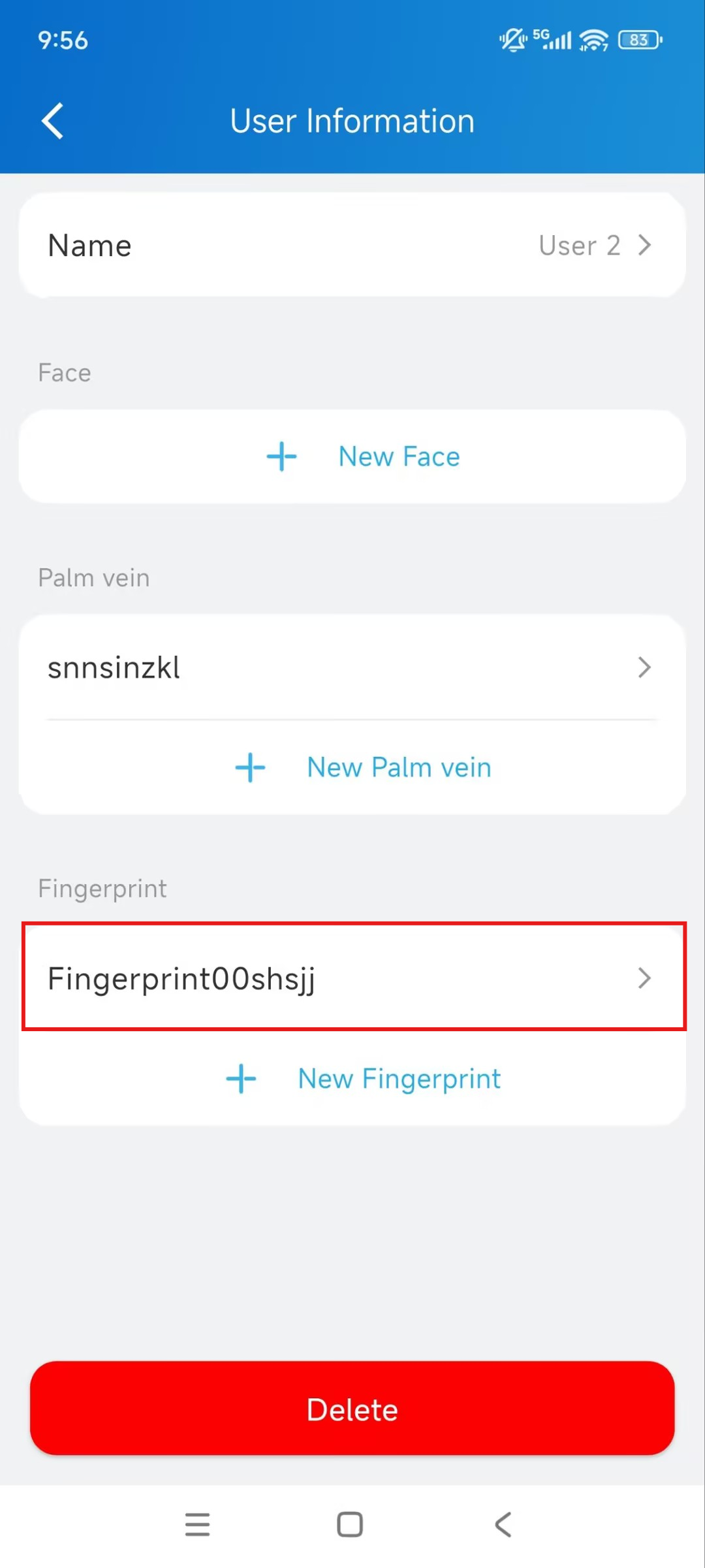
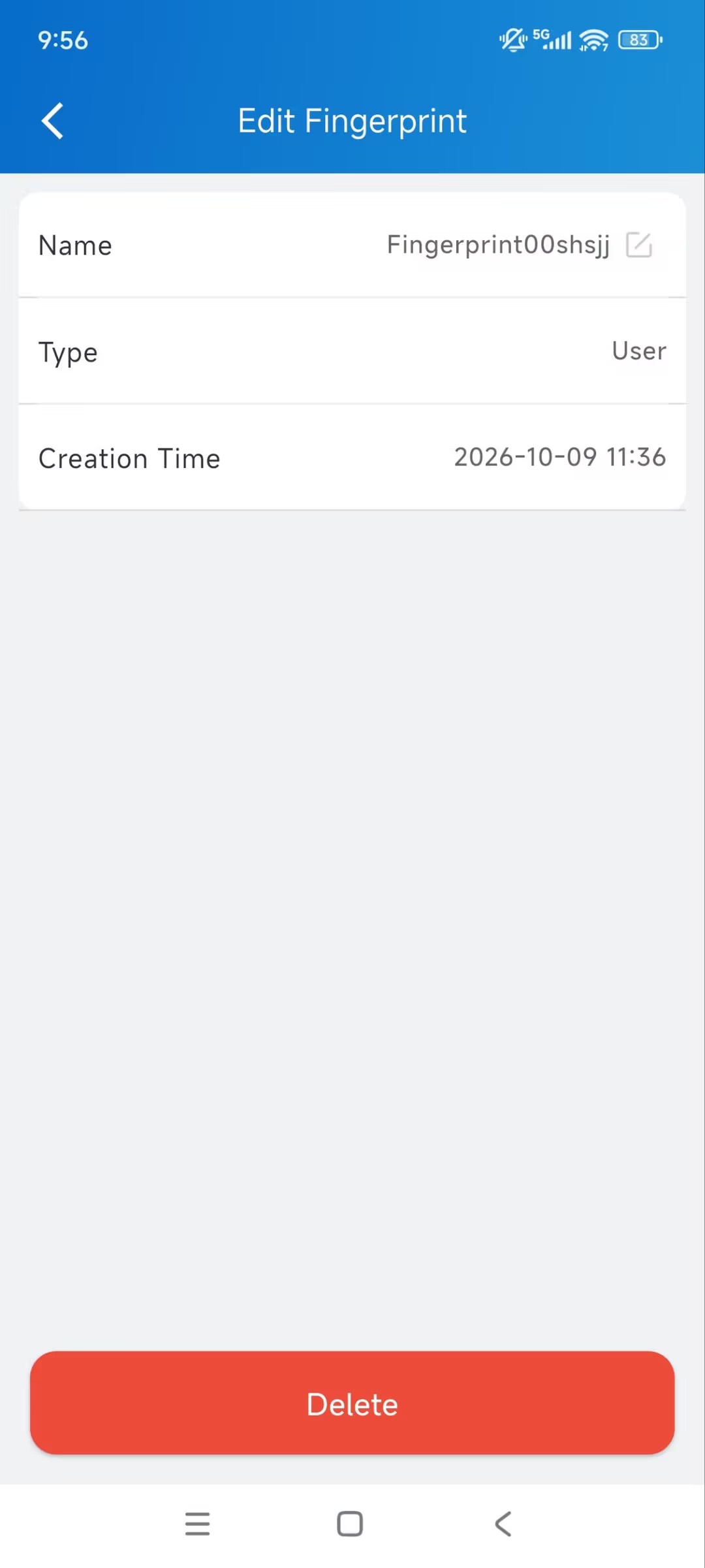
To delete a credential, enter the User Information page.
Select the target credential.
Tap Delete.
Unlock the Lock
The Lock Is NOT Linked
When it is not linked to a relay, it will display on the app homepage.
You can directly tap Unlock or tap Unlock on its monitoring page.
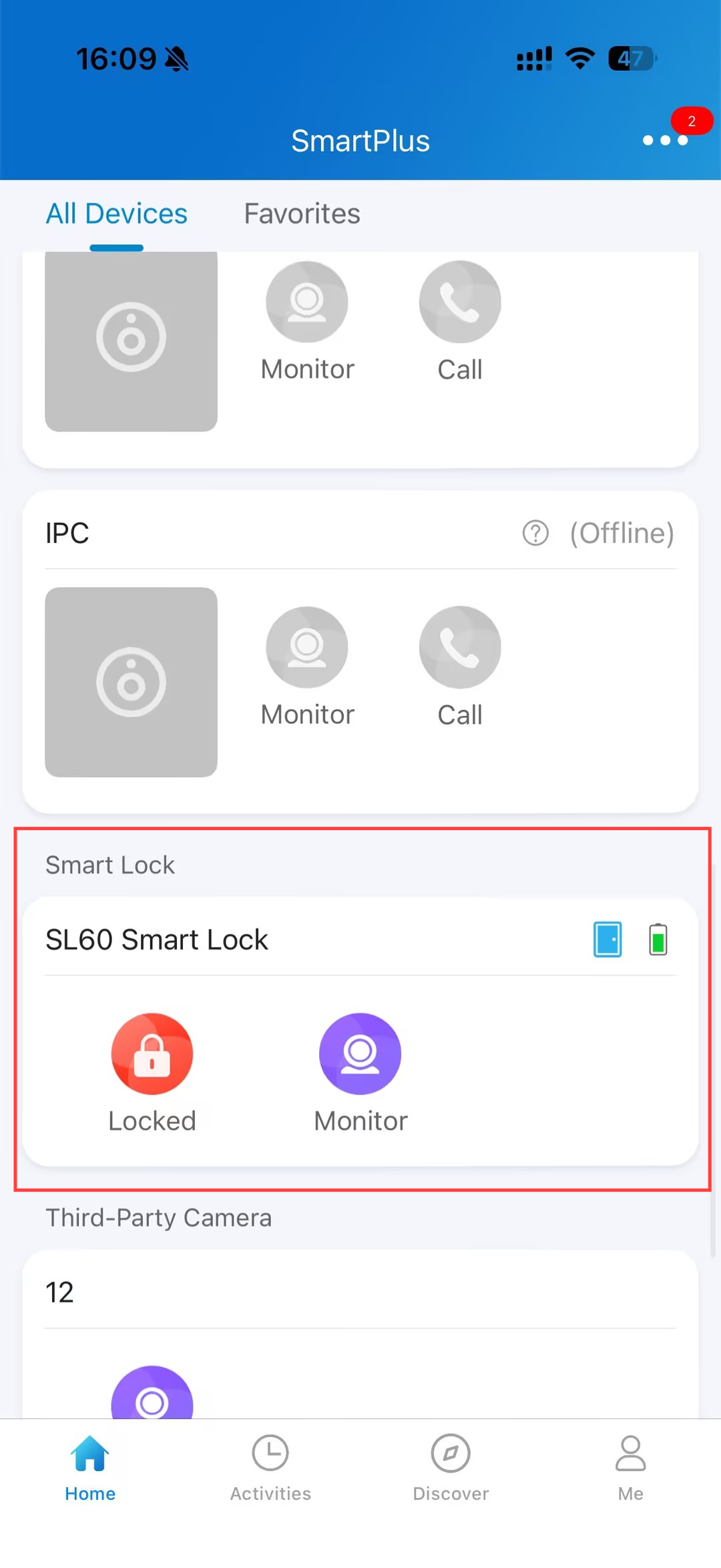
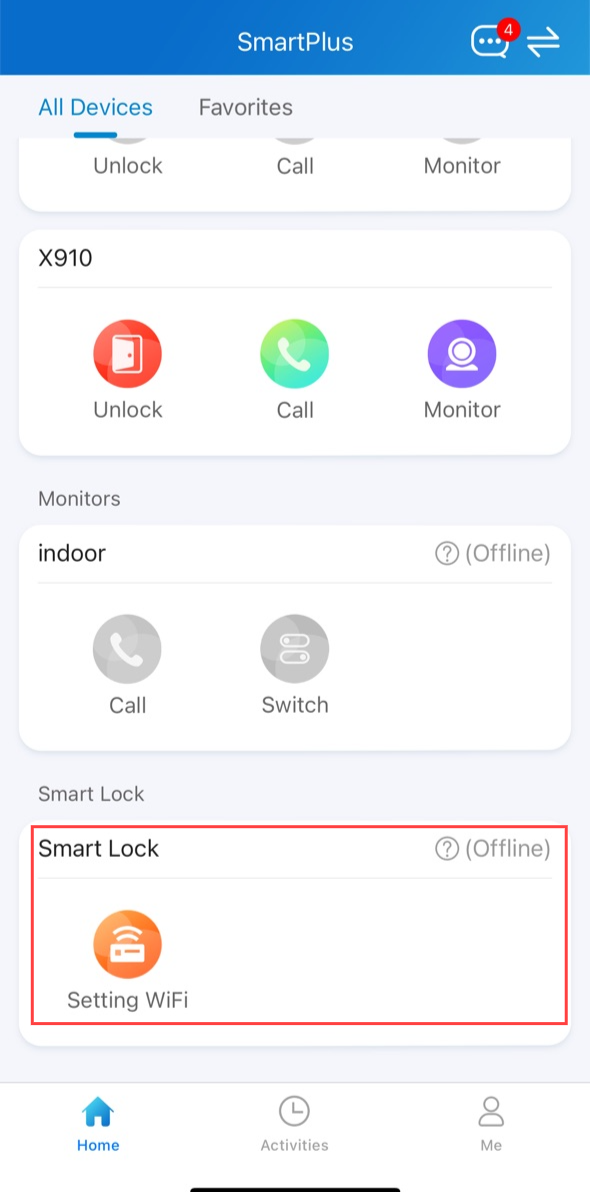
If the lock is not connected to Wi-Fi, it will display the Setting Wi-Fi icon. Tap to set up the network connection.
The Lock is Linked
After the lock is linked to a door phone relay, it is no longer operated independently within SmartPlus.
Instead, the door phone becomes the access control device. Any successful unlock action on the door phone triggers the configured relay, which simultaneously unlocks the linked smart lock.
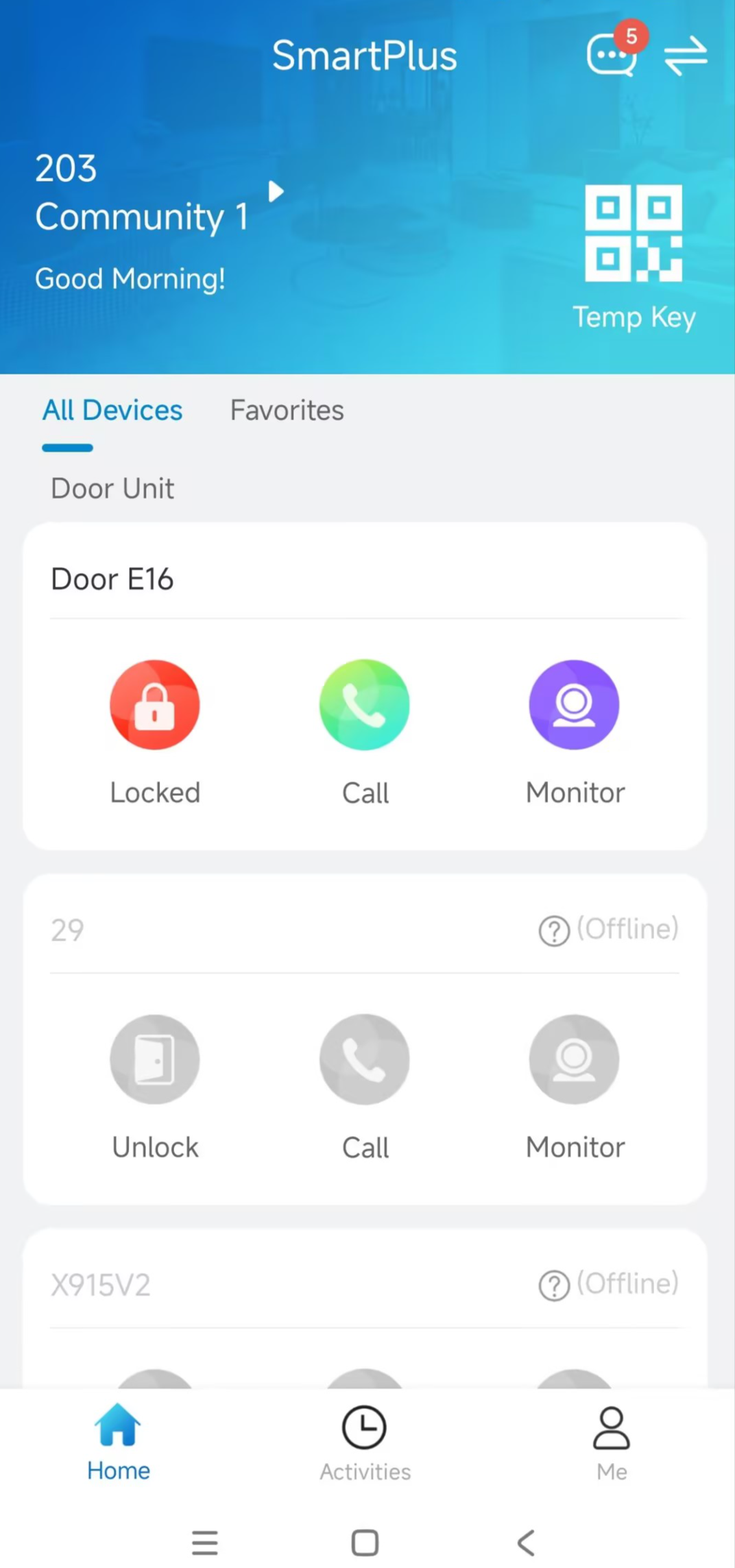
Unlock on the SmartPlus Homepage
You can tap  to open the door phone’s relay. At the same time, the akubela lock is unlocked.
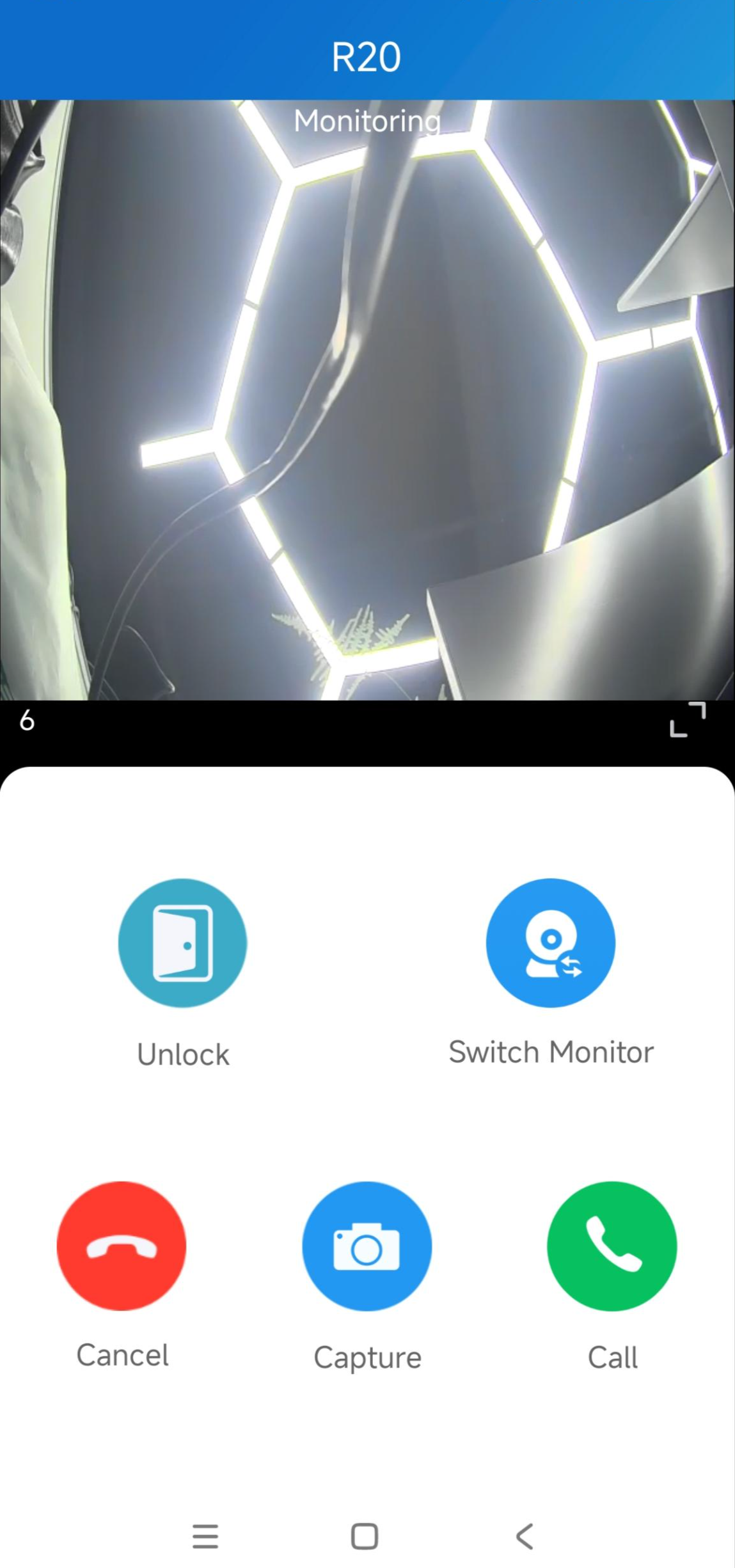
Unlock on the Calling and Monitoring Page
Tap Unlock on the Calling and Monitoring page to unlock the akubela lock.
Unlock the Linked Lock via the Door Phone
Once the lock is linked to a door phone relay, it can be unlocked through the door phone. The door phone authenticates the user using its supported access methods and then unlocks the linked smart lock.
Please click the following links to view how to set up specific access methods:
Note
Facial recognition, PIN, NFC, Bluetooth, or card authentication are performed by the door phone, not by the smart lock.
The access methods supported by the device vary by model. For example, some models do not support opening doors via Bluetooth.
If you want to learn what access methods are supported by your device, please refer to the product datasheet or admin guide.