The PM platform provides a streamlined way to add amenities for residents to reserve, set booking rules, and track booking records.
Add New Amenities
NOTE:
To manage access and reservations, ensure the amenity's linked door phone or access control device is already added to the akubela Cloud platform.
Go to Booking > Amenities > New Amenities.
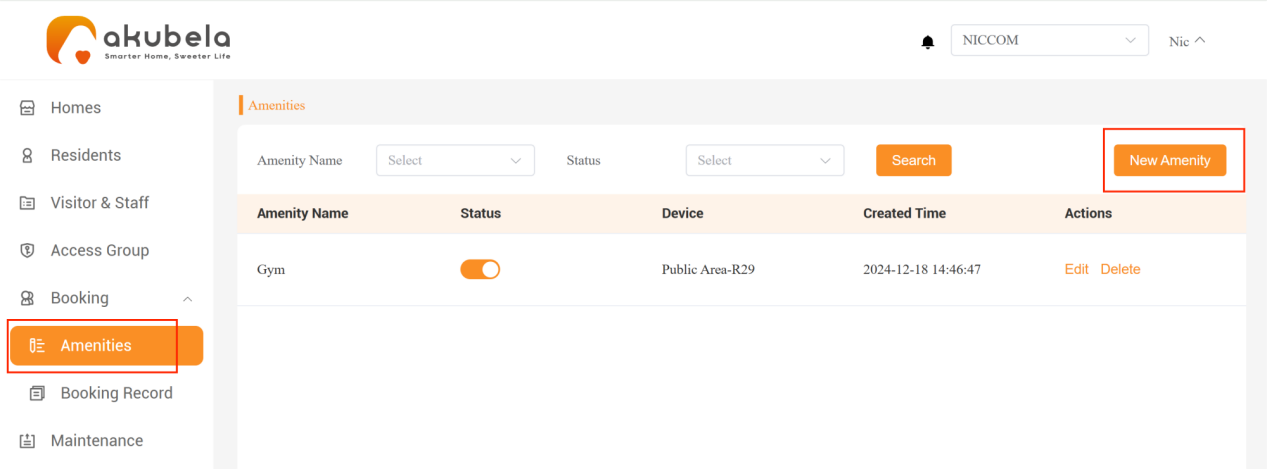
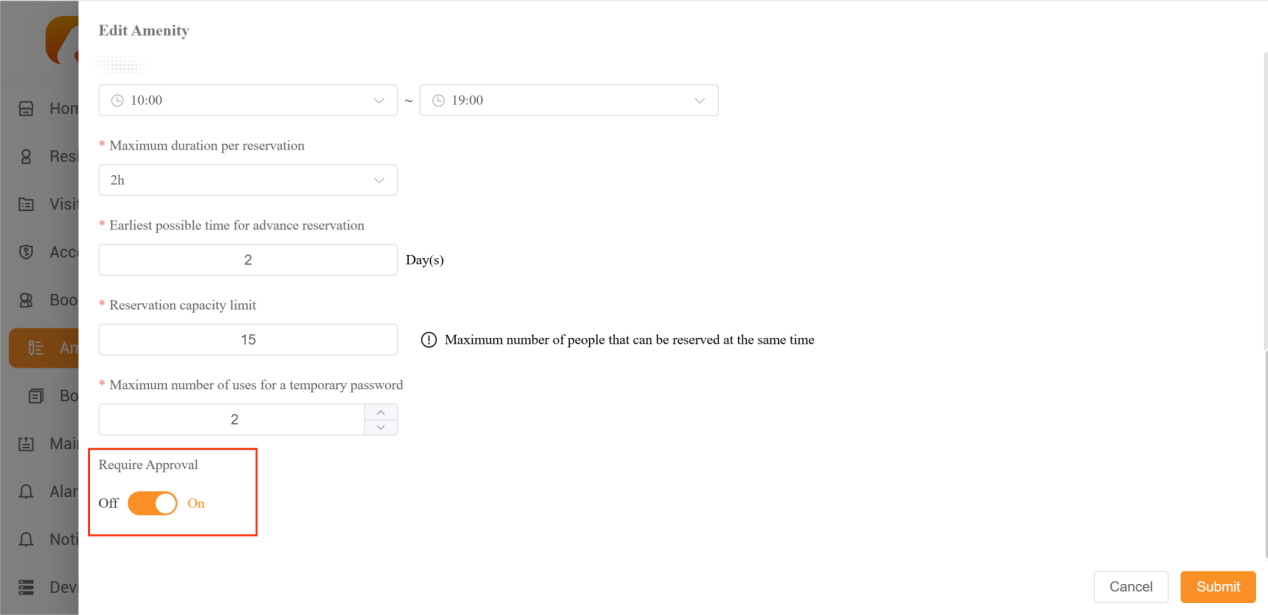
Enter the required information and define booking rules. Click Submit.
NOTE:
When the "Required Approval" option is off, the system will automatically approve bookings for this amenity without any action required from you.
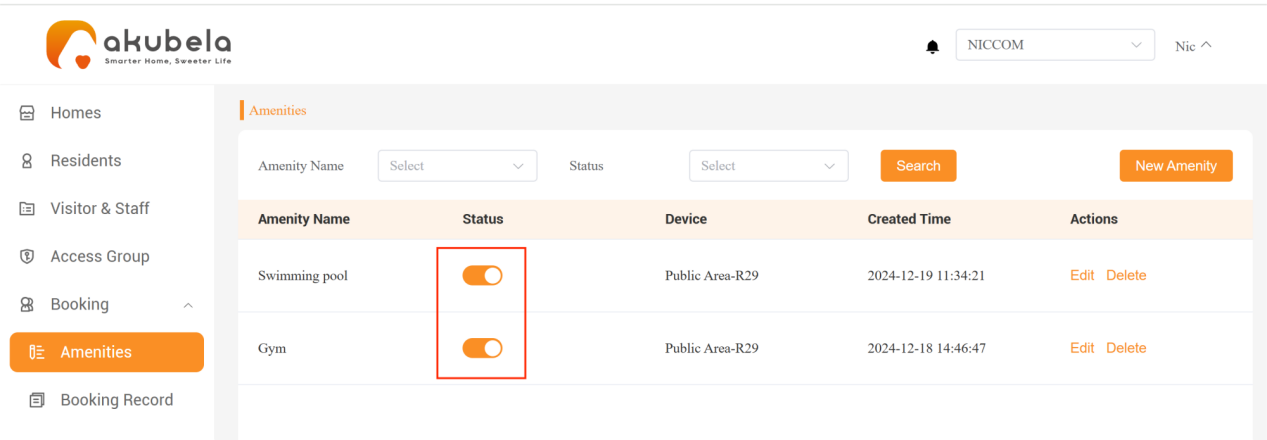
The new amenity will appear in the list. Use the toggle in the Status field to enable or disable its booking availability quickly.
NOTE:
Disabling the amenity’s status makes it unavailable for booking. Any unused reservations for the disabled amenity will be automatically canceled.
Manage Resident Bookings
You can review and approve resident requests for amenity bookings to ensure proper scheduling and fair usage.
Check Booking Status
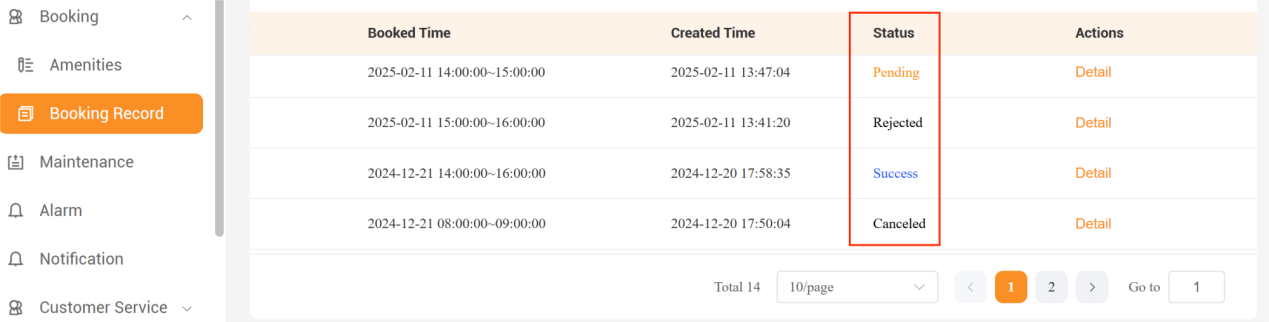
The bookings have four statuses:
Pending: Awaiting verification by the property manager.
Success
Approved by the property manager (if its “Required Approval” setting is turned on).
Automatically approved by the system (if its “Required Approval” setting is turned off).
Canceled
Canceled by the resident or property manager.
The amenity becomes unavailable before the booking is used.
Rejected: The booking request has been rejected.
Review Reservation
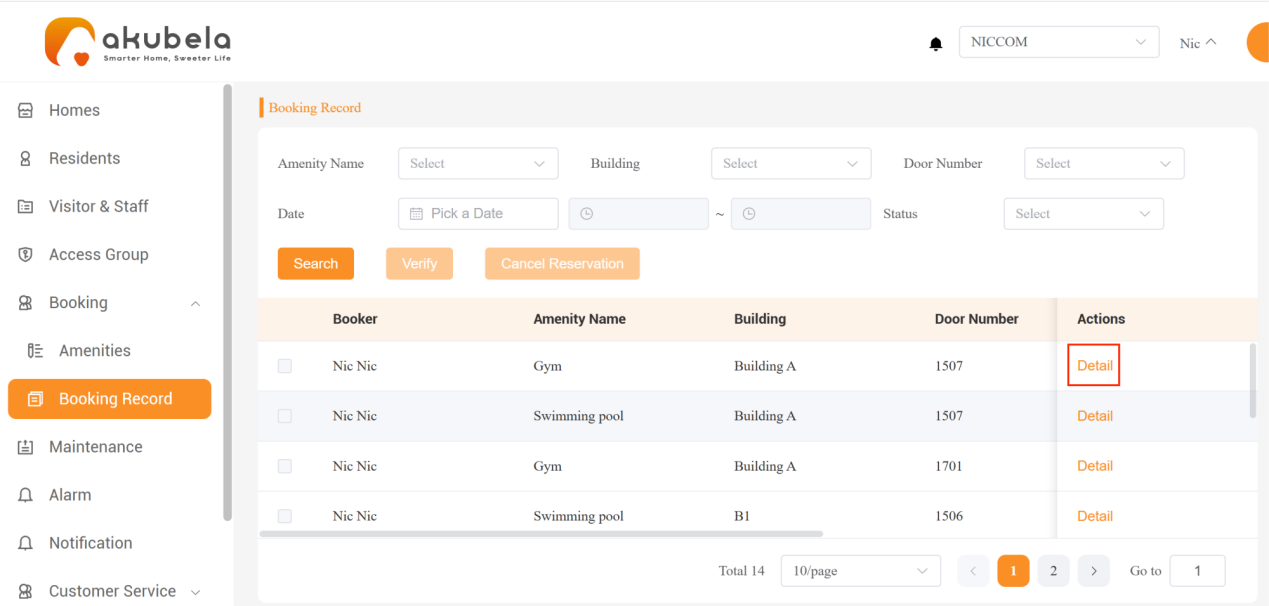
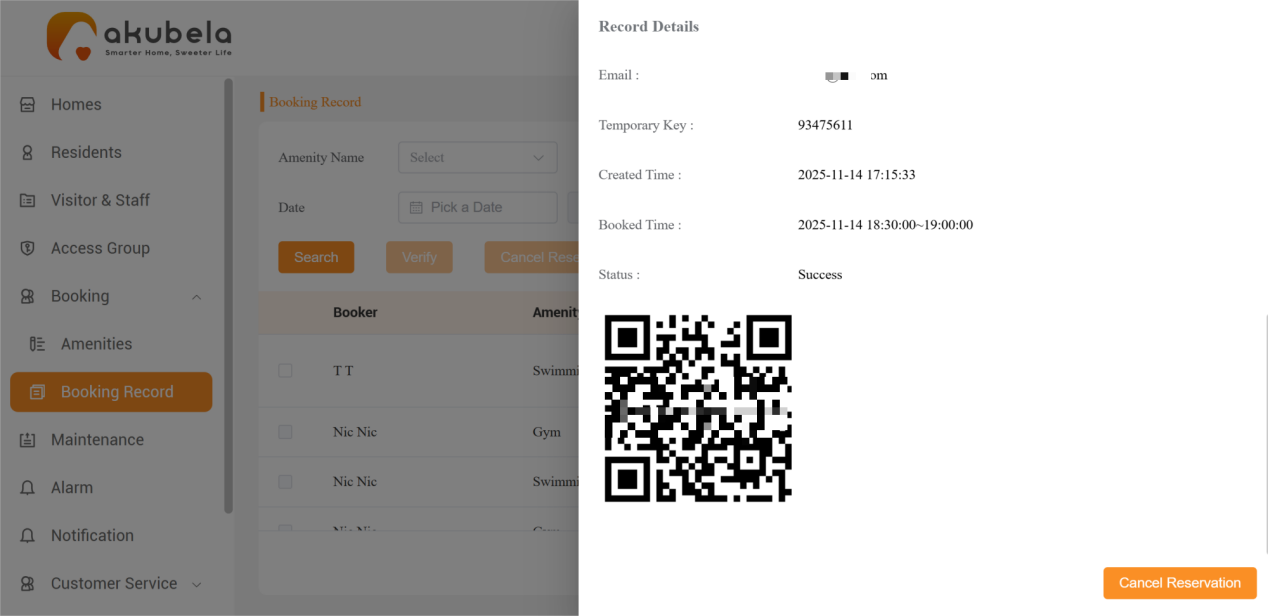
When a resident makes a reservation through their BelaHome app, the request appears in the Booking > Booking Record interface with a Pending status. To see the reservation details, click Detail in its Actions field.
Process Booking Requests
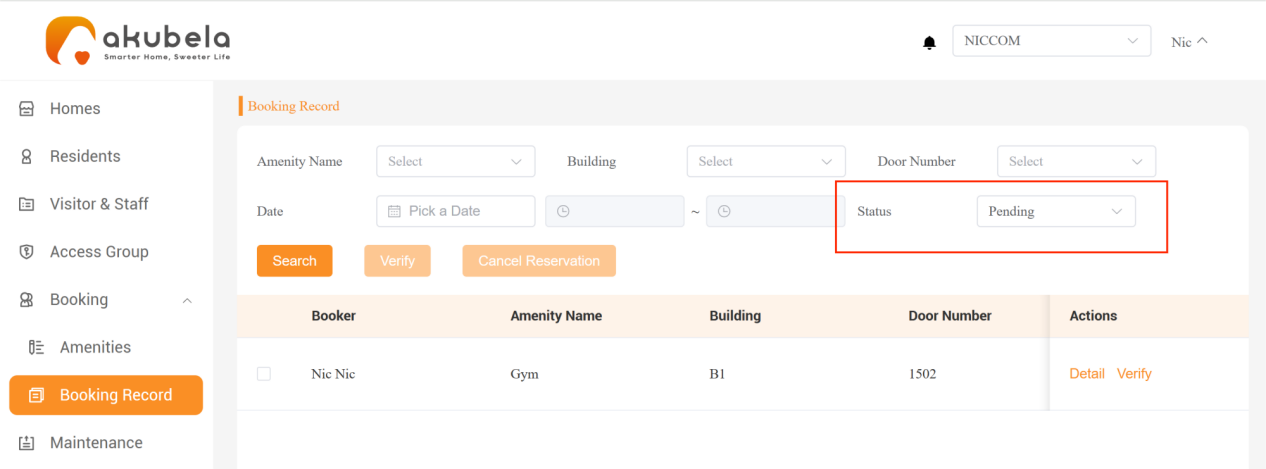
Use the status filter at the top-right to locate all “Pending” requests.
Select the request(s), click Verify, then choose to either approve or reject the booking.
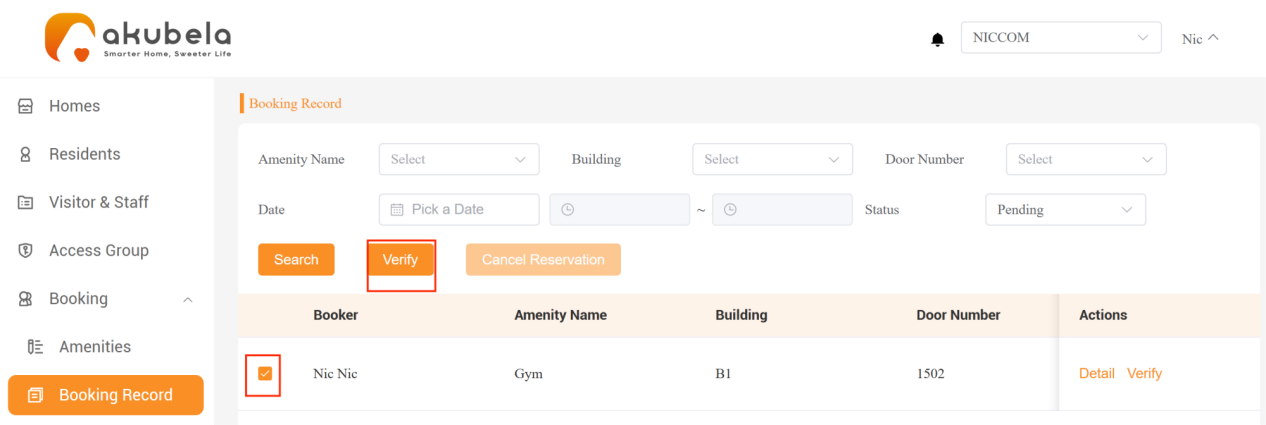
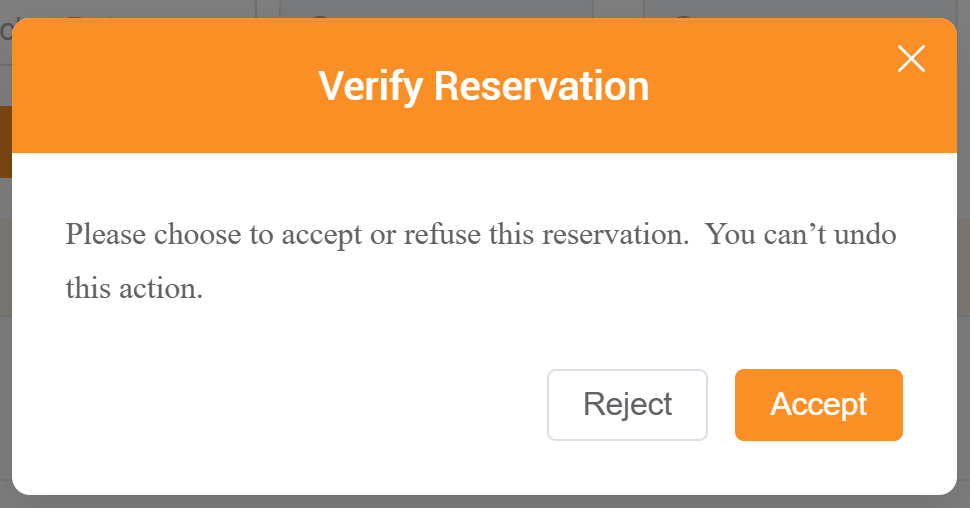
Once approved, the booking status changes to Success, and a QR code for amenity access is generated. This QR code can be found:
In the PM platform under the Detail interface for the specific request.
In the user’s BelaHome app under booking details.
TIP:
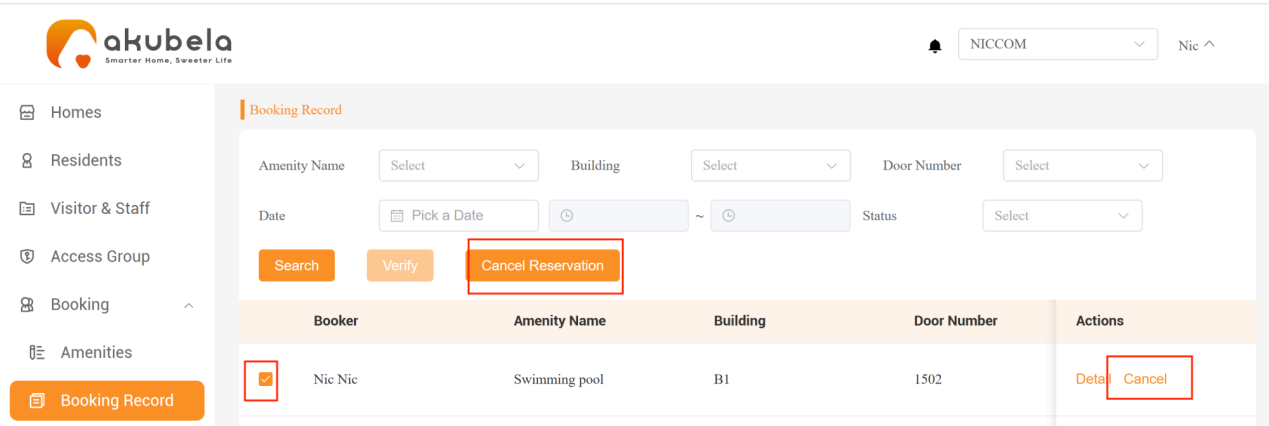
Approved reservations can be canceled before the scheduled time by clicking the Cancel button.