Access Groups
Access groups are predefined sets of access permissions that determine which users can access specific areas or devices. Instead of assigning access individually, you can group users with similar access needs and manage them more efficiently.
Create Access Group
You can create access groups to grant residents and staff access to doors within a specified time range.
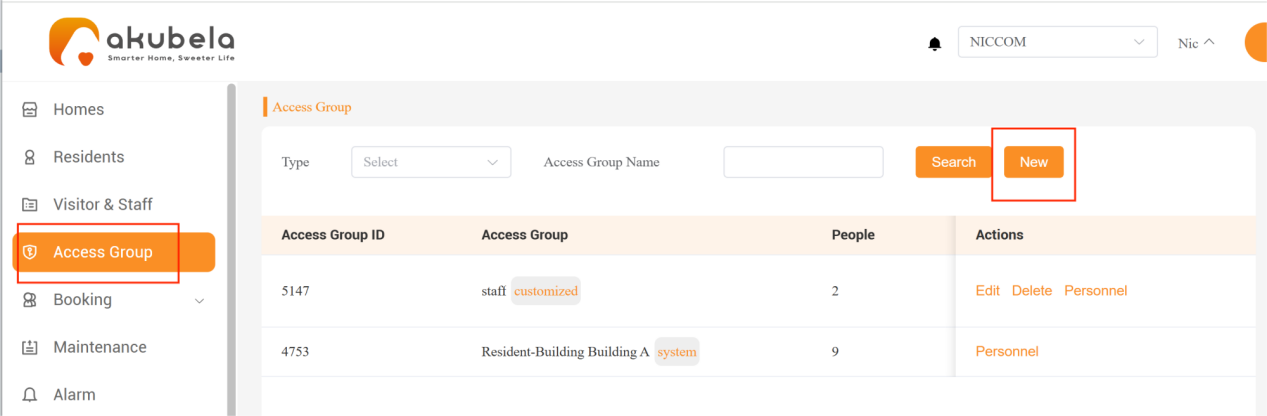
Go to Access Group > New.
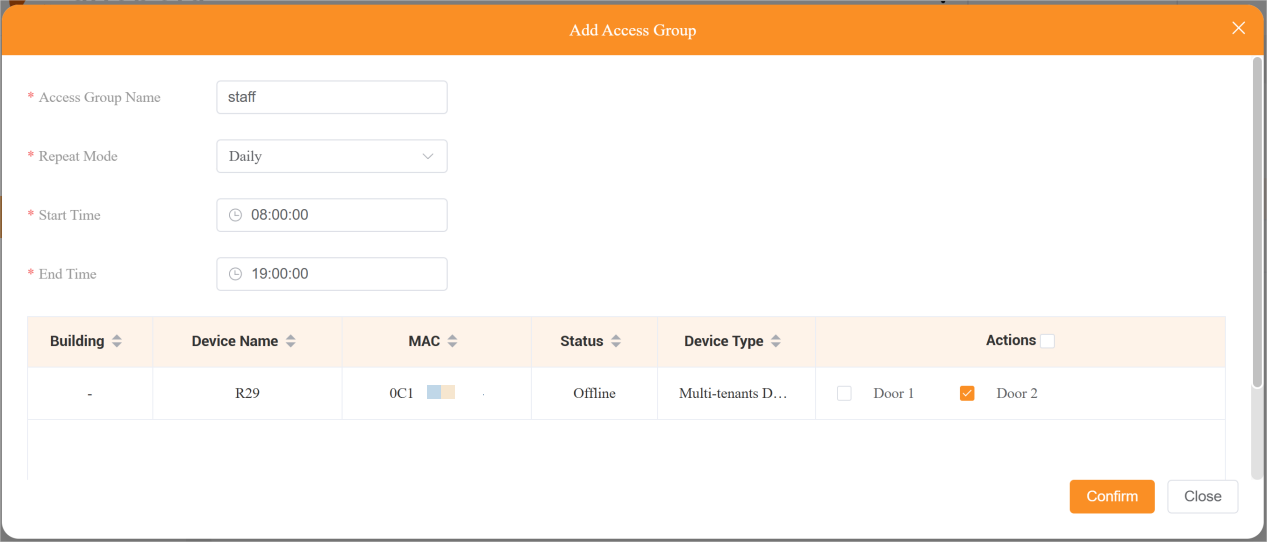
Name the group, set the repeat mode, time limit, and select the intercom device’s connected doors that can access, and then click Confirm.
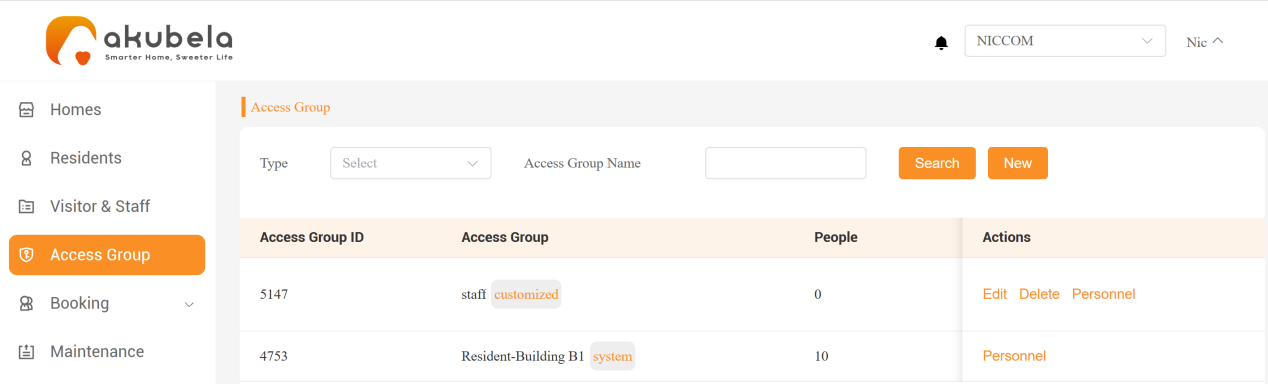
The new groups will appear in the Access Group interface.
TIP:
The label next to the group name indicates its origin: The “customized” groups are created by property managers, and the ones labeled “system” represent default access permissions for building residents.
Assign Access Groups
You can assign access groups when creating a member, or add members to an existing group by following these steps:
On the Access Group interface, click Personnel.
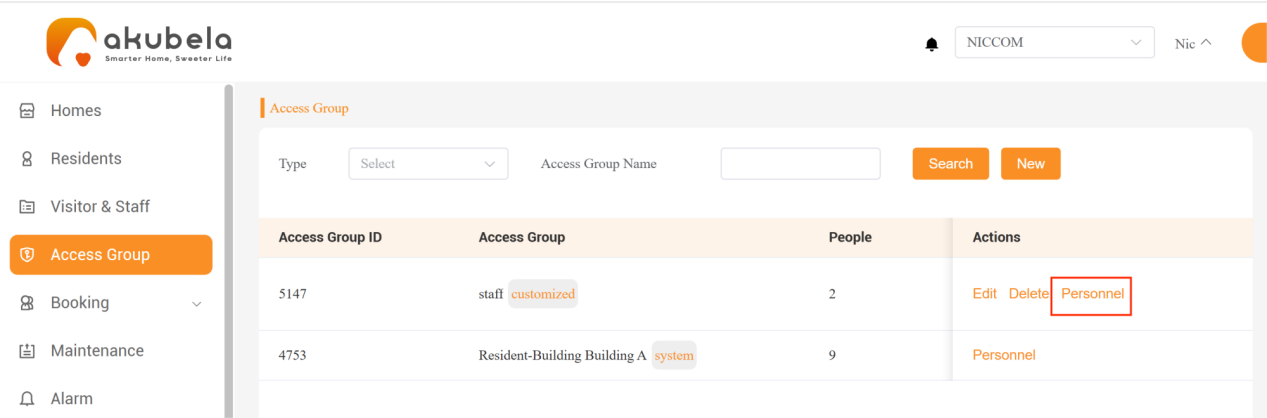
In the Add Personnel tab, tick the checkboxes next to the desired individuals and click Add.
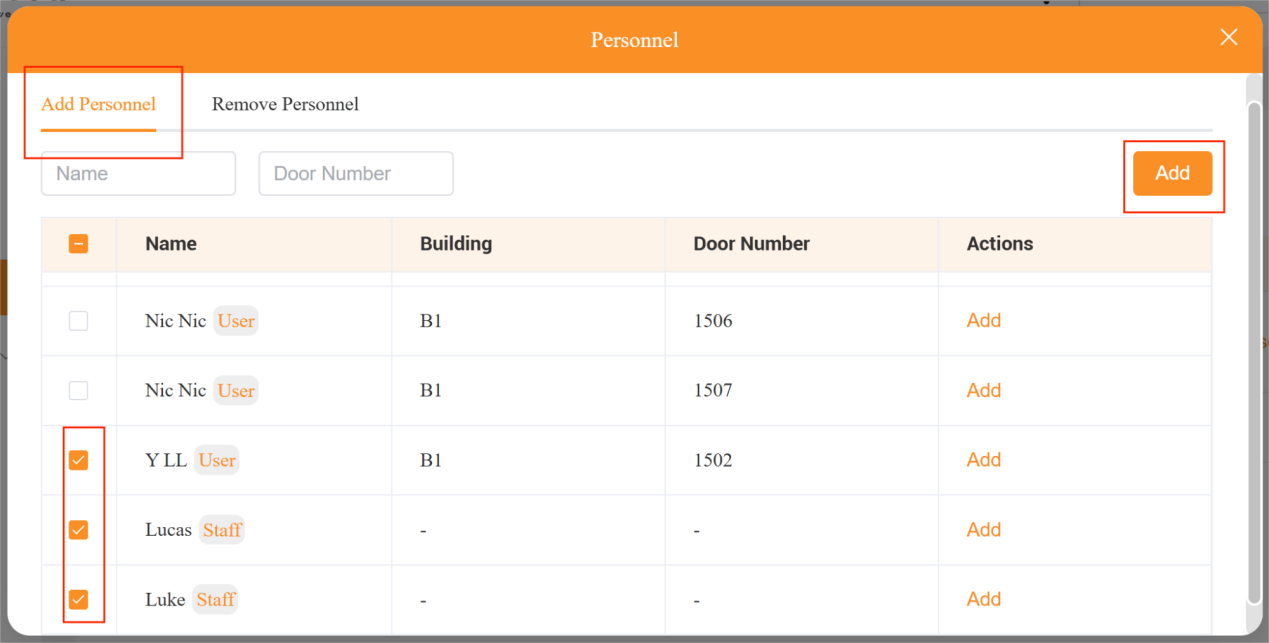
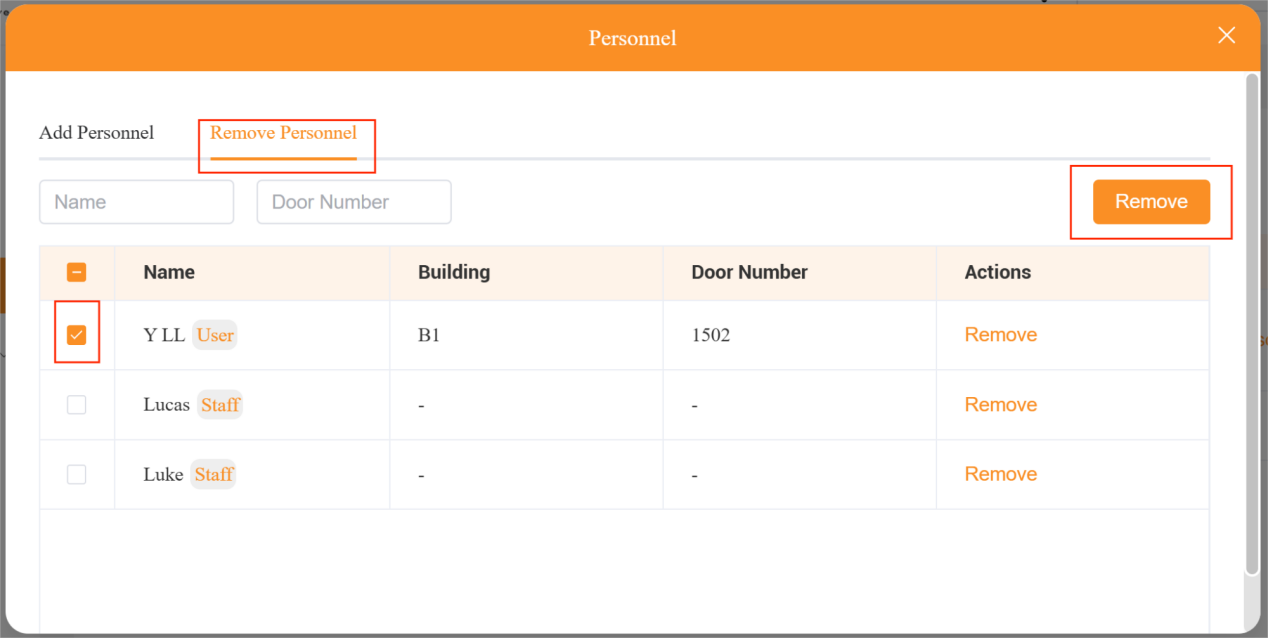
To remove individuals from a group, go to the Remove Personnel tab, select the individuals, and click Remove.
Temporary Keys
Temporary keys can be issued to visitors or other authorized individuals, allowing them access to designated doors within a specific time range.
Issue Temporary Keys
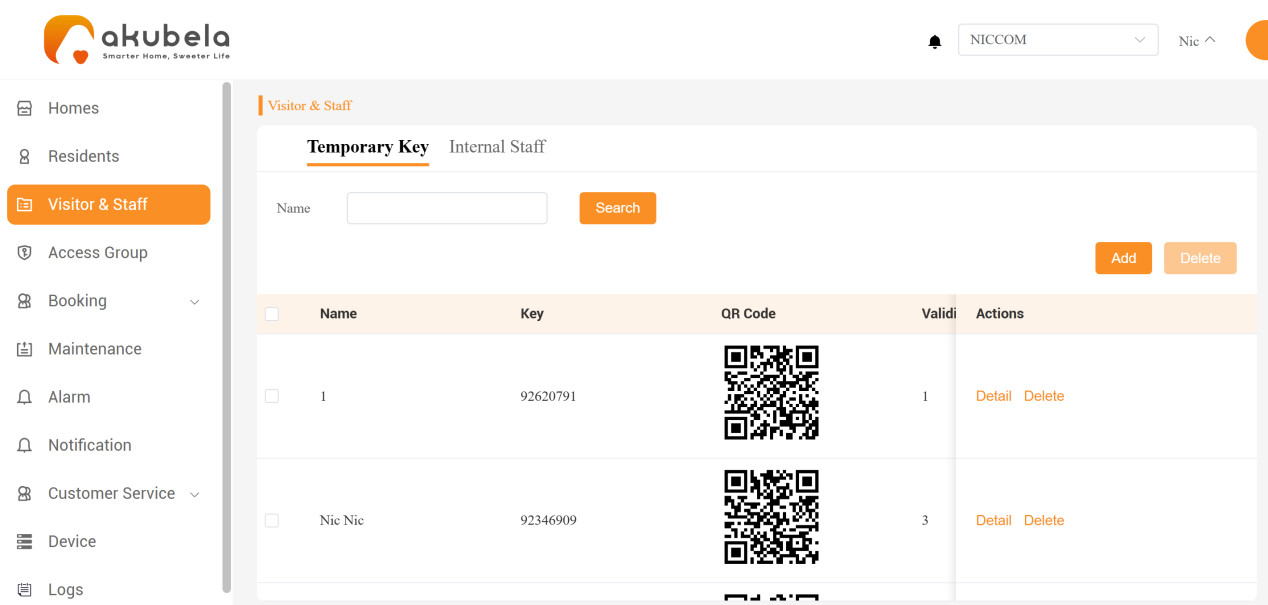
Go to Visitor & Staff > Temporary Key > Add.
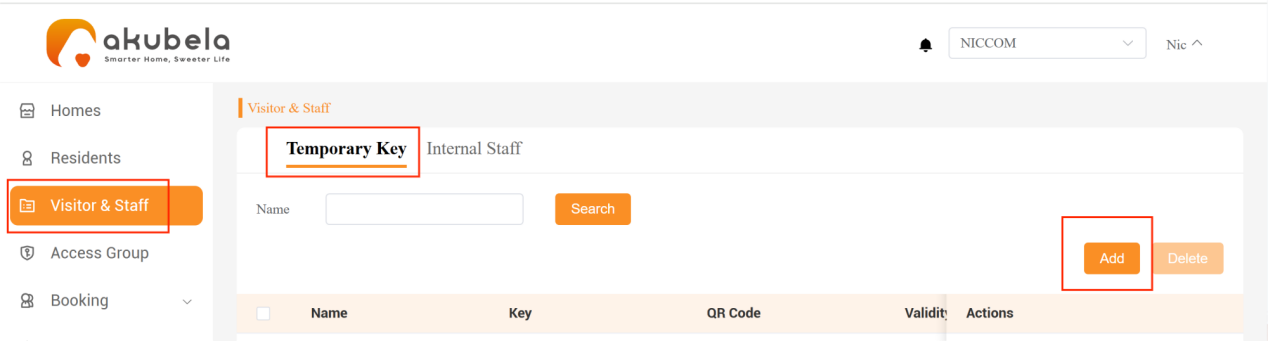
Enter the person’s name, set the repeat mode, define the validity time range, and select the intercom-connected doors the person can open. Click Confirm.
TIP:
If you enter the visitor’s email address in the Delivery Method field, the system will automatically send the temporary key upon creation.
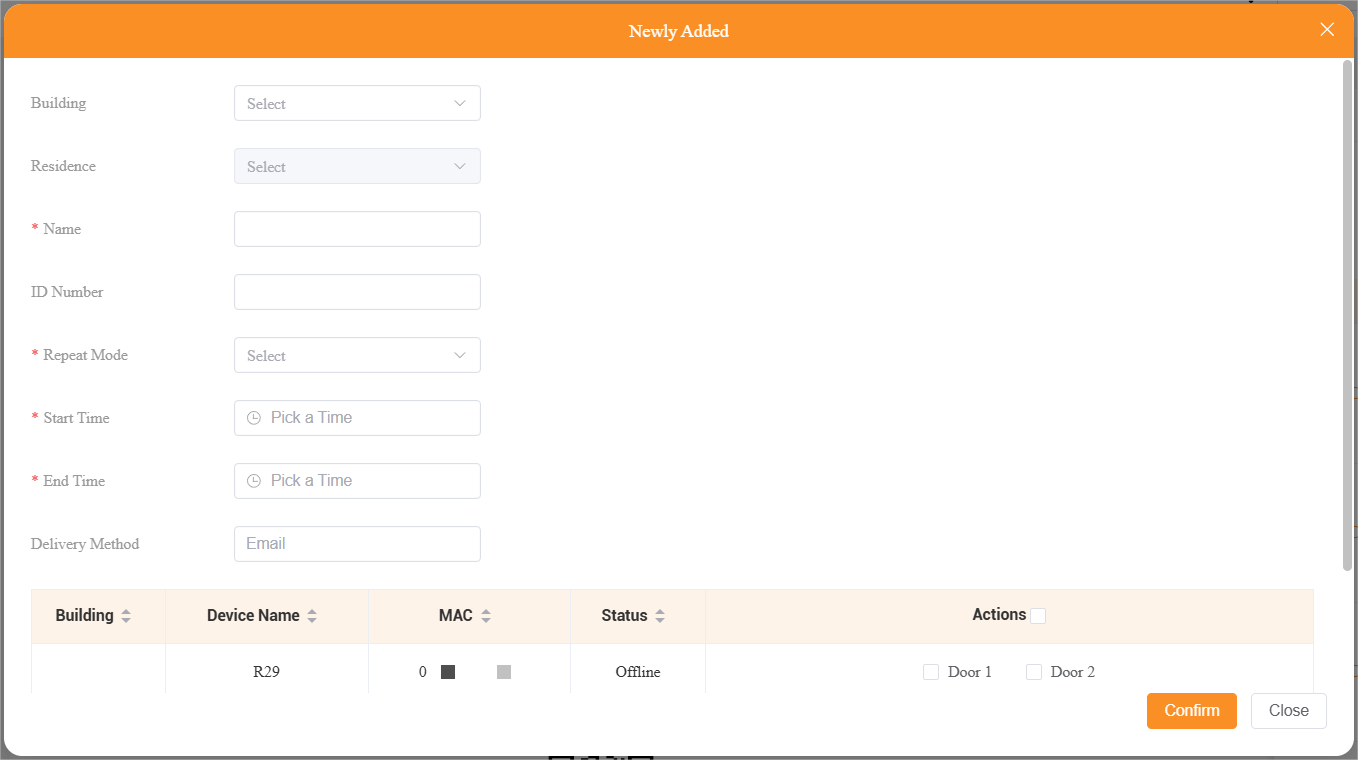
A QR code will be generated upon creation. You can send this code to the individual for the door access.
View Door Access Records
To view the door access history of a visitor using a temporary key:
Go to Visitor & Staff > Temporary Key.
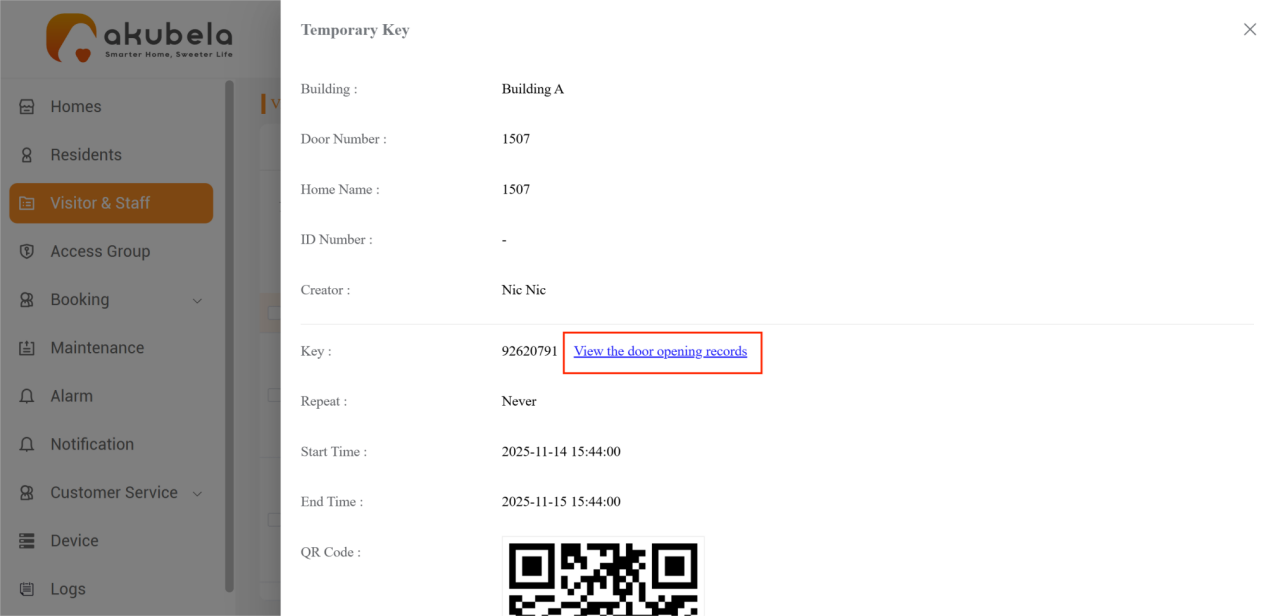
Find the visitor in the list and click Detail.
Click View Door Opening Records to see when and where the key was used.
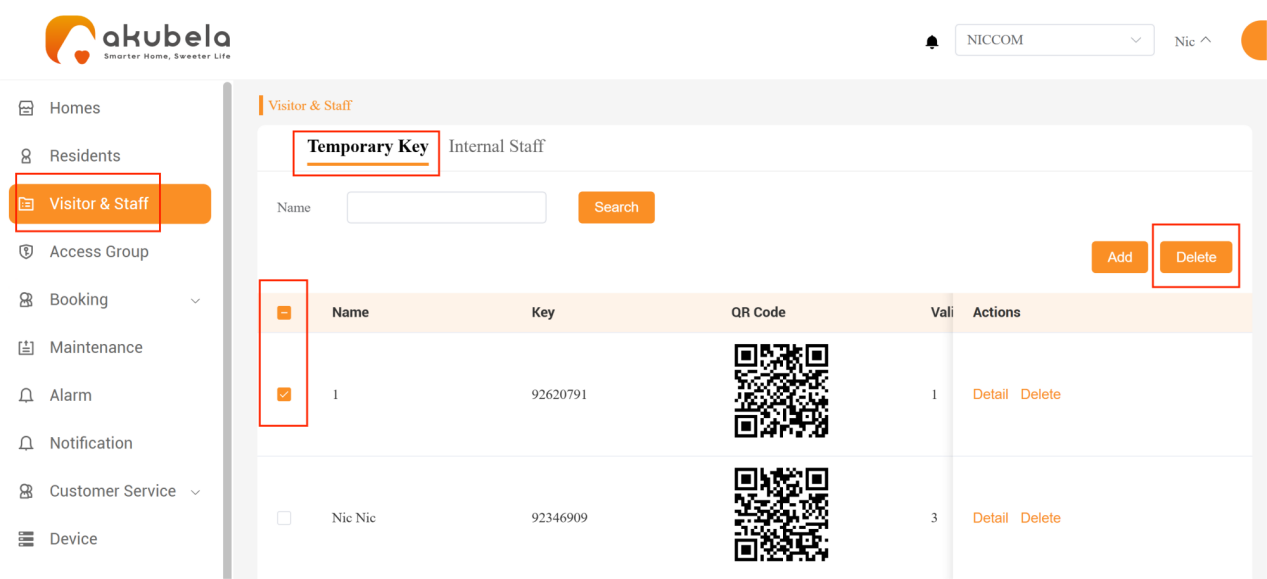
Delete Temporary Keys
Go to Visitor & Staff > Temporary Key.
Check the boxes next to the desired individuals, and click Delete.