Akuvox indoor monitor system settings can be either accessed on the device or its web interface.
Device Start-up Network Selection
After the device boots up initially, you are required to select the network connection for the device. You can either select Ethernet or wireless network connection.
Note
Please refer to Network Setting & Other Connection for network configuration.
Device Home Screen Type Selection
Akuvox indoor monitor supports two different home screen display modes: Default and Call List. Choose the desired mode.
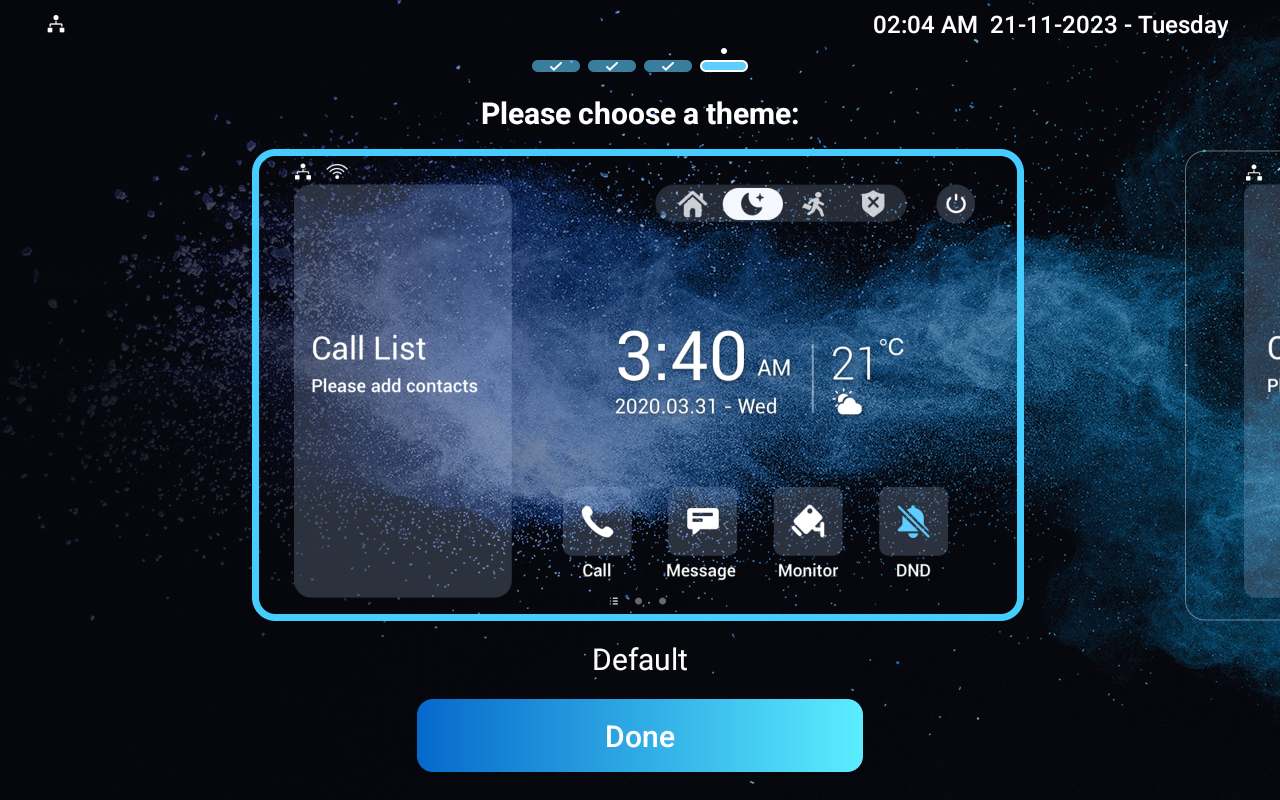
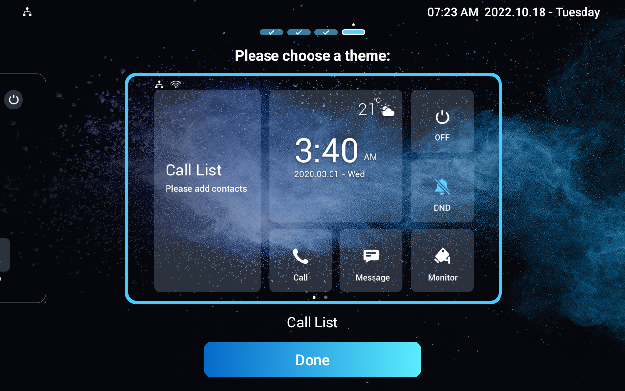
Access the Device Settings
Access Device Basic Settings
You can access the device's basic and advanced settings to configure different functions. To access the device's basic settings, swipe your finger left on the home screen, then tap  . You can check the basic information like MAC, firmware, etc.
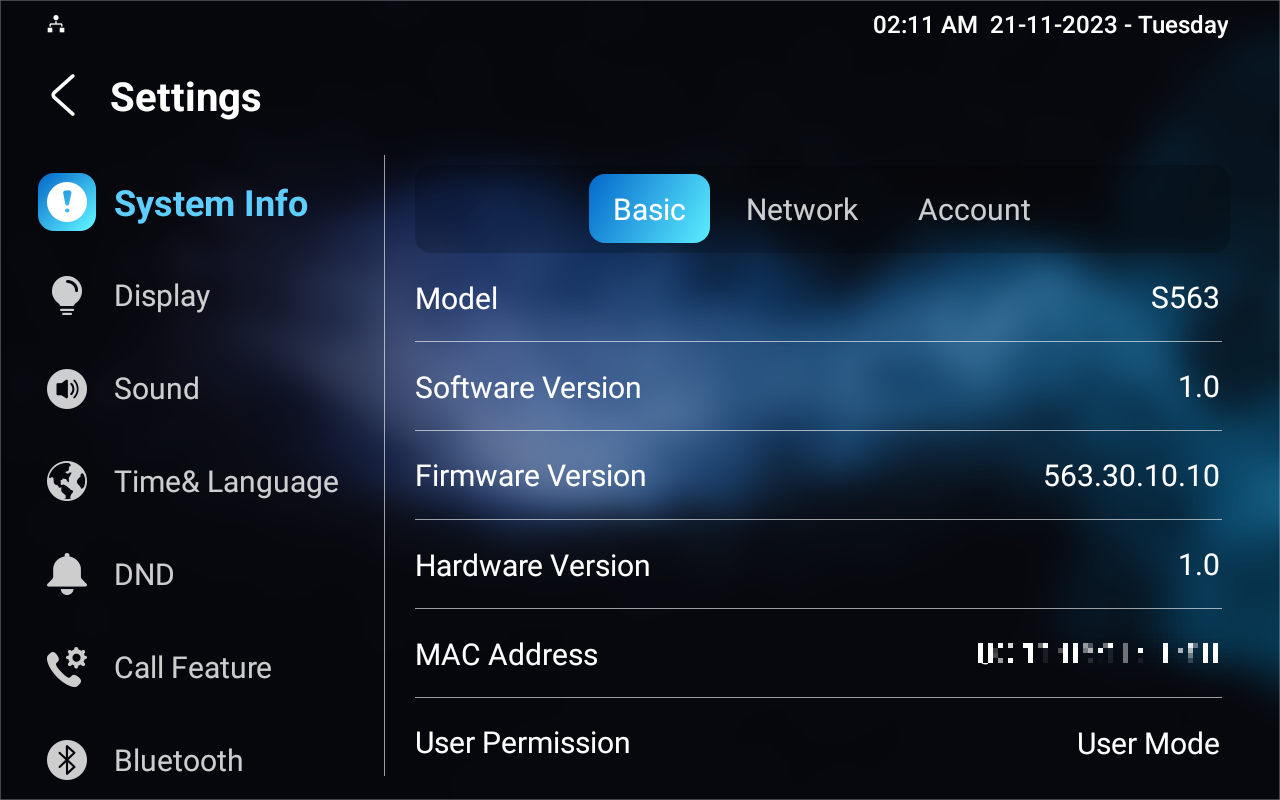
Access Device Advanced Settings
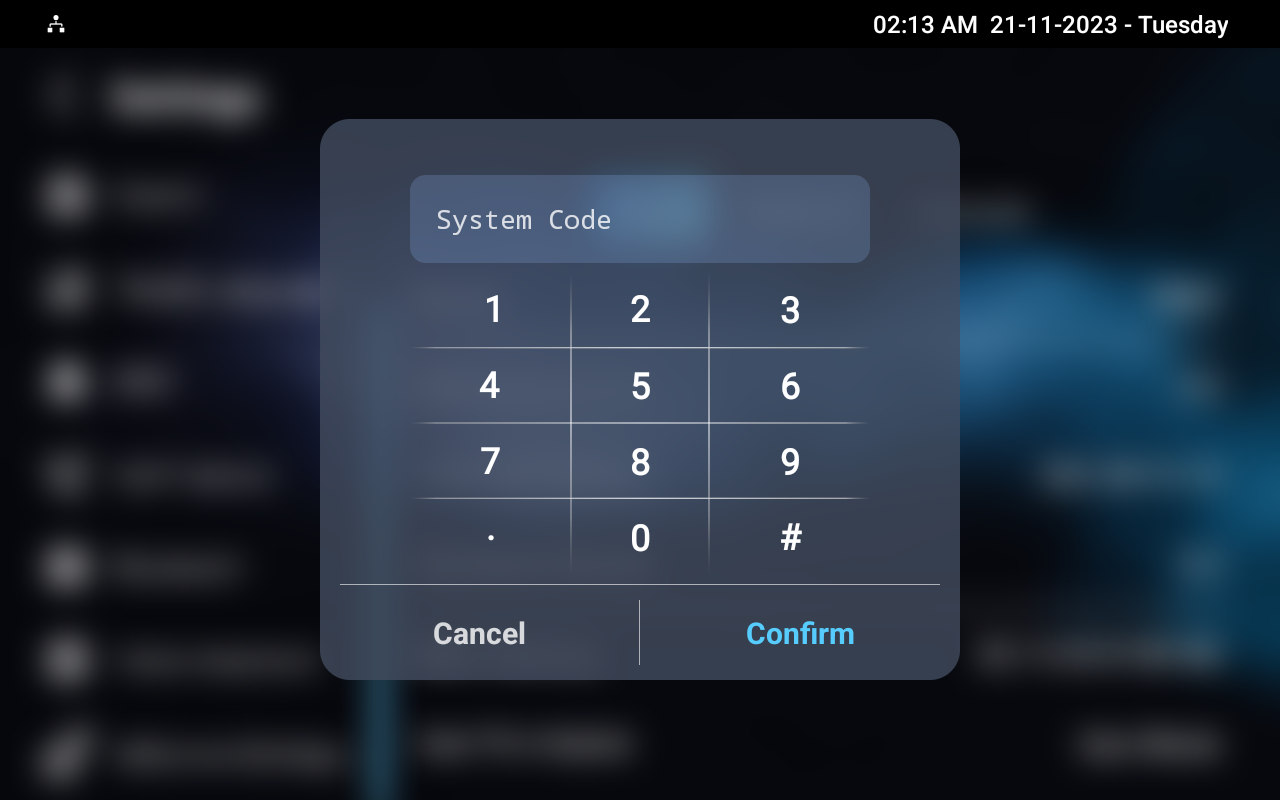
To access the advanced settings, press and tap the Advance Settings. Enter the default password 123456 to access the advanced settings.
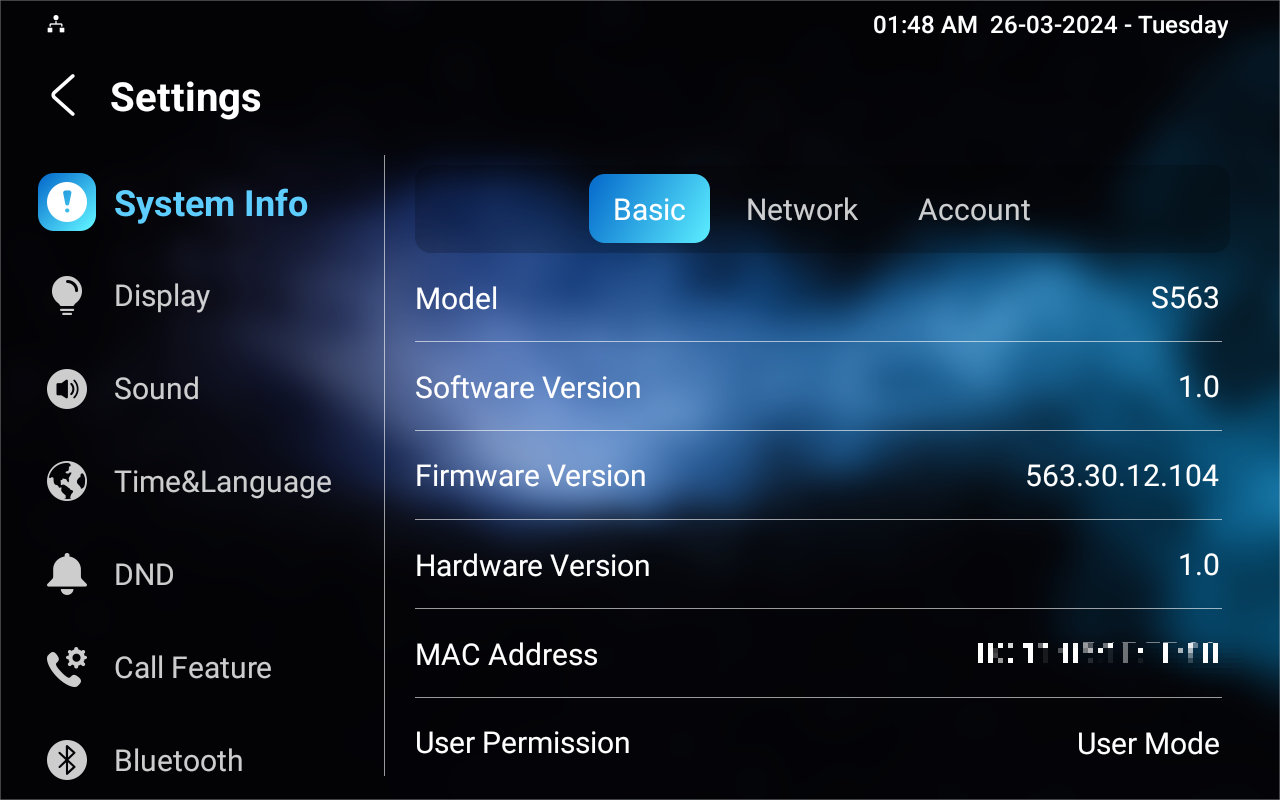
Access the Device Web Settings
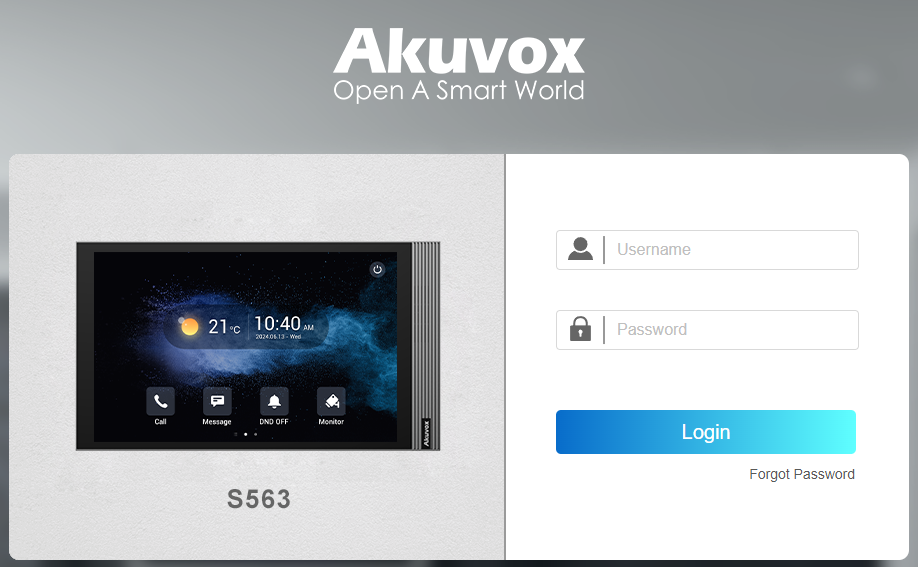
You can enter the device IP address in a browser and log into the device web interface where you can configure and adjust parameters.
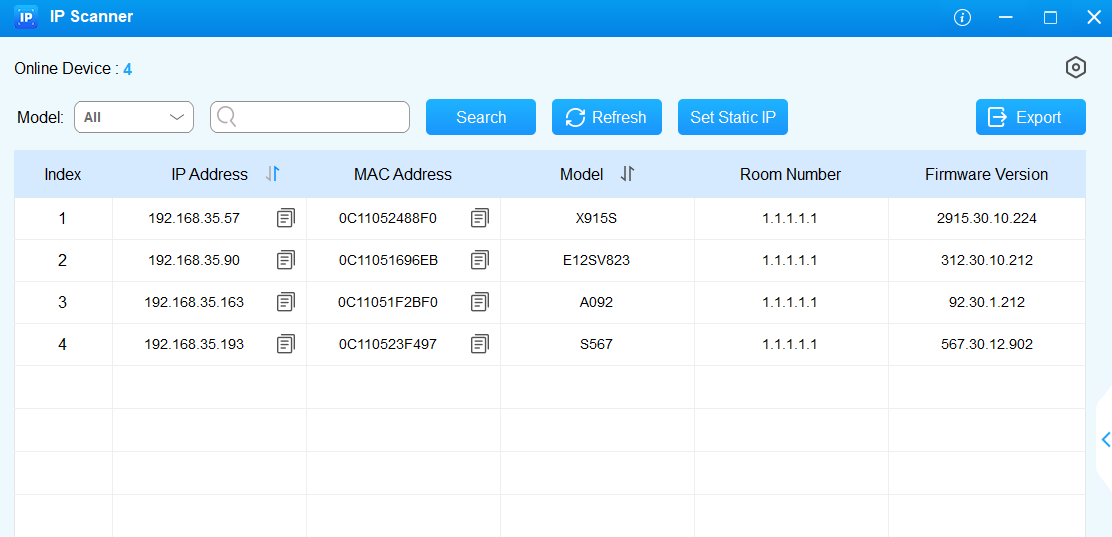
To check the IP address, go to the device Settings > System Info > Network screen. Or, search for the device by IP Scanner, which can search all the devices on the same LAN.
Note
Download IP scanner:
https://knowledge.akuvox.com/docs/akuvox-ip-scanner?highlight=IPSee the detailed guide:
https://knowledge.akuvox.com/v1/docs/en/how-to-obtain-ip-address-via-ip-scanner?highlight=IP%20ScannerGoogle Chrome browser is strongly recommended.
The initial username and password are admin(case-sensitive).
Your computer should be on the same local network as the device.