6.1. Matter Devices
6.1.1. Supported Matter Device Types
Device type | Capabilities |
Thermostat | View the current temperature, switch between modes, and adjust the setpoint. |
Illuminance sensor | Detect the current illuminance. |
Occupancy sensor | Detect occupied or unoccupied state. |
Contact sensor | Detect Open or closed state of door or window. |
On/off plug-in unit | On/off control. |
Switch | On/off control. |
Curtain | Open/close and adjust the curtain position. |
Light | On/off; dimming; color temperature; color, depending on the light type. |
6.1.2. Add a Matter Device
Matter devices can be added to up to 5 ecosystems. A Matter device can be added to akubela first or can already be connected to another ecosystem.
Connect the phone and G32 to the same network.
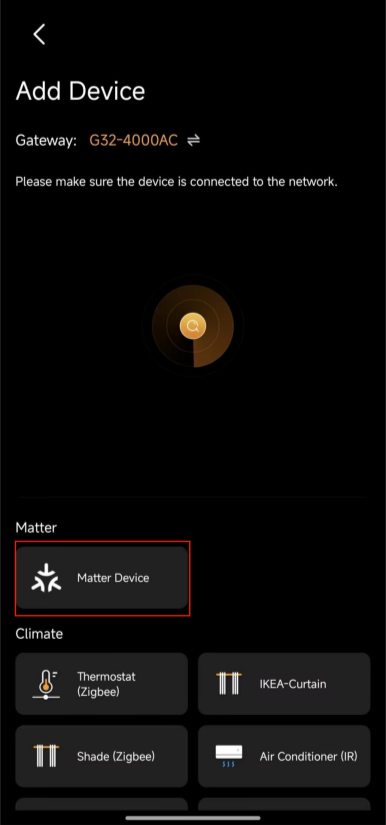
In BelaHome, tap Home > + > Matter Device.
Put the Matter device into pairing mode according to the manufacturer's instructions, then tap Next.
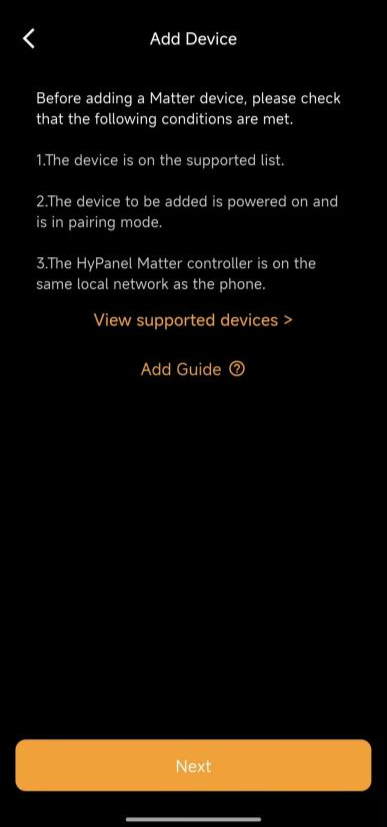
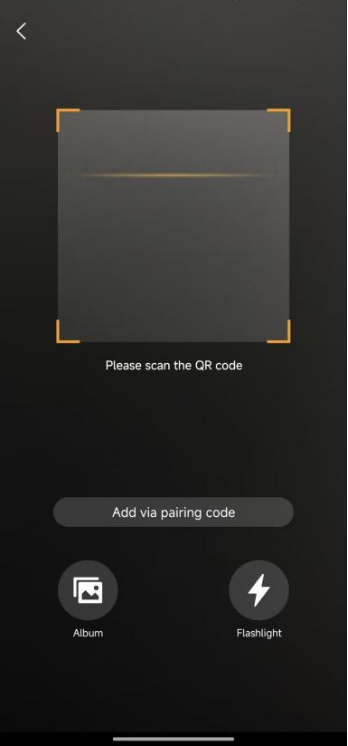
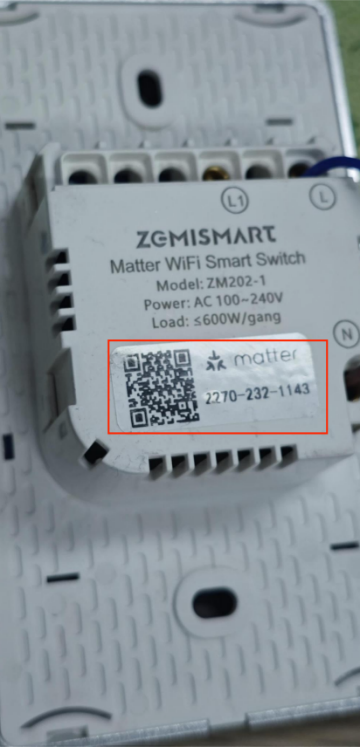
Scan the Matter QR code or enter the pairing code.
TIP:
The QR code or pairing code on the device is intended for its initial pairing.
If the device has already been added to another ecosystem, use the QR code or pairing code generated by that ecosystem.
Select the Wi-Fi network for the Matter device. It must be the same network that G32 is connected to.
NOTE:
Check whether the Matter device supports 2.4 GHz, 5 GHz, or both, and configure its Wi-Fi connection accordingly.
Wait for the pairing process to complete.
After the device is added, you can control it, configure its settings, and use it in scenes.
6.1.3. Matter Device Details
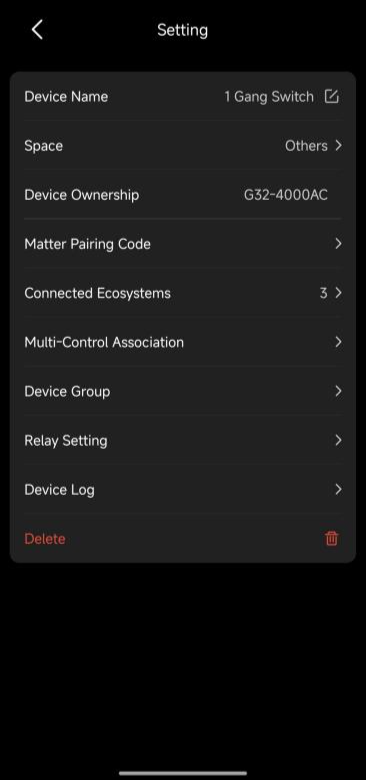
Tap the target Matter device card, then tap  to open its settings page. You can:
Change basic settings, such as the device name and location.
Delete the device.
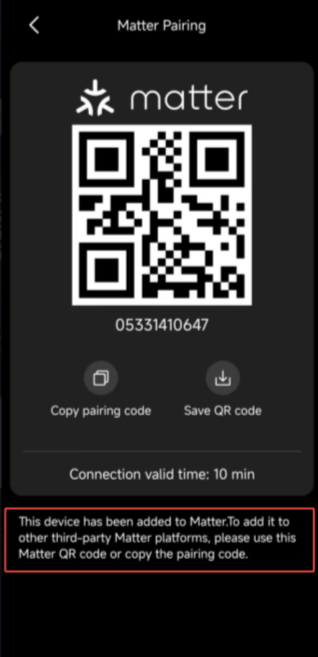
Generate a Matter pairing code that is valid for 10 minutes to share the device with another ecosystem.
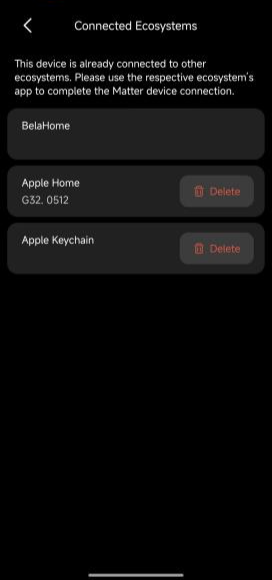
View the connected ecosystems. A Matter device can be shared with up to 5 ecosystems.
NOTE:
When initially adding a Matter device to akubela, you can remove its existing ecosystem connections if required.
Device status is synchronized across connected ecosystems, while names, locations, and device removal are managed independently by each ecosystem.
6.2. Zigbee Devices
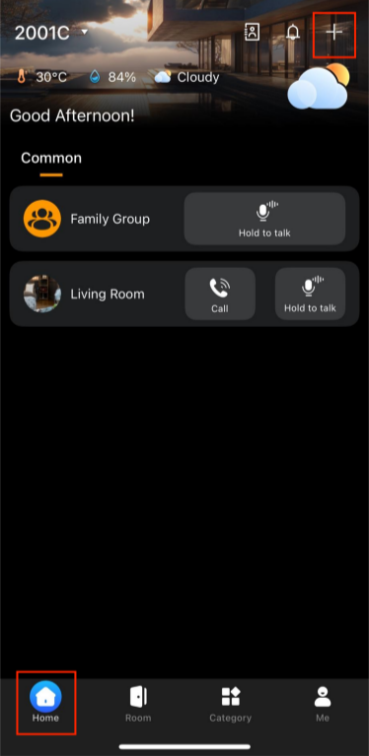
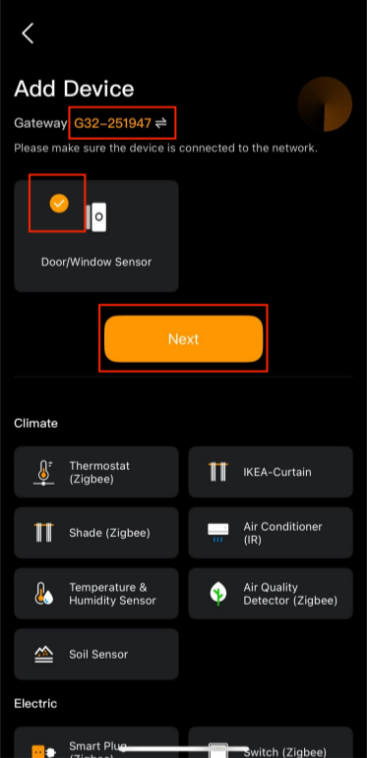
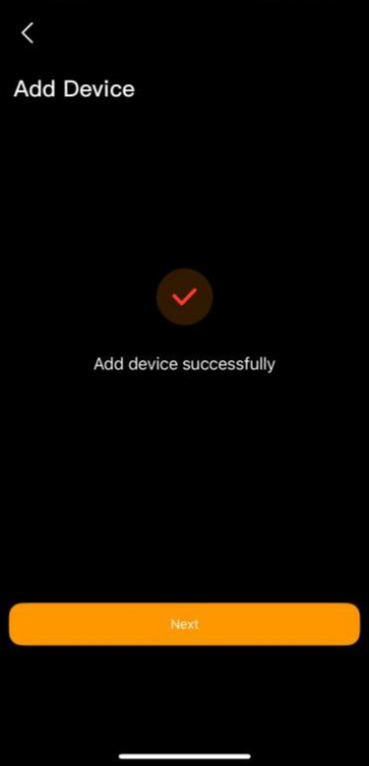
In BelaHome, tap Home > +, then select the target G32 gateway.
Put the Zigbee device into pairing mode.
Select the detected device, tap Next.
Follow the onscreen instructions to complete the settings.
6.3. Infrared Devices
6.3.1. Add TV or Air Conditioner
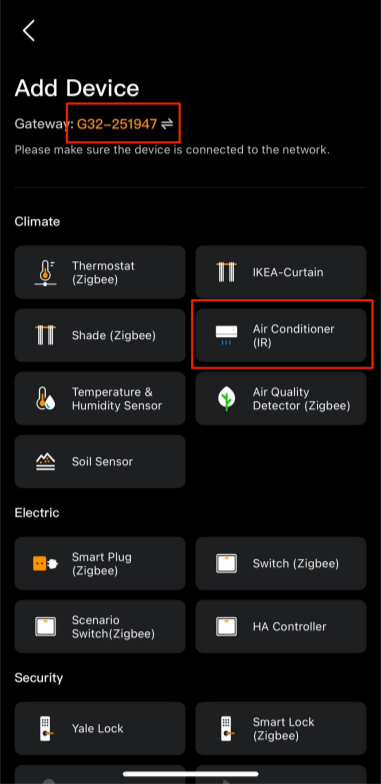
In BelaHome, tap Home > +, then select the target G32 gateway.
Select TV(IR) or Air Conditioner(IR).
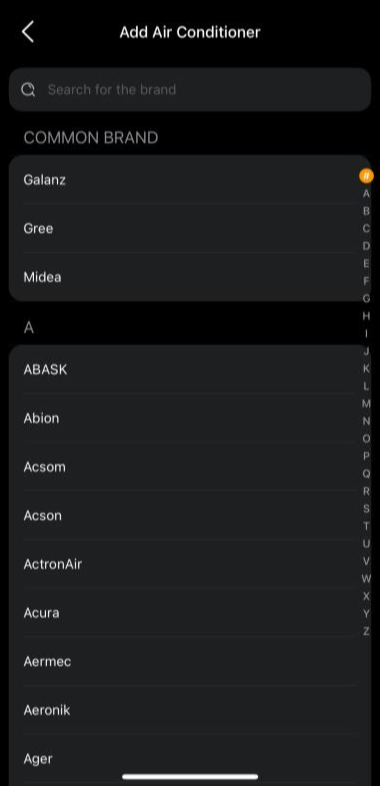
Select the device brand.
Follow the on-screen instructions to test the device:
If the device responds correctly, tap Yes to confirm.
If the device does not respond, tap No to try the next option.
If no option works, tap
 to try the matching process again.
Tap Next, then configure the device name and location.
6.3.2. Add a Custom Remote Control
In BelaHome, go to Category > More > [G32 device card] > Add Remote Control > Customize Remote Control.
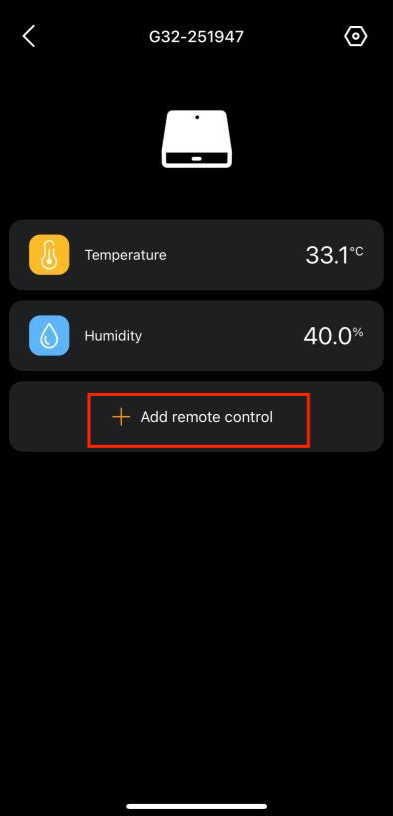
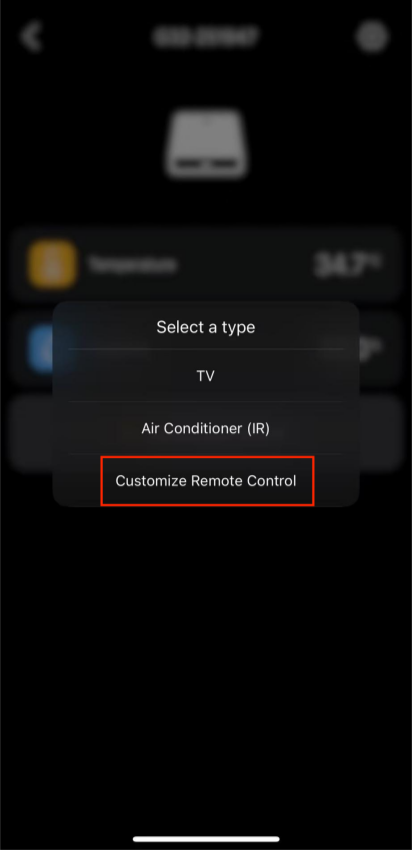
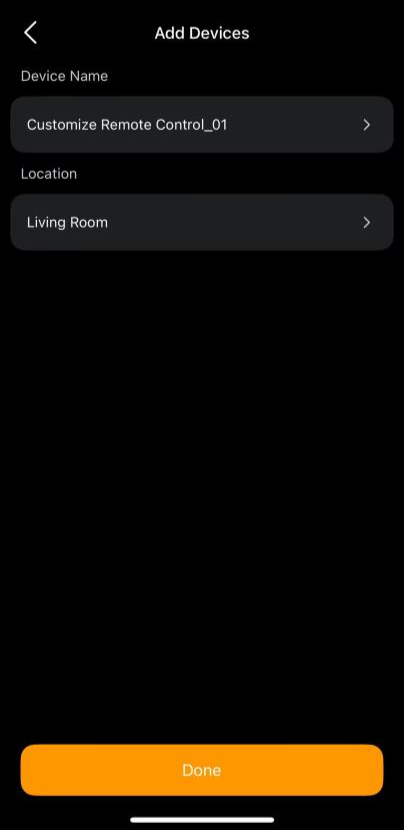
Configure the remote name and location, then tap Done.
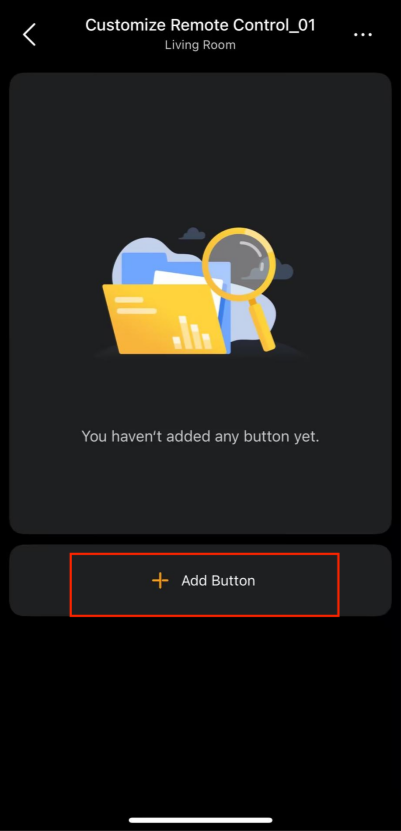
Tap Add Button.
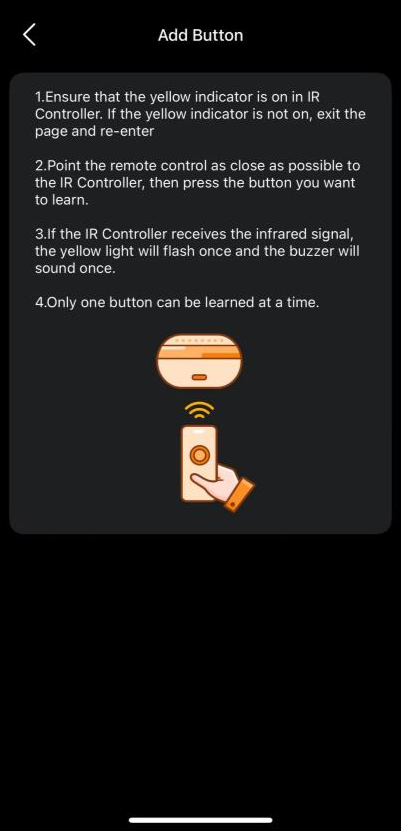
Follow the onscreen instructions to learn the remote buttons.