The Akuvox vehicle access control solution achieves contactless and smart vehicle entry and exit.
The coordination of Akuvox products significantly simplifies access control management and reduces maintenance costs.
The solution involves the following products:
Akuvox Door Phones or Access Control Terminals;
Akuvox Windshield Tag UHF-TAG11.
Note
Akuvox door phones and access control terminals with Wiegand feature all support connection with ACR-CRP12.
To learn about specifications of ACR-CRP12, ACR-CID12 and UHF-TAG11, please contact Akuvox sales team.
Topology
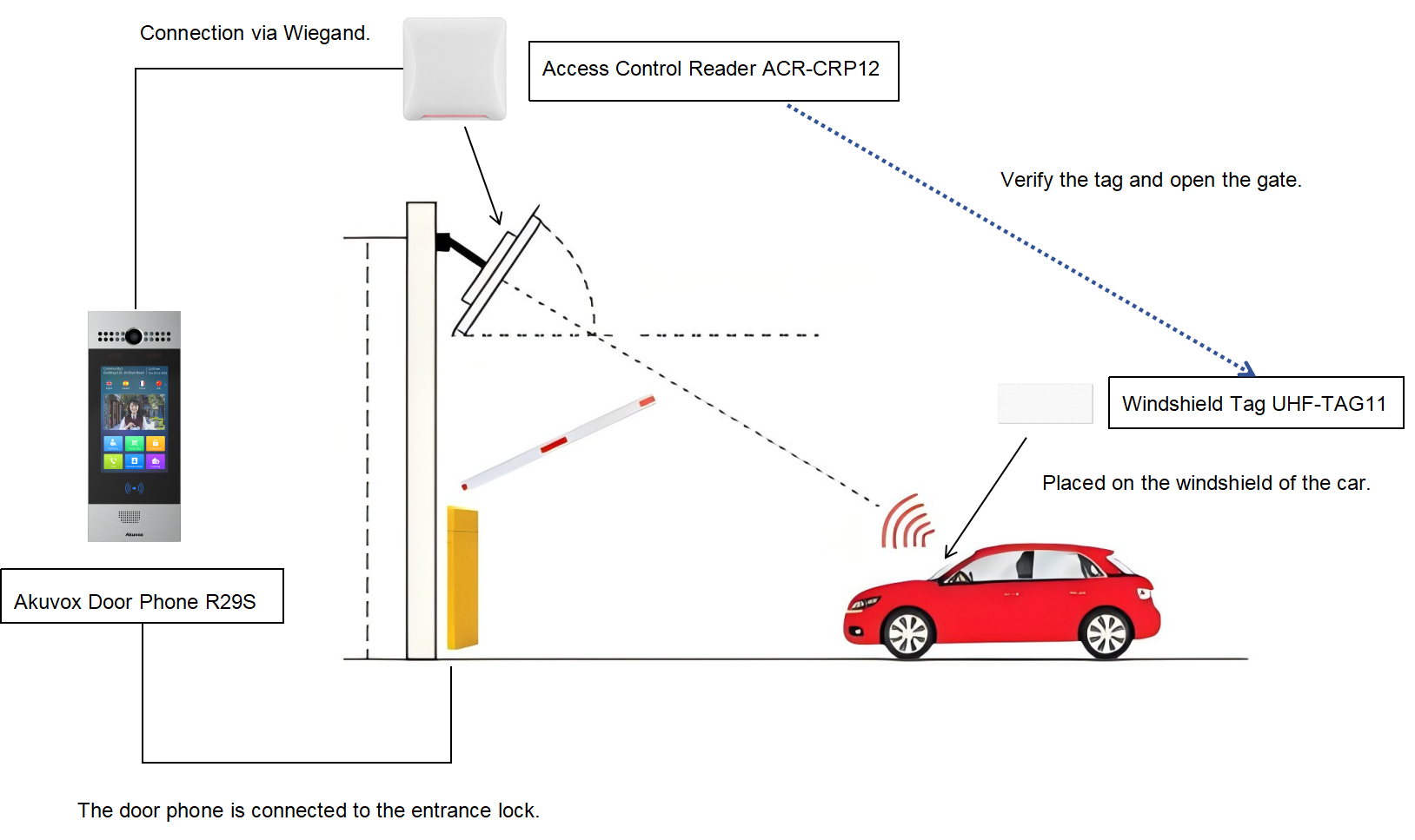
The scenario demonstrated takes R29S as an example.
R29S is connected to ACR-CRP12 via Wiegand and to the entrance lock.
ACR-CRP12 verifies the UHF-TAG11 and transmits the data to R29S.
When the verification passes on the door phone, the gate will be opened. Users can place the UHF-TAG11 on the windshield of the car for easy verification.
Configuration
You need to set up the ACR-CRP12, ACR-CID12, and door phones/access control terminals before deploying these devices.
Set up the ACR-CRP12
Click here to view its manual for detailed feature explanation and configuration.
Please contact the Akuvox tech team for the configuration software.
Connection
Power on the device by connecting it to a 12V power adapter. It will beep once, and the indicator light stays red.
Connect the device to your computer through USB.
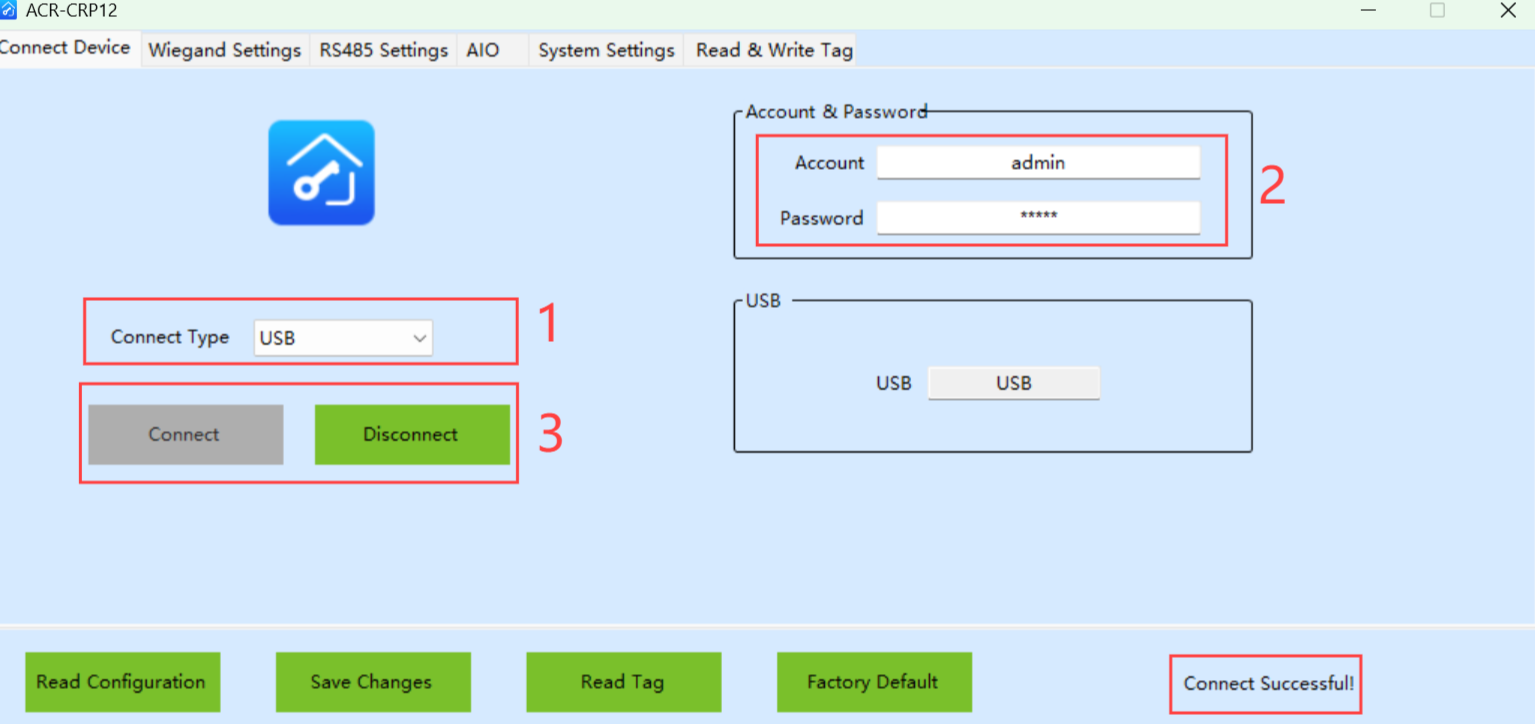
Run the ACR-CRP12 tool to enter the Connect Device interface.
Select USB as the connect type.
Enter the Account Name and Password, both admin by default.
Click Connect. When your computer detects and connects to ACR-CRP12, “Connect Successful” will display.
Set up Wiegand
Click Wiegand Settings and select the desired Wiegand Format from WG26, WG34, and WG58.
Note
Please note that the Wiegand Format(Wiegand Card Reader Mode) should be consistent between the ACR-CRP12 and door phones/access control terminals for data transmission.
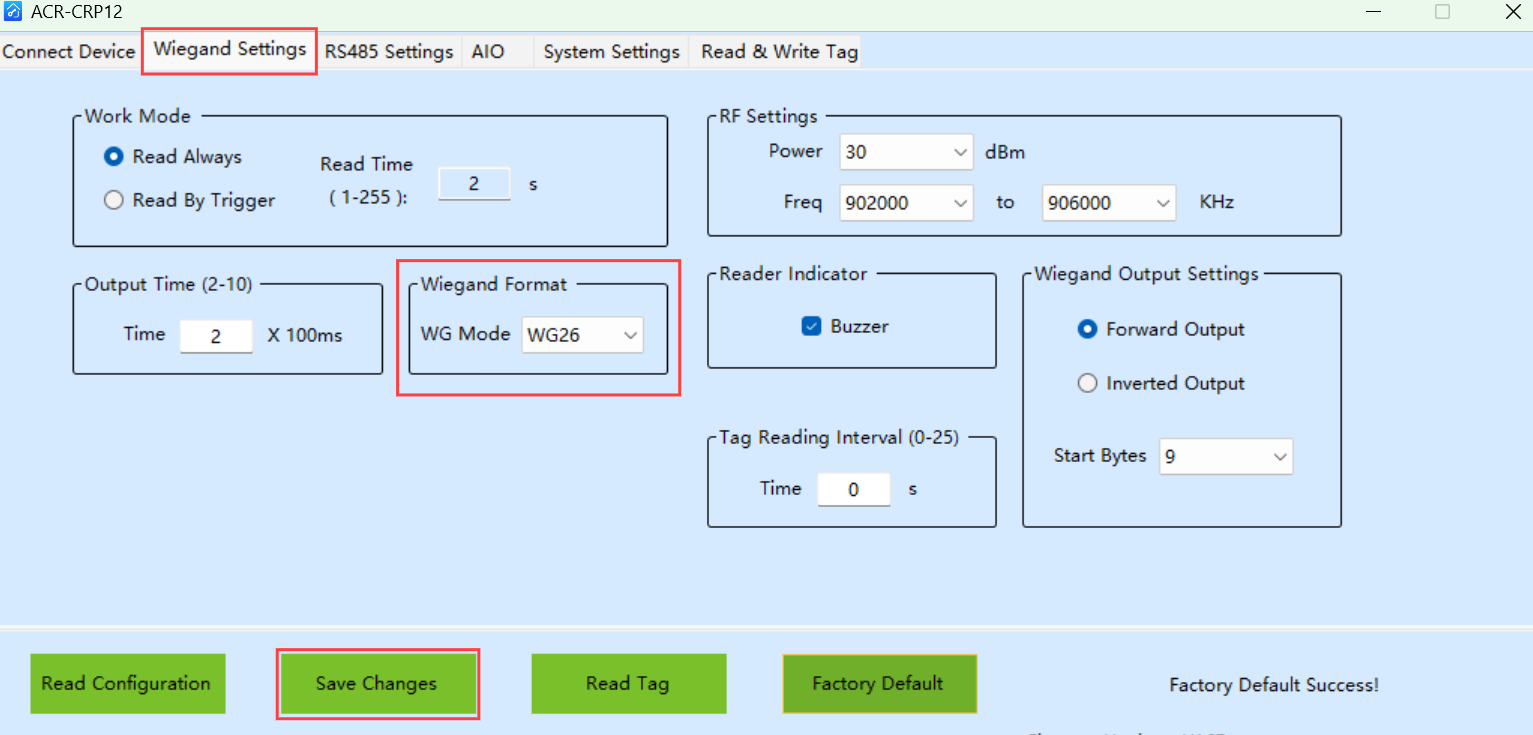
Click Save Changes.
Note
The longest detection distance is 10m.
Set up the ACR-CID12
The device is used to quickly obtain the card code.
Click here to view its manual for detailed feature explanation and configuration.
Click here to download the configuration software.
Connect the device to your computer through USB. It will beep once, and the blue light stays on.
Run the ACR-CID12 tool and click Connect. When your computer detects and connects to ACR-CID12, “Connect Successful” will display in the lower left corner.
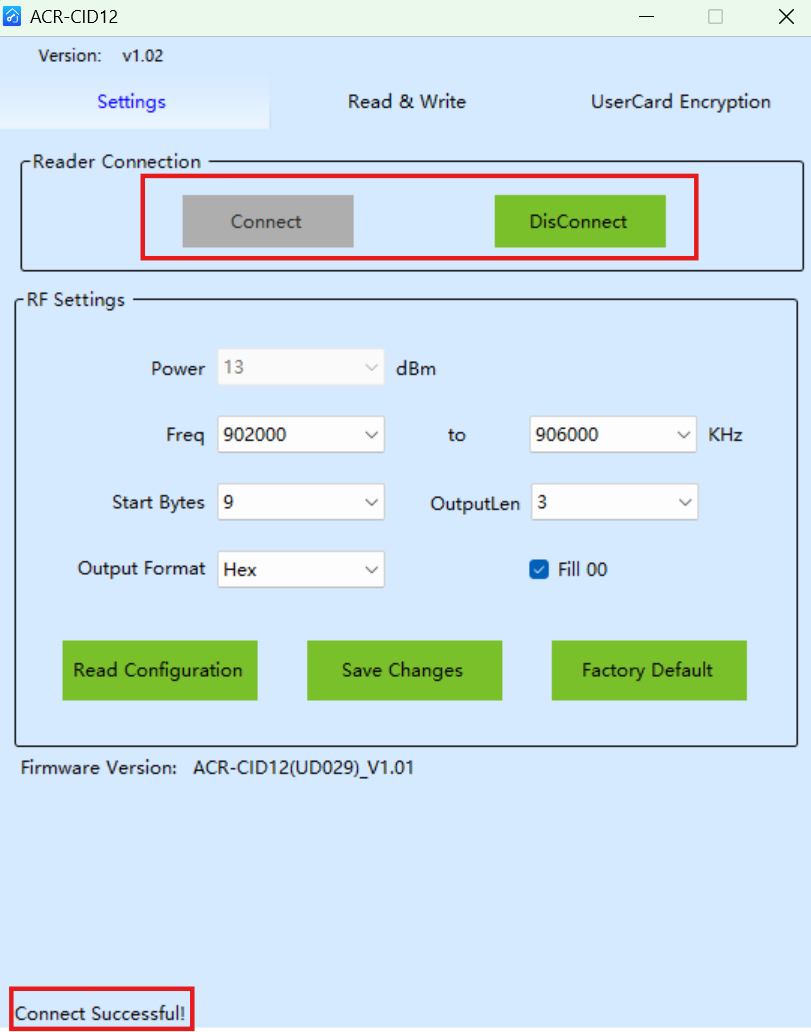
Set Output Format to Hex.
Set Start Bytes, Output Length, and Fill 00 based on the Wiegand Format selected in the ACR-CRP12.
Please refer to the chart:
Door Phones
ACR-CRP12
ACR-CID12
Wiegand Card Reader Mode
Wiegand Format
Start Bytes
Output Length
Output Format
Fill 00
Wiegand 26
Wiegand 26
9
3
Hex
✔
Wiegand 34
Wiegand 34
0
4
Hex
X
Wiegand 58
Wiegand 58
0
7
Hex
X
Click Save Changes.
Set up the Door Phone
Set up Wiegand
You need to select the Wiegand Card Reader Mode that matches the Wiegand format set in the ACR-CPR12.
Use the device’s IP to log into its web interface. The default username and password are both admin.
Go to the Intercom > Wiegand interface and select the Wiegand Card Reader Mode from Wiegand-26, Wiegand-34, and Wiegand-58.
Check the relay(s) that are connected to the door lock.
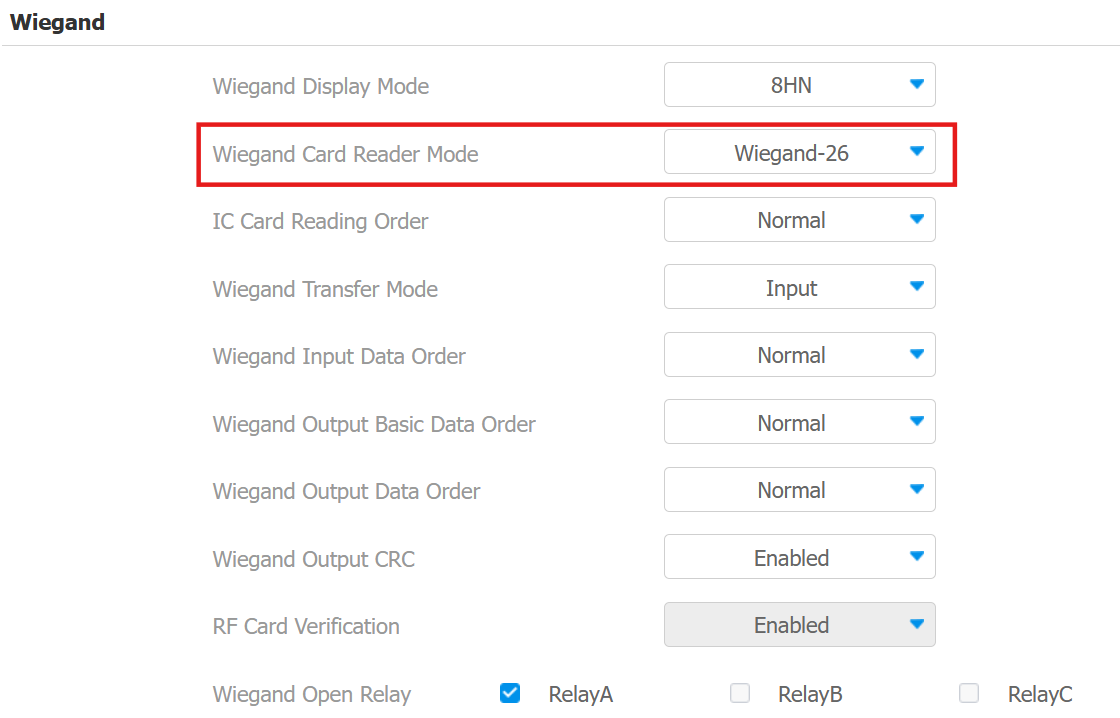
Click Submit to save the settings.
Set up Users for On-Promise Projects
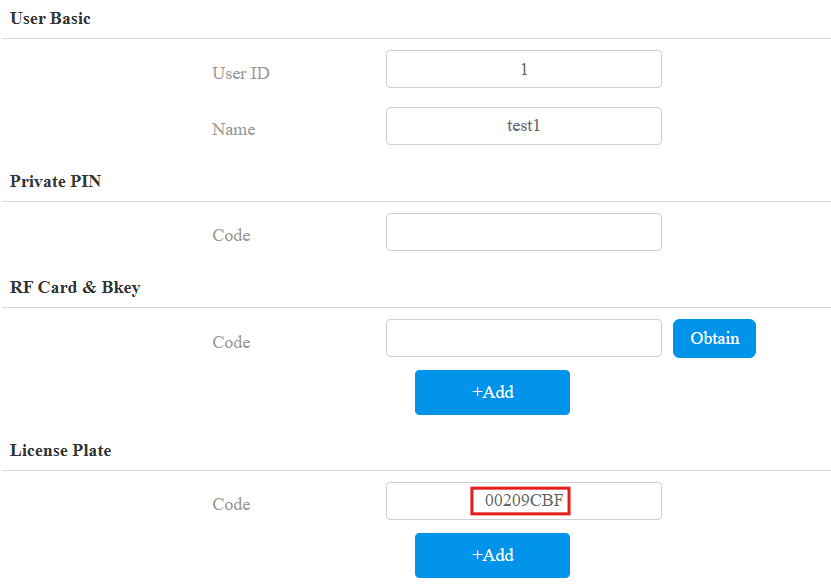
Go to the Directory > User interface and click Add.
Set the User ID and Name.
In the License Plate section, move your mouse cursor to the code box and place the Tag near the ACR-CID12.
The device will beep and flash a green light once, and the code will be automatically displayed.
Note
Disconnect the device to your computer with its tool before using it to obtain card codes.
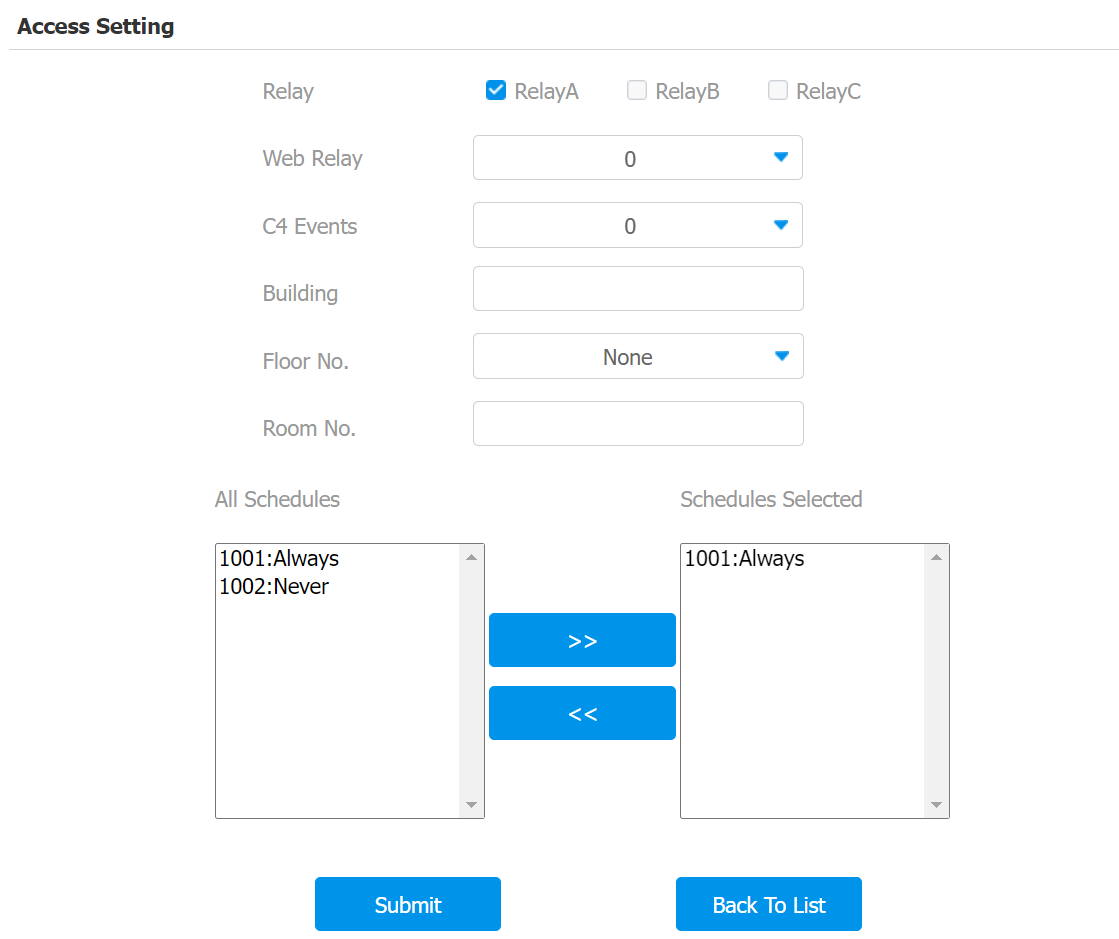
Check the relay to be triggered and click Submit.
Set up Users on the SmartPlus Cloud
When the device is connected to SmartPlus Cloud, the UHF card code can be issued from the cloud.
Compatible models and versions(or higher)
Model
Version
Model
Version
R29
29.30.10.404
R28 V2
228.30.10.231
R25
25.30.10.117
R20
320.30.11.30
E18
18.30.10.247
E16 V2
216.30.10.208
X916
916.30.10.346
X915 V2
2915.30.10.420
X912
912.30.11.107
X910
2910.30.11.28
A08
108.30.11.8
A01/A02
101.30.10.206
A03
103.30.10.204
A094
92.30.10.205
A095
95.30.10.110
S539
539.30.10.403
S535
535.30.11.8
S538
538.30.10.705
A05V2
205.30.11.114
E16 V3
416.30.11.206
E12V2
312.30.11.106
S532
532.30.10.336
A15
1115.30.10.407
WR01
1401.30.11.221
For new commercial projects(created after Oct.15, 2024), installers, project managers, and administrators can add license plates.
For community residents, only property managers can add cards.
Single-house project users can add cards with their SmartPlus Apps.
Wiring
The ACR-CRP12 needs a 12V power supply and is connected to the door phone via Wiegand. Please check the quick guide of the devices for installation instructions.
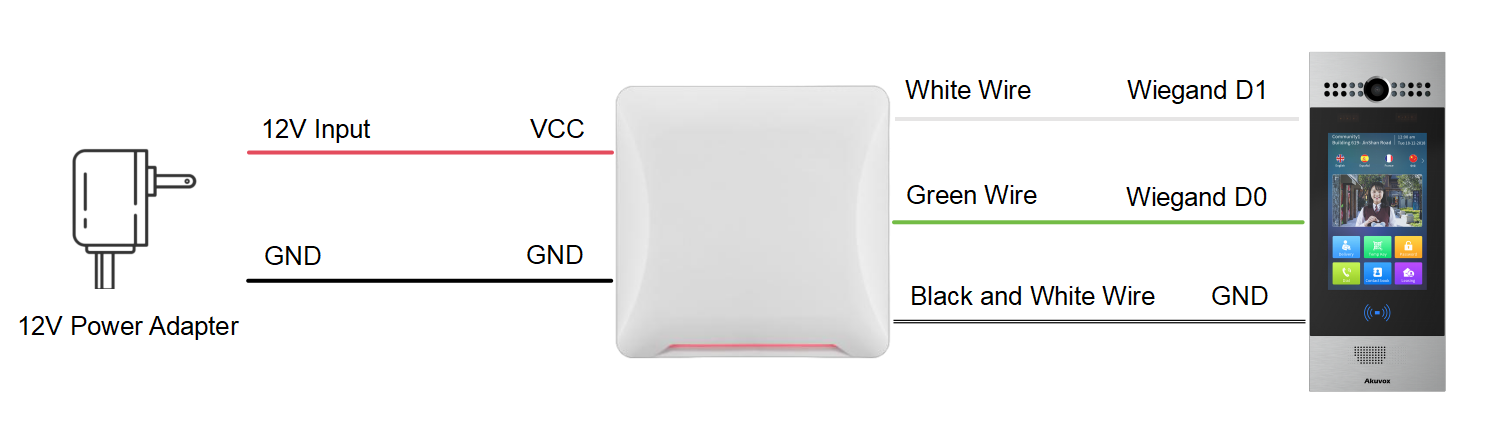
After configuration, when the windshield tag UHF-TAG11 is within the detection distance of the ACR-CRP12, the gate will be opened.