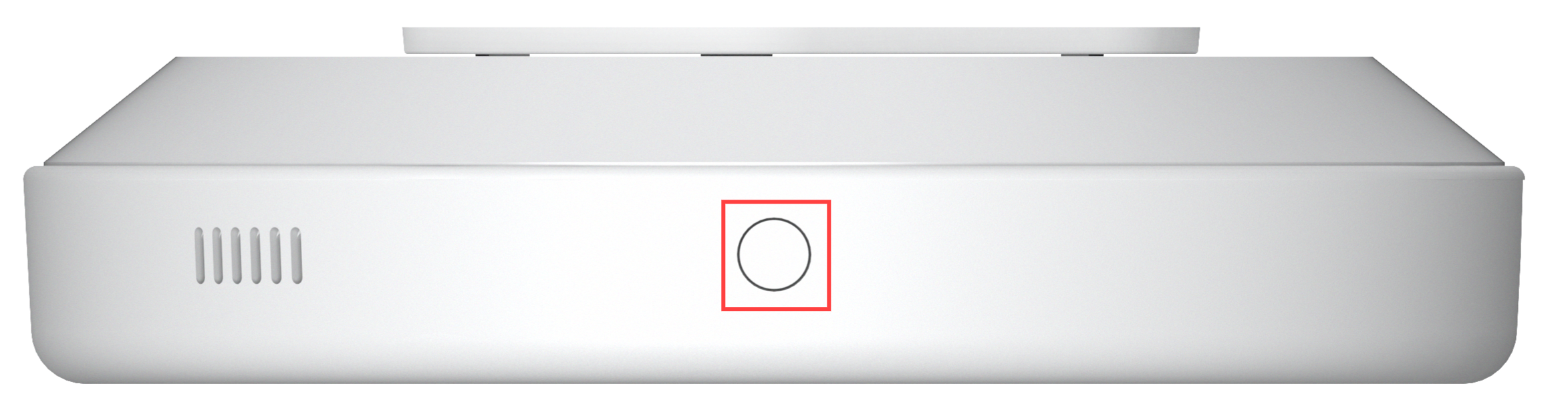
You can configure how MR03 reports detected events.
The available alarm types depend on the selected Working Mode(See Function Settings chapter). Only alarm events supported by the current mode can be configured and reported.
Third-party Reporting
MR03 can upload detected events and related data to a configured third-party server.
When enabled, MR03 reports generated alarm events according to the selected working mode. You can also select additional data types to be included in the report.
Set it up on the Fall Settings > General Settings > Alarm Notification interface.
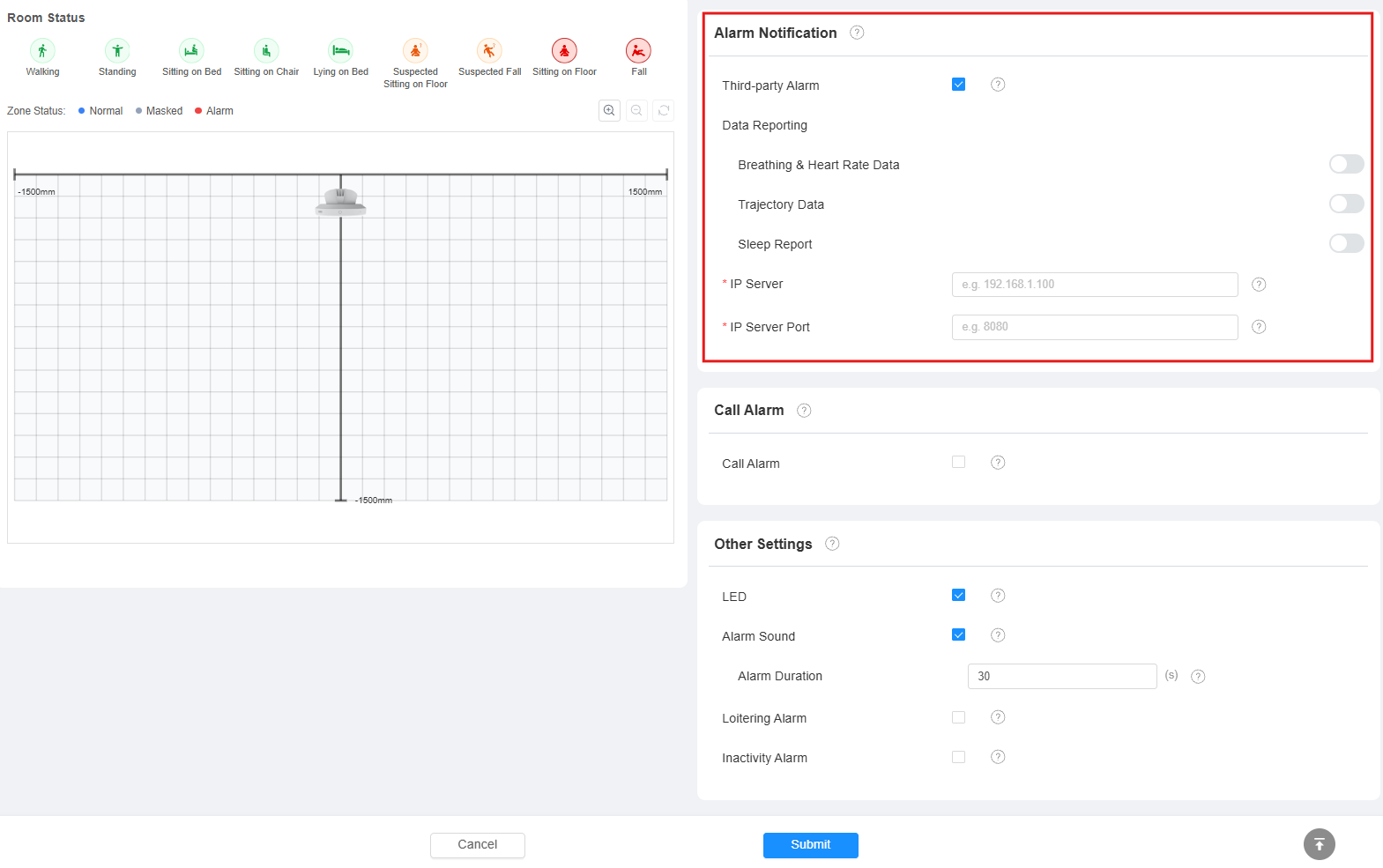
Third-party Alarm: Enable/disable the feature. Disabled by default.
Data Reporting:
Breathing & Heart Rate Data: Reports detected breathing rate and heart rate information. This option is available in Sleep Monitoring and Full Function modes.
Trajectory Data: Reports personnel movement trajectory information. This option is available in Person Tracking and Full Function modes.
Sleep Report: Reports sleep-related analysis information. This option is available in Sleep Monitoring and Full Function modes.
IP Server: Enter the IP address of the third-party server.
IP Server Port: Enter the port number for the third-party server.
Activity Detection Alarm
You can configure the alarm duration and alarms based on a person's activity status within the detection area.
Go to the Fall Settings > General Settings > Other Settings interface.
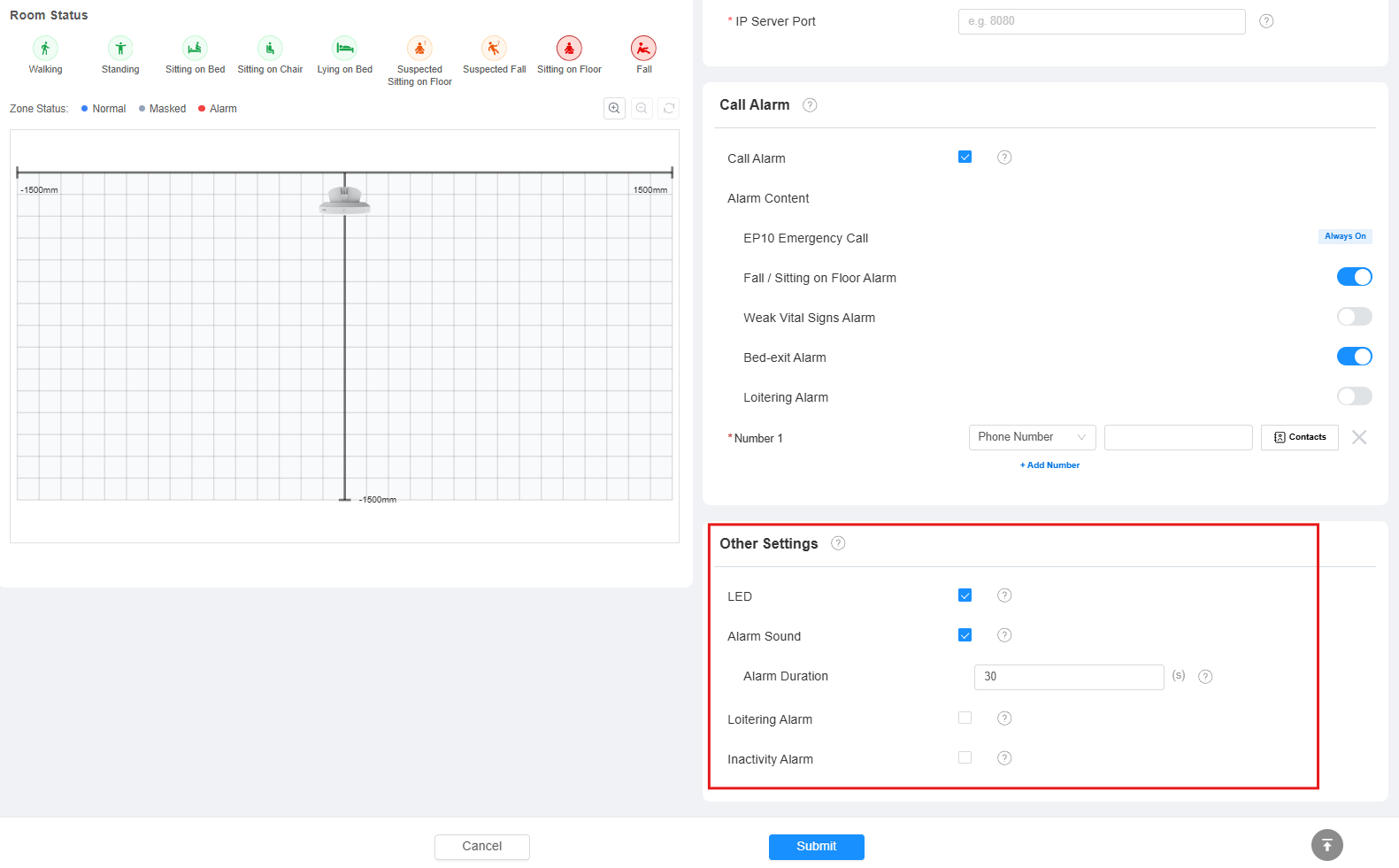
Alarm Duration: The duration for which the alarm will sound(0 to 1800 seconds).
After reaching this time, the alarm sound will automatically stop, and it does not apply to the indicator light.
It is available only when the Alarm Sound is enabled.
The default value is 30 seconds.
Loitering Alarm: Available in Fall Detection and Full Function working modes. Disabled by default. It is designed for scenarios such as bathrooms and shower rooms, where a person may remain inside for longer than expected.
When enabled, MR03 continuously monitors whether a person is present in the room. If a person remains in the room for longer than the configured Loitering Duration, a Loitering Alarm is triggered.
The Loitering Alarm is evaluated at the room level and does not require a Sub-region.
Loitering Duration: The maximum time that a person can remain within the detection area before triggering a loitering alarm. Default: 1 minute. Range: 1-60 minutes.
Inactivity Alarm: Available in all working modes. Disabled by default. It is designed to detect when an individual remains inactive for an extended period.
When enabled, MR03 monitors each detected person independently. If a person continuously remains in a sitting posture for longer than the configured Inactivity Duration, an Inactivity Alarm is triggered.
The Inactivity Alarm is evaluated for each detected person individually and does not require a Sub-region.
Inactivity Duration: The maximum time that no activity is detected within the detection area before triggering an alarm. Default: 30 minutes. Range: 1-60 minutes.
Call Alarm
MR03 can automatically call configured contacts when selected alarm events occur.
When enabled, configure the alarm types that trigger call alarm and specify the destination numbers.
Set it up on the Fall Settings > General Settings > Call Alarm interface.
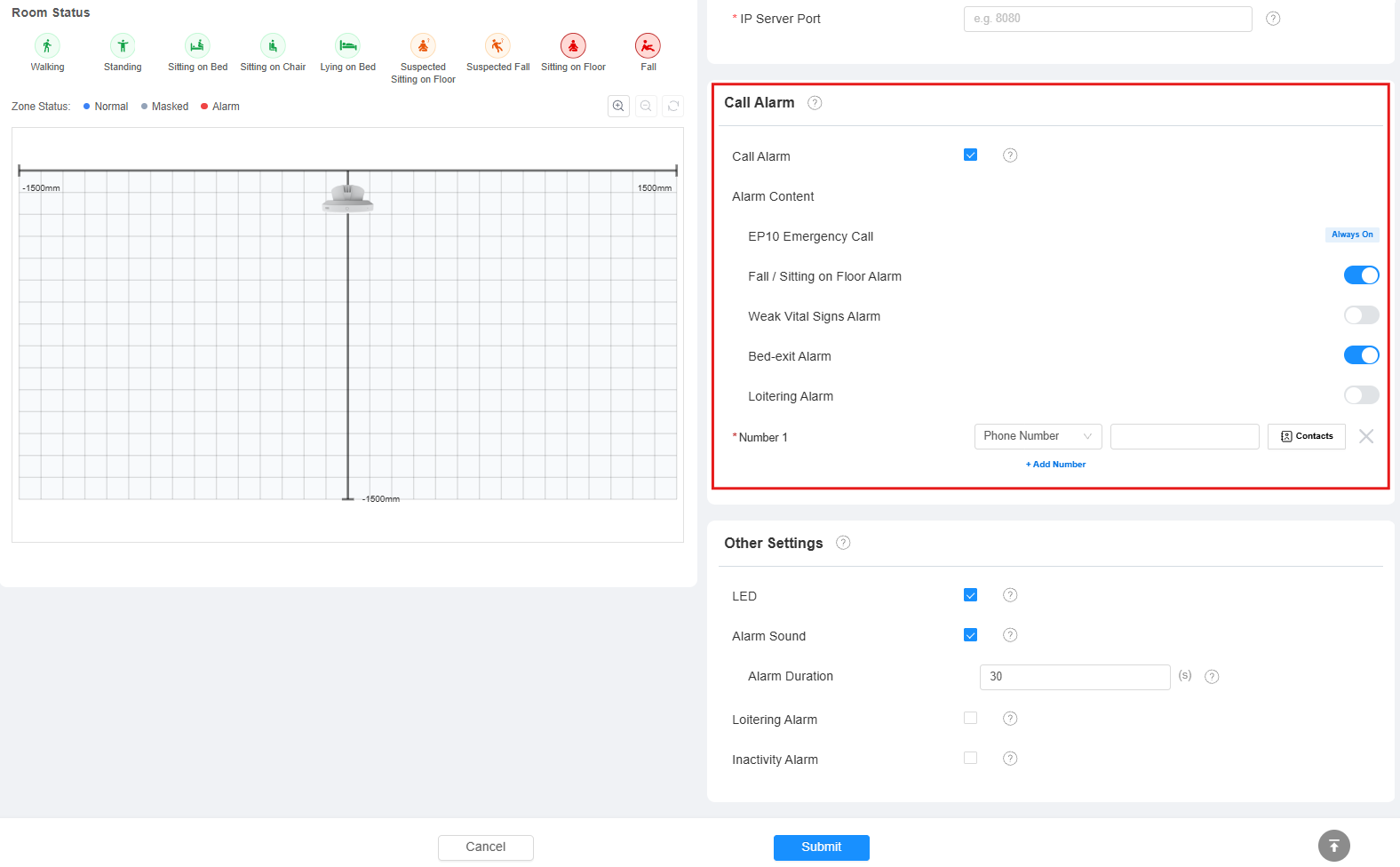
MR03 dynamically displays available alarm types according to the current working mode.
Working Mode | Available Alarm Types |
|---|---|
Person Tracking | No alarm notification items available. |
Fall Detection | Fall Alarm, Sitting on Floor Alarm, Bed-exit Alarm, Loitering Alarm |
Sleep Monitoring | Weak Vital Signs Alarm |
Full Function | Fall Alarm, Sitting on Floor Alarm, Bed-exit Alarm, Loitering Alarm, Weak Vital Signs Alarm |
Only enabled alarm types will trigger the call alarm.
Number Type: The destination type: SIP Number or Device IP Address.
Number: Specify the destination address according to the selected type. Up to 5 numbers can be configured.
Contacts: When the device is deployed on the SmartPlus Cloud, available cloud contacts are displayed in the list; when the device is deployed on-premises, intercom devices on the same local network are displayed in the list.
Note
Calling a phone number requires the device to be connected to the Akuvox SmartPlus Cloud and the corresponding cloud calling service to be enabled. See the relevant guide for details.
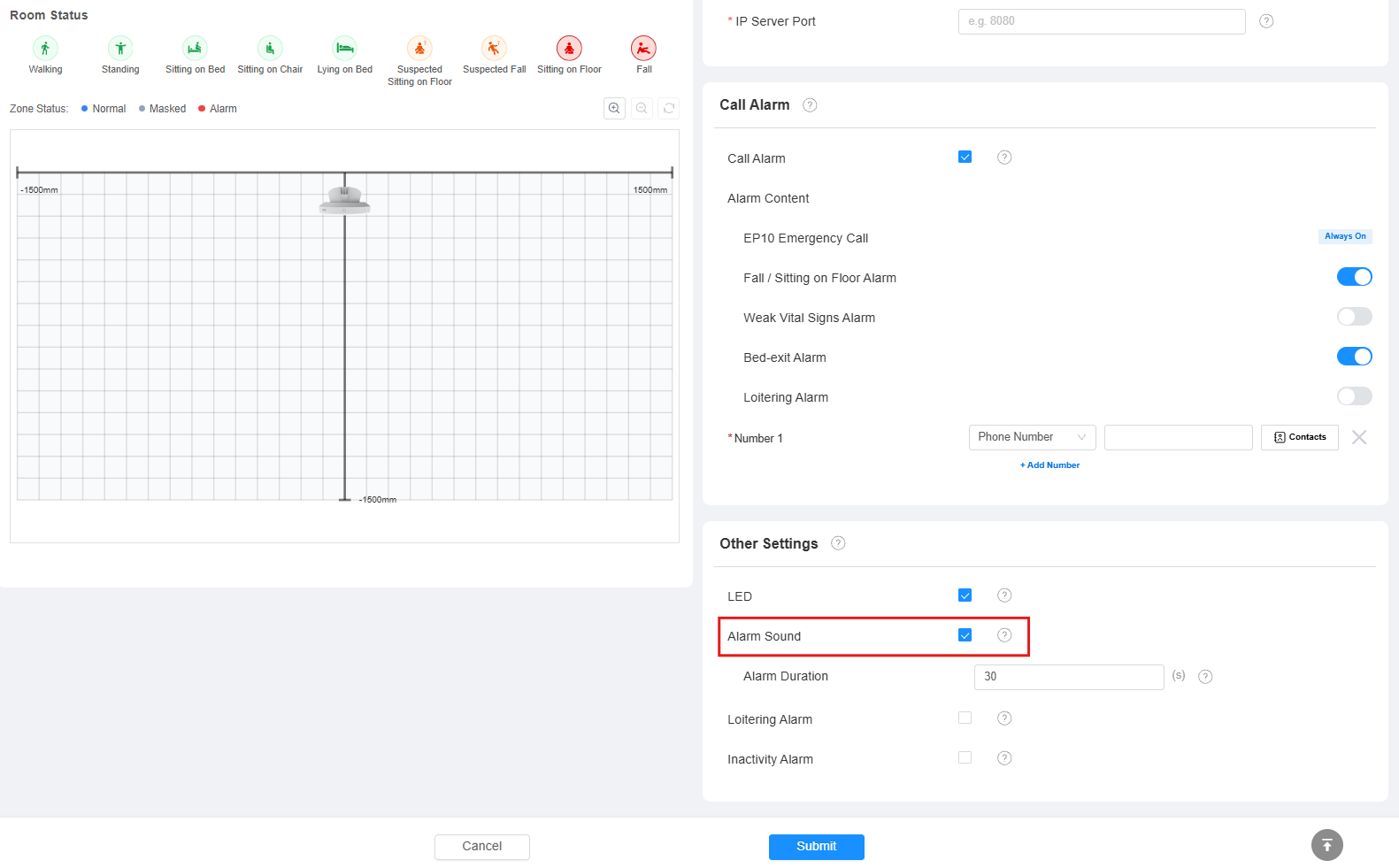
Alarm Sound
You can turn on/off the buzzer on the Fall Settings > General Settings > Other Settings interface.
It is enabled by default. If disabled, the device will not sound an alarm.
Clear Alarm via a Physical Button
Clear the device alarm by short-pressing the physical button on its top.