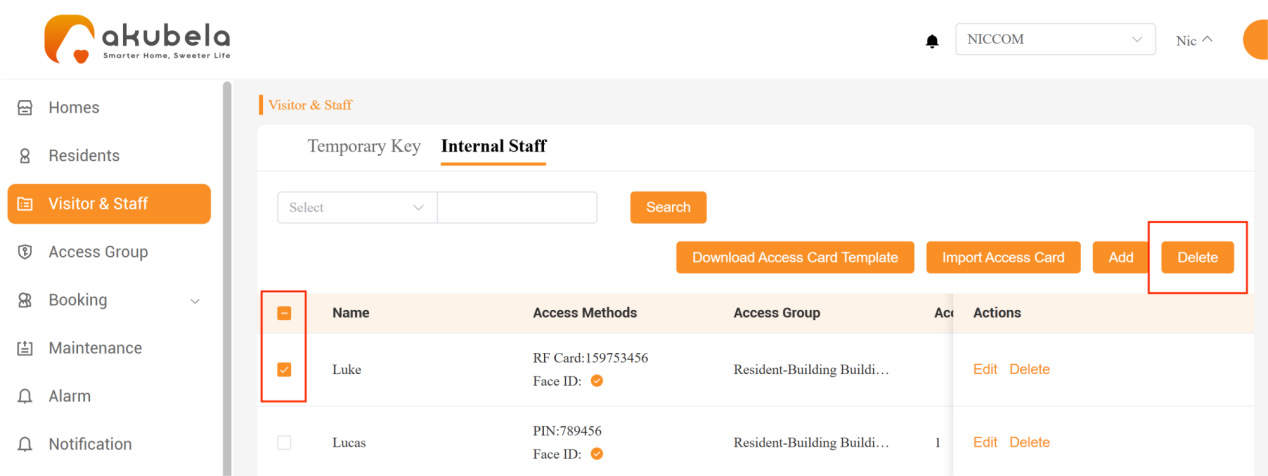
The The PM platform allows you to add new staff, manage their access credentials, and perform search, edit, and delete operations.
Add New Staff
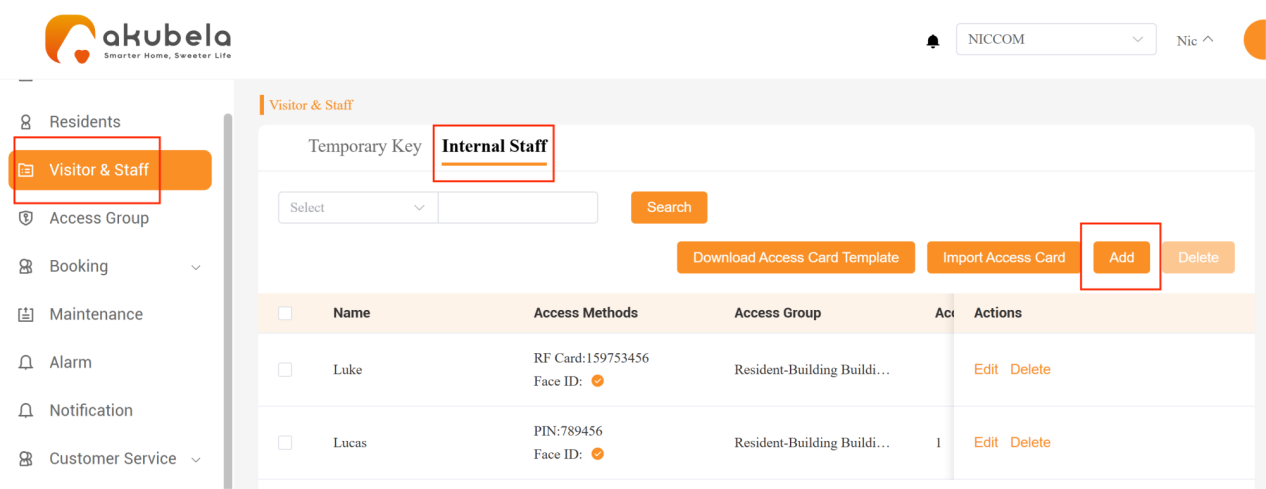
Click Visitor&Staff > Internal Staff > Add.
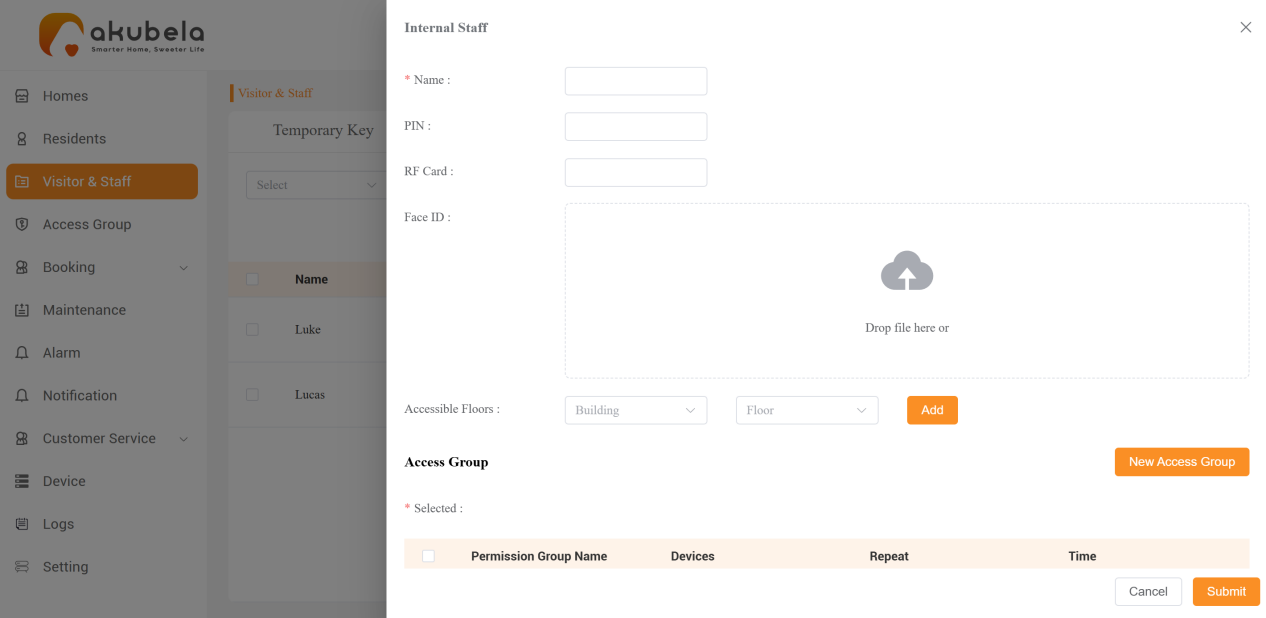
Enter the staff name, add access methods, accessible floors, and assign or create an access group if necessary.
The new staff member will receive an email with their PM platform login credentials.
Batch Add Access Cards
You can streamline card assignment by batch importing access cards for multiple staff members.
Go to Visitor&Staff > Internal Staff > Download Access Card Template.
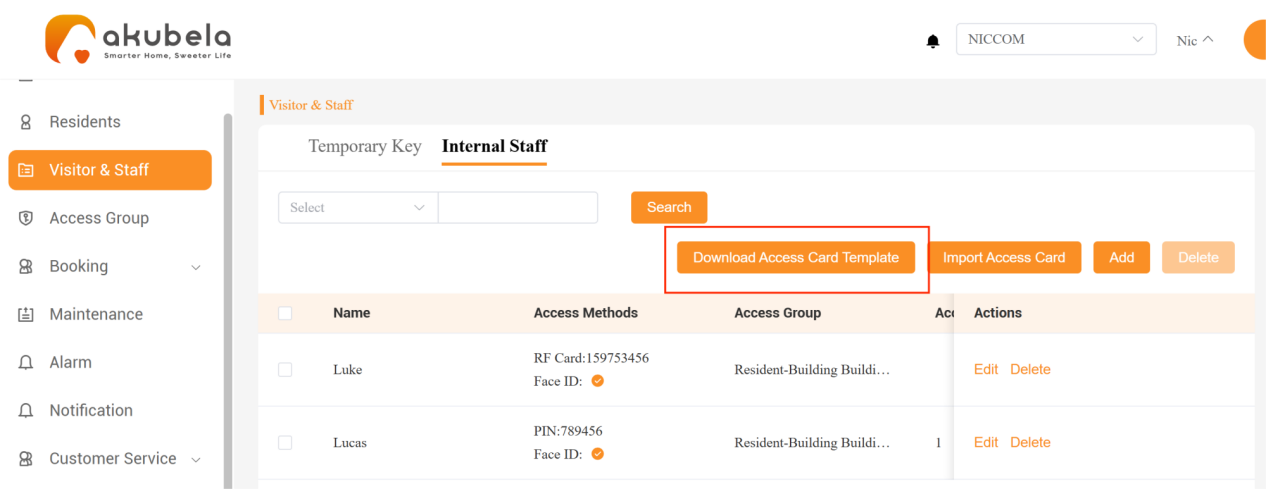
Fill out the template.

TIP:
If staff are part of an access group, check the group ID under Access Group > Access Group ID and enter it in the template.
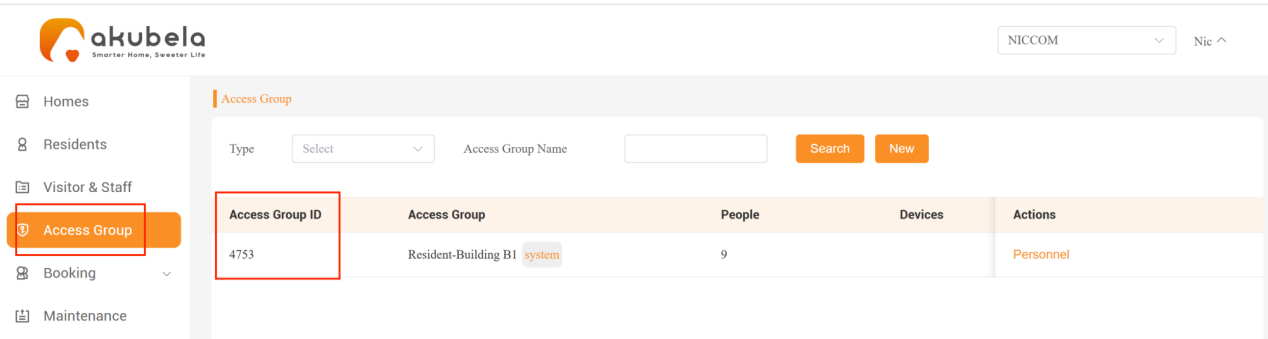
Click Import Access Card to upload the completed template file.
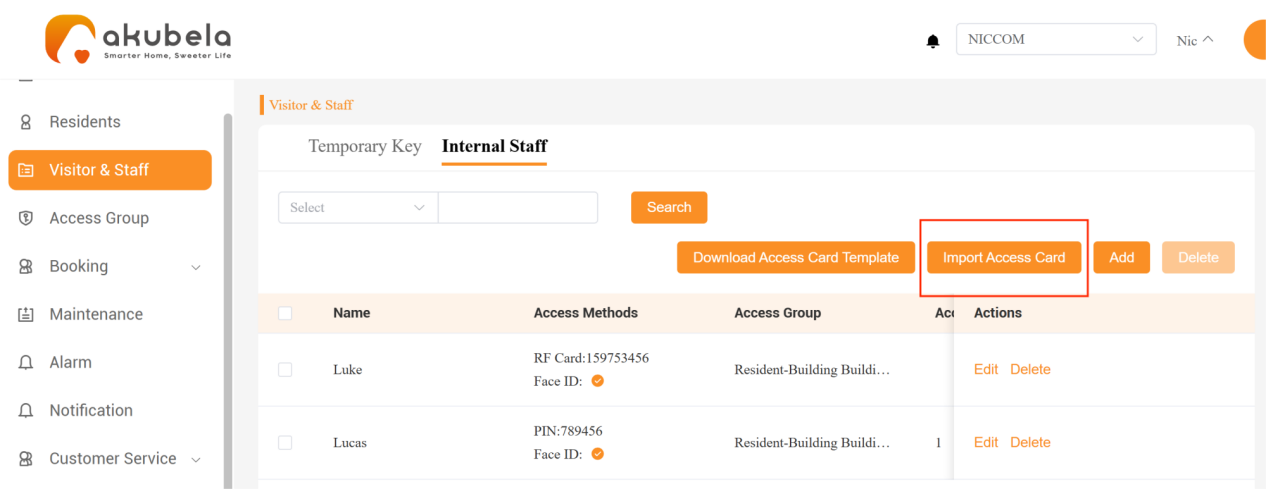
The uploaded access cards will be listed on the Internal Staff page.
Manage Staff Records
Search for Staff
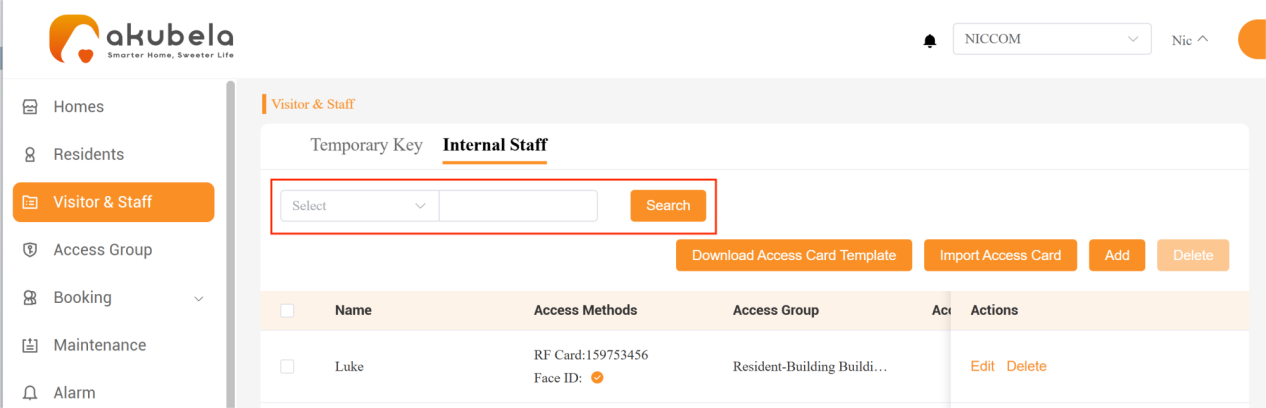
Go to Visitor&Staff > Internal Staff.
Use the filter options (Name, PIN, RF Card) to narrow your search.
Enter the relevant details and click Search.
Edit Staff Information
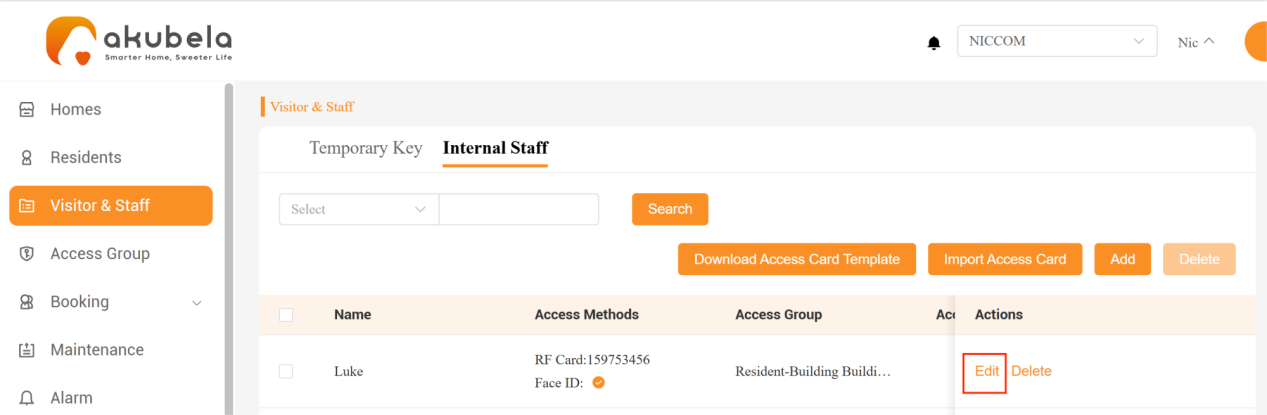
Go to Visitor&Staff > Internal Staff.
Find the specific staff, and click Edit to update their details.
Delete Staff
Go to Visitor&Staff > Internal Staff.
Tick the checkbox next to the individual staff member, or tick the checkbox at the top to select all staff.
Click Delete.