You can configure and manage the camera's video functions on its web interface, including live video monitoring and recorded video playback. Tools are provided for verifying camera operation, monitoring the surveillance area in real time, and reviewing recorded footage for security and troubleshooting purposes.
Preview
View the live video stream on the Camera > Preview interface.
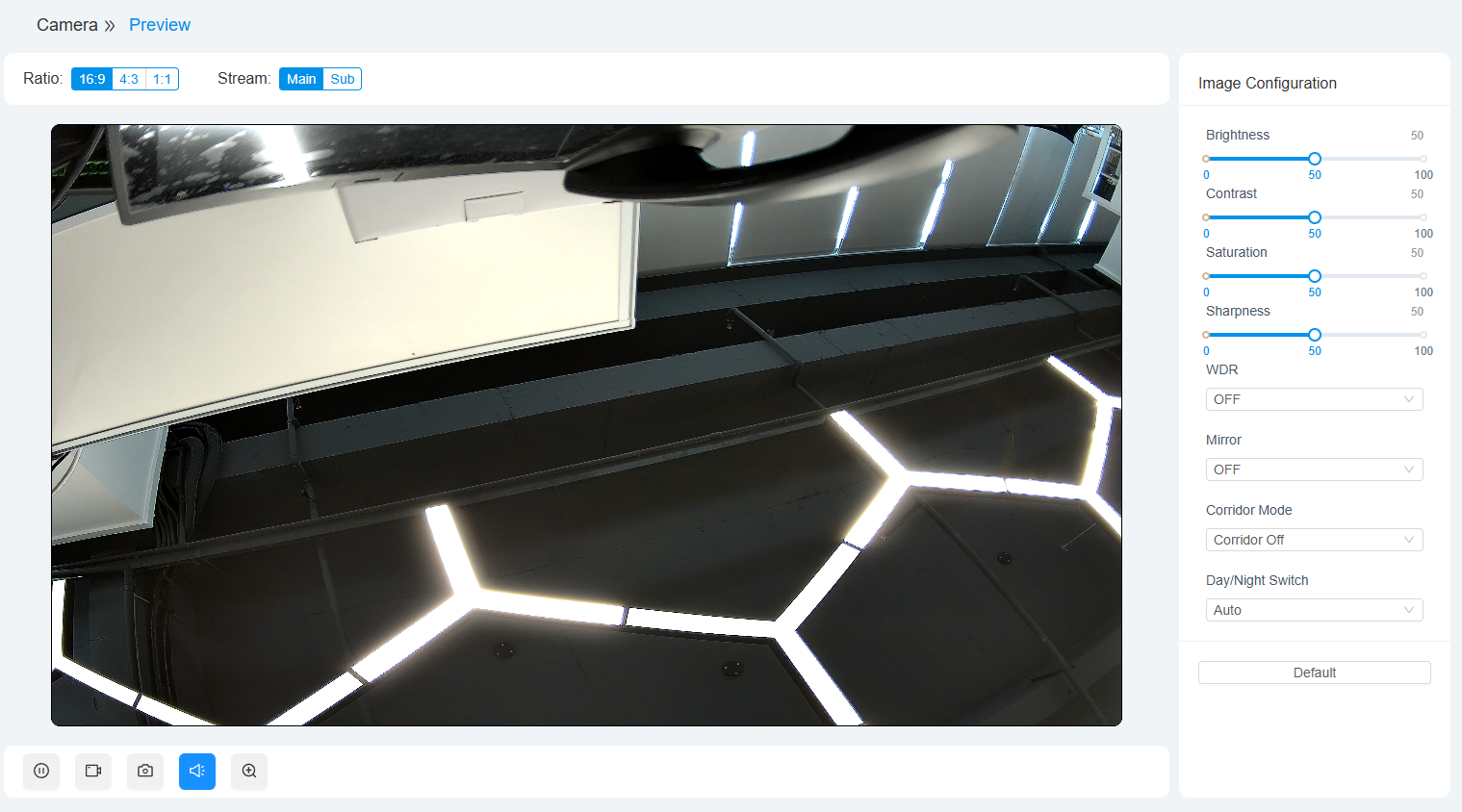
Stream Controls
Ratio: Set the display aspect ratio of the video window. Options: 16:9 (default), 4:3, 1:1. This option is not editable when Corridor Mode is set to 90° or 270°, during which the ratio is fixed to 9:16.
Stream: Select the stream type displayed in the preview window.
 : Click to start or stop showing the video stream. When stopped, the window displays a black screen.
 : Click to start or stop local recording of the live stream. Recordings are saved locally in MP4 format, named DeviceName_YYYYMMDD_HHMM.mp4, where the timestamp corresponds to the recording start time.
 : Click to capture the current video frame, including a timestamp overlay, and save it locally in PNG format.
 : Set whether to enable the audio output for the live stream.
 : A digital zoom function. When enabled, a selection box drawn over the video window magnifies the selected area of the image.
Basic Image Parameters
Brightness: The image brightness.
Contrast: The image contrast.
Saturation: The image color saturation.
Sharpness: The image sharpness.
Mode Configuration
WDR: The wide dynamic range level, which balances exposure between bright and dark areas of a backlit scene. It is off by default. Low, Medium, and High apply increasing degrees of correction.
Mirror: The image flip orientation. It is off by default.
Horizontal: Flip the image left-to-right.
Vertical: Flip it top-to-bottom.
Horizontal and Vertical: Flip it along both axes.
Corridor Mode: The image rotation used for narrow, vertically oriented scenes. It is off by default. When set to 90° or 270°, Ratio is fixed to 9:16 and cannot be edited.
Day/Night Switch: The condition under which the camera switches between day and night imaging modes.
Auto: Switch automatically based on ambient light.
Day/Night: Lock the camera to a single mode.
Scheduled Switch: Change modes according to a configured time schedule.
Default: Click to restore all parameters under Basic Image Parameters and Mode Configuration to their default values.
Playback
Playback allows you to search for and play back recordings stored on the inserted SD card.
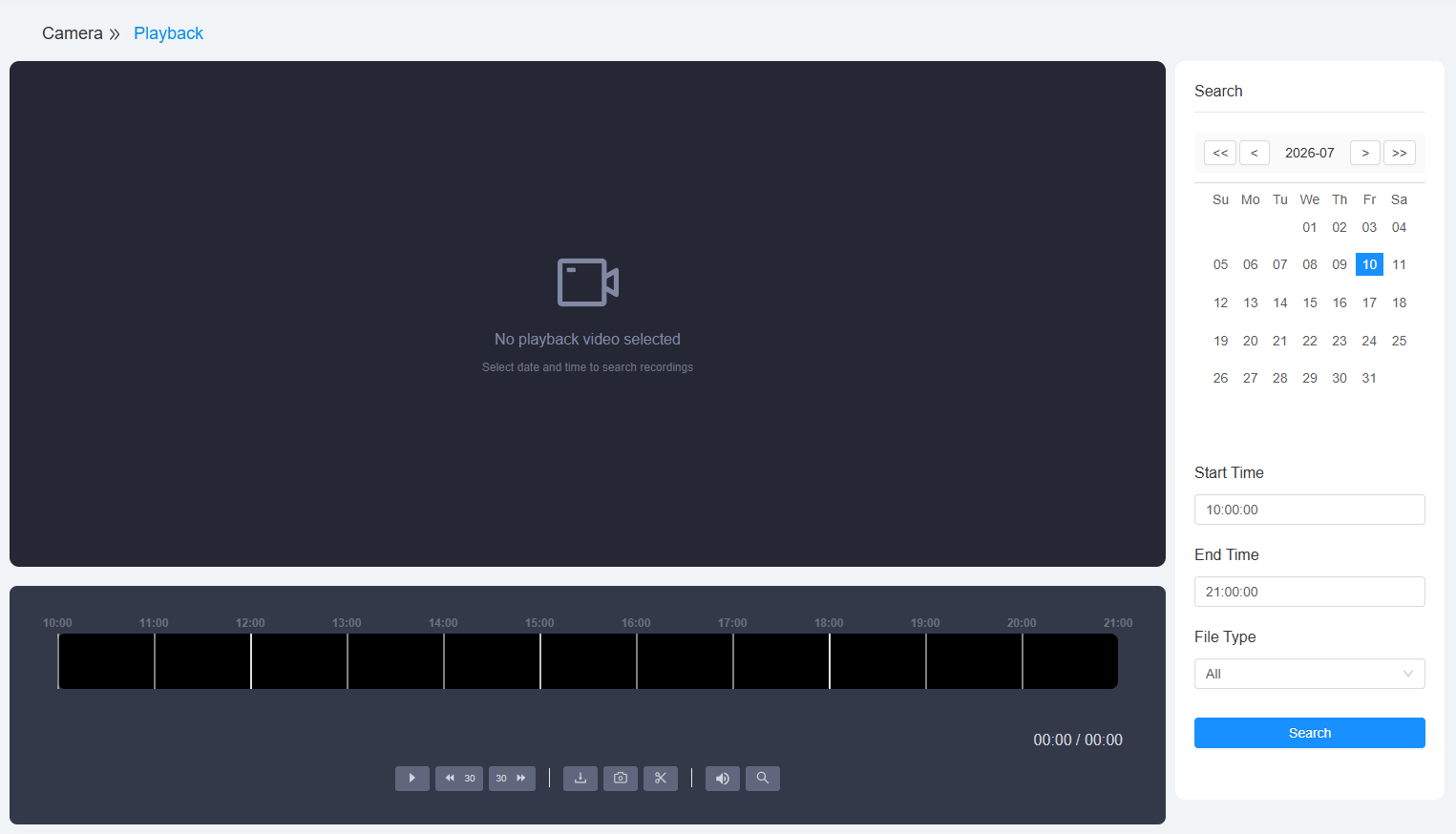
View the recordings on the Camera > Playback interface. Playback matches the aspect ratio options available in Preview (16:9, 4:3, 1:1) and supports zooming and dragging to view specific regions of the frame.
 : Export the currently selected recording to local storage in MP4 format, compatible with H.264 and H.265 source encoding.
  : A single captured frame of the current playback position, including a timestamp overlay, saved locally in PNG format.
  : Click to generate a new video segment from a custom start and end time within the current recording, which can then be downloaded.
 : The mute state of playback audio. The icon reflects whether audio is currently muted or unmuted.
 : A digital zoom function. When enabled, a selection box drawn over the video window magnifies the selected area of the image.
Date Selection: A calendar control for selecting the recording date.
Start Time / End Time: The time range used to search for recordings.
Filter Type: Filter the detection event type. Normal means continuous recording that is enabled on the Settings > Storage interface.