Device Network Configuration
لضمان العمل الطبيعي، تأكد من أن عنوان IP الخاص بالجهاز مضبوط بشكل صحيح أو تم الحصول عليه تلقائيا من خادم DHCP.
Check the network status on the web Status > Info > Network Information interface.
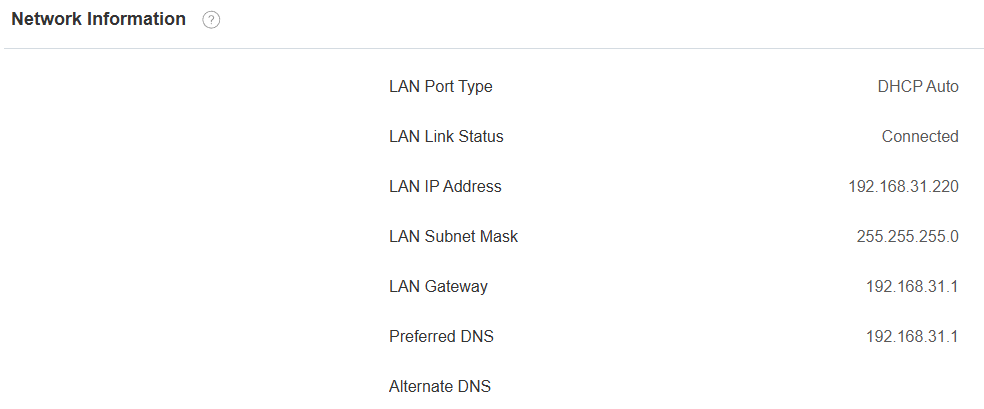
Set the network connection on the web Network > Basic interface.
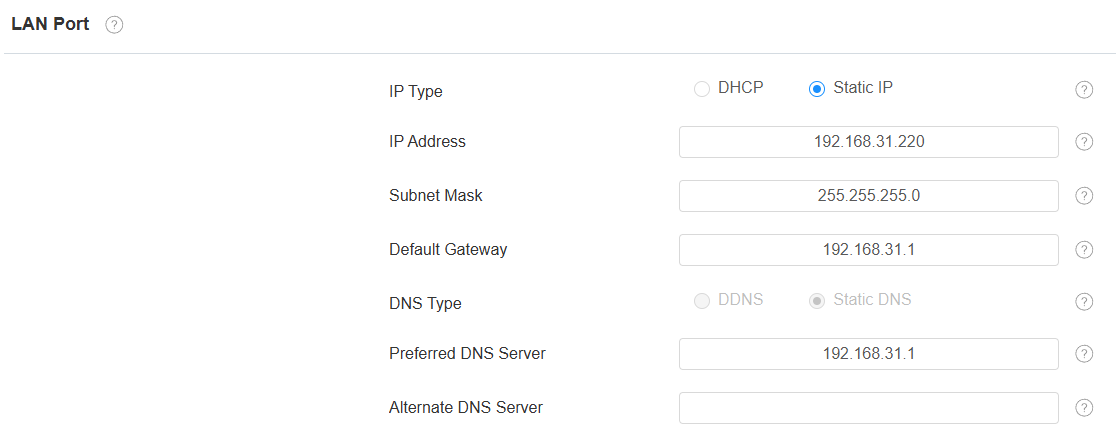
DHCP: DHCP mode is the default network connection. If the DHCP mode is selected, then the device will be assigned by the DHCP server with an IP address, subnet mask, default gateway, and DNS server address automatically.
Static IP: When static IP mode is selected, the IP address, subnet mask, default gateway, and DNS server address have to be manually configured according to the actual network environment.
IP Address: Set up the IP address when the static IP mode is selected. To access the device’s web settings with the IP, your computer should be on the same local network as the device.
Subnet Mask: A subnet mask tells your device which IP addresses are part of your local network and which ones are not. For example, if the subnet mask is 255.255.255.0, it means that devices with similar starting IPs (like 192.168.1.x) are in the same network.
Default Gateway: The gateway is like a bridge between your device and other networks, such as the internet. Usually, it’s the IP address of your router.
DNS Type: Domain Name System(DNS) type.
DDNS: Dynamic DNS. It is obtained automatically through the DHCP server.
Static DNS: When selected, you need to enter the DNS manually.
Preferred/Alternate DNS Server: Domain Name System(DNS) is the overall system or network that handles the translation of domain names (like www.example.com) into IP addresses (like 192.0.2.1), which computers use to identify each other on a network. The device connects to the alternate DNS server when the primary one is unavailable.
Device Local RTP Configuration
يتيح بروتوكول النقل في الوقت الحقيقي (RTP) للأجهزة بث بيانات الصوت والفيديو عبر الشبكة في الوقت الحقيقي.
لاستخدام RTP، تحتاج الأجهزة إلى مجموعة من المنافذ. المنفذ يشبه قناة بيانات على الشبكة. من خلال إعداد منافذ RTP على جهازك وراوترك، يمكنك تجنب التداخل في الشبكة وتحسين جودة الصوت والفيديو.
Set it up on the web Network > Advanced interface.

Starting RTP Port: Set the port value to establish the start point for the exclusive data transmission range.
Max RTP Port: Set the port value to establish the endpoint for the exclusive data transmission range.
Device Web HTTP Setting
تدير هذه الوظيفة الوصول إلى موقع الجهاز. يدعم الجهاز طريقتين للوصول عن بعد: HTTP وHTTPS (التشفير).
Set it up on the Network > Advanced interface.

HTTPS Port: Specify the web server port for accessing the device web interface via HTTPS.
Device Deployment in Network
لتسهيل التحكم في الأجهزة وإدارتها، قم بتكوين أجهزة الاتصال الداخلي Akuvox بتفاصيل مثل الموقع، وضع التشغيل، العنوان، وأرقام الامتداد.
Set it up on the Network > Advanced interface.
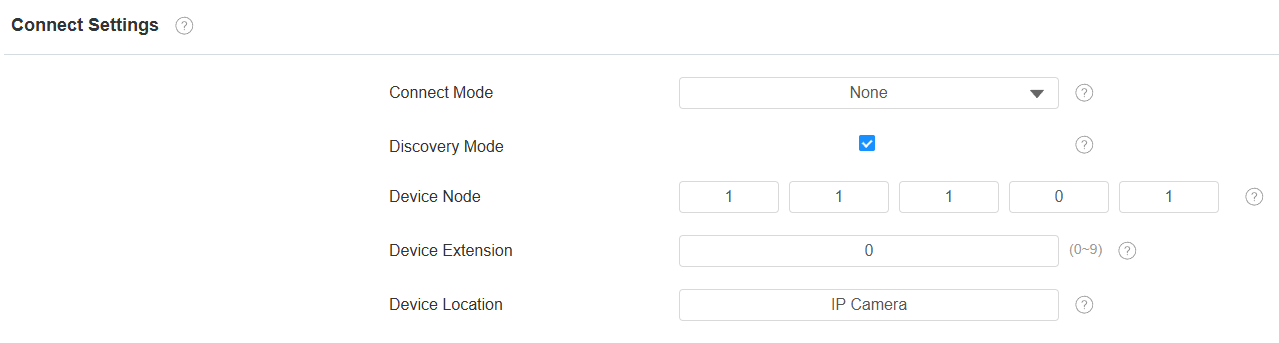
Connect Type: It is automatically set up according to the device connection with a specific server in the network, such as SDMC, Cloud, or None.
لا شيء: لا يوجد إعداد المصنع الافتراضي، مما يدل على أن الجهاز ليس في أي نوع خادم. تتصل الأجهزة مباشرة ببعضها البعض أو ضمن شبكة محلية (LAN) دون الاعتماد على خوادم خارجية.
السحابة: الجهاز متصل بنظام SmartPlus Cloud، وهو نظام سحابي يبسط إدارة الوصول إلى العقارات. يسمح وضع السحابة للأجهزة بالتفاعل الذكي مع بعضها البعض ومع تطبيق SmartPlus المحمول، حيث يقوم بعمل نسخ احتياطية للبيانات يوميا وعلى مضيفين مختلفين. يناسب المشاريع التي تتطلب نشرا وإدارة ذكية ومرنة وآمنة.
SDMC: الجهاز متصل بمنصة SDMC، وهي منصة إدارة مصممة للمشاريع المحلية. يدير وضع SDMC البيانات ويقوم بنسخها احتياطيا عن بعد على شبكة محلية. كما يتميز بالعديد من الميزات المناسبة للمشاريع التي تتطلب خصوصية عالية، وتكلفة أقل، وإدارة مركزية.
Discovery Mode: Enabled by default. Available for None server mode. The device can be discovered by other devices in the network. When disabled, the device will be concealed and not discovered by other devices.
Device Node: Available for None server mode. It can be used to call the device. Specify the device address by entering device location information from left to right: Community, Building, Unit, Floor, and Room in sequence.
Device Extension: Available for None server mode. The device extension number ranges from 0 to 10.
Device Location: The location where the device is installed and used.
Allowed Scanning Whitelist
You can limit devices from scanning the camera on the same LAN to enhance security.
Set it up on the Network > Advanced interface.

NAT Setting
تتيح ترجمة عناوين الشبكة (NAT) للأجهزة على شبكة خاصة استخدام عنوان IP عام واحد للوصول إلى الإنترنت أو شبكات عامة أخرى. يحفظ NAT عناوين IP العامة المحدودة ويخفي عناوين IP الداخلية والمنافذ عن العالم الخارجي.
لتسجيل حسابات SIP على خوادم طرف ثالث في شبكة واسعة النطاق (WAN)، تحتاج إلى تفعيل ميزة RPort على أجهزة الإنتركم لإنشاء اتصال مستقر.
Set it up on the web Account > Advanced > NAT interface.

Enable RPort: Enable RPort when the SIP server is in a WAN.