MJPEG وRTSP هما نوعان أساسيان من تدفقات المراقبة التي نوقشت في هذا الفصل.
MJPEG، أو Motion JPEG، هو تنسيق ضغط فيديو يستخدم صور JPEG لكل إطار فيديو. تعرض أجهزة أكوفوكس البثوث الحية على واجهة الويب وتلتقط لقطات شاشة المراقبة بصيغة MJPEG. الإعدادات المتعلقة ب MJPEG تحدد جودة الفيديو وحالة تشغيل/إيقاف وظيفة البث المباشر.
RTSP تعني بروتوكول البث في الوقت الحقيقي. يمكن استخدامه لبث الفيديو والصوت من كاميرات الطرف الثالث إلى الجهاز. يمكنك إضافة بث الكاميرا عن طريق إضافة رابط الرابط. تنسيق رابط أجهزة Akuvox هو rtsp://Device عبر IP/live/ch00_0
ONVIF هو منتدى لواجهة الفيديو الشبكية المفتوحة. يمكن الجهاز من مسح واكتشاف الكاميرات أو أجهزة الإنتركم التي تحتوي على وظائف ONVIF مفعلة. البث المباشر الذي يتم الحصول عليه عبر ONVIF يكون في الأساس بصيغة RTSP.
MJPEG Image Capturing
You can take a monitoring image or check the monitoring video in MJPEG format with the device. To view the video stream, you need to turn on the MJPEG video function and choose the image quality.
To set it up, go to Settings > MJPEG interface.
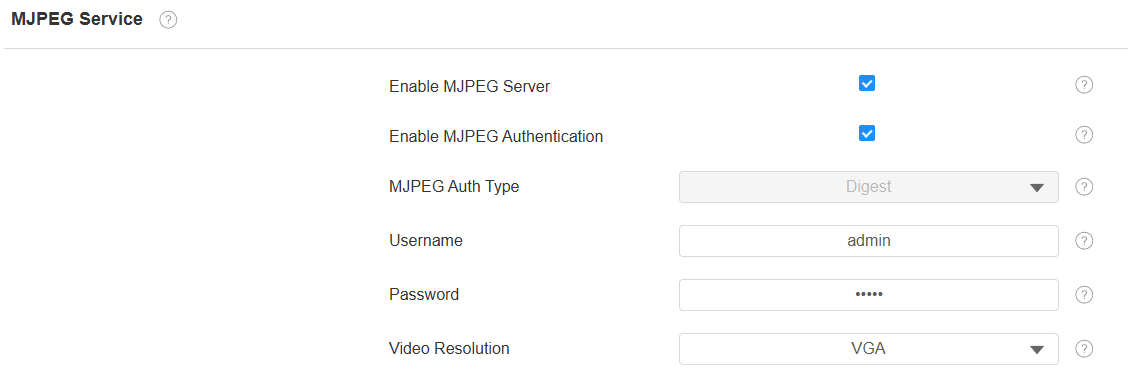
Enable MJPEG Authentication: Once enabled, accessing the camera’s real-time image or video by entering the URL into the browser requires verification of the Authentication Mode, Username, and Password.
Tip
To view a dynamic stream, use the URL http://device_IP:8080/video.cgi.
For capturing a screenshot, use the following URLs, with the image formats varying accordingly:
http://device_IP:8080/picture.cgi
http://device_IP:8080/picture.jpg
http://device_IP:8080/jpeg.cgi
For example, if you want to capture a JPG image of the camera with the IP address 192.168.1.104, you can enter http://192.168.1.104:8080/picture.jpg in the web browser.
Video Resolution: Specify the image resolution, varying from the lowest QCIF(176x144 pixels) to the highest 720P(1280×720 pixels).
RTSP Stream Monitoring
The RTSP feature allows Akuvox indoor monitors or third-party devices to obtain the live stream from the camera.
You can set up the RTSP authentication credentials and video parameters.
Tip
To view the video stream using RTSP:
Main stream: rtsp://Device’s IP/live/ch00_0
Sub stream: rtsp://Device’s IP/live/ch00_1
RTSP Basic Setting
You are required to set up the RTSP function on the Settings > RTSP interface in terms of RTSP Authorization, authentication, password, etc, before you can use the function.
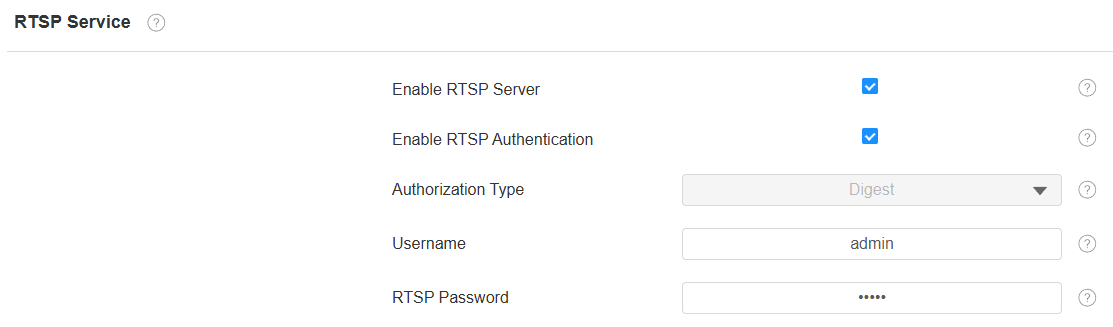
Enable RTSP Authentication: Once enabled, configure the RTSP Username and RTSP Password. These credentials are required for accessing the camera's RTSP stream from other intercom devices like indoor monitors.
Username: Set the username for authorization.
RTSP Password: Set the password for authorization.
RTSP Audio
You can enable/disable audio transmission in the RTSP stream on the Settings > RTSP interface. It is enabled by default.

ONVIF
You can access the real-time video from the camera using the Akuvox indoor monitor or other third-party devices like Network Video Recorder(NVR). Enabling and setting up the ONVIF function on the device will allow its video to be visible on other devices.
Set it up on the Settings > ONVIF interface.
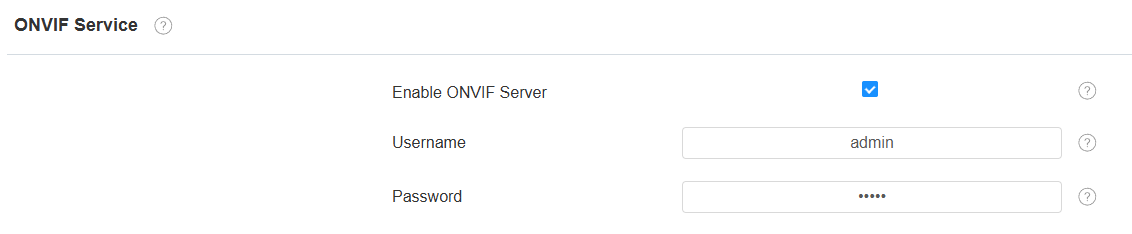
Username: Set the username for authorization.
Password: Set the password for authorization.