Admin Setup
The SL20 supports a single primary administrator. The preset Admin Code must be linked to a specific family member in the app.
To link the admin:
Go to [SL20 device card] > User Management.
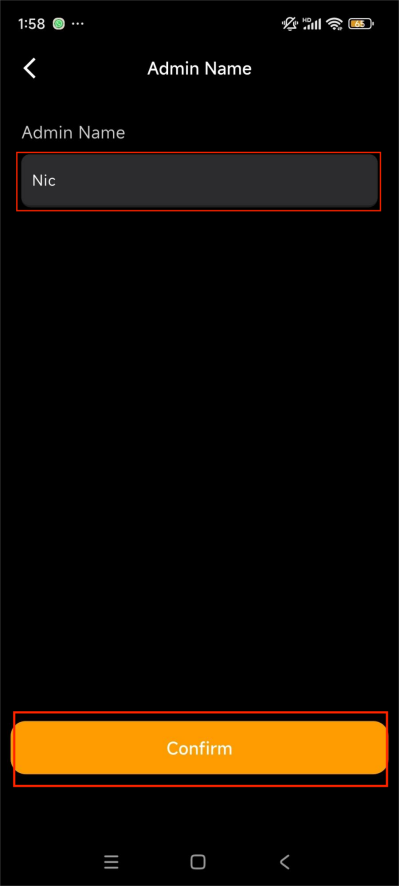
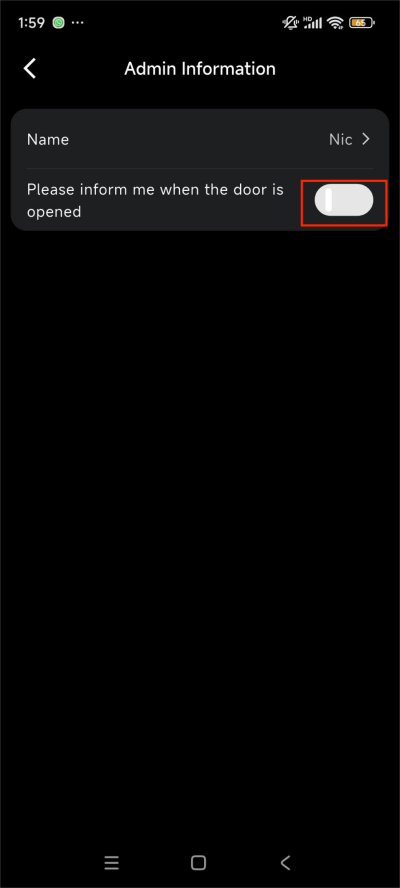
Tap Add Admin and enter the admin’s name.
(Optional) Enable unlock notifications.
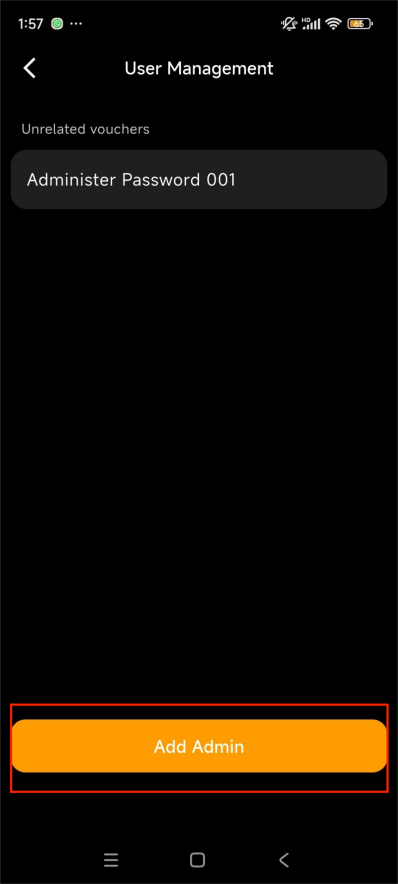
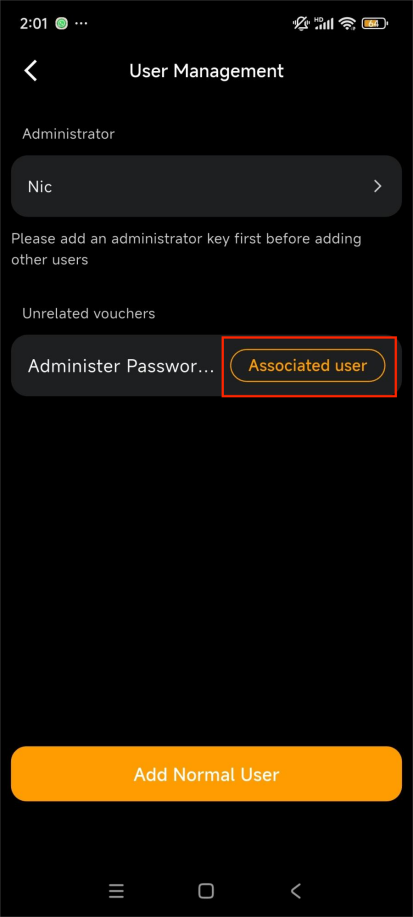
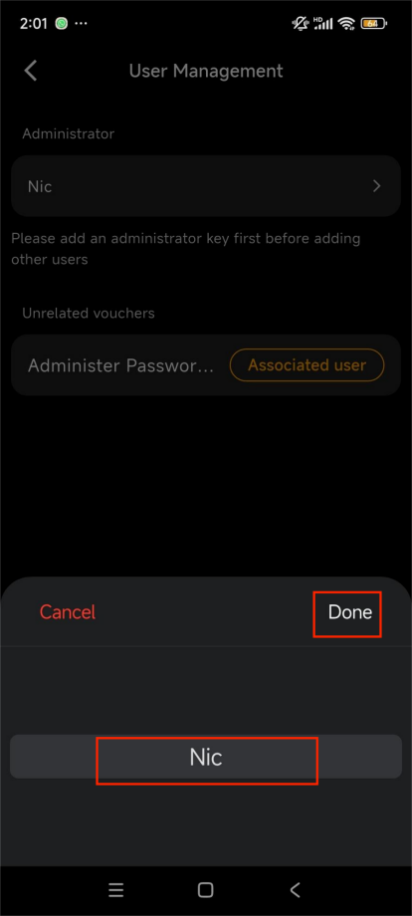
Tap Associated User in the Unrelated Vouchers field to select the admin just added.
Tap Done to assign the password to the admin.
User Management
Add User
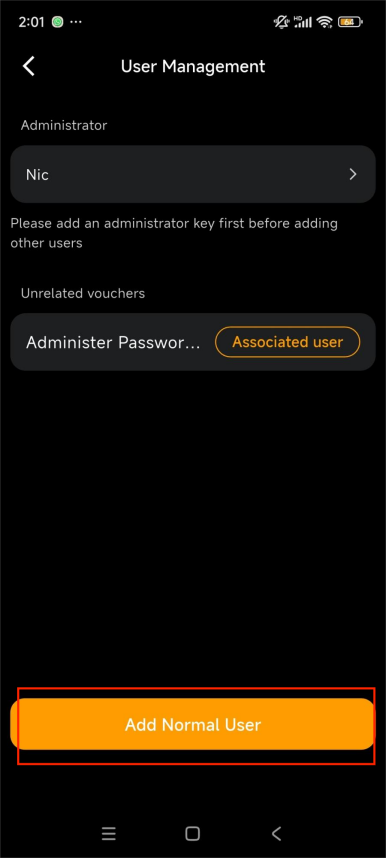
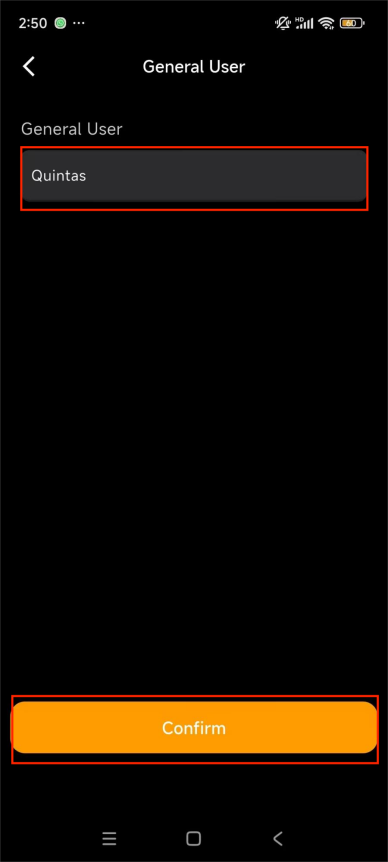
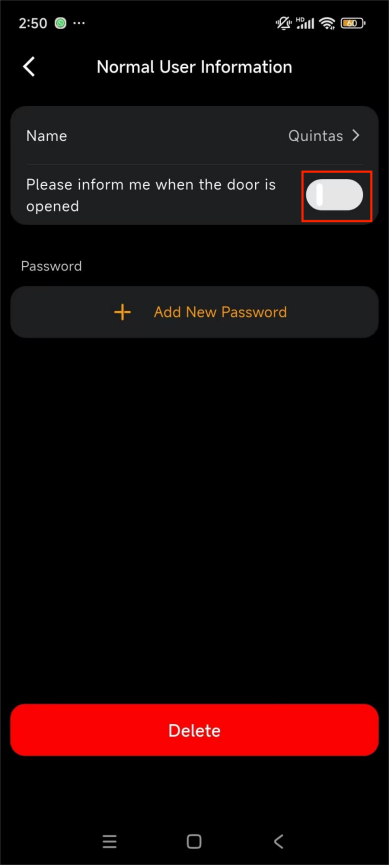
Go to [SL20 device card] > User Management > Add Normal User.
Enter the user name and tap Confirm.
(Optional) Enable unlock notifications.
Add User Code
You can either generate a new PIN code or link existing credentials (PIN codes/cards already stored locally on the lock) to a user.
Create a New PIN
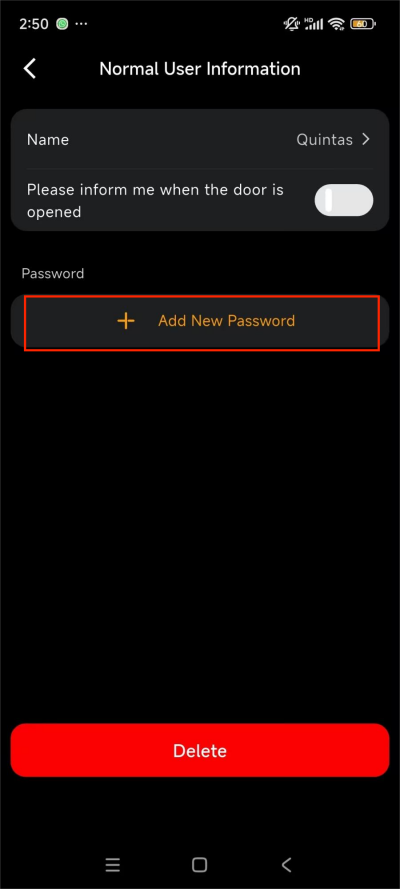
Select the specific user, then tap Add New Password.
Wake the lock, then tap Next.
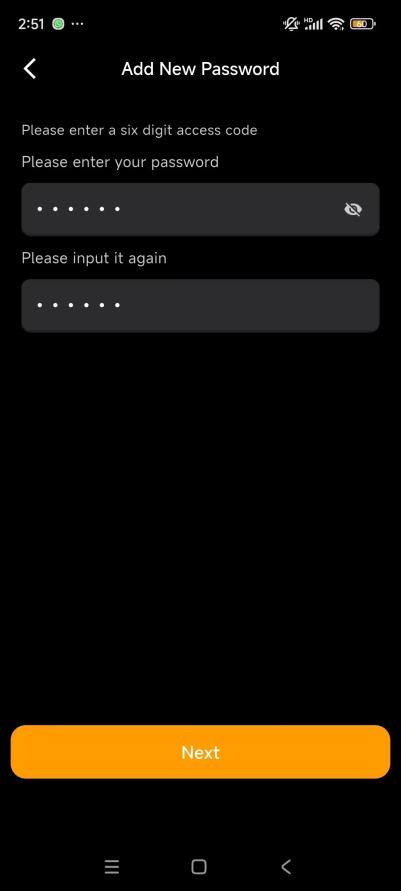
Once connected, enter the desired 6-8 digit PIN twice.
Tap Next and ensure the lock is awake.
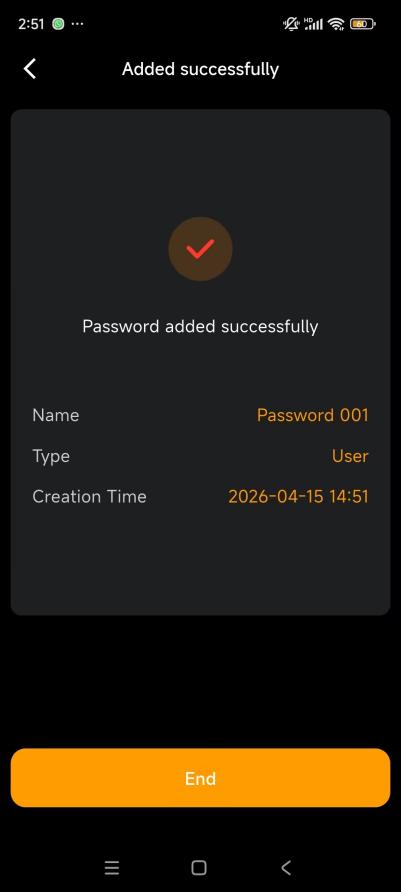
The lock beeps once and the user number lights up on the keypad. The app will confirm successful addition.
Link Existing Credentials
NOTE:
Each credential name must be unique. You cannot assign two credentials with the identical name (e.g., "Password 001") to the same user.
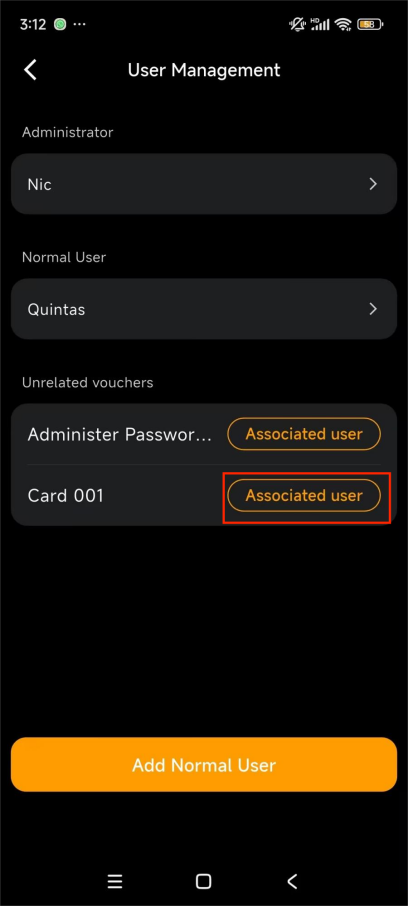
Go to [SL20 device card] > User Management.
Locate the desired credential in the Unrelated Vouchers field.
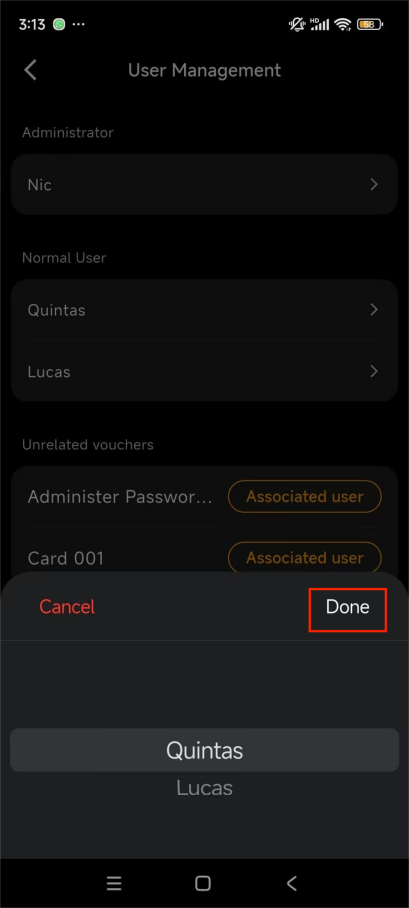
Tap Associated user, select a user to link it to, and tap Done.
The credential will move from the "Unrelated" list to the specific user’s profile.
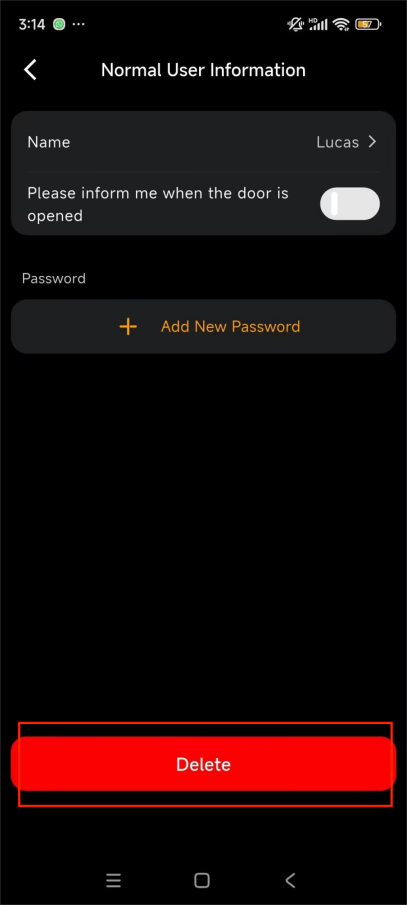
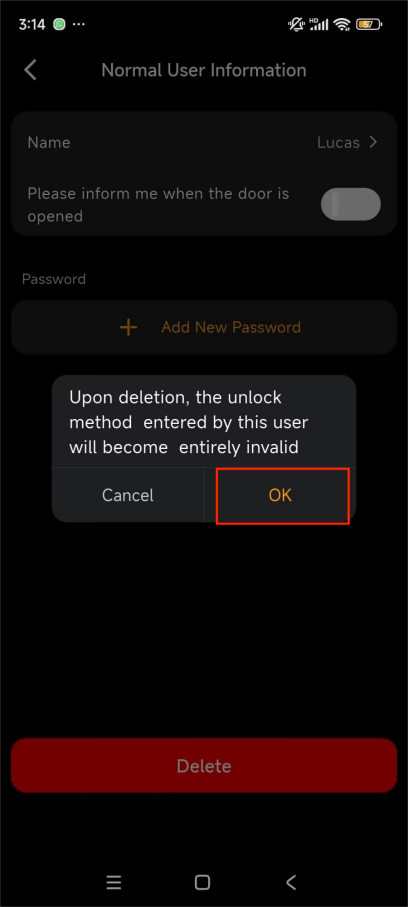
Delete User
Removing a user automatically revokes all PINs and cards associated with that individual.
Go to [SL20 device card] > User Management.
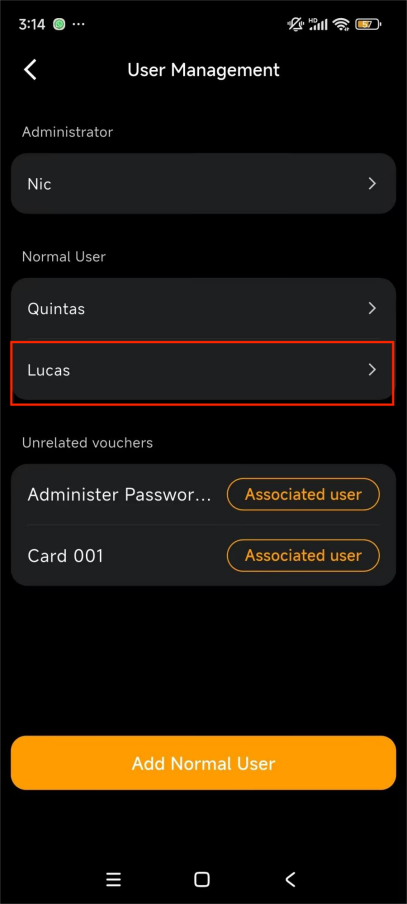
Select the user you want to remove.
Tap Delete > OK.
Wake up the lock, then tap Next.
Wait for the completion. The lock will beep once indicating the successful deletion.
Temporary Passwords
One-time Password
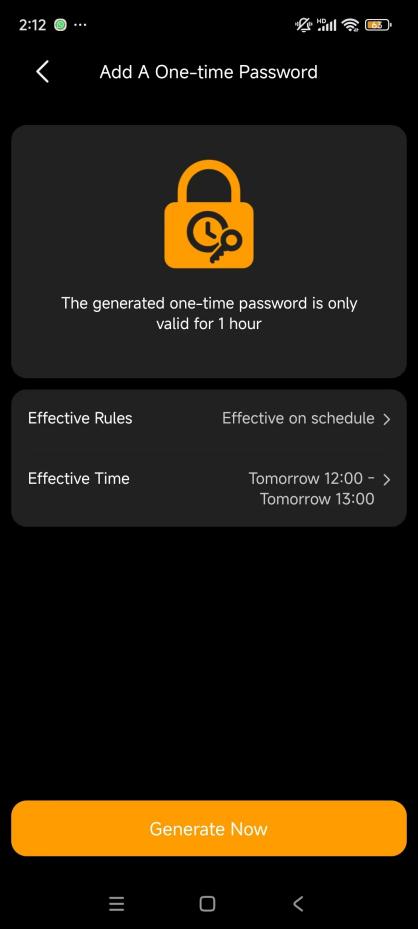
A one-time password is valid for one-hour. You can create 10 one-time passwords within 30 minutes.
To create:
Go to [SL20 device card] > Temporary Password > One-time Password.
Tap Add A One-time Password or +.
Set Effective Rules:
Effective immediately: The validity period will generate automatically.
Effective on schedule: Set the Effective Time. The password takes effect at the set time.
NOTE:
If the selected hour is earlier than the current time, the password will take effect the next day.
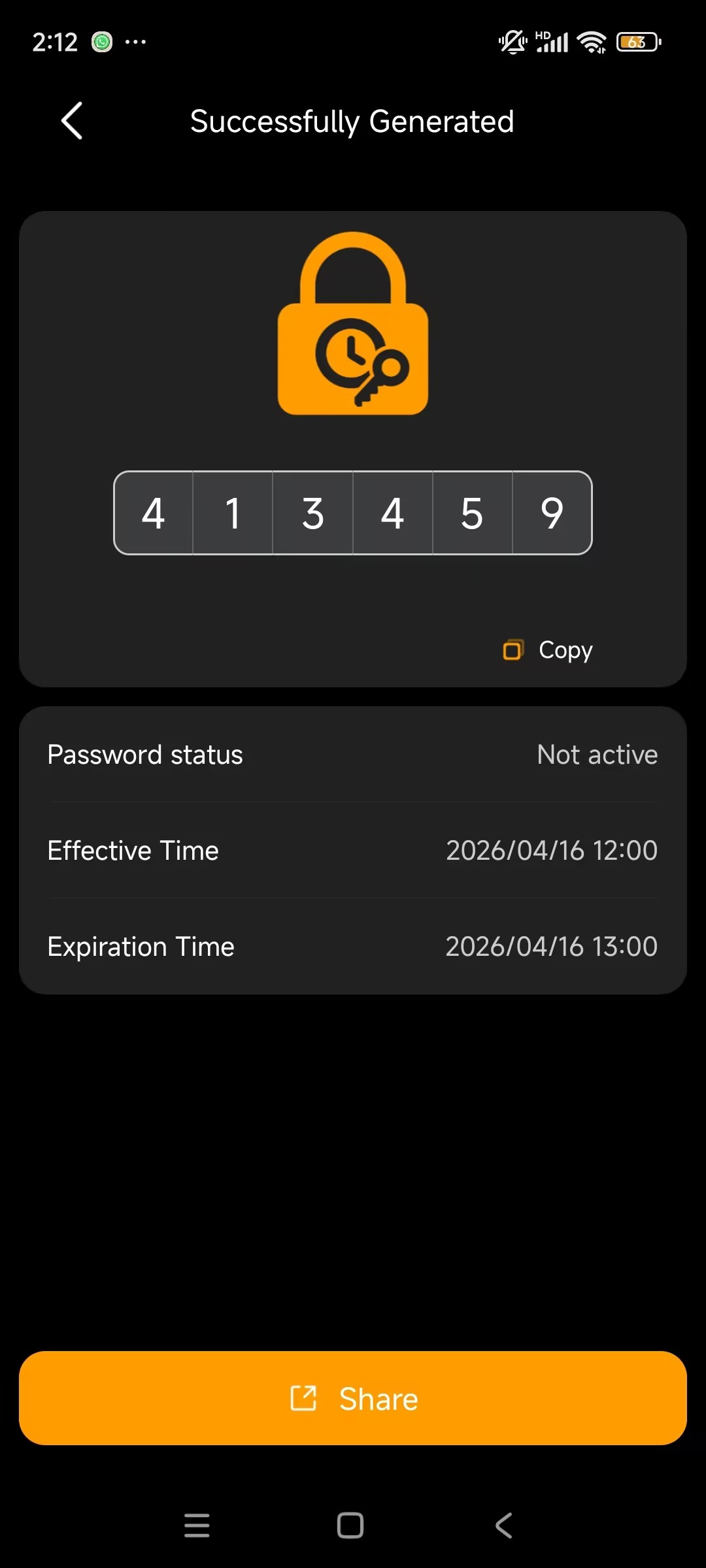
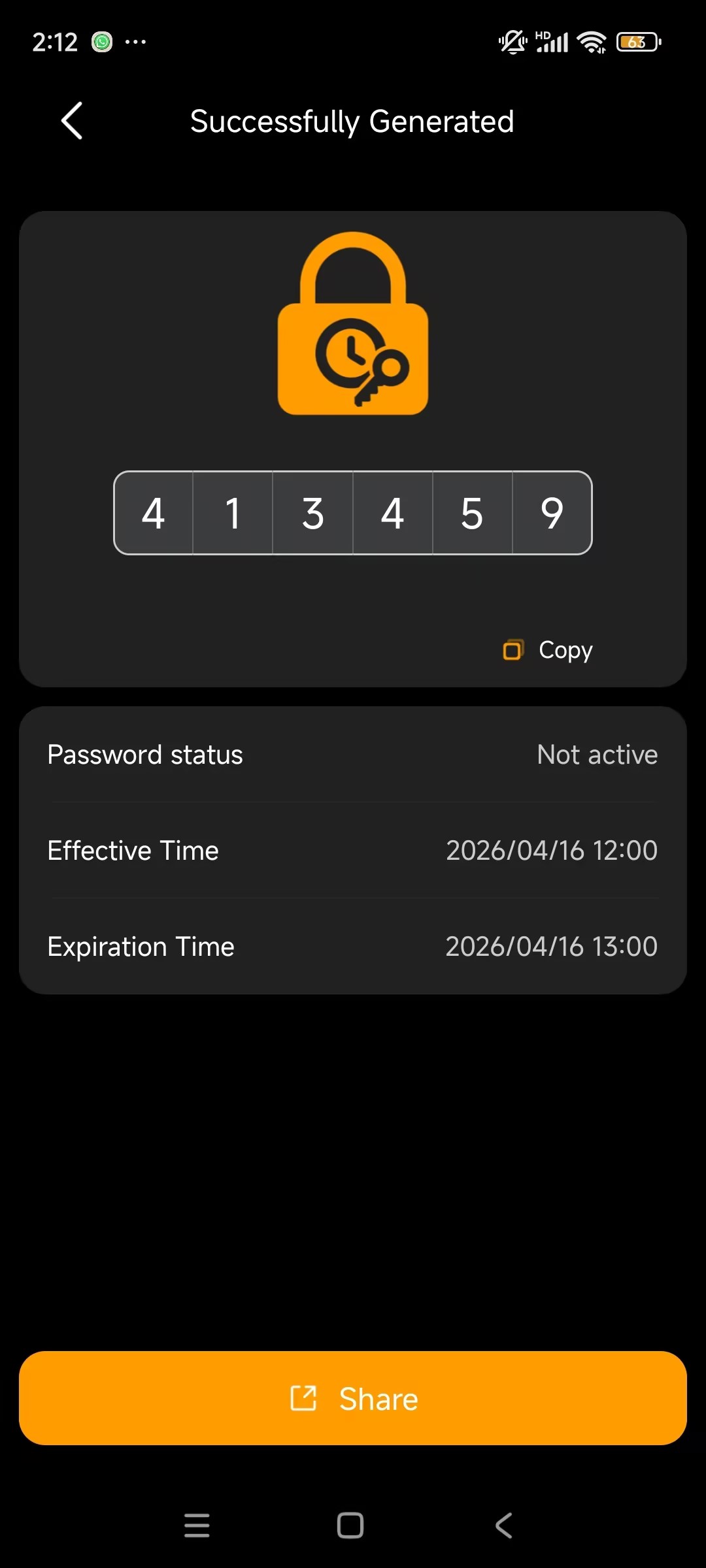
Tap Generate Now to view and share the code.
Periodic Password
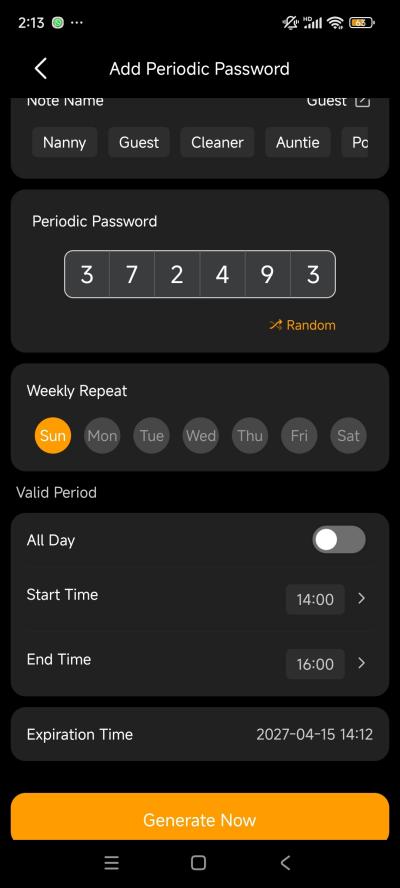
A periodic password is valid during a custom schedule. The system can store up to 10 periodic passwords.
To create:
Go to [SL20 device card] > Temporary Password > Periodic Password.
Tap Add Periodic Password or +.
Configure:
Note Name
Periodic Password: Enter a PIN manually or tap Random to generate one automatically.
Weekly Repeat: Select the day(s) the password is valid.
Valid Period: Set the daily time range (enable All Day or specify start and end times)
Expiration Time
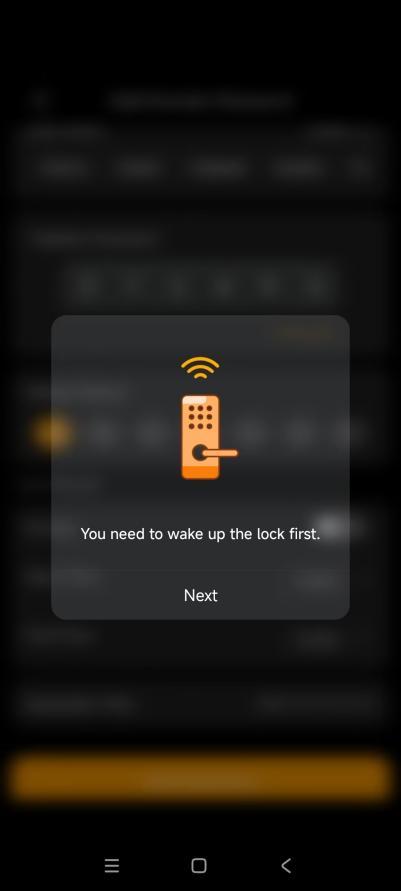
Tap Generate Now, then wake up the lock.
Wait for confirmation.
Remote Unlock
Direct Unlock
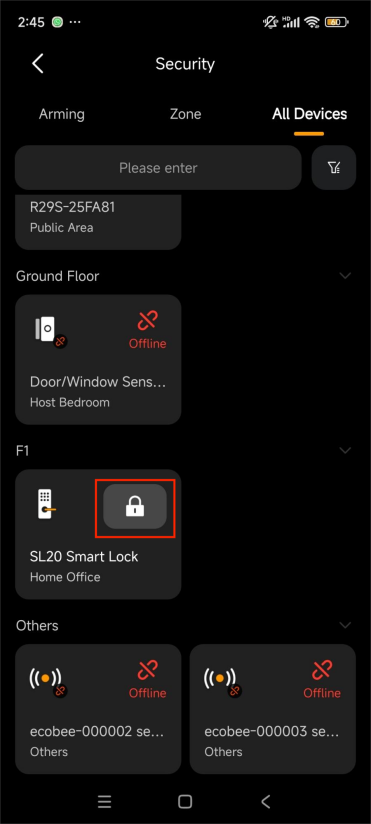
Use this for quick access when you do not need to view the camera feed:
Ensure the visitor has touched the keypad to wake the lock.
Do any of the following:
Option A: Tap
 directly on the SL20 device card.
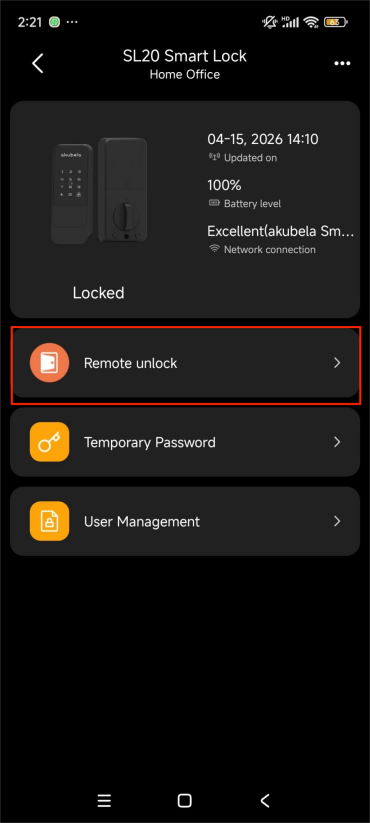
Option B: Enter the lock Details screen and tap Remote Unlock.
Doorbell Notifications
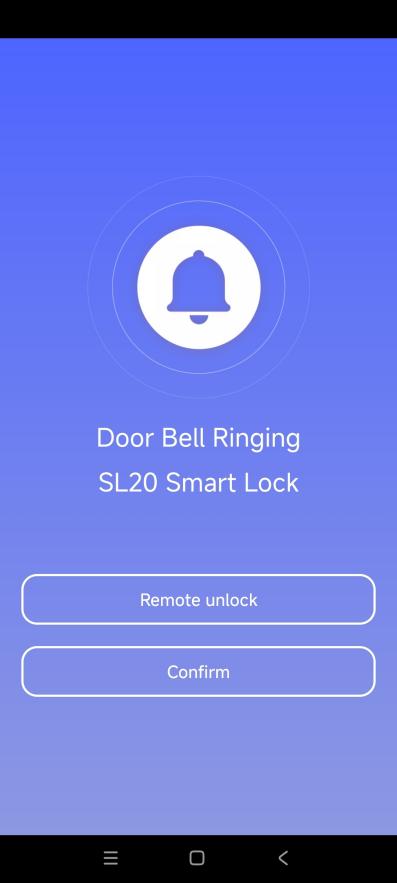
When a visitor press the doorbell button:
HyPanels (if paired): A pop-up alert will appear.
BelaHome App: You will receive an instant push notification.
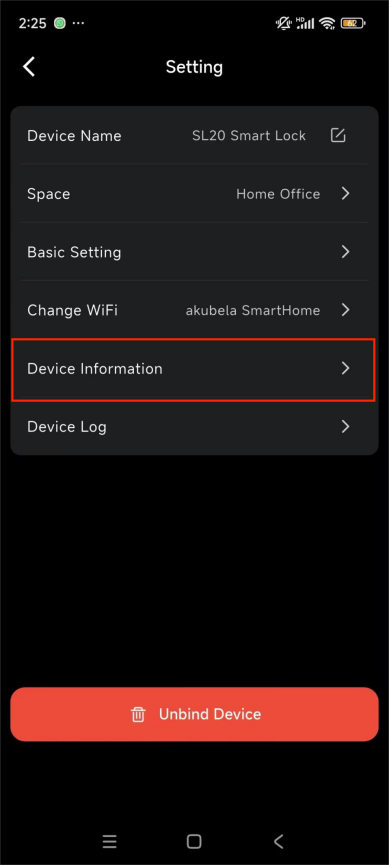
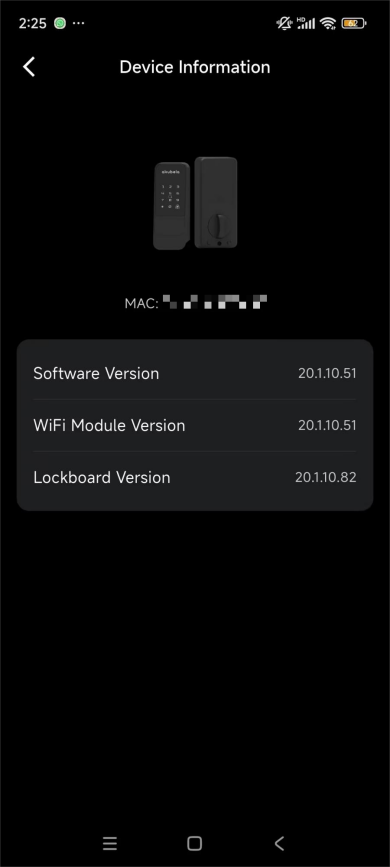
Device Information
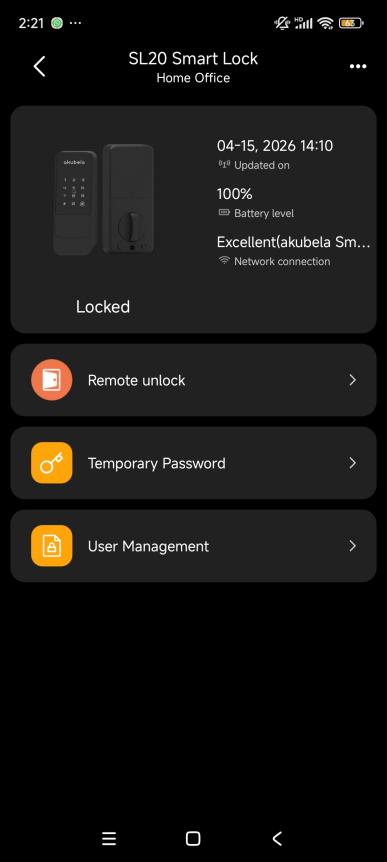
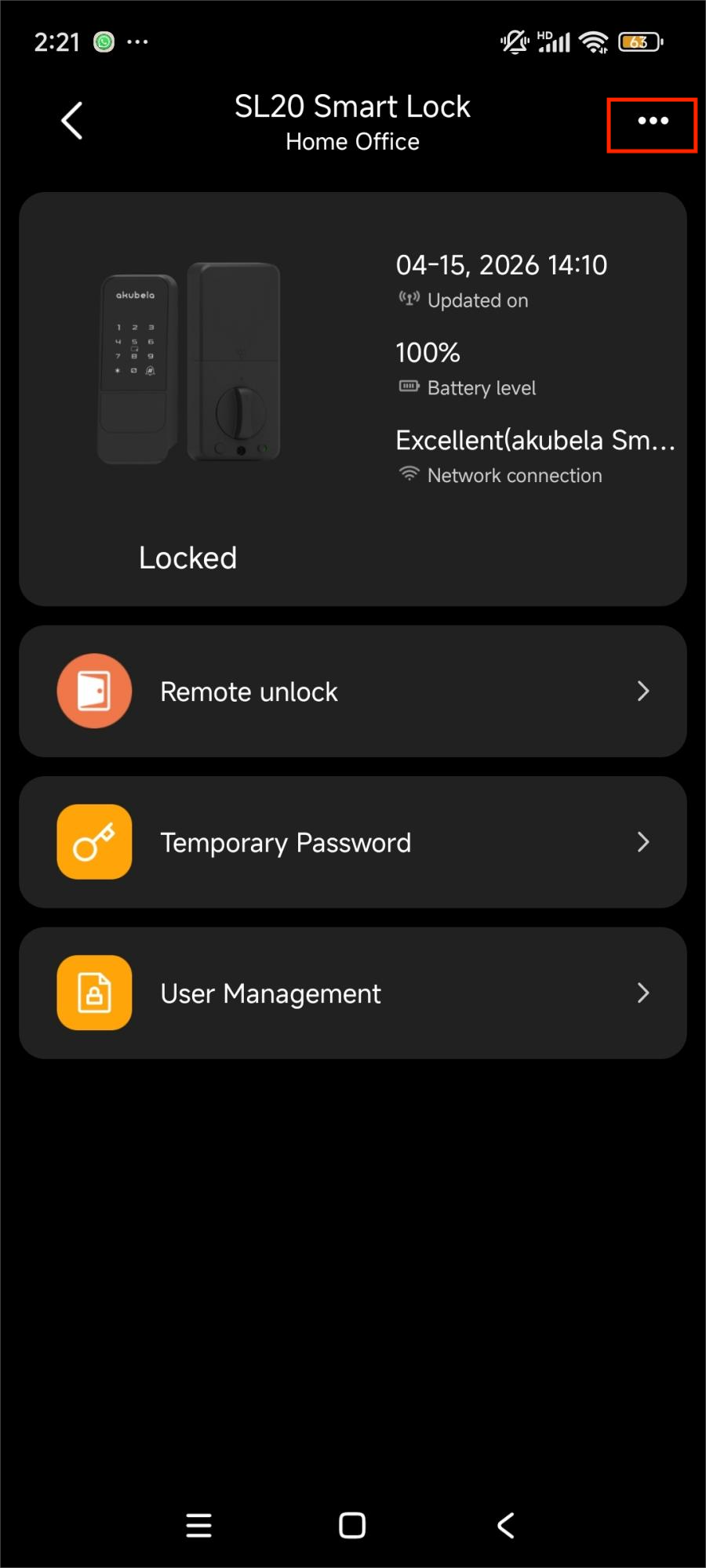
View lock status (locked/unlocked, battery level, network signal)
Go to
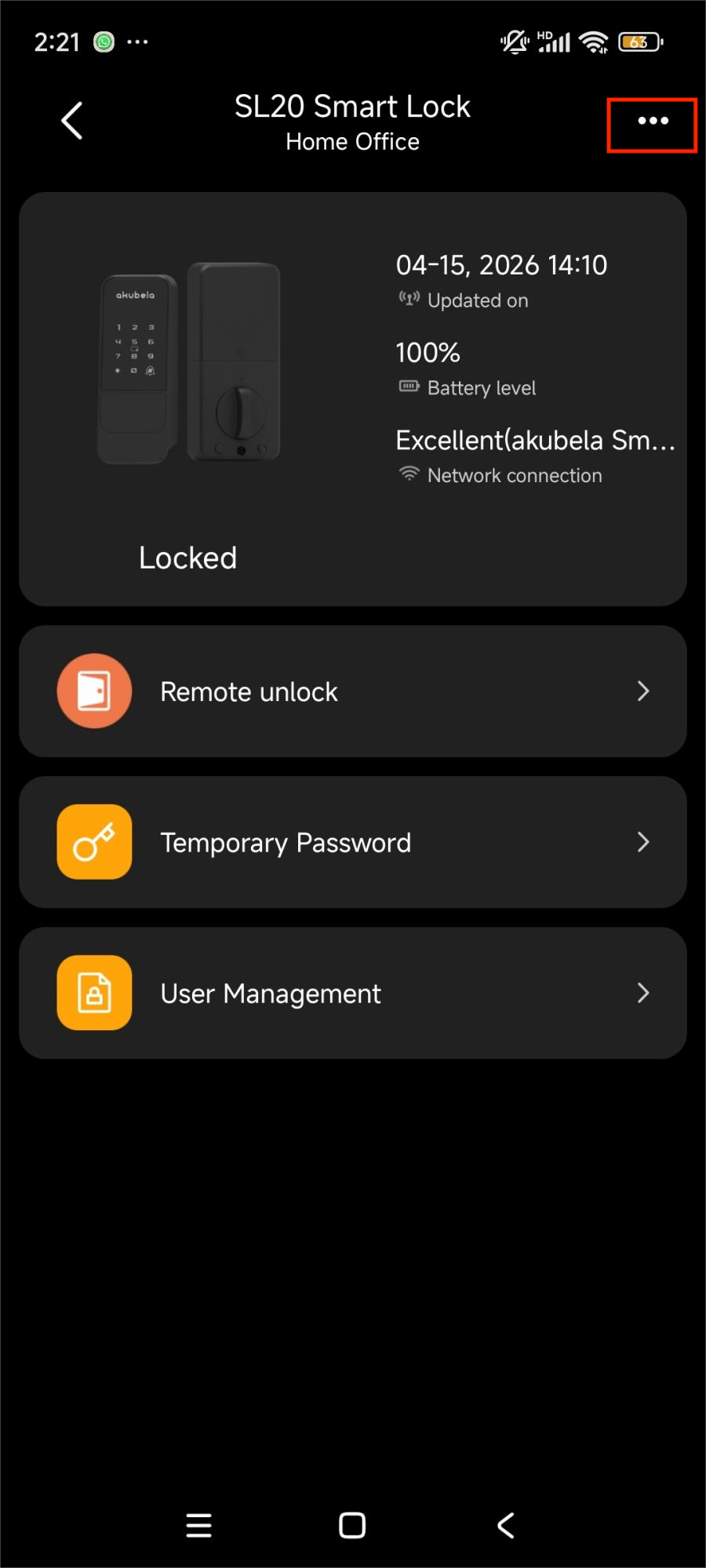
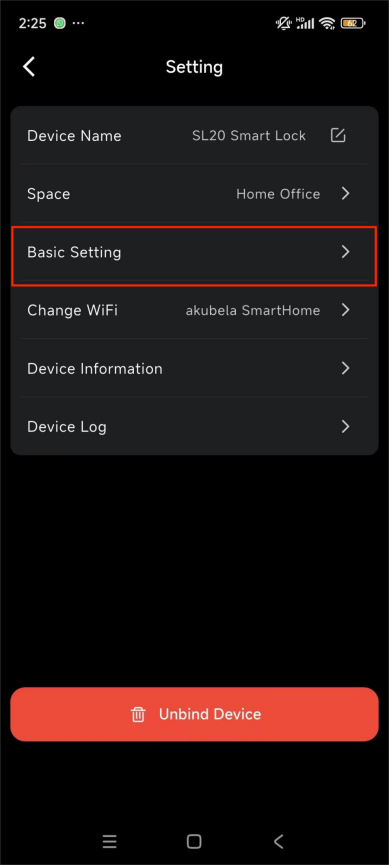
 > Device Information for MAC address, software version, and hardware version.
Lock Settings
Modify Lock Name and Location
Go to [SL20 device card] >  > Device Name.
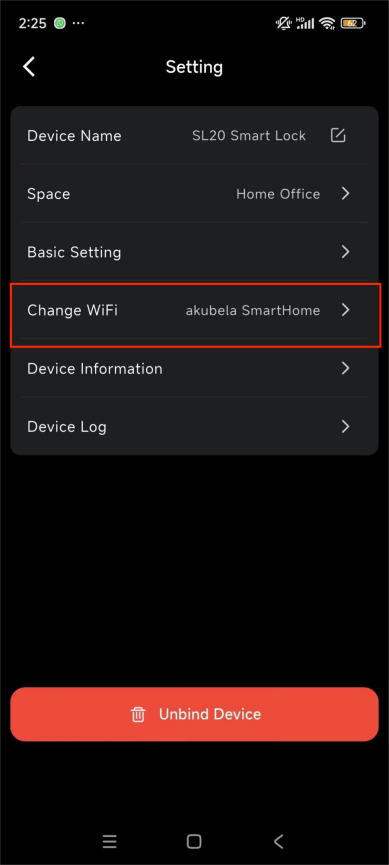
Change Wi-Fi
Go to [SL20 device card] >  > Change Wi-Fi, then follow the on-screen instructions.
Enable/Disable Mute Mode
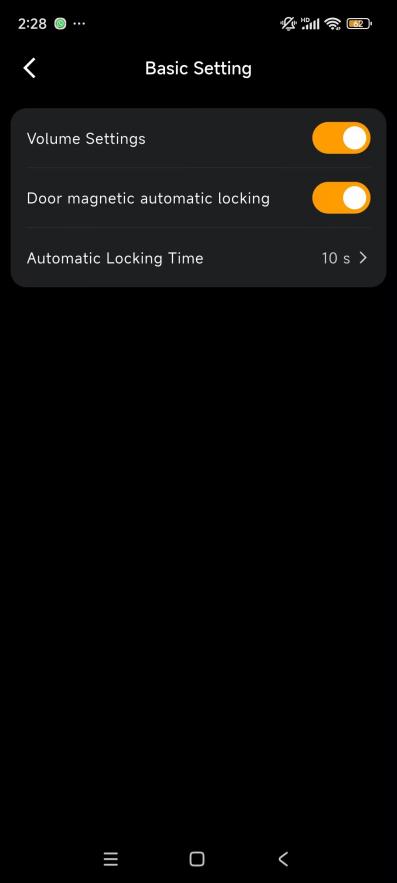
Go to [SL20 device card] >  > Basic Setting > Volume Settings.
Auto Lock
Go to [SL20 device card] >  > Basic Setting, enable/disable Door magnetic automatic locking, and adjust the locking time if needed.
Device Logs
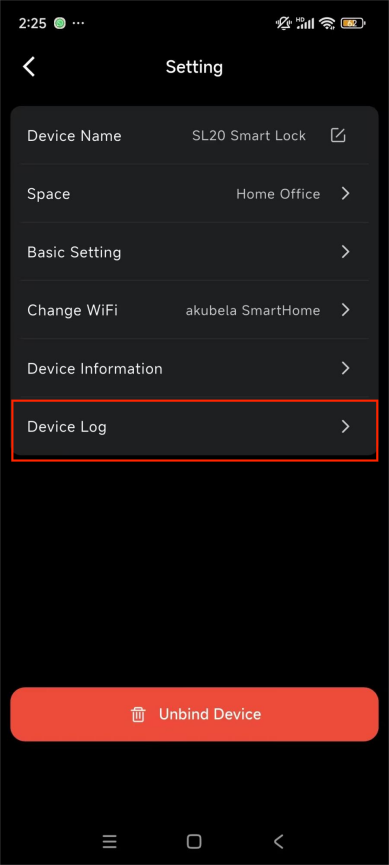
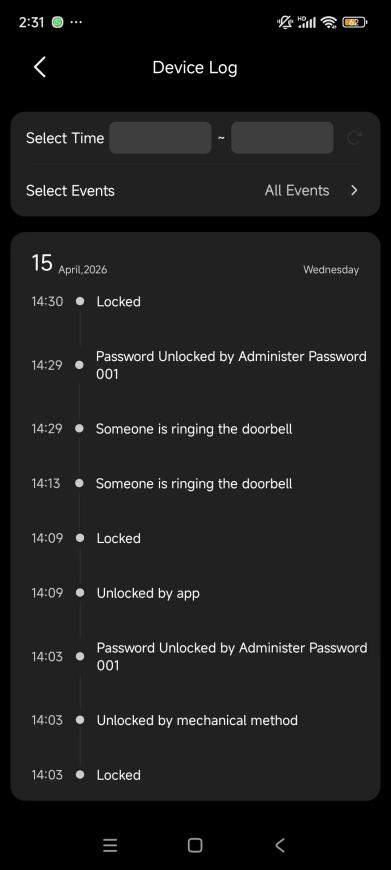
Go to [SL60 device card] >  > Device Log to view unlock events, alarms, doorbell events, and snapshots.
TIP:
Filter by date/time and event type.