Admin Setup
NOTE:
Note: Only one admin account is permitted. The admin can only be removed via a factory reset.
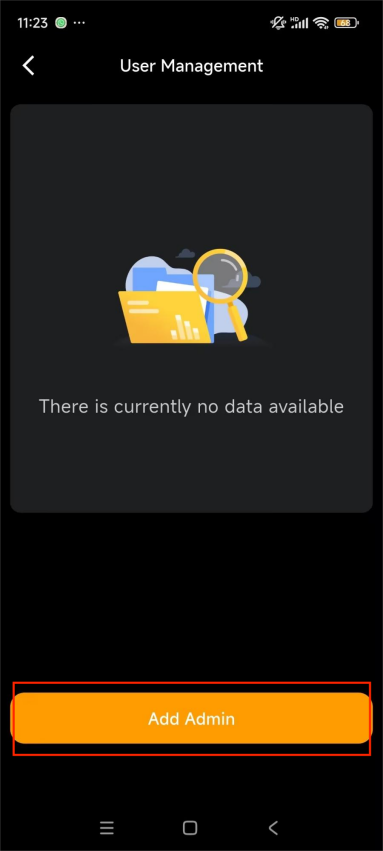
Go to [SL60 device card] > User Management.
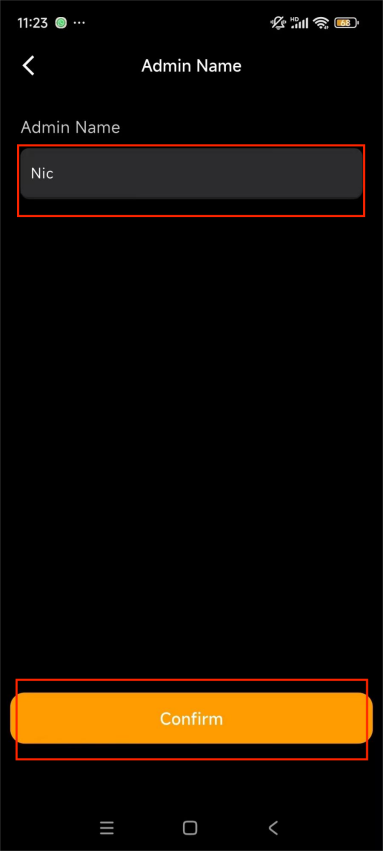
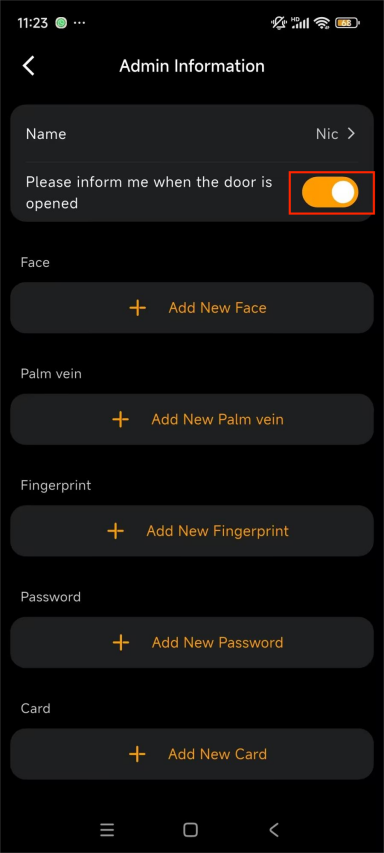
Tap Add Admin and enter the admin's name.
(Optional) Enable unlock notifications.
Turn on your phone’s Bluetooth.
Enable the lock’s Bluetooth by tapping “—” button >
 >
 .
Select the credential types, then tap Next.
Follow the on-screen instructions or voice prompts to complete registration.
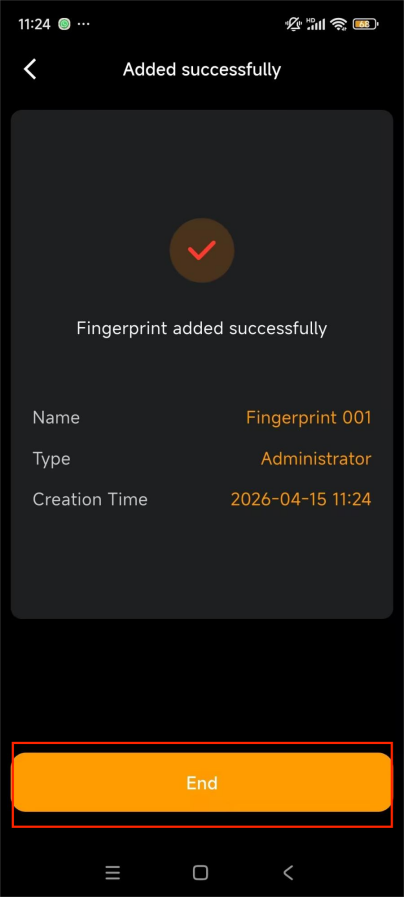
Once the lock announces "Added successfully," tap End in the app.
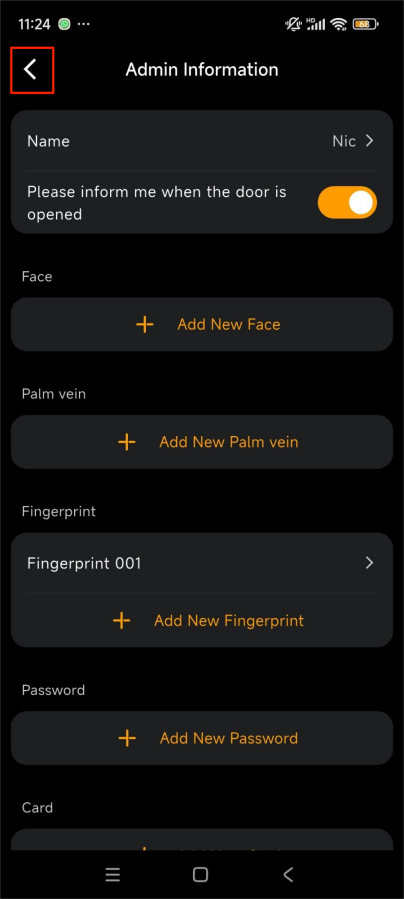
Tap in the upper left corner to exit the setting.
User Management
Add User
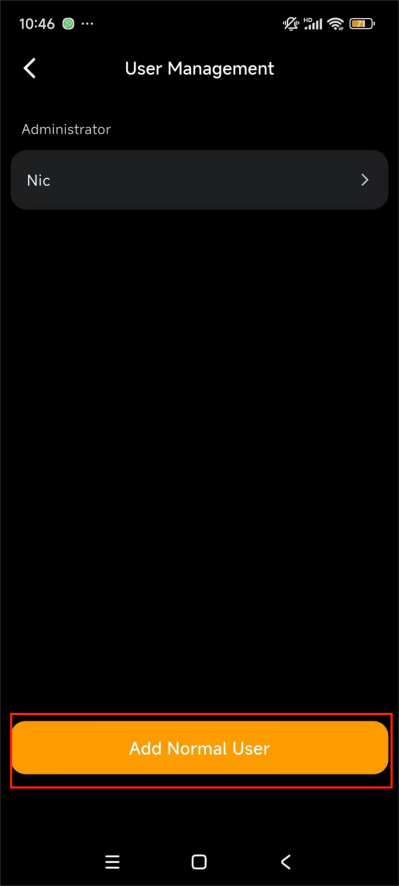
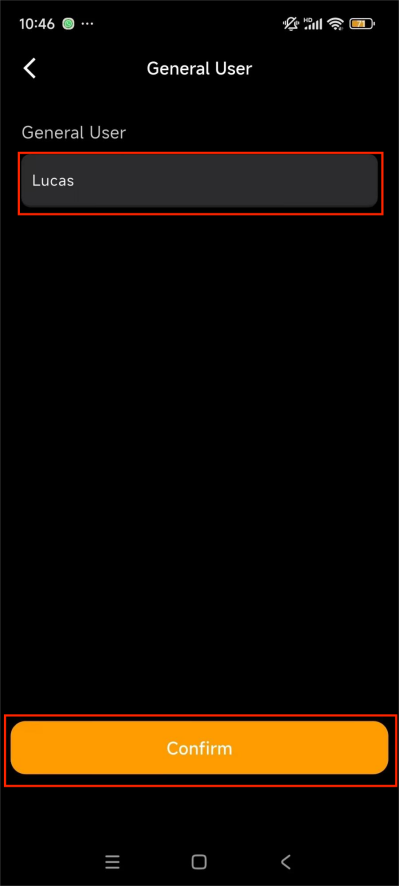
Go to [SL60 device card] > User Management > Add Normal User.
Enter the user name and tap Confirm.
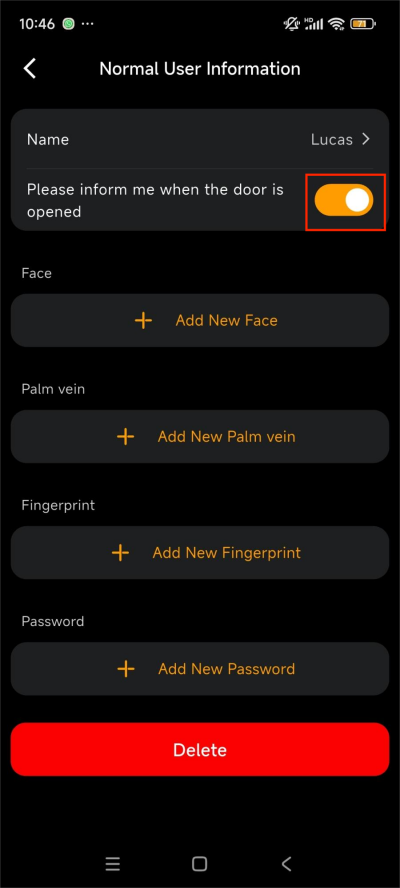
(Optional) Enable unlock notifications.
Turn on your phone’s Bluetooth.
Turn on the lock’s Bluetooth by tapping “—” button >
 >
 .
Select the credential types, then tap Next.
Follow the on-screen instructions or voice prompts to complete registration.
Once the lock announces "Added successfully," tap End in the app.
Tap
 in the upper left corner to exit the setting.
Delete a User
Enable the lock’s Bluetooth “—” button >
 >
 .
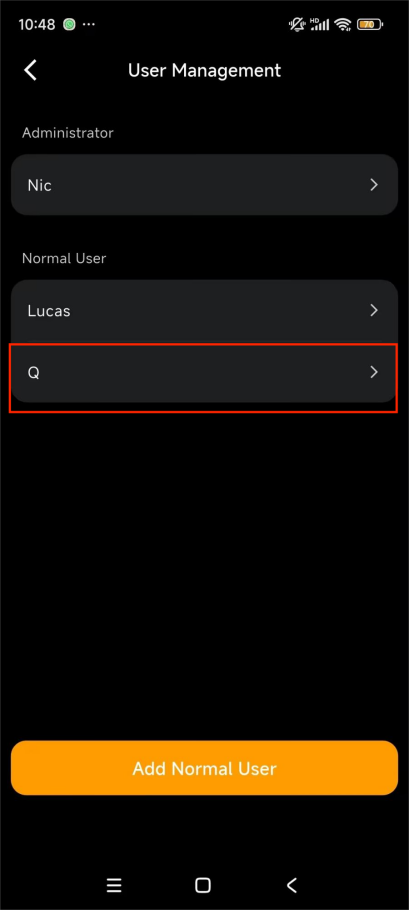
In the app, go to [SL60 device card] > User Management.
Select the user
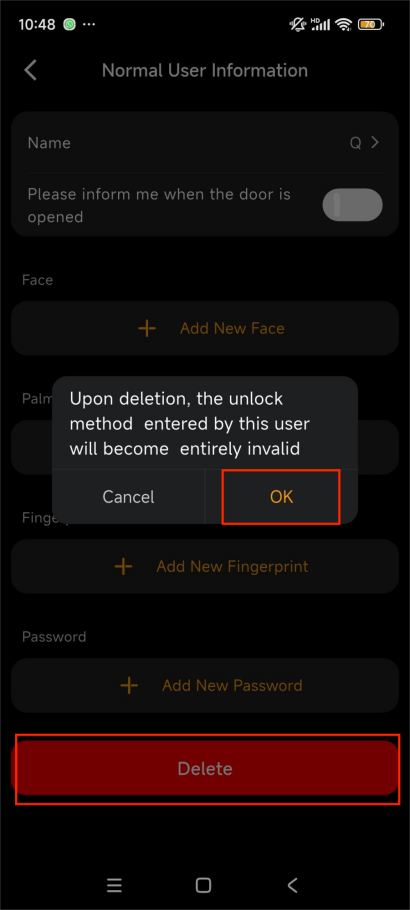
Tap Delete > OK > Next and wait for completion.
Temporary Passwords
One-time Password
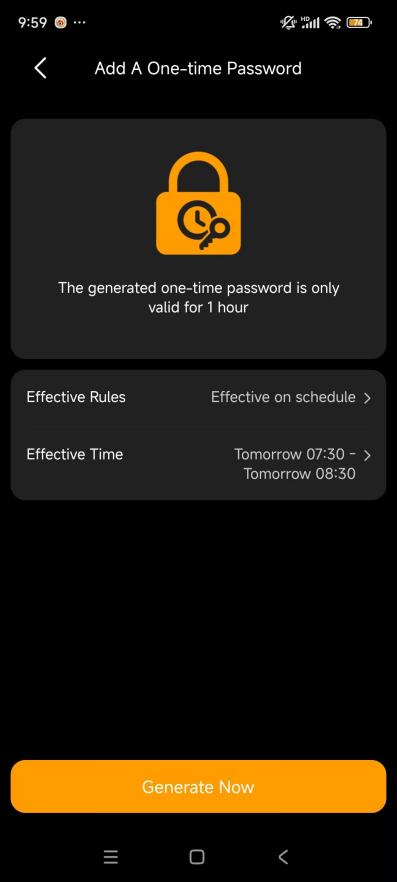
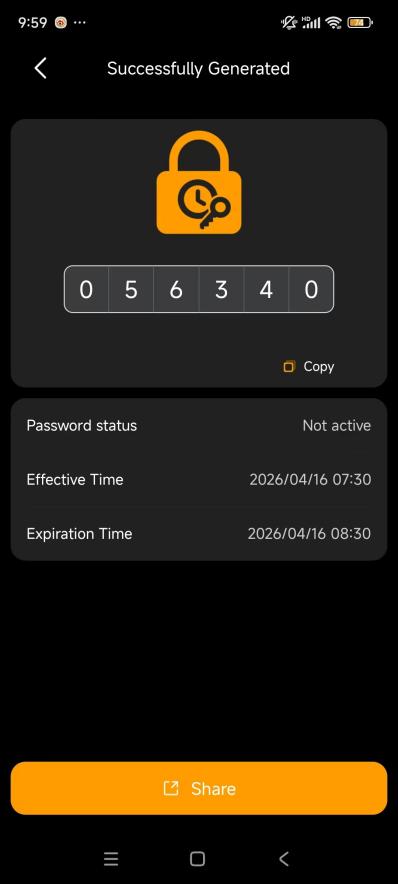
A one-time password is valid for a single use within one hour. You can generate 6 passwords within 15 minutes.
To create:
Go to [SL60 device card] > Temporary Password > One-time Password.
Tap Add A One-time Password or +.
Set Effective Rules:
Effective immediately: The validity period will generate automatically.
Effective on schedule: Set the Effective Time. The password takes effect at the set time.
NOTE:
If the selected time is earlier than the current time, it takes effect the next day.
Tap Generate Now to view and share.
Periodic Password
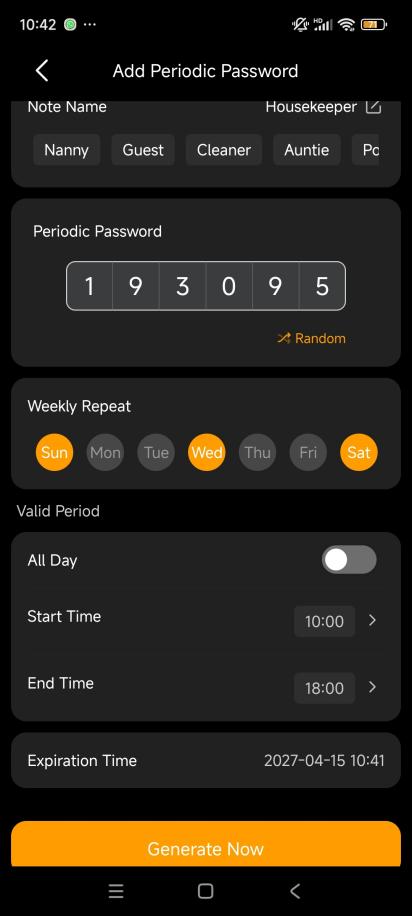
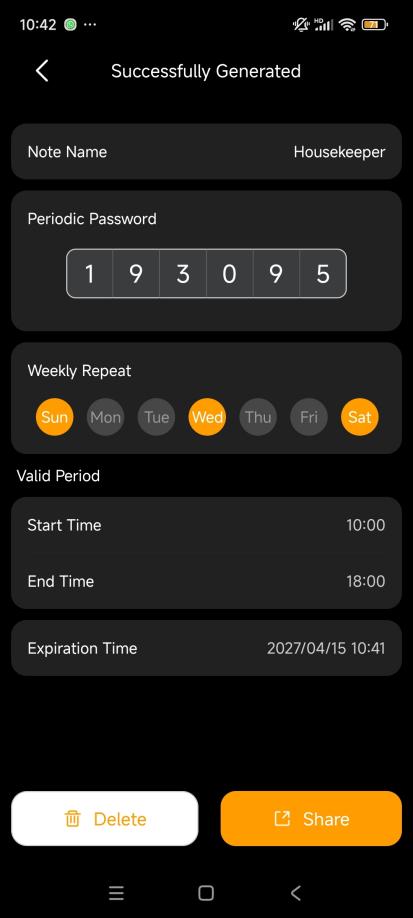
A periodic password is valid during a custom schedule. The system can store up to 50 passwords.
To create:
Go to [SL60 device card] > Temporary Password > Periodic Password.
Tap Add Periodic Password or +.
Configure:
Note Name
Periodic Password: Enter a PIN manually or tap Random to generate one automatically.
Weekly Repeat: Select the day(s) the password is valid.
Valid Period: Set the daily time range (enable All Day or specify start and end times)
Expiration Time
Tap Generate Now.
Wait for confirmation.
Remote Unlock
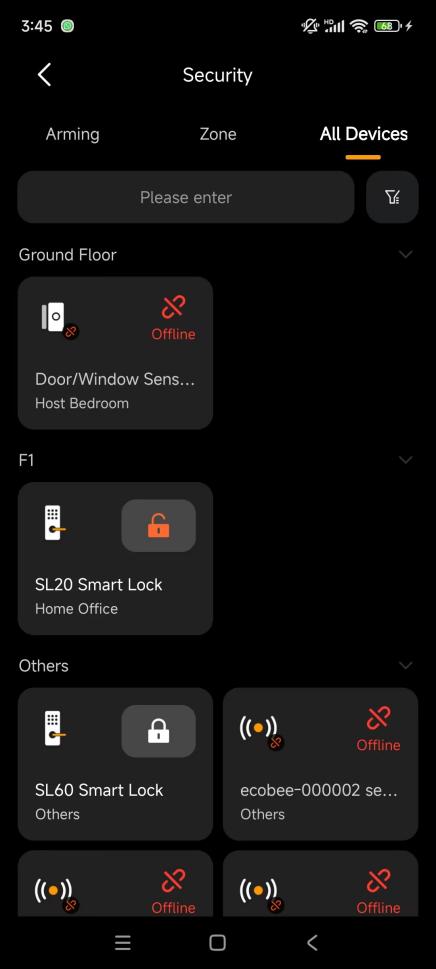
Direct Unlock
Use this for quick access when you do not need to view the camera feed:
Option A: Tap
 directly on the SL60 device card.
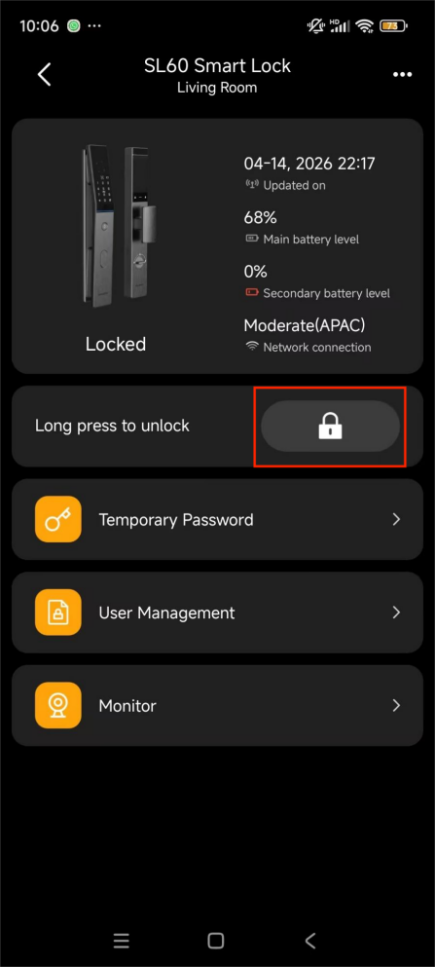
Option B: Enter the lock Details screen and tap and hold
 .
Visual Unlock
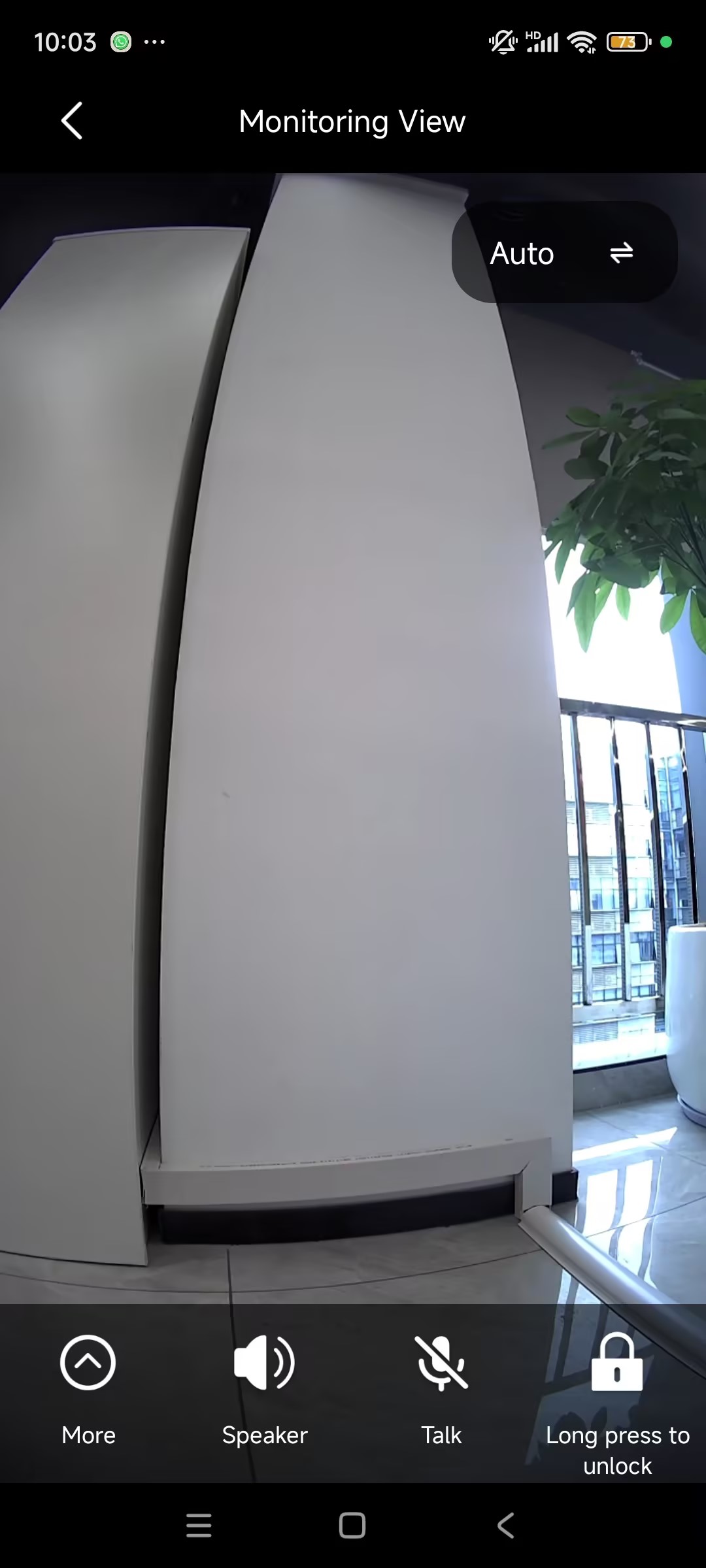
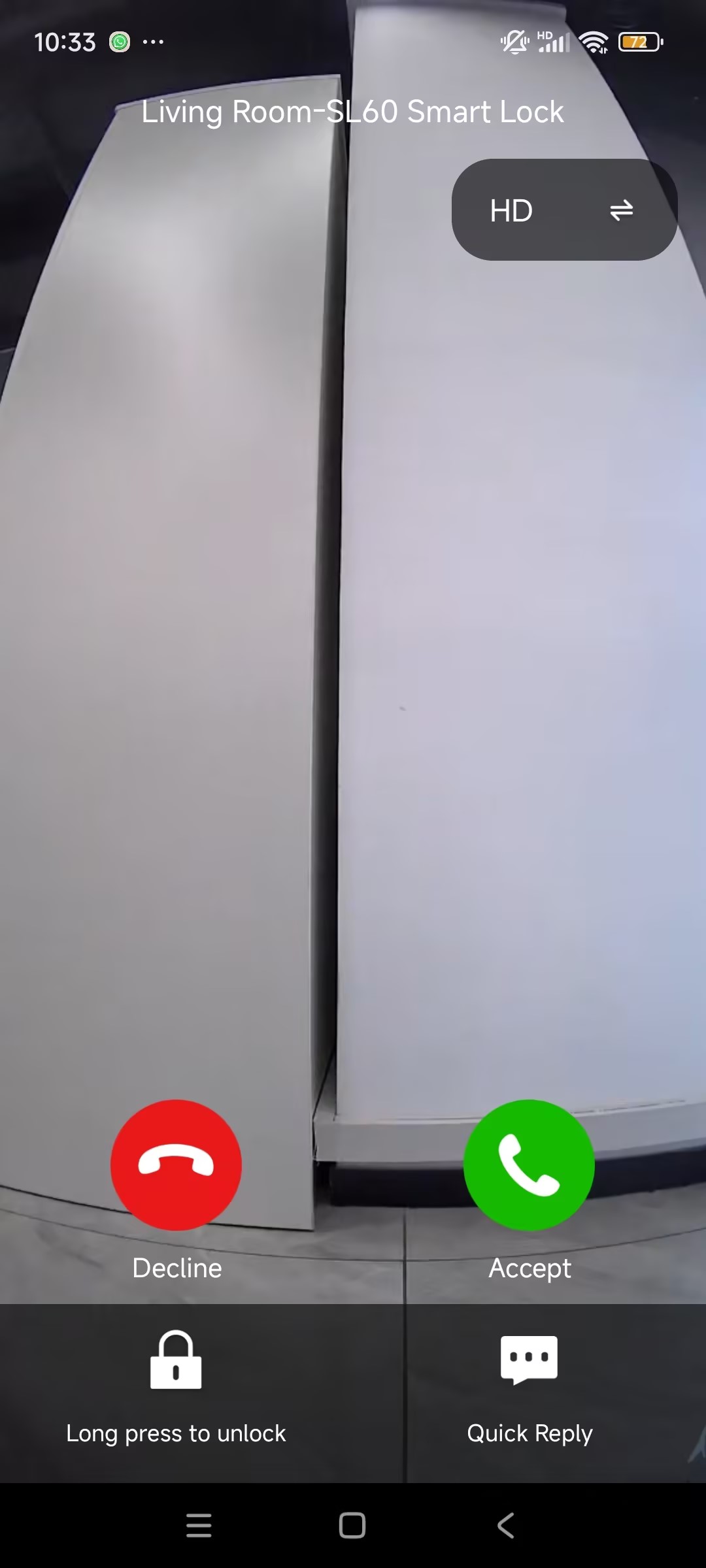
Verify a visitor's identity via the camera before granting entry:
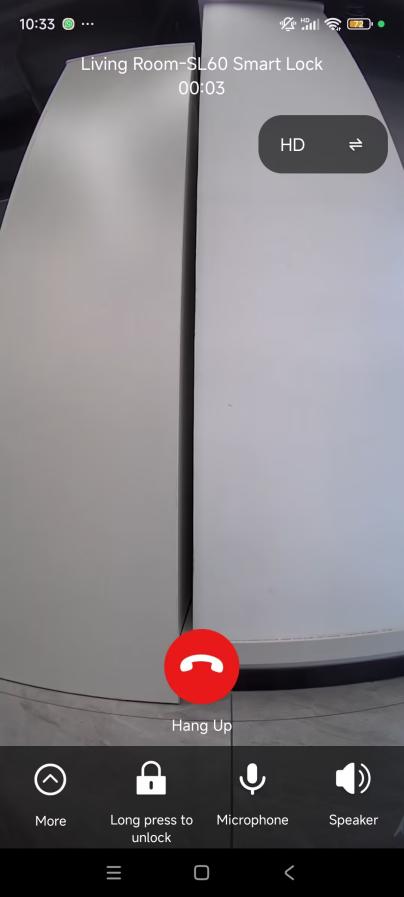
Action: While viewing the monitor feed, or before or during a call, long-press
 on the screen.
Video Quality: Tap
 in the upper-right corner to toggle video quality.
Live View and Intercom
Remote Monitoring
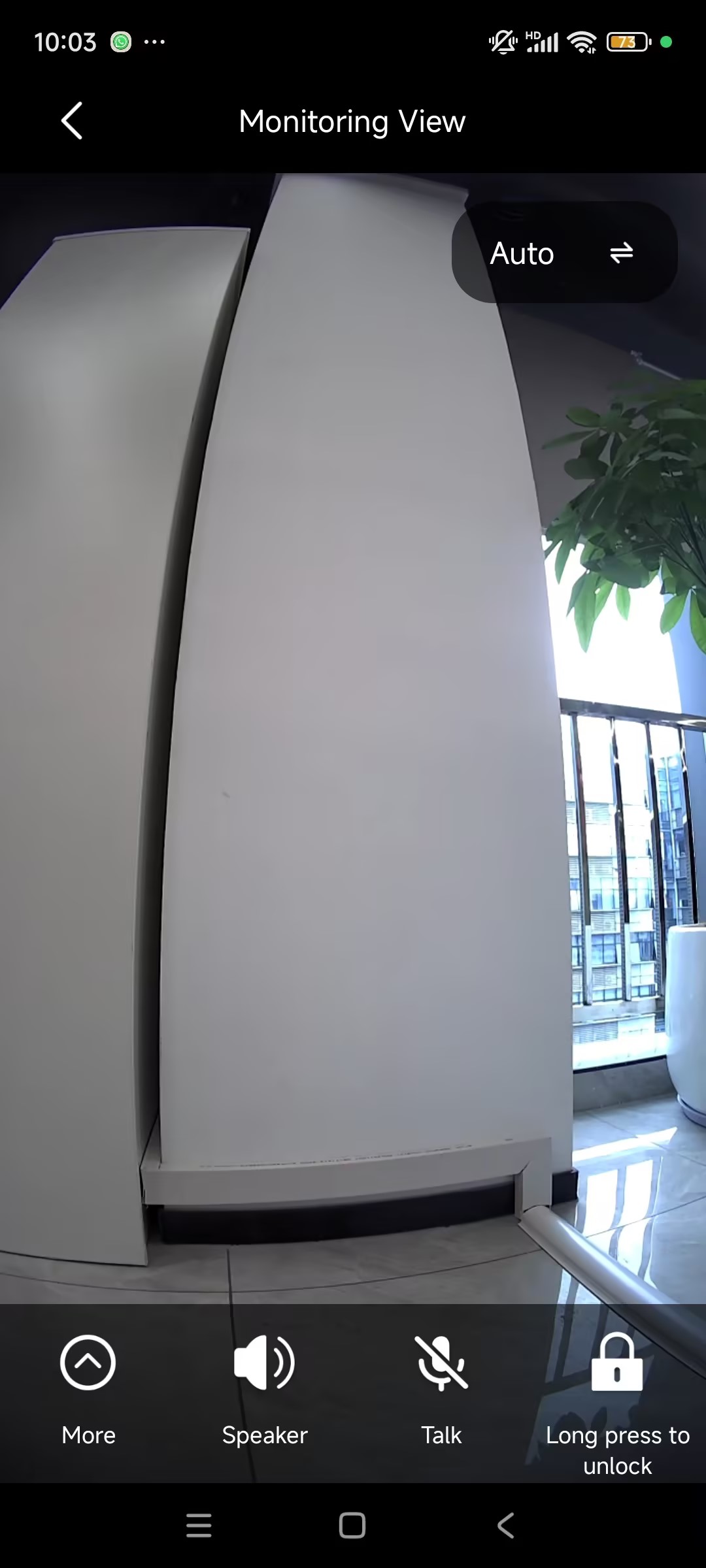
Access the real-time camera feed to see who is at your door:
Navigation: Go to [SL60 device card] > Monitor, or Contacts > SL60 Smart Lock > Monitor.
Video Quality: Tap
 in the upper-right corner to toggle video quality.
Intercom
Communicate with visitors directly through your mobile phone:
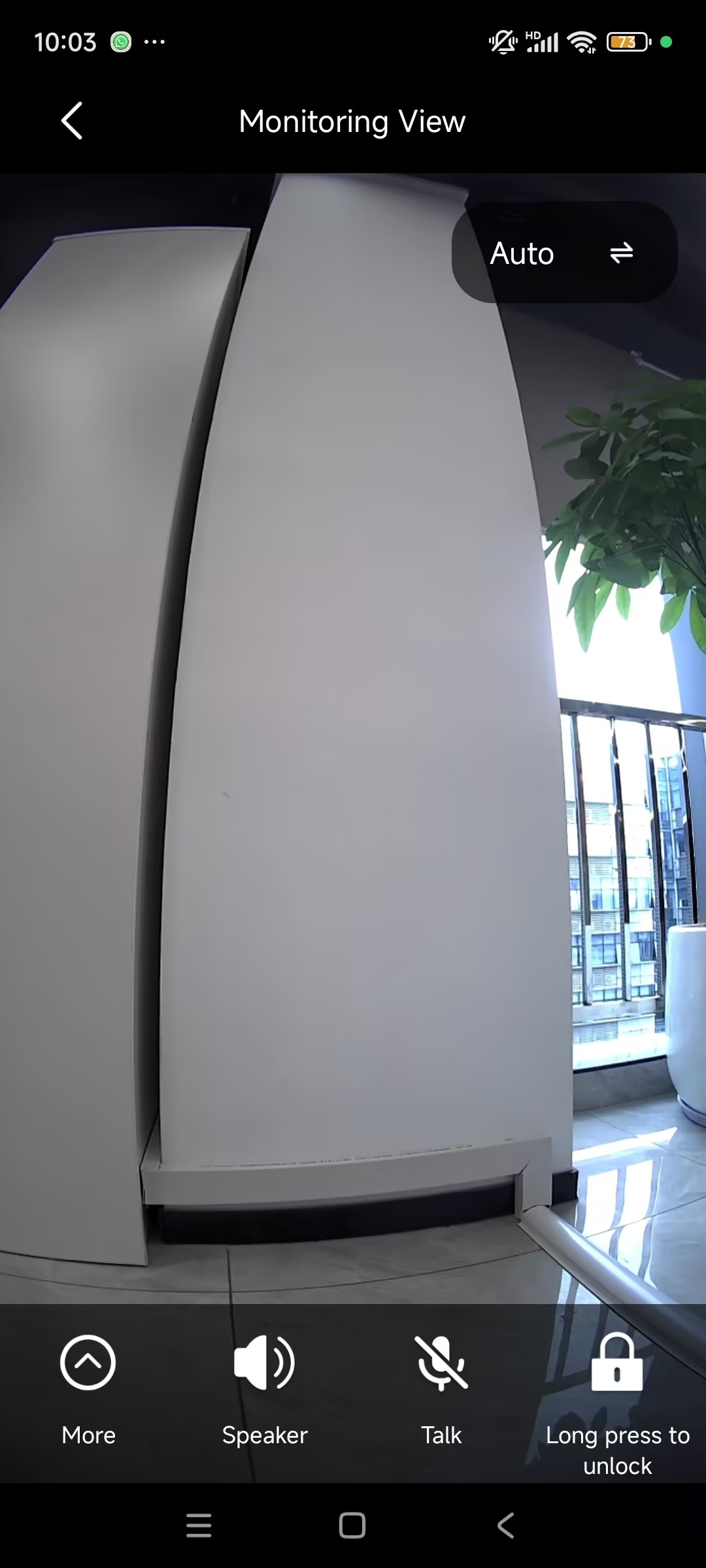
Navigation: Go to Category > Security > All Devices > [SL60 device card] > Monitor > Talk, or Home >
 > Public Area > SL60 Smart Lock > Monitor > Talk.
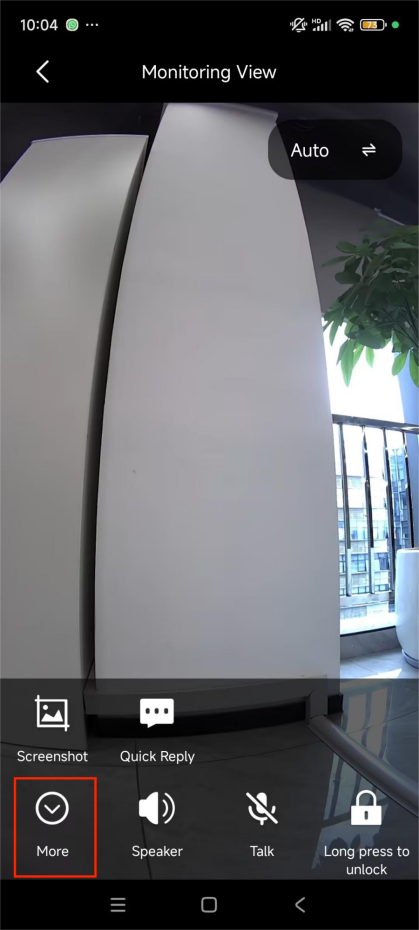
Capture: Tap More > Screenshot to during a live session to save an image of the visitor.
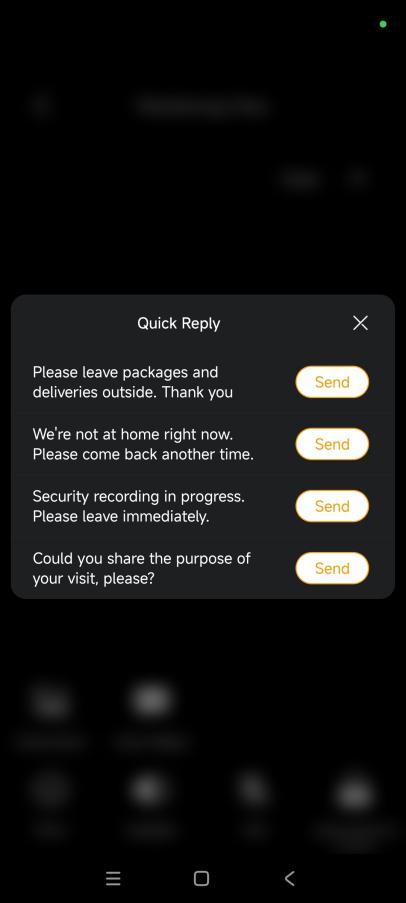
Quick Reply
If you are unable or do not wish to answer a doorbell call, select a Quick Reply to play a pre-recorded voice message.
NOTE:
Quick Reply is disabled once the call is answered.
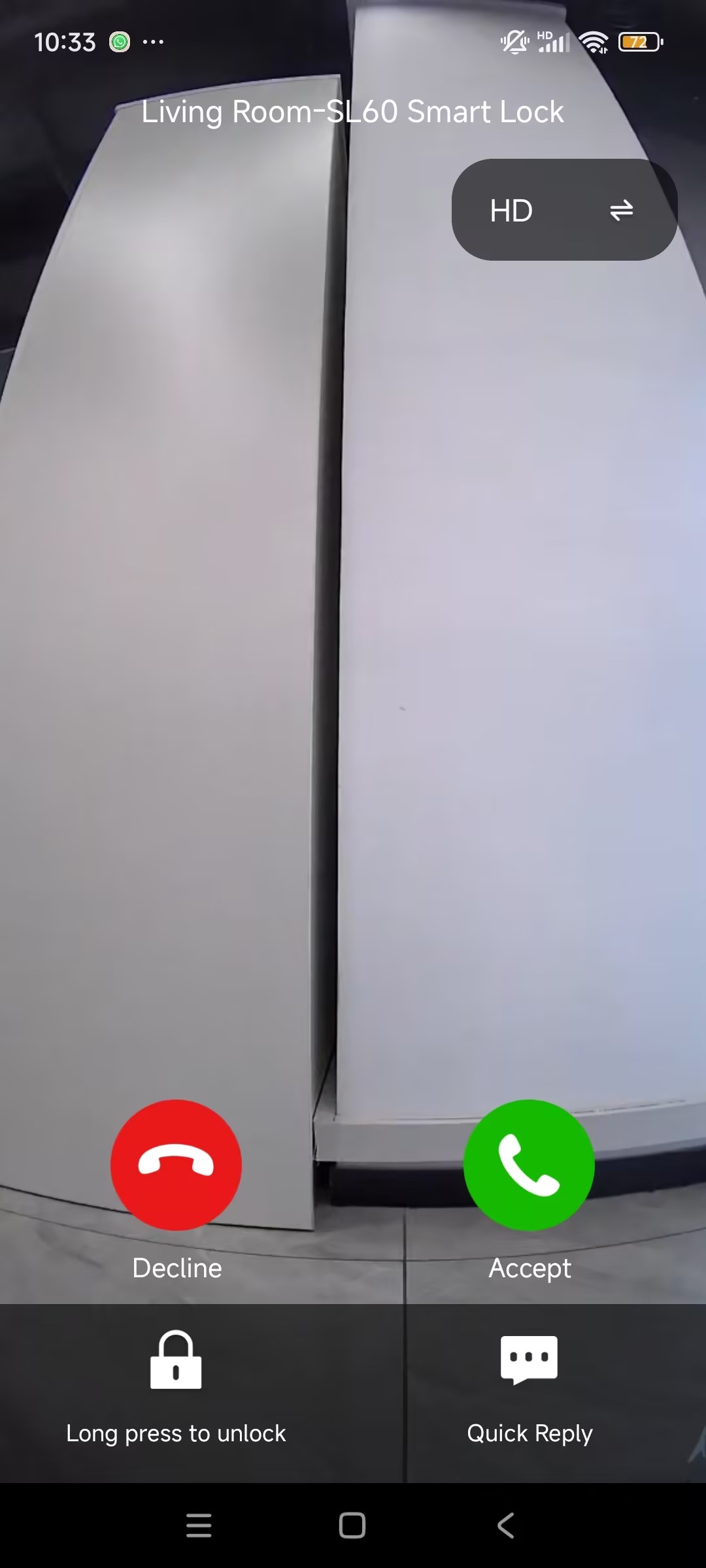
Doorbell Notifications
When a visitor press the doorbell button:
HyPanels (if paired): A pop-up alert will appear.
BelaHome App: You will receive an instant full-screen video alert.
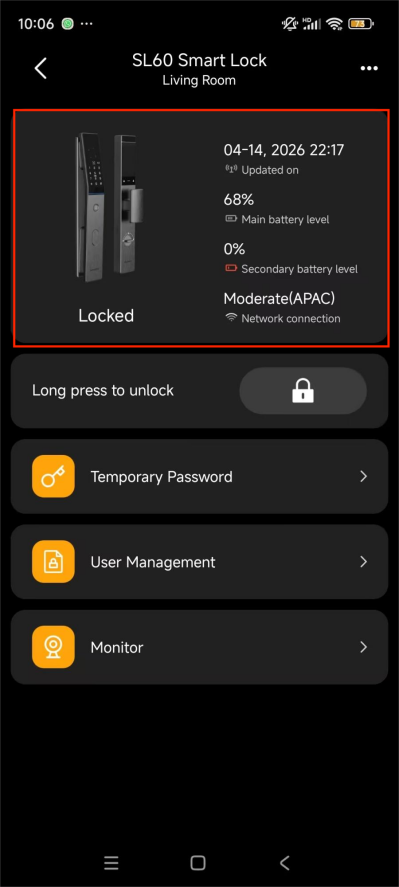
Device Information
View lock status (locked/unlocked, battery level, network signal)
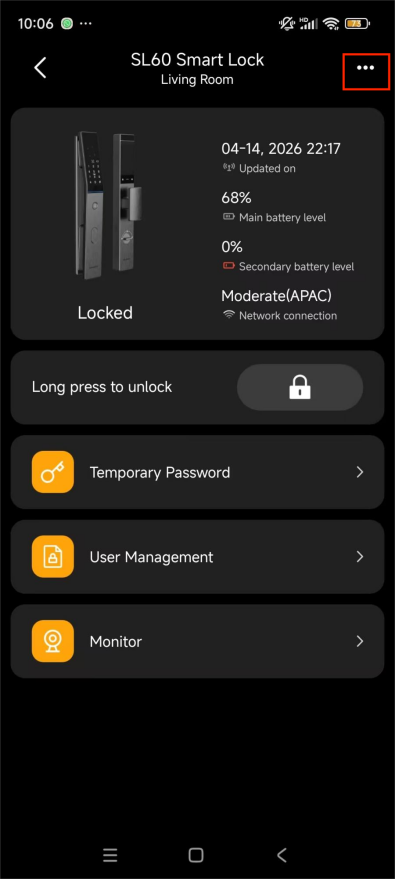
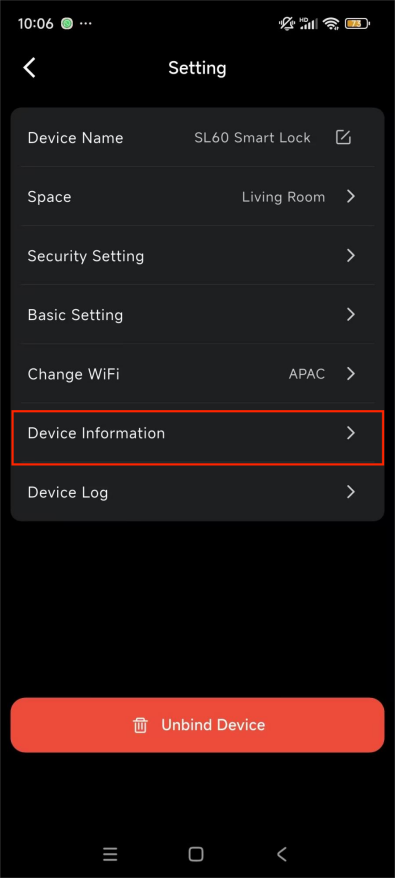
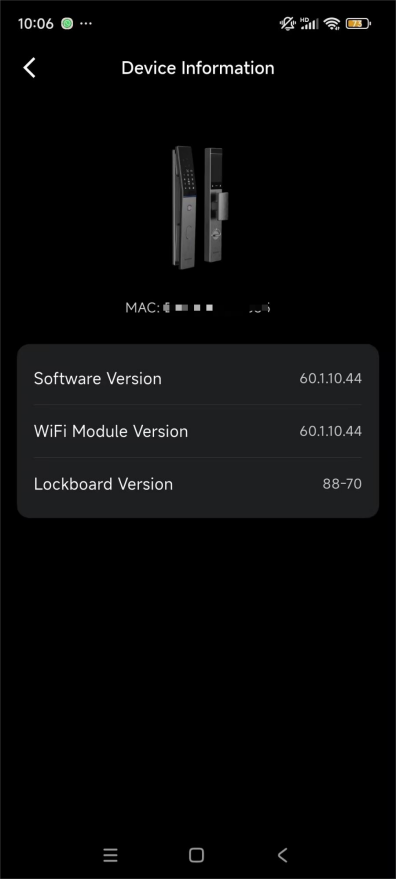
Go to
 > Device Information for MAC address, software version, and hardware version.
Lock Settings
Basic Settings
Change Lock Name and Location
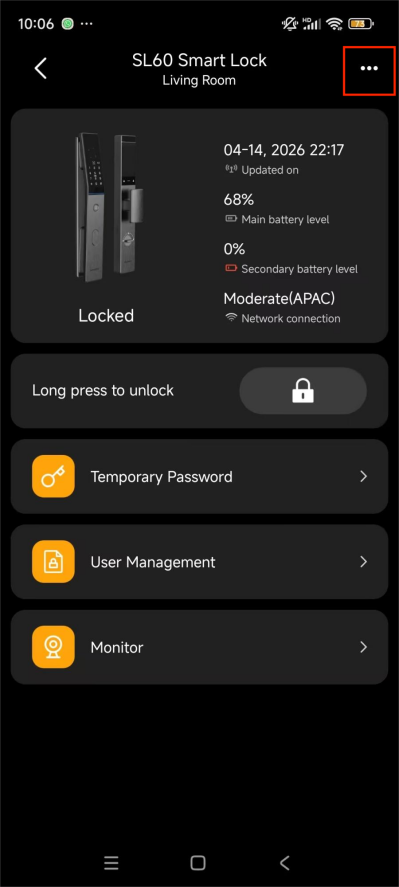
Go to [SL60 device card] >  .
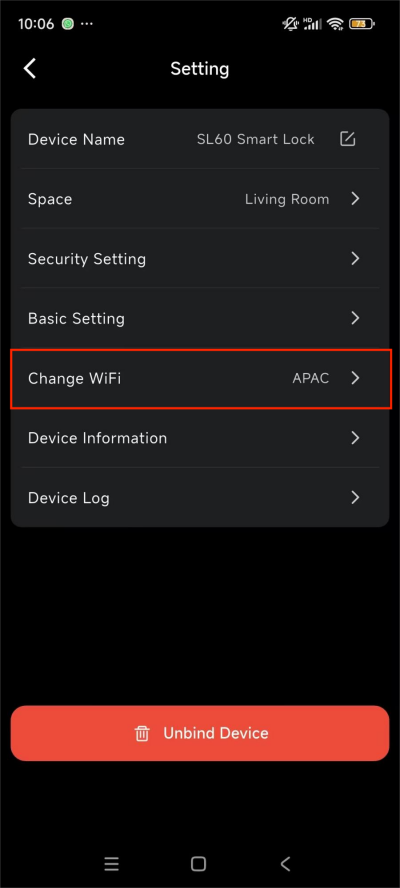
Change Wi-Fi
Go to [SL60 device card] >  > Change Wi-Fi, turn on your phone’s Bluetooth, then follow the on-screen instructions.
NOTE:
For iPhones, you have to enter the new Wi-Fi name and password manually.
General Settings
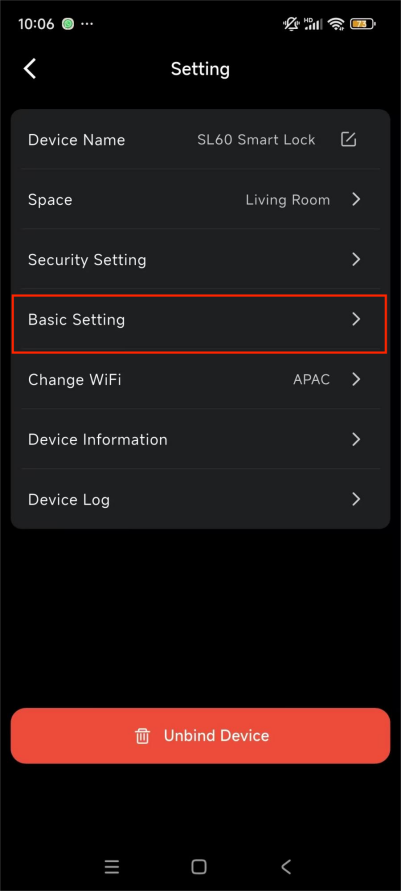
Go to [SL60 device card] >
 > Basic Setting.
Select the connection mode:
Bluetooth Configuration: For local setup when you are near the lock.
Remote Configuration: For cloud-based setup via the internet.
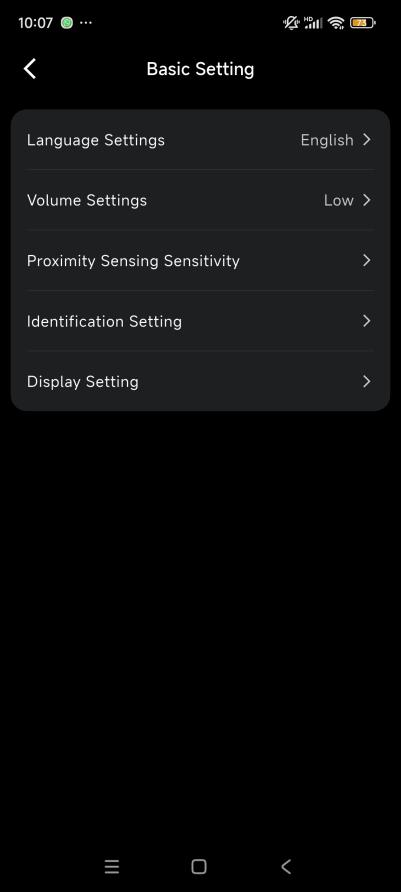
Configure preferences:
Language Settings: Set the system language
Volume Settings: Set the lock sound level or mute it.
Proximity Sensing Sensitivity: Adjust the sensitivity of the motion sensors for person-approach detection.
Identification Setting: Enable/disable face and palm vein recognition.
Display Setting: Toggle the Auto-Wake feature to turn on the screen when the doorbell is pressed.
Security Settings
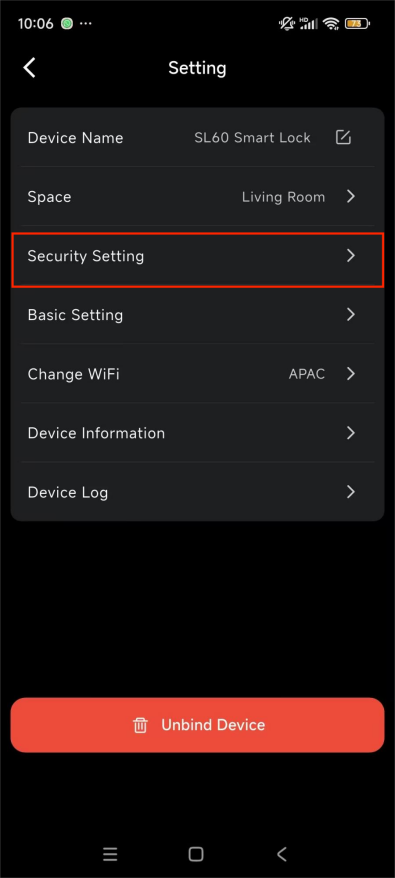
Go to [SL60 device card] >
 > Security Setting.
Select the connection mode:
Bluetooth Configuration: For local setup when you are near the lock.
Remote Configuration: For cloud-based setup via the internet.
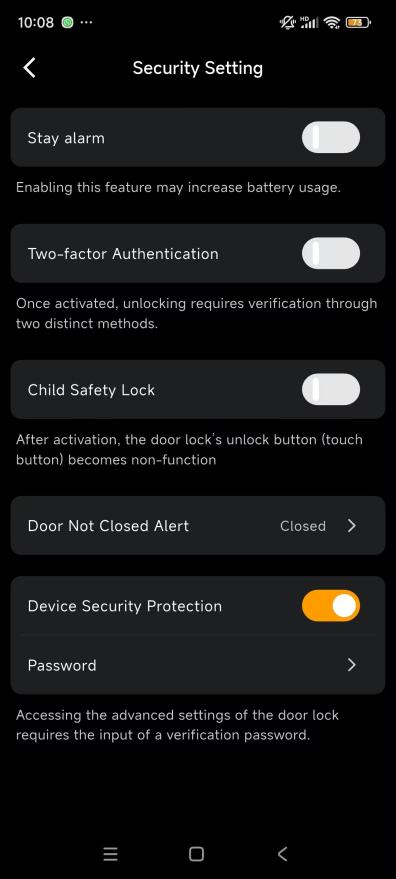
Configure advanced security settings:
Stay Alarm: Enable alerts for loitering. You can customize the Detection Range and Time(Lingering Duration).
Two-factor Authentication: Requires two different credential types for unlocking.
Child Safety Lock: Disable the internal physical unlock button to prevent children from opening the door.
Door Not Closed Alert: Triggers a voice prompt and continuous beeping if the door remains open past a preset time.
Device Security Protection: Requires a password to access the Advanced Settings screen. The default password (999999) can be changed to any 6-digit code.
Device Logs
The smart lock can store up to 500 records.
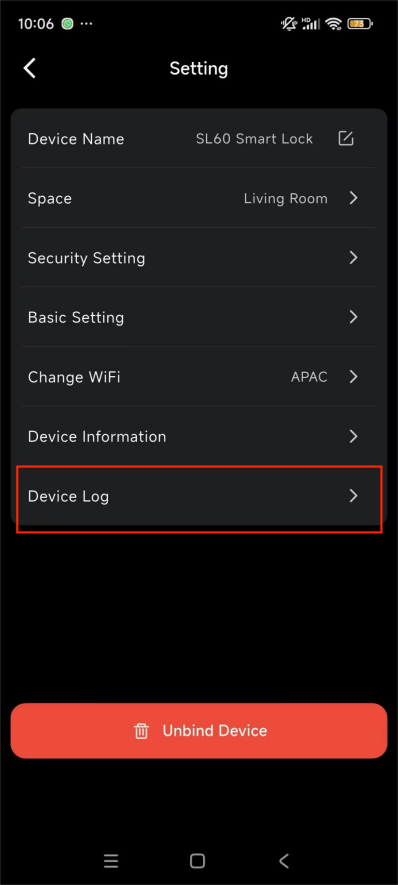
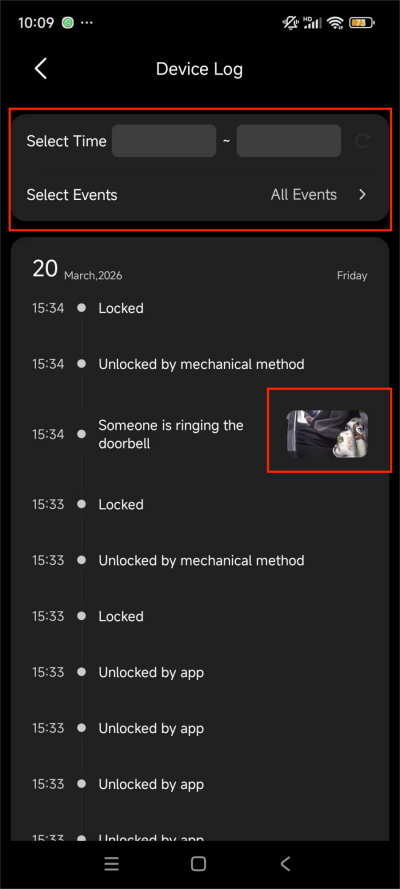
Go to [SL60 device card] >  > Device Log to view unlock events, alarms, doorbell events, and snapshots.
TIP:
Filter by date/time and event type.
Tap images to enlarge.