The buttons and icons of device models vary. This article provides an overview of the main functions of device buttons and icons.
Door Phones
Akuvox offers single-button, multi-button, and touch-screen door phones, catering to different needs.
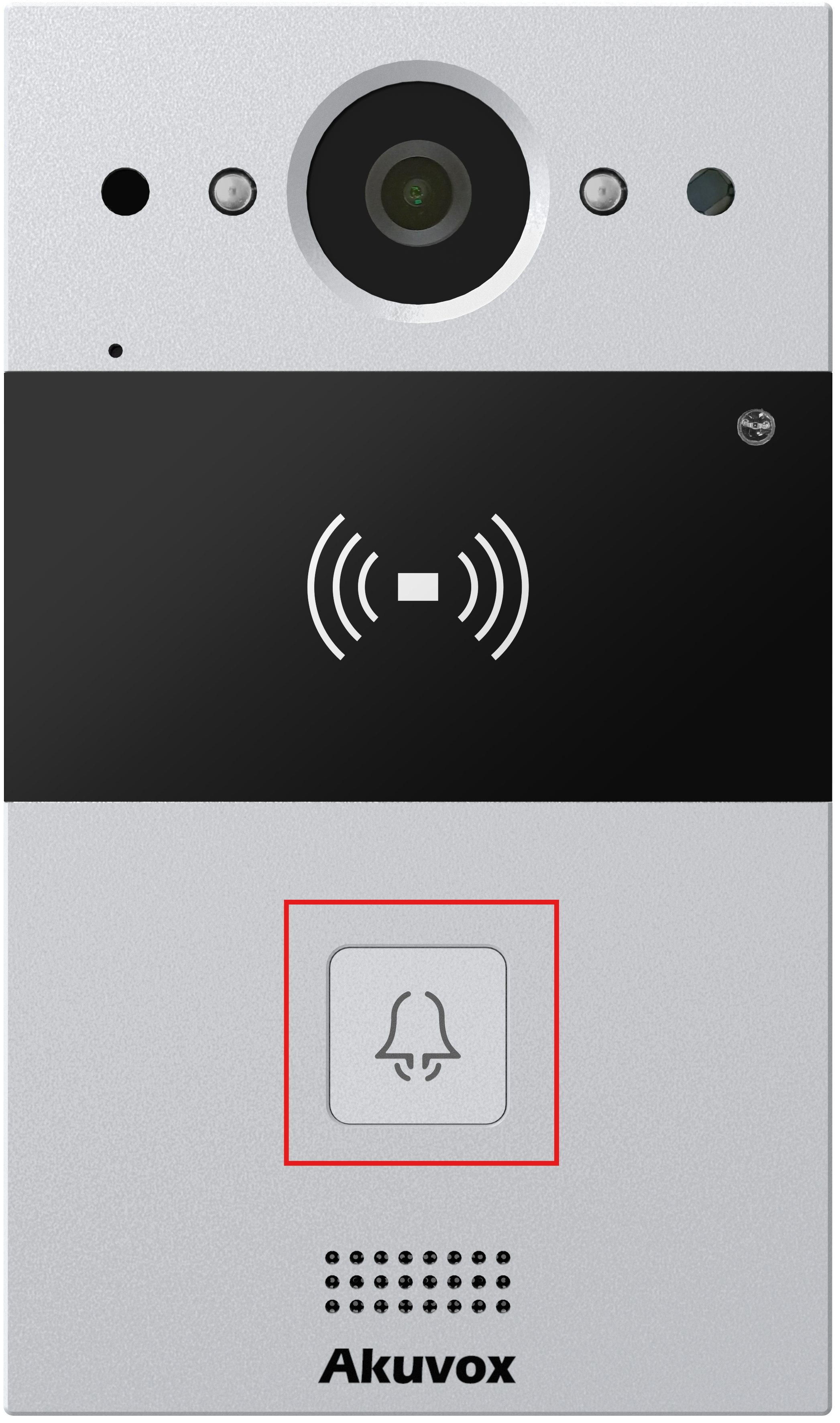
Single-button Devices
Devices such as R20A, X910, E12, and E13 only have a single button. It enables straightforward communication for access control.
It allows a visitor to press the button to call the resident, who grants their access by pressing the unlock tab on an indoor monitor or their mobile SmartPlus App.
Multi-button Devices
Devices such as S532 and X912 have multiple buttons. They play an essential role in access control for community apartments, commercial complexes, and other multi-tenant properties. Enhanced from single-button intercoms, they enable direct communication and access to individual units.
S532

X912
Touch-screen Devices
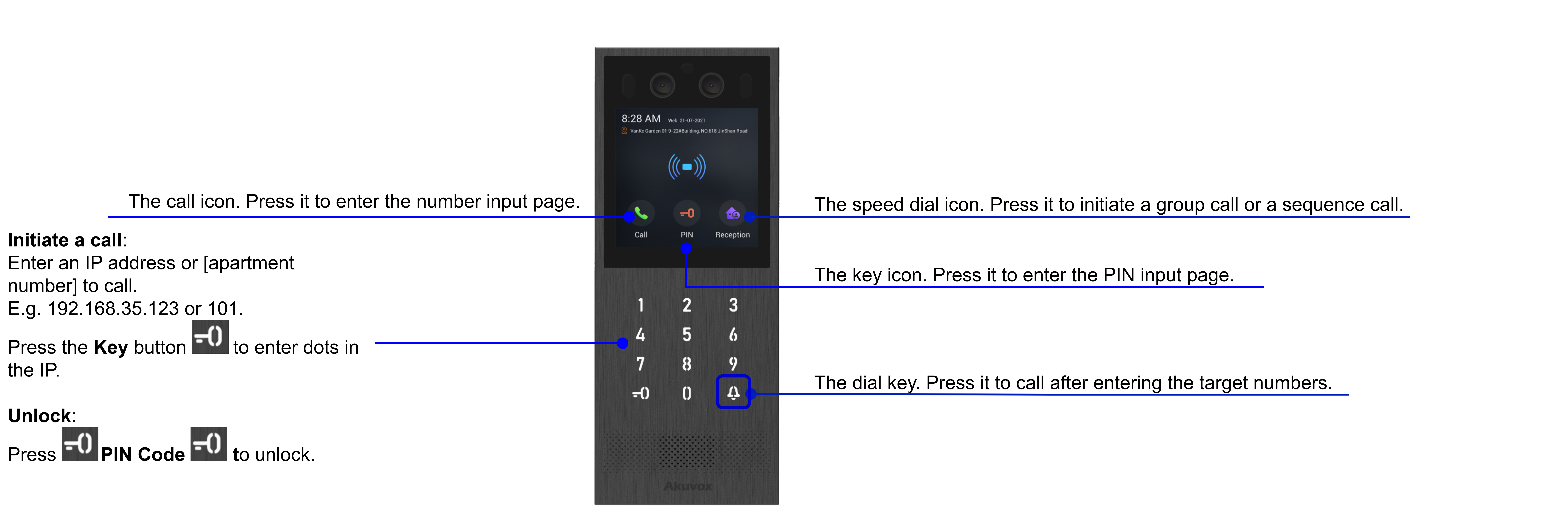
Devices such as X915 and R29 have touch screens without physical buttons. They improve accessibility with larger displays and multilingual support, offering immediate visual and auditory feedback, making interactions more engaging and efficient.
X915

The default icons on the home screen are PIN, Call, Tenants(Directory), and Reception.
Learn functions of other icons:
 : Press it to open the door.
 : Press it to enter the QR code scanning screen.
Indoor Monitors
Akuvox indoor monitors feature two-way audio for speaking and listening and include video capabilities to display live footage from door phones. With user-friendly interfaces, indoor monitors provide call notifications and can integrate with door phones for added convenience.
S567
S562

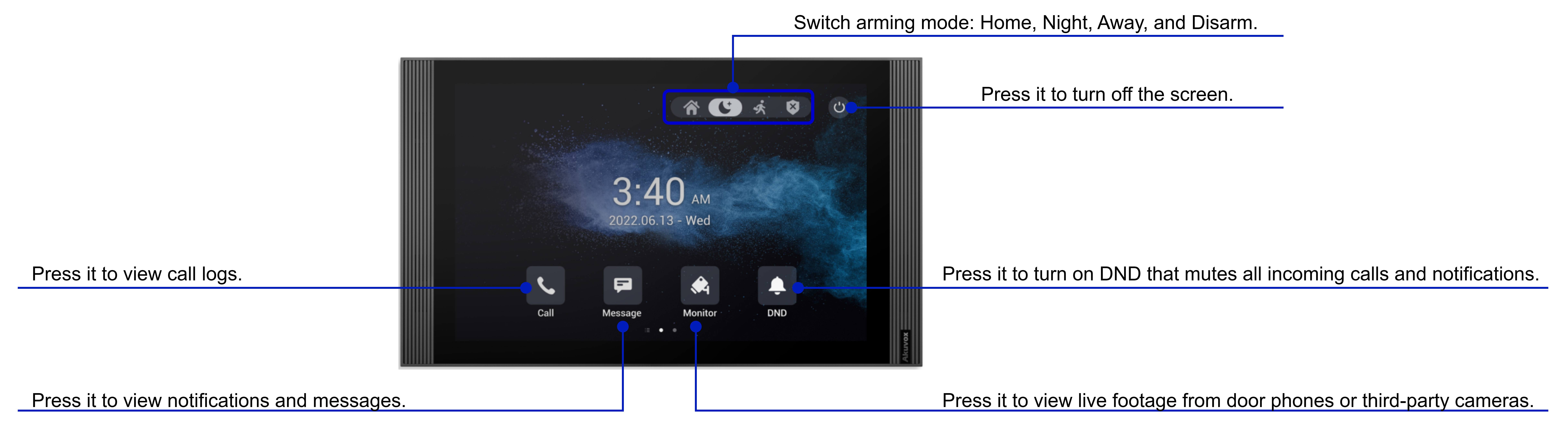
%3CmxGraphModel%3E%3Croot%3E%3CmxCell%20id%3D%220%22%2F%3E%3CmxCell%20id%3D%221%22%20parent%3D%220%22%2F%3E%3CmxCell%20id%3D%222%22%20value%3D%22%26lt%3Bspan%20style%3D%26quot%3Bfont-size%3A%2030px%3B%26quot%3B%26gt%3BSwitch%20arming%20mode%3A%20Home%2C%20Night%2C%20Away%2C%20and%20Disarm.%26lt%3B%2Fspan%26gt%3B%22%20style%3D%22text%3BwhiteSpace%3Dwrap%3Bhtml%3D1%3B%22%20vertex%3D%221%22%20parent%3D%221%22%3E%3CmxGeometry%20x%3D%22-910%22%20y%3D%223340%22%20width%3D%22930%22%20height%3D%2240%22%20as%3D%22geometry%22%2F%3E%3C%2FmxCell%3E%3C%2Froot%3E%3C%2FmxGraphModelThe default icons on the home screen are Call, Message, Monitor, and DND.
Learn functions of other icons:
Icon | Description |
|---|---|
Common Icons | |
| Press it to view the contact list. |
| Press it to check the system information, including firmware version and MAC address. |
| Press it to enter system settings, including display, sound, time, and language. |
| Press it to summon or send a lift. This feature works with the Akuvox EC33 lift control system. |
| Press it to set up arming: arm/disarm the device, check alarm log, set up arming/disarm code, etc. |
| Press it to call emergency numbers. |
| Press it to open the door. |
| Press it to open a browser. |
| Press it to control the indoor monitor’s built-in relays, typically connected to door locks. |
| Press it to call the concierge. |
External Relay | Press it to control smart home devices. |
| Press it to make multicast calls. |
Control4 Unlock | Press it to open doors when the indoor monitor and door phones are integrated with Control4. |
| Press it to open the indoor monitor’s built-in apps, such as the calculator and clock. |
S562 Exceptional Icons | |
| Press it to control smart home sensors. |
| Press it to configure the indoor monitor’s display, such as brightness and sleep time. |
| Press it to configure the indoor monitor’s volumes, such as ring and talk volumes. |
Capture Log | Press it to check the screenshots taken during calls. |
| Press it to log in to your AJAX account and control AJAX devices. |
 or
or