Program the Lock
Most settings can be managed via the BelaHome app (see App Use). For manual configuration, use the keypad commands below.
NOTE:
The door must be unlocked to access the settings menu.
Access the Settings Menu
Unlock the lock.
Wake up the keypad.
Use one of the following methods:
## + Admin Code + #
Set button + Admin Code + #
The lock beeps to confirm entry into the setting menus.
Change the Default Admin Code
Default Admin Code | 12345678 |
Capacity | 1 admin code (6-8 digits) |

NOTE:
For security, change the default admin code immediately after a factory reset or before first use.
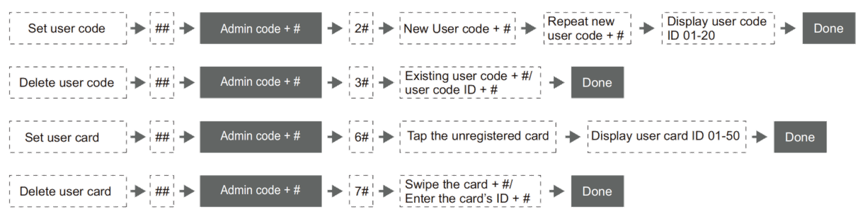
Add / Delete User Credential
Capacity | 20 PIN codes (6-8 digits) |
50 RFID cards |
Add / Delete Temporary Password
Capacity | 5 |

Network Settings

System Settings
Keypad Mode


Mute Mode

Auto-Lock Time

Away Mode

NOTE:
When Away mode is enabled, the door can be unlocked only using admin code, physical methods (mechanical key, internal thumbturn, internal unlock button) , and BelaHome app.
Add SL20 to the akubela System
Integrating the SL20 into your akubela system enables centralized management across all smart panels and mobile devices.
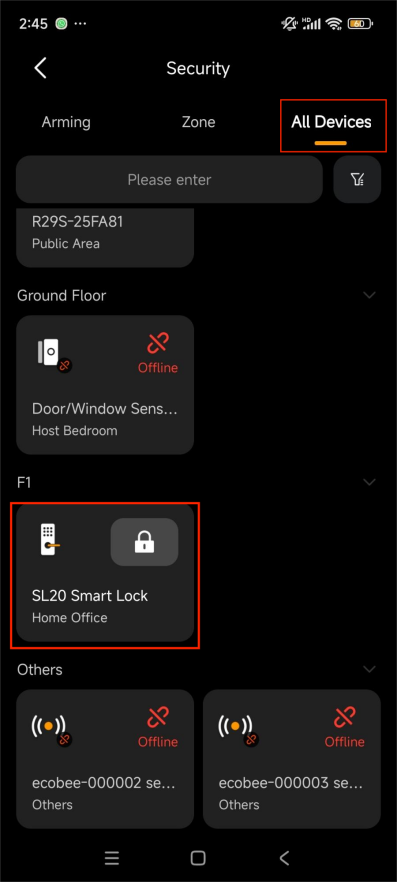
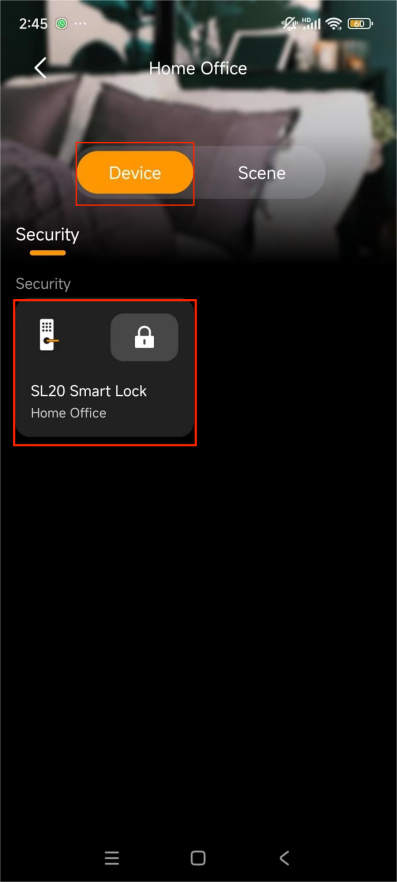
Once added, the lock is accessible via the following paths:
Category > Security > All Devices
Room > [specific room] > Device
Pair with HyPanels
You can pair the SL20 with an akubela HyPanel in your home using Bluetooth or AP hotspot mode.
Once paired, the lock can be controlled from both the HyPanel and the BelaHome app.
Add Via Bluetooth (Recommended)
Enable Bluetooth on your phone.
Connect your phone to a 2.4GHz Wi-Fi network.
Log in to the BelaHome app using the family administrator account.
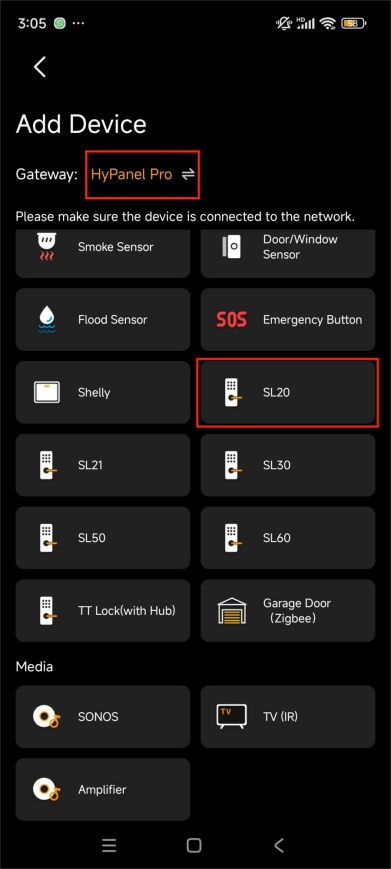
Go to Home > +, select the device to add the lock to, and tap SL20 from the below list.
Unlock the SL20 lock using any unlocking method.
On the lock keypad, press # #, enter the admin code(default:12345678), then press # .
Enter 87#. The number 2 on the keypad flashes, indicating that the lock has entered paring mode.
NOTE:
Pairing mode remains active for 2 minutes. During the countdown, the keypad numbers 2 and 1 flash in sequence to indicate the remaining pairing time.
Wait for the lock to be discovered in the app.
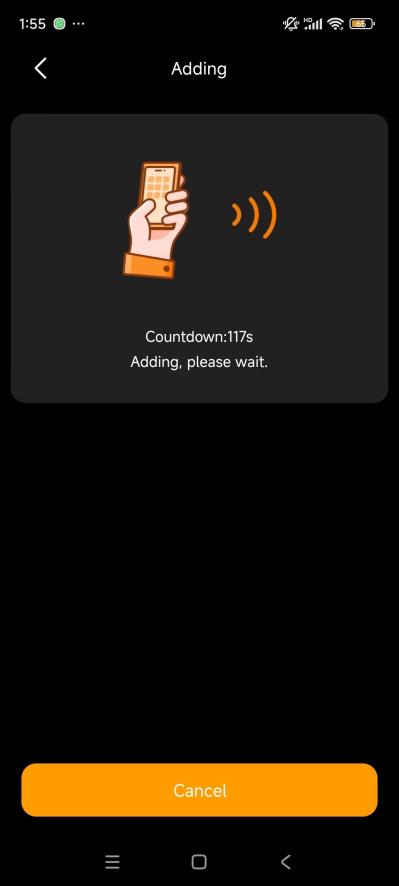
Select the same 2.4GHz Wi-Fi your phone is connected to and enter the Wi-Fi password. Tap Next Step.
TIP:
On iPhones, you may need to manually type in the Wi-Fi name.
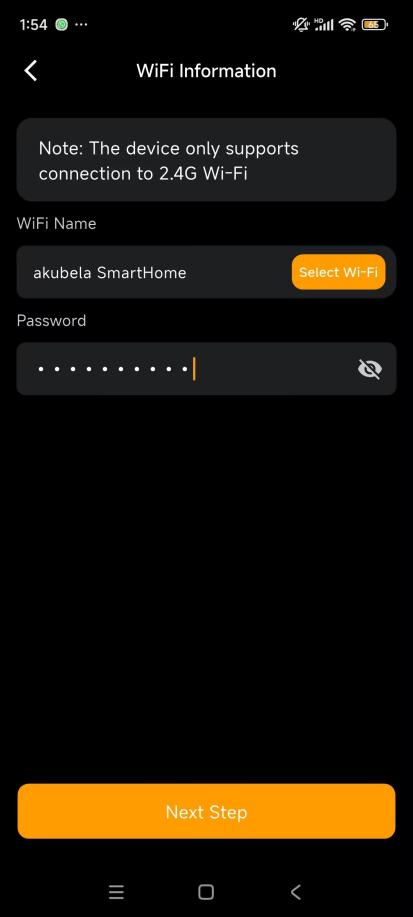
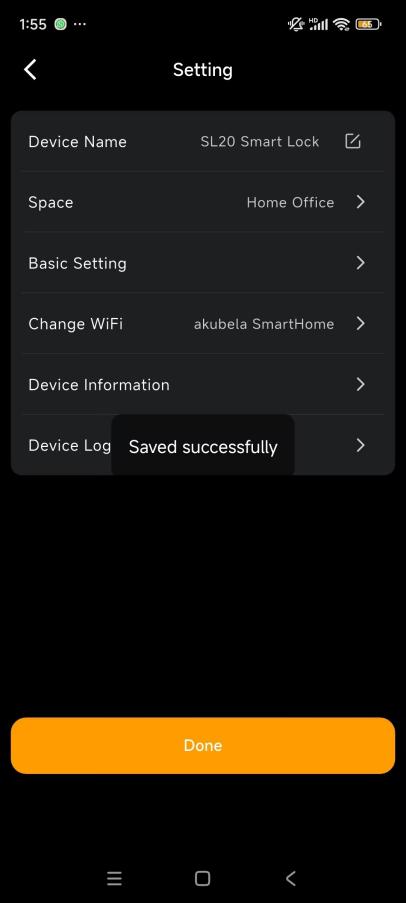
Wait for the device to finish pairing, then tap Done to complete setup.
Add Via AP Mode
If Bluetooth pairing fails, try adding the lock in AP (hotspot) mode.
On the failed screen, tap Try hotspot configuration.
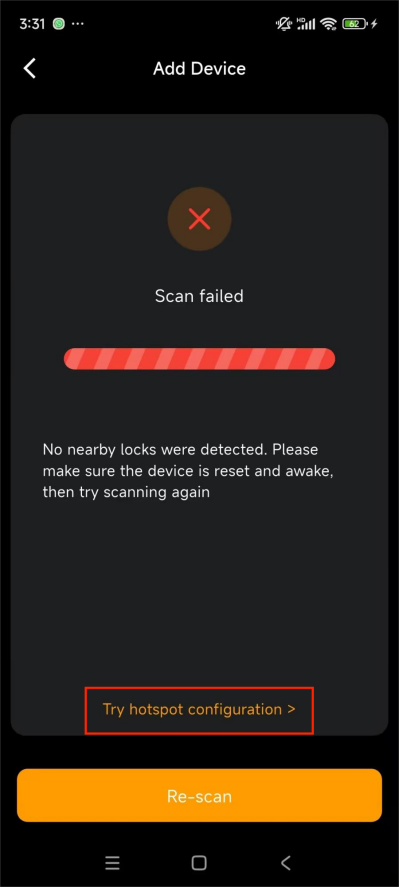
Put the lock back into pairing mode: Press ## > admin code(default:12345678) > # > 87#.
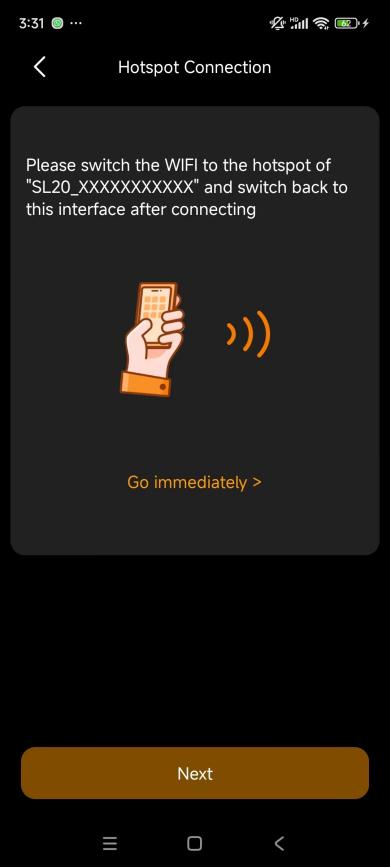
Tap Go immediately.
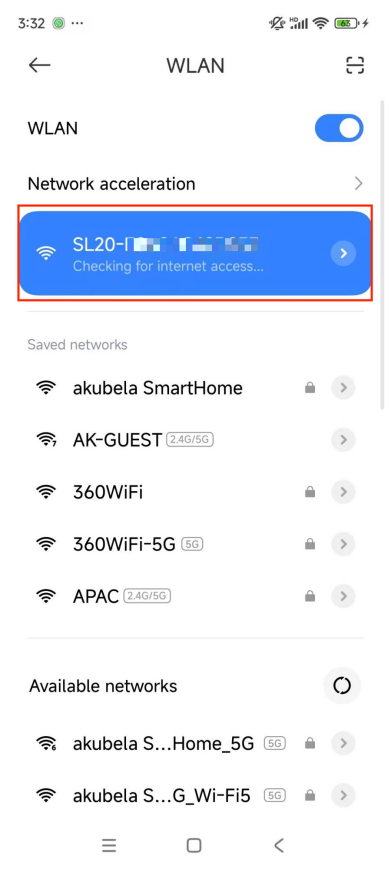
Connect your phone to the Wi-Fi hotspot named “SL20-xxxxxxxxxxxx(the lock’s MAC address), then return to the BelaHome app.
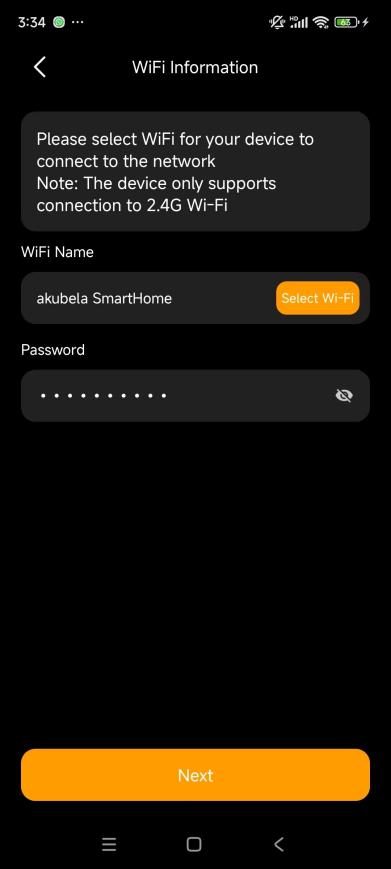
Select a 2.4GHz Wi-Fi network for the lock.
Wait for the device to be added, then tap Done to finish setup.
Standalone Operation
You can use the SL20 as a standalone device if there are no akubela panels in your home.
Log in to the BelaHome app.
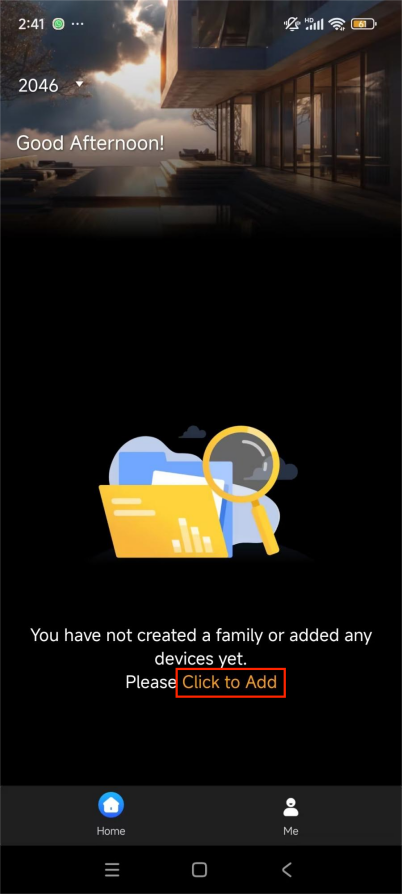
Tap Click to Add > SL20 > Next.
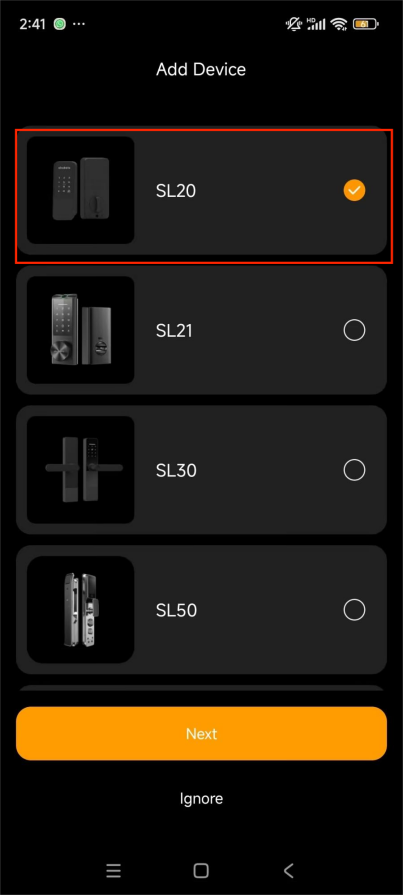
Put the lock back into pairing mode: Press ## > admin code(default:12345678) > # > 87#.
Follow the onscreen instructions to connect to a 2.4GHz Wi-Fi network, then complete the setup.
Remove SL20 from the akubela System
The SL20 can be removed from the system through the app, the panel, or the user web portal.
Method 1: Via the BelaHome App
Go to [SL20 device card] >
 > Unbind Device.
Method 2: Via akubela Panels (When paired with an akubela Panel)
Large screen panels: Go to Security > [SL20 device card] >
 > Delete.
Small screen panels: Swipe down from top of any screen, then tap
 > Device Management > SL20 Smart Lock >
 > Delete.
Method 3: Via User Web Portal (When Paired with an akubela Panel).
Enter the IP address of the home center device in a web browser.
Log in using the family administrator account.
Go to Devices > [SL20 device card] > Delete > Confirm.