Program the Lock
For manual configuration, use the keypad commands below.
TIP:
The default admin code is 123456.
Press * to cancel or return, and # to confirm.
Access Management Settings Menu
Wake the keypad.
Press * #, enter the admin credential, then press #.
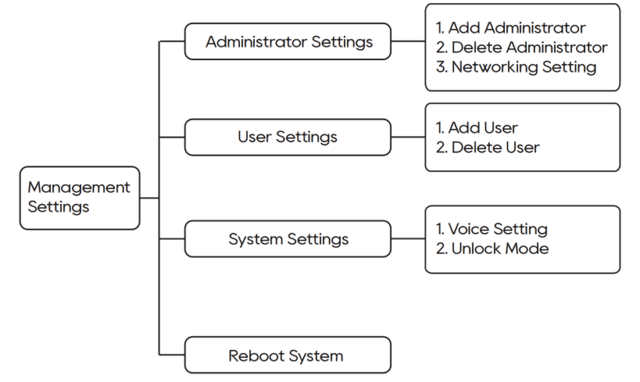
Customize System Language
The Language can only be set while the lock is in its initial state - before the administrator has been added (i.e., after a reset or at first installation).
Enter the corresponding number.
Press # to change the language.
Number | Language |
555666880 | Chinese |
555666881 | English |
555666882 | Vietnamese |
555666883 | Portuguese |
555666884 | Arabic |
555666885 | Russian |
555666886 | Thai |
555666887 | Spanish |
555666888 | Indonesian |
Add Admin / User Credential
Add Fingerprint
Press *# + admin credentials + #.
Select Administrator settings or User settings.
Select Add Administrator or Add user.
Scan your fingerprint several times.
Add Password
Press *# + admin credentials + #.
Select Administrator settings or User settings.
Select Add Administrator or Add user.
Enter a new 6-8 digits password and #.
Enter the new password again and #.
Add Card
Press *# + admin credentials + #.
Select Administrator settings or User settings.
Select Add Administrator or Add user.
Place a card against the card reader icon.
Delete User Credential


Set Voice / Unlock Mode


TIP:
Combination Unlock is the two-factor authentication which requires at least two different credential types to be registered.
Network Settings

Reboot System

Add SL30 to the akubela System
Integrating the SL30 into your akubela system enables centralized management across all smart panels and mobile devices.
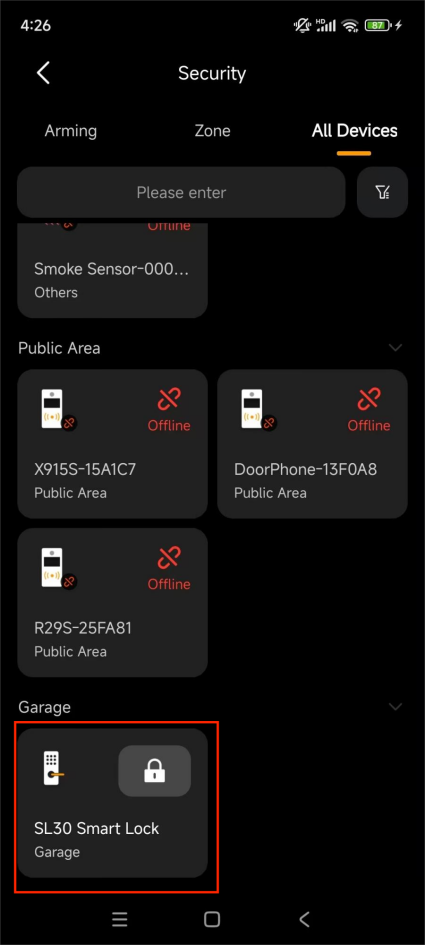
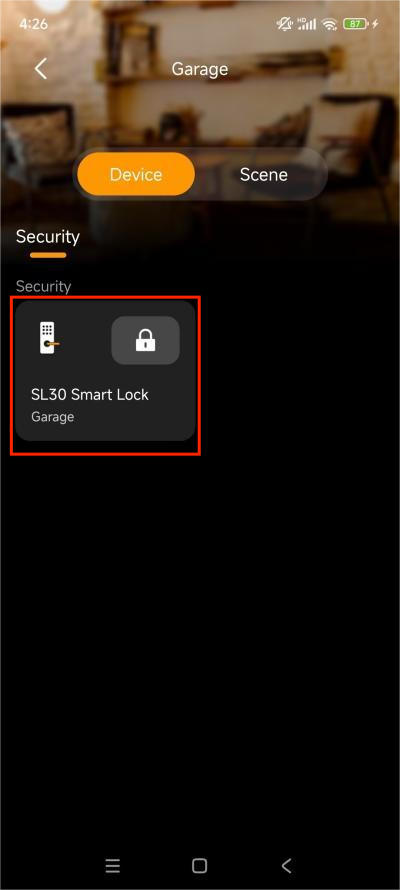
Once added, the lock is accessible via the following paths:
Category > Security > All Devices
Room > [specific room] > Device
Pair with HyPanels
For the most stable connection, it is recommended to use the QR Code or Bluetooth pairing. Use AP hotspot mode when the Bluetooth pairing fails.
Refer to this video for detailed instructions.
Once paired, the lock can be controlled from both the HyPanel and the BelaHome app.
Standalone Operation
If no akubela panel is available, the SL30 can be used as a standalone device. Refer to this video(from 2:07) for detailed instructions.
Once added, the lock can be controlled from the BelaHome app.
Remove SL30 from the akubela System
The SL30 can be removed from the system through the app, the physical hardware, or the user web portal.
Method 1: Via the BelaHome App
Go to [SL30 device card] >
 > Unbind Device.
Method 2: Hardware Factory Reset
Remove the internal battery cover.
Use a pin to hold the Reset button.
When prompted by the voice, tap the # key on the exterior keypad.
Method 3: Via akubela Panels (When Paired with an akubela Panel)
Large Screen Panels: Go to Security > [SL30 Device Card] >
 > Delete.
Small Screen Panels: Swipe down from top of any screen, then tap
 > Device Management > SL30 Smart Lock >
  > Delete.
Method 4: Via User Web Portal (When Paired with an akubela Panel)
Enter the IP address of your home center into a web browser.
Log in with the family administrator account.
Go to Devices > [SL30 Device Card] > Delete > Confirm.