Call Auto-answer
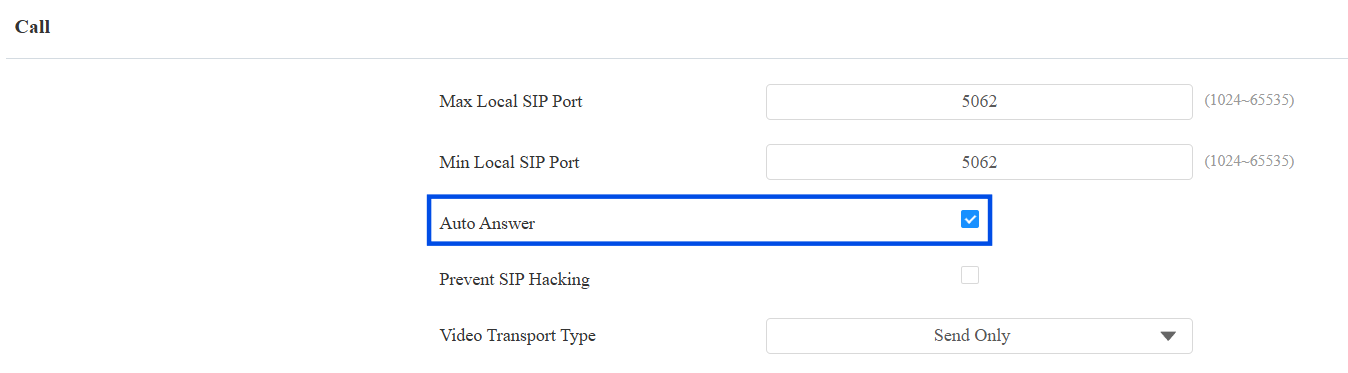
Auto-answer feature allows the device to automatically pick up incoming calls without any manual intervention. You can also customize this feature by setting the time duration for auto-answering and choosing the communication mode between audio and video.
To enable the call auto-answer feature, go to the Intercom > Account interface.
To set it up, go to the Intercom > Call Feature > Auto Answer interface.
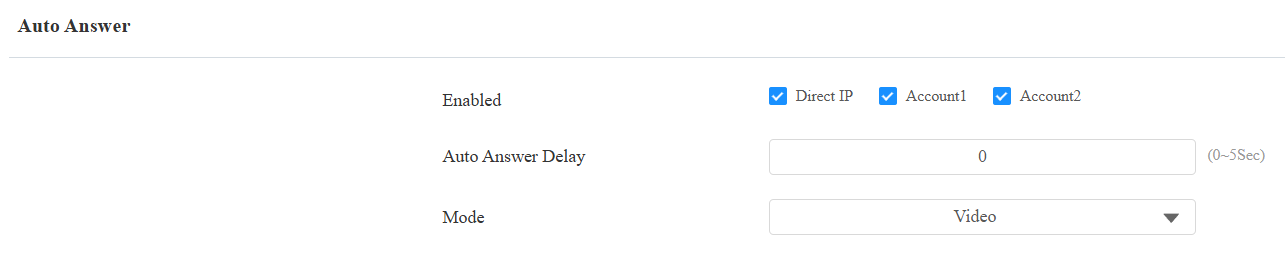
Auto Answer Delay: Set the time interval for the call to be automatically picked up after ringing. For example, if you set the delay time to 5 seconds, the device will answer the call automatically after 5 seconds.
Mode: Determine whether to auto-answer the call as a video or audio call.
Group Call
This feature allows users to call a group of contacts by a single press. The device supports local and SmartPlus-featured group calls. To learn about the detailed configuration, please click here.
To set it up, go to the Intercom > Call Feature interface.
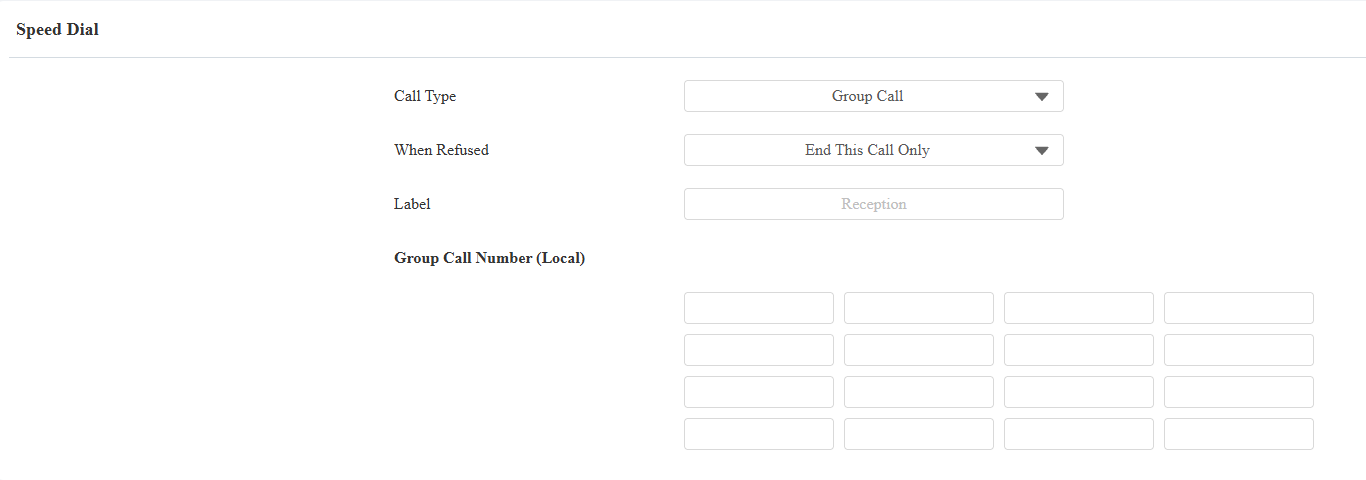
Call Type: Select Group Call.
When Refused:
End All Calls: The device will stop calling.
End This Call Only: The device will continue to call the next number.
Label: The text displayed on the device screen when the device calls the destination numbers. The default is “Reception”.
Group Call Number(Local): Enter the target numbers.
Sequence Call
Sequence Call is a feature that allows you to dial a group of numbers in a predefined order until one of them answers. This feature is supported by Akuvox SmartPlus, which provides a set of sequence call numbers for the application. Please click here for the detailed configuration.
You can also set up the local sequence call numbers on the Intercom > Call Feature interface.
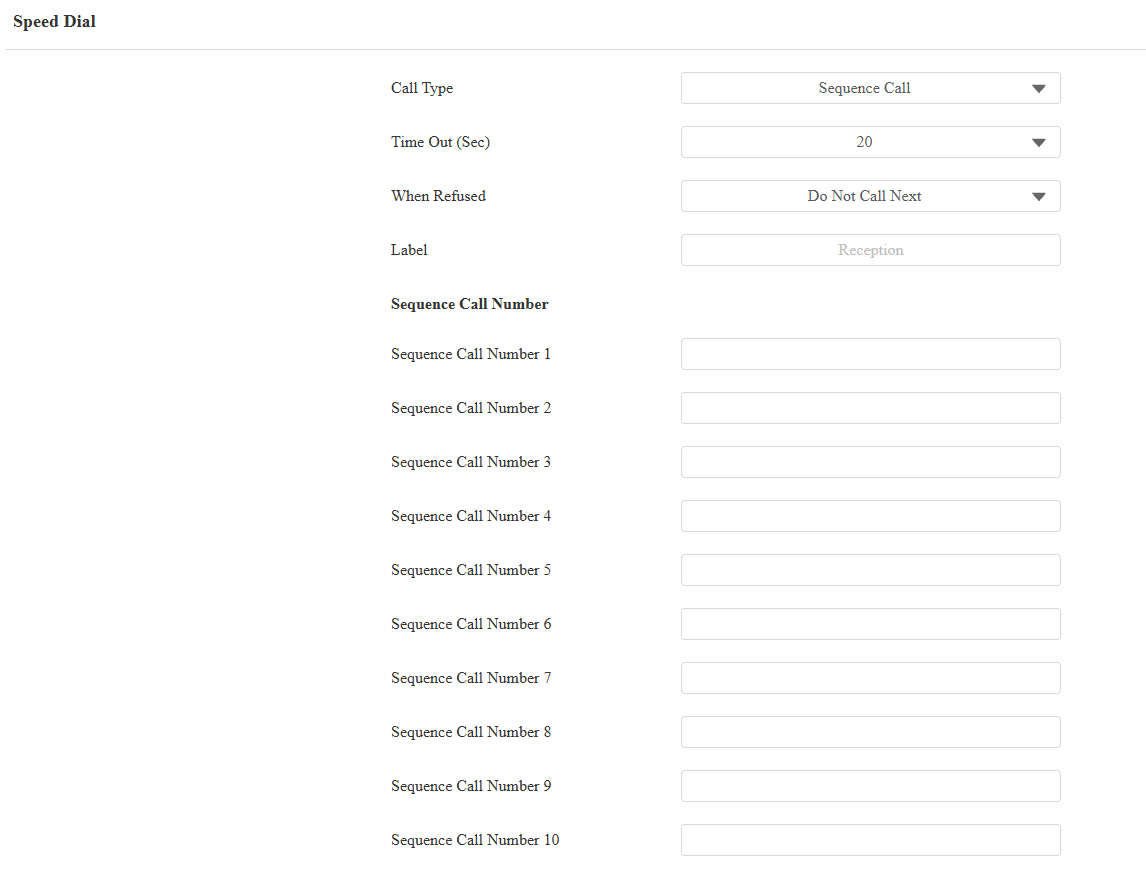
Call Type: Select Sequence Call.
Timeout(Sec): Determine the duration before calling the next number when the previous call is not answered.
When Refused: Determine whether to call the next if a call was rejected by the previously called party.
Do Not Call Next: The sequence call will stop when the call is refused.
Call Next: The device will call the next number in order when the call is refused.
Label: The text displayed on the device screen when the device calls the destination numbers. The default is “Reception”.
Sequence Call Number: Enter the target numbers.
Maximum Dial Duration
Maximum Dial Duration is the time limit for incoming and/or outgoing calls on the device. If configured, the device will automatically terminate the call if no one answers the call within the preset time, whether it is incoming or outgoing.
To set it up, go to the Intercom > Call Feature > Max Dial Time interface.

Max SIP/IP Dial In Time: Specify the maximum duration of an incoming call. The device will automatically end the incoming call if it is not answered within the preset time.
Max SIP/IP Dial Out Time: Specify the maximum duration of an outgoing call. The device will automatically end the call it dialed out if there is no answer from the recipient within the preset time.
Note
The max dial time is affected by the SIP server’s max dial time when users make SIP calls. The max call time should not exceed the dial duration of SIP server.
Maximum Call Duration
The device allows you to set up the call time duration for receiving the call from the calling device, as the caller side might forget to hang up the intercom device. When the call time duration is reached, the device will terminate the call automatically.
To set it up, go to the Intercom > Call Feature > Max Call Time interface.

Max SIP/IP Call Time: Specify the maximum duration of all calls. The device will end the call automatically when the time limit is reached.
Note
The max call time is affected by the SIP server’s max call time when users make SIP calls. The max call time should not exceed the call duration of SIP server.
Hang up After Opening Doors
This feature automatically ends the call once the door is released, allowing for the seamless reception of subsequent calls.
To set it up, go to the Intercom > Call Feature > Hang Up After Open Door interface.

Type: Specify the door-opening method. If this specific method is used to release the door during a call, the device will end the call when the preset hang-up time is reached.
Timeout(Sec): Specify the hang-up time limit. The device will automatically terminate the call when the specific time is reached after the door is opened.
Video Transport Type
You can select the video transport type for SIP call preview on the Intercom > Account interface. The setting does not apply to IP calls.
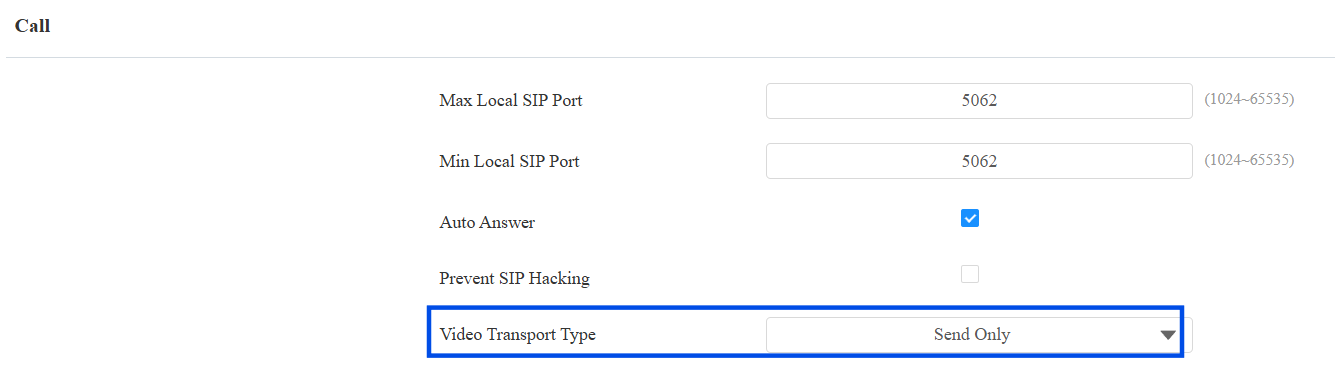
Video Transport Type: It is Send Only by default.
Inactive: Disable the function.
Send Only: The device sends the video stream to the other party.
Receive Only: The device only receives the video stream from the other party.
Send and Receive: The device can send and receive video streams to and from the other party.