During installation or troubleshooting, check the Zigbee signal strength to confirm proper device placement and maintain reliable system performance.
What You Should Know
Supported HyPanel models and firmware versions
Model | Firmware |
HyPanel (PS51) | 51.1.40.42 and later |
HyPanel Plus (PS52) | 52.1.40.19 and later |
HyPanel KeyPlus (KS53) | 53.1.40.17 and later |
HyPanel Pro (PG71) | 71.1.40.43 and later |
HyPanel Ultra (PH81) | 281.1.40.33 and later |
HyPanel Supreme (PHX1) | 1001.1.40.26 and later |
SmartPanel (X933H) | 933.1.40.12 and later |
SmartPanel Elite 10 (PH58) | 119.1.40.13 and later |
Supported Zigbee devices
Only Zigbee devices that are directly powered by the mains (AC) or connected to live wiring are supported.
Battery-powered Zigbee devices are not supported for signal diagnostics.
Check Zigbee Signal
Log in to the web portal. Choose one of the following login methods:
Local login (same network as the HyPanel):
Enter the home center device IP address in a browser, then log in with your username and password (default credentials: admin/admin)
Remote login:
Visit https://my.akubela.com/#/login, then log in using the family administrator account or a temporary maintenance account.
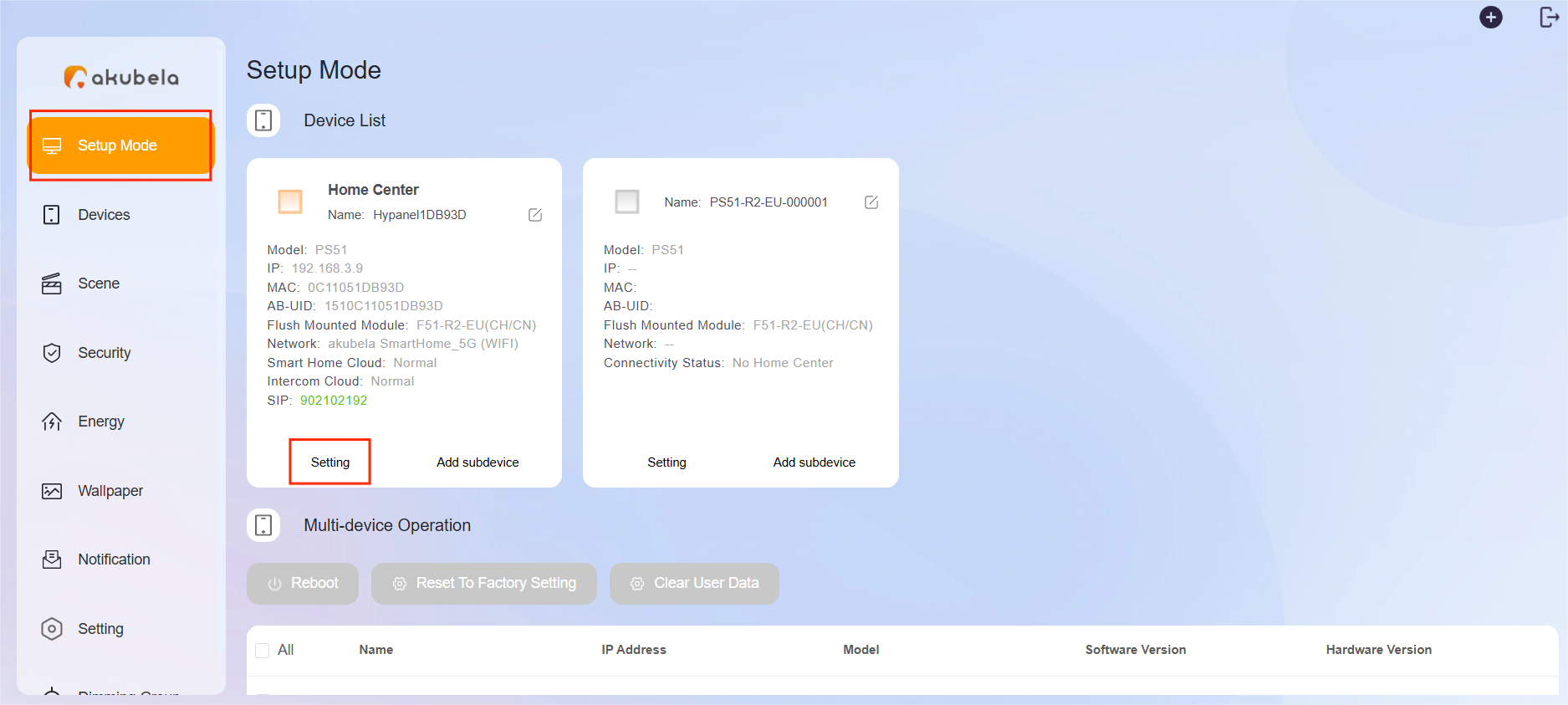
Find the panel to which the Zigbee device is connected, then click Setting.
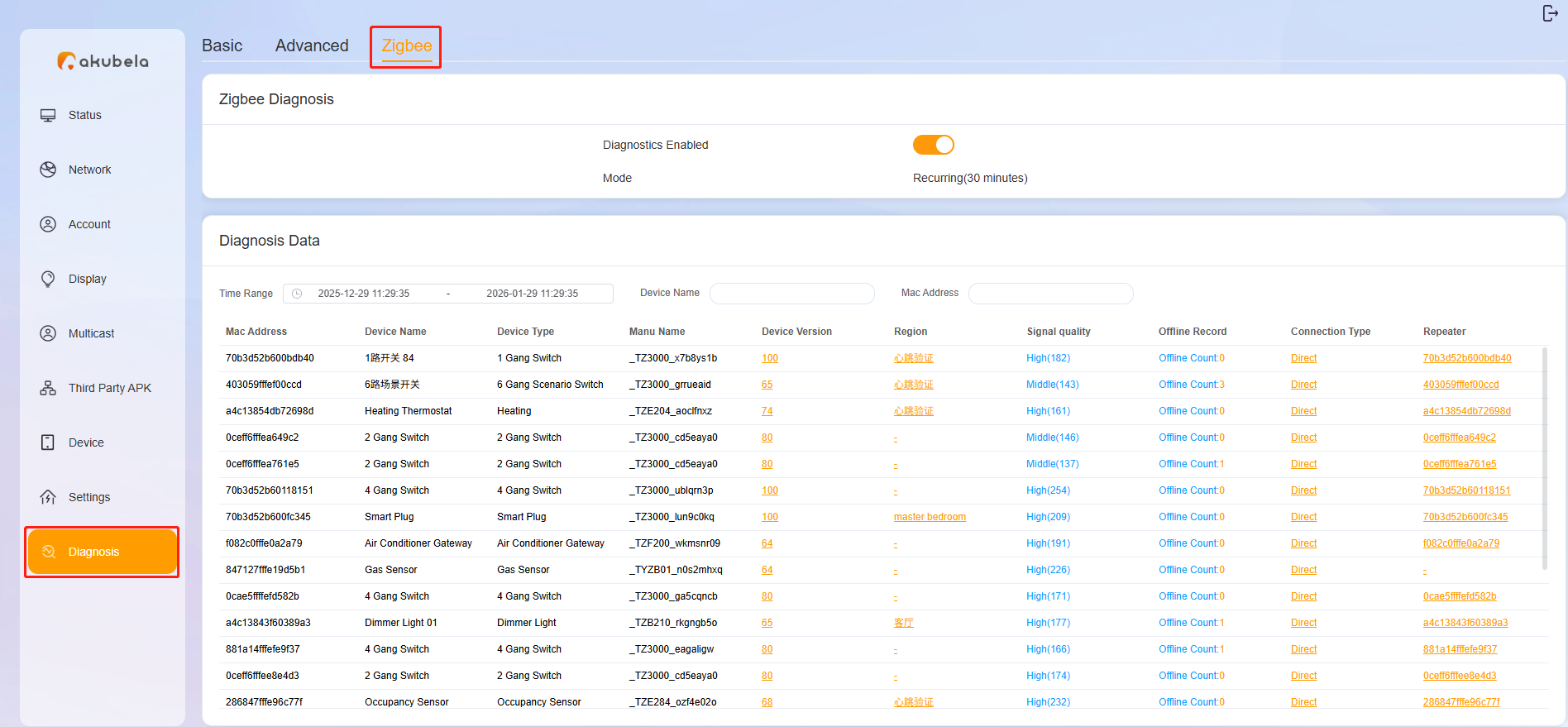
Go to Diagnosis > Zigbee, then toggle on Diagnostics Enabled.
NOTE:
This page displays only Zigbee devices added to the selected panel(gateway).
A gateway supports up to 128 Zigbee sub-devices.
Signal records and offline records are stored up to 2000 entries.
The system performs automatic detection every 2 hours.
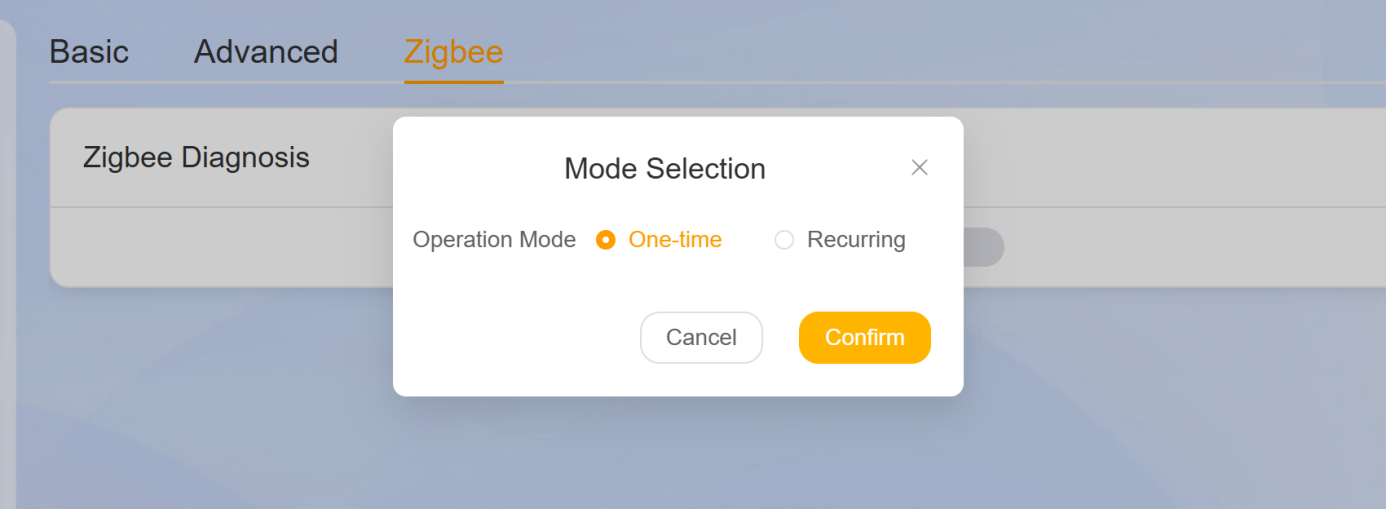
Choose one of the following modes:
One-time: Runs a 5-minute diagnosis. The system retrieves signal strength once per minute. Diagnosis automatically ends after 5 minutes.
Recurring: Starts a 5-minute diagnosis every X minutes. During each 5-minute session, signal strength is retrieved once per minute. Each session stops automatically after 5 minutes.
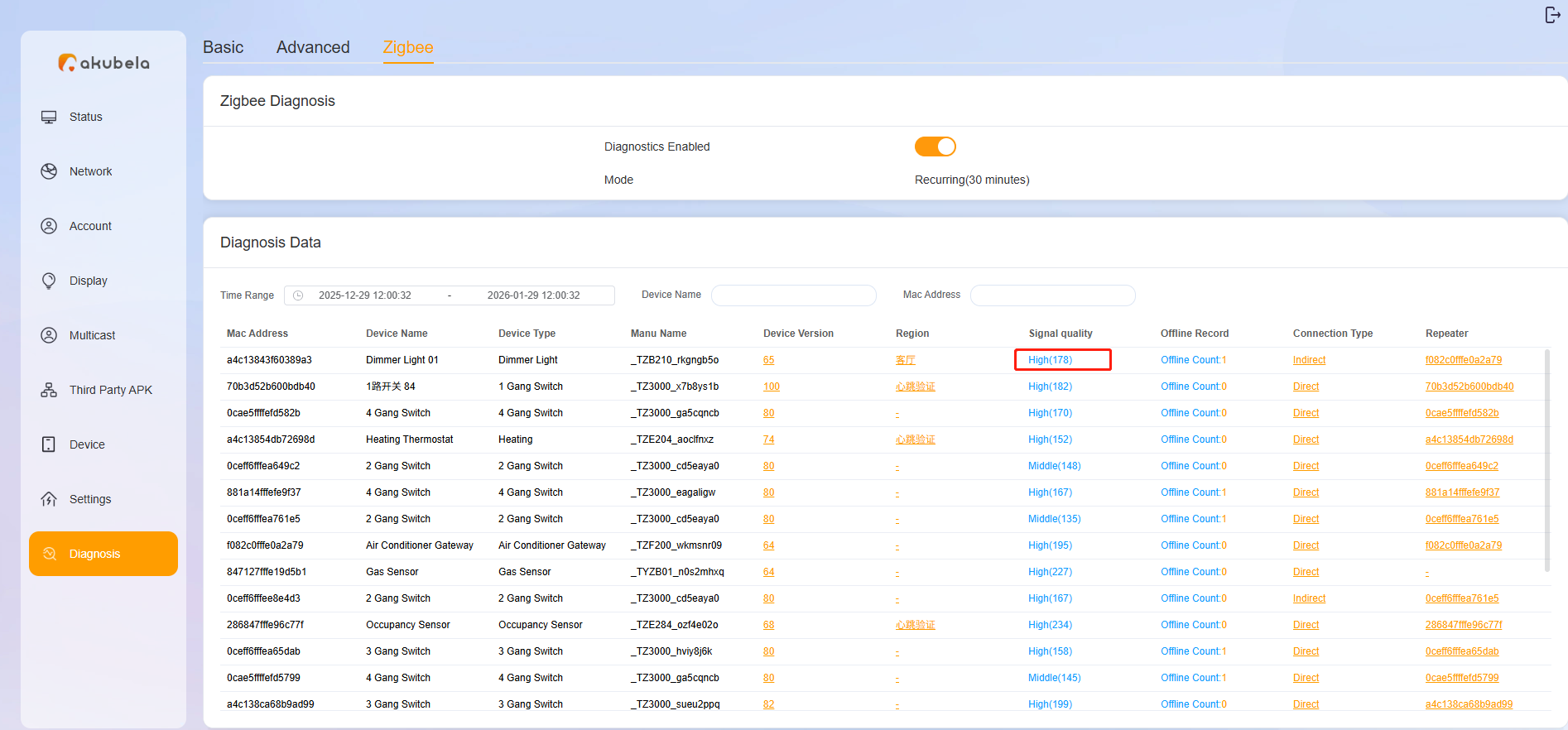
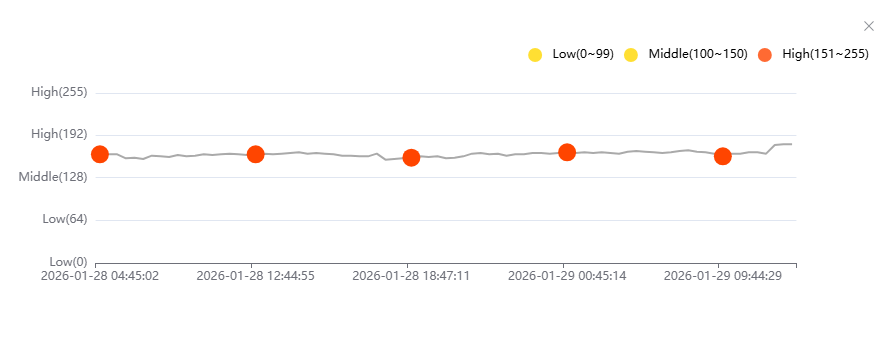
Review the LQI (Link Quality Indicator) value.
NOTE:
If the device is connected through a repeater, the displayed signal quality represents the signal strength between the gateway and the repeater, not between the gateway and the end device.
TIP:
If LQI < 120, consider adding a sub-gateway or adjusting the Zigbee device location.
See the Signal Quality (LQI) reference below:
LQI Value
Signal
Description
> 120
Good
Signal is strong; location is suitable.
60~120
Normal
Signal may be delayed or have data loss; consider adding a sub-gateway or relocating the device.
< 60
Bad
Signal is weak; adding a sub-gateway or relocating the device.
Additional Information
Check device connection path
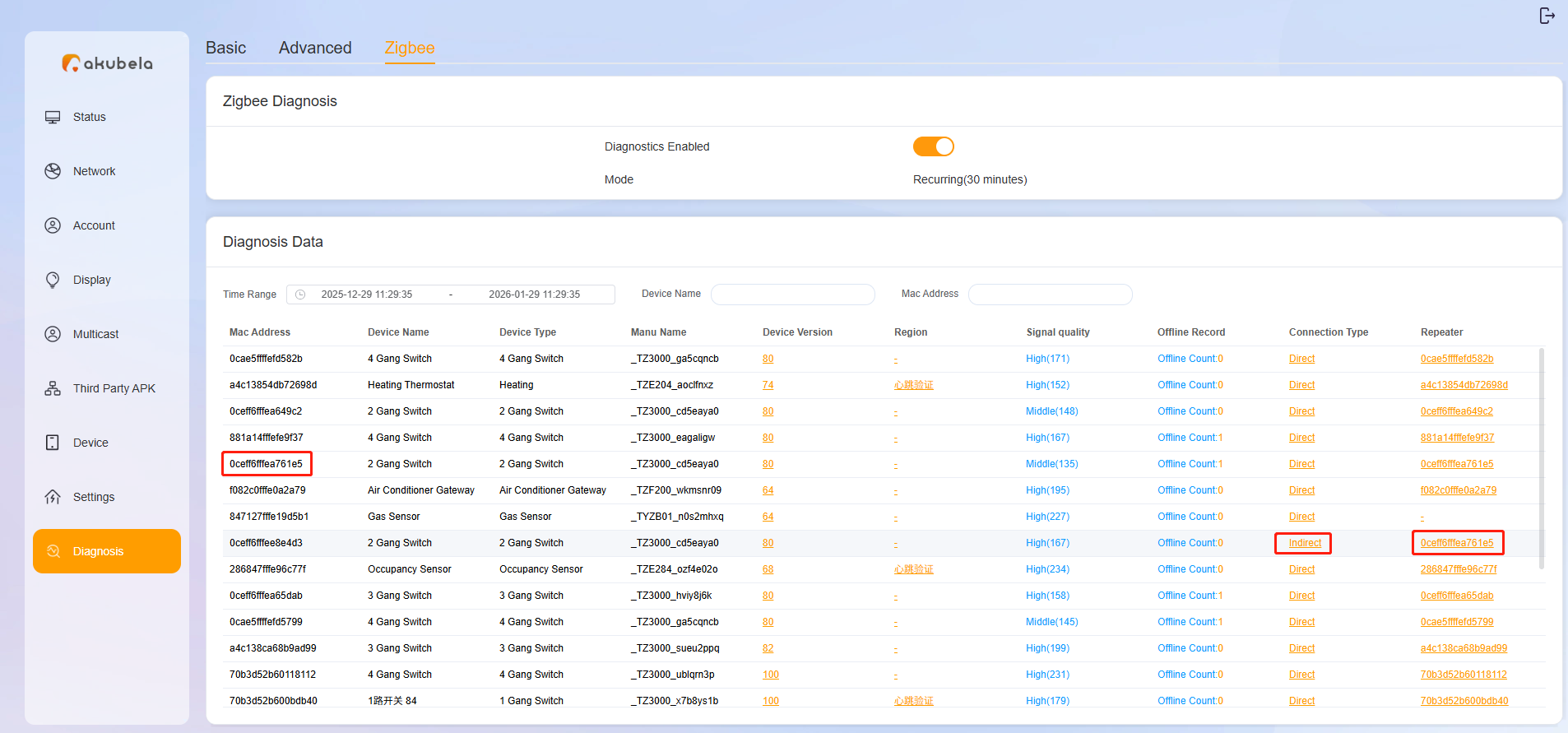
To determine whether the device connects directly or through a repeater:
Check the Connection Type :
Direct: Device connects directly to the gateway.
Indirect: Device connects through a repeater.
If Indirect, check the Repeater column:
Note the repeater’s MAC address.
Match it with the MAC address column to identify the repeater device.
Check Offline Records
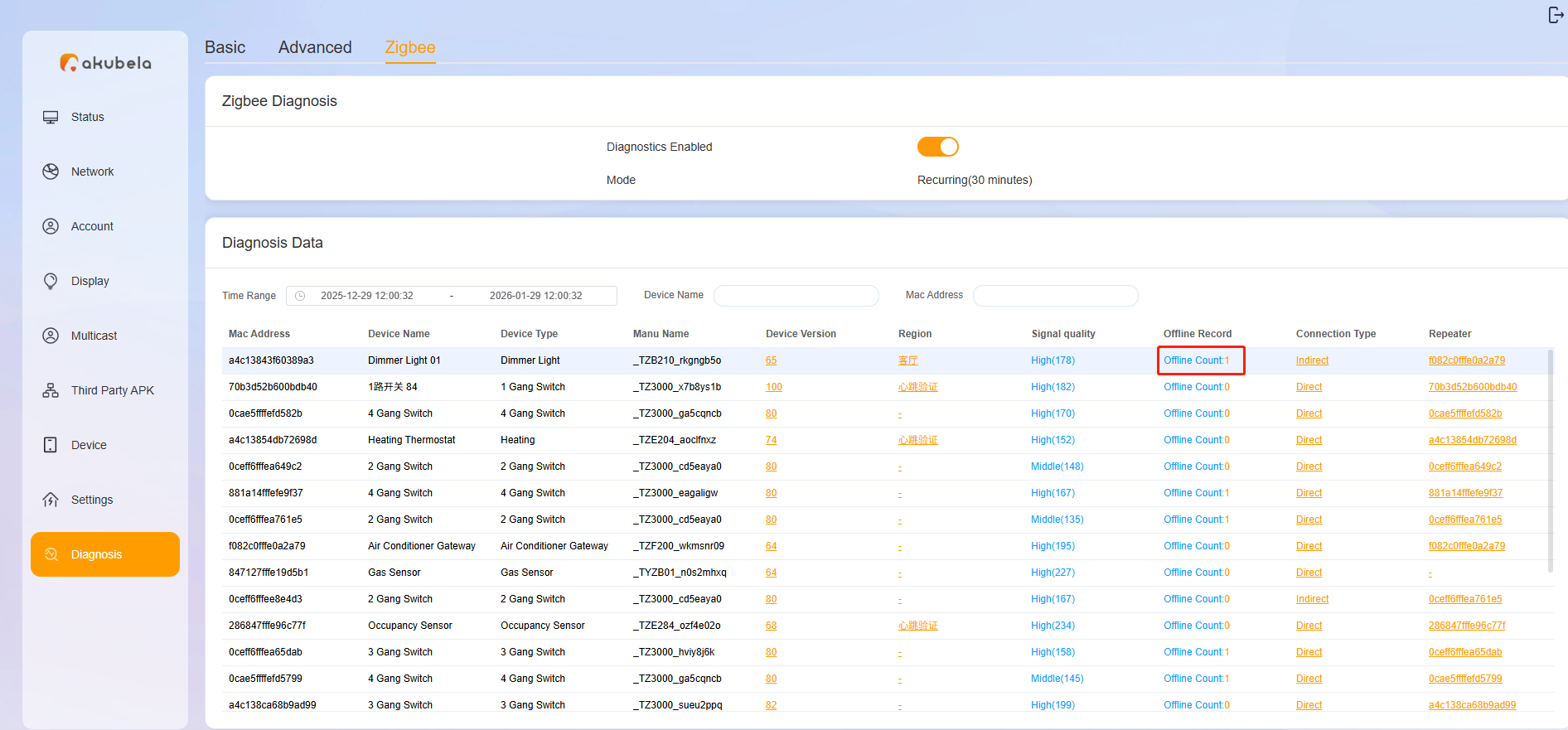
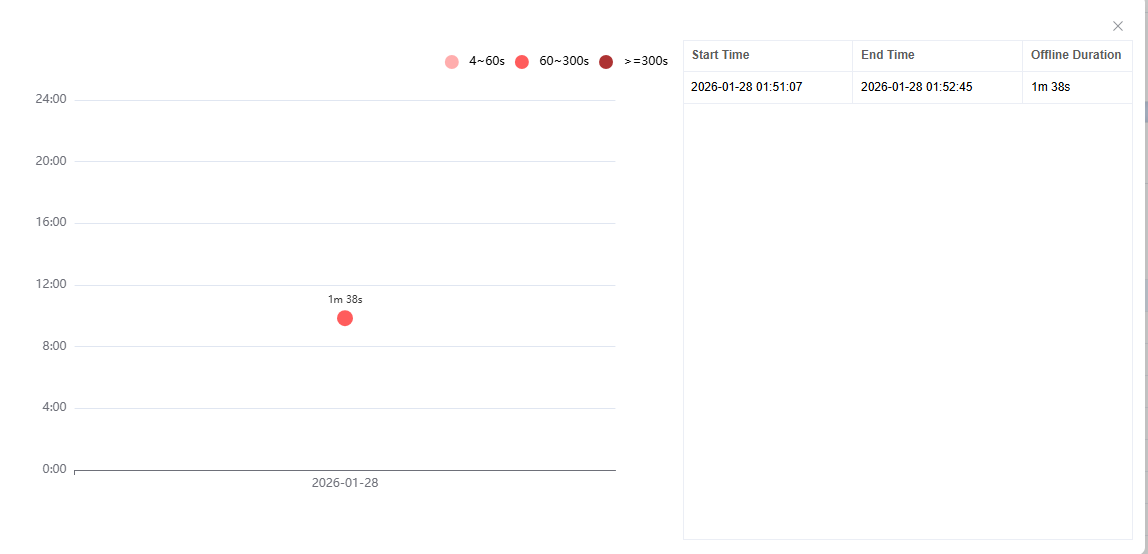
View the Offline Record column, and click to see historical offline time and duration.
TIP:
If a Zigbee device goes offline and the issue cannot be resolved, do as the following:
Record the offline time and duration.
Provide the time and system logs information to the akubela technical support. See this guide for detailed instructions.